Install Chrome on Windows
Download Chrome from Google, install it, and know when you are finished.
Step 3 of 11 in Get your computer ready first (Path 01)
Use a Windows computer on which you are allowed to install Chrome. If your employer provides a software portal, use that route or ask IT.
First we need a browser. Yes, there is already a browser. This is the part where one browser helps us obtain another and tries not to take it personally.
Before you start
Use a Windows computer on which you are allowed to install Chrome. If your employer provides a software portal, use that route or ask IT. If Chrome is already installed, open it and move to Lesson 4.
1. Find the official download
The example searches for chrome download in Edge. Microsoft takes one more chance to suggest Edge, right at the top. Polite of them. Keep going to Google’s Chrome result. Check that the destination is Google’s site. You can also go directly to google.com/chrome and avoid the search-result detour.
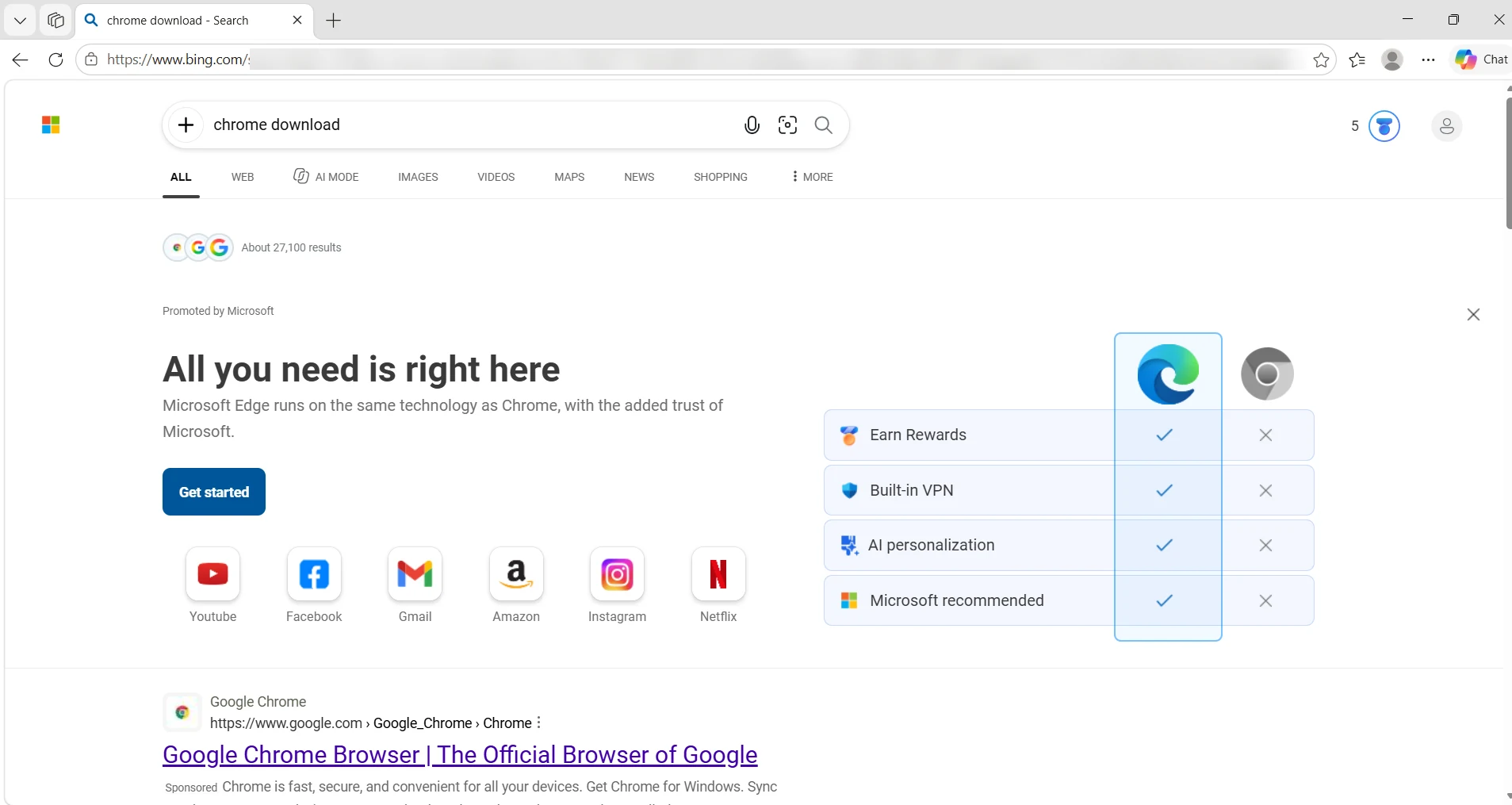
Search results with an Edge promotion above Google Chrome.
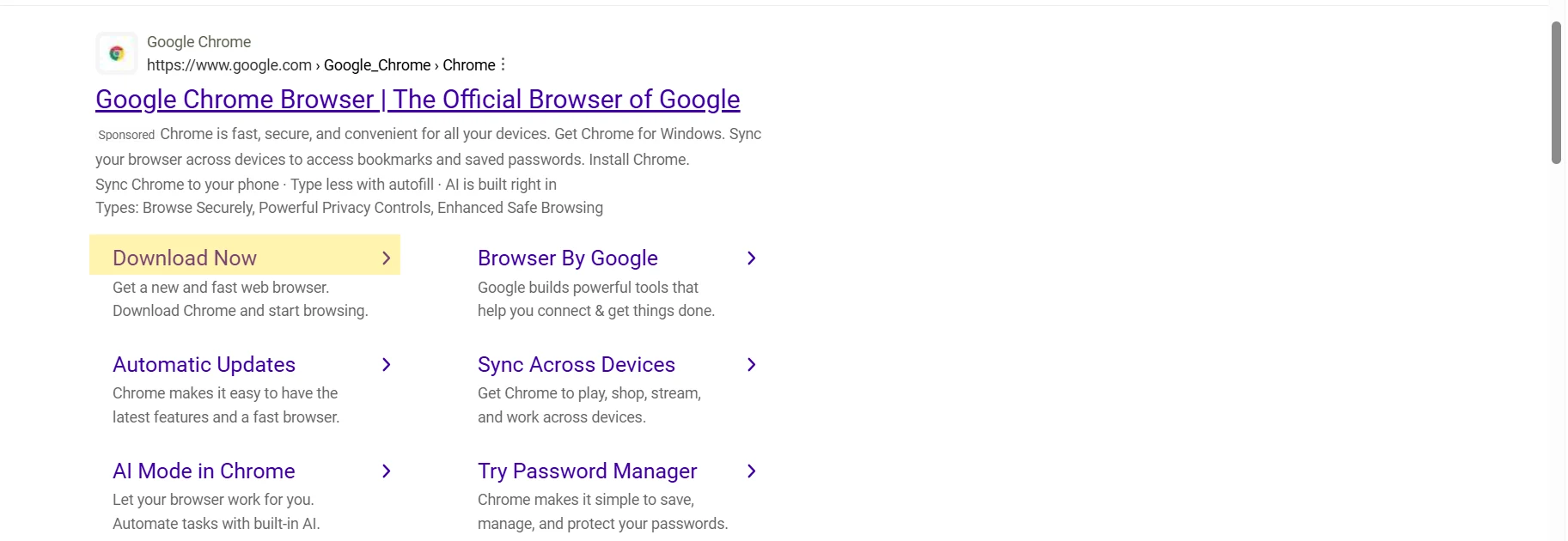
Official Google Chrome search result and download link.
2. Download Chrome
On Google’s page, choose Download Chrome. Review the optional usage-statistics checkbox and terms rather than assuming the highlighted setting is compulsory. Highlighted is not the same as required. Once the download completes, the browser lists the installer.
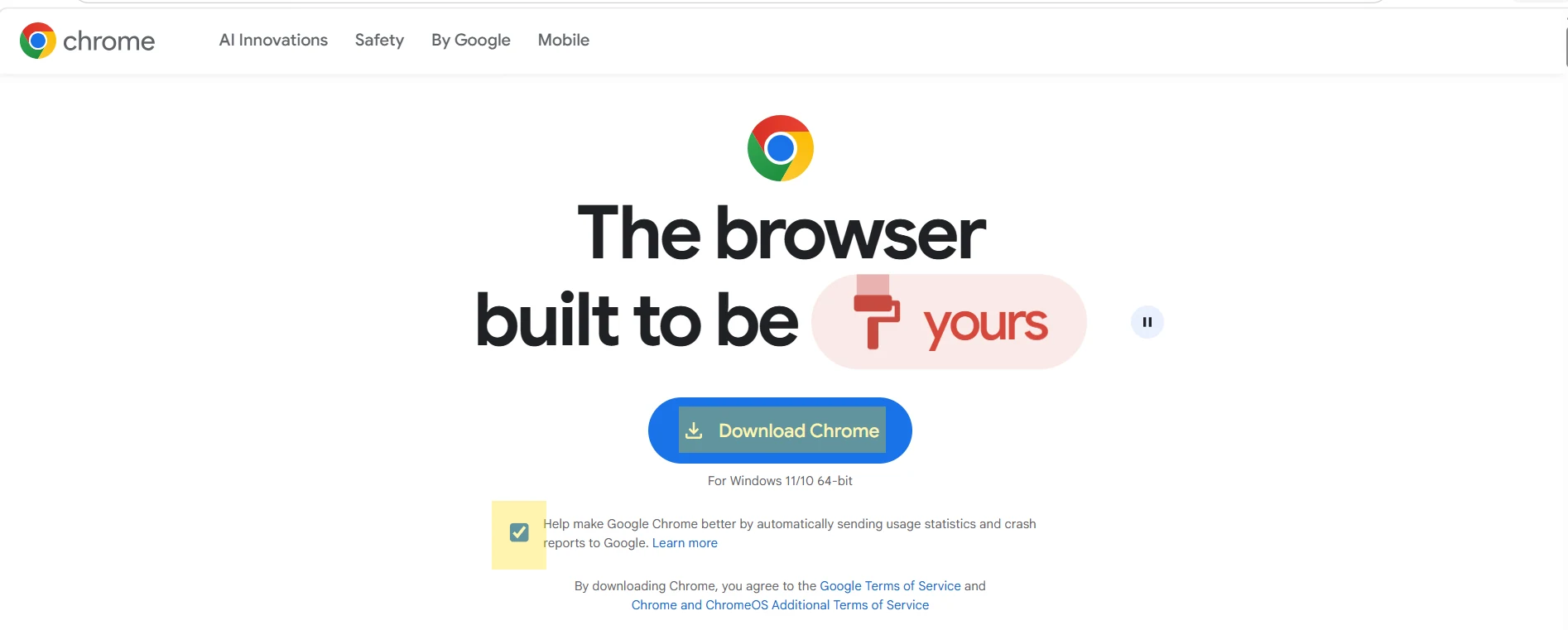
Google Chrome download page.
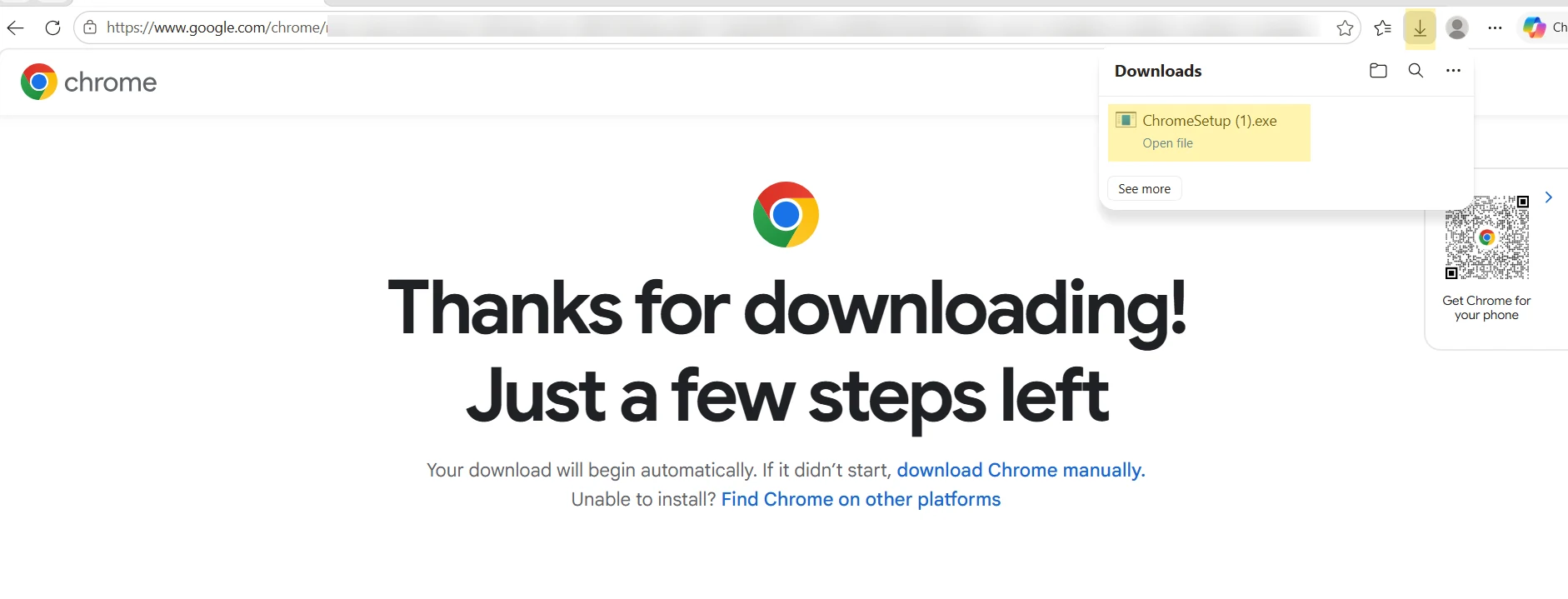
Download confirmation and Chrome installer in Downloads.
3. Find and open the installer
If the download panel disappeared, which it tends to do the moment you look away, open Edge’s three-dot menu and select Downloads. Choose Open file under the Chrome installer. The “(1)” in this example’s filename just distinguishes a repeated download; yours may not have it.
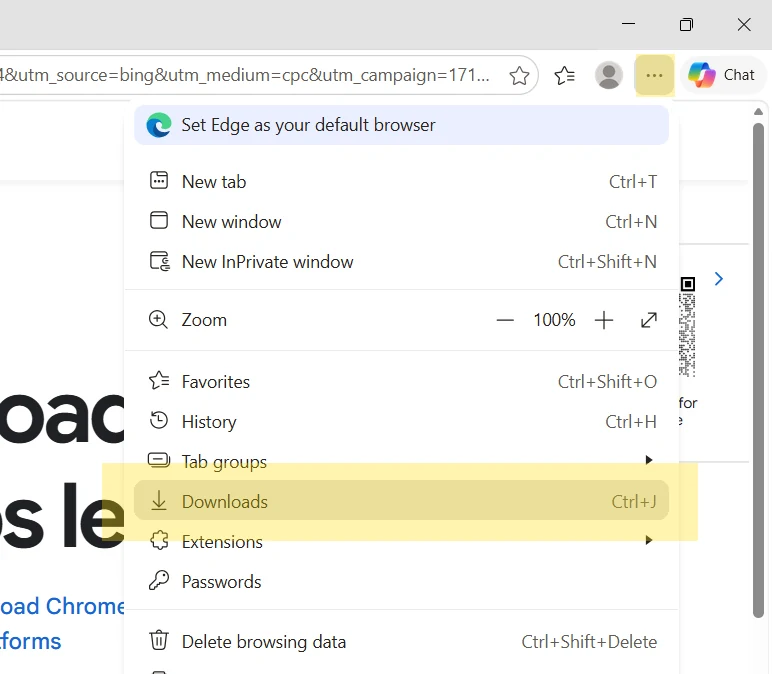
Edge menu with Downloads highlighted.
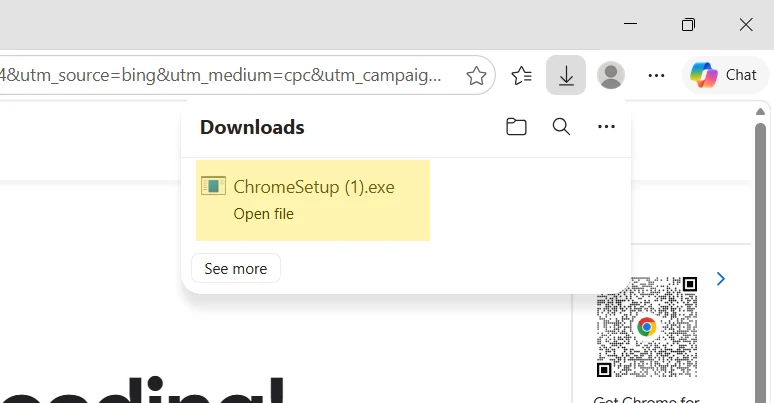
Chrome installer with Open file.
4. Allow the intended installation
Windows may ask whether the installer can make changes. Check that this is the Chrome installer you just downloaded and that the verified publisher is Google LLC. If installation is permitted on this computer, choose Yes. If it requires an administrator you do not have, ask IT. Let the installer finish; it does not need supervision.
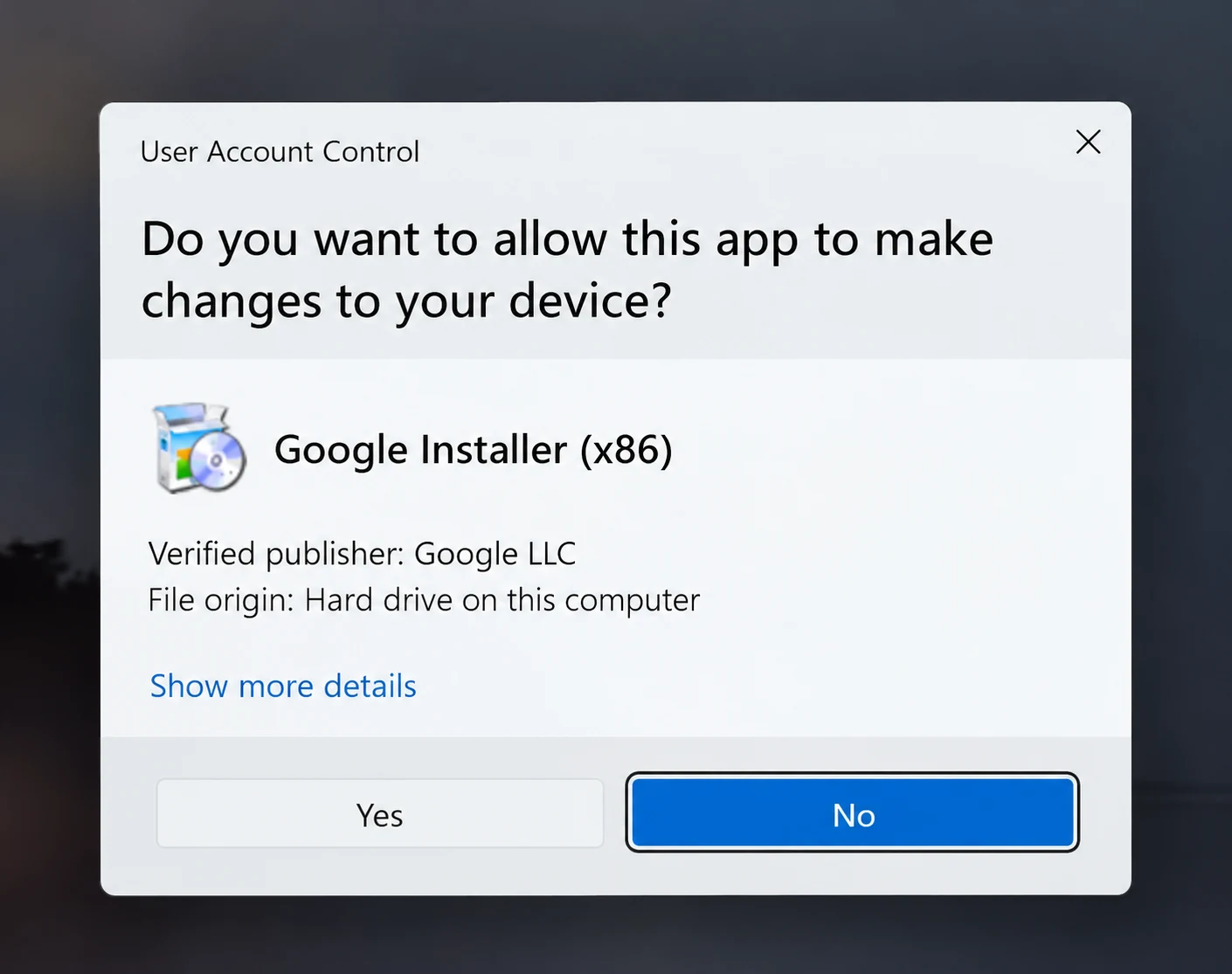
Windows permission prompt for Google Installer, verified publisher Google LLC.
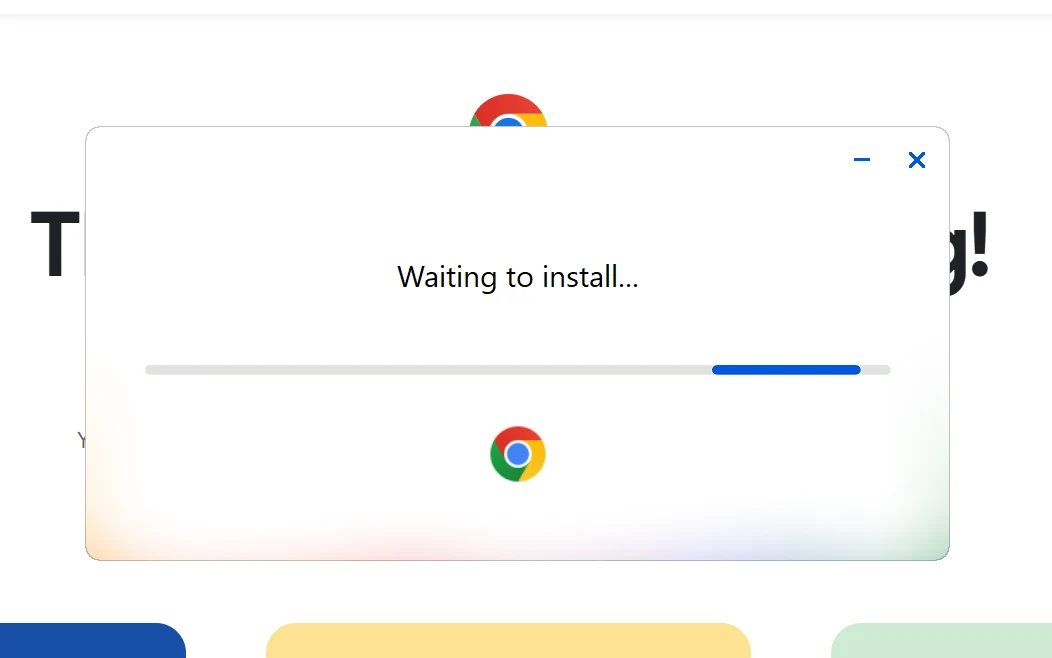
Chrome installation progress.
5. Open Chrome
The final image shows Chrome open. Look for its round red, yellow, green and blue icon when you want it again. We have successfully used a browser to get a browser. Onward.
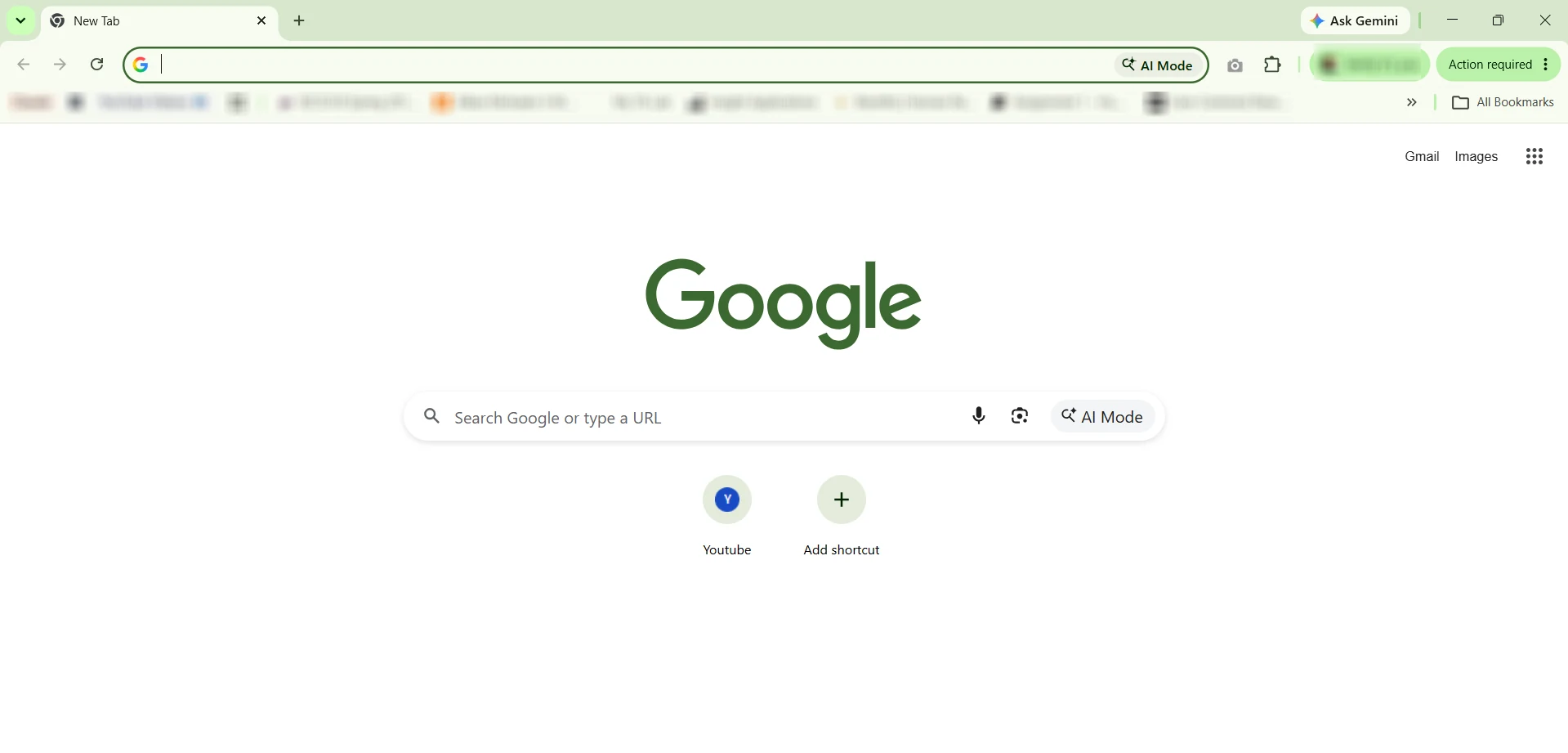
Chrome new tab after installation.
Check that it worked
Chrome opens to a new tab, as shown in the final image. That confirms the app launches. The profile and bookmarks in the example may already belong to an existing setup; do not expect them on a completely fresh install.
Edge is still on your computer, by the way. It isn’t going anywhere, and it may bring that up from time to time.
Let’s learn together.
Comments are reviewed by Ana before they appear. Please use fictional examples and leave workplace details out.
Loading approved comments…