Teach Gemini a trick once: skills
Save your favorite instructions as a Gemini skill, call it with @, check what it writes, and see the work version in Gemini Enterprise.
Step 8 of 8 in One tool, one small job at a time (Path 02)
Google says you need to be 18 or over, signed in, with Keep Activity on. No subscription needed.
If you’ve typed “make this sound professional” into Gemini more than twice this week, this one’s for you. A skill is a set of instructions you write once and save. After that, you call it by name and Gemini follows the same rules every time. Your favorite prompt can retire from its sticky note.
We’ll make a skill that turns rough notes into a short work email, try it on a small office crisis, then change it or switch it off. At the end: the work version, Gemini Enterprise agents.
Before you start
Heads up: these screenshots use a personal Google account on the regular Gemini at gemini.google.com. Google says you need to be 18 or over, signed in, with Keep Activity on. No subscription needed. At work, it depends:
- Gemini with a work Google account. Skills started rolling out to Google Workspace customers on October 13, 2026, finishing around mid-November (Google’s personal help page still says “coming soon”). So at work you might not see the Skills tab yet. There’s no admin switch just for skills, though IT can turn off the whole Gemini app.
- Gems are turning into skills. Personal accounts: Gems go read-only on November 17, 2026 and are removed December 17; Google converts them to skills. Work accounts: Gems move to Settings on November 17 and keep working until at least March 1, 2027 (June 1, 2027 for schools), then become inactive draft skills you review and switch on.
- No work secrets in a skill on a personal account. With Keep Activity on, people at Google may review your chats. Google’s own words: “Please don’t enter confidential information that you wouldn’t want a reviewer to see or Google to use to improve our services.” Work accounts are different: Google says your content isn’t reviewed by people or used for training outside your company without permission.
Steps that differ at work have an At work note, from Google’s help pages, not screenshots. Part 4 covers Gemini Enterprise.
Screenshots are from 2026-10-25, name and chat titles blurred. Google moves things around, so yours may not match.
Part 1: Make a skill
1. Open Customize
In the sidebar, below New chat, Library, Images and Scheduled, click Customize. Google’s help says that if you don’t see it, click More first.
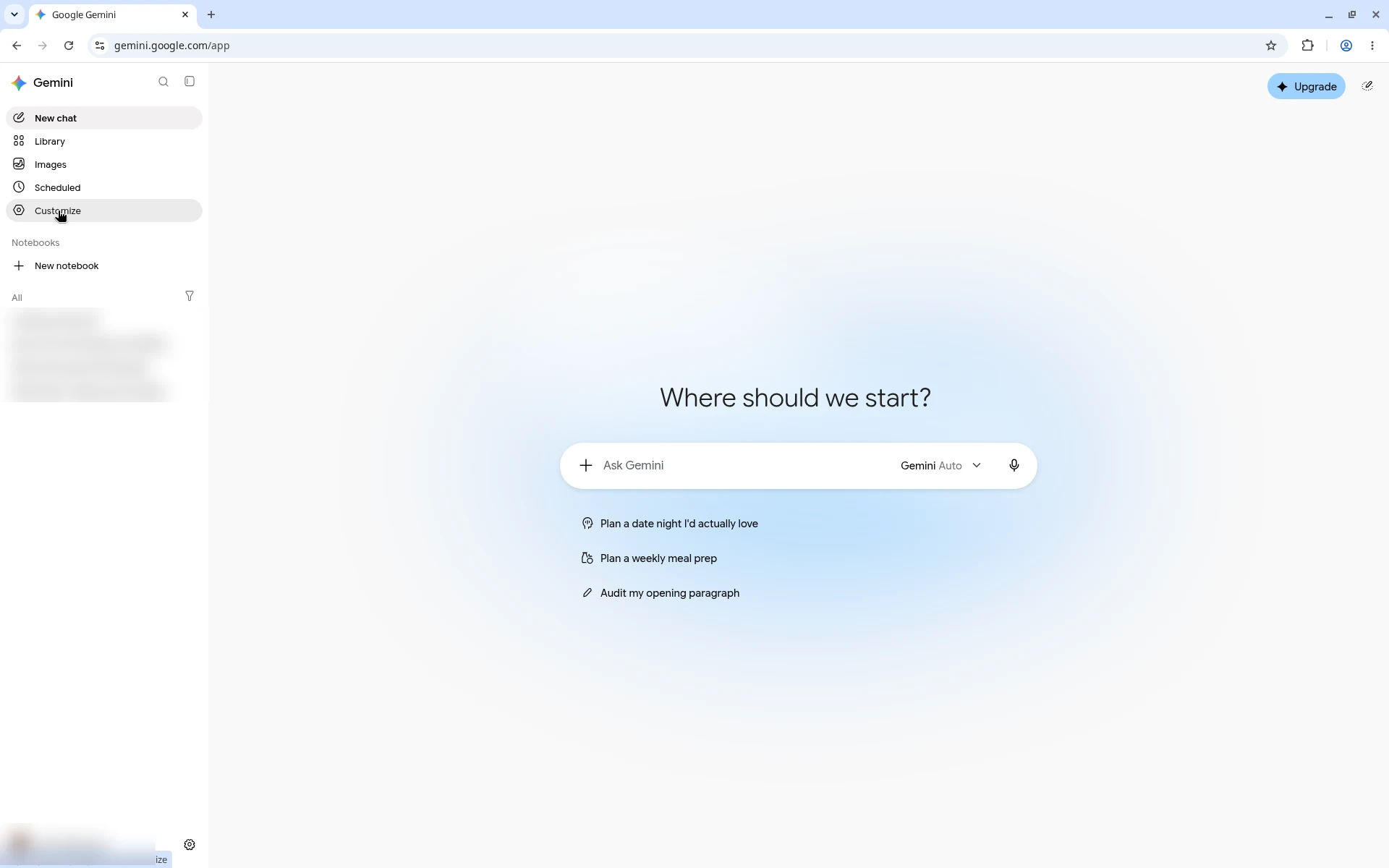
Fifth one down.
2. Click Skills
The Customize Gemini page has three tabs at the top: Discover, Connectors and Skills. Connectors is where Lesson 9 happened. Click Skills.
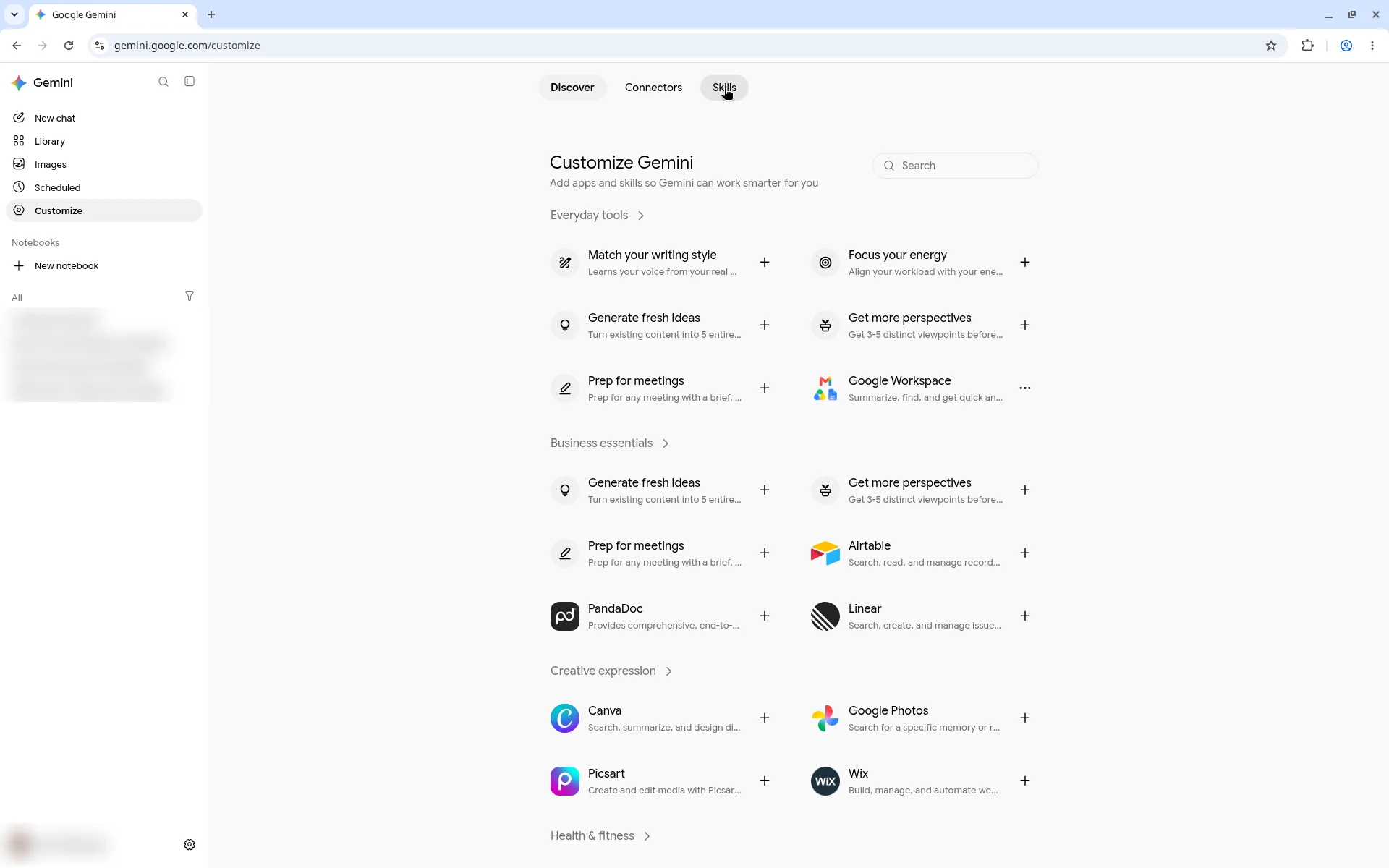
Third tab.
3. Create manually
Under Recommended are five skills Google made, like Match your writing style and Prep for meetings. The + next to one adds it. We’re making our own.
Click Create, then Create manually. (Create with Gemini writes it from a chat; Upload is for skill files. Manual shows you what a skill actually is.)
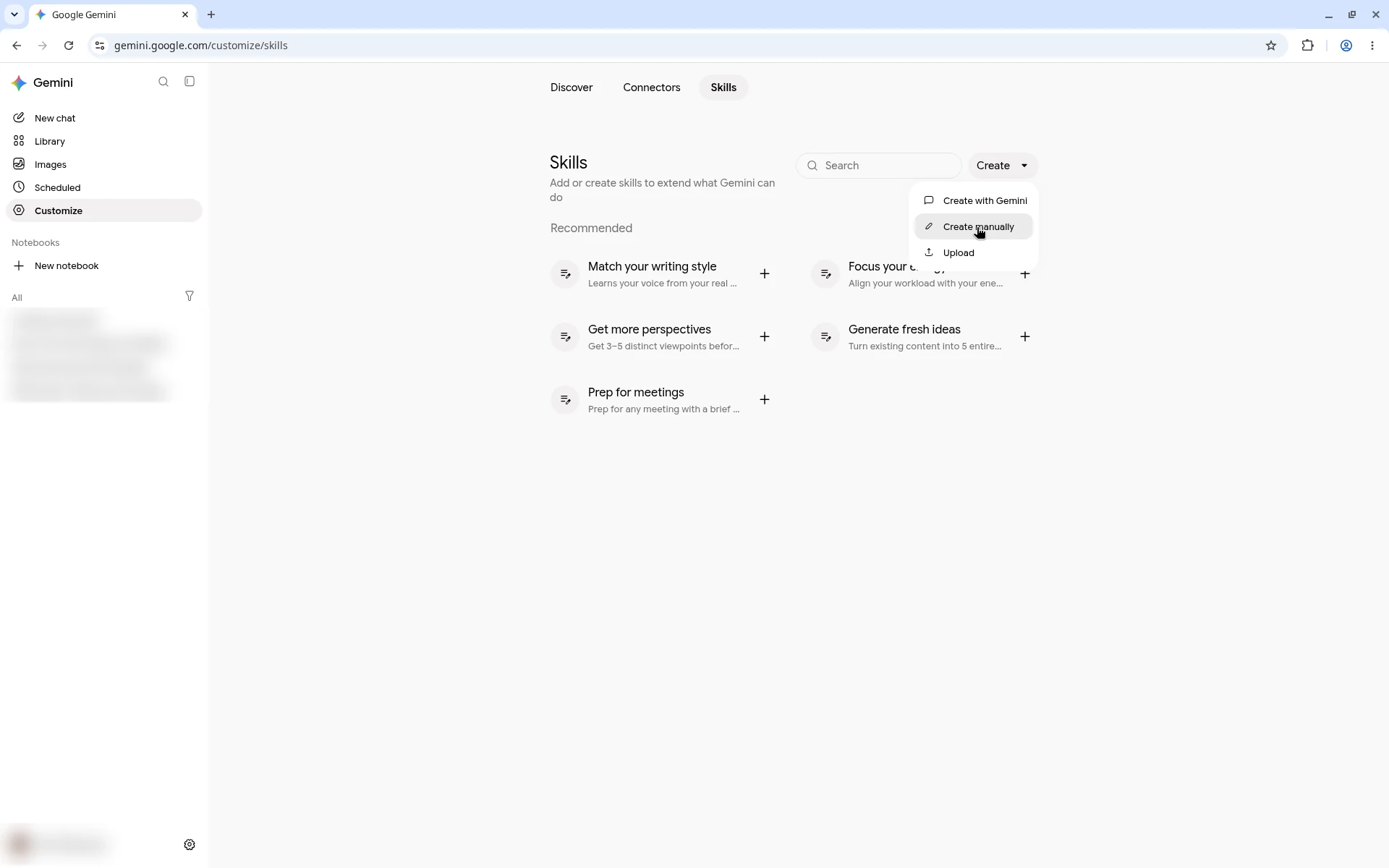
Create, then Create manually.
At work: no Skills tab means it hasn’t reached your company yet. Google expects the rollout to finish around mid-November 2026.
4. The empty form
Name, Description, Instructions and a Create button at the top right. The grey text is Google’s example; it disappears when you type.
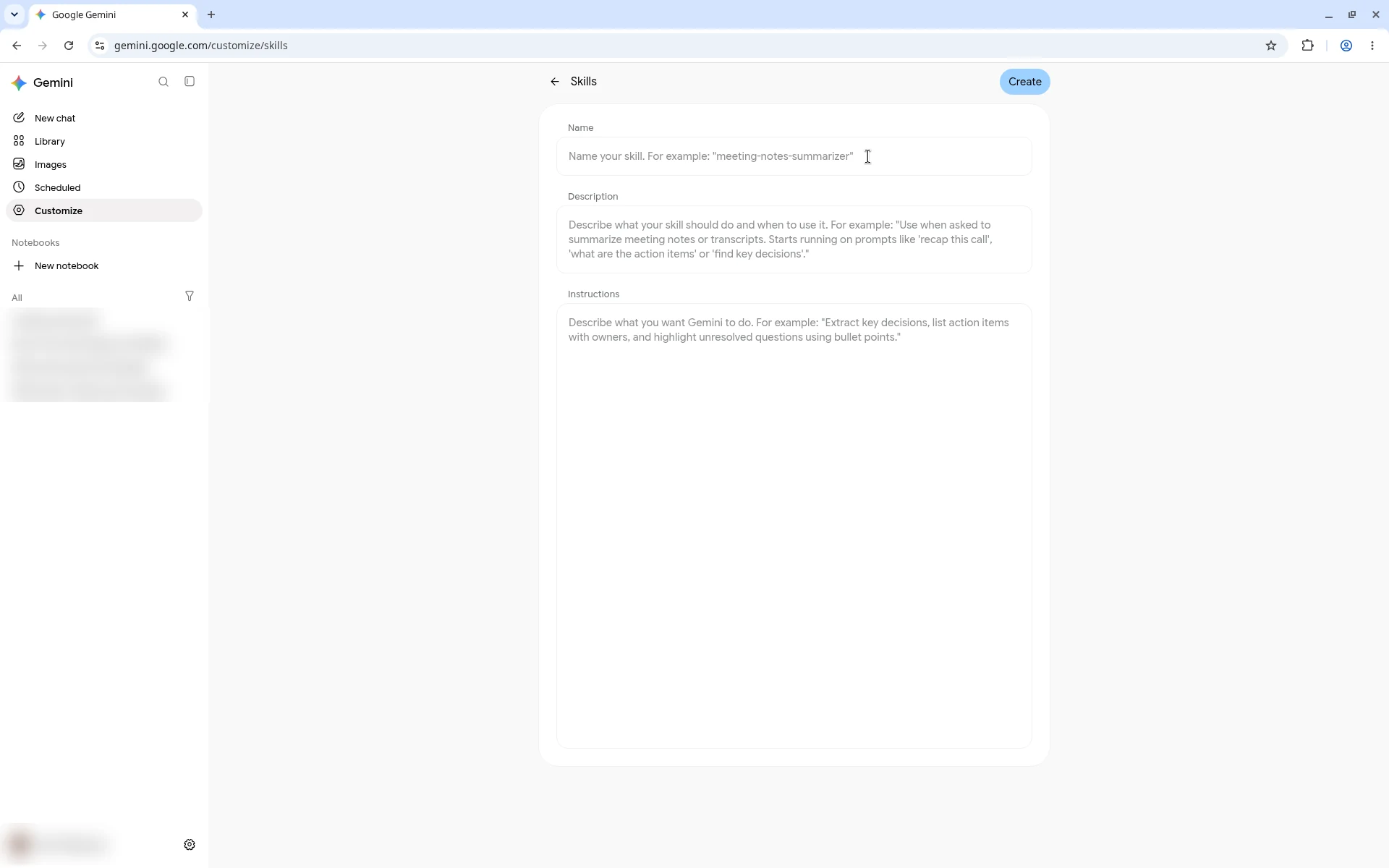
Three boxes. That’s the whole skill.
5. Fill it in
Name is what you’ll type to call it: lowercase, words joined by dashes, no spaces. Type it differently and Gemini converts it. Ours:
notes-to-emailDescription says when to use it. Gemini reads it to decide when your skill fits. Ours:
Use when asked to turn rough notes, bullet points or a messy draft into a short work email. Starts on prompts like "turn this into an email" or "make this sound professional".
Instructions are the rules, written like you’d explain the job to a new coworker. Ours:
Rewrite my notes as a short, friendly, professional email.
- Start with a one-line subject.
- Keep it under 120 words.
- Use plain words, no jargon.
- Keep every name, date and number from my notes. Don’t invent anything.
- End with one clear next step.
The “don’t invent anything” line is the one that earns its keep. In Lesson 7, Gemini added weekdays our document didn’t have.
A skill can also carry reference files (via Upload): up to 100 MB, text, PDF and images only. No Word or Excel.
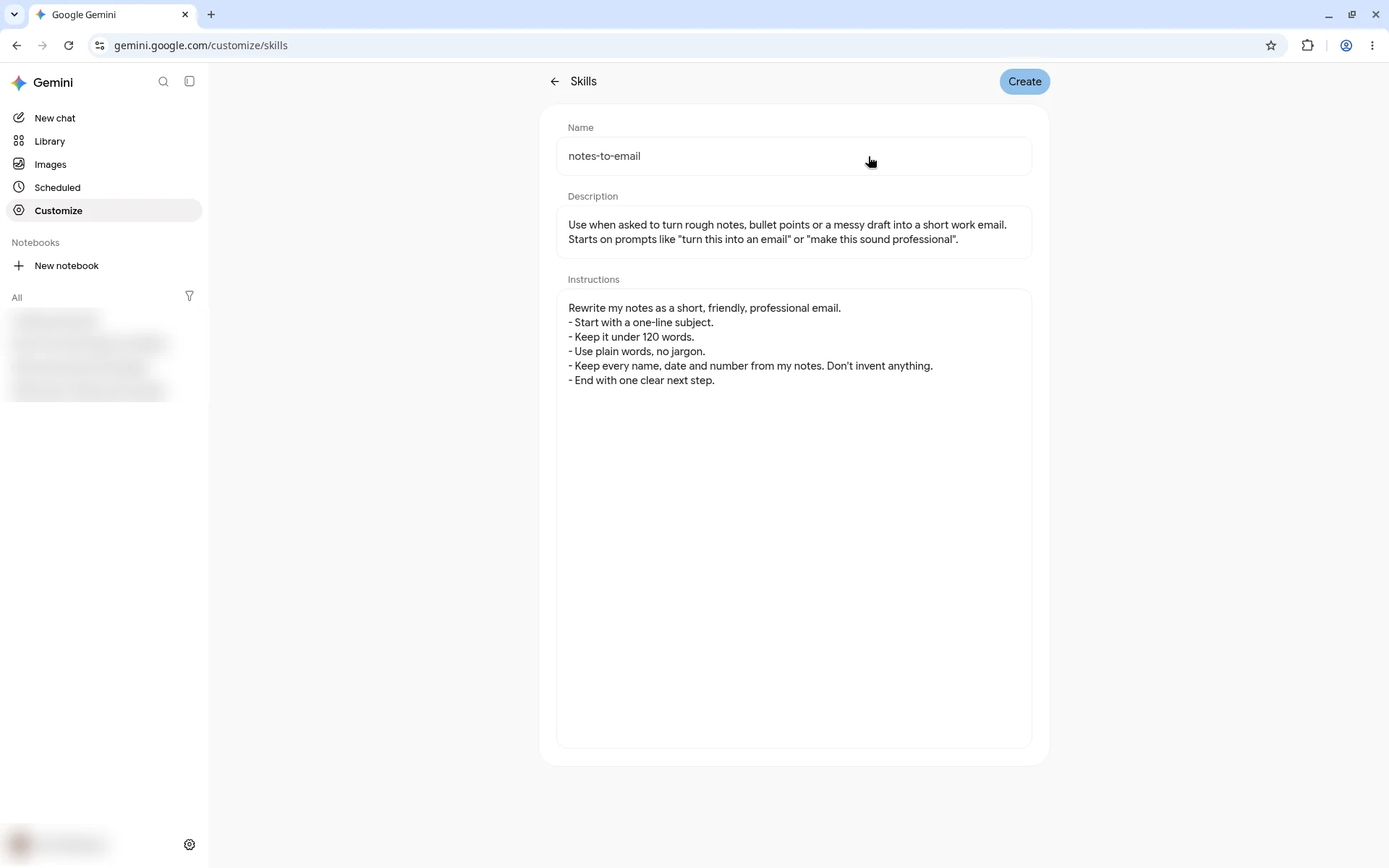
Name, when, how.
6. Click Create, then refresh
Click Create. “Skill created” flashes up and fades. Back on the Skills page, your skill isn’t there.
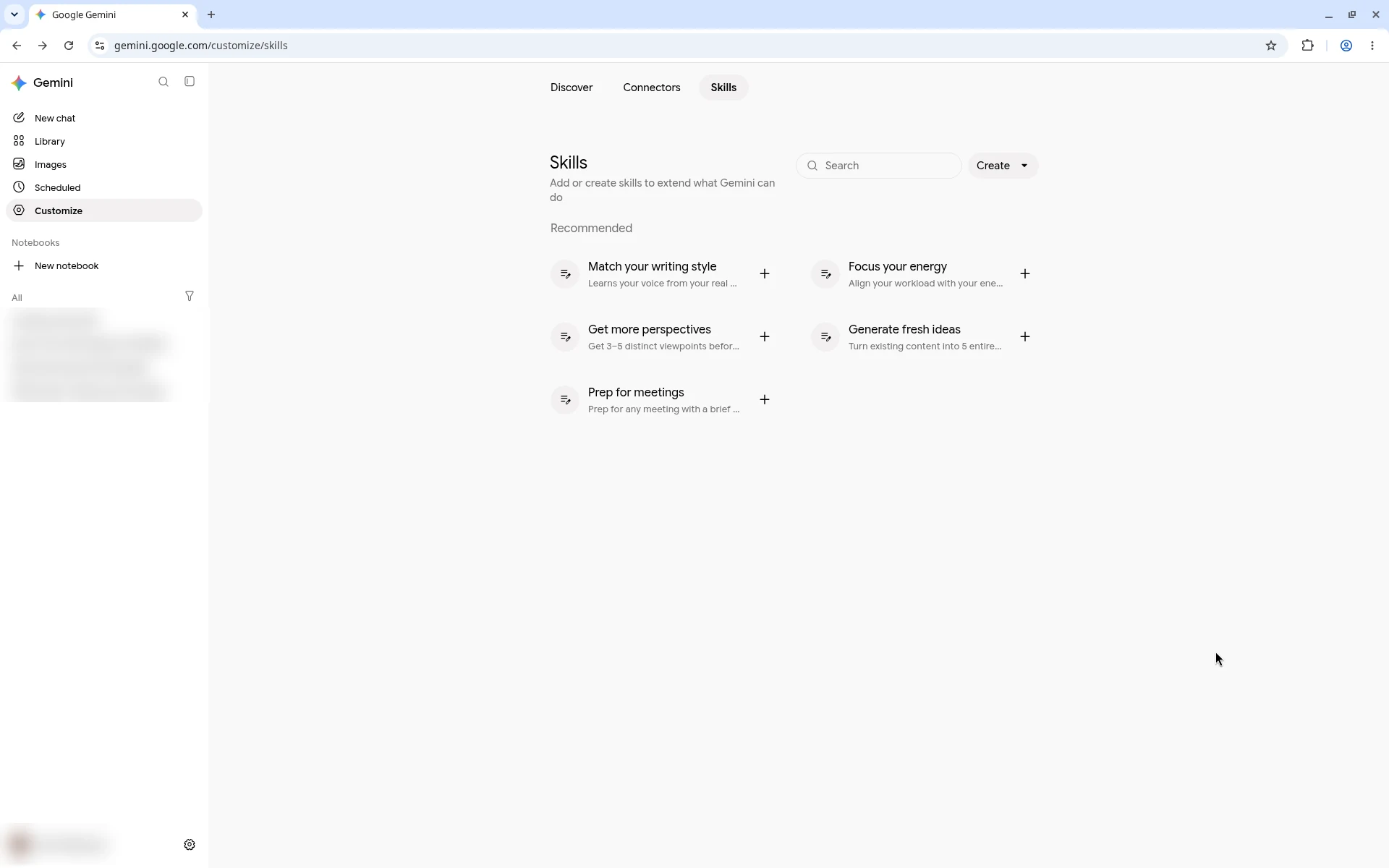
Created, allegedly.
It is there. The page just hasn’t caught up. Refresh it (the round arrow by the address bar, F5, or Command+R on a Mac). Now notes-to-email sits under Active, which means Gemini can use it.
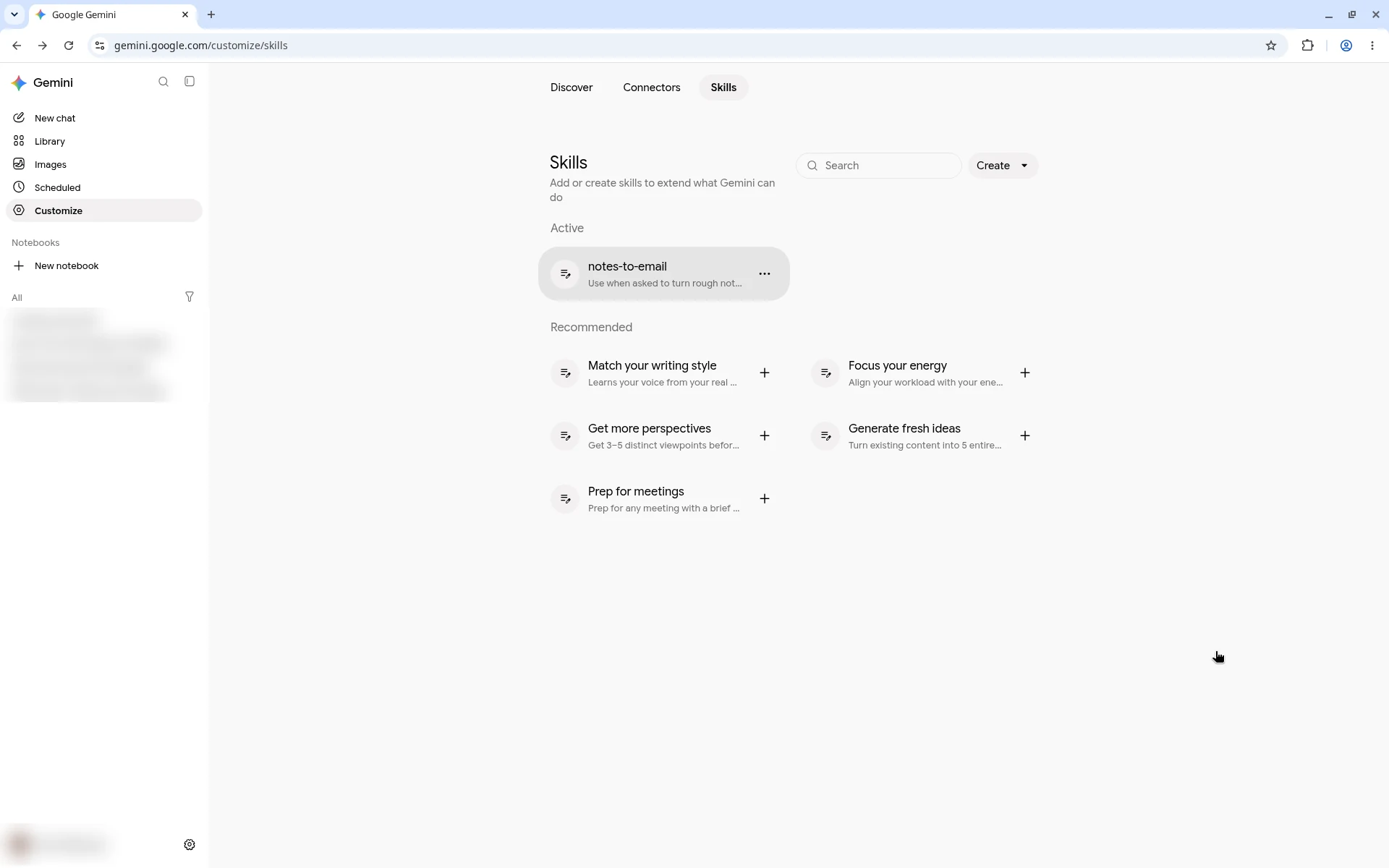
There it is.
Part 2: Use it
7. Type @ and pick it
Start a new chat. The empty box says “Type @ for connectors, skills and more.” Type @. Under Skills, click notes-to-email.
If @ doesn’t show it, try /. Google’s help mentions both.
Gemini can also pick a skill by itself when your request matches the description. @ just makes sure.
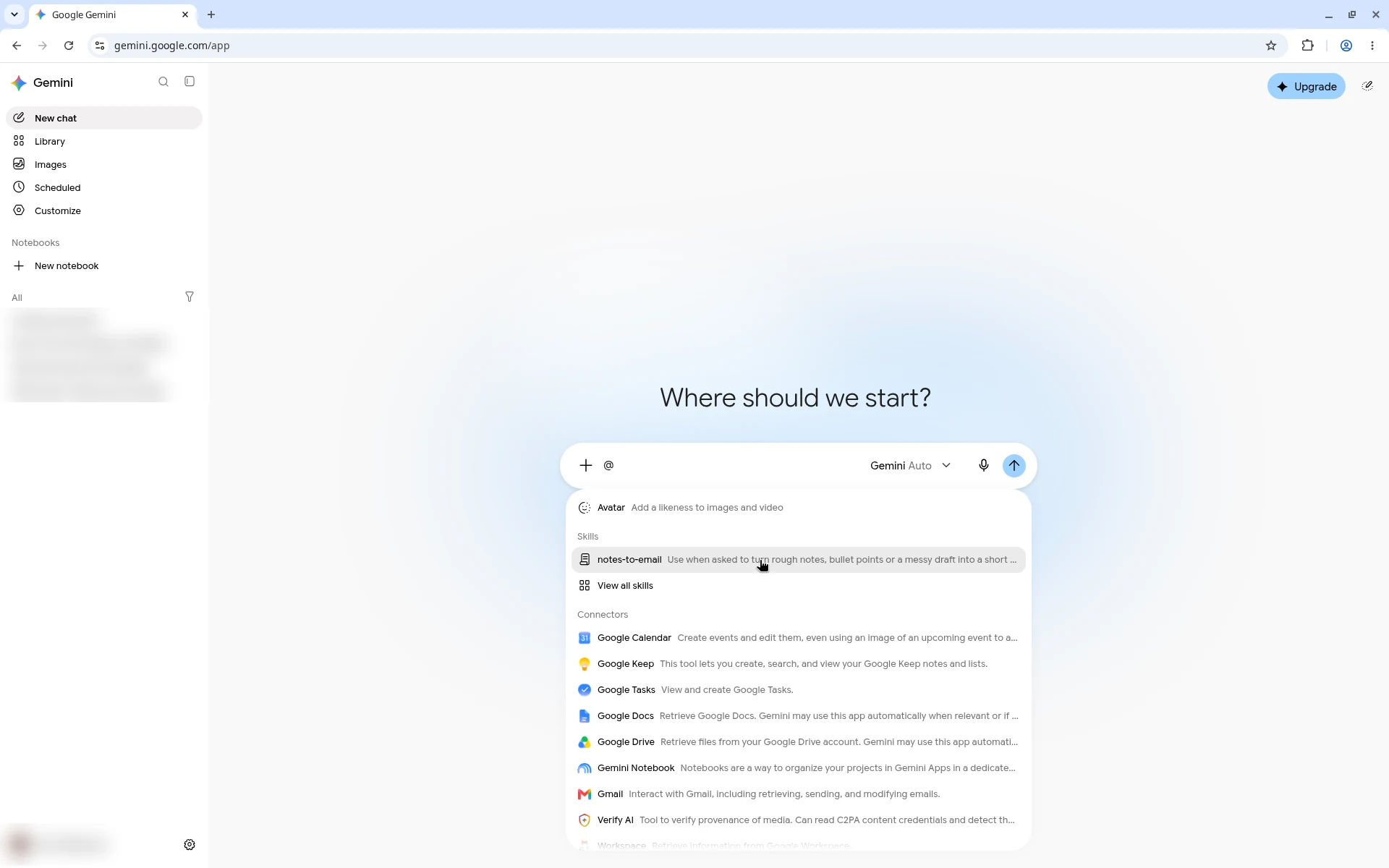
Skills, right under Avatar.
8. Paste your messy notes
The skill shows as bold @notes-to-email. After it, paste your notes, mess and all. Ours:
@notes-to-email fridge cleanout friday 3pm. anything left gets tossed, yes incl the mystery yogurt. labels in supply closet. pls dont be mad
Click the arrow (Submit).
Google says skills don’t work yet with Canvas, Deep Research, Create video, Create music or Guided Learning.
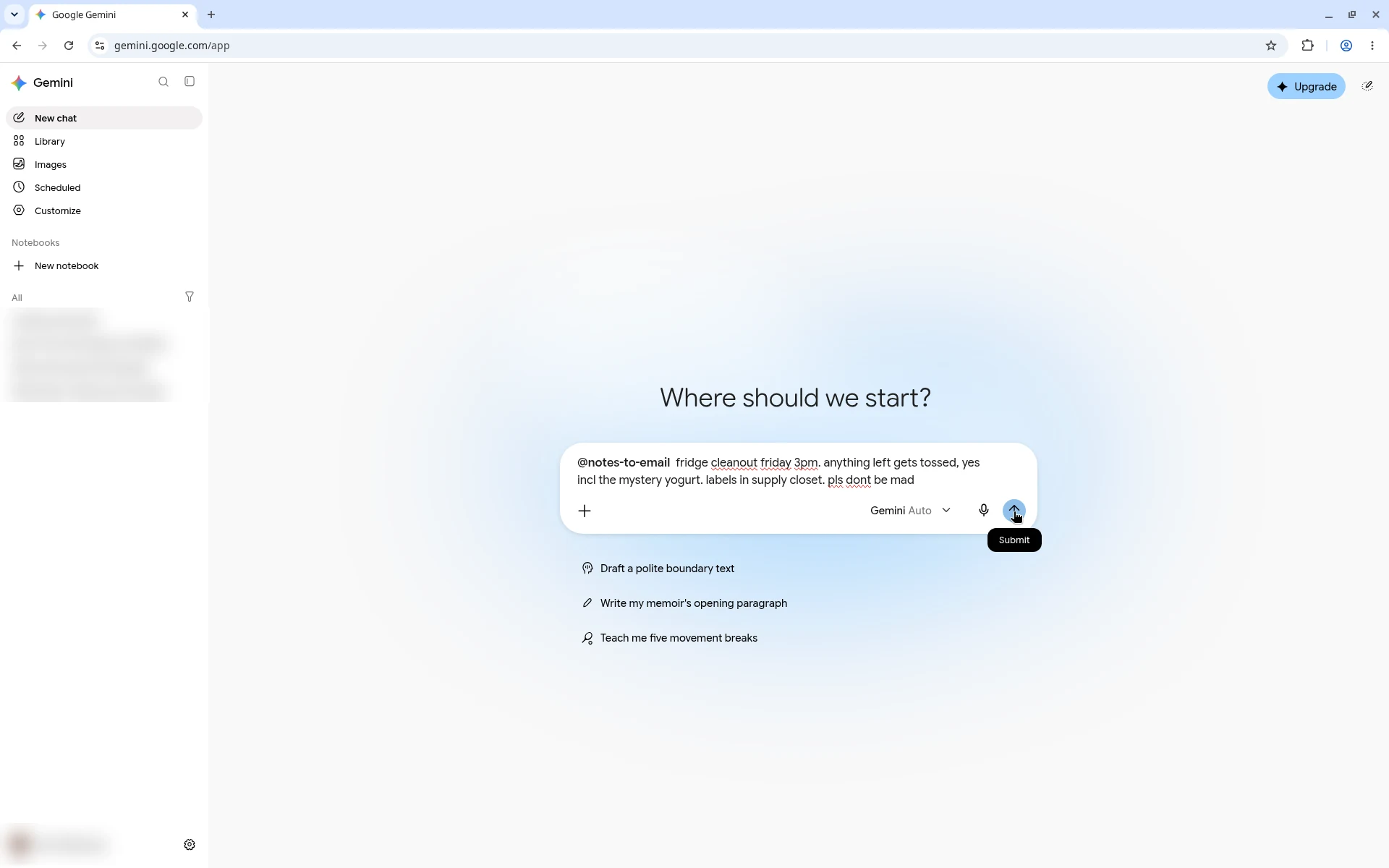
Every office has a mystery yogurt.
9. Read it before you send it
“I drafted this for you.” Then a Gmail draft card: an empty To line (“Add at least one recipient”), the subject Upcoming Fridge Cleanout - Friday at 3:00 PM, and:
Hi everyone,
Just a quick heads-up that we will be doing a fridge cleanout this Friday at 3:00 PM. Anything left behind will be tossed (yes, including the mystery yogurt). Labels can be found in the supply closet.
Please don’t be mad!
Best, Team
It made a Gmail card because our account has Google Workspace connected (Lesson 9).
The verdict: it kept every fact, yogurt included, and invented nothing. It didn’t really “end with one clear next step”; “Please don’t be mad!” is a plea, not a step. And it signed off as “Team”, which is nobody. Good enough to edit, not to send.
Send is real. Add recipients, reread it and fix the sign-off before you press it, or finish in Edit in Gmail. We sent nothing. The yogurt remains at large.
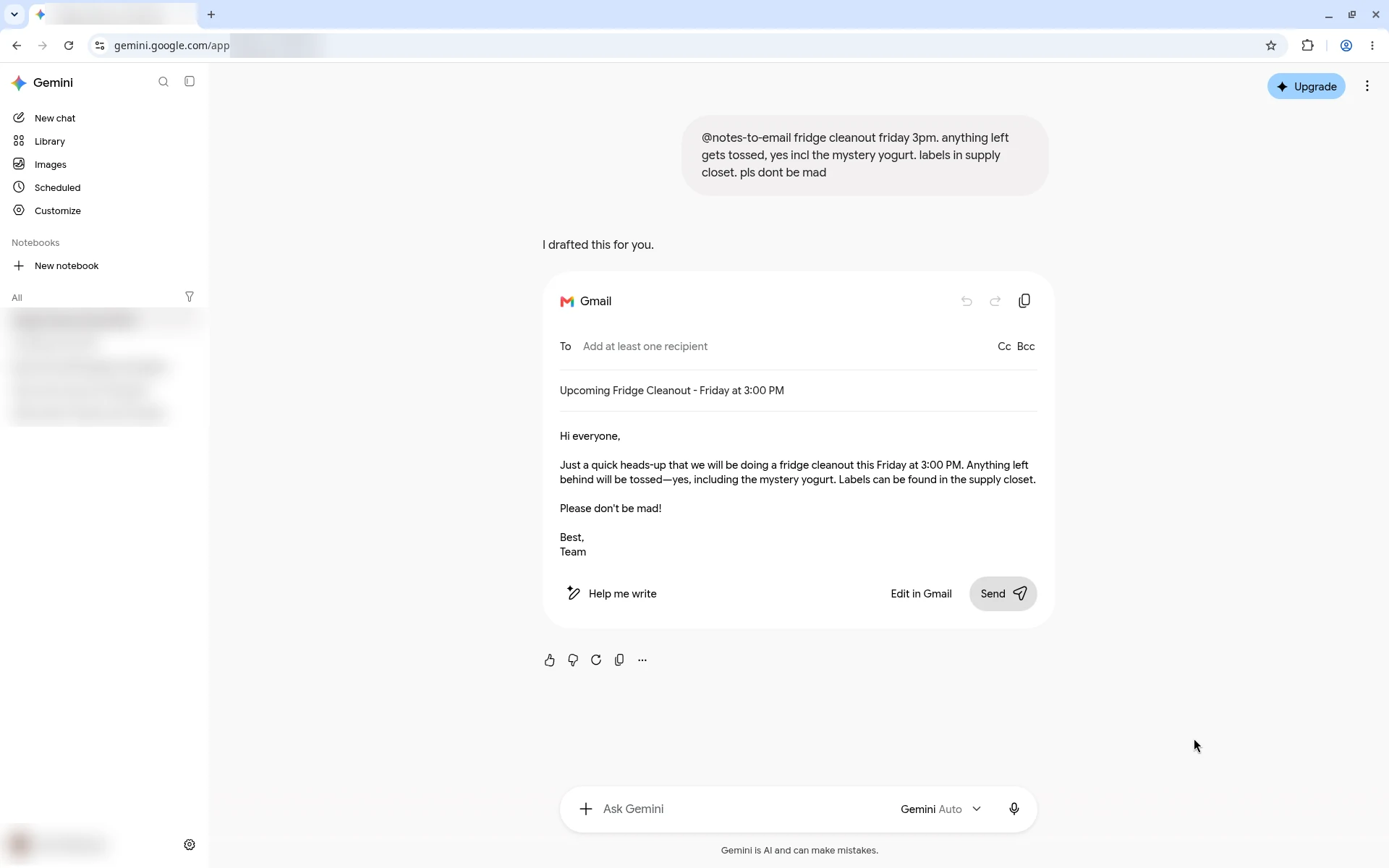
Facts kept. Yogurt kept. Signed by nobody.
At work: whether Gemini can use your work Gmail is your IT team’s setting (Lesson 9).
Part 3: Change it or switch it off
10. The ⋯ menu
Go back to Customize, Skills. Click the ⋯ next to your skill: Use now, Edit with Gemini, Edit manually, Download, Replace skill, Deactivate and Delete.
- Edit manually opens the form from step 5. Change the instructions (say, “Sign off with my name”) and click Save at the top.
- Deactivate switches it off. It stays listed, but Gemini stops using it. Ask for it anyway and Google says Gemini offers to switch it back on.
- Delete is permanent. Google says it can’t be undone. Download first if you might miss it.
We didn’t click any of them.
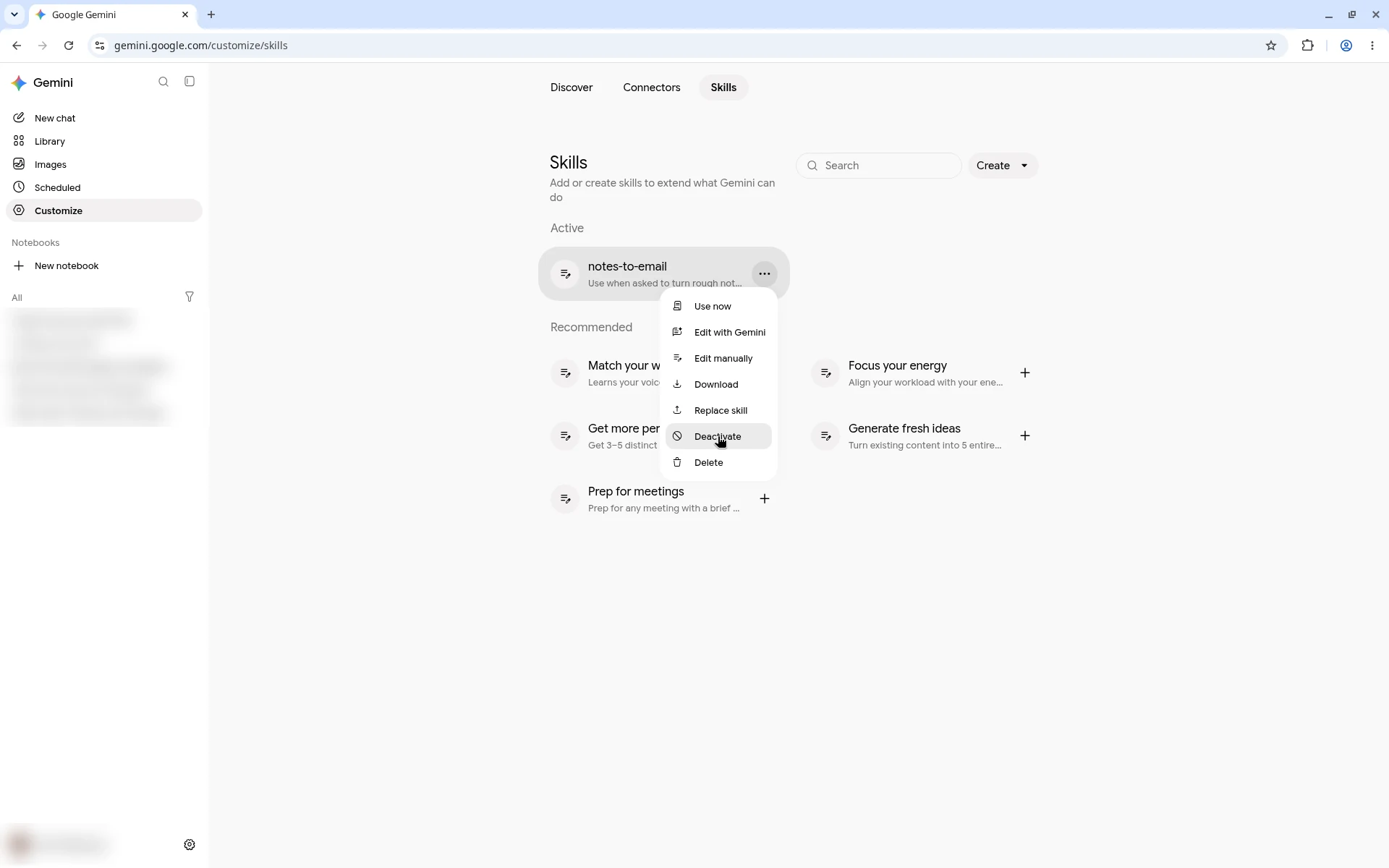
Deactivate is the off switch. Delete is the shredder.
At work: you can’t share skills with coworkers yet; Google says it’s coming “in the coming weeks”.
Part 4: At work: Gemini Enterprise agents
11. Gemini Enterprise agents
No screenshots here. We keep work laptops out of this site, so this part comes from Google’s help pages.
If your company bought Gemini Enterprise (a separate Google product; Lesson 8), its version of a skill is a chat agent, built without code in Workflow Builder (Business edition help still says Agent Designer). Same idea, but it can also use company data IT has connected, like Outlook or SharePoint.
Google’s steps: click + Create agent, then Chat agent. Describe what it should do. Optionally, click Manage your data to choose what it can look at, or Add files. Click Submit, try it in Preview, then click Create to publish. Leave without clicking Create and it stays a Draft. In the Business edition, start at business.gemini.google, then Agents, + Create agent.
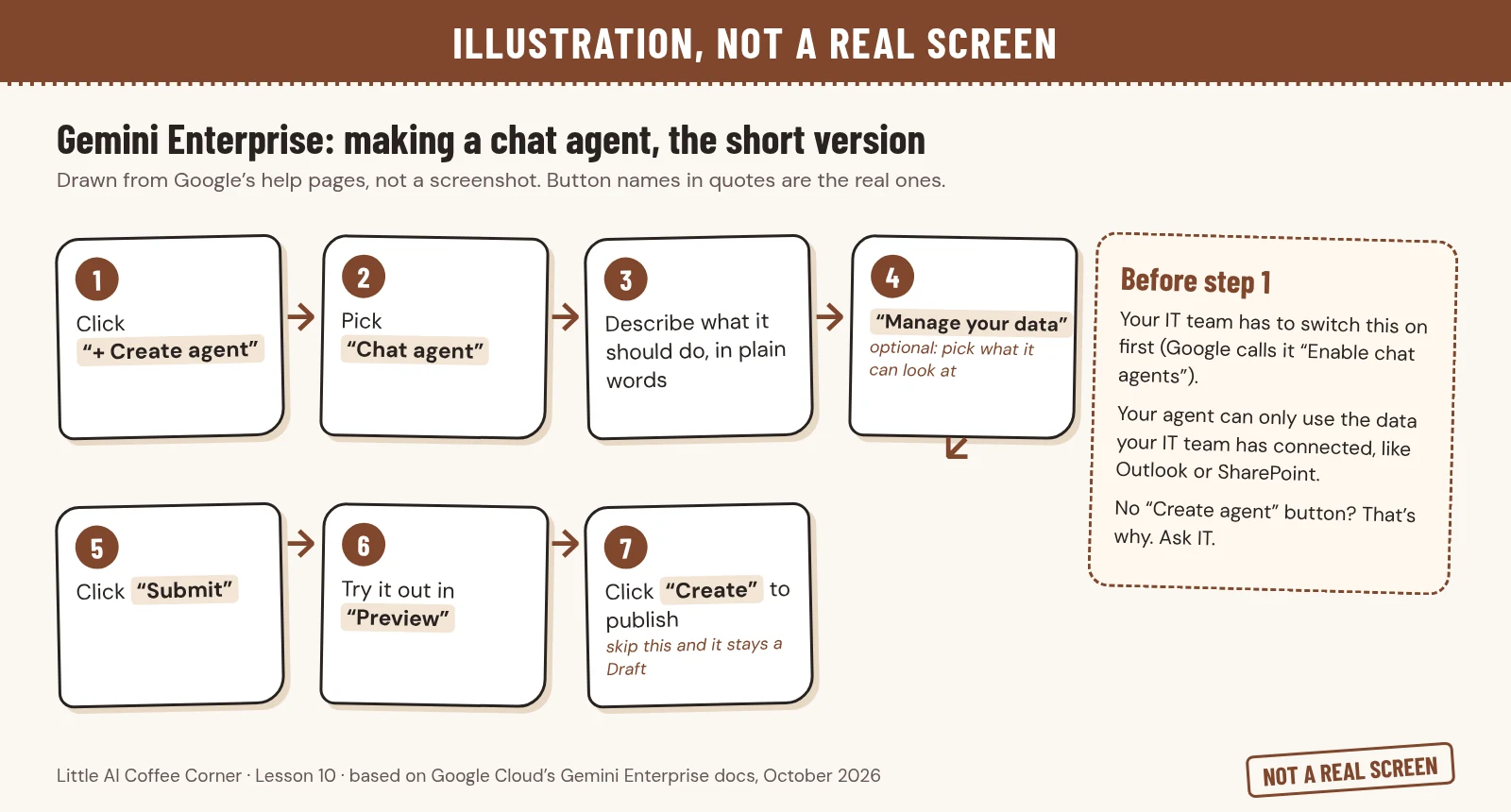
Illustration, not a real screen. Drawn from Google’s help pages.
First, IT has to switch chat agents on. No Create agent button means they haven’t. Not your fault.
To share one: Agent Gallery, Your Agents, Actions, Share. Drafts can’t be shared. Google warns that anyone you share with can ask about the files in the agent’s Knowledge section, even files they can’t open. So the salary spreadsheet stays out. It is what it is.
Check that it worked
- Your skill is under Active on the Skills page. Not there? Refresh.
- Type @ in a new chat and your skill is in the list. Not there? Try /.
- The answer follows your rules. Check every name, date and number against your notes.
- Nothing went out that you didn’t mean to send. Send is a real button.
- At work, no Skills tab yet? The rollout runs to about mid-November 2026. No Create agent in Gemini Enterprise? Ask IT.
Let’s learn together.
Comments are reviewed by Ana before they appear. Please use fictional examples and leave workplace details out.
Loading approved comments…