Get set up with ChatGPT: install, sign in, privacy, and talking instead of typing
Install the ChatGPT app, sign in, choose your privacy settings, start a temporary chat, and talk to ChatGPT instead of typing.
Step 1 of 5 in Everyday ChatGPT, step by step (Path 04)
Heads up: these screenshots use the ChatGPT desktop app on a computer with a personal account. The free plan is enough for this lesson.
If you've ever been handed a gadget and told "it's easy, you'll figure it out," this lesson is the opposite. Nothing you click today can break anything.
ChatGPT is a program you talk to in everyday words. You ask a question and it writes back. A chat is one conversation with it, like one phone call.
Before you start
Heads up: these screenshots use the ChatGPT desktop app on a computer with a personal account. The free plan is enough for this lesson. You don't need Plus, the $20-a-month plan.
Screenshots are from November 1, 2026, with my chat titles and a line from my email blurred. ChatGPT moves things around, and Mac menus may differ a little.
1. Download and install the app
Search for "ChatGPT app download" in your web browser and pick the result that goes to chatgpt.com/download. That's the official page from OpenAI, which makes ChatGPT. Skip anything marked Sponsored.
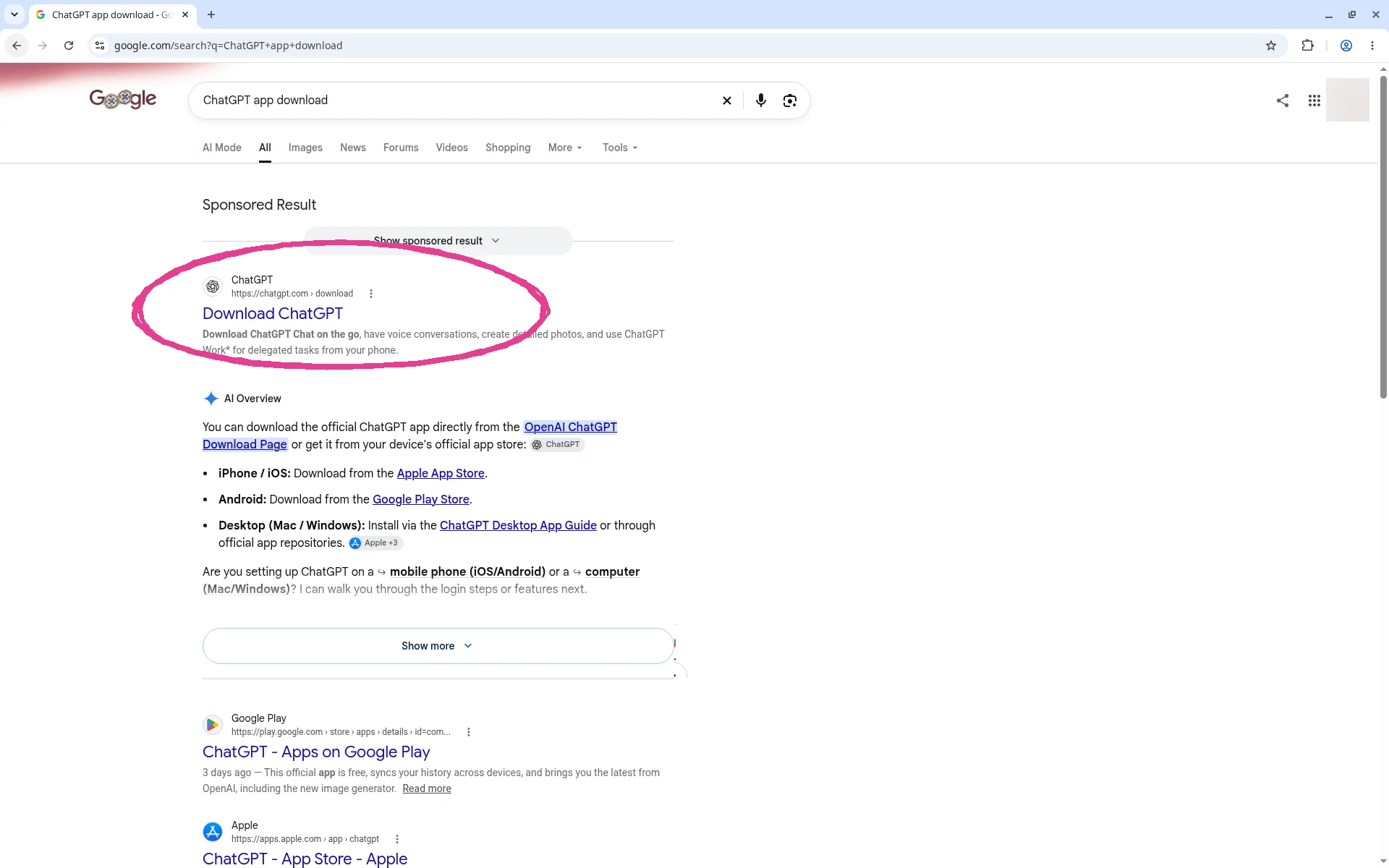
On Windows (10 or newer), you can also get it from the Microsoft Store by searching for ChatGPT from OpenAI. Open what you downloaded and follow the prompts, and if Windows asks whether to allow it, click Yes.
On a Mac (macOS 14 or newer), the page picks the right version by itself. Open what you downloaded and follow the prompts.
Or skip installing and use chatgpt.com in your web browser.
2. Open the app and sign in
Click the ChatGPT icon. The first time, it asks you to sign in. It usually finishes in your web browser and sends you back. Type your own email and password yourself.
3. Find your way around the home screen
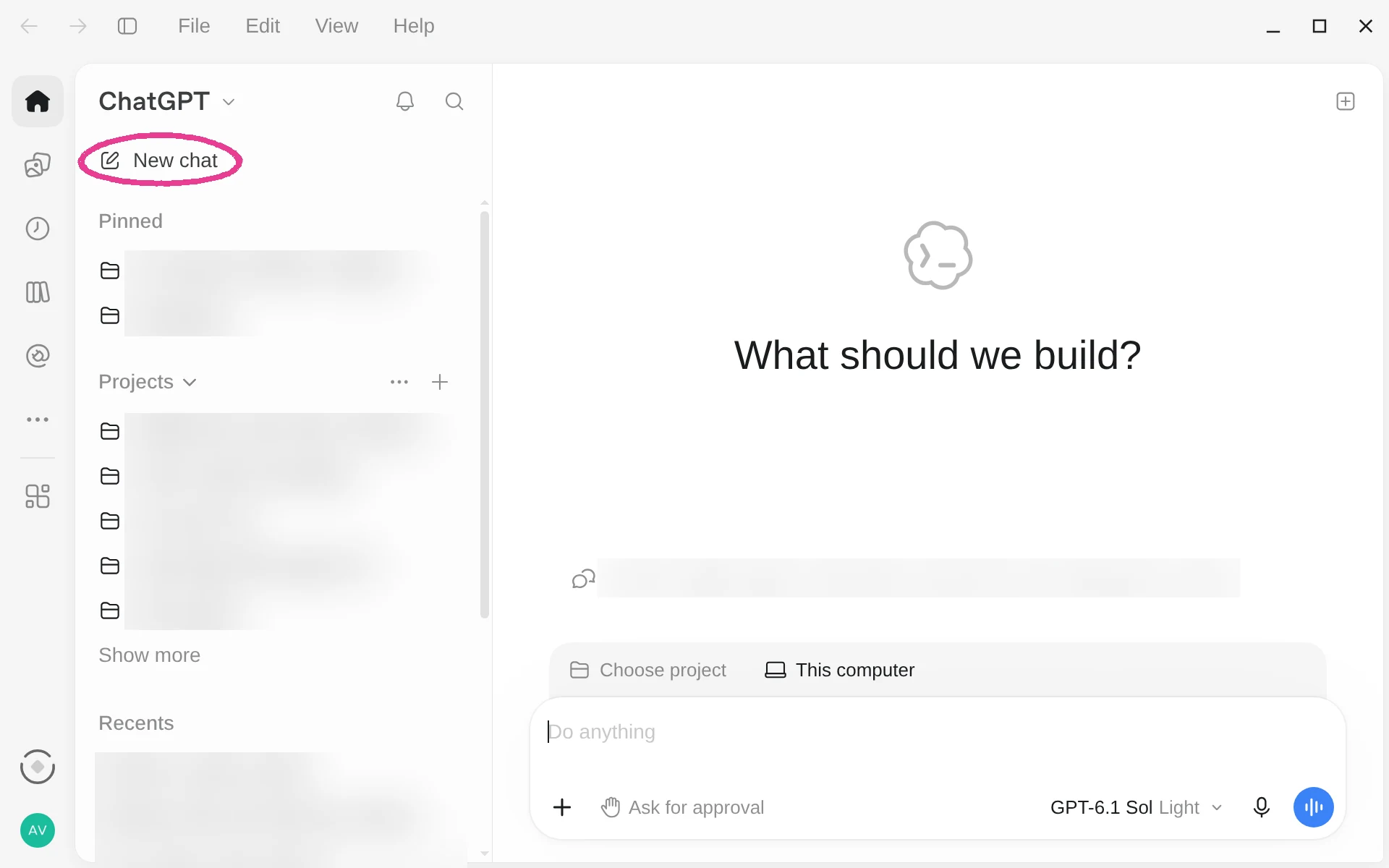
There's a list on the left and a big empty space in the middle. Mine says "What should we build?" which is a lot of pressure for someone who wants a soup recipe. For everyday questions, click New chat at the top of the list.
4. Turn off "Improve the model for everyone"
Click File, then Settings… (or press Ctrl and the comma key), then Data controls on the left. The first switch is Improve the model for everyone. When it's blue, it's on, and OpenAI can use what you type to teach future versions.
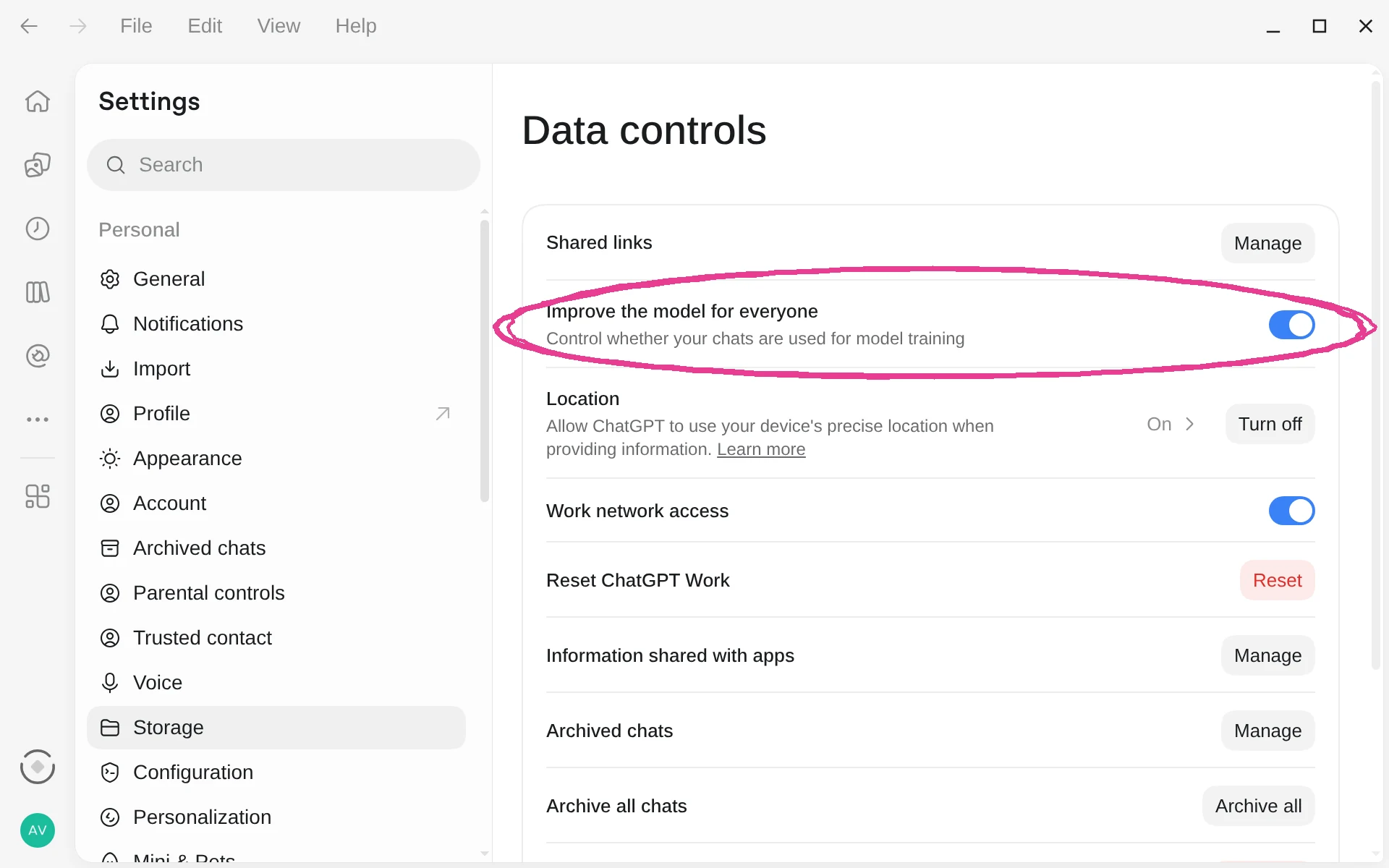
I'd click it so it turns gray, which means off.
5. Decide about memory
Still in Settings, click Personalization. Under ChatGPT memory there's a switch called Enable memory. Memory means ChatGPT remembers things about you between chats, so if you once said you're vegetarian, it might leave the bacon out of next week's recipe.
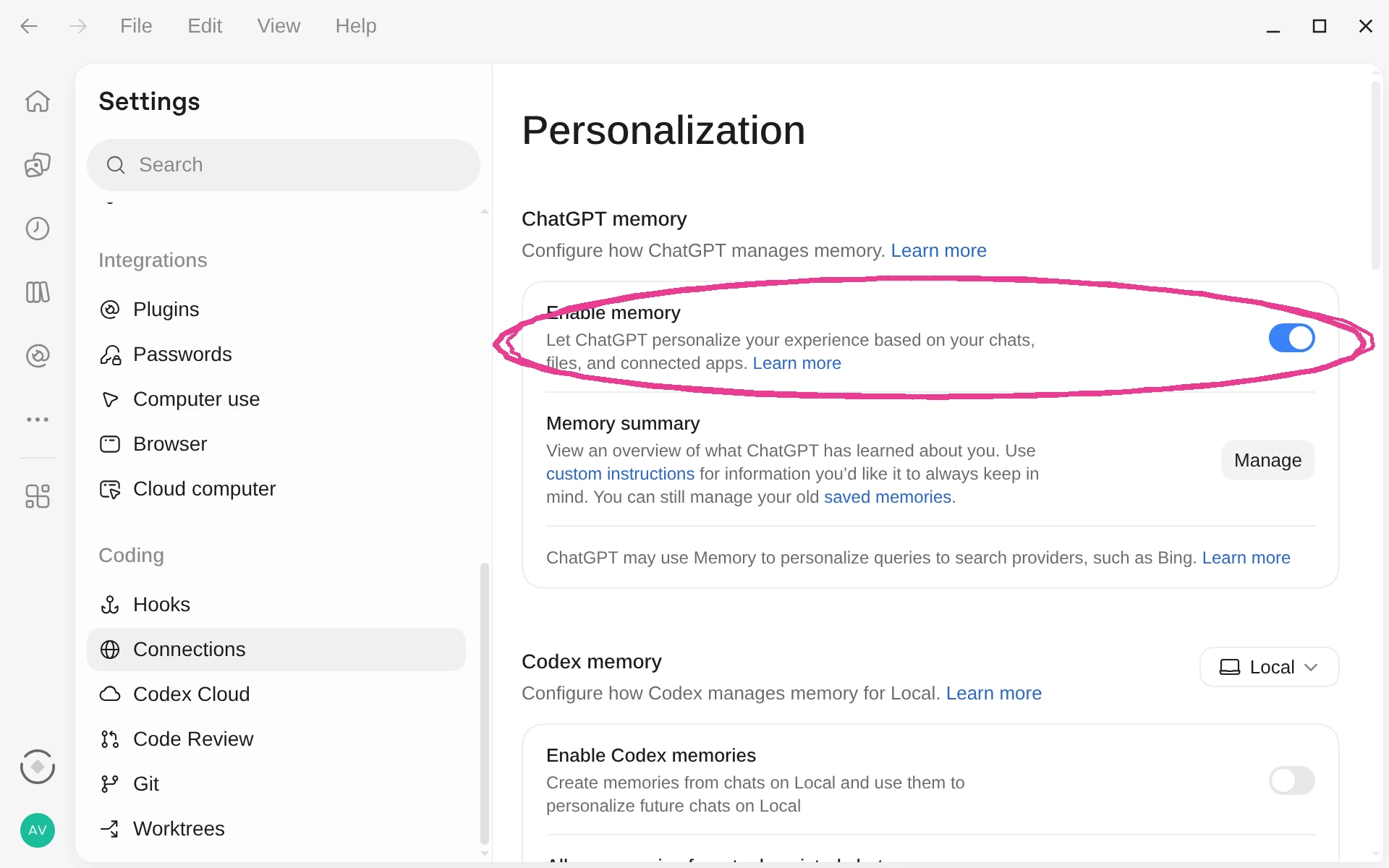
Either is fine. If you keep it, Manage next to Memory summary shows what it knows about you. Close Settings with the X.
6. Start a temporary chat for private questions
For a health worry or a surprise gift, use a temporary chat. It isn't kept in your list of chats, and OpenAI doesn't use it for training. Click File, then New Temporary Chat, or press Ctrl+Shift+N.
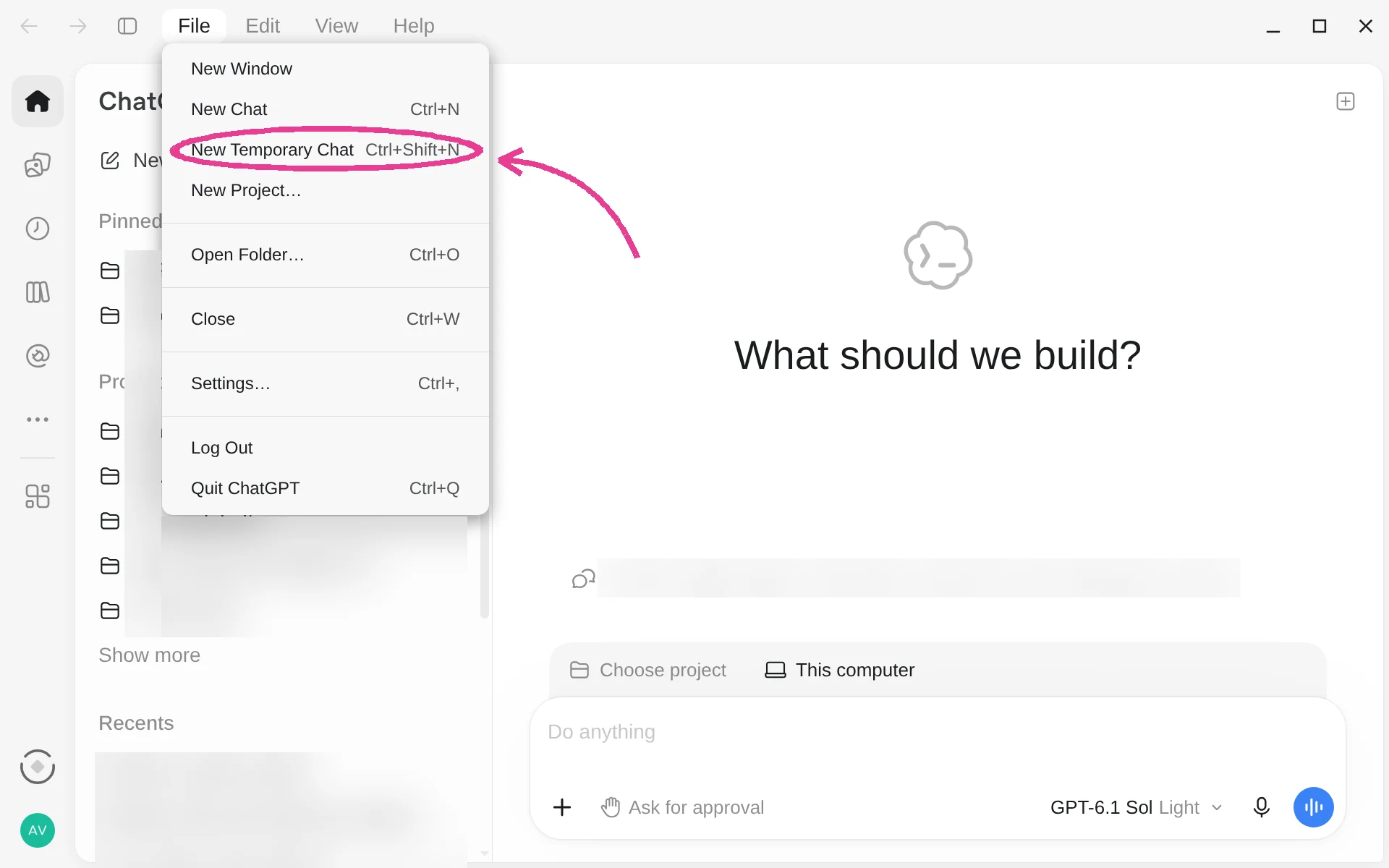
The page now says Temporary chat at the top. The small print says OpenAI may keep a copy for up to 30 days for safety, so it's private but not secret.
7. Talk instead of type
If typing makes your fingers ache, this is the part for you. You speak and ChatGPT writes your words into the box, which is called dictation. Look for the small microphone at the right end of the box.
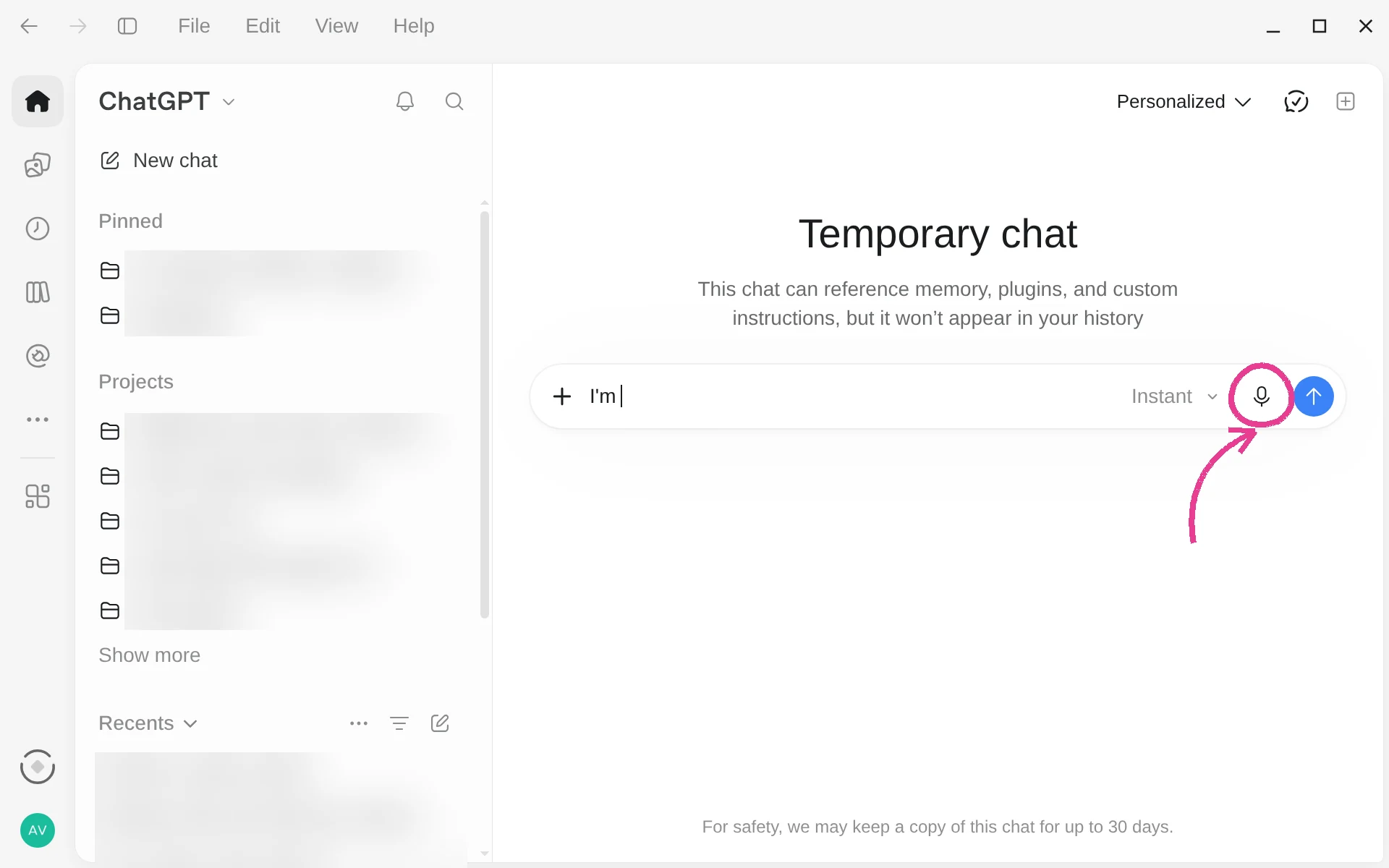
- Click the microphone. If your computer asks whether ChatGPT can use it, allow it.
- Talk in your normal voice, at your normal speed.
- When you're finished, click the button that stops the recording.
- Read the words. If it heard "flower" when you said "flour," fix it or say it again.
- Click the round send button with the arrow.
After you speak, your words wait in the box for you to check them.
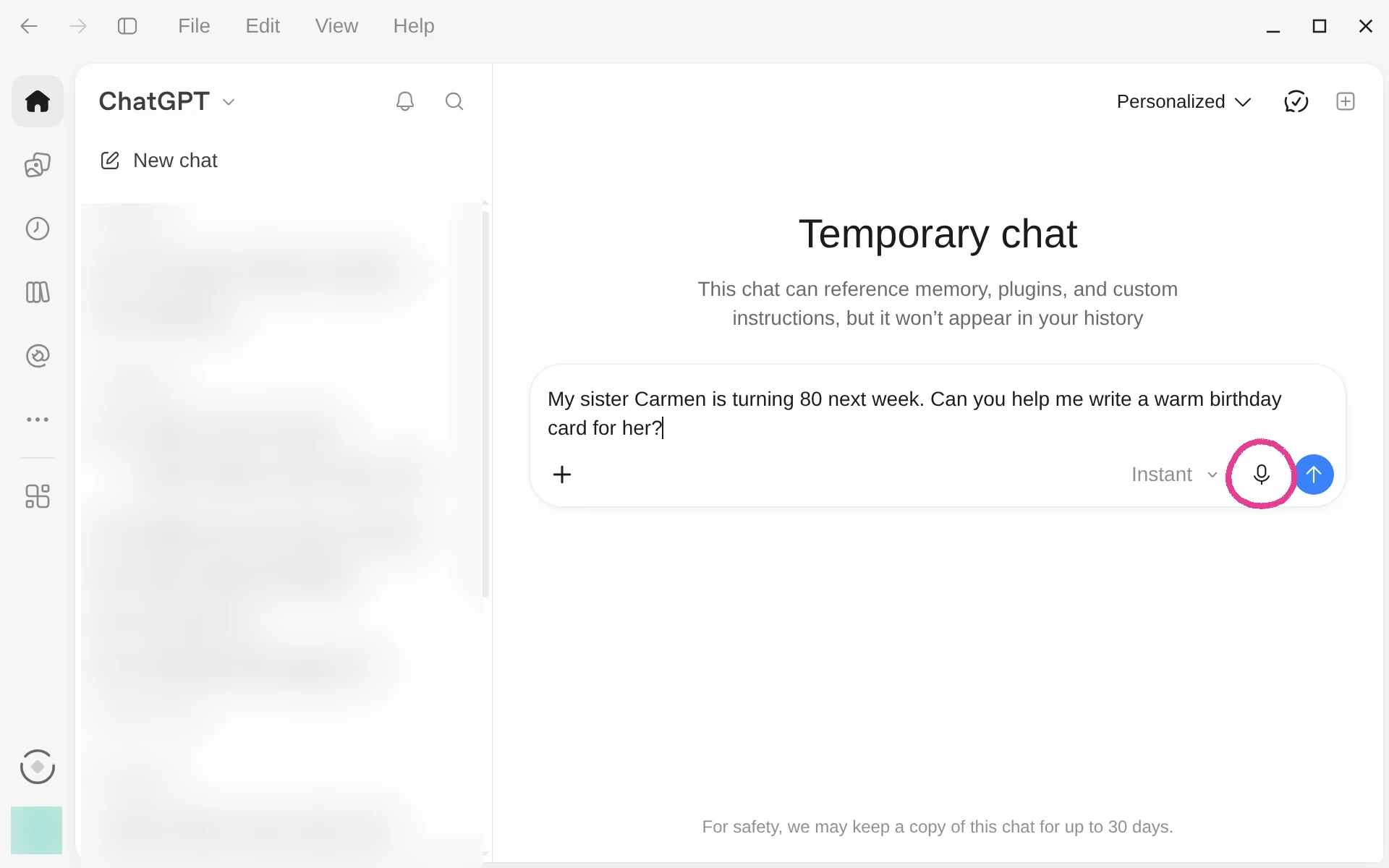
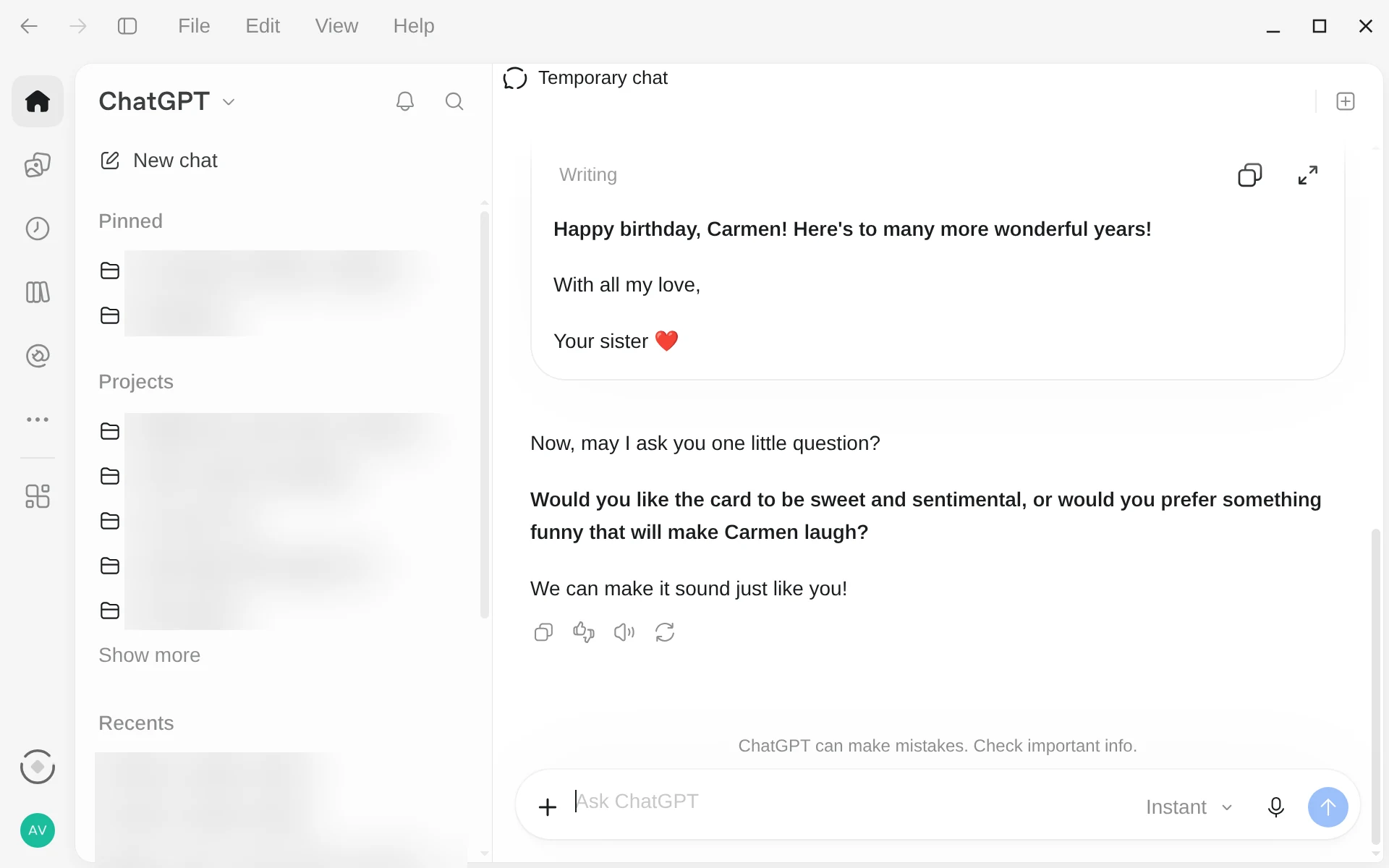
I asked for a birthday card for my sister Carmen, who's turning 80. It wrote one, then asked: sweet or funny?
If you see "Connect a microphone to use dictation," plug in a headset or check that your laptop's microphone is turned on.
Your computer has dictation built in too. Click where you want the words, then on Windows press the Windows key and H. On a Mac, press the Microphone key on the top row if you have one, or choose Edit, then Start Dictation. If nothing happens on a Mac, turn on Dictation in System Settings under Keyboard.
8. Ask your first question
Typed or spoken, here's what I sent:
"I'm 72 and new to this. In plain words, what can you help me with day to day? Keep it short."
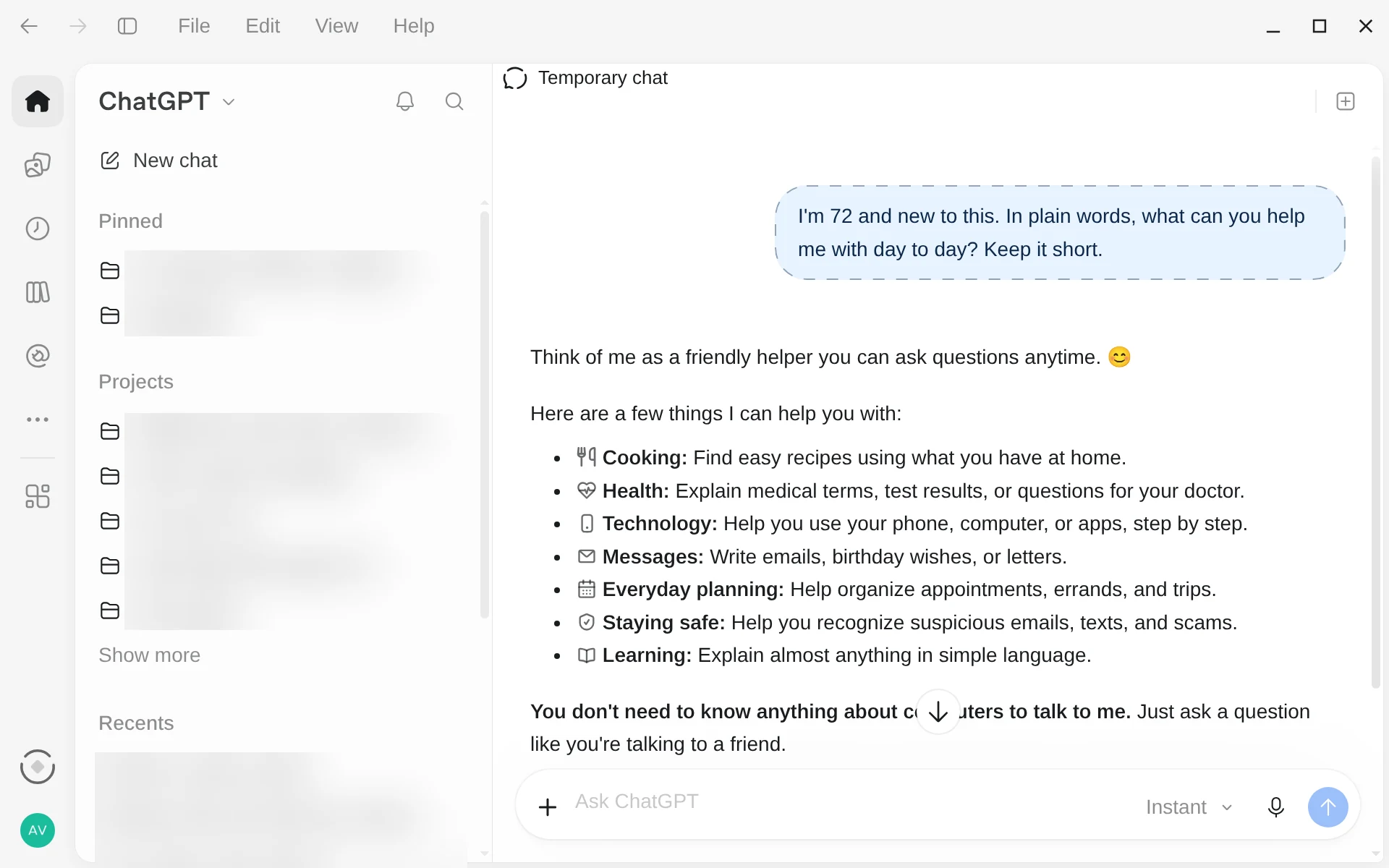
It called itself "a friendly helper you can ask questions anytime," listed things from Cooking to Staying safe, and said, "You don't need to know anything about computers to talk to me."
9. Ask it to make it bigger and simpler
You never have to settle for the first answer. Reply in the same chat. I asked:
"Can you make that a bit bigger and simpler, like a list I could print?"
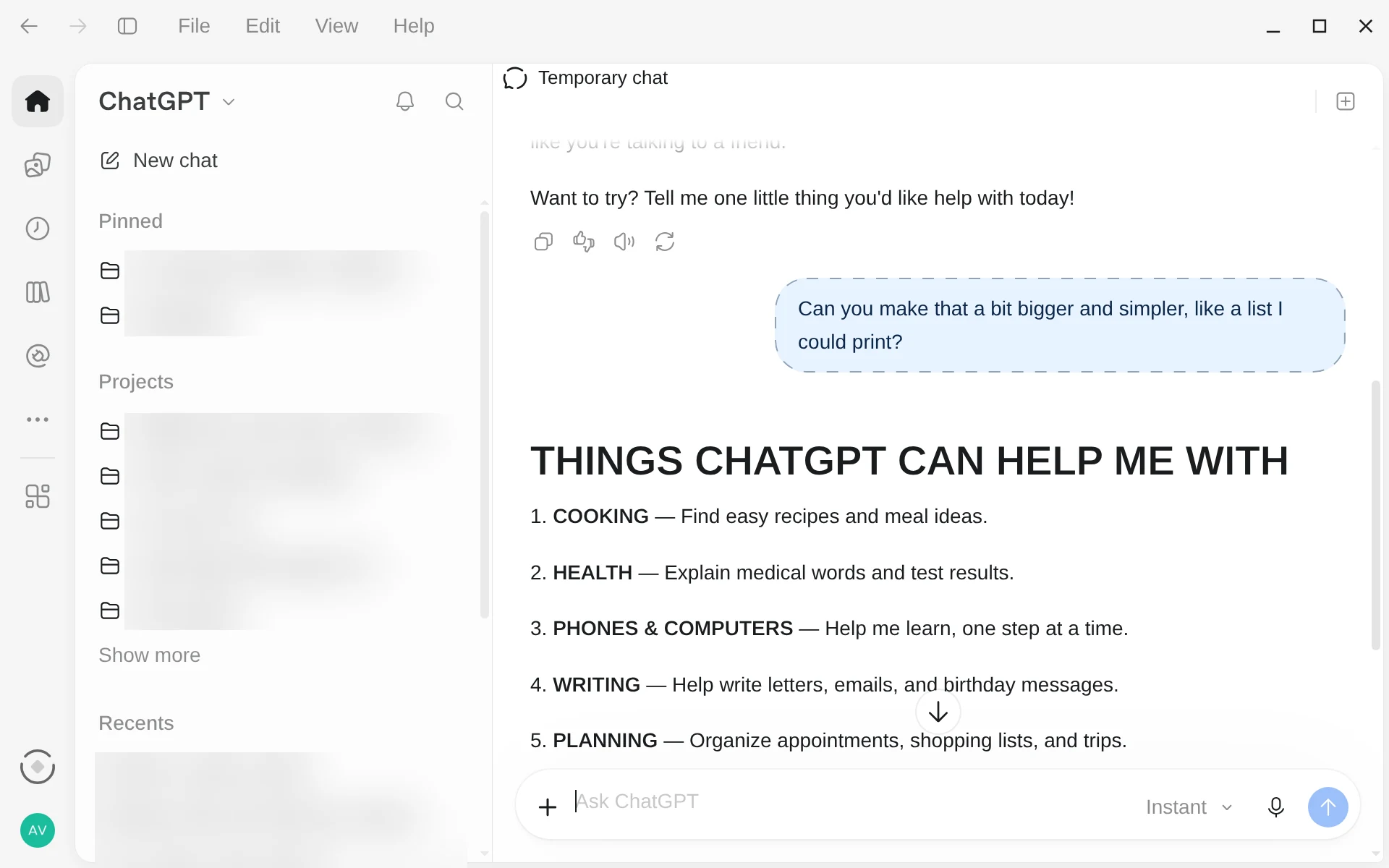
It came back with a big heading, eight numbered things from Cooking to Fun, and "JUST ASK ME!" at the bottom. My favorite line was "There are no silly questions!" I'd like that on a mug.
10. Print it
Press Ctrl+P (Windows) or Command+P (Mac).
One button to leave alone for now
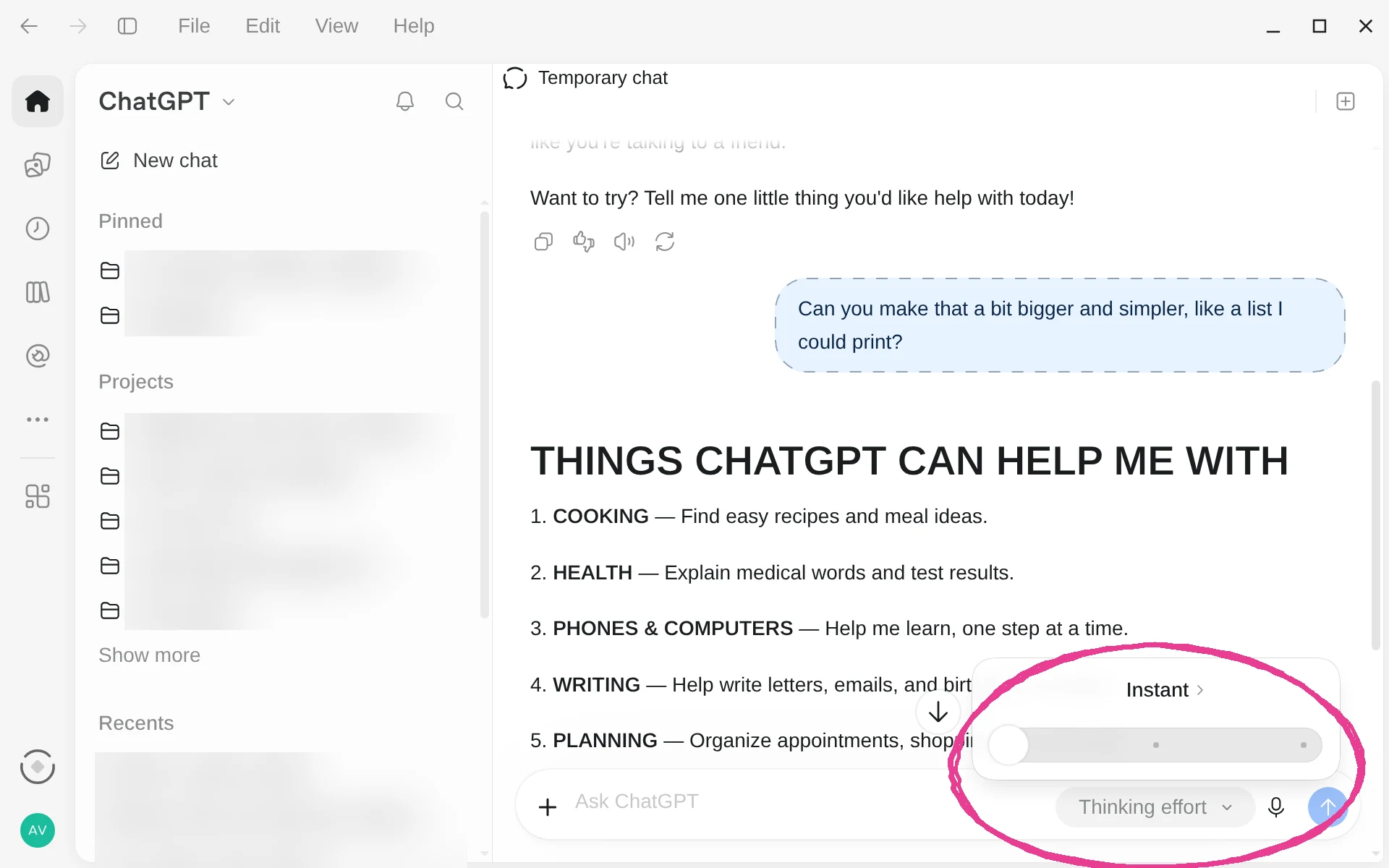
Next to the microphone there's a small Instant label that opens a Thinking effort slider. Leave it on Instant, and if you open it by accident, click anywhere else.
Fine and not fine
These are fine:
- Asking about recipes, words you don't know, or how to use your phone.
- Asking it to say things again, simpler.
These are not fine:
- Typing your Social Security number, bank or card numbers, passwords or PINs, or Medicare number, even in a temporary chat.
- Trusting its answer about medicine, money or the law without checking with a real person.
At the workshop
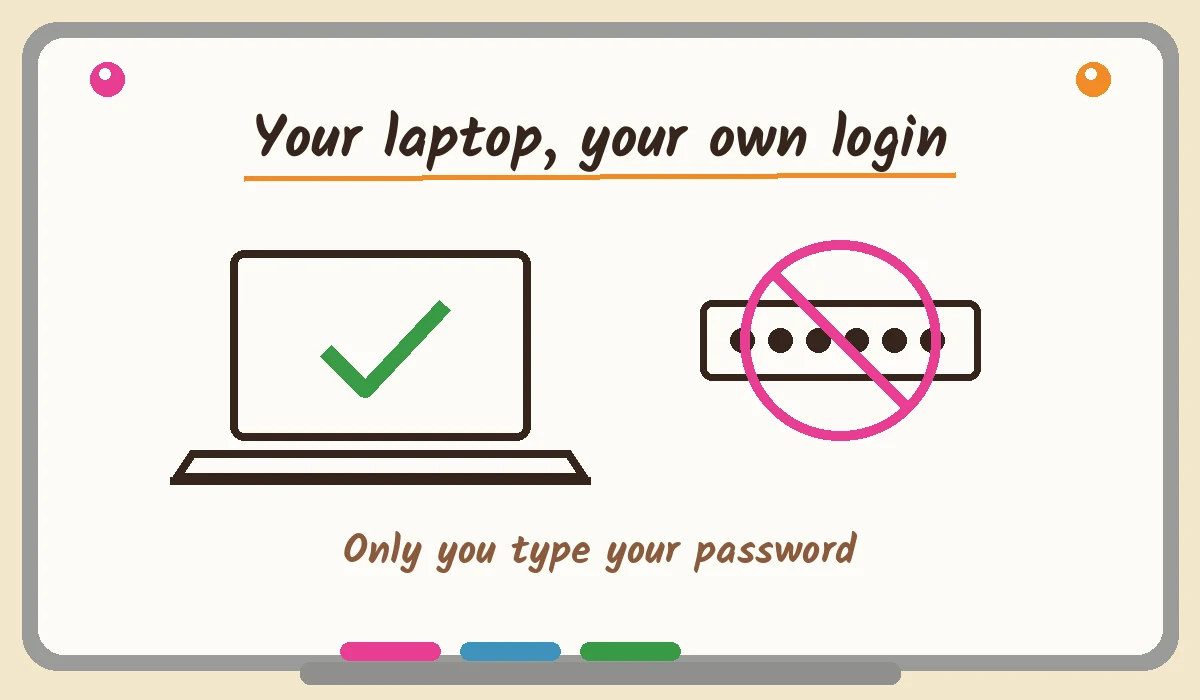
At the workshop: bring your own laptop and its charger, your phone, and your ChatGPT email and password. No account yet? Bring the email address you'd like to use, and we'll make one together in step 2. Helpers point; only you type your password.
Check that you've got it
- You can open ChatGPT and start a New chat.
- Improve the model for everyone is off, and you've decided about memory.
- You know how to start a New Temporary Chat.
- You've asked a question by talking, and checked the words before sending.
- You've asked for a simpler answer, and you know how to print it.
Next time, in Lesson 32, we'll connect your email and calendar.
Let’s learn together.
Comments are reviewed by Ana before they appear. Please use fictional examples and leave workplace details out.
Loading approved comments…