Connect your email and calendar to ChatGPT
Connect Gmail and Google Calendar, ask what is new, sum up an email, draft a reply you send yourself, and add an event after reading the permission card.
Step 2 of 5 in Everyday ChatGPT, step by step (Path 04)
Heads up: these screenshots use the ChatGPT desktop app with a Gmail account, on the Plus plan. Connecting Gmail and Google Calendar needs Plus, the $20-a-month plan, or higher.
I don't love writing emails, and I love reading through a whole inbox to find the one that matters even less. Today ChatGPT reads your Gmail and Google Calendar so you can ask about them in plain words: what's new, what a long email says, a reply for you to check, and a coffee date on your calendar. You stay in charge the whole time.
Before you start
Heads up: these screenshots use the ChatGPT desktop app with a Gmail account, on the Plus plan. Connecting Gmail and Google Calendar needs Plus, the $20-a-month plan, or higher. On the free plan, see "If you're on the free plan" below.
You'll need your Google account email and password. A spare Gmail account is fine for practice.
Screenshots are from November 1, 2026, with my chat titles, an email suggestion and my personal account blurred. The inbox you see is the practice account for this site. ChatGPT moves things around, so yours may not match.
1. Find Customize and Plugins
Look at the narrow strip of icons down the far left. The fifth one, a little round logo, is Customize. Click it, then click Plugins. A plugin lets ChatGPT work with another service, like Gmail.
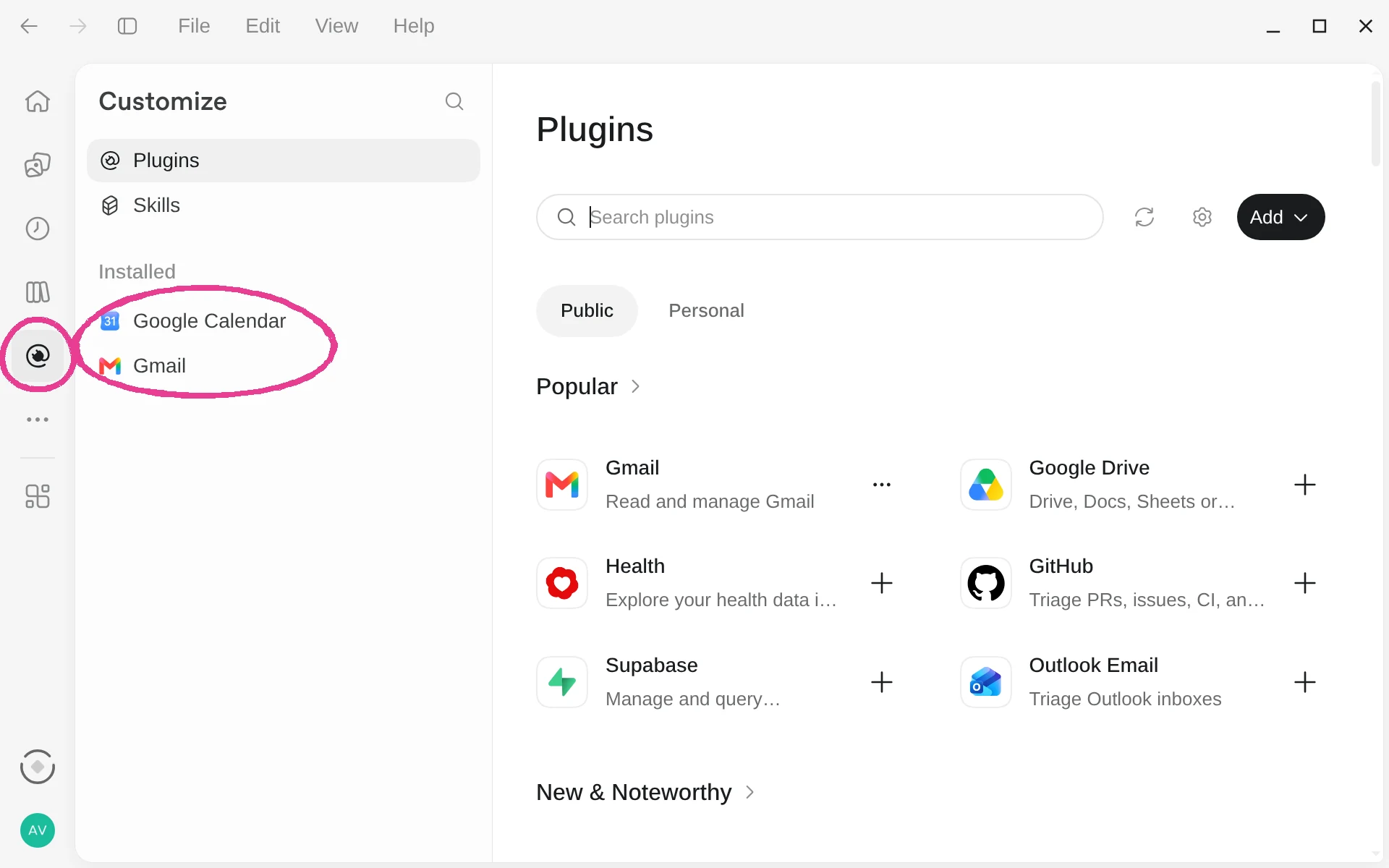
Mine already shows Gmail and Google Calendar under Installed, which is where yours will end up.
2. Connect Gmail and Google Calendar
- In the Search plugins box, type Gmail.
- Click the + next to it, or Install.
- A box called "Choose Google plugins to install" offers Calendar, Contacts and Drive too. Choose Calendar and leave the rest for now.
- You'll see "Finish connecting in your browser." Your web browser opens to Google's sign-in page. Sign in yourself.
- Google lists what ChatGPT is asking for. Read it, then click Allow.
Google then emails you a security alert saying you gave OpenAI access. That's expected.
3. Check which account is connected
Back in Customize, click Gmail, then Manage. The Plugin settings > Gmail page lists your Connected accounts.
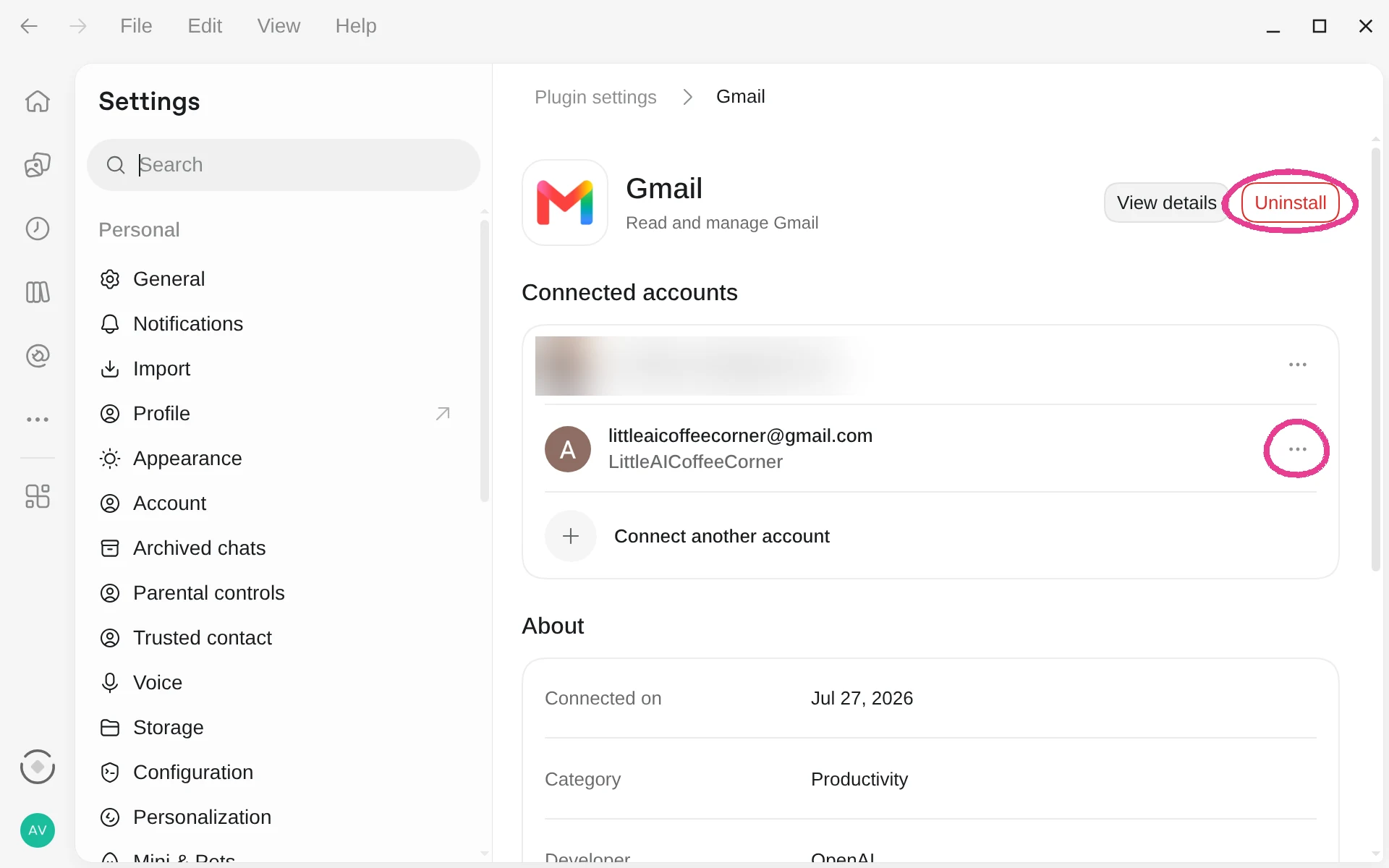
I have two connected, my own and the site's practice account, so I name the account in my questions below. With just one, say "my email."
4. Ask for your newest emails
Click New chat. Typing @G in the box brings up Gmail ("Read and manage Gmail") and Google Calendar ("Manage Google Calendar events"). Pick one, or just mention your email in plain words.
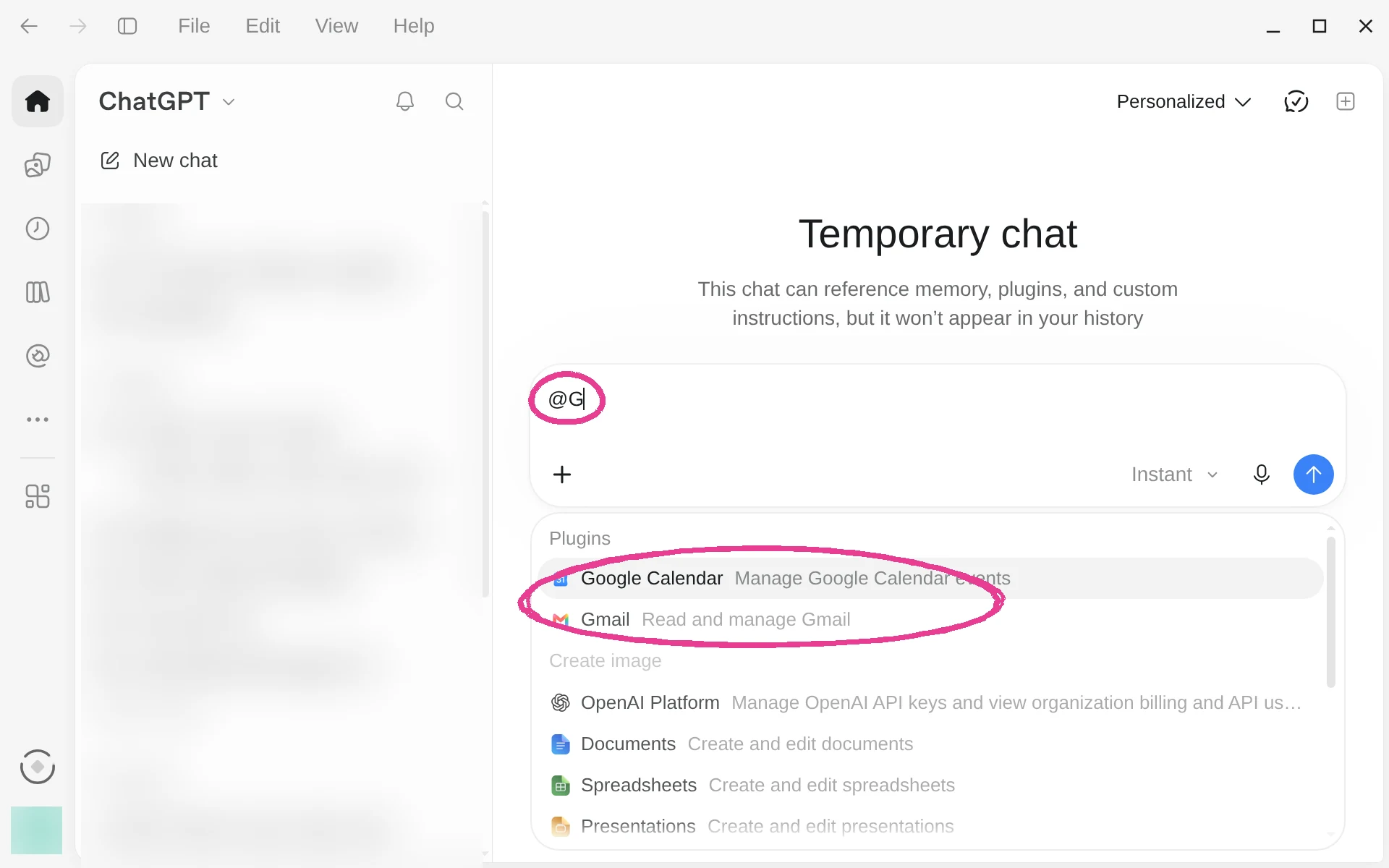
Here's what I asked:
"In my littleaicoffeecorner@gmail.com inbox, what are my 5 newest emails? Give me one plain sentence about each."
You can start with "In my email" instead.
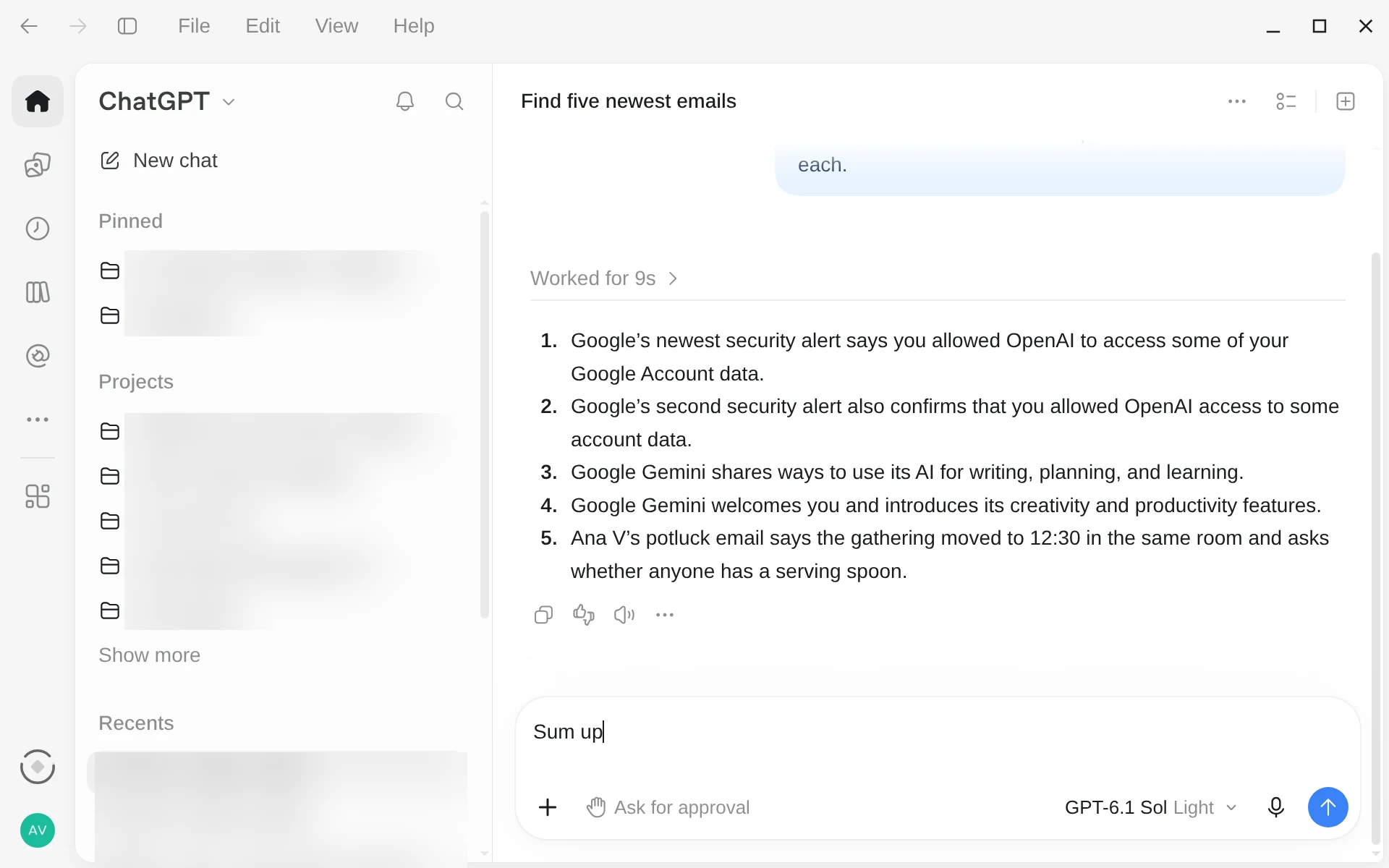
Two were Google's security alerts about OpenAI, two were from Gemini, and one was a potluck email saying lunch moved to 12:30 and asking about a serving spoon. A potluck email is the most important kind of email there is.
5. Sum up one email
In the same chat, I asked:
"Sum up the potluck email in plain words, in 3 short bullet points."
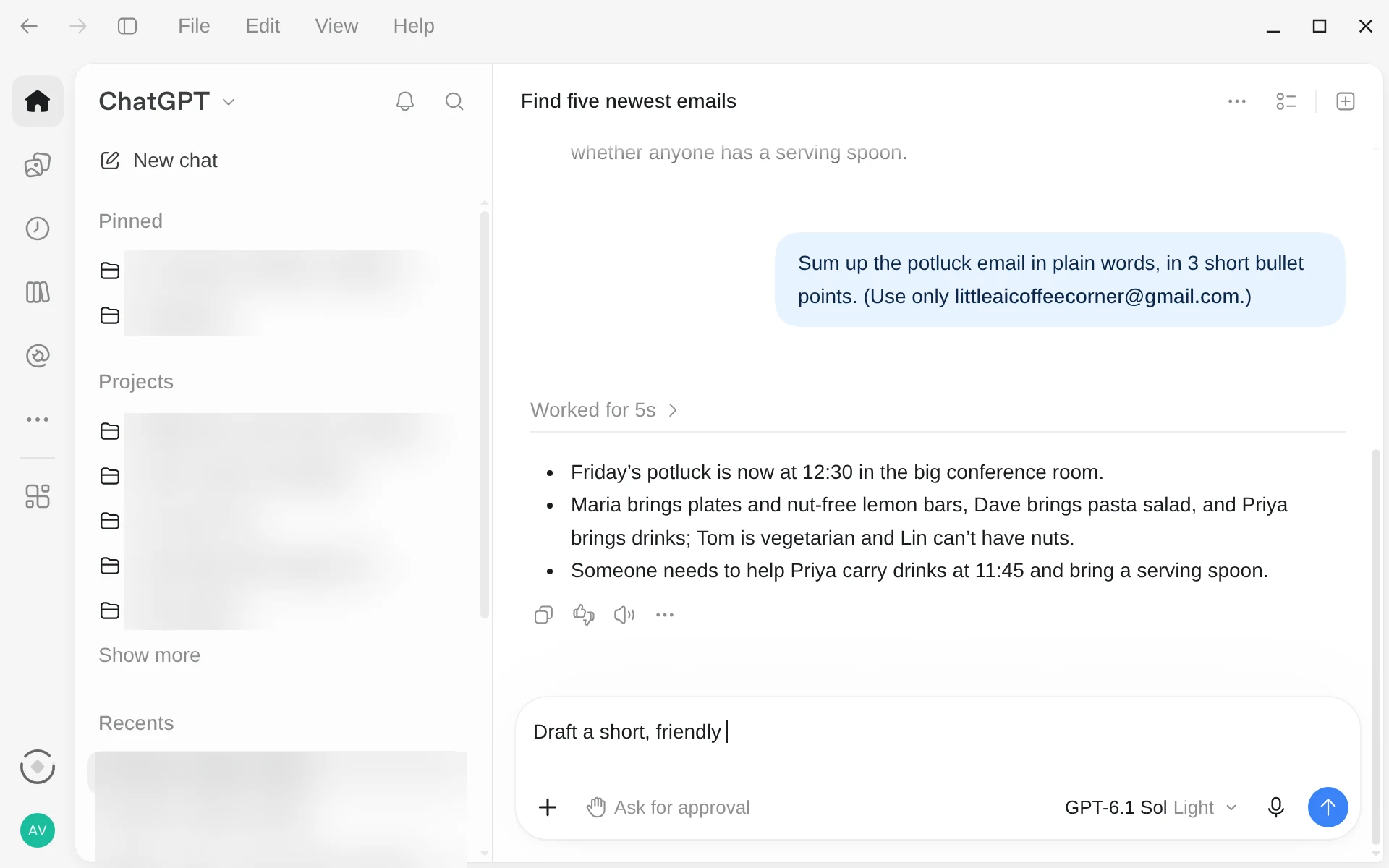
It had the new time and room, who's bringing what, that Tom is vegetarian and Lin can't have nuts, and that someone needs to help Priya carry drinks at 11:45 and bring a serving spoon. Check it against the real email before you act on it.
6. Draft a reply, and send it yourself
This is my favorite part, since it writes the email so I don't have to. I asked:
"Draft a short, friendly reply to that potluck email saying I'll bring the serving spoon. Don't send it."
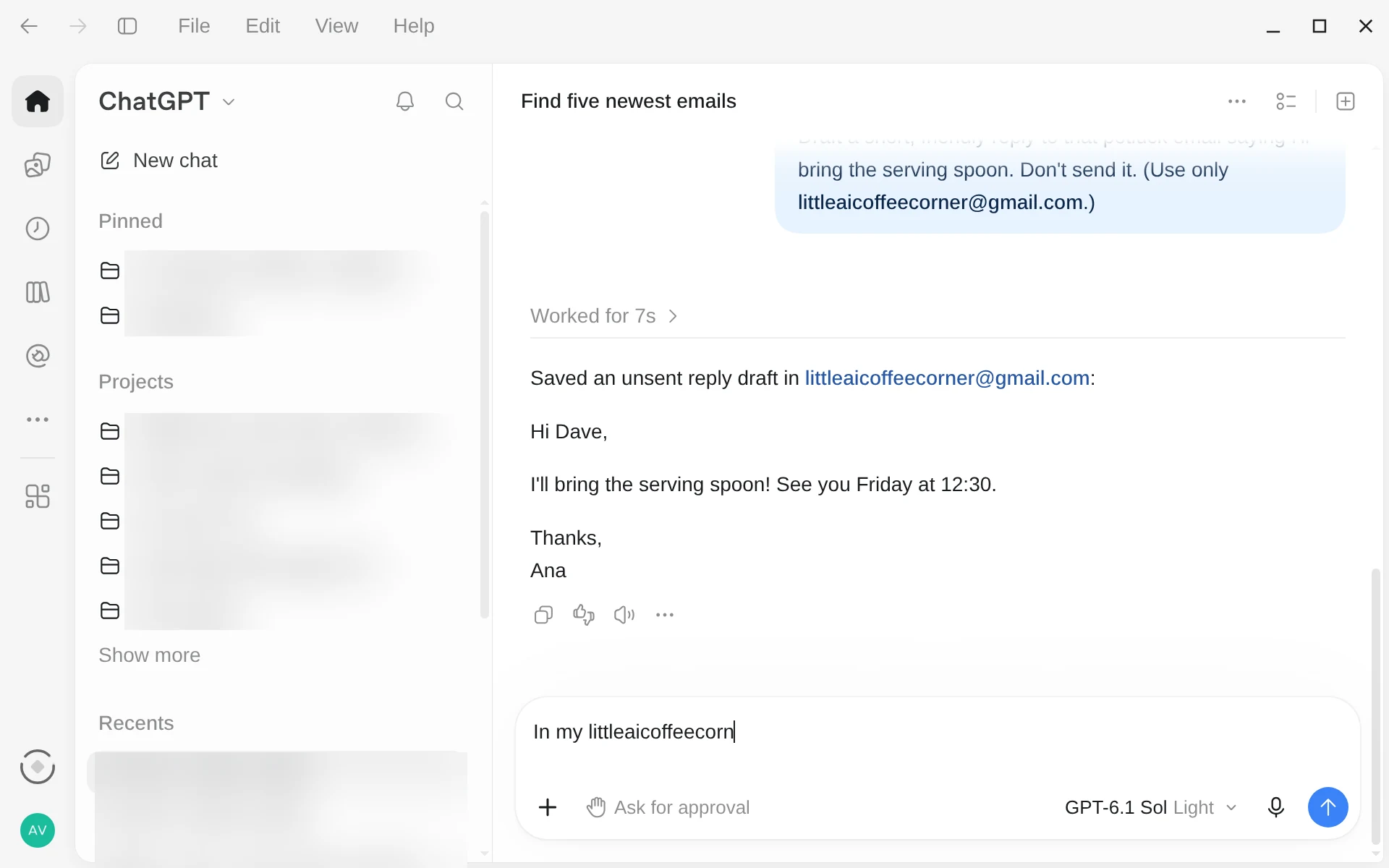
It saved the reply in my Gmail Drafts folder without sending it. Open Gmail, read it, change anything you like, and press Send yourself. I always add "Don't send it" so there's no doubt.
7. Check your calendar
I asked:
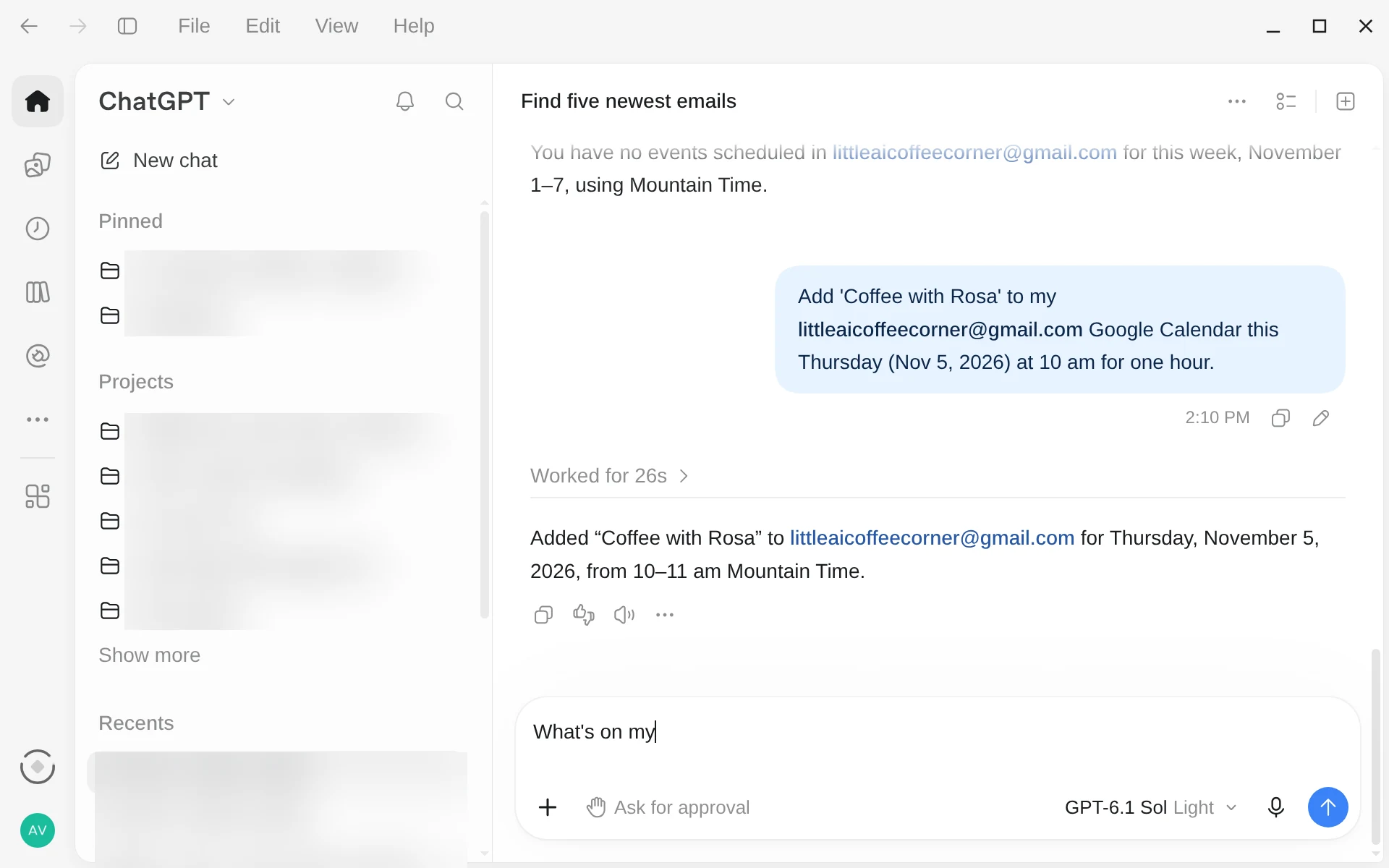
"In my littleaicoffeecorner@gmail.com Google Calendar, what do I have this week?"
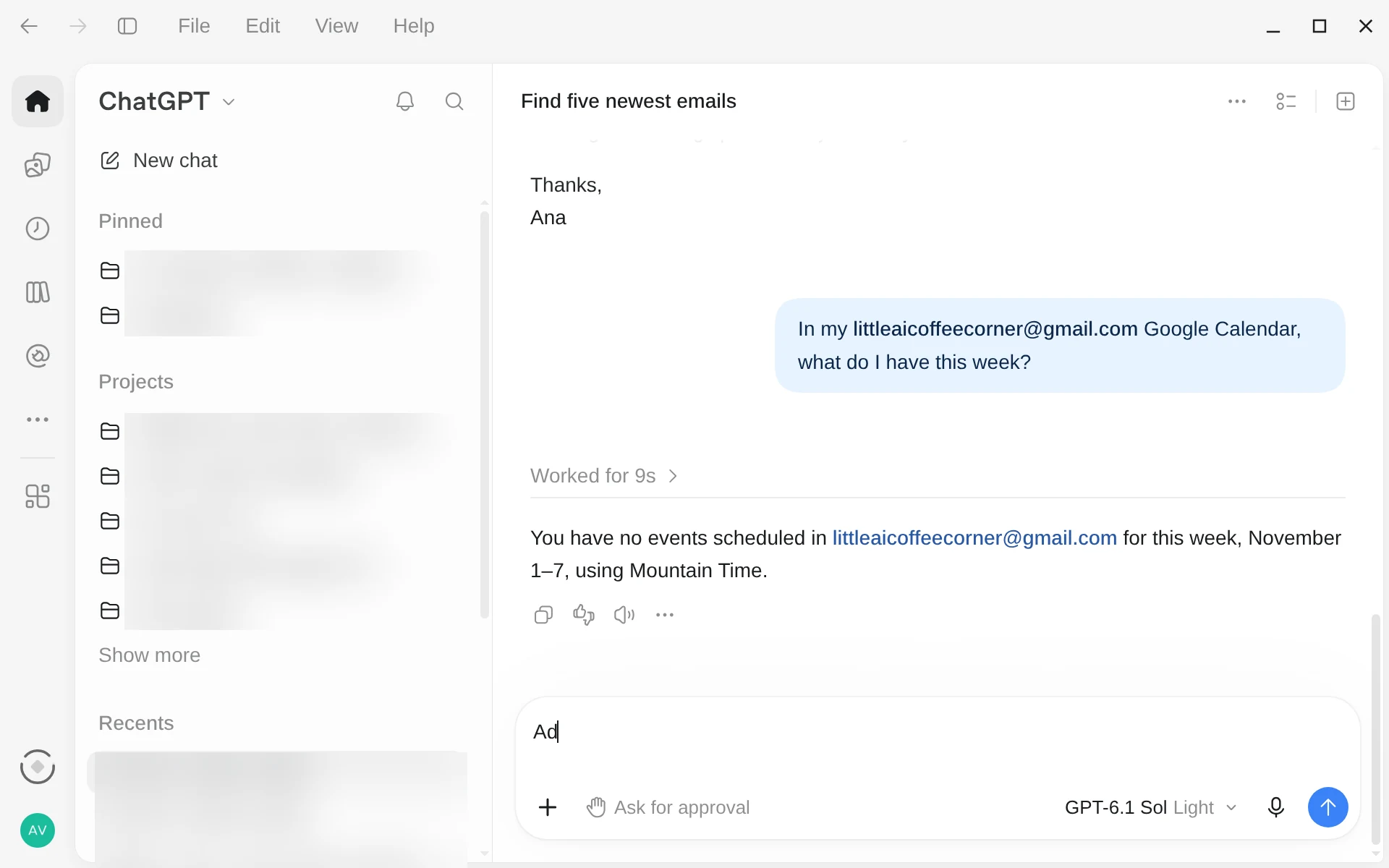
Nothing this week, and it told me it was using Mountain Time. If that isn't your time zone, say so.
8. Add an event, and read the card first
I asked:
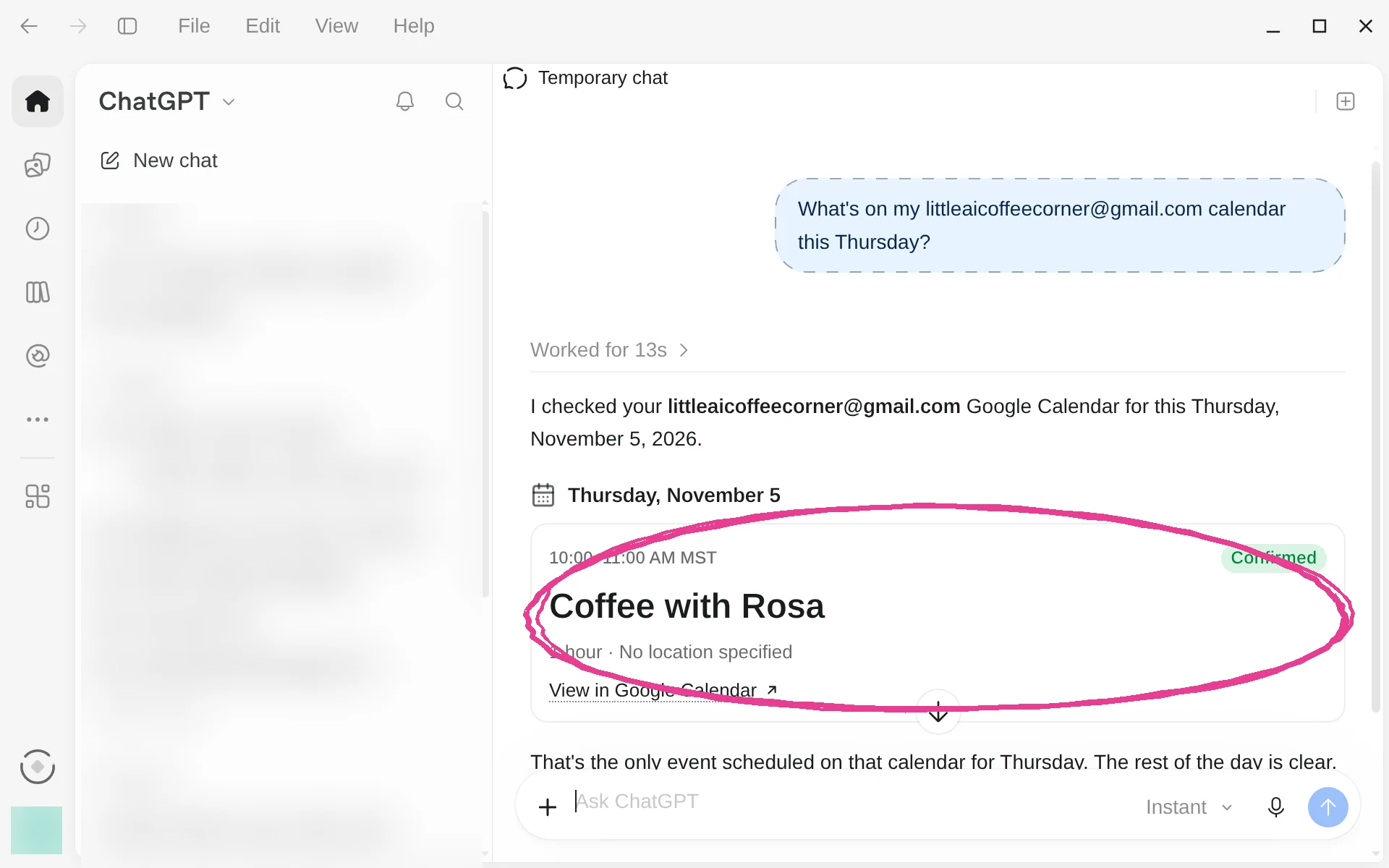
"Add 'Coffee with Rosa' to my littleaicoffeecorner@gmail.com Google Calendar this Thursday (Nov 5, 2026) at 10 am for one hour."
Before it adds anything, ChatGPT stops and shows you a card asking for permission.
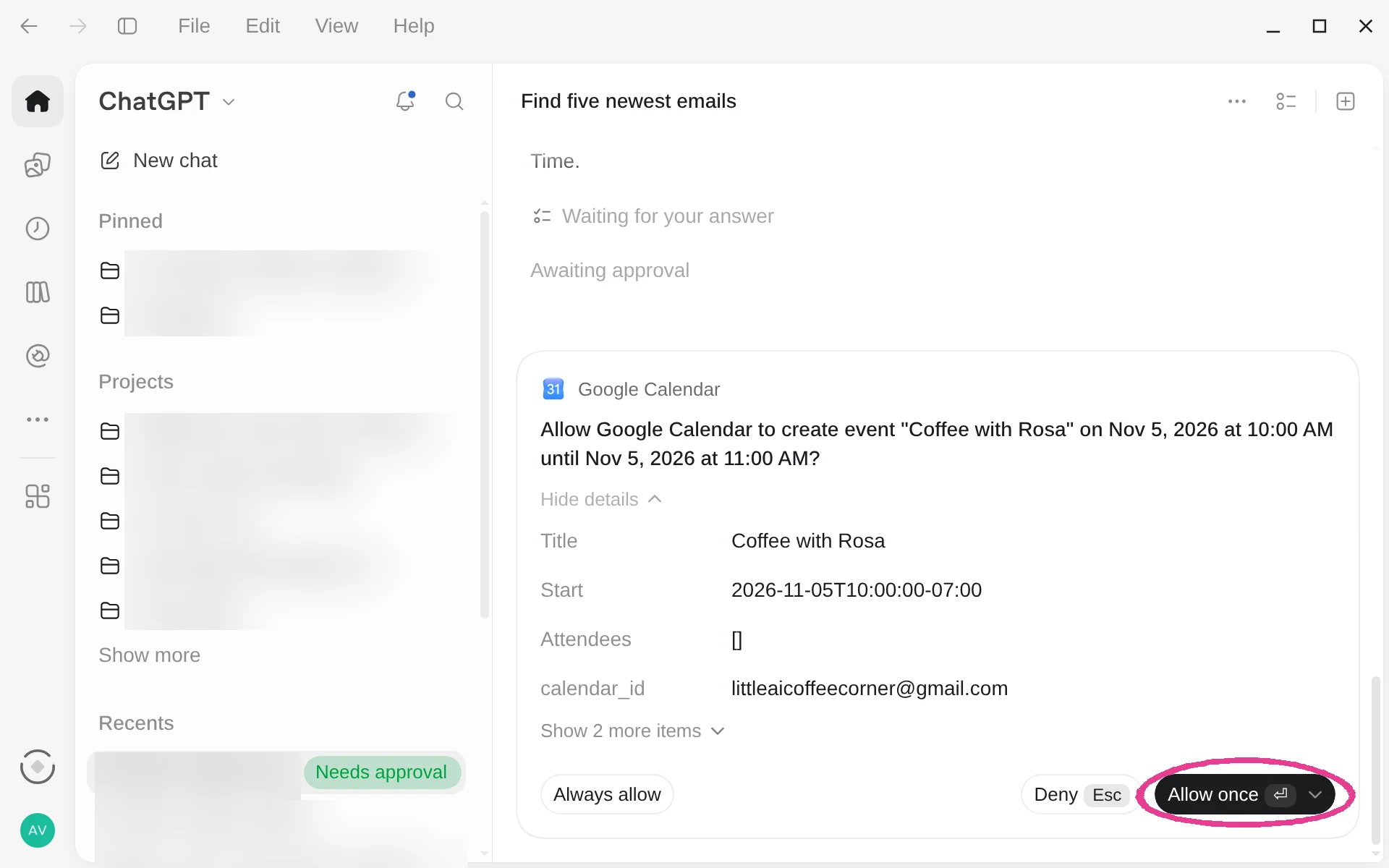
Read the name, the date and both times. If something's wrong, click Deny and ask again. If it's right, click Allow once, which is the careful choice. Always allow means it won't ask next time, and I'd skip that.
9. Check that it's there
Ask, "What's on my littleaicoffeecorner@gmail.com calendar this Thursday?" or open Google Calendar and look.
What it can see and do
- Once connected, ChatGPT can read your email and calendar when you ask about them.
- It asked before adding the event, and you can say no.
- It saved the reply as a draft. Mine didn't send anything, and I told it not to.
- To disconnect, go to Customize, click Gmail, then Manage. The ... next to your account has options for that account, and Uninstall removes Gmail altogether. Do the same for Google Calendar.
If you're on the free plan
Open the email in Gmail, select the text, copy it, and paste it into ChatGPT. Then ask, "Sum this up in 3 short bullet points" or "Draft a short, friendly reply." Copy the reply back into Gmail and send it yourself. For the calendar, ask ChatGPT to pull out the date, time and place, then add it to your calendar yourself.
Fine and not fine
These are fine:
- Asking what's new, summing up a long email, or drafting a reply you'll read.
- Adding an event after you've read the card.
These are not fine:
- Letting it send anything you haven't read.
- Clicking Always allow on a shared or borrowed computer.
- Trusting a summary about money, medicine or a bill without reading the email yourself.
At the workshop
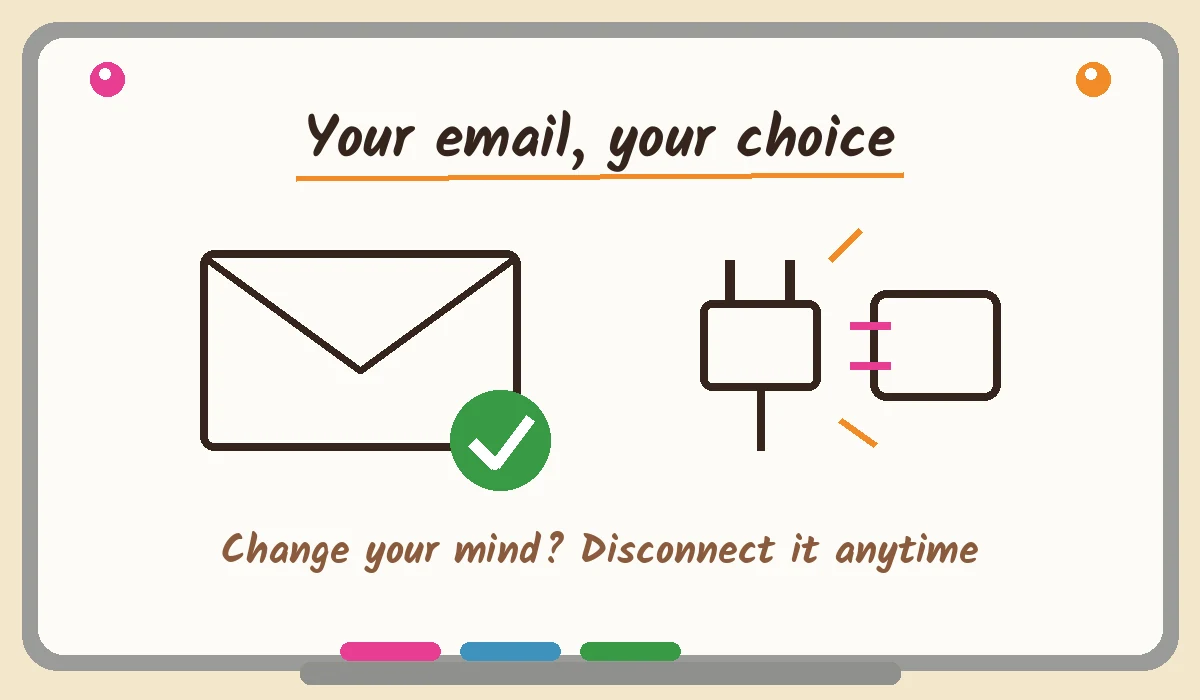
At the workshop: you'll connect your own Gmail on your own laptop, so you see your own mail. Not ready today? That's fine, just watch along with a neighbor. And if you change your mind later, you can disconnect it anytime from the Gmail settings, like in step 2.
Check that you've got it
- You found Customize and Plugins, and Gmail and Google Calendar are installed.
- You asked for your newest emails and got a summary of one.
- You had it draft a reply, and you know you send it yourself from Gmail.
- You read the permission card and chose Allow once.
- You know how to disconnect.
Let’s learn together.
Comments are reviewed by Ana before they appear. Please use fictional examples and leave workplace details out.
Loading approved comments…