Your computer and your files
Let ChatGPT work in a practice folder, make a large-print Word recipe card, change it, and check what it tells you about your files.
Step 3 of 5 in Everyday ChatGPT, step by step (Path 04)
Heads up: these screenshots use the ChatGPT desktop app on the Plus plan. From what I found, letting the app work inside a folder on your computer needs a paid plan, like Plus at $20 a month.
So far ChatGPT has only written in its own window. Today it makes a real file on your computer, a Word recipe card for chicken soup, and then changes it when you ask. You'll also see why you should check what it tells you about your files, because it got one thing wrong for me.
Before you start
Heads up: these screenshots use the ChatGPT desktop app on the Plus plan. From what I found, letting the app work inside a folder on your computer needs a paid plan, like Plus at $20 a month. On the free plan, see "If you're on the free plan" below.
Make a new, empty folder for practice. Mine is called Coffee Corner Practice, inside Documents. Don't use a folder with your tax papers or photos in it.
Screenshots are from November 1, 2026, with my project and chat names and a few folder names blurred. ChatGPT moves things around, so yours may not match.
Remember from Lesson 31, you can click the microphone and talk instead of typing any of the requests below.
1. Start a new project
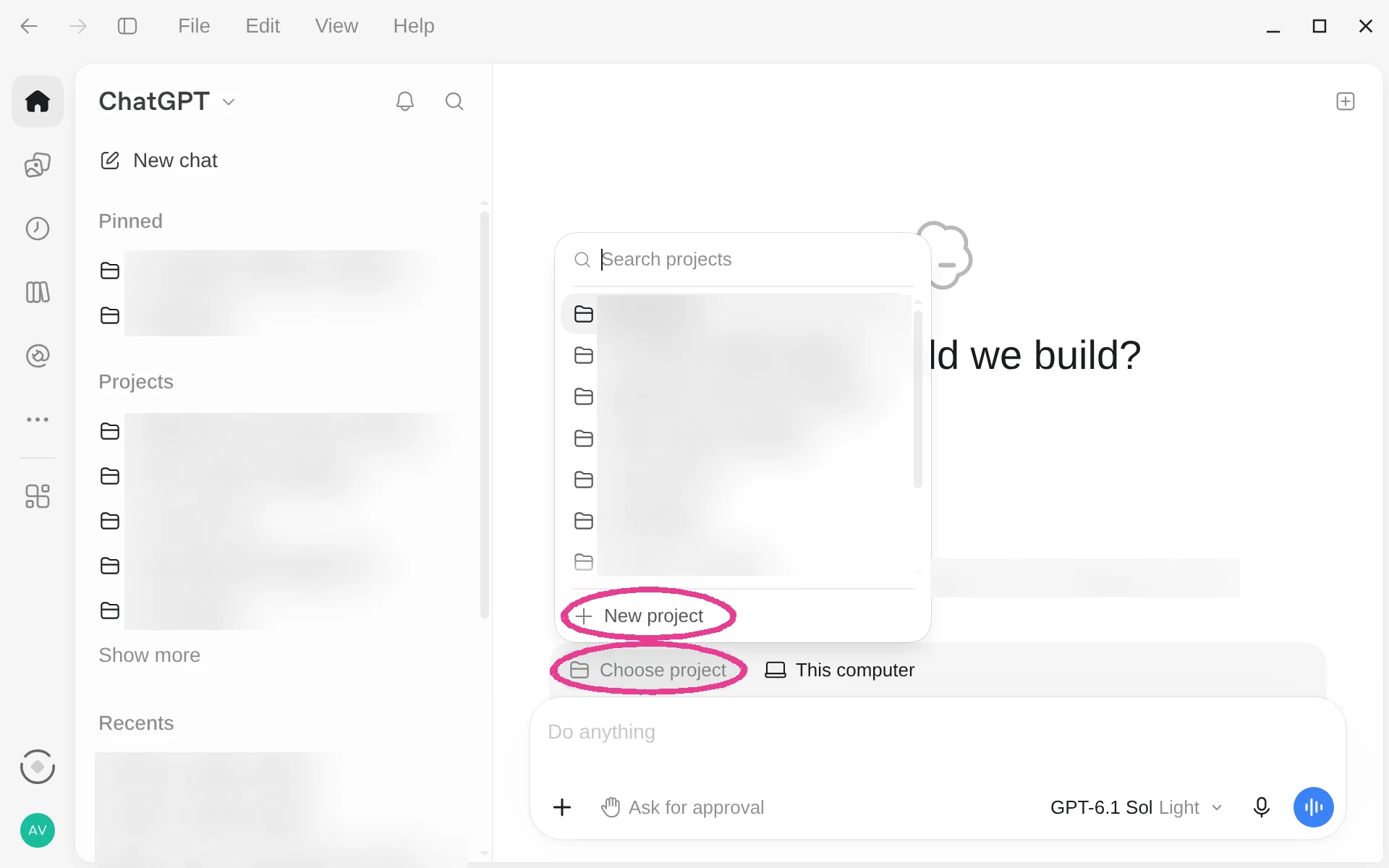
A project is ChatGPT's name for "work in this folder." Under the big box on the home screen, click Choose project, then New project at the bottom of the list.
2. Pick your practice folder
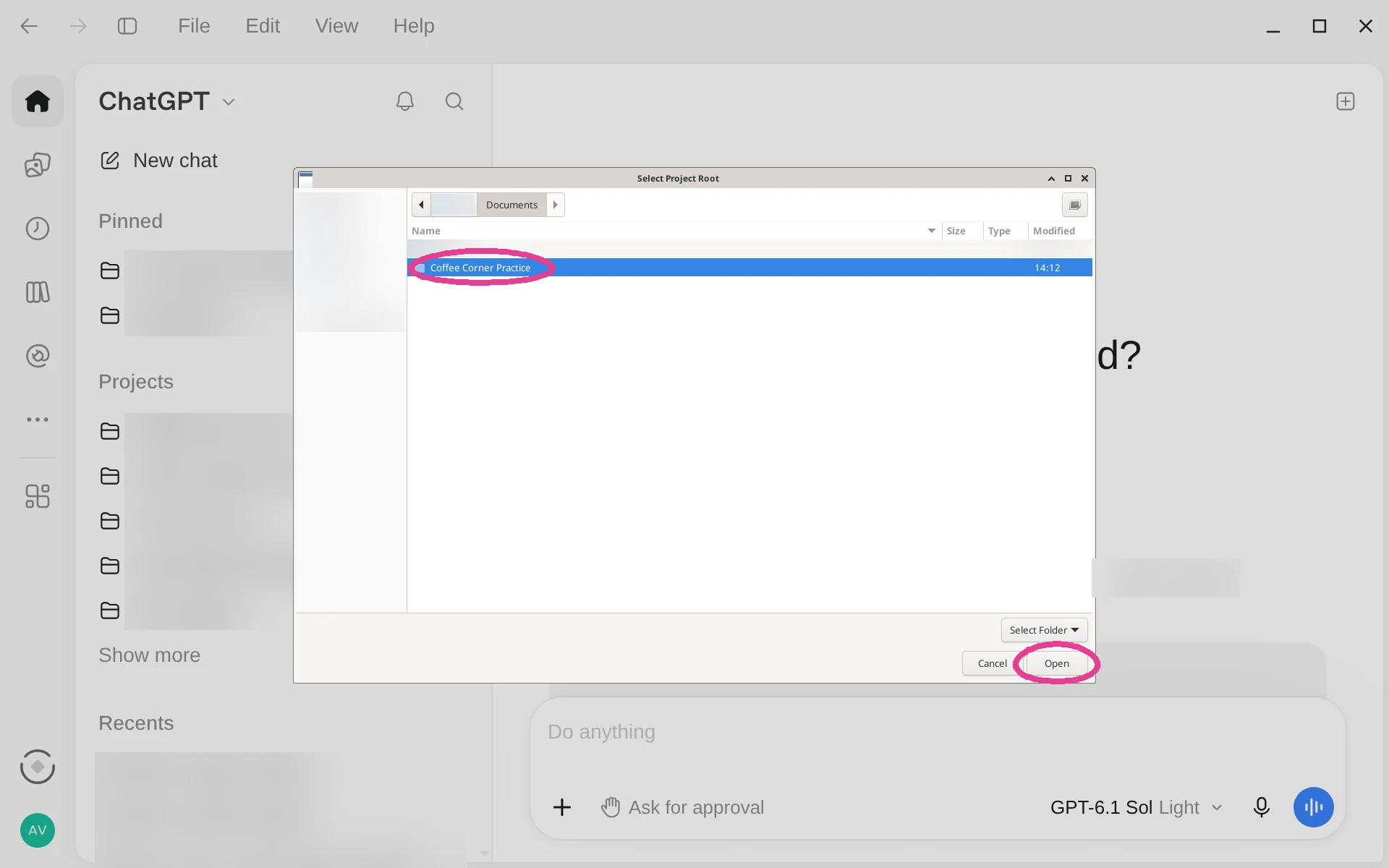
In the Create project box, under Source folders, click Add folder. A window opens to pick a folder. Click Documents, then Coffee Corner Practice, then Open.
3. Name it and create it
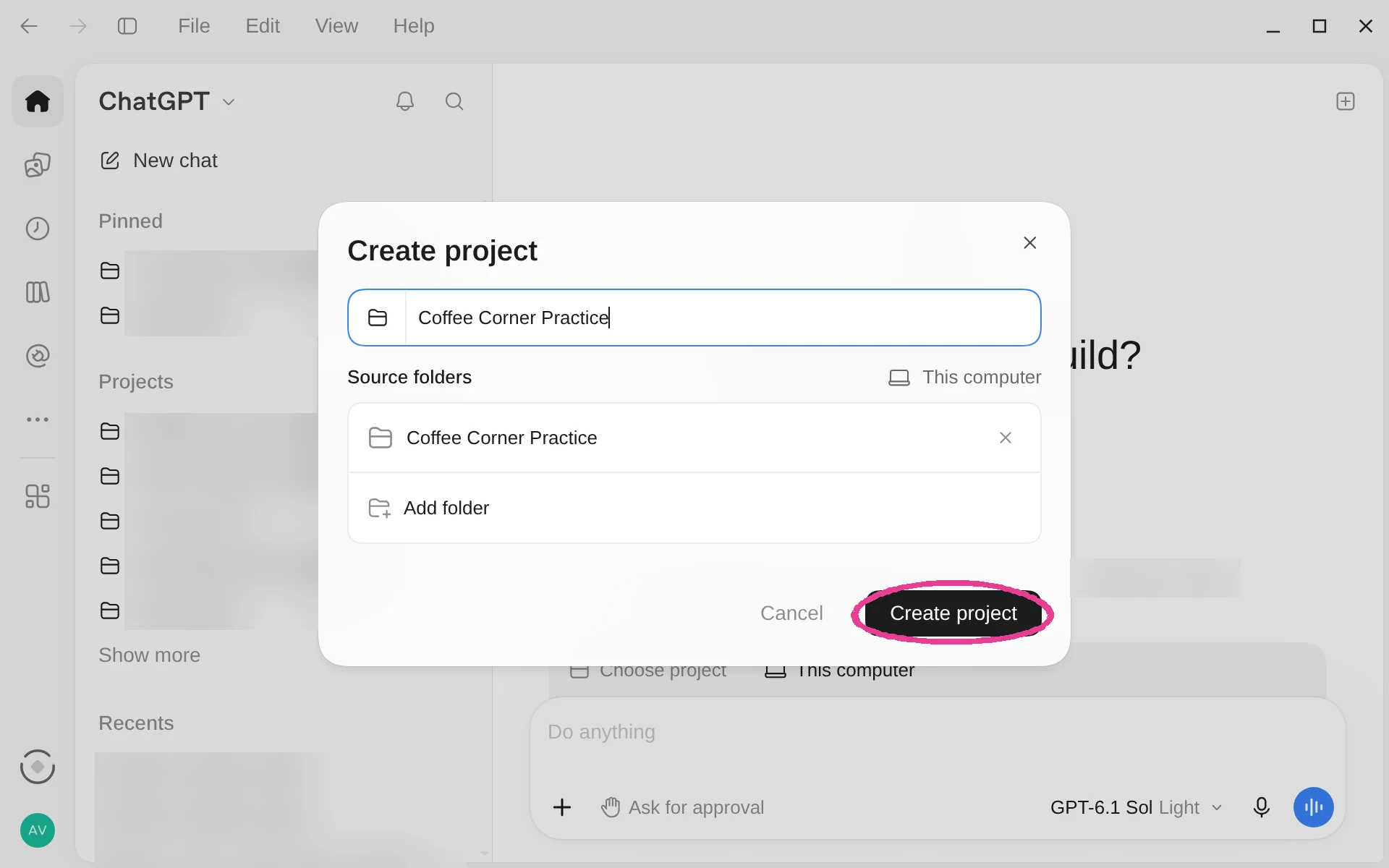
Type a name at the top. I used the folder's name, which saves thinking. Click Create project.
Next comes a box called Trust this folder? It says ChatGPT can read, edit and run files there. That's the deal, so only trust a folder you made for this. Click Trust folder.
You might also see File, Open Folder… in the menu. It didn't work reliably for me, so I use Choose project.
4. Check you're in the right place
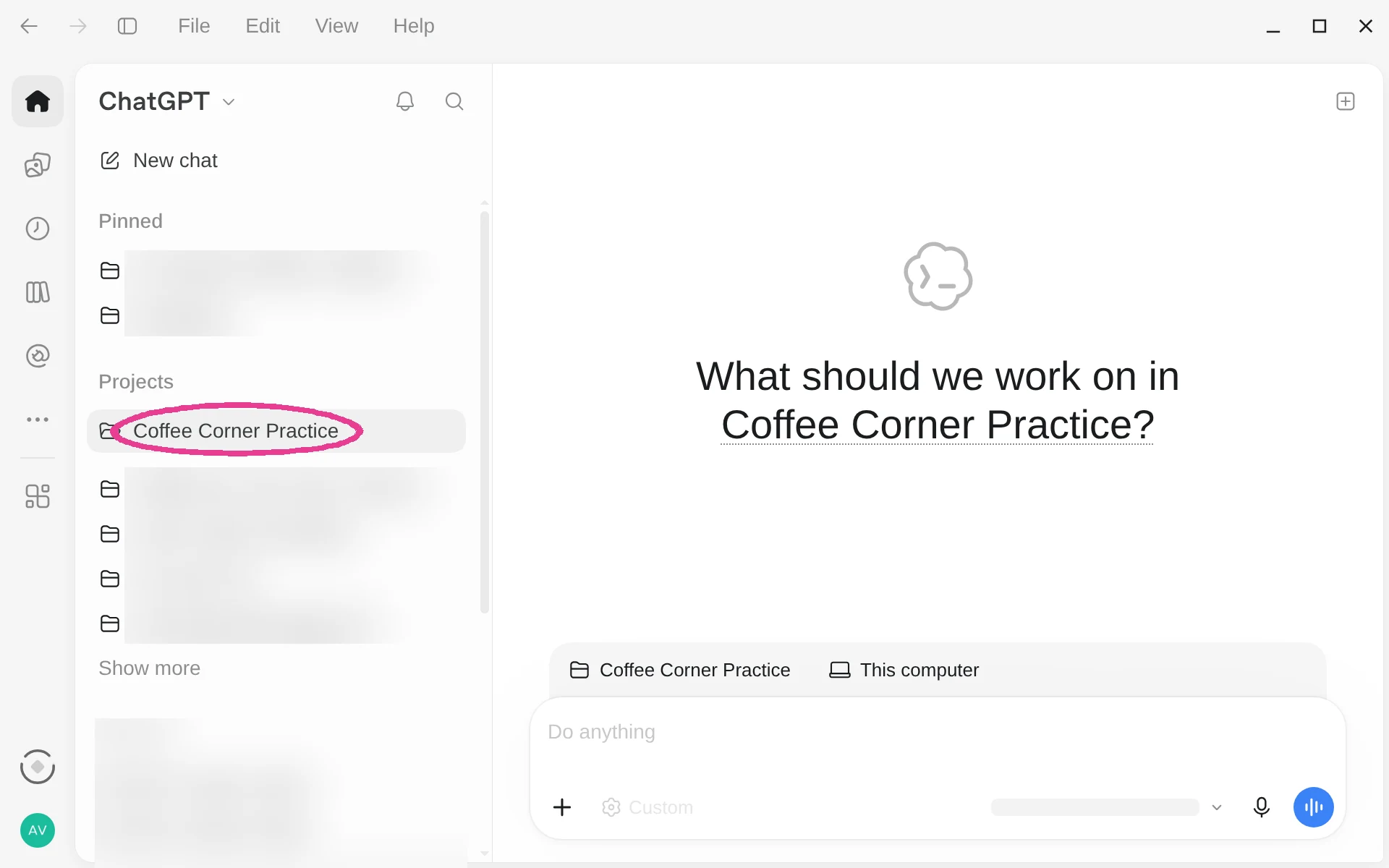
The page now asks "What should we work on in Coffee Corner Practice?" and your project is in the list on the left.
5. Keep "Ask for approval"
At the bottom of the box there's a little hand that says Ask for approval. Click it to see the choices under "How should ChatGPT actions be approved?"
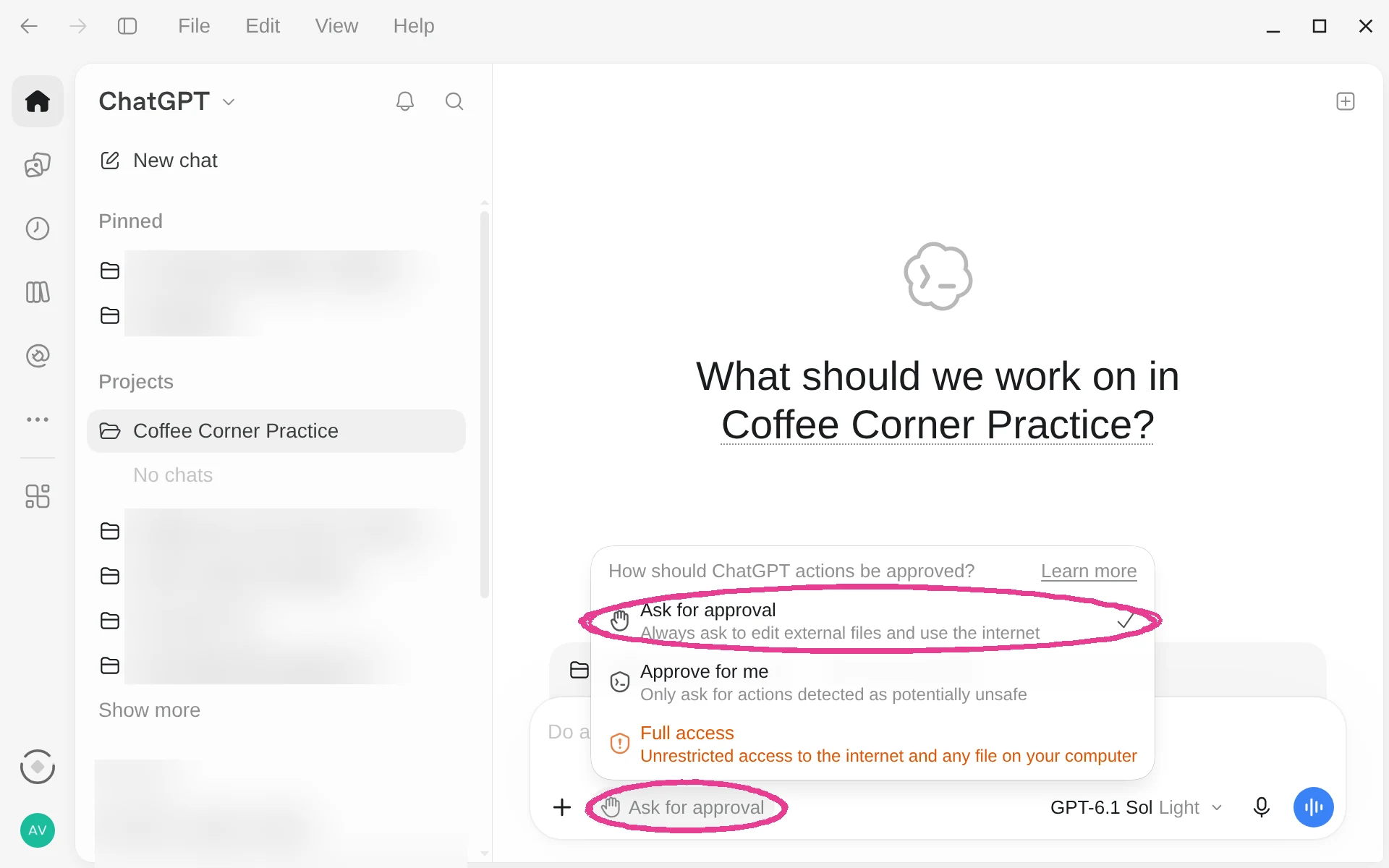
- Ask for approval always asks before it edits files outside your folder or uses the internet. Keep this one.
- Approve for me decides for itself what's risky. I'd skip it.
- Full access means anything on the internet and any file on your computer. Never pick this.
To be honest about it: inside the folder you trusted, ChatGPT can make and change files without asking each time. That's what trusting it means, and it's why the folder should be just for practice.
6. Ask for a recipe card
Here's what I asked:
"Make a Word recipe card for my grandma's chicken soup, with large, easy-to-read text, and save it in this folder."
It asked for the recipe first, which was fair, since I hadn't given it one.
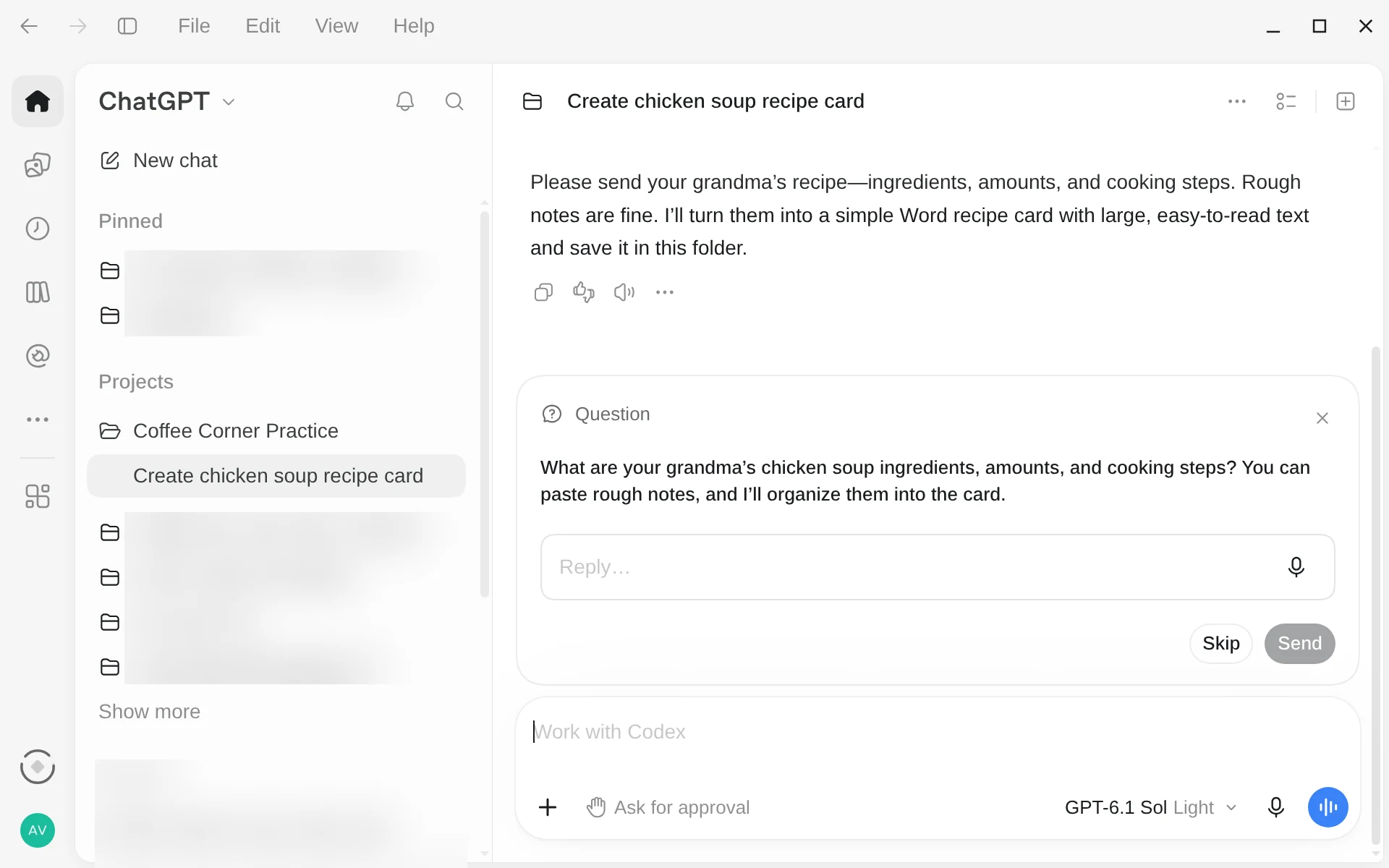
I don't actually have Grandma's recipe written down, so I replied: "Write a simple classic chicken soup recipe that serves 4 people."
7. See the file it made
About 40 seconds later it said it had made a one-page card with large 18-point text and saved it in my folder. The file is Classic Chicken Soup Recipe Card.docx, a Word document.
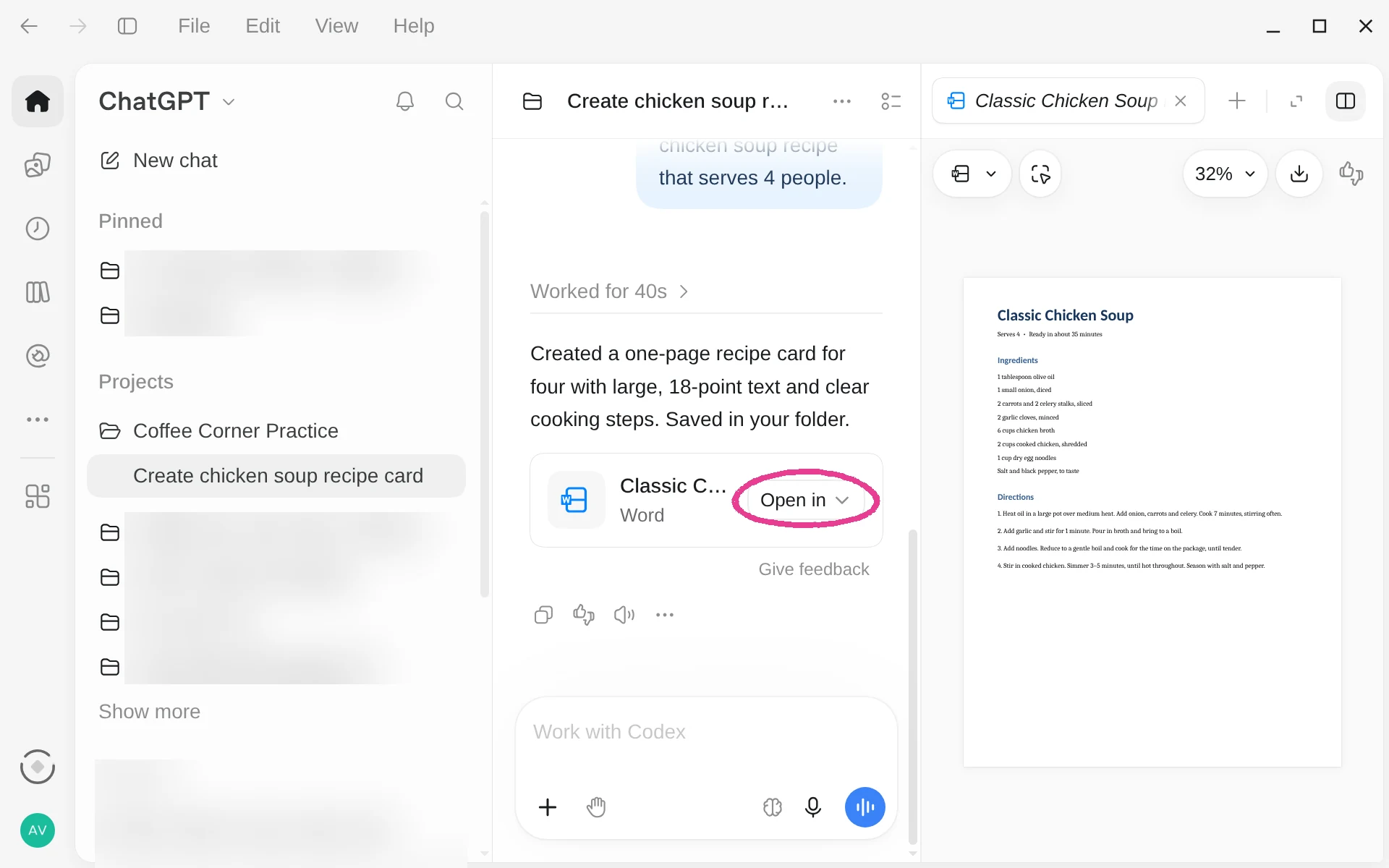
Click Open in to choose how to open it. Mine offered Export to Google Docs and Show in File Manager, which opens the folder so you can see the file sitting there.
8. Open it and read it
Double-click the file to open it in your word processor, like Word.
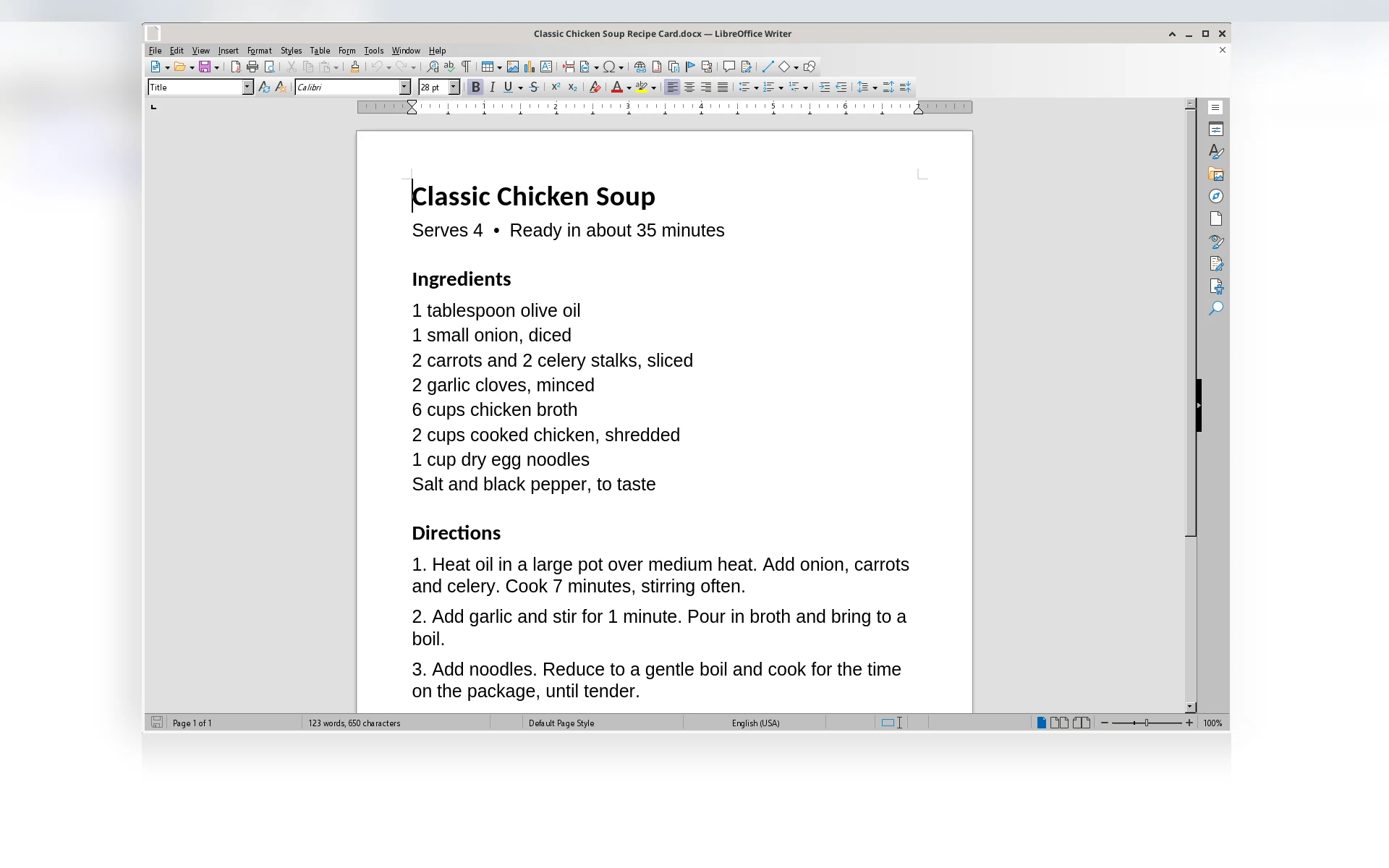
The text was big enough to read without my glasses, which is my new standard for everything.
9. Ask for a change
Close the file first. Then, in the same chat, I asked:
"Change it to serve 8, double the ingredients, and add 'Made with love by Grandma Rosa' at the bottom."
ChatGPT said: "Updated to serve 8 with doubled ingredients and 'Made with love by Grandma Rosa' at the bottom." The little preview inside ChatGPT still showed "Serves 4," so don't trust the preview. Open the file itself.
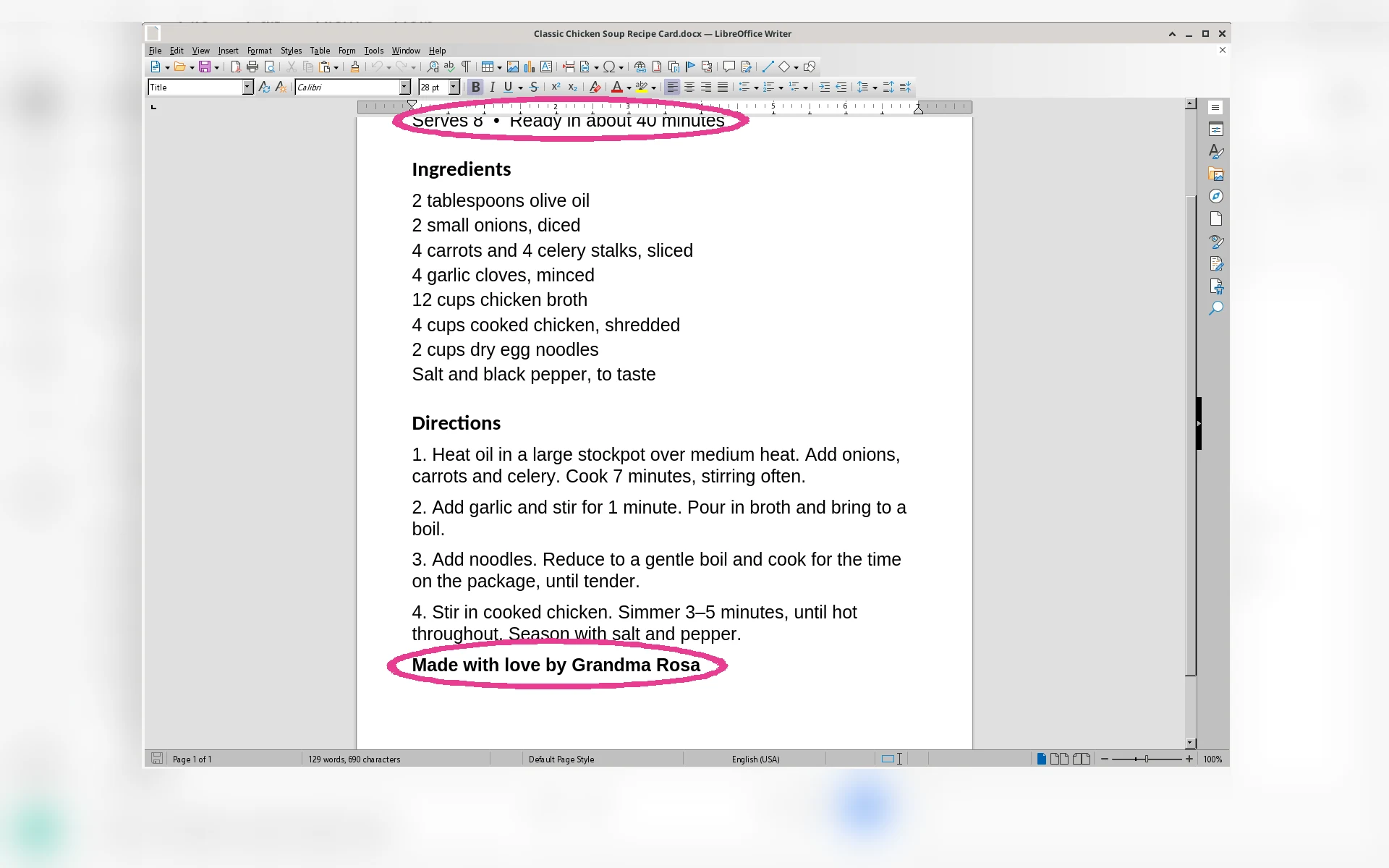
Serves 8, twelve cups of broth and Grandma Rosa at the bottom. That's the real proof.
10. Ask what's in the folder, then look yourself
I asked: "What files are in this folder now?"
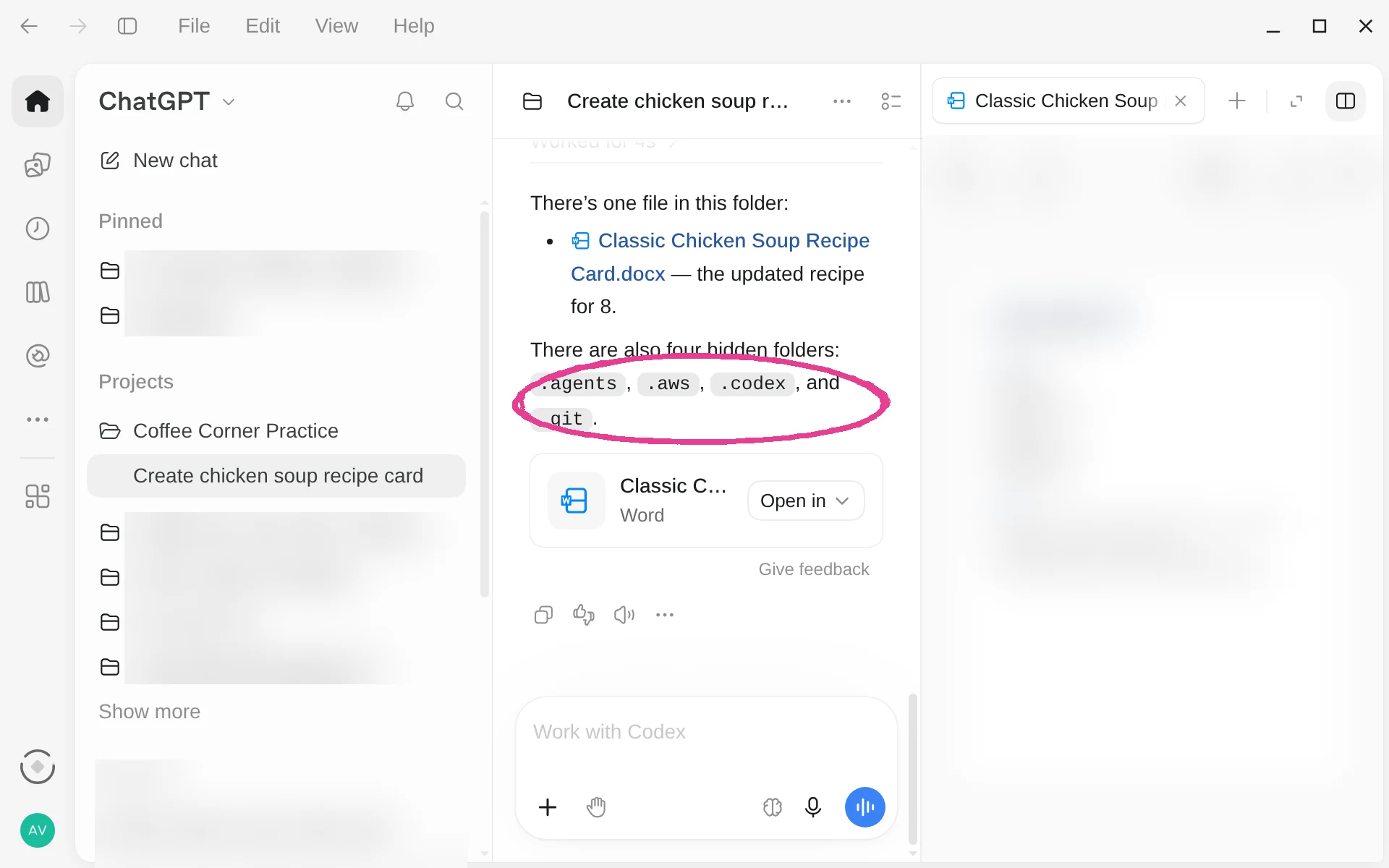
It got the recipe card right. Then it said there were also four hidden folders. There weren't. My folder had exactly one file in it. ChatGPT sounded very sure, the way my brother does about directions.
So here's the habit: when it tells you what's on your computer, open the folder yourself and look. Click Open in, then Show in File Manager, or find the folder in Documents.
If you're on the free plan
You can still get help with a file. In a regular chat, click the + button next to the box and choose your file to upload it. Then ask, "Make this recipe bigger and simpler," or "Sum this letter up in plain words." Copy the answer into Word yourself. Free accounts get about 3 file uploads a day.
Fine and not fine
These are fine:
- A practice folder with recipes, letters or lists.
- Asking it to make or change a file, then opening it to check.
These are not fine:
- Trusting a folder with tax papers, medical records or passwords in it.
- Picking Full access.
- Believing what it says is in a folder without looking.
At the workshop
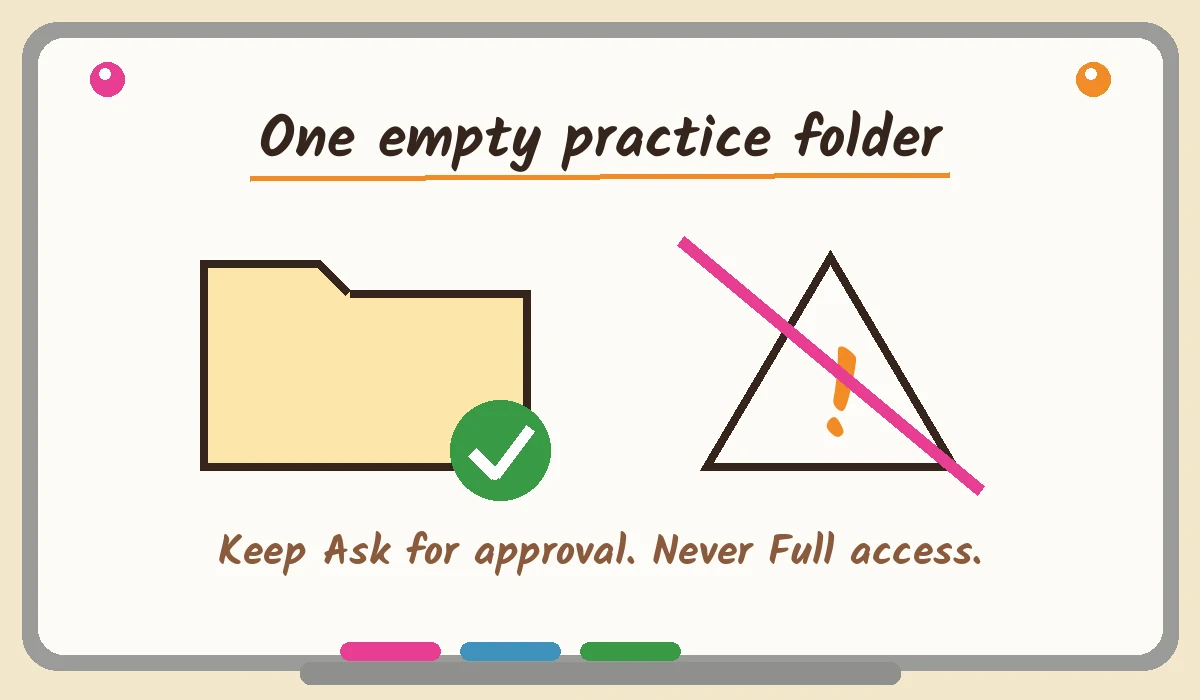
At the workshop: on your own laptop, we'll make the empty Coffee Corner Practice folder together first. Only ever give ChatGPT that one folder, never all of Documents or your Desktop, and keep the little hand on Ask for approval. On the free plan? Follow along with the + button instead.
Check that you've got it
- You made a project from an empty practice folder and trusted only that folder.
- The hand at the bottom says Ask for approval.
- ChatGPT made a Word file, and you opened it to read it.
- You asked for a change and checked the file itself, not the preview.
- You know to look in the folder yourself.
Next time, in Lesson 34, we'll use ChatGPT to spot a scam.
Let’s learn together.
Comments are reviewed by Ana before they appear. Please use fictional examples and leave workplace details out.
Loading approved comments…