Copilot vs Gemini
Give Copilot and Gemini the same awkward office message, compare the answers, and use the one your company approves.
Step 1 of 8 in One tool, one small job at a time (Path 02)
You need a browser and an internet connection. Copilot needs a Microsoft account before it will chat.
If your office runs on Microsoft and Google at the same time, you probably have two AI assistants and nobody told you which one to use. Copilot is Microsoft’s. Gemini is Google’s. Both are likely somewhere on your work computer. Neither came with instructions.
So we gave them the same job: one slightly tense office message, then a request to make it shorter. Same words, side by side. Then you can decide which one you like, or, more realistically, use the one your company tells you to.
Before you start
You need a browser and an internet connection. Copilot needs a Microsoft account before it will chat. Gemini is at gemini.google.com; we were signed in, but Lesson 7 shows it works signed out too.
Heads up: these screenshots use personal accounts. At work you’ll sign in with your work account, the one for Outlook and Teams or your work Gmail, and things look a bit different:
- Copilot at work lives at copilot.cloud.microsoft, or inside Teams, Outlook, the Copilot app and Edge. You’ll see a Work label under your name, a green shield at the top (that’s enterprise data protection), a different background color, and a Work IQ switch next to Auto.
- Gemini at work is the same gemini.google.com, signed in with your work Google account. You might see a Pro, Expanded or Ultra badge at the top, and the sidebar depends on what your company pays for. Gemini Enterprise is a different app with its own address. If that’s what your company uses, IT will send the link.
- Your IT team can turn features off, or the whole tool. If something in this lesson isn’t there, that’s probably why. Not you.
The part that matters, typing a request and asking for a better one, works the same way. Steps that differ at work have an At work note.
The rule for both: use whichever one your company approves, and never paste confidential work information into a personal account. The fish message in this lesson is made up. The fish problem is universal.
Screenshots are from 2026-10-25. Names and chat titles are blurred. Both companies rename things constantly, so your buttons may not match.
Part 1: Copilot
1. Open Copilot and skip the menus
Type copilot.com into the address bar. You land on Sign into Copilot with a black Sign in button.
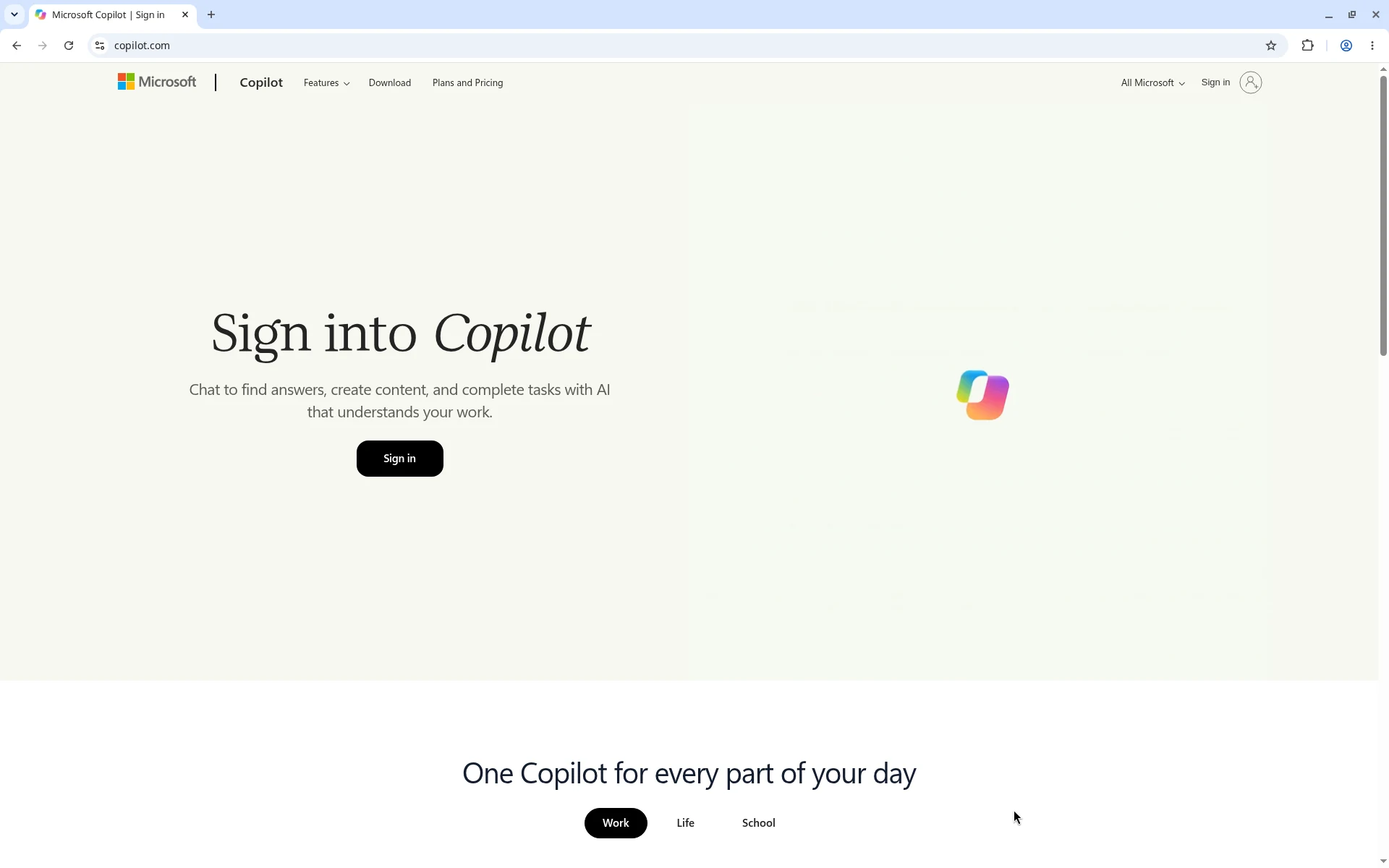
The front door.
Across the top: Features, Download, Plans and Pricing, All Microsoft. Features opens a list (Chat, Create, Prompts, Cowork, Work IQ).
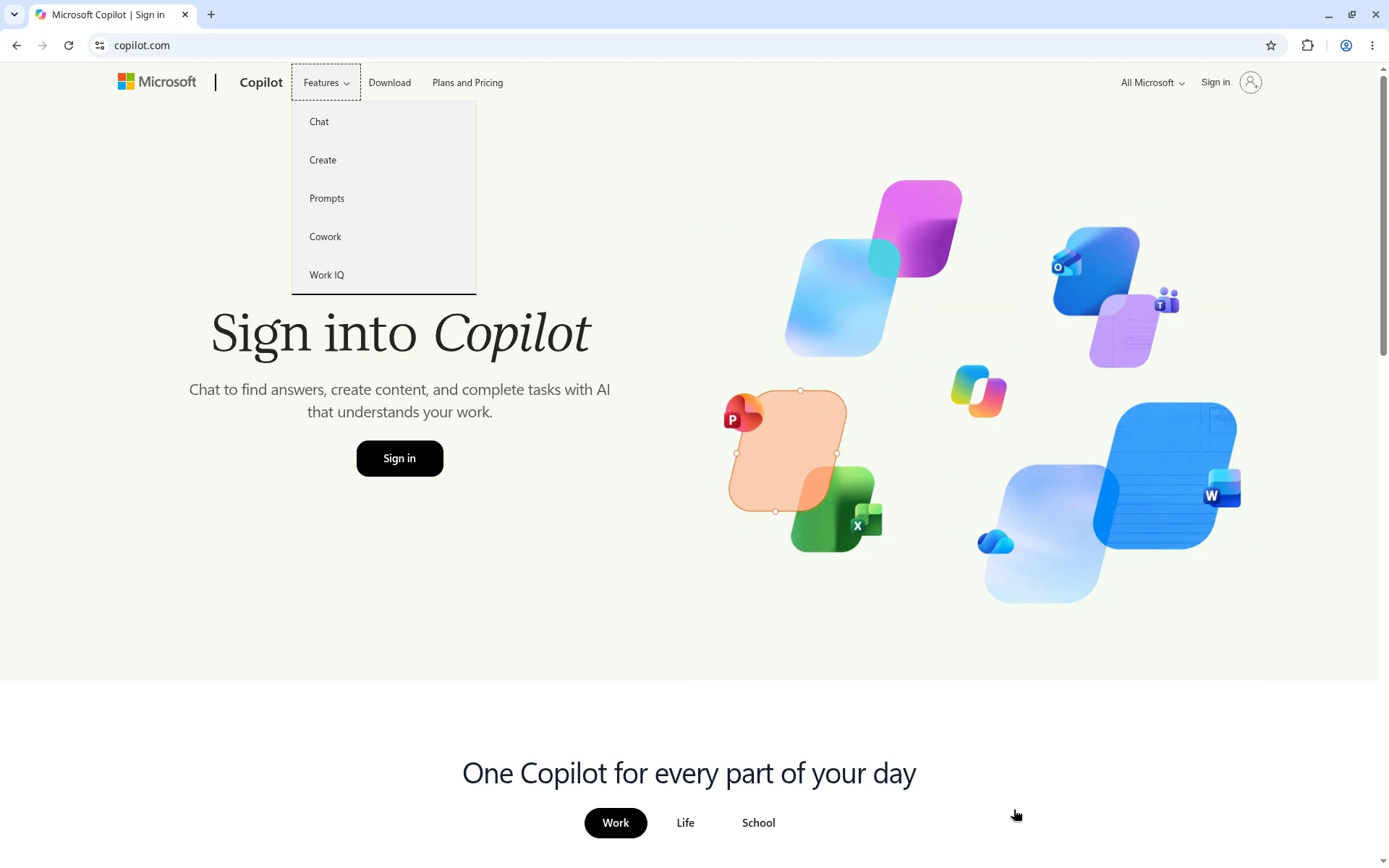
Features. You don’t need it.
All Microsoft opens a list of everything Microsoft makes, Xbox included. Just skip all of Microsoft’s stuff, nobody cares. You came here to chat.
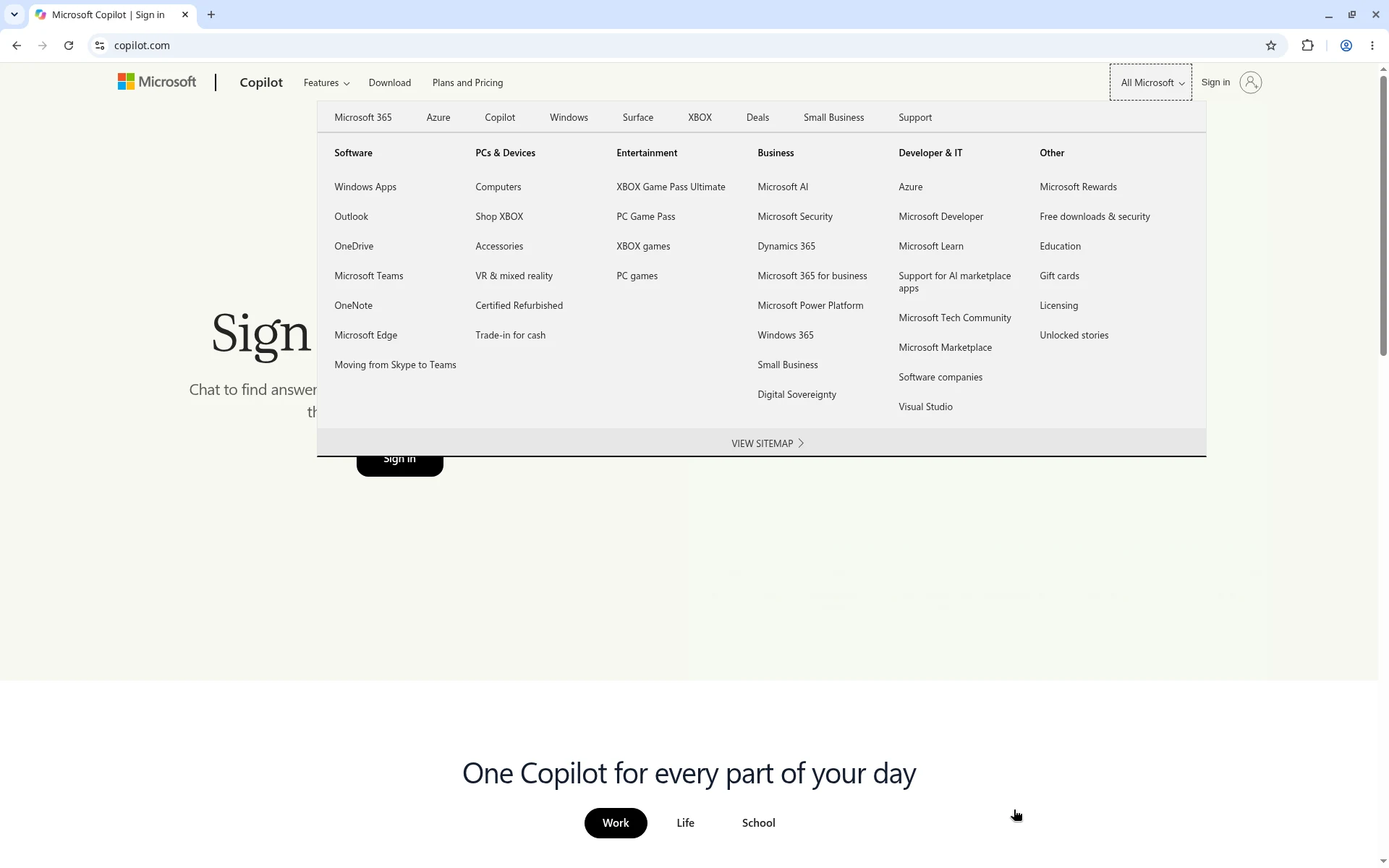
All of Microsoft. Close it.
At work: skip this page. Go to copilot.cloud.microsoft, or open Copilot in Teams, Outlook or the Copilot app. Edge has a Copilot icon too, when you’re signed in to Edge with your work account. Even less Microsoft to skip.
2. Sign in
The black Sign in button is the obvious way in. We clicked Go to Chat, further down the page, and got Microsoft’s sign-in page. Copilot won’t chat until you sign in.
At work, type your work email. At home, your personal Microsoft account. Click Next and do whatever your account asks for: password, code, the usual. Lesson 2 covers what to do when that goes sideways.
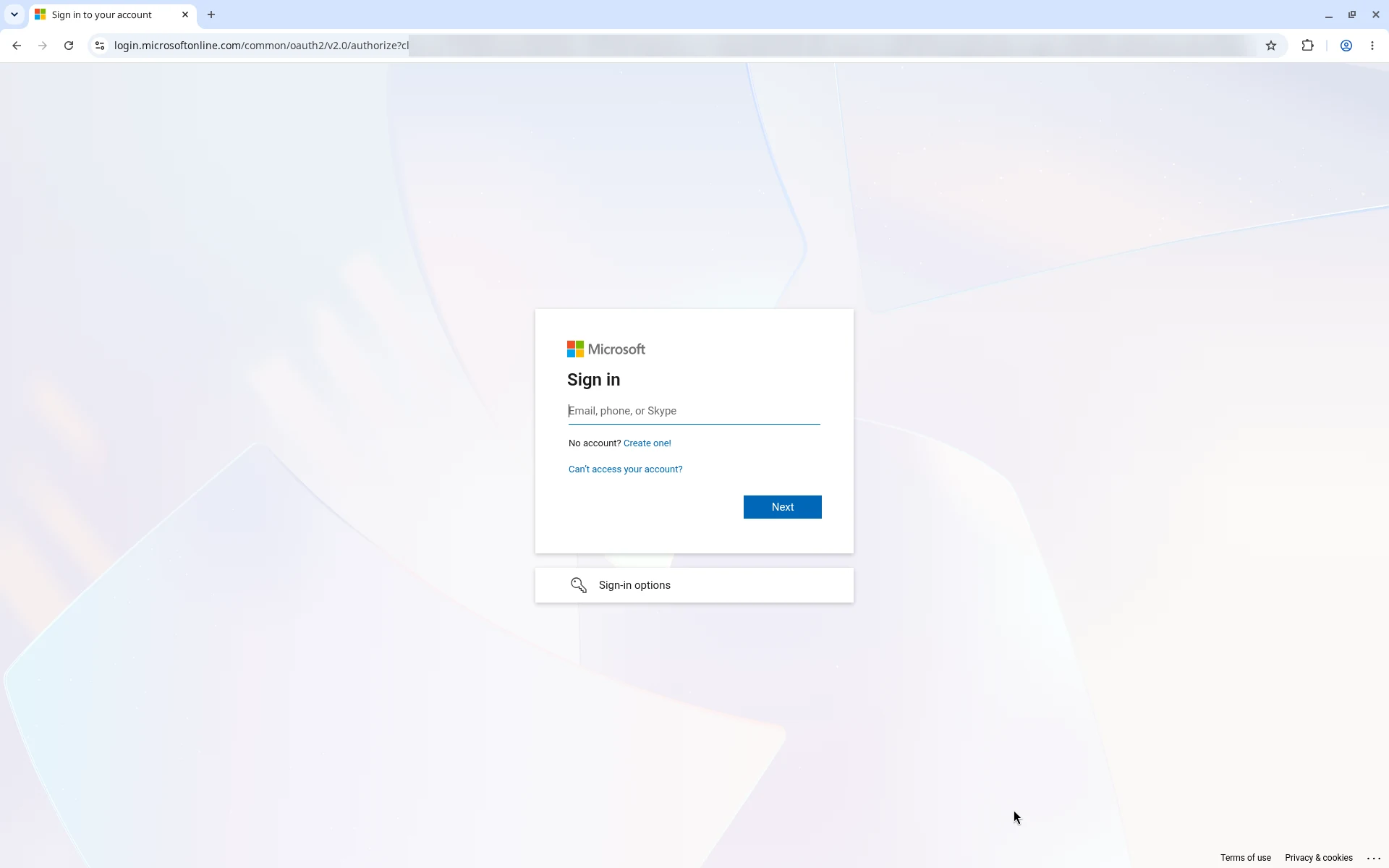
Microsoft’s sign-in page. Work email at work.
At work: use your work email. Your company can block personal accounts on work computers, so if your personal one won’t go through, that’s on purpose.
3. Close the welcome popup
The first time, Welcome to Copilot pops up with three suggestions, Upgrade for more and Chat now. Click the X at the top right.
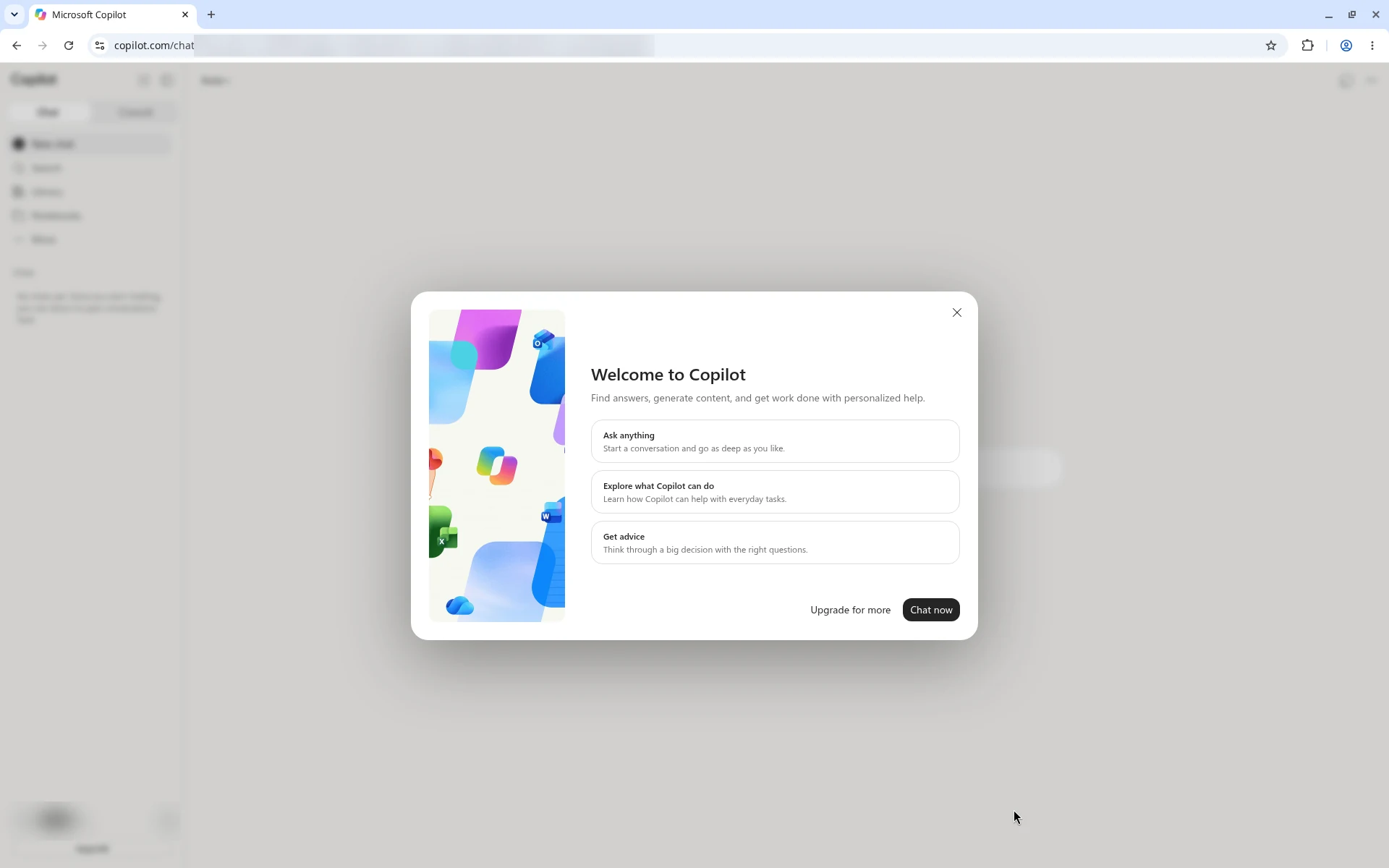
Welcome. Now go away.
4. Type the prompt
The box is in the middle. Click in it and type:
Rewrite this so it sounds polite but firm: 'Hi all, please stop microwaving fish in the 3rd floor kitchen. It's been three weeks.'
Click the arrow on the right to send.
The sidebar has New chat, Search, Library and Notebooks. Your name and the Work or Personal label sit at the bottom left (blurred here). Auto at the top is which version of Copilot answers. Leave it.
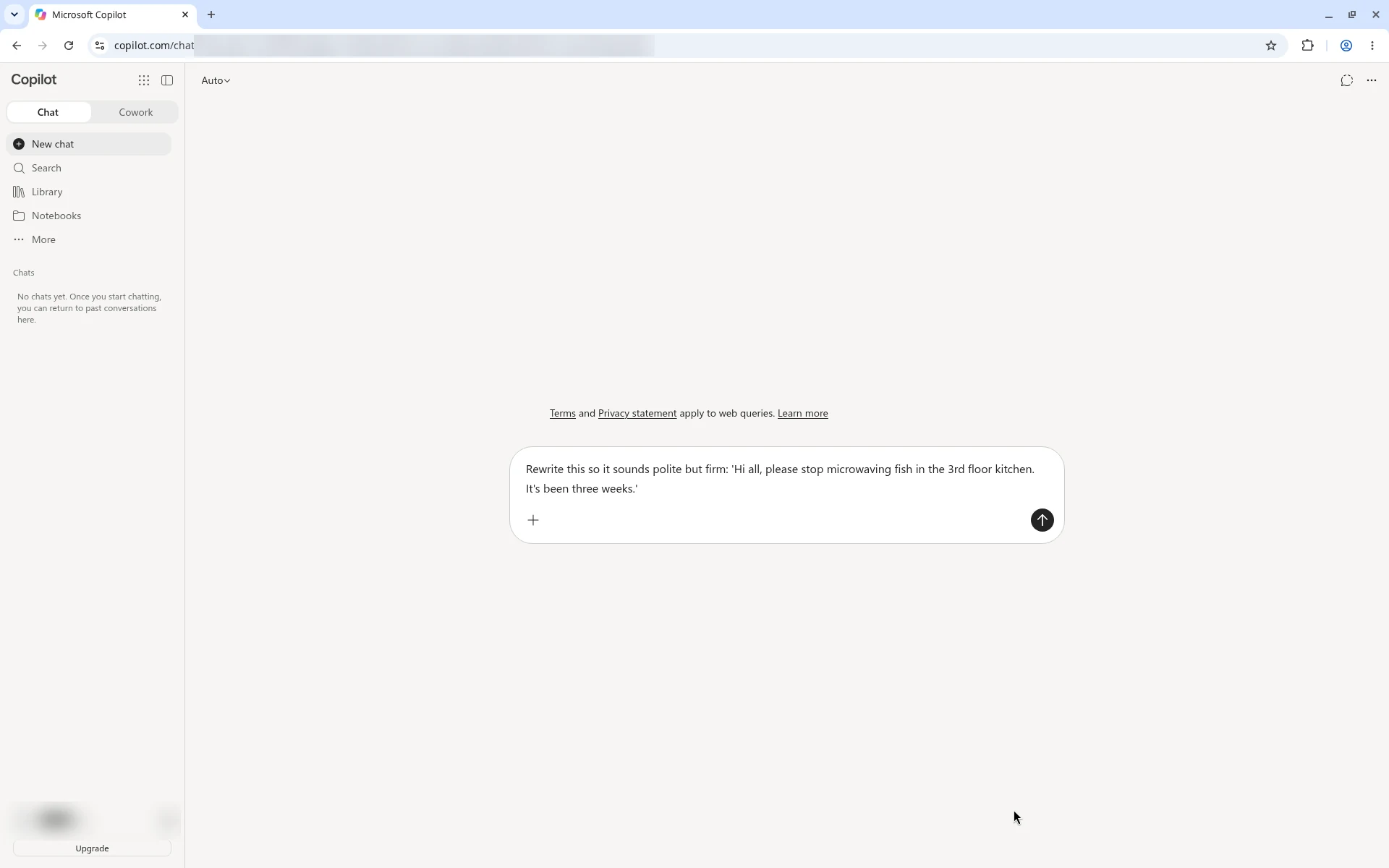
The prompt, ready to send.
At work: under your name it says Work, not Personal, and the background is a different color. The sidebar has a few extra items. There’s a green shield at the top next to New chat, which means enterprise data protection is on. Next to Auto there’s a Work IQ switch. If your company pays for the Microsoft 365 Copilot add-on, turning it on lets Copilot look at your work email, meetings and files. Without the add-on, it only sees files you upload. Off, it uses just the web. For rewriting a fish memo it makes no difference. Leave it.
5. Read the answer
Copilot gave three options: Professional and direct, Firm but courteous and Light but firm, then a short Why these work note. In our screenshot that note got squashed onto the end of option 3. Not you; the formatting.
Two of the three still mention the three weeks. Fair enough. It has been three weeks.
Under the answer: copy, thumbs up and down, redo, and …. On the right, suggestions like Make it shorter and more direct. Under the box: AI-generated content may be incorrect. Believe it, and read before you send.
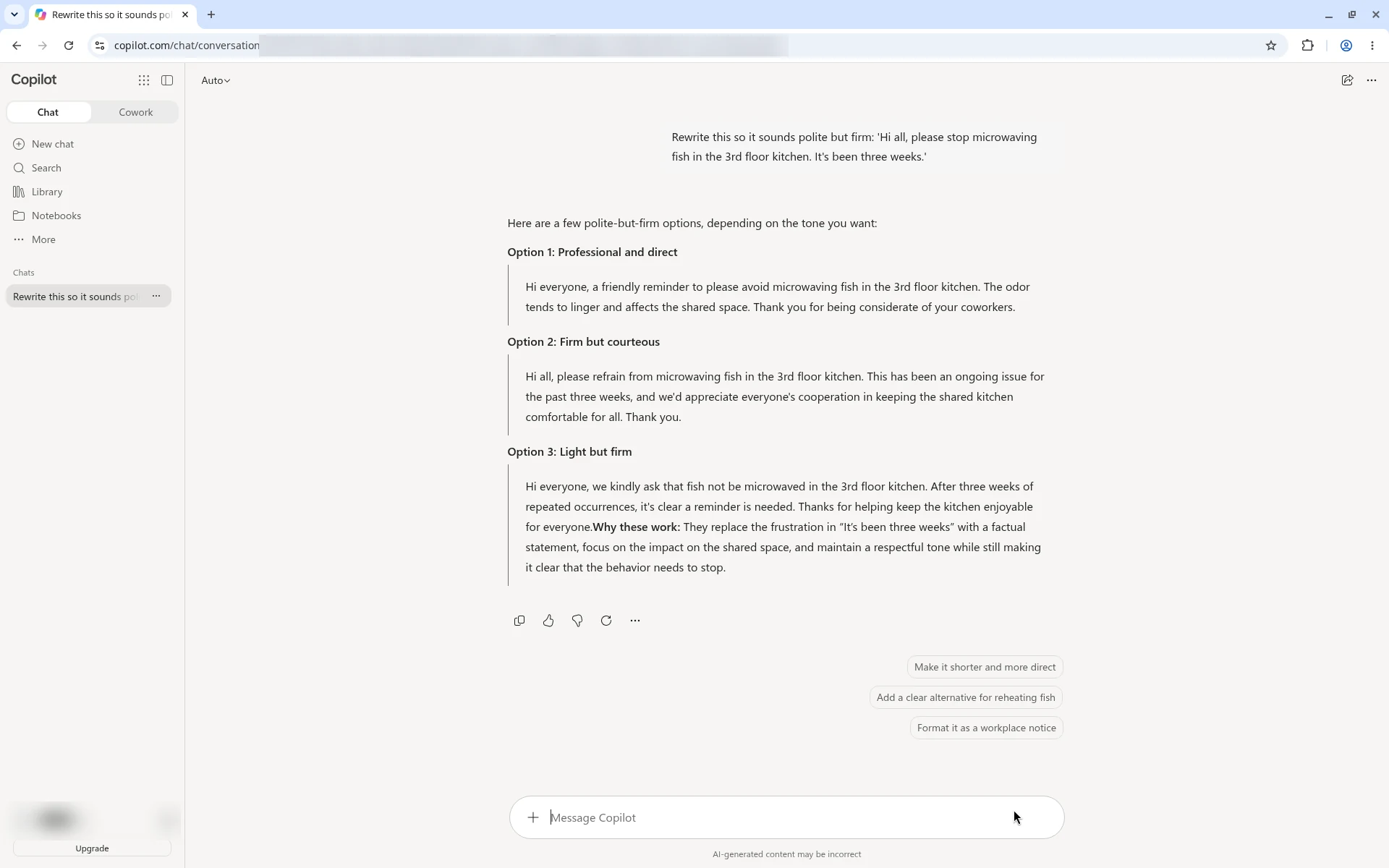
Three ways to say it.
6. Ask for shorter
Same box, no starting over. Type:
Shorter, and less passive-aggressive.
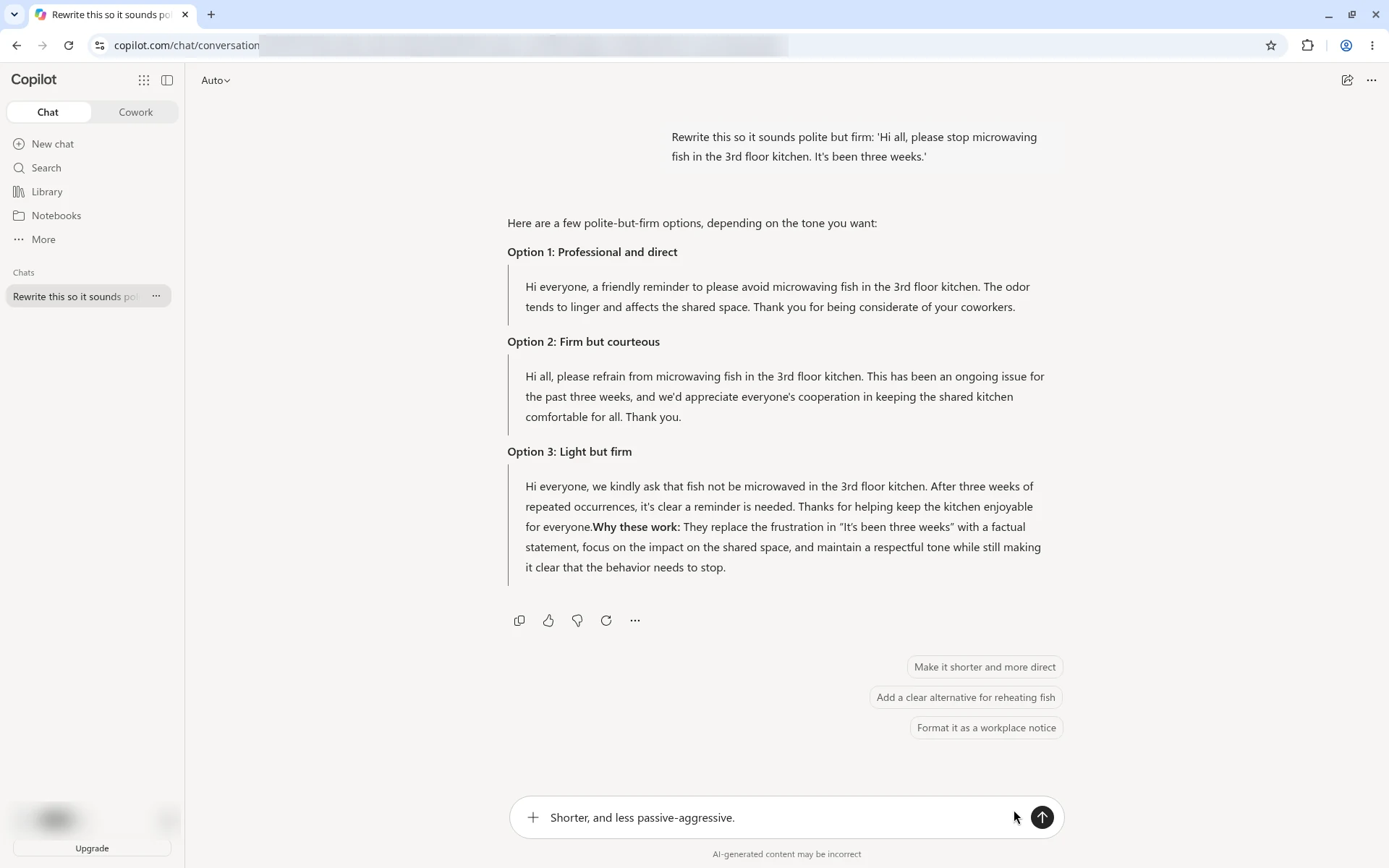
Same chat, one more ask.
Send it. You get four one-liners, and Copilot picks one: “My favorite is the second one because it’s short, clear, and neutral.” That’s Hi everyone, a quick reminder: please don’t microwave fish in the 3rd floor kitchen. Thank you. The three weeks are gone. Probably for the best.
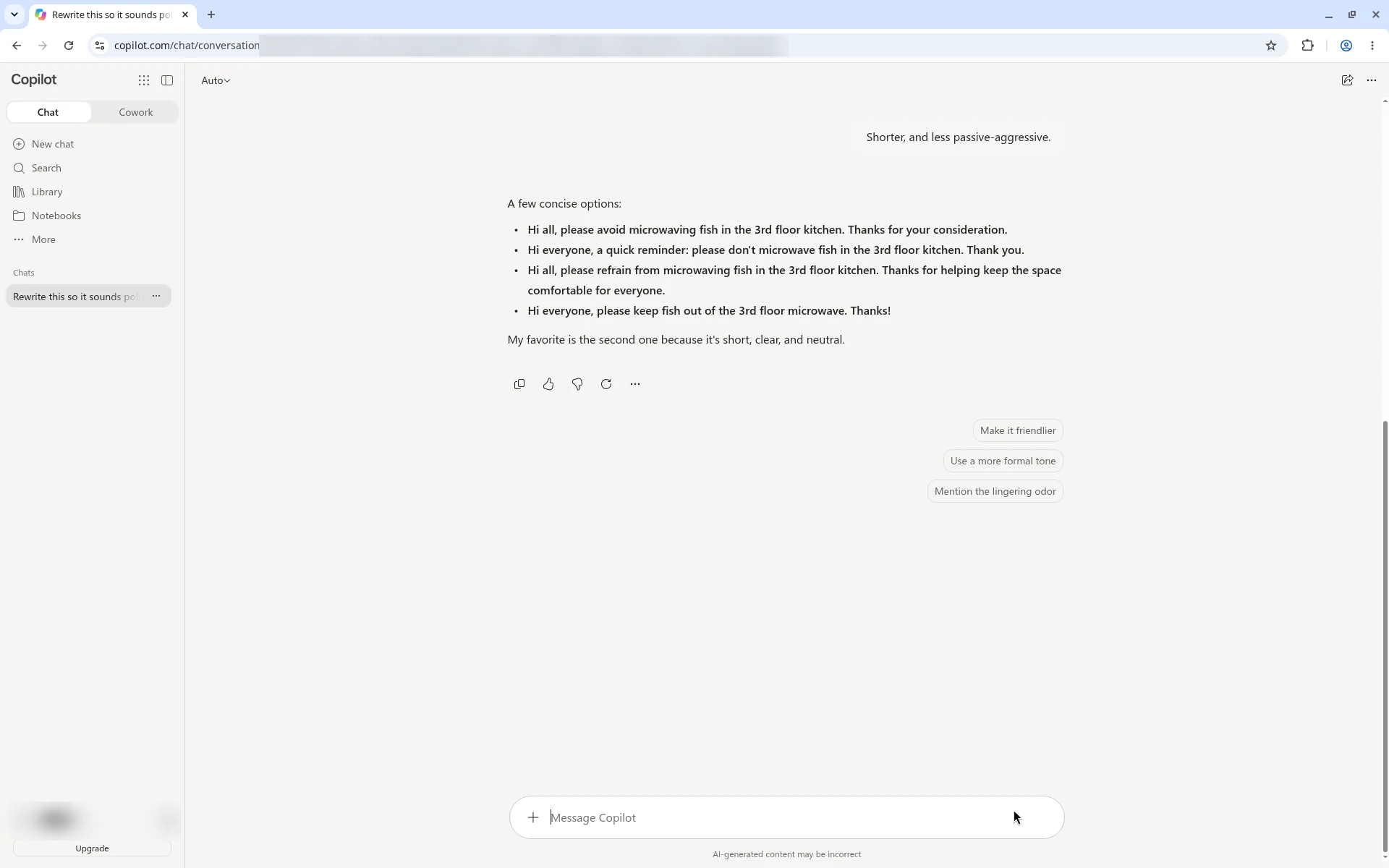
Four short ones and a favorite.
Part 2: Gemini
7. Open Gemini
Go to gemini.google.com. Lesson 7 has the full tour. Signed in, it says Where should we start? with the Ask Gemini box underneath: + on the left, Gemini Auto and the microphone on the right. Your chats are in the sidebar (blurred here).
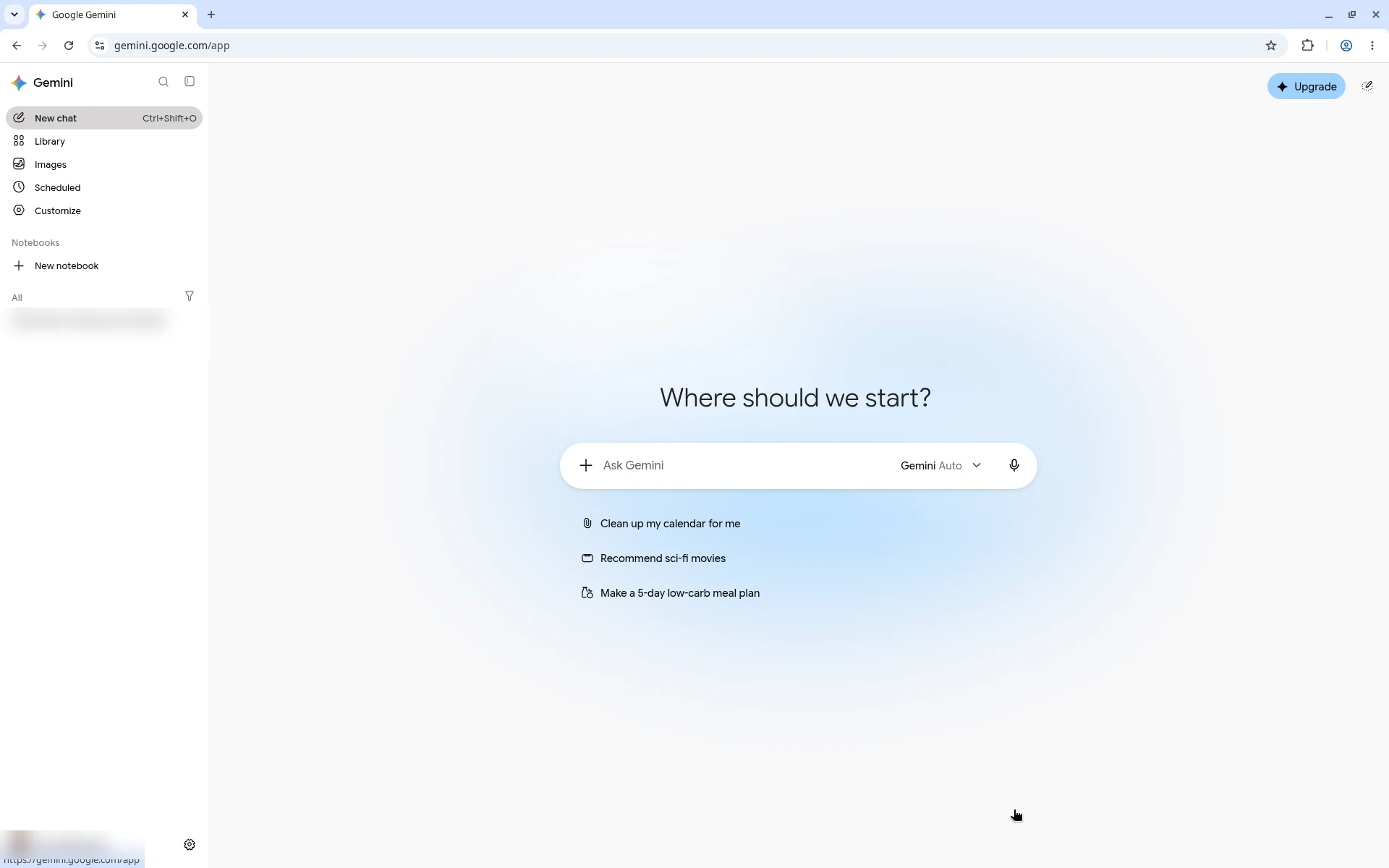
No popup this time.
At work: same address, your work Google account. A Pro, Expanded or Ultra badge at the top means your company’s plan gets more features; no badge is standard. Some sidebar items, like Scheduled, depend on that plan, and your IT team can switch Gemini off entirely. If your company uses Gemini Enterprise instead, that’s a separate app at a different address, so use the link IT gave you.
8. Type the same prompt
Same words as step 4:
Rewrite this so it sounds polite but firm: 'Hi all, please stop microwaving fish in the 3rd floor kitchen. It's been three weeks.'
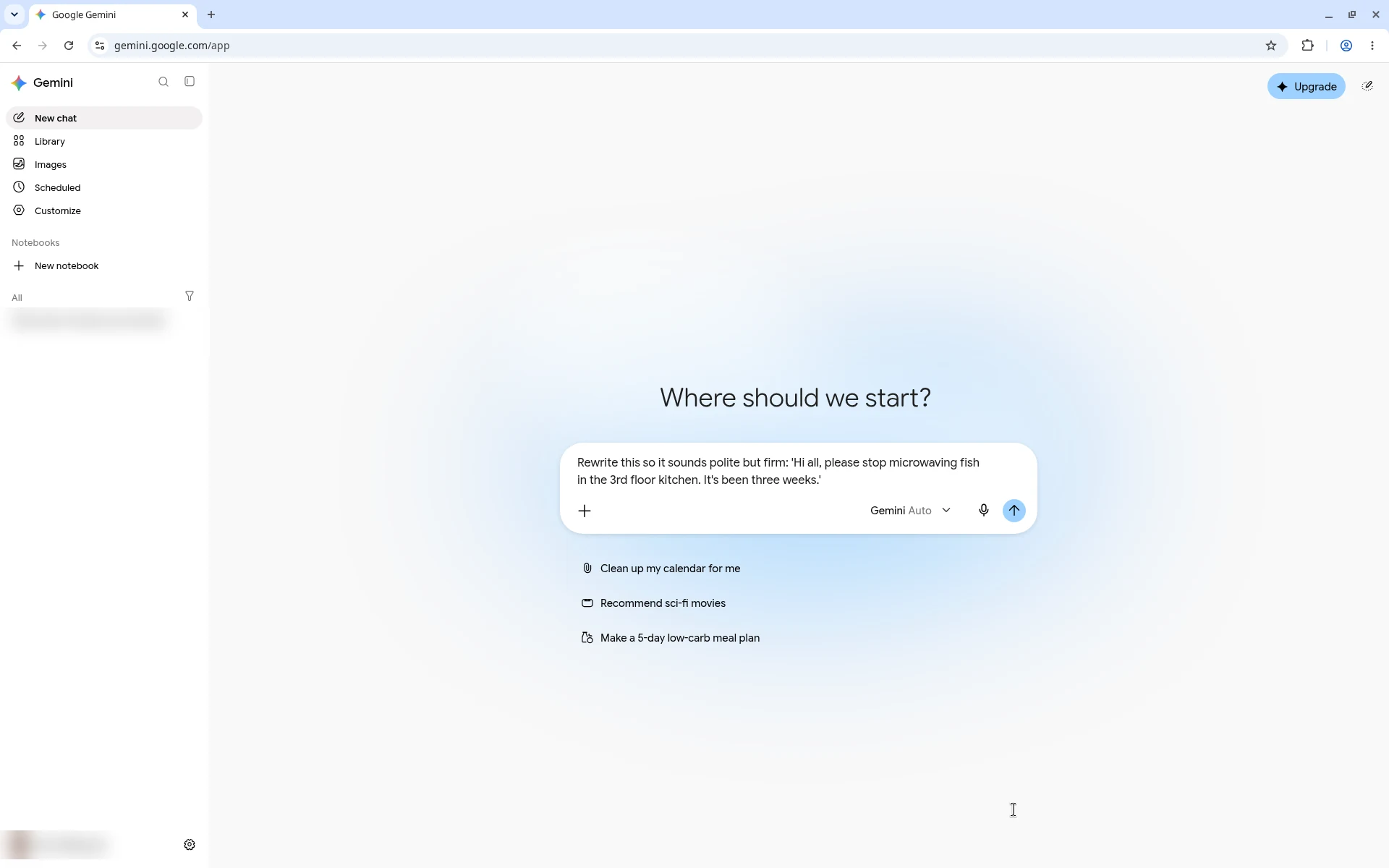
Same words, other tool.
Click the send arrow. Gemini shows little dots while it works, and the send button turns into a stop button.
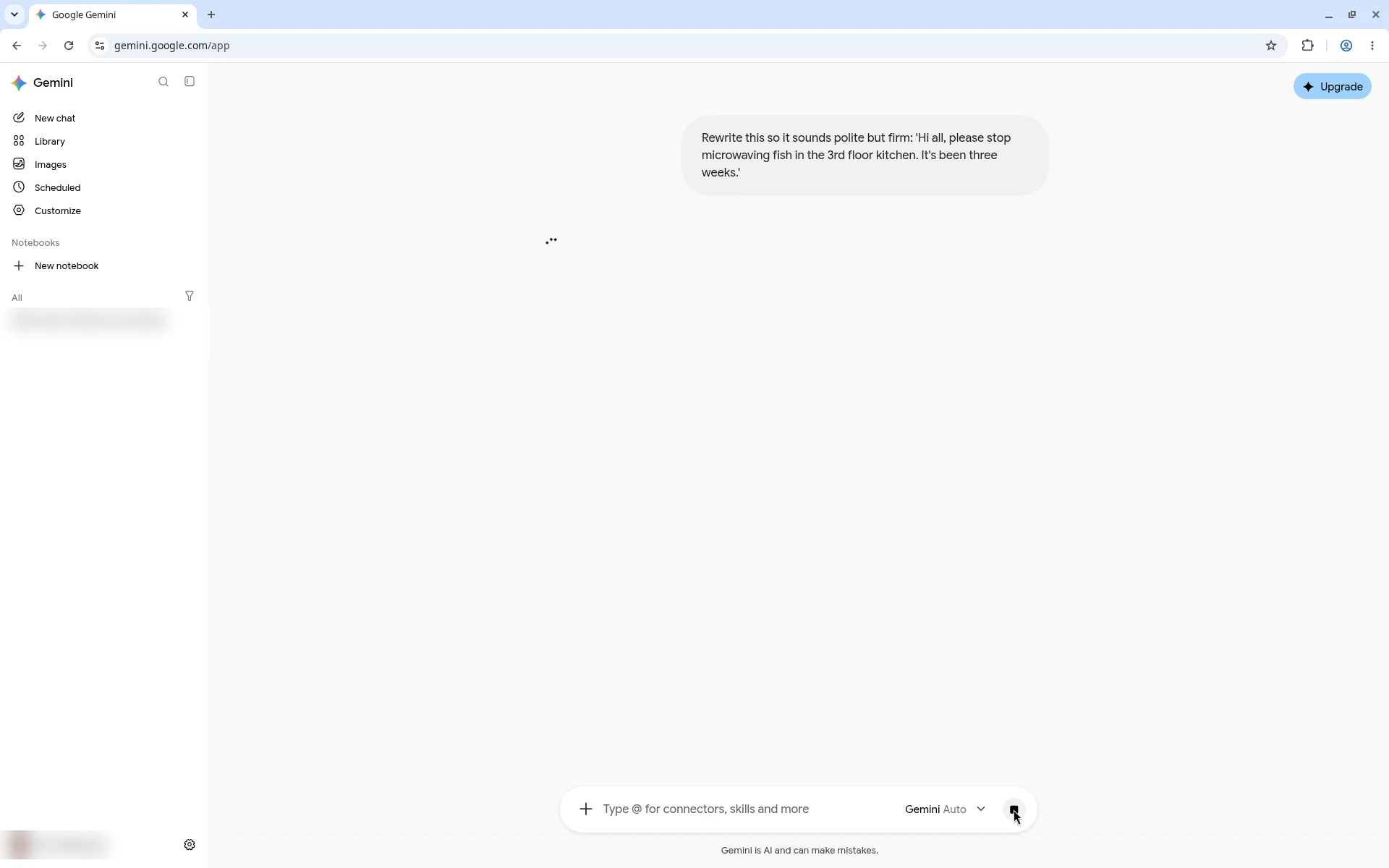
Thinking.
9. Read the answer
Gemini gave two versions, each in its own box: Direct & Professional (Recommended) and Slightly Softer Tone. Each comes with notes on Formality & Tone and Why it works. So it picked a favorite on the first try.
The softer one says “fish or other strong-smelling foods,” so nobody feels singled out. Neither version mentions the three weeks.
Each box has a play button and a copy button. Under the chat box: Gemini is AI and can make mistakes. Same advice as Copilot’s. Read it first.
A How satisfied are you with this conversation so far? box may pop up at the bottom left. Click its X. You don’t owe it a rating.
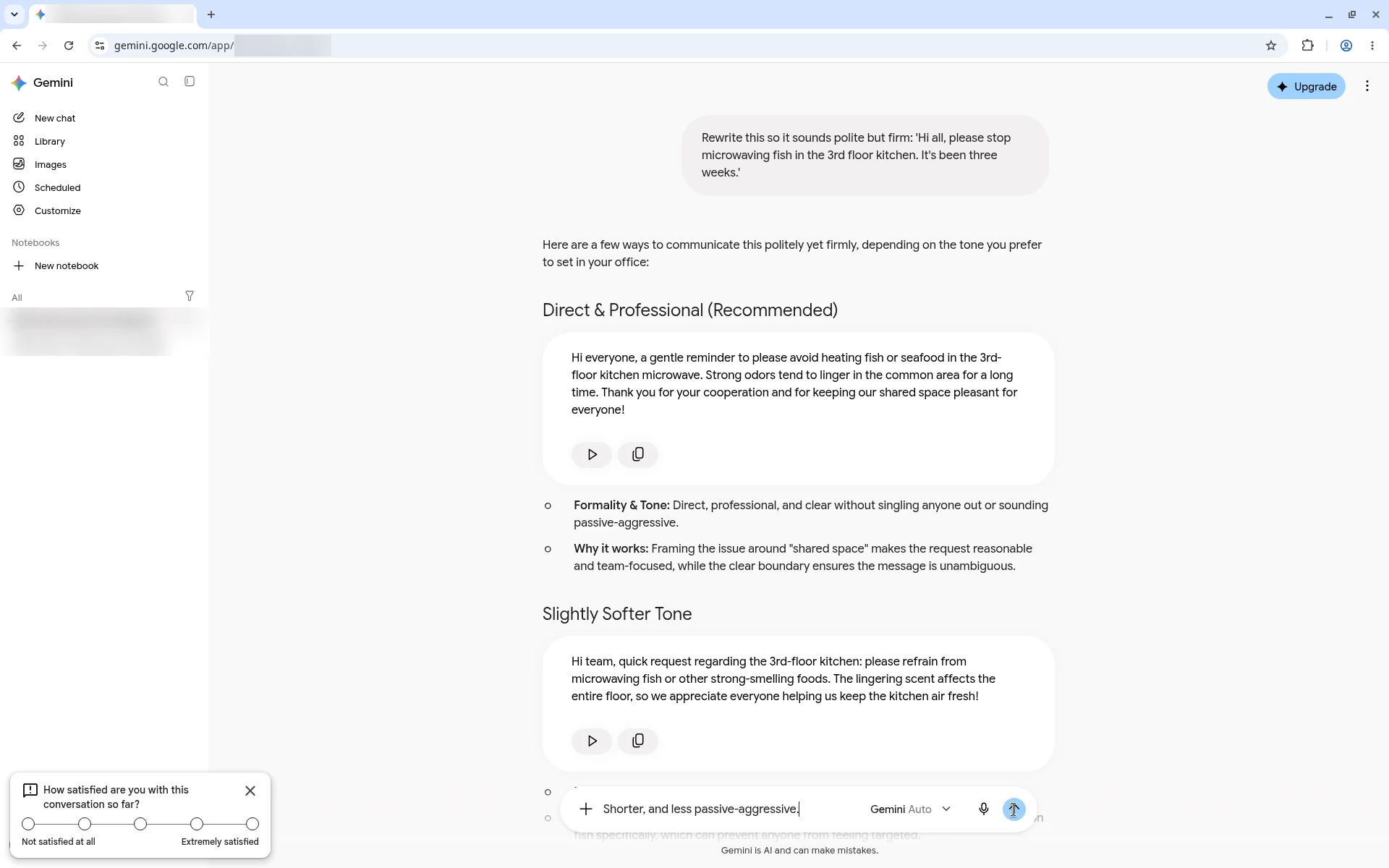
Two versions. The follow-up for step 10 is already typed below.
10. Ask for shorter
Type the same follow-up as step 6 and send it:
Shorter, and less passive-aggressive.
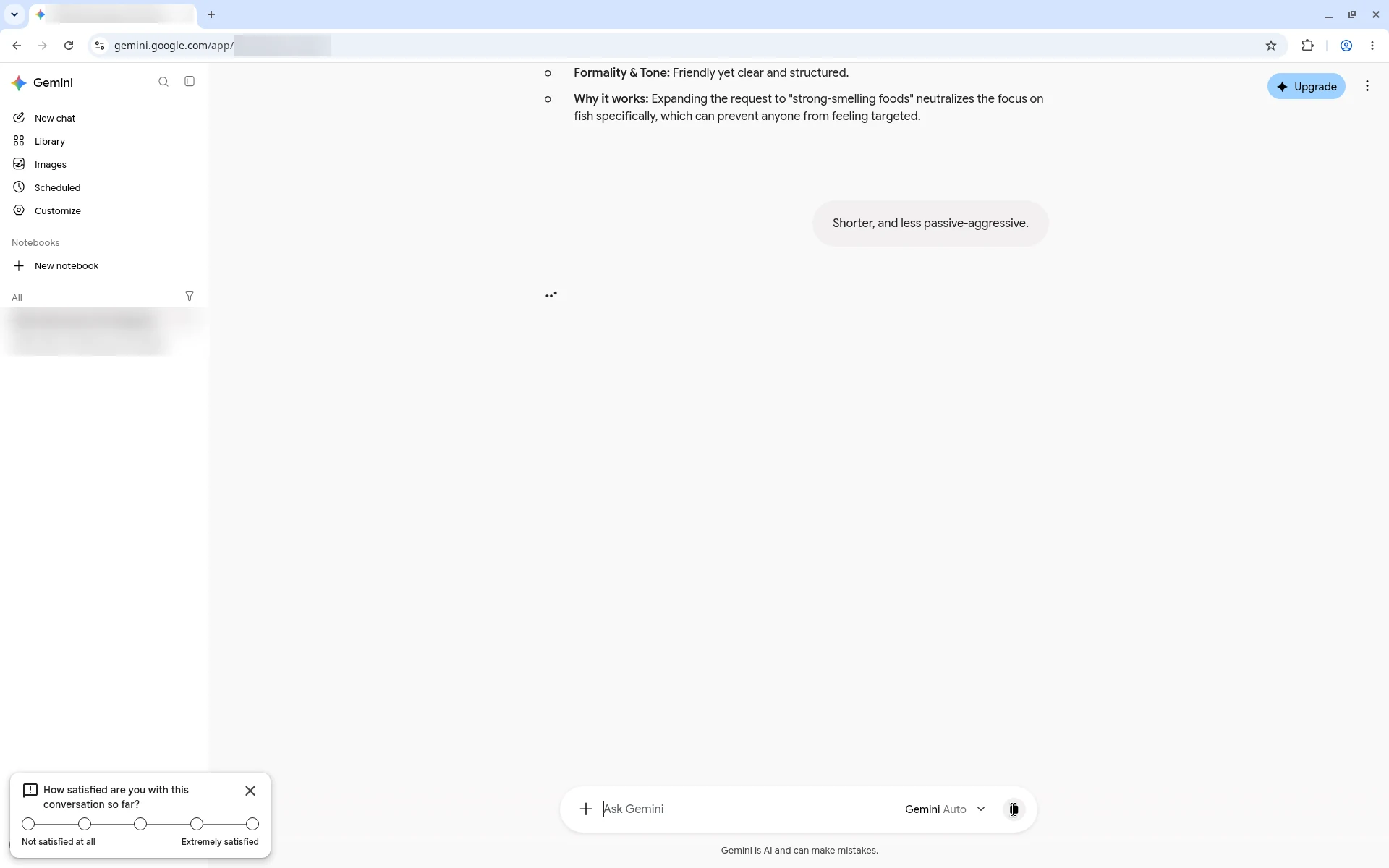
Sent. Gemini is on it.
Gemini came back with three options, each labeled with where to use it: Direct & Neutral (Best for general email/Slack), Short & Simple (Best for a quick message) and Ultra-short (Best for a note or short announcement). Then Why these work better, which says it removed “It’s been three weeks” because that comes across as passive-aggressive. Fair point.
Even Ultra-short is two full sentences. Short is relative.
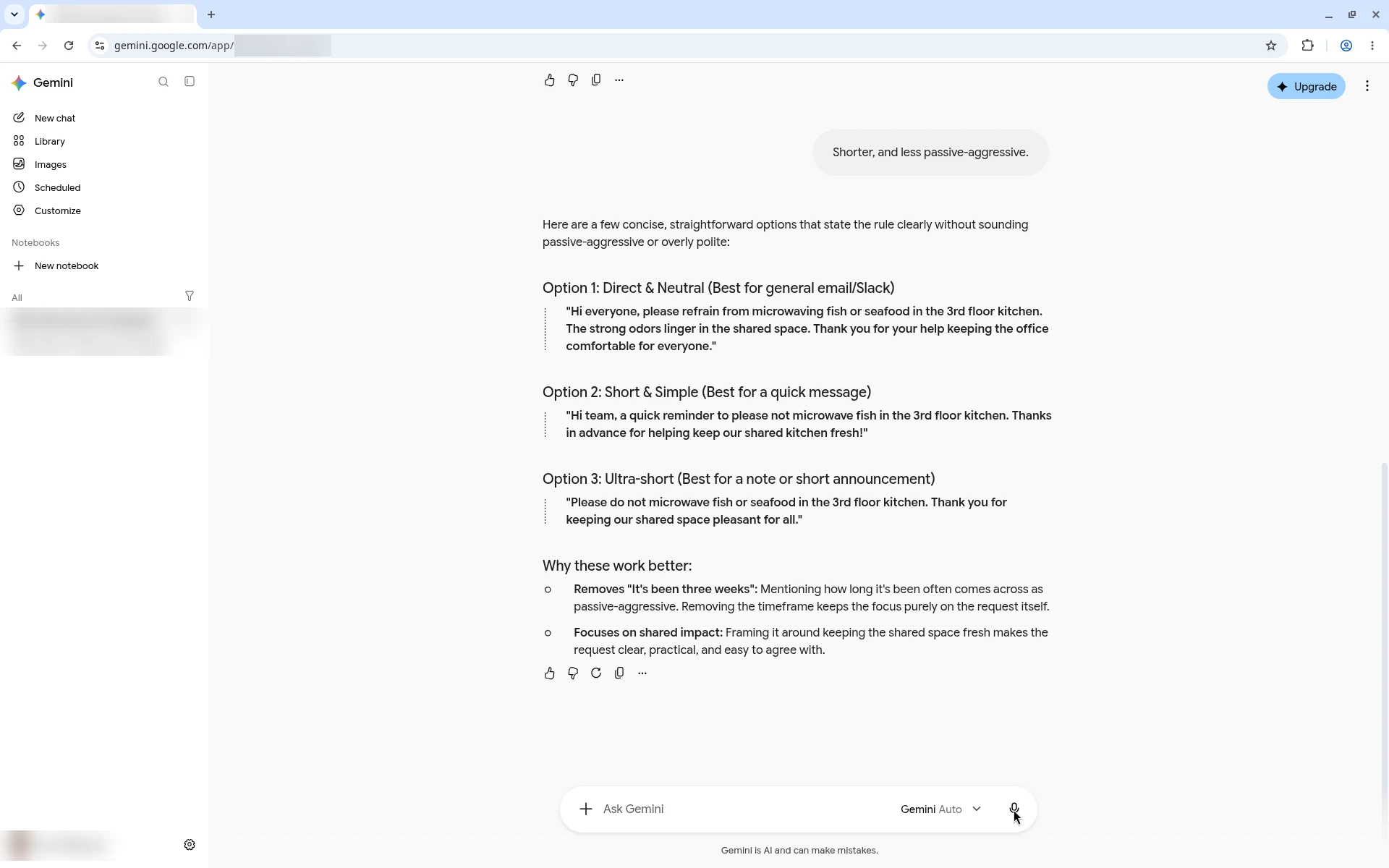
Three shorter options, labeled, with reasons.
So which one?
Here’s what the screenshots actually show:
- Getting in. Copilot wouldn’t chat until we signed in, then said welcome with a popup. Gemini, already signed in, went straight to the box.
- First answer. Copilot: three labeled options and a note on why. Gemini: two versions with tone notes, one marked recommended. Both usable. Both longer than the original message.
- Shorter. Copilot gave four one-liners and picked a favorite. Gemini gave three labeled options, still full sentences, and explained why they work better.
- Both warn you under the box that they can be wrong. Believe them both.
If you want one line to paste, Copilot got closer this time. If you want options and the reasons behind them, Gemini. One try each, and both will word it differently next time.
For a message like this, either one is fine. The real question isn’t which is smarter. It’s which one your company approved. Use that one, signed in with your work account. If your company approved both, it is what it is: pick the one you like and get on with your day.
Whichever it is, don’t paste confidential work stuff into a personal account. Not Copilot, not Gemini, not anything.
Check that it worked
You got a polite-but-firm version from each tool, asked for shorter, and got something shorter back. You know Copilot needs a sign-in, which account to use at work, and how to tell Work from Personal.
No answer? Check your internet and reload. Copilot says Personal on a work computer? You’re in the wrong account. Switch to your work one.
Let’s learn together.
Comments are reviewed by Ana before they appear. Please use fictional examples and leave workplace details out.
Loading approved comments…