Find Gemini and take it for a first spin
Find Gemini, ask it something, ask it to do better, talk to it, hand it a document, and learn your way around the screen.
Step 2 of 8 in One tool, one small job at a time (Path 02)
You need a browser and an internet connection. A microphone if you want to dictate. A Google account if you want to attach a file.
Gemini is in so many Google products now that finding the plain one is a task of its own. We’ll find it, ask it something, and ask it to do better. Then the good part: talking to it instead of typing, and handing it a document to read for you.
Before you start
You need a browser and an internet connection. A microphone if you want to dictate. A Google account if you want to attach a file.
This is the regular Gemini web app at gemini.google.com. Not Gemini Enterprise, and not the Gemini inside your company’s Gmail and Docs. If work gave you a specific Gemini link, use that.
Okay, quick aside. If your job is stuck with Microsoft, it’s probably stuck with Gemini too. Someone will tell you it was picked because it’s the most secure. Maybe. My guess is it was the cheapest option, practically free. That’s a hunch, not a fact. It is what it is, and you still have to use it, so let’s make it useful.
Screenshots are from 2026-10-25. Steps 6 and 7 are signed in to this site’s demo account; the rest are signed out. Google renames things constantly, so your labels may not match.
Whoever picked it, the rule doesn’t change: work files only go into AI tools your employer approves. The notes and the document in this lesson are made up.
1. Open the real Gemini
Search for Gemini and pick the result that goes to gemini.google.com. Not whichever ad is on top.
Or just type gemini.google.com into the address bar.
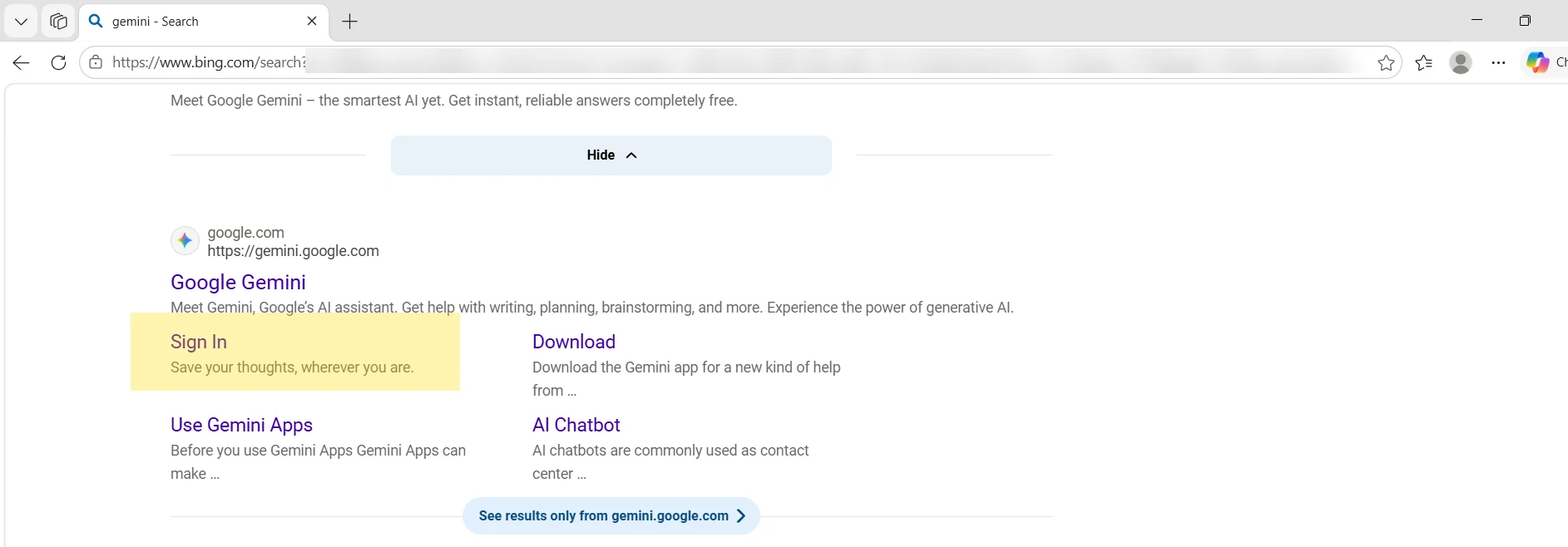
Sign In, on the real Gemini result.
2. Find the box
You land on Meet Gemini, your personal AI assistant and one box: Ask Gemini. That’s where you type. Everything else can wait.
The + on the left of the box adds files. The microphone on the right is for talking. The links across the top are Google offering you more Google. Skip them.
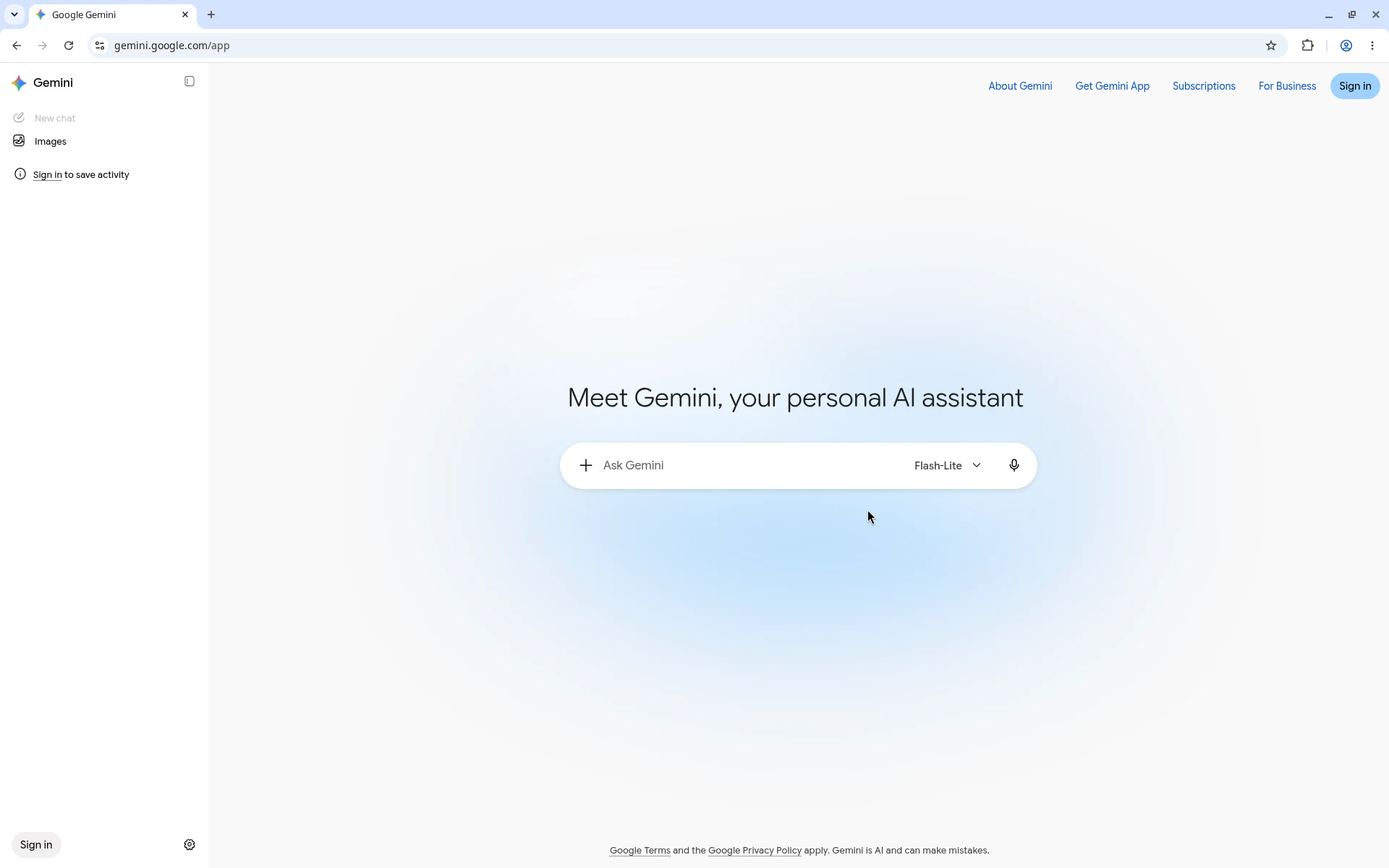
The landing page, signed out.
3. Ask your first question
Click in Ask Gemini and say what you want, like you’d ask a coworker. The example:
Turn these meeting notes into three short bullet points for my manager:
Then paste the notes underneath. Shift+Enter starts a new line. Plain Enter sends, usually one line before you were done.
Be specific. “Three short bullet points for my manager” beats “summarize this.”
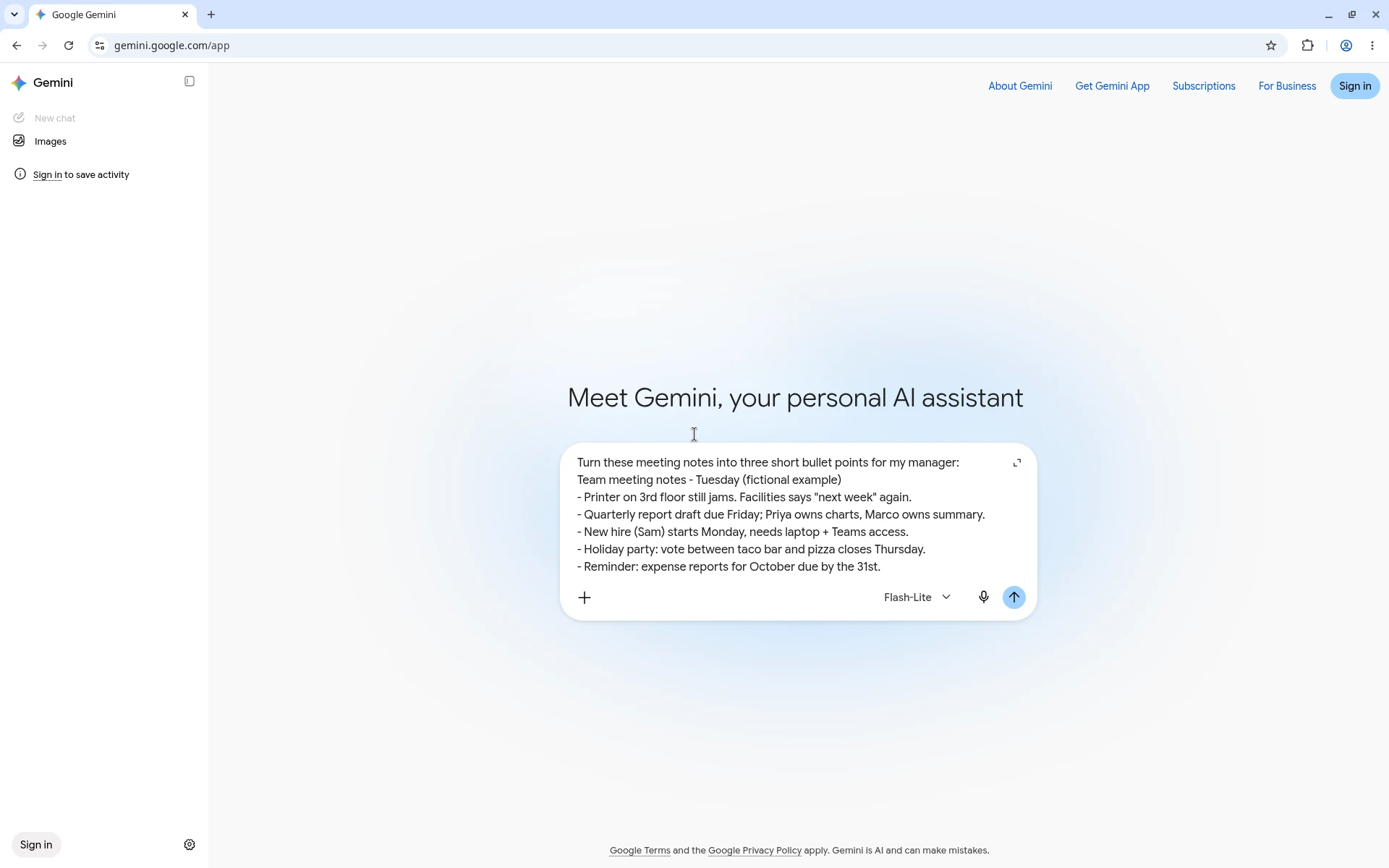
The request and the made-up notes.
Press Enter or click the send arrow. A banner may ask you to sign in. Ignore it for now; it will be back.
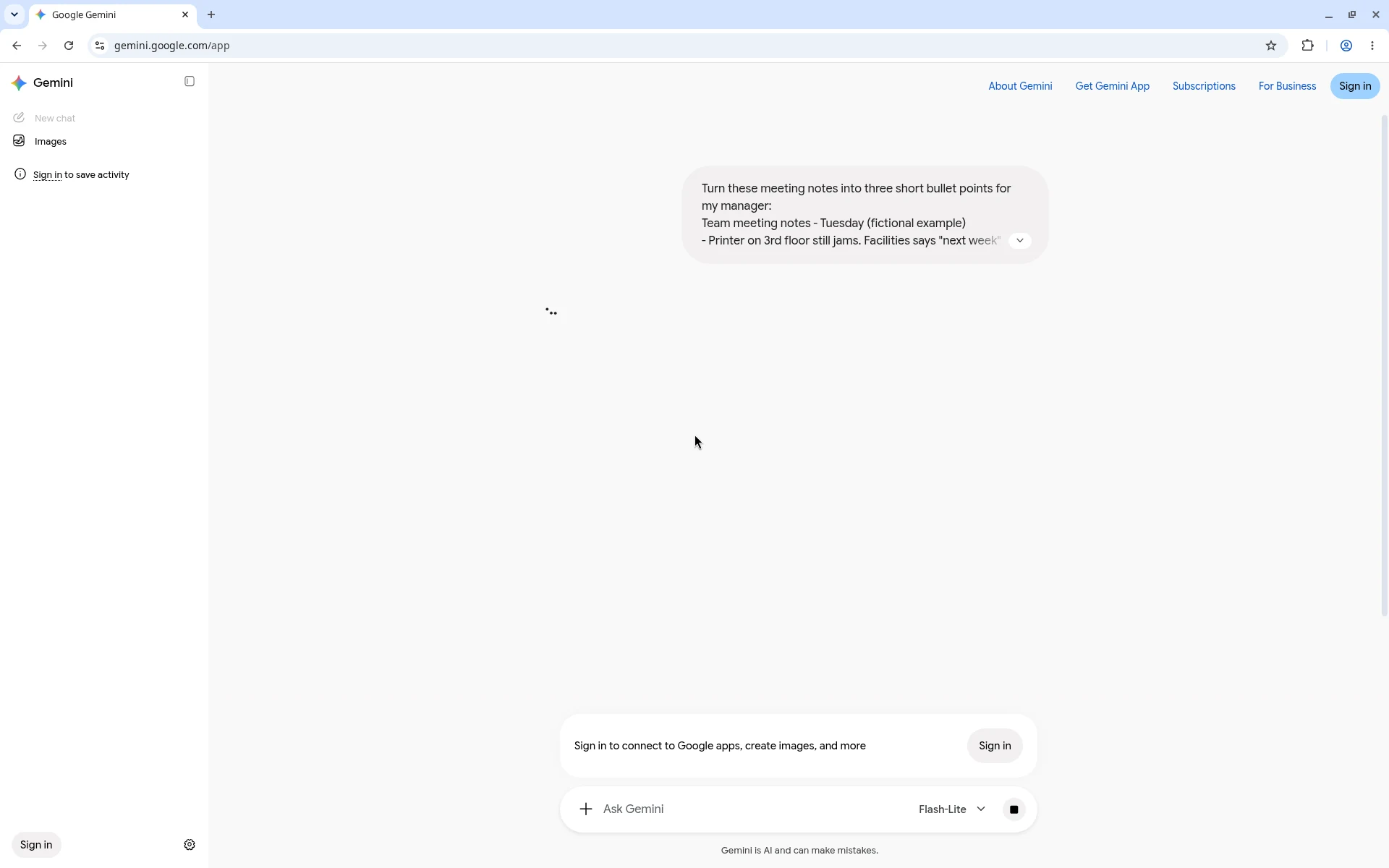
Sent. Gemini is working.
4. Read the answer
A few seconds later you get an intro line and three bullets. The holiday party vote didn’t make the cut. Tough but fair.
Read it before you use it. Check names, dates, and anything it sounds surer about than your notes were.
Under the answer: redo, copy, and … for more.
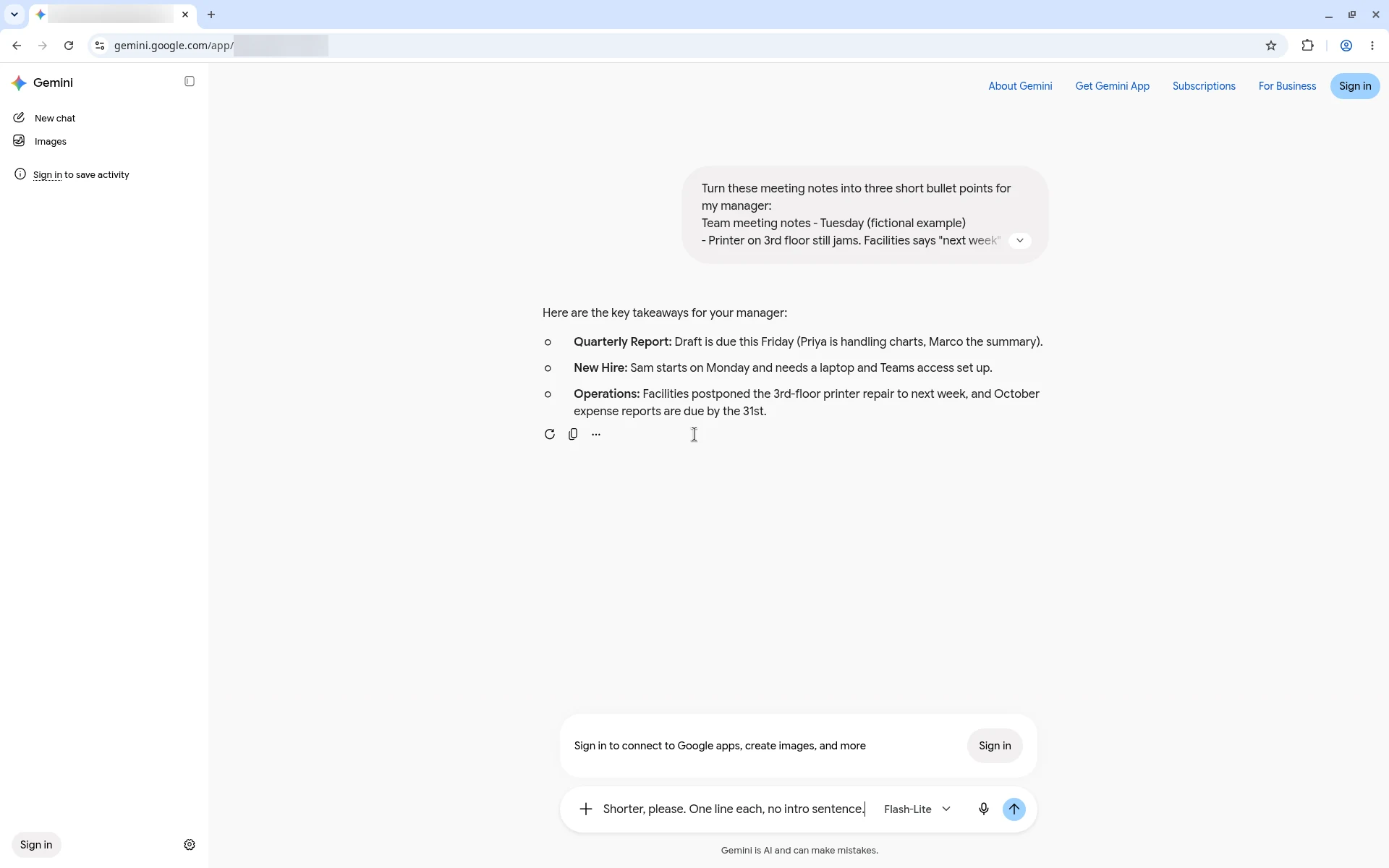
The first answer. The fix for step 5 is already typed below.
5. Ask for a fix
Okay, this is the most useful thing in the whole lesson. If the answer isn’t right, tell it what to change. Same box. No starting over.
Shorter, please. One line each, no intro sentence.
It rewrote all three. It has no feelings about bullet points.
Other fixes worth stealing:
- “More formal, please. This is going to my director.”
- “Put the deadlines first.”
- “You missed the expense reports.”
- “Make it an email instead.”
Nobody’s first draft goes out. That includes the computer’s.
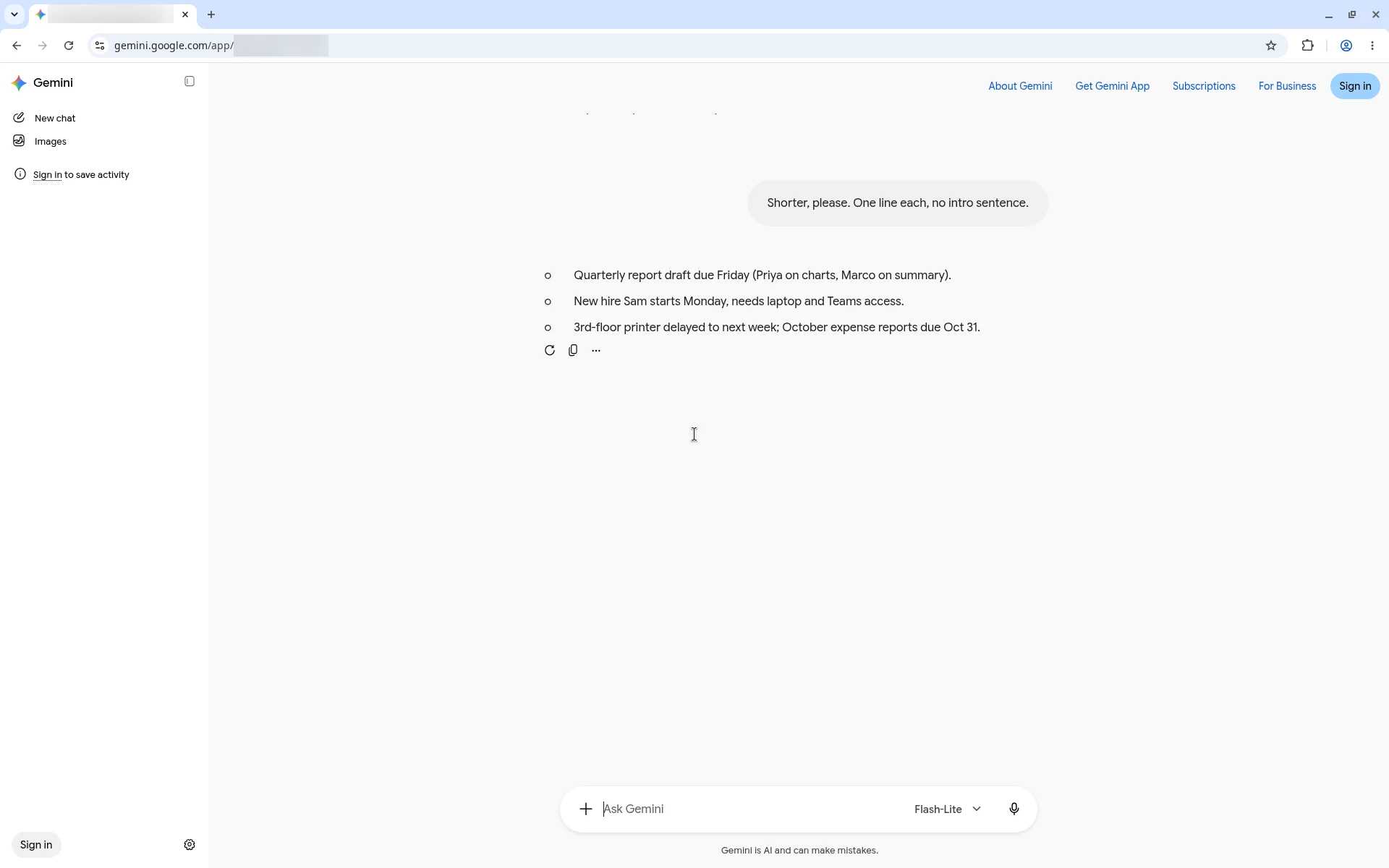
Shorter, no intro.
6. Talk instead of typing
If typing is the slow part, just say it. These screenshots are signed in, so the page says Where should we start? instead. Same box, same buttons.
After you sign in, a Keep in mind note may pop up. It says chats are reviewed and used to improve Google AI. Honestly, one more reason for the work-files rule. Click Got it.
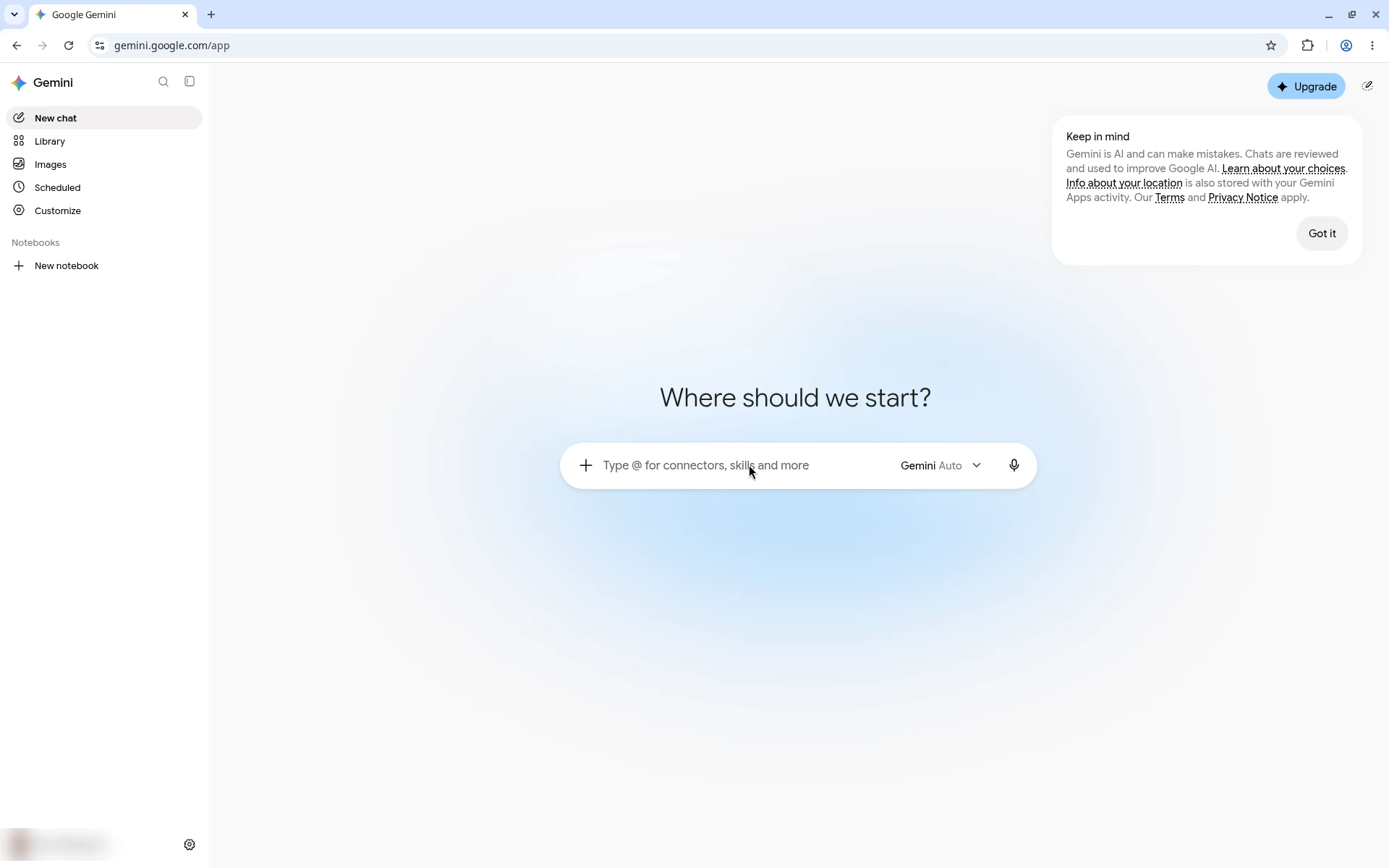
Signed in, with the Keep in mind note.
The microphone is on the right side of the box. Hover over it and you’ll see Dictate (^⇧D). On our screen that meant Ctrl+Shift+D. If yours says something else, go with yours.
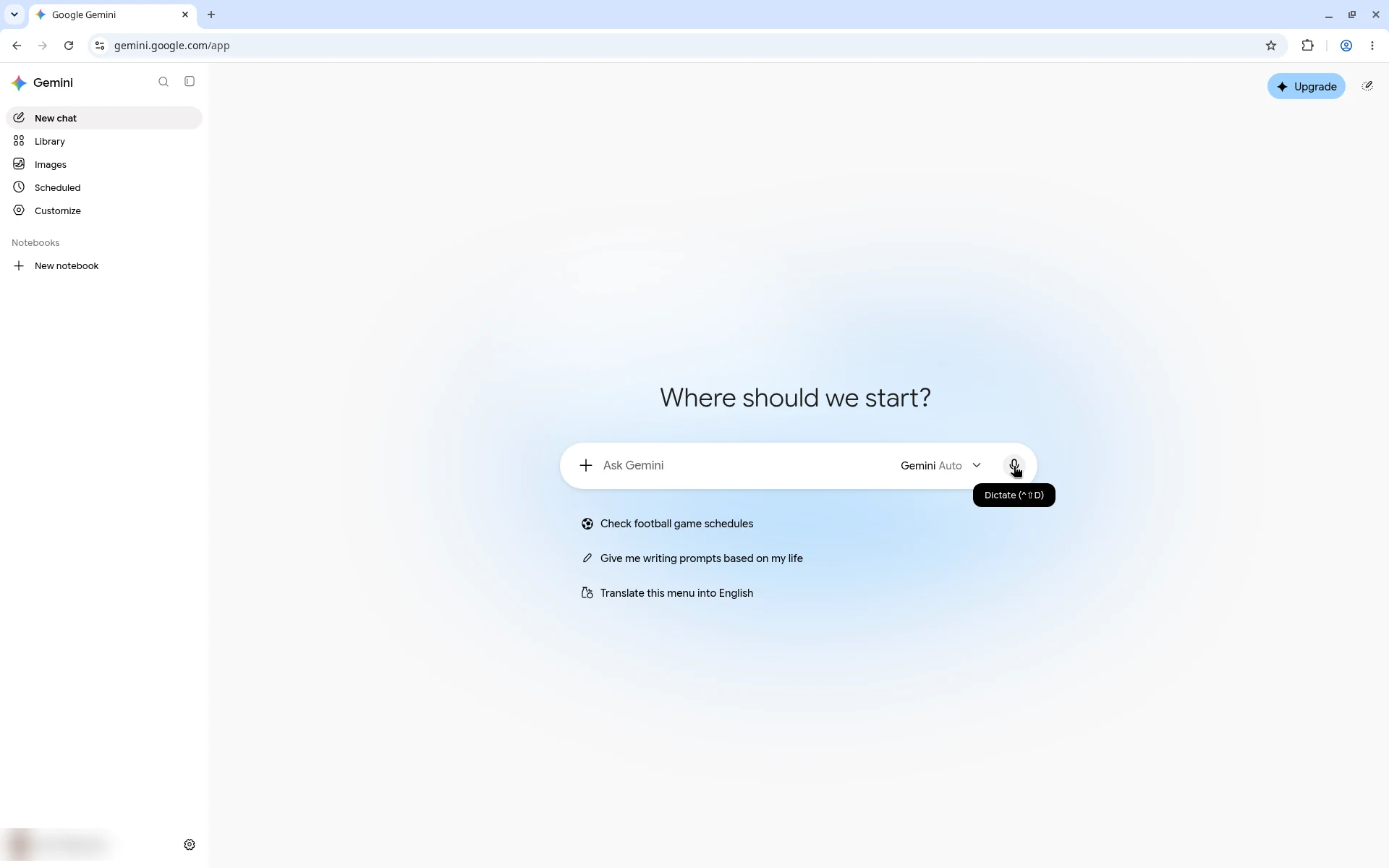
The microphone and its shortcut.
Click it. The first time, Chrome asks if gemini.google.com can use your microphone. Click Allow while visiting the site. A Mac may also ask about Chrome itself. Say yes.
Then talk. Your words show up in the box. Read them, fix anything wrong, then send. Dictation is good, but it has never met your coworkers’ names.
If it says “Unable to access the microphone”
For once, the error message is exactly right. Something is keeping Gemini away from your mic.
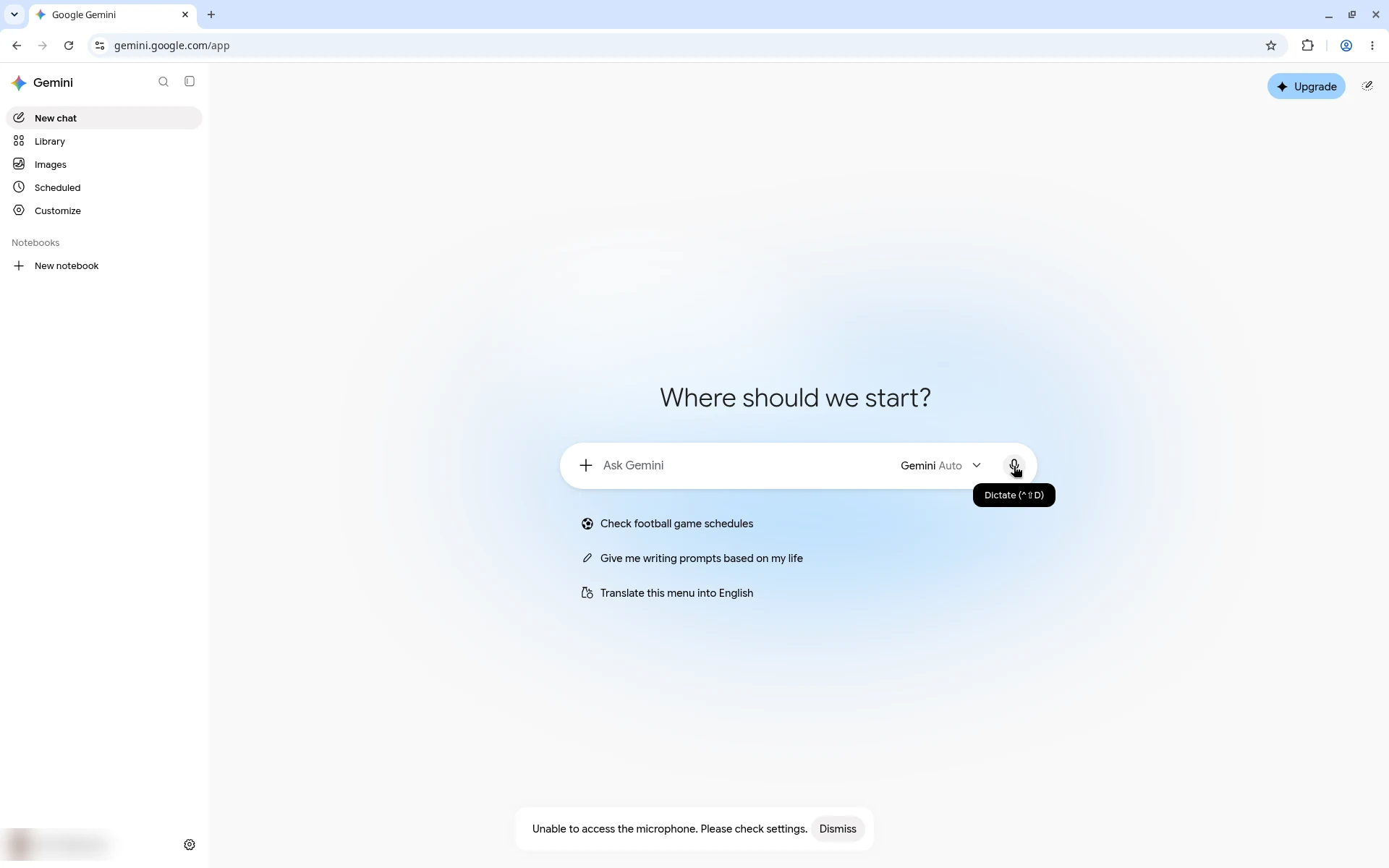
No microphone, no dictation.
Check these, in order:
- The mic. Plugged in? Not muted? Desktops usually need a headset or a webcam with a mic.
- Chrome’s permission for the site. Click the icon at the left end of the address bar, set Microphone to Allow, and reload.
- Your computer’s permission for Chrome. Mac: System Settings > Privacy & Security > Microphone, turn on Google Chrome. Windows 11: Settings > Privacy & security > Microphone, turn on Microphone access and Let desktop apps access your microphone. Then restart Chrome.
On a work computer, IT may have locked these. If a switch won’t move, ask IT. You didn’t break it.
7. Attach a file and ask about it
This is where Gemini earns its keep. Hand it a document and ask what you need to know. You have to be signed in for this one.
The example file, Office-Move-Plan, is a made-up Word document about an office move.
Click +, then Upload files. Ignore the rest of the menu.
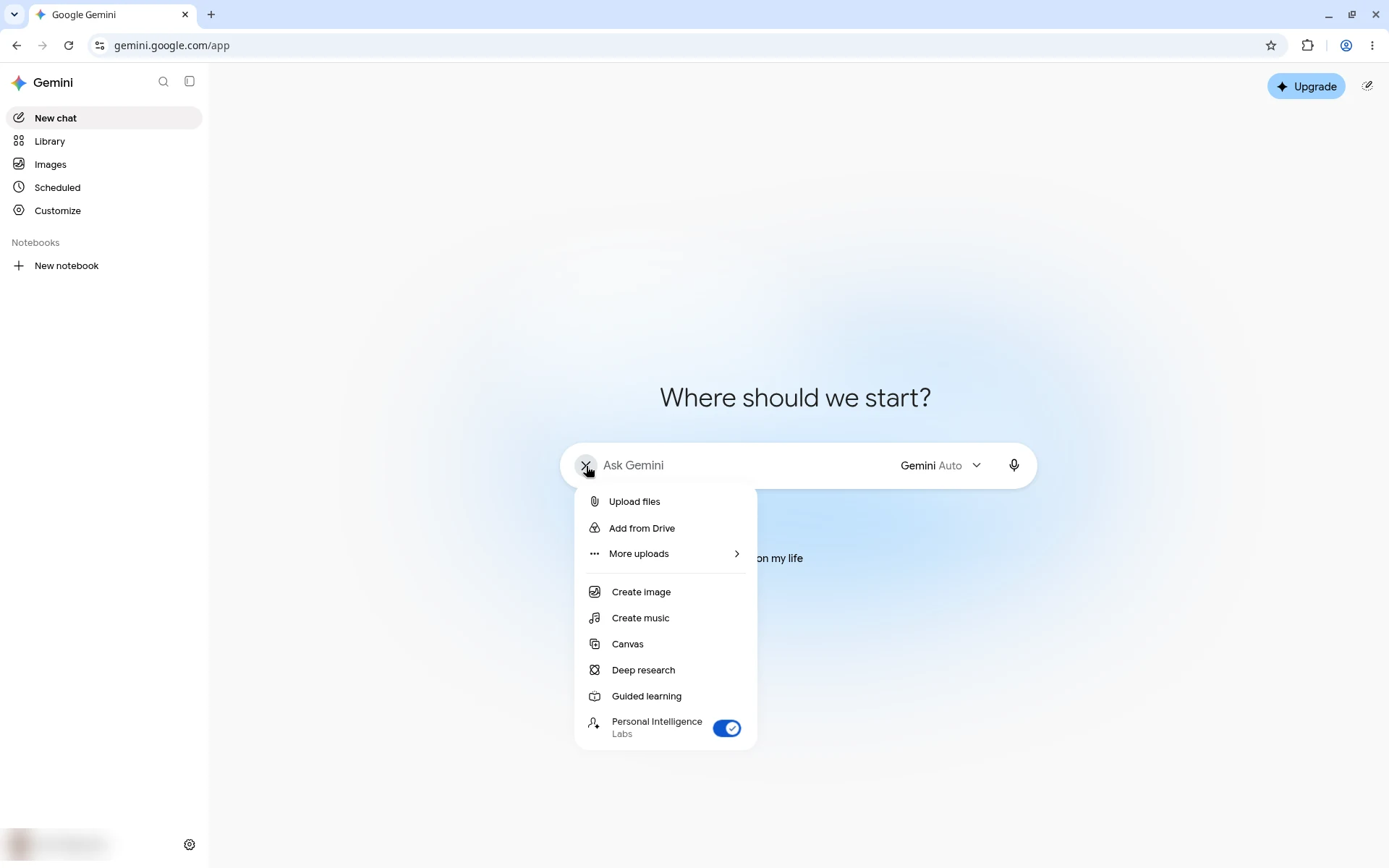
Upload files is at the top.
The first time, Google wants you to agree to its rules about uploads. Click Agree. One-time paperwork, then the useful part.
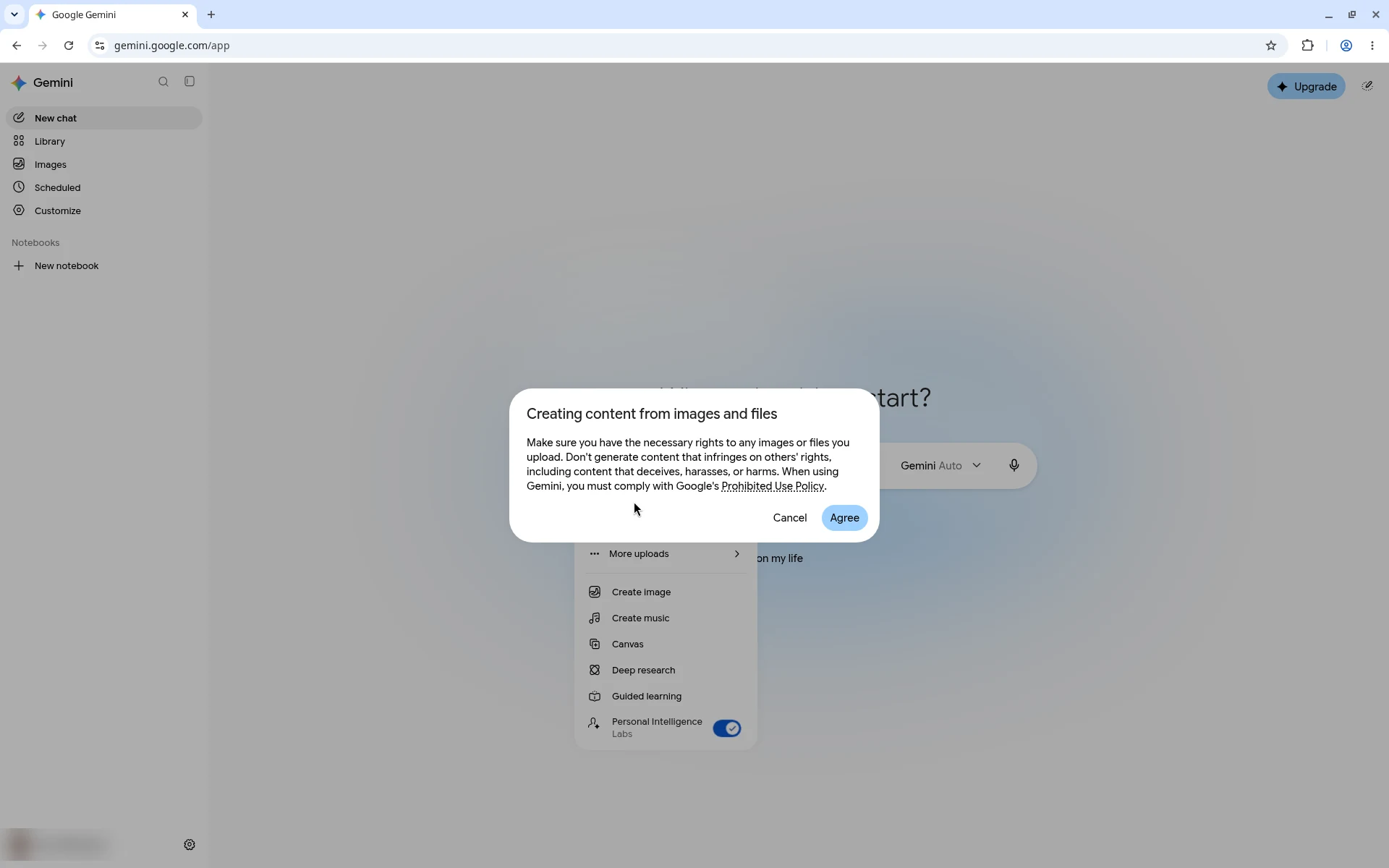
Agree and move on.
Your computer’s file window opens, same as attaching something to an email. Pick the file and click Open.
If the file is already in Google Drive, Add from Drive works too. It may ask you to connect Drive first.
Once it’s attached, a little card with the file name sits in the box. No card, no file.
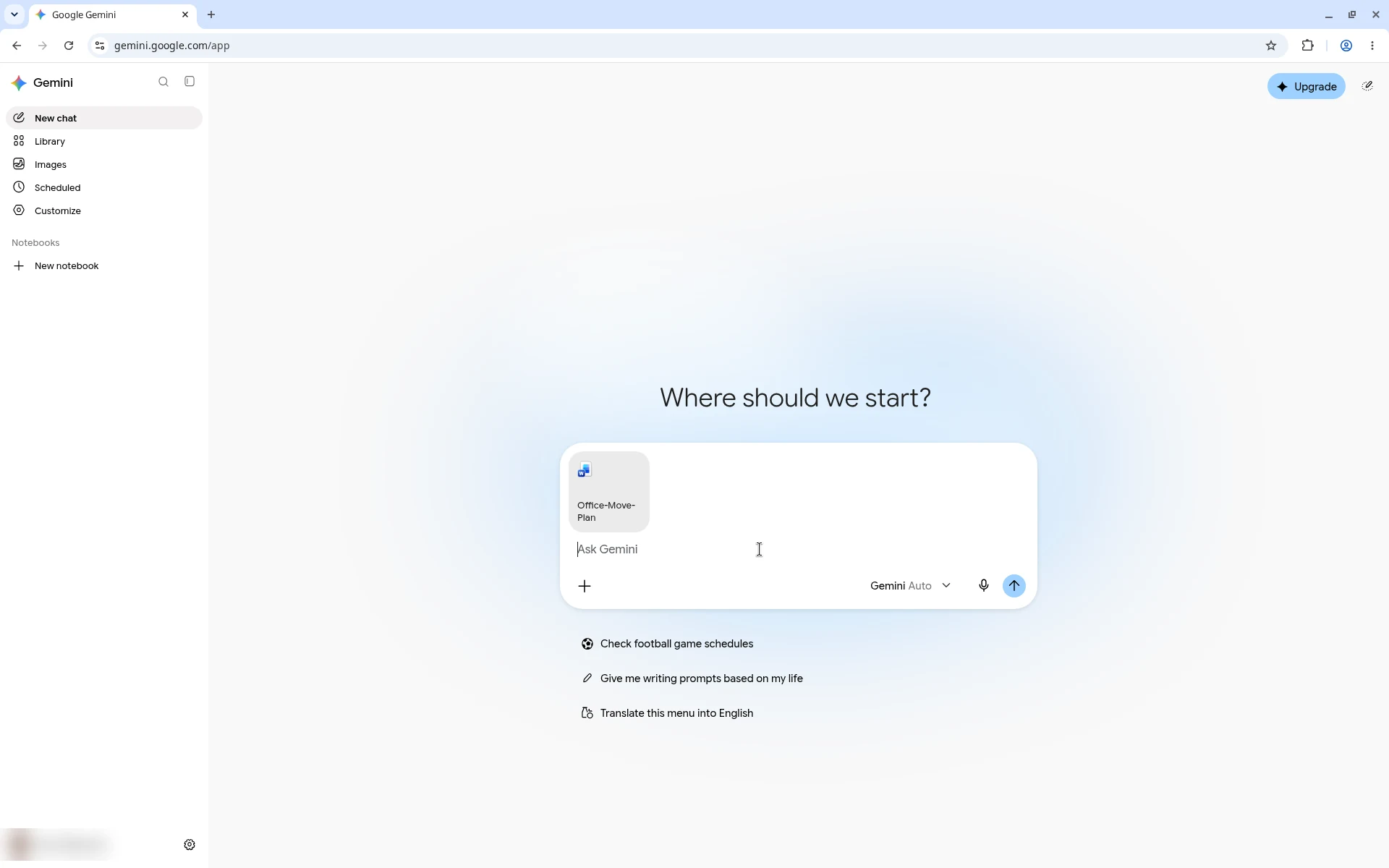
The file card. It made it.
Type your question underneath:
What do I need to do before the move, and by when?
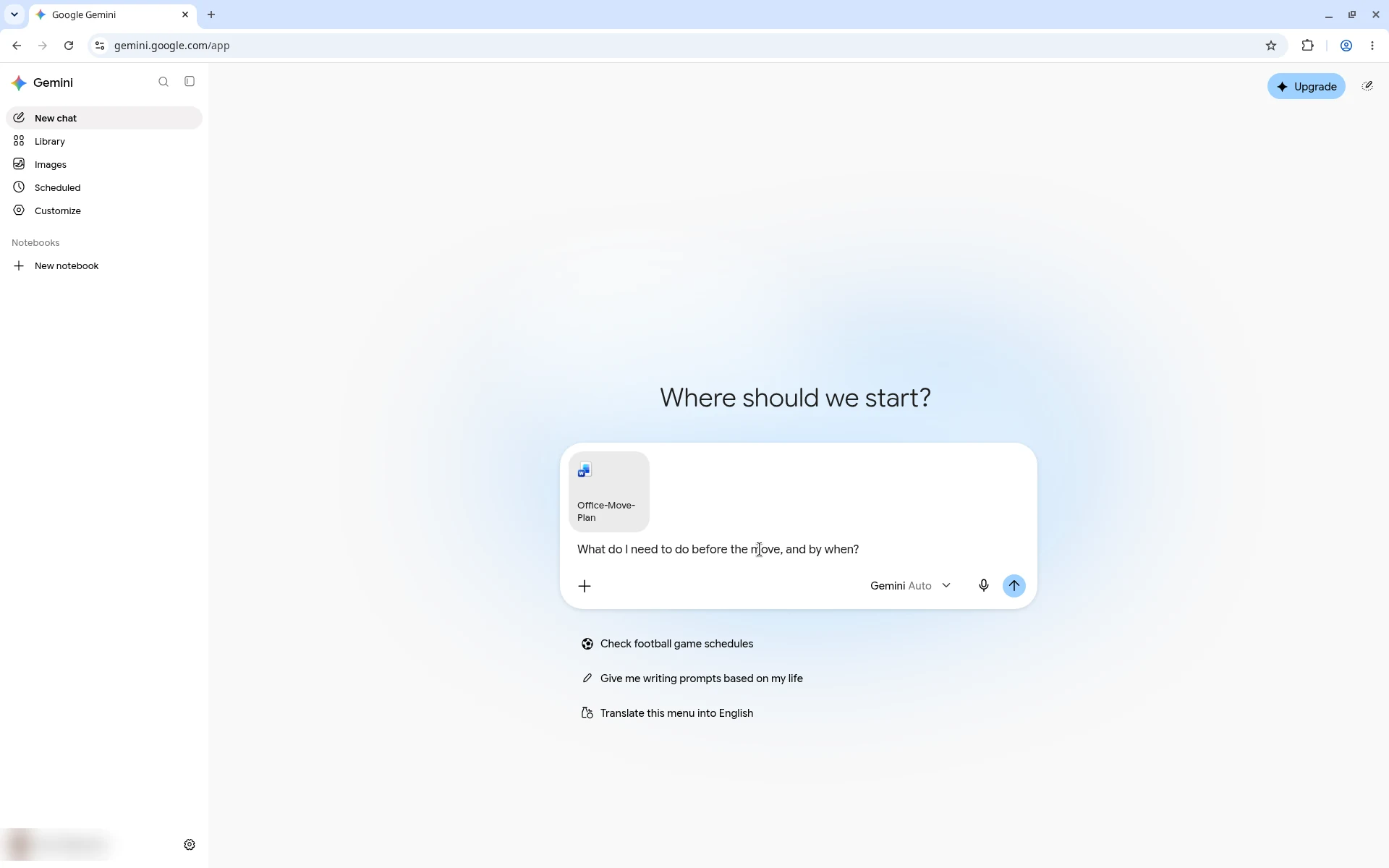
The question, under the file.
Send it. You get a timeline: boxes by November 13, desk numbers by November 16, packing by 3 PM on November 19, move day November 20. It also mentions the coffee machine moves last, which shows a sense of priorities. The little DOCX tags mean it came from your file.
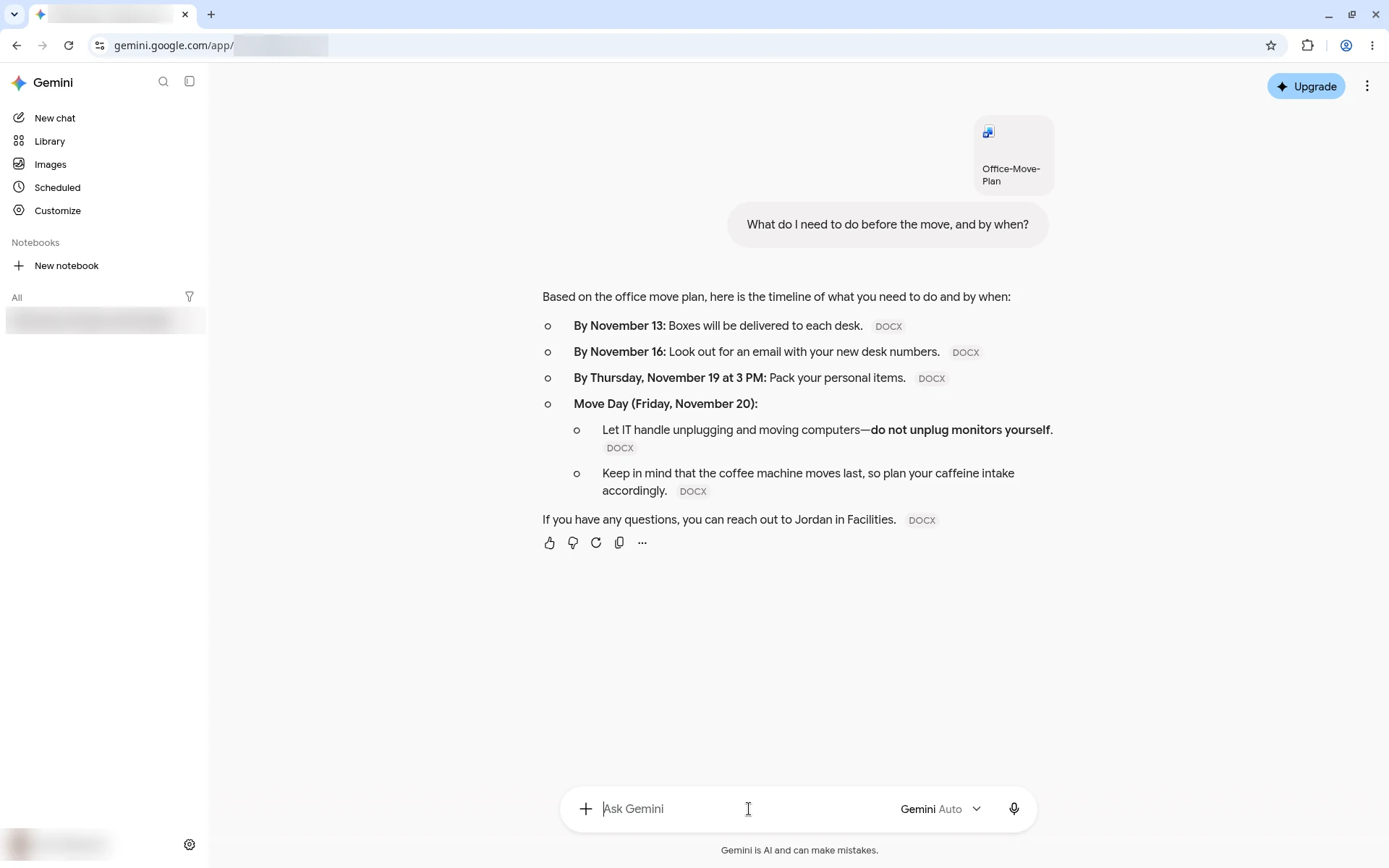
The answer, pulled from the document.
Now ask for what you actually need, like in step 5. Same chat, no need to attach it again.
Turn that into a checklist I can paste into an email.
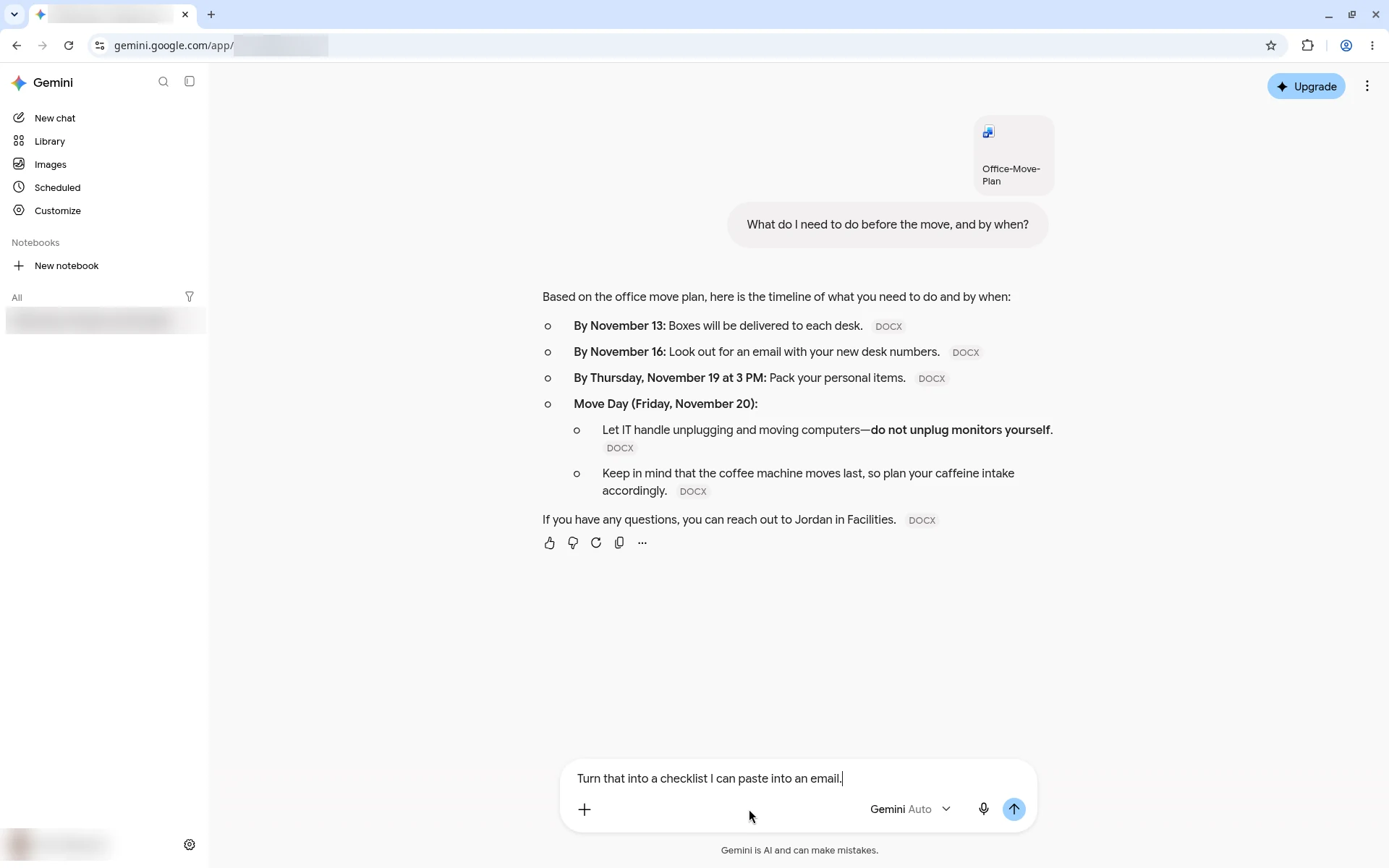
Same chat, same file.
You get a plain-text checklist with a copy icon at the top right. Click it, then paste into your email.
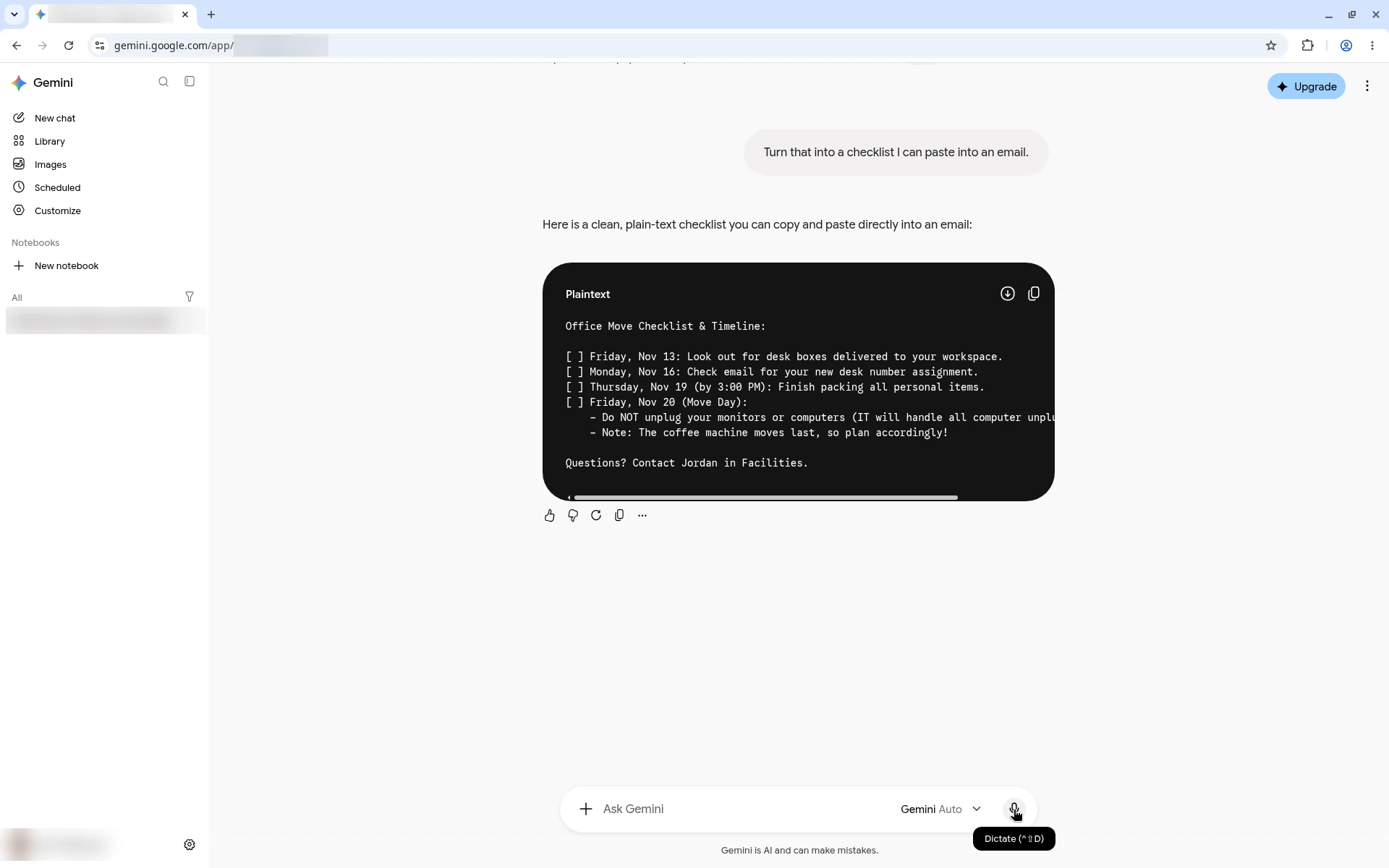
Ready to paste. Almost.
Check the dates before you paste
Look closely. The checklist says Friday, Nov 13 and Monday, Nov 16. The document just says “by November 13” and “by November 16.” Gemini added the weekdays. They happen to be right this year, but nothing in the file said so, and “by November 13” quietly turned into one day.
It’s a small thing, until it’s the date in an email to the whole floor. Check names, dates and deadlines against the original before you paste.
8. The sidebar, settings and help
You don’t need any of this to get work done. Just know where it is.
The panel icon at the top of the sidebar hides it. You get a thin strip of icons and more room for the chat. Click the same spot to bring it back. Nothing is lost.
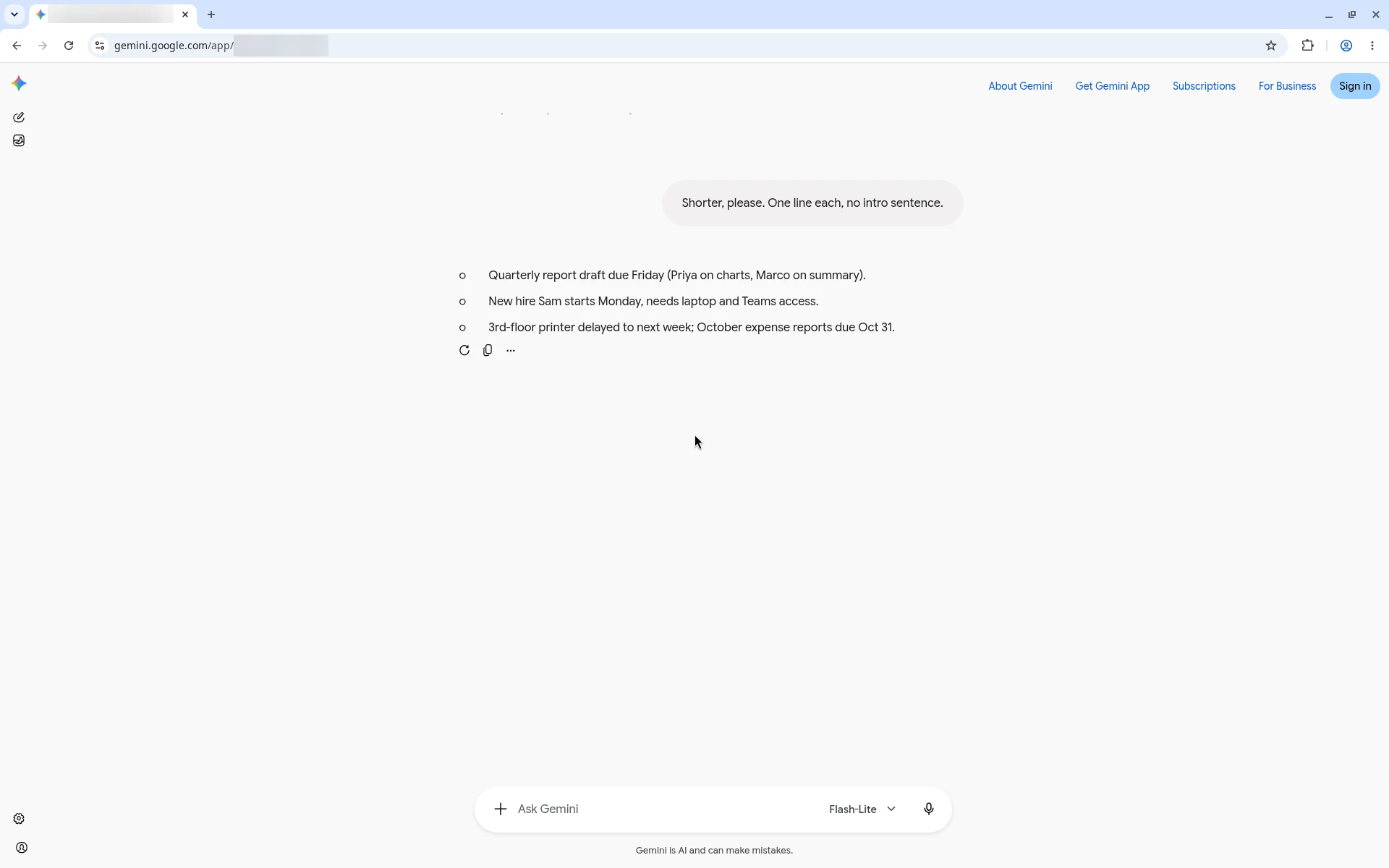
Sidebar closed. The icons still work.
Signed out, the sidebar has no chat list, because nothing is being saved. Signed in, your chats show up there.
The gear at the bottom of the sidebar opens settings. If you change one thing here, it’ll probably be Theme.
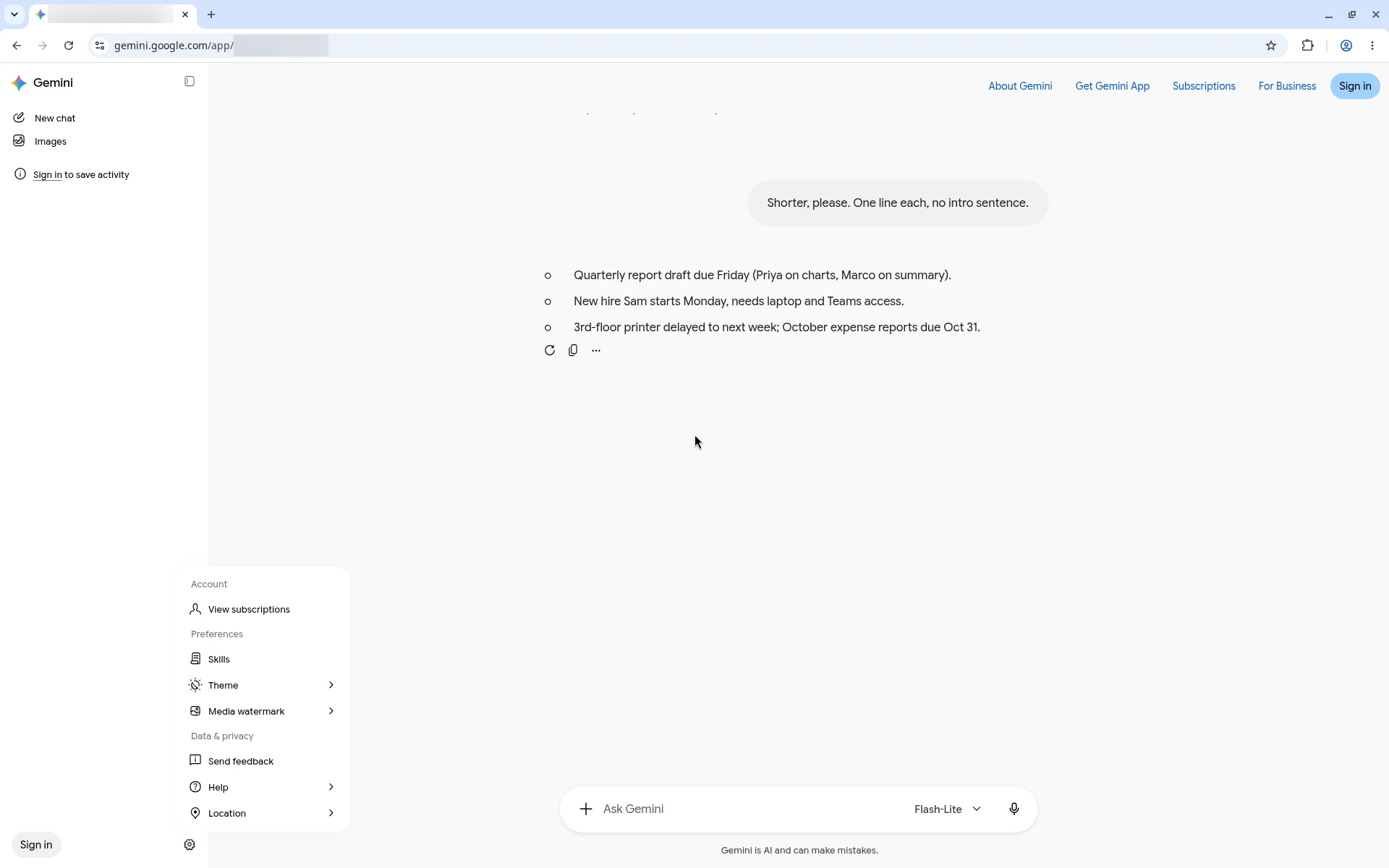
The gear menu, signed out.
Help is near the bottom of that menu, where Help always lives. Point to it for Help Center and Privacy.
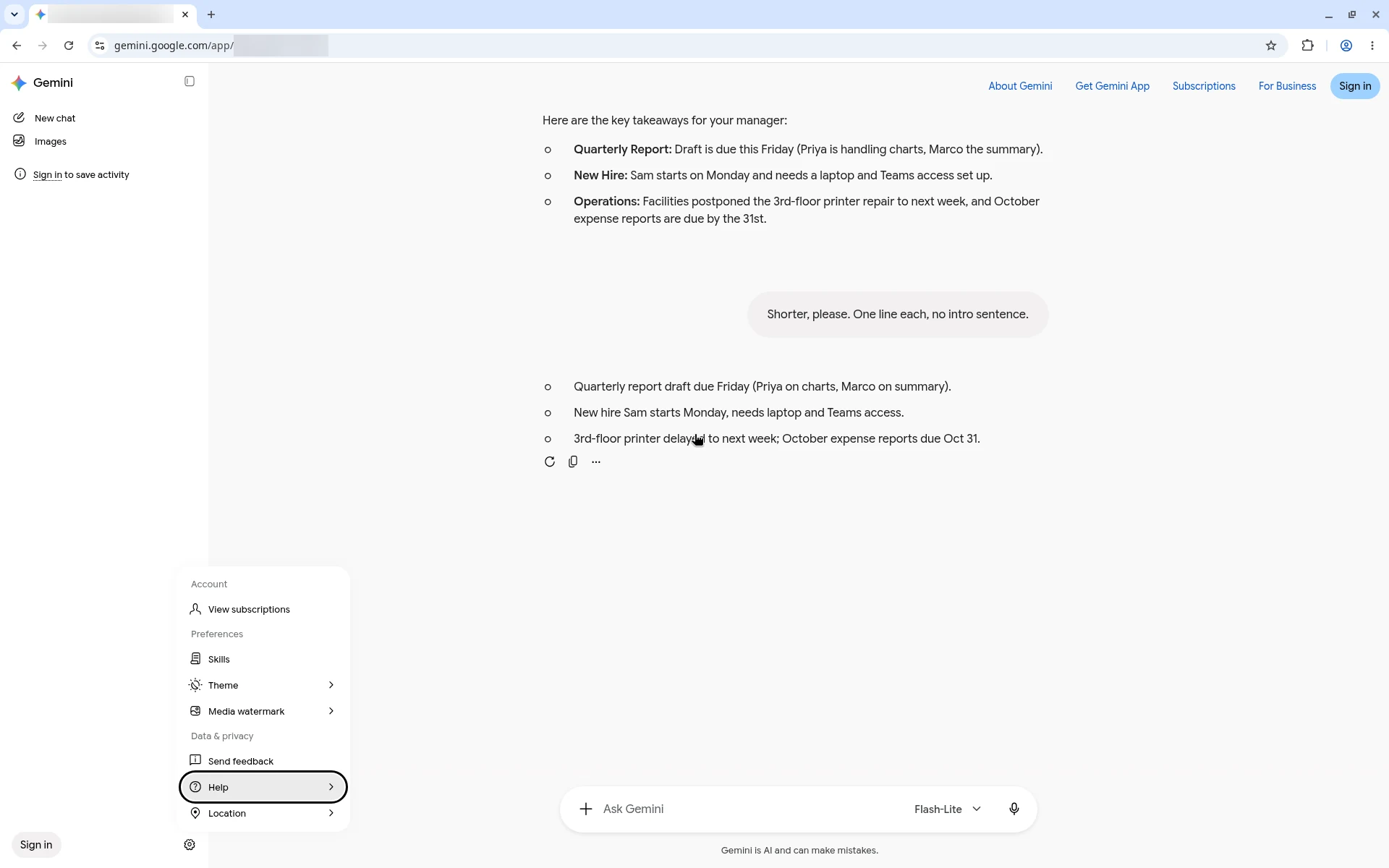
Help, highlighted. Its submenu isn’t in this picture.
Press Esc to close the menu.
9. Leave the model picker alone
The word on the right side of the box is the model picker: Flash-Lite signed out, Gemini Auto signed in. It picks which version of Gemini answers. Click it if you’re curious. Signed out, only Flash-Lite was available.
You don’t need anything labeled “Complex tasks” to tidy up meeting notes. Press Esc and leave it. The names will have changed by the time you read this. That’s not you; that’s the naming.
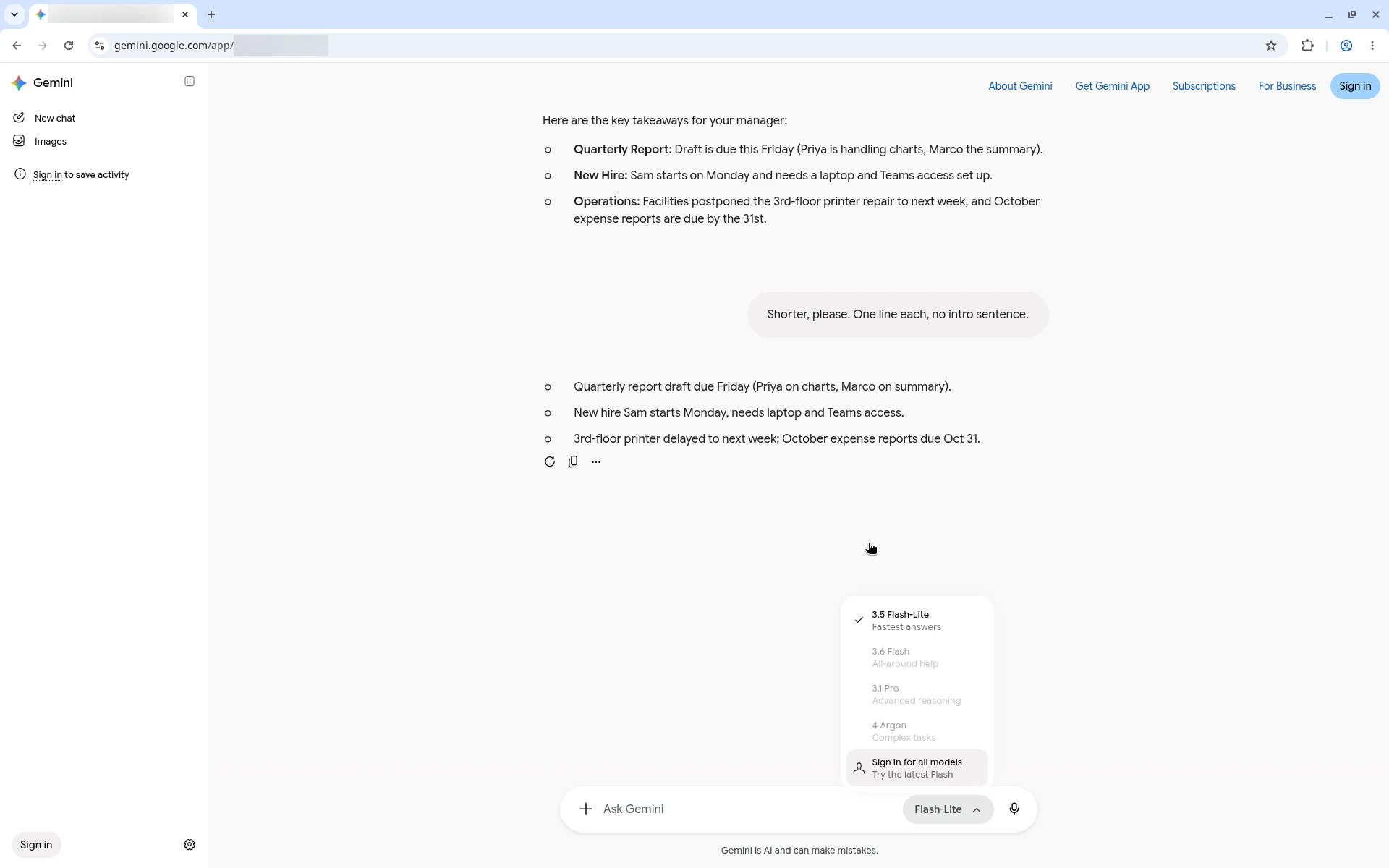
The model picker, signed out.
10. Why the + menu is sometimes grey
If your + menu doesn’t look like the one in step 7, you’re probably signed out. Almost everything in it is greyed out.
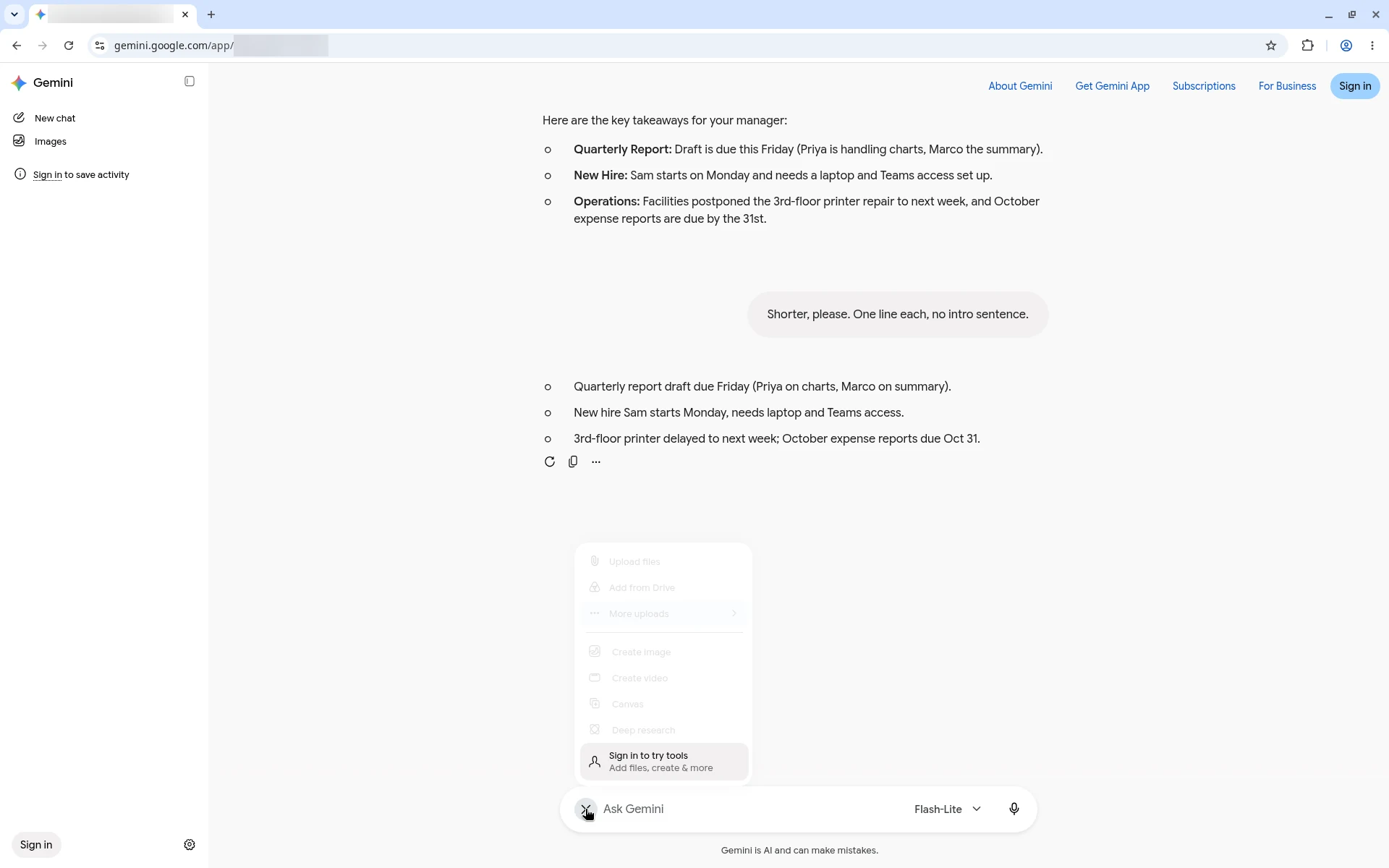
Signed out: a menu of things you can’t have yet.
Click Upload files anyway and nothing happens. The menu just closes. No error, no file window.
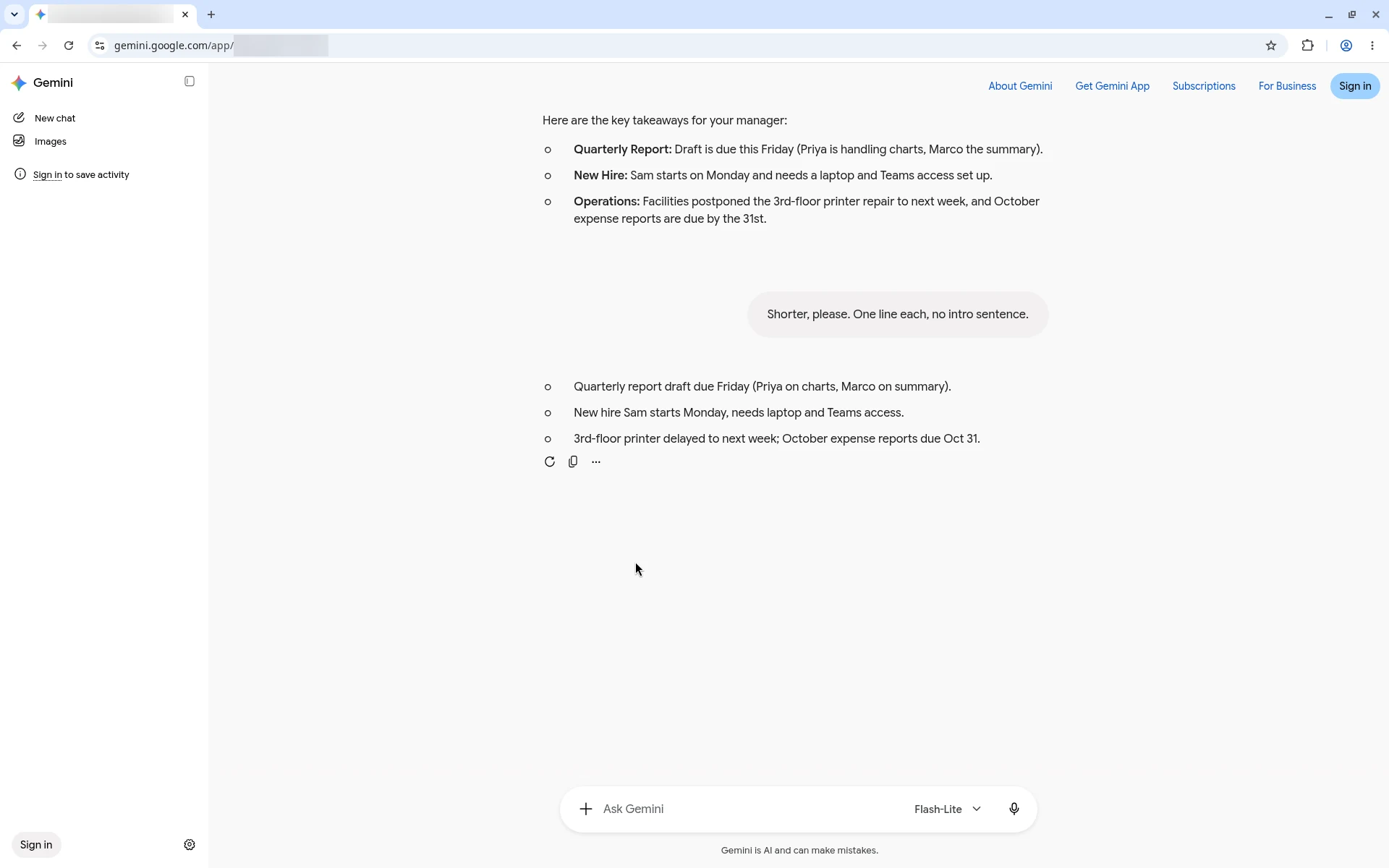
Upload files, clicked while signed out. Nothing opens.
Sign in and go back to step 7. Or paste the text into the box, like in step 3.
11. Start a new chat
Done with one topic? Click New chat at the top of the sidebar.
Signed out, Gemini warns you the current chat won’t be saved. It asks before deleting, which is more than most software does. Copy anything you want to keep first.
Signed in, your chats stay in the sidebar, so this matters less.
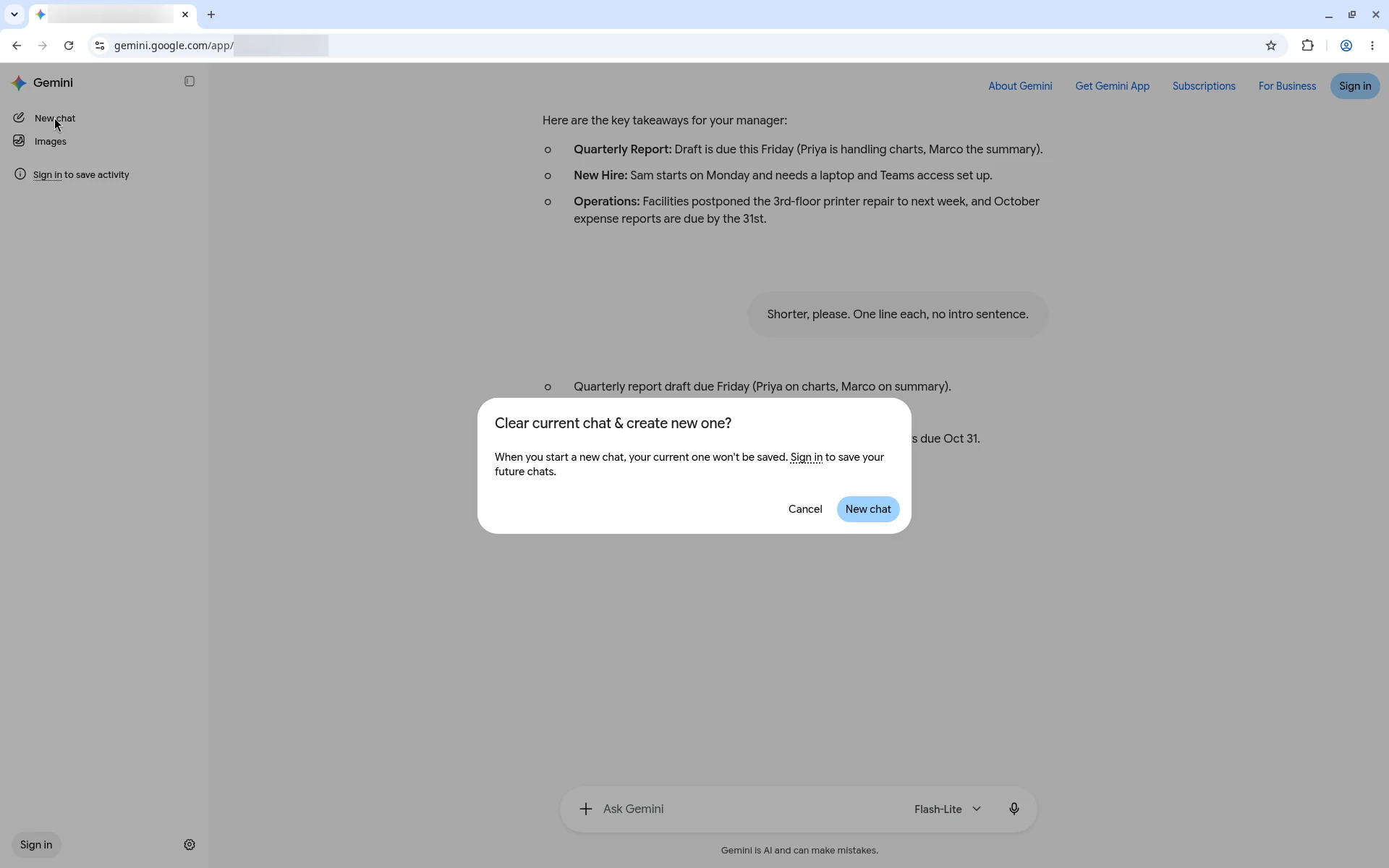
Signed out, confirming means it’s gone.
You’re back on the empty page from step 2.
Check that it worked
You got an answer, then a better one. Your spoken words showed up in the box, or you know the three things to check. You attached a file, saw its card, got an answer, and checked the dates. You know where the gear, Help and the model picker are, and why + is sometimes grey.
No answer? Check your internet and reload. File won’t attach? Make sure you’re signed in and try again.
A note on signing in
Signed in, Gemini saves your chats and lets you upload files. For work, use whatever your employer approved: a work account, Gemini Enterprise, or a different tool entirely. Don’t use a personal account to get around a company rule.
That’s it. You asked, you asked again, you talked to it, and you handed it a document and checked its homework. That’s most of the job. Whatever the reason your office picked it, you can actually use it now.
Let’s learn together.
Comments are reviewed by Ana before they appear. Please use fictional examples and leave workplace details out.
Loading approved comments…