Before you paste anything into Gemini: the ground rules for using AI on your lessons
Before you paste a thing into Gemini: check Keep activity, use a temporary chat, leave out real names, check every fact, and make the answer sound like you.
Step 3 of 8 in One tool, one small job at a time (Path 02)
Heads up: these screenshots use a personal Google account in Gemini (gemini.google.com) in a web browser on a computer. No subscription.
So you're a teacher or a trainer, and everyone around you has an opinion about AI. Maybe you're not sure about it, maybe you don't want to use it at all, or maybe you feel a little guilty that you're even thinking about it. That's fair. Of course you don't want your students using it to do their homework for them.
But think of it as a tool, the same way Word and Excel are tools. You already use those to make your work better, and nobody calls you a fraud for using spell check. It's going to be fine, and it's not the end of the world. Use it to make better resources, and do most of the writing yourself so it always sounds like you and not like something a computer wrote.
Before you paste anything into Gemini, though, there are a few ground rules. We'll look at one setting, open a temporary chat, write a safe prompt, and talk about what you do with the answer.
Before you start
Heads up: these screenshots use a personal Google account in Gemini (gemini.google.com) in a web browser on a computer. No subscription. If you use Gemini through a school or work account, read the At work notes, because the rules are a bit different.
Screenshots are from October 28, 2026, with chat titles and activity entries blurred. Google moves things around, so yours may not match.
1. Open Gemini
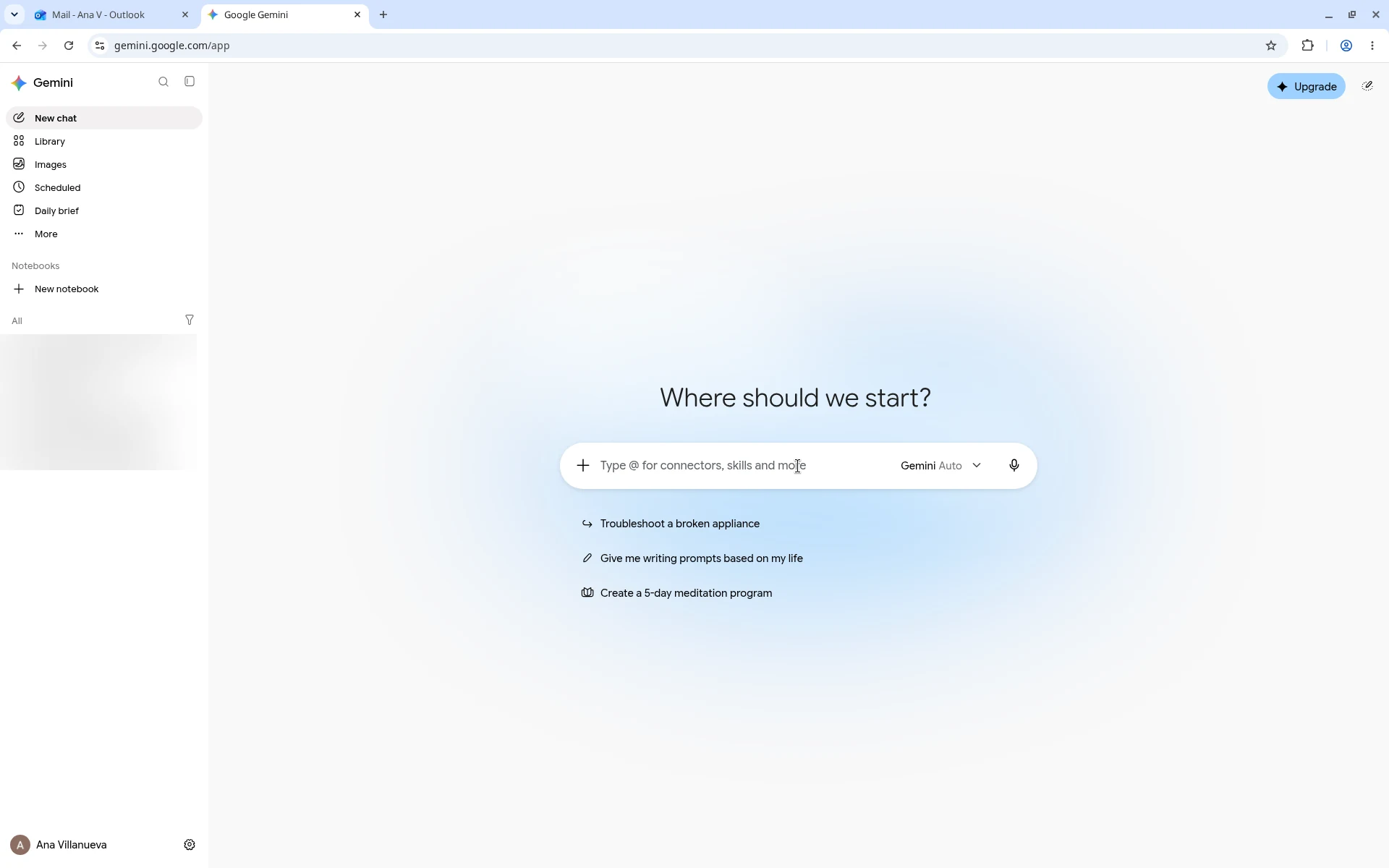
Go to gemini.google.com. You'll see "Where should we start?" and a box to type in. Don't type anything yet.
2. Open Settings and go to Activity
At the bottom left, next to your name, click the gear for Settings & help. Under Data & privacy, click Activity. It opens in a new tab.
While you're in this menu, you might notice Gems and Skills. We'll come back to Gems in a later lesson.
3. Read what Keep activity means
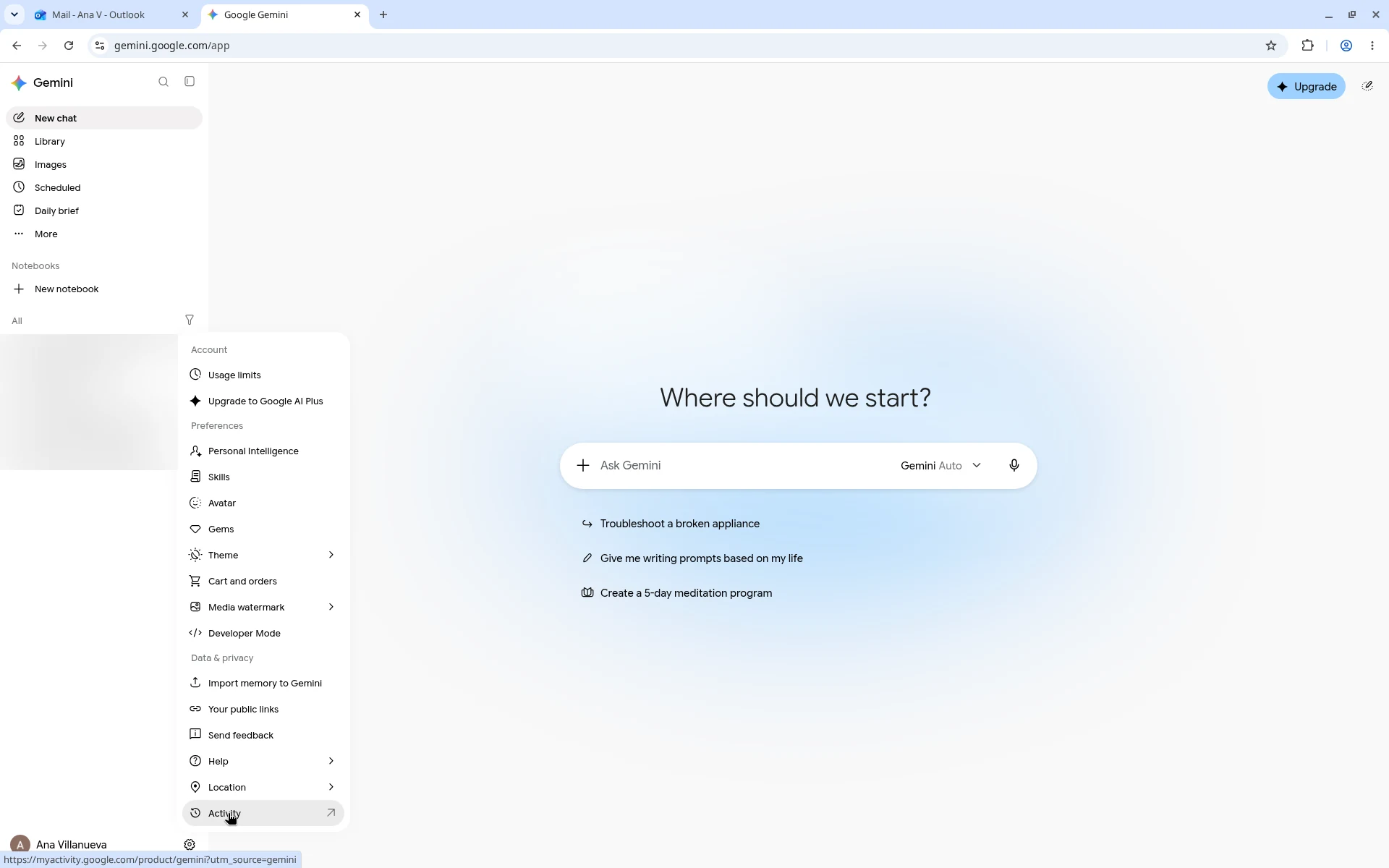
This page is called Gemini Apps Activity, and the box at the top is Keep activity. Mine is On. Here's what Google says, word for word:
Keeping your activity lets you pick up chats where you left off anytime and helps improve Google services, including AI models. When this setting is off, Google still saves chats for 72 hours to respond to you and help keep Gemini safe.
So with it on, your chats can be used to help improve Google's AI. With it off, they're still kept for 72 hours. Either way, the safest plan is to not paste in anything you wouldn't want saved. If you want the full details, Google's Gemini Apps Privacy Hub explains what's collected and how it's used.
You can switch it off with the On button. I left mine on, because I like being able to find old chats, and I just keep private things out of it.
4. Find Temporary chat
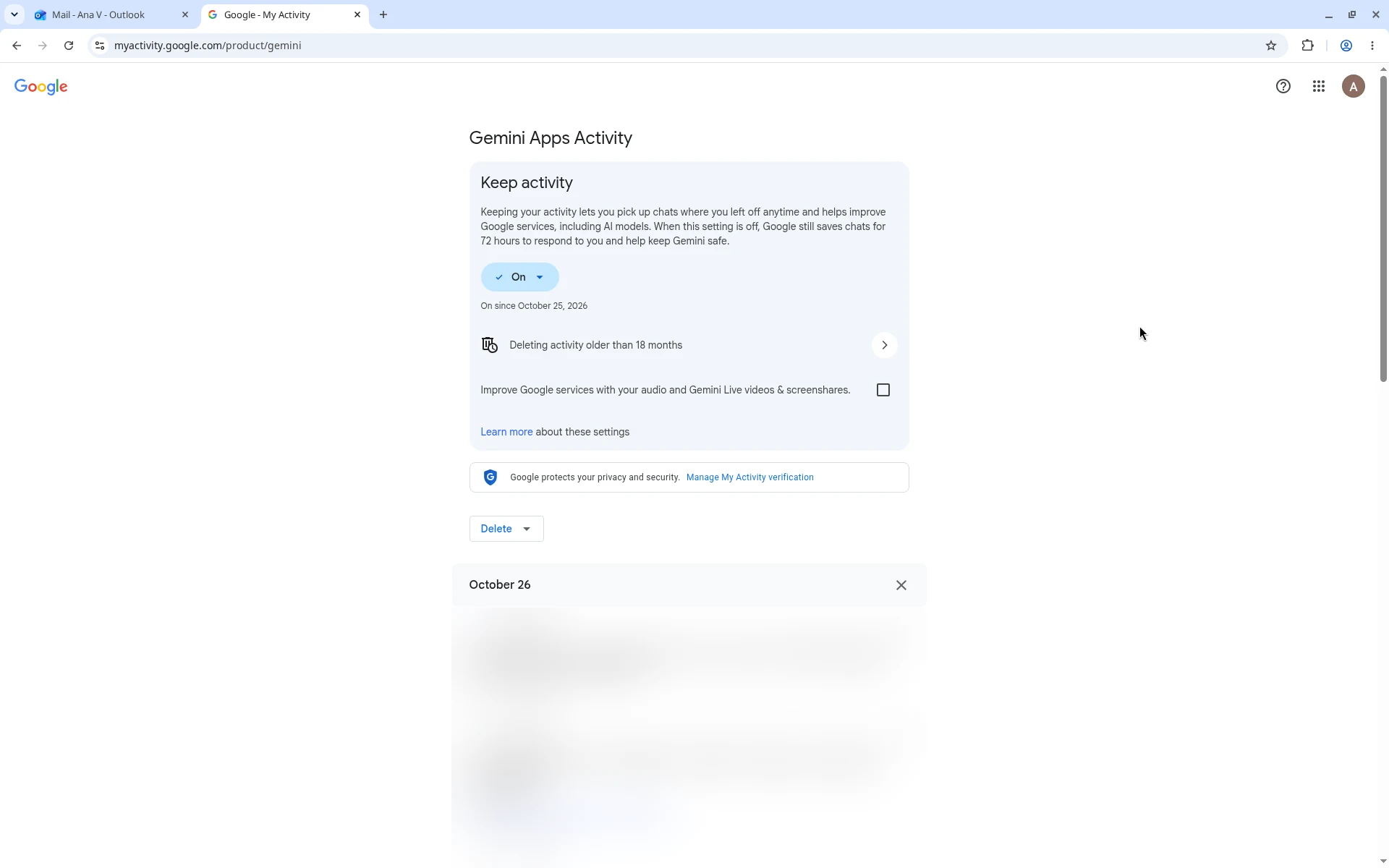
Go back to the Gemini tab. At the top right there's a small icon, and when you hover over it, it says Turn on temporary chat. Click it.
5. Use a temporary chat for anything you'd rather not keep
The screen changes to "Just stopping by?" and underneath it says: "Temporary chats don't appear in recent chats and aren't used to improve Google AI. Stored for 72 hours for safety."
This is what I use when I'm working on something I don't need to keep. It's still not a place for private details, because it's stored for 72 hours, but it won't sit in your history.
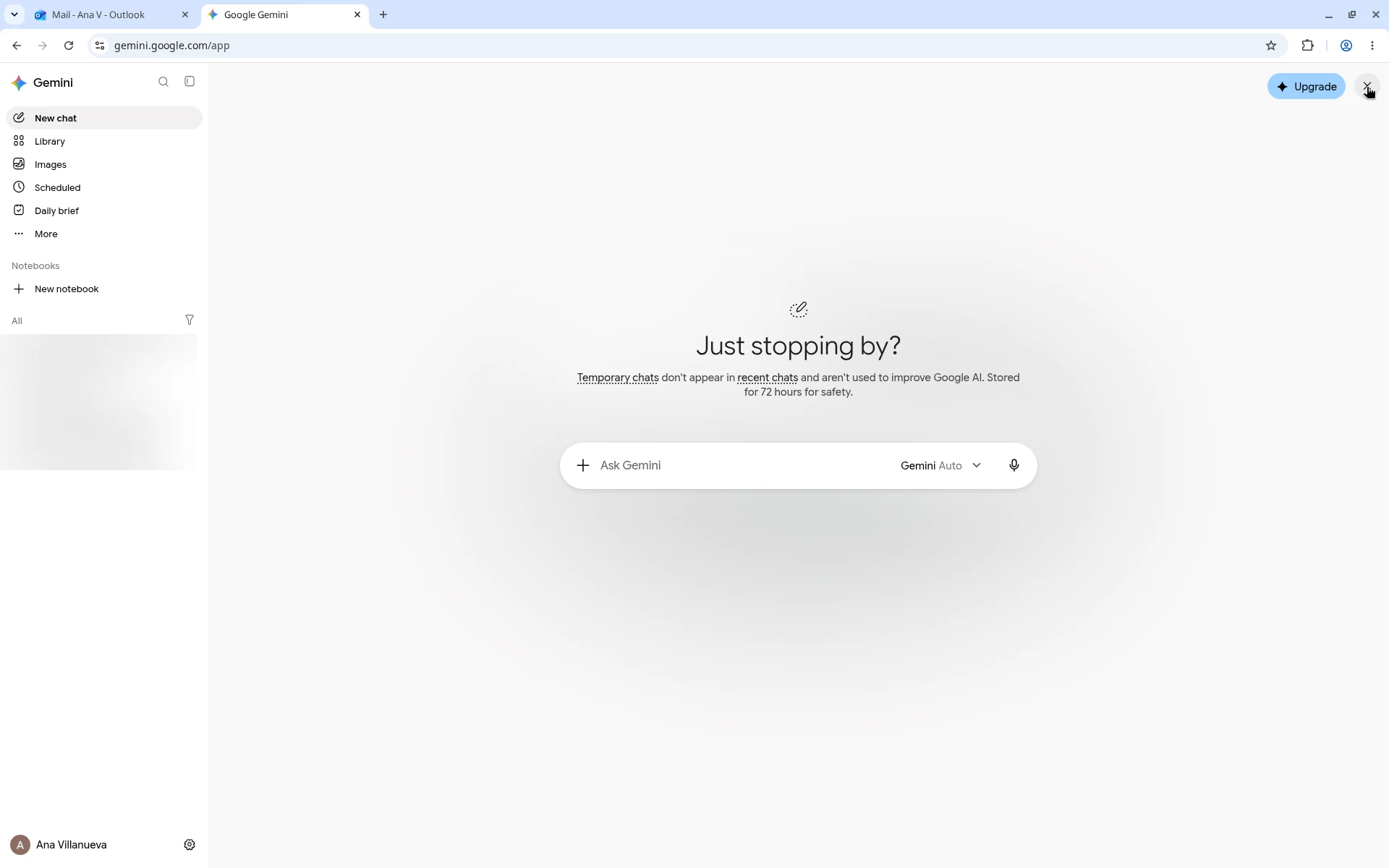
6. Write a prompt with no real names
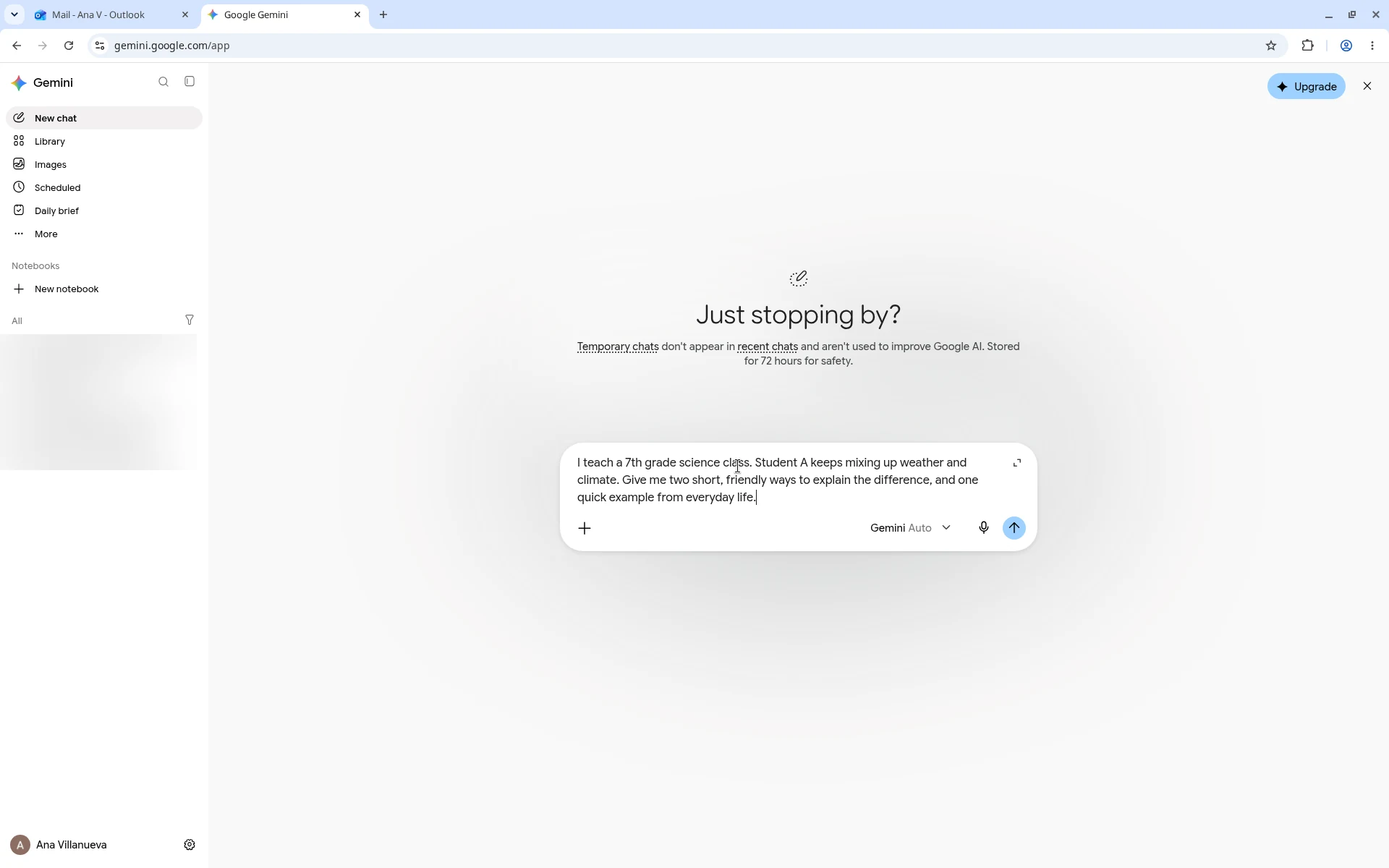
Here's the big rule: no real student names, grades, IEP or medical details, and nothing from HR. Call them "Student A" or make up an example. Gemini doesn't need to know who the student is to help you explain something.
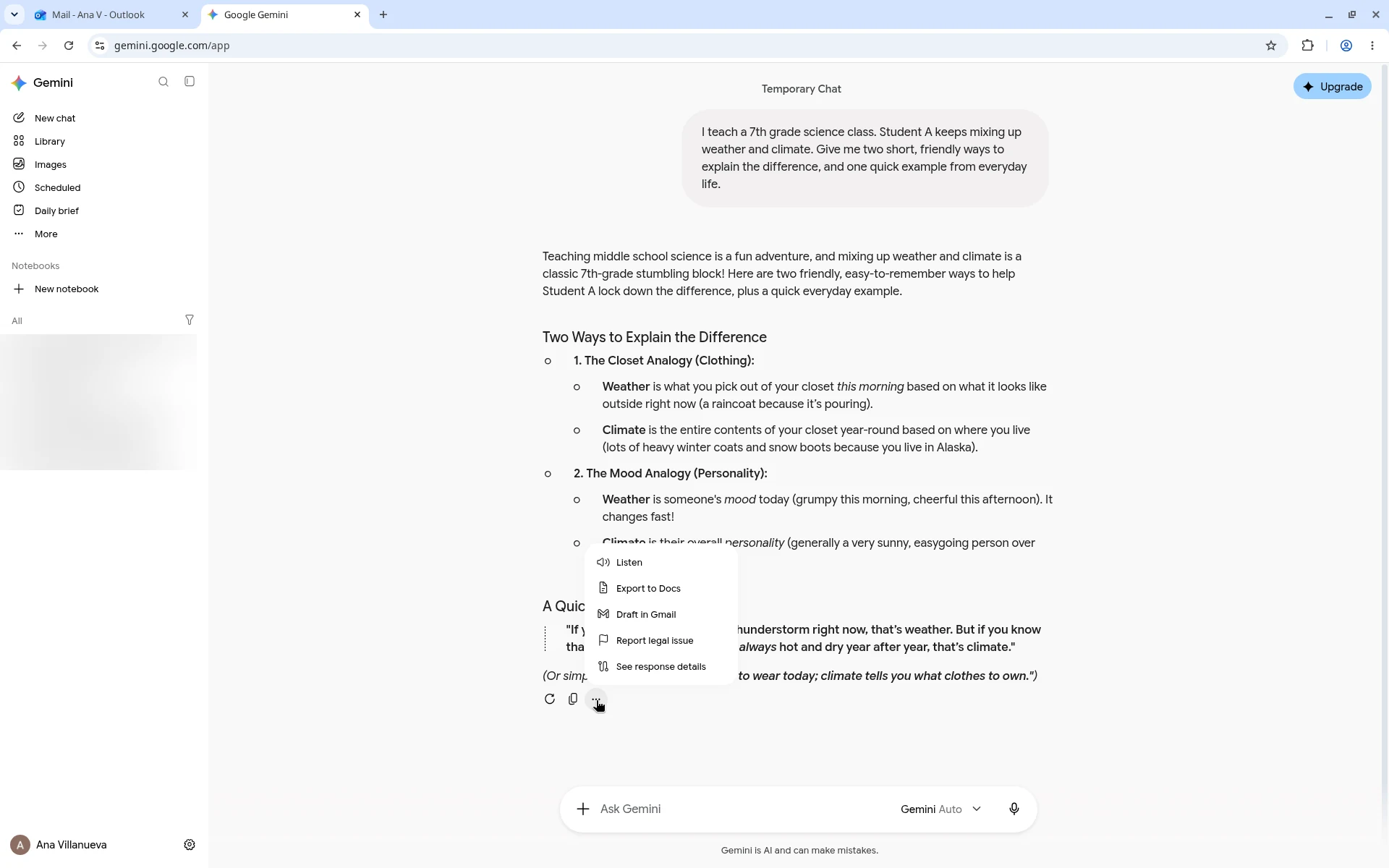
Mine was: "I teach a 7th grade science class. Student A keeps mixing up weather and climate. Give me two short, friendly ways to explain the difference, and one quick example from everyday life."
7. Read the answer and check every fact
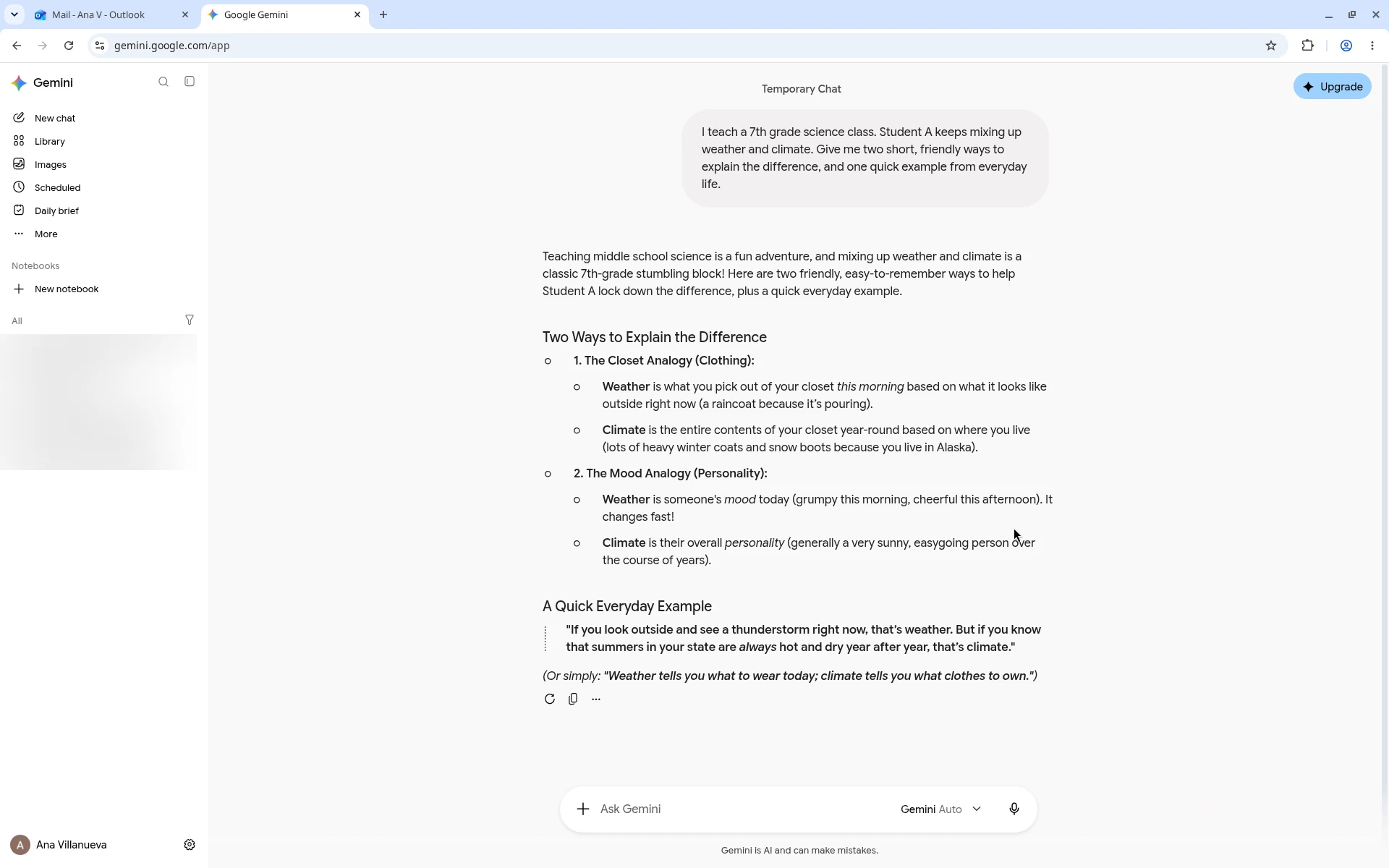
Gemini gave me two analogies, one about the clothes in your closet and one about someone's mood versus their personality, plus an everyday example. "Temporary Chat" at the top tells you you're still in the temporary chat.
They're good, and I'd probably use the closet one. But you're the teacher here, so you check every fact before it goes in front of a class. At the bottom of the screen it says "Gemini is AI and can make mistakes," and that's worth taking seriously.
8. Copy the answer
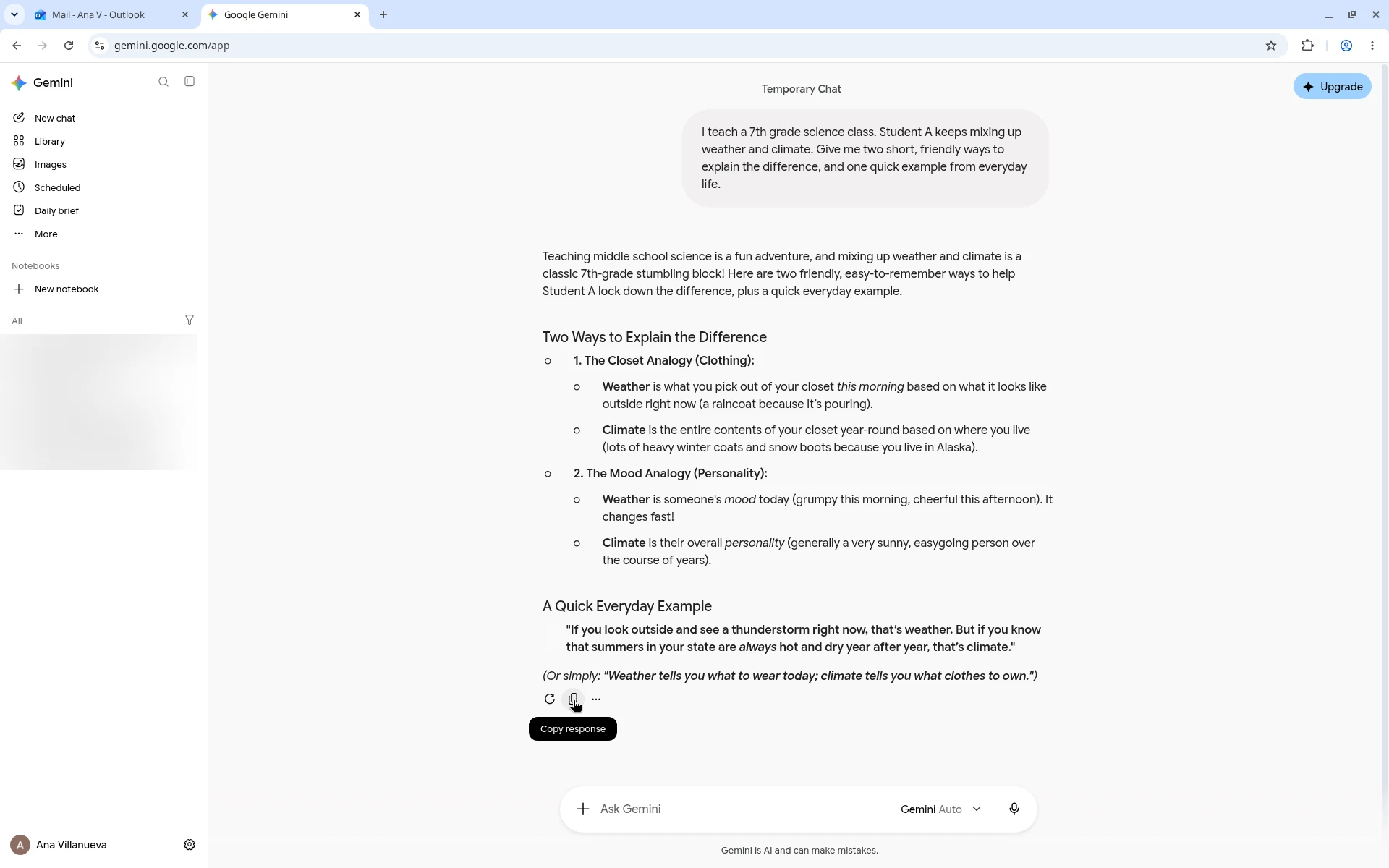
Under the answer, the second icon says Copy response when you hover over it. Click it, then paste the answer into your own document.
9. Or send it to Docs, then make it yours
The three dots next to it open a menu with Listen, Export to Docs, Draft in Gmail, Report legal issue and See response details. Export to Docs puts the answer straight into a Google Doc.
Either way, this is where you do the writing. Cut what you don't need, change the words to the ones you'd actually say, and add your own example. If your students can tell it came from AI, it needs more of you in it.
Fine and not fine
These are fine:
- Asking for ideas, examples, analogies or a first outline.
- Using "Student A" or a made-up situation.
- Pasting in something you wrote yourself, or something that's already public.
- Asking it to make your own handout shorter or easier to read.
These are not fine:
- Real student or employee names, grades or test scores.
- IEP, 504, medical or family details.
- HR issues, complaints or anything from a personnel file.
- Handing out what it wrote without checking the facts and rewriting it in your words.
At work
At work: if you sign in with a school or work Google account, Gemini for Education or Google Workspace comes with extra data protection. Your IT team has to turn Gemini on for your account, so if you can't open it, that's why. Even with that protection, it's still not the place for student records unless your district says it is, because student records are covered by FERPA. When in doubt, ask whoever handles that at your school.
At work: if your school or company runs on Microsoft, you may have Copilot Chat instead of Gemini. The same ground rules apply, and we'll cover it in later lessons. I know, more Microsoft. I'm not thrilled either, but the rules don't change.
Check that you've got it
- You know whether Keep activity is on or off, and what that means.
- You can start a temporary chat.
- Your prompt had no real names or private details.
- You checked the facts and rewrote the answer so it sounds like you.
Let’s learn together.
Comments are reviewed by Ana before they appear. Please use fictional examples and leave workplace details out.
Loading approved comments…