117 emails before coffee: let Gmail summarize the thread and draft the reply
Summarize a long Gmail thread, draft your reply with Help me write, shorten it, read it before you send, and see the Outlook version.
Step 4 of 8 in One tool, one small job at a time (Path 02)
These screenshots use a personal Gmail account in a web browser on a computer. No subscription.
You open your inbox and there’s a long potluck thread you weren’t ignoring, you were just working. Gmail can now read it, tell you what you missed, and draft your reply. You still have to read both, but I'll take anything that means writing fewer emails myself.
We’ll summarize one thread, draft a reply with Help me write, make it shorter, and catch the mistakes before anything goes out. Then we'll cover work accounts and Outlook.
Before you start
Heads up: these screenshots use a personal Gmail account in a web browser on a computer. No subscription. What you get depends on where you are:
- Summaries. Google says thread summaries are for all Gmail users, in English, French, German, Italian, Japanese, Korean, Portuguese and Spanish.
- Help me write. On a free personal account it's US only, in the same eight languages. With a paid Google AI plan or an eligible work account, Google lists it worldwide.
- Smart features need to be on. If you live in the EEA, the UK, Switzerland or Japan, they start off. In Gmail, go to Settings (the gear), See all settings, the General tab, then Smart features and Google Workspace smart features.
- It reads your other mail. Google says Help me write can use details from your other emails and Drive files to personalize a draft.
Steps that differ at work have an At work note, taken from Google’s and Microsoft’s help pages, not screenshots. The demo thread is between my two inboxes, so most messages show my name. The people in the emails are made up.
Screenshots are from 2026-10-26, with email addresses and account pictures blurred. Google moves things around, so yours may not match.
Part 1: Catch up
1. Open the thread
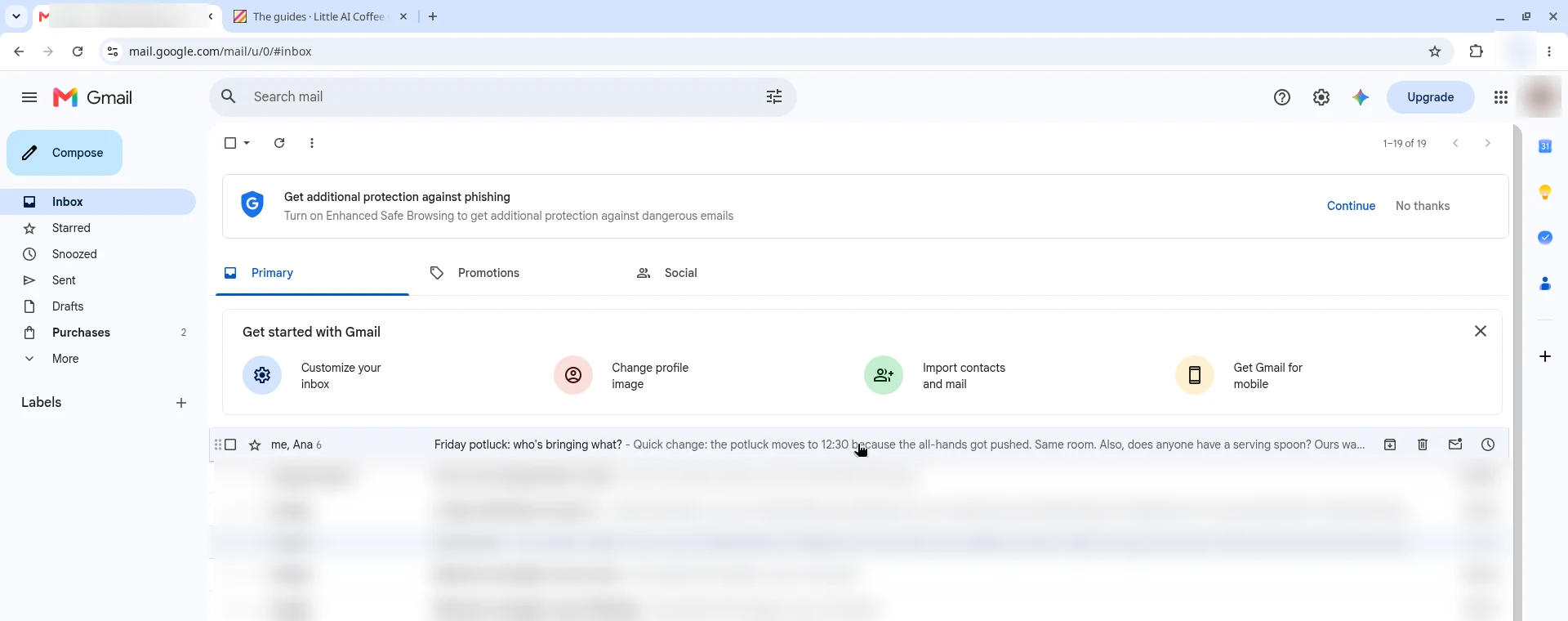
Find the long thread and click it. Mine is “Friday potluck: who’s bringing what?” at the top.
2. Click Summarize this email
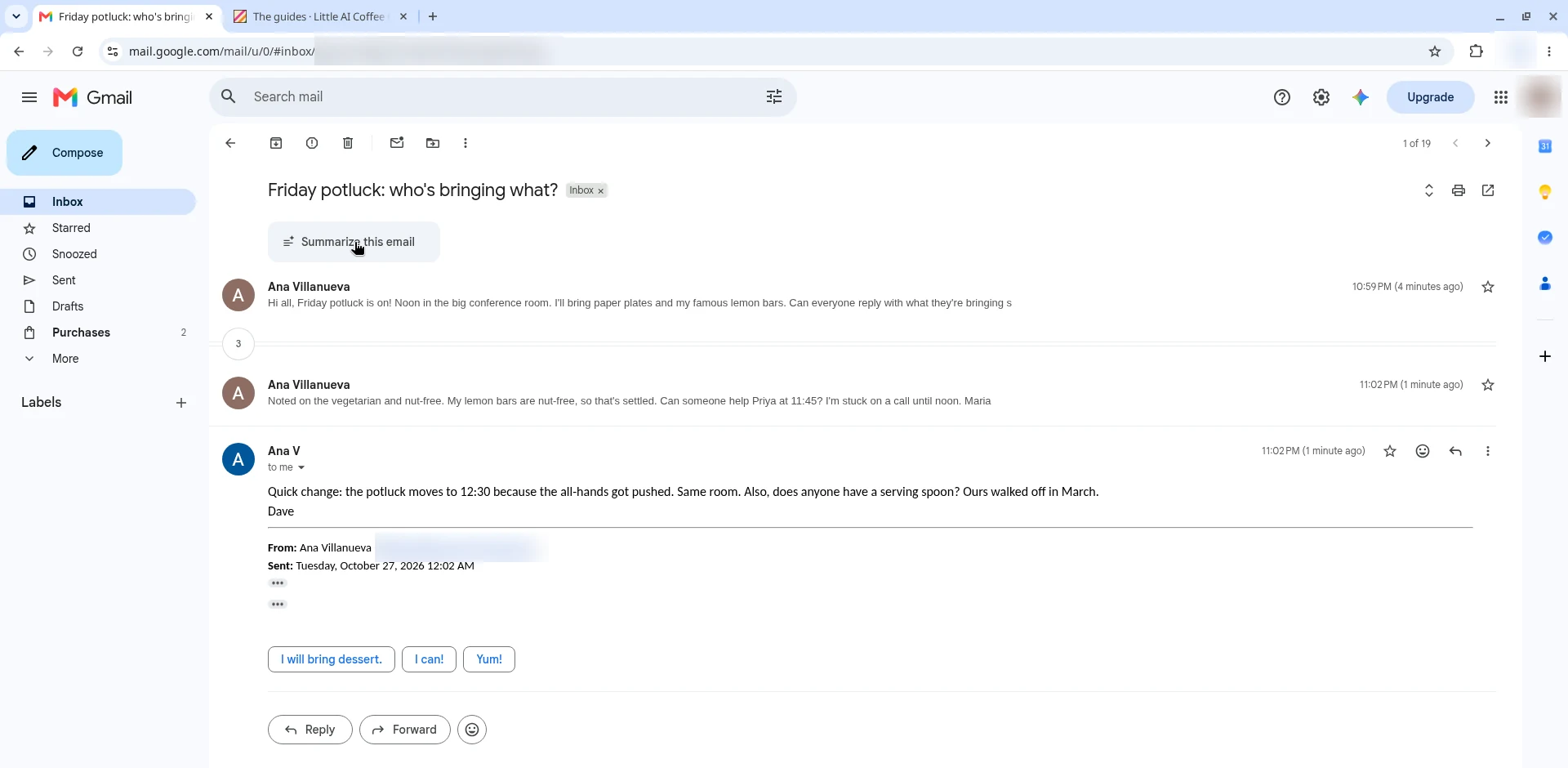
At the top of the thread, under the subject, click Summarize this email. If you don’t see it, check that smart features are on (see Before you start).
3. Read the AI Overview
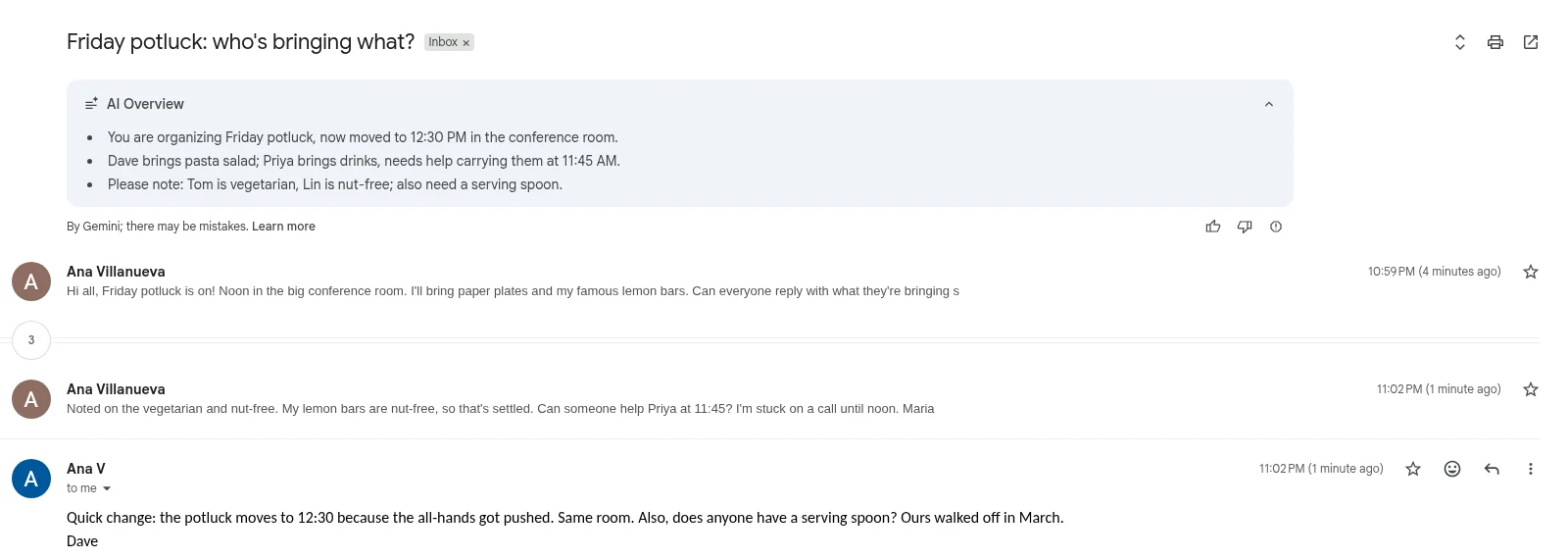
A grey box called AI Overview shows up with a few bullet points. Mine said I’m organizing, the potluck moved to 12:30, Dave brings pasta salad, Priya needs help with drinks at 11:45, Tom is vegetarian, Lin is nut-free, and somebody needs a serving spoon.
It talks to you from your side of the thread (“You are organizing”), which is right, since I started it. Now look at the time: the first email says noon, Dave’s last one says 12:30, and the summary went with the newest. That's correct, but it's exactly the kind of detail to check yourself. The circled 3 in the middle means three messages are folded up. The summary read them and you didn’t, so click it to open them.
Under the box it says “By Gemini; there may be mistakes.” The thumbs are for feedback, and the little arrow at the top right folds the box away.
At work: it's the same button. If it’s missing on a work account, your IT team may have switched it off. You can't fix that from your side, so check with IT.
Part 2: Draft the reply
4. Click Reply
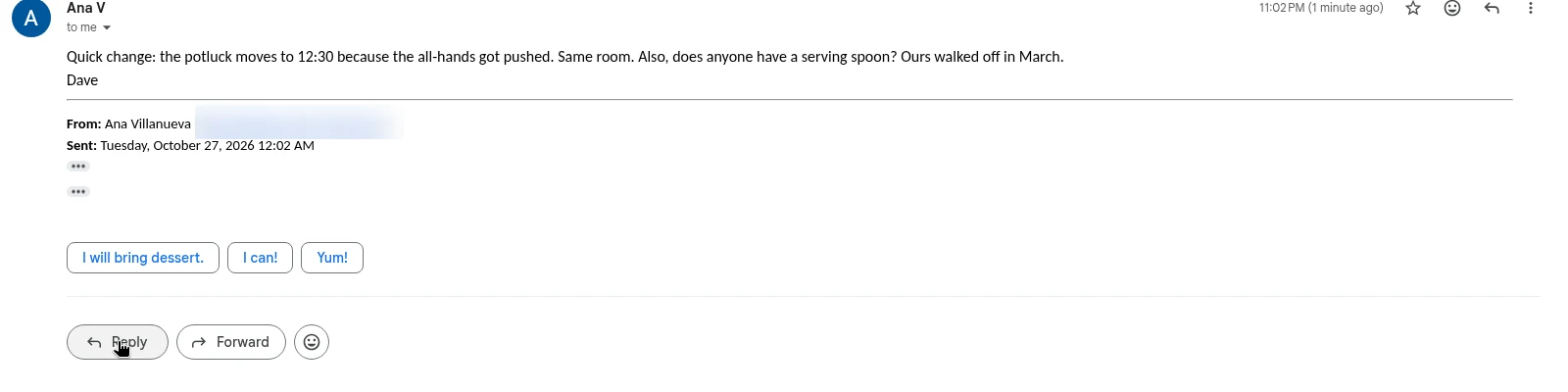
Scroll to the bottom of the thread and click Reply. The buttons above it (“I will bring dessert.”, “I can!”, “Yum!”) are one-click replies, but nobody asked for dessert, so skip them.
5. Click Help me write
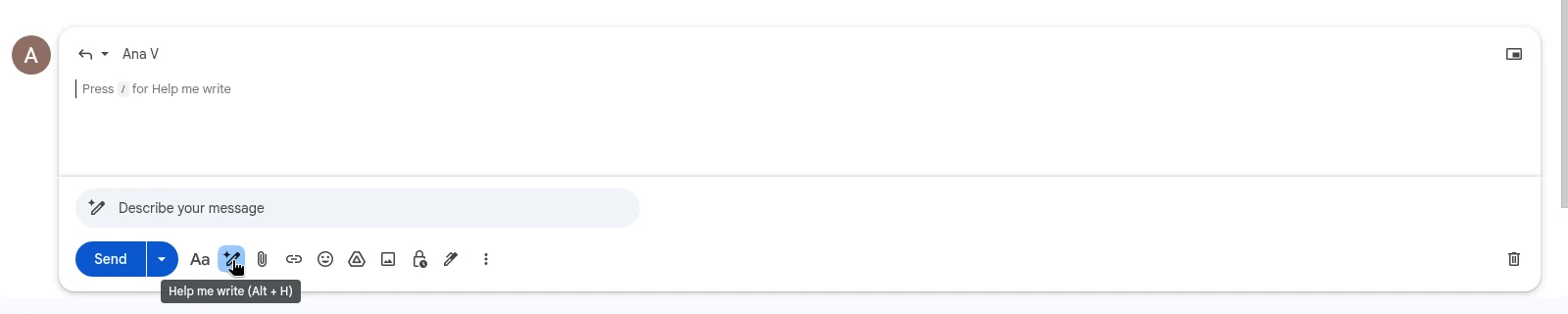
A reply box opens. At the bottom, next to the Aa, there’s a pencil with a sparkle, and that's Help me write. Hover over it to see the shortcut, Alt + H, or press / in an empty reply. If you already see a bar that says Describe your message, that’s the same thing.
6. Say what you want
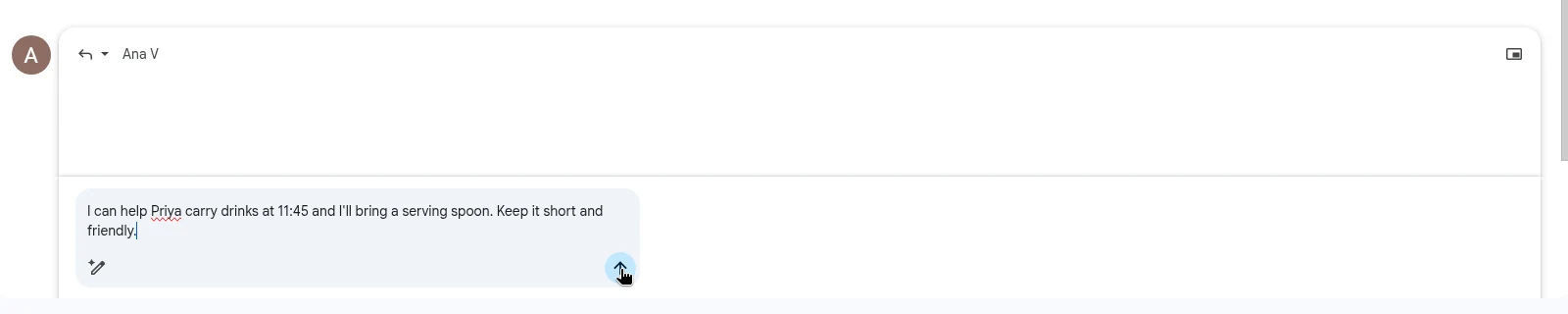
Type what you want to say in plain words, then click the arrow on the right. Mine was “I can help Priya carry drinks at 11:45 and I’ll bring a serving spoon. Keep it short and friendly.”
Give it the facts yourself. Gmail is good at wording and bad at knowing what you actually agreed to.
7. Read the first draft
The draft shows up right in the reply box:
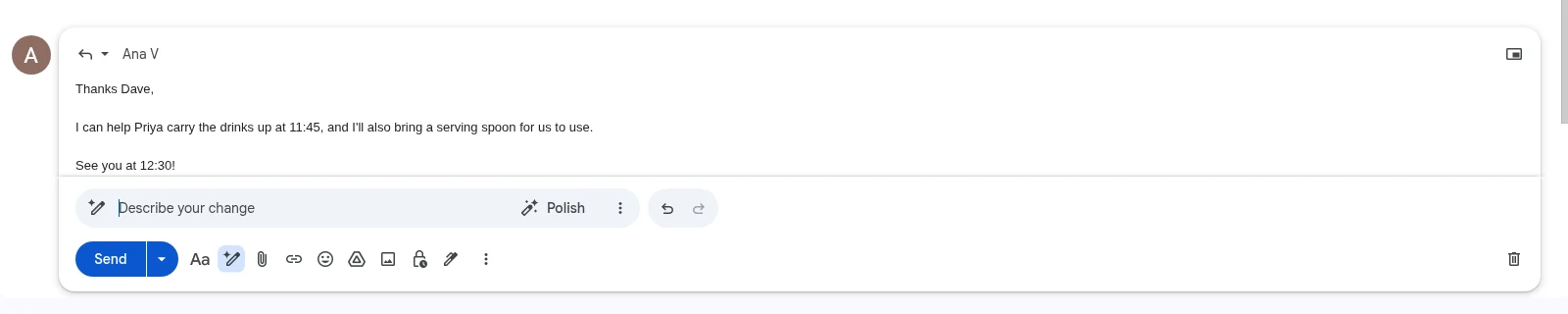
Thanks Dave, I can help Priya carry the drinks up at 11:45, and I’ll also bring a serving spoon for us to use. See you at 12:30!
I asked for short and it added “up”, “also”, “for us to use”, and a whole line I didn’t ask for, “See you at 12:30!” At least the time is right. Scroll down in the box and you’ll see it signed it for me too.
The bar now says Describe your change. You can type a new instruction there or use the buttons next to it.
8. Make it shorter
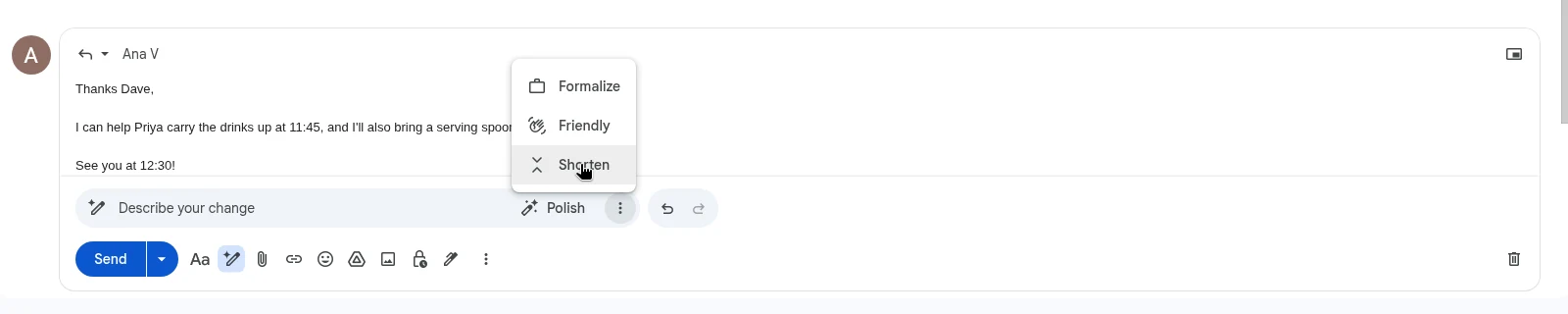
Click the ⋮ next to Polish and pick Formalize, Friendly or Shorten. I went with Shorten, which is pretty much always the right answer for me. If you liked the earlier version better, the curved arrow on the right takes you back.
9. Read the shorter version
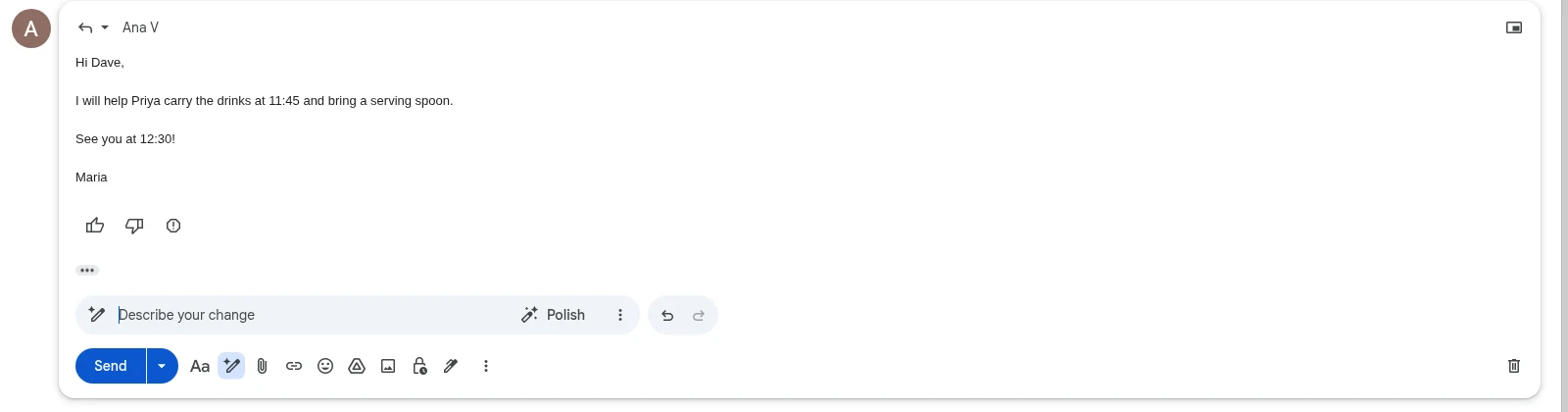
Hi Dave, I will help Priya carry the drinks at 11:45 and bring a serving spoon. See you at 12:30! Maria
Better, but it kept the extra line and signed it “Maria”, the name this demo thread uses, so check it's the name you go by. The thumbs underneath are for telling Google whether it helped.
10. Read it before you send it
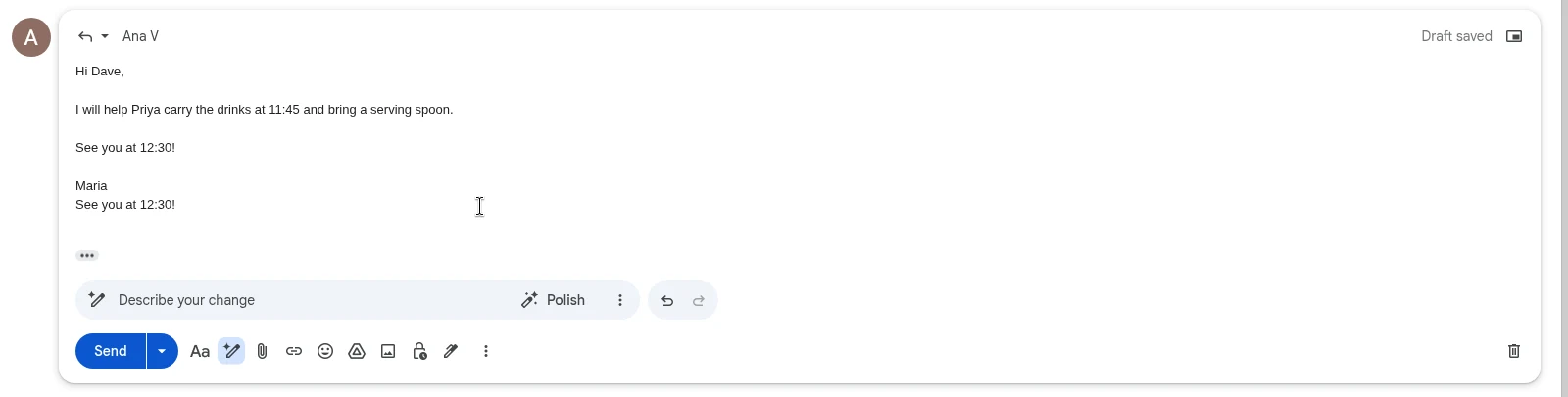
I added my usual sign-off out of habit, and now “See you at 12:30!” is in there twice, once under my name. Gmail didn’t say a word. It also didn’t mention that a few messages up, Maria says she’s on a call until noon, yet here she is volunteering for 11:45. It wrote what I told it to; knowing my calendar is still my job.
“Draft saved” at the top right means the reply is sitting in Drafts and hasn't gone anywhere.
11. Send it when it's right
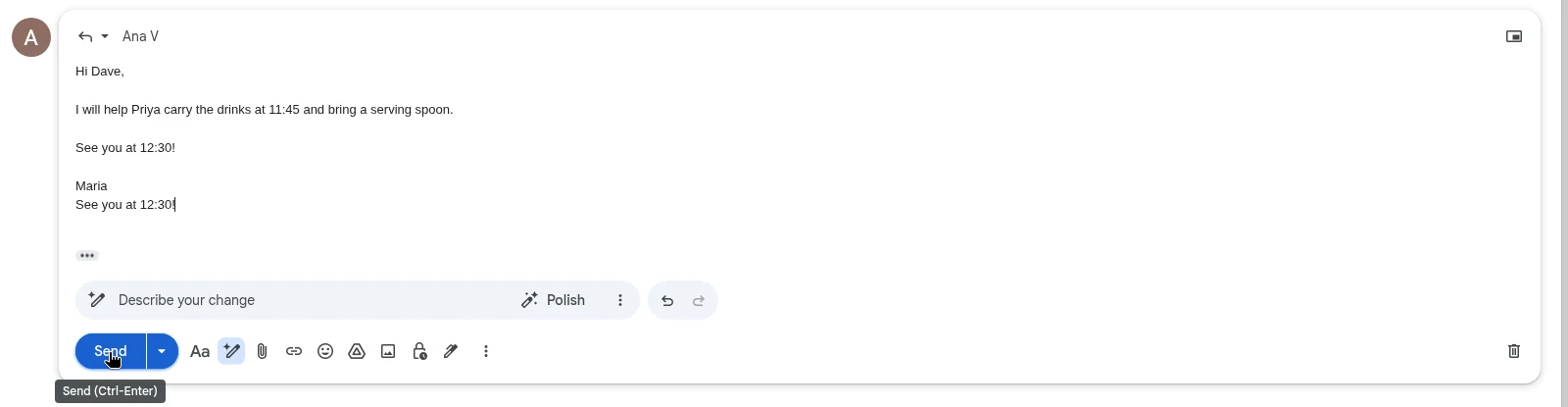
Fix what needs fixing, then click Send. The tooltip shows the shortcut, Ctrl-Enter, so watch where your fingers rest. I didn’t send this one. I threw it away with the bin icon at the bottom right of the reply box, because the potluck isn’t real, and sadly neither are the lemon bars. Still, a short email beats a meeting about the potluck.
Part 3: At work
Gmail with a work Google account
At work: Google says the AI features you get depend on your company’s Google Workspace edition. Google lists summaries and Help me write for work accounts on eligible plans. Some plans also have Ask Gemini at the top right of Gmail, which opens a side panel where you can ask about your inbox; Google lists it for eligible Workspace or paid Google AI plans. We didn’t use it here.
On some editions your IT team can switch Gemini in Gmail off, and they can turn off smart features. Google says work content isn’t reviewed by people or used to train its models outside your company without permission. Your company’s email rules still apply, so check with IT if you're unsure.
Outlook with Microsoft 365 Copilot
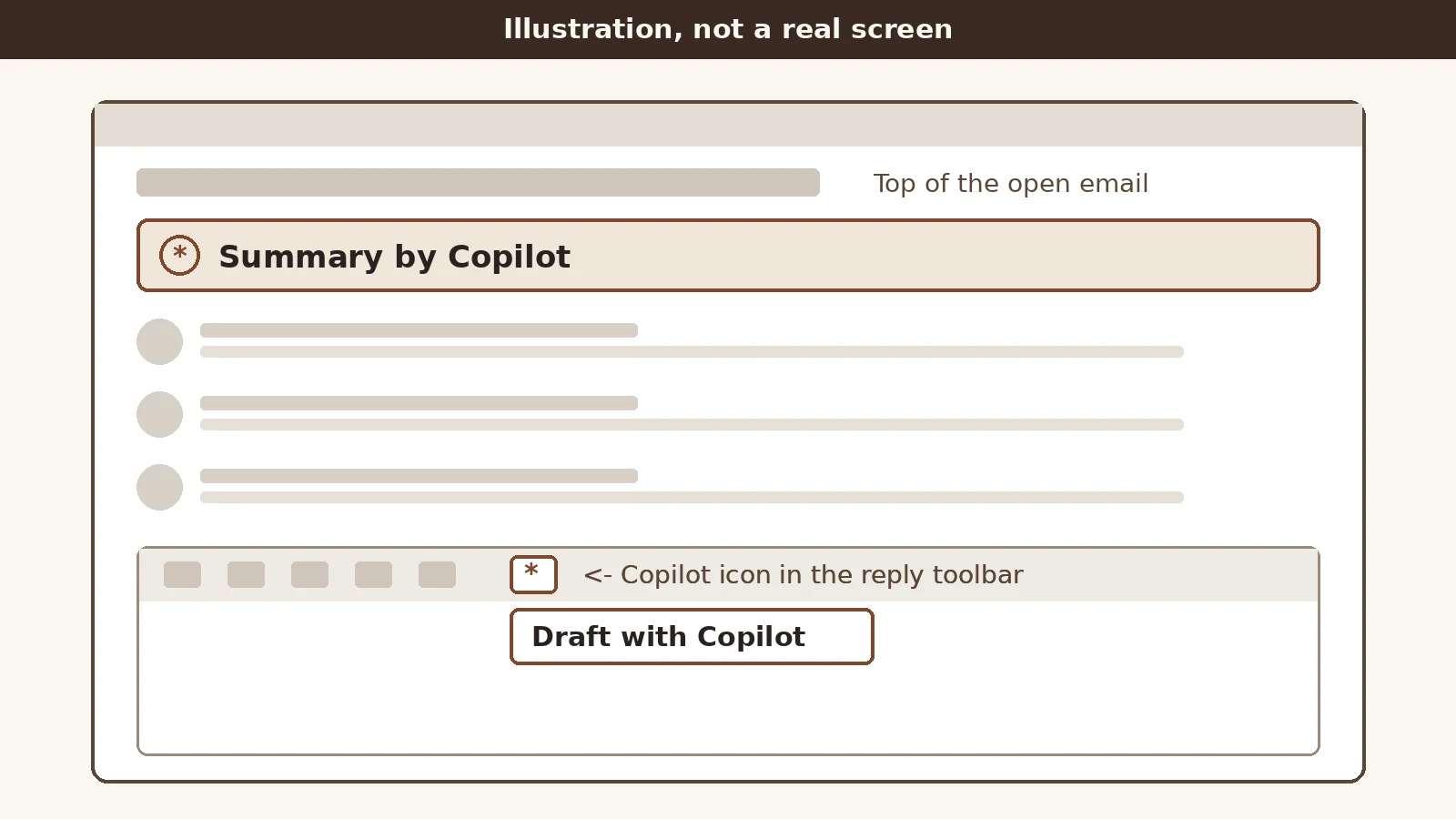
At work: if your company runs on Outlook (I'm sorry), click the email to open it (and its replies), then look for Summary by Copilot (or Summarize) at the top. To draft, click the Copilot icon in the toolbar and choose Draft (or Draft with Copilot), or type / in the message and pick Draft with Copilot. Type what you want, click Generate, adjust the length or tone, then click Keep it.
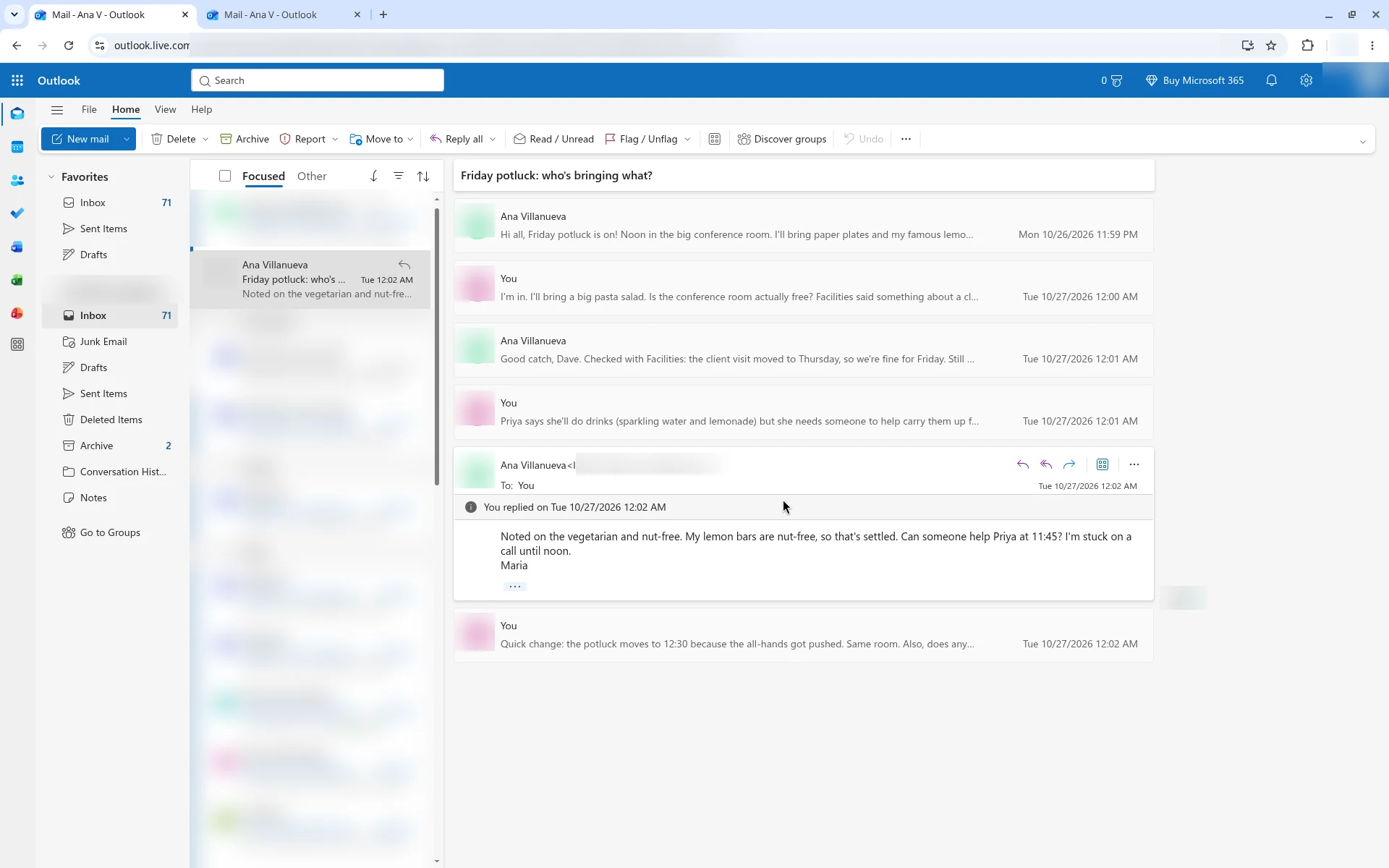
Here's what an open email looks like in Outlook. On a personal account like mine there's no Copilot button here. We checked: there's no Summary, no Draft with Copilot, and typing / does nothing.
At work, the buttons sit roughly where this drawing shows them. It's an illustration I made from Microsoft's help pages, not a real screen.
Microsoft lists Copilot in Outlook as included with qualifying Microsoft 365 work plans, even without the paid Copilot license, though what you see can differ by license. It only works in your main mailbox, not shared or delegated ones, and not on encrypted emails. Microsoft also says to review, edit and verify anything it writes. Sound familiar? If you can’t find it, Microsoft’s own advice is to check with your IT admin.
Check that it worked
- The AI Overview box appeared at the top of the thread.
- You checked the time, and anything else that changed, against the latest message.
- Help me write put a draft in the reply box.
- You read every line, including the ones you didn’t ask for and the name at the bottom.
- Either you sent it on purpose, or it’s sitting in Drafts.
Let’s learn together.
Comments are reviewed by Ana before they appear. Please use fictional examples and leave workplace details out.
Loading approved comments…