Let Gemini read your Gmail and calendar (and the Outlook catch)
Let Gemini read your Gmail and add to your calendar, read the fine print, and know what to do if your work email is Outlook.
Step 5 of 8 in One tool, one small job at a time (Path 02)
For the personal version you need a Google account with Gmail, signed in at gemini.google.com (Lesson 7 shows how to get there).
Gemini can read your Gmail and put things on your Google Calendar. You have to let it first, and Google asks before it does. This lesson shows where that switch is, what you’re agreeing to, and what happens when you use it.
Then the catch. Most offices run their email on Outlook, and the Gemini you can open at home can’t see Outlook at all. If that’s your situation, skip to Part 3, step 11 (The Outlook catch), before you connect anything.
Before you start
Heads up: these screenshots use a personal Gmail account on the regular Gemini at gemini.google.com. At work, it depends on what your company uses:
- Your work email is Gmail (Google Workspace). It’s the same Gemini, signed in with your work Google account. Your IT team decides whether Gemini can use Gmail and Calendar, and it’s on unless they turned it off. On most company plans, Google says your work chats and files aren’t reviewed by people or used to train its AI models outside your company, so the training lines in step 5 don’t apply to you.
- Your work email is Outlook. The Gemini in these screenshots can’t read it. See step 11.
- Never connect your work email to a personal Gemini account. Not to try it out, and not by forwarding work email to your personal Gmail.
Steps that work differently at work have an At work note. Those notes come from Google’s and Microsoft’s help pages, not from screenshots. We didn’t have a work account to test with.
For the personal version you need a Google account with Gmail, signed in at gemini.google.com (Lesson 7 shows how to get there). Google says Gemini can’t connect to your Google apps unless Keep Activity is on, and Gmail’s Smart features in other Google products setting has to be on too.
Screenshots are from 2026-10-25. The name, email address and chat titles are blurred. Google moves these menus around, so yours may not match.
Part 1: Connect it
1. Open settings
At the bottom left, next to your name, click the gear. A menu opens: Usage limits, Personal Intelligence, Skills, Avatar, Gems, Theme and a few more. Click Personal Intelligence.
If an older guide tells you to go to Settings, then Apps: there’s no Apps item anymore. It moved.
Shortcut: Customize in the sidebar takes you straight to step 3.
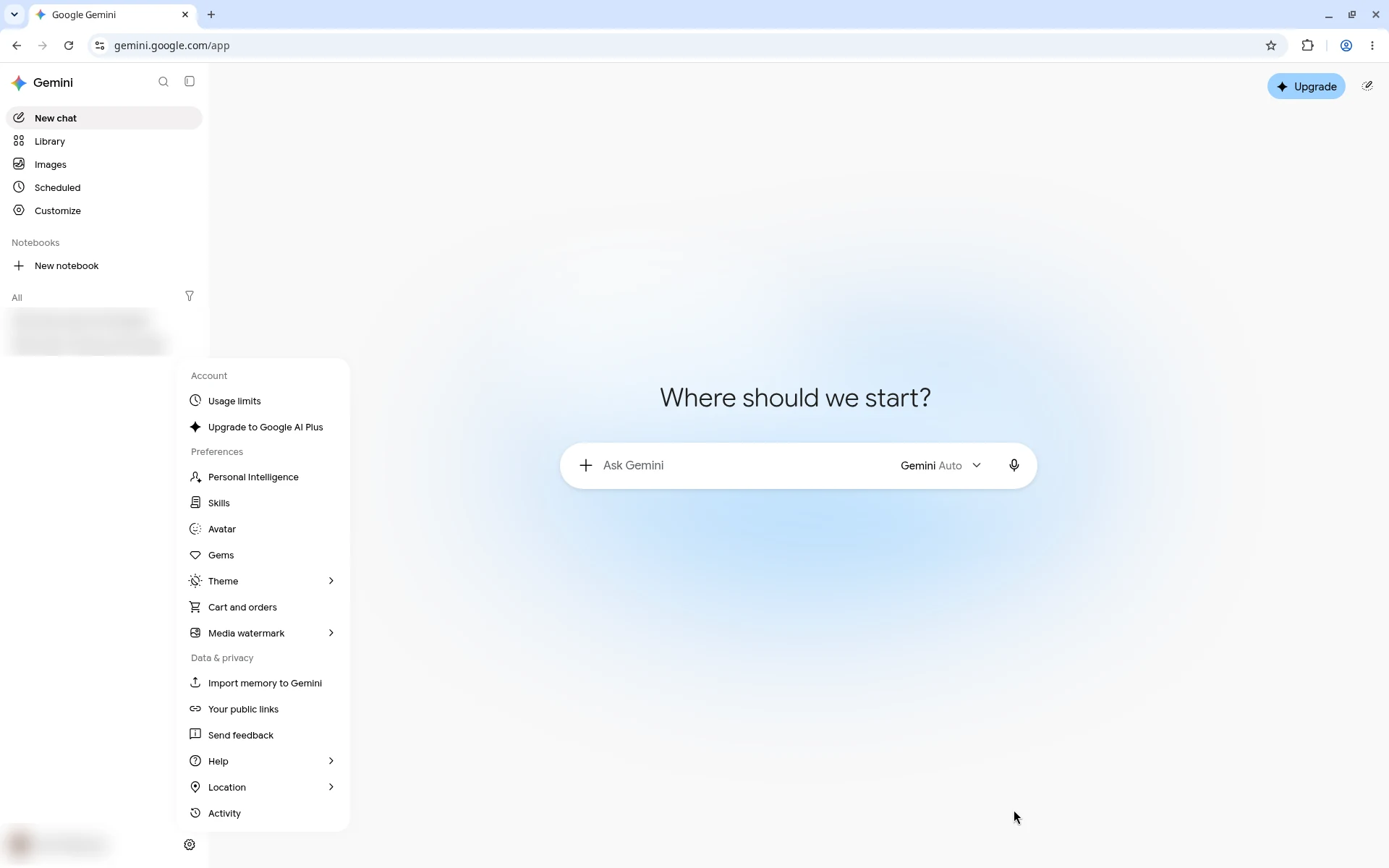
The gear menu. No Apps.
At work: with a work Google account you may not need steps 1–6 at all. Google says connecting Gmail, Calendar and the rest is on unless your IT team turned it off. Type @ in the chat box and pick Gmail or Google Calendar. Keep Activity is also your IT team’s setting, not yours.
2. Personal Intelligence
Three cards: Memory, Connected Apps and Instructions for Gemini. Memory was already on in our account; it’s a separate thing, and this lesson leaves it alone. Click Connected Apps.
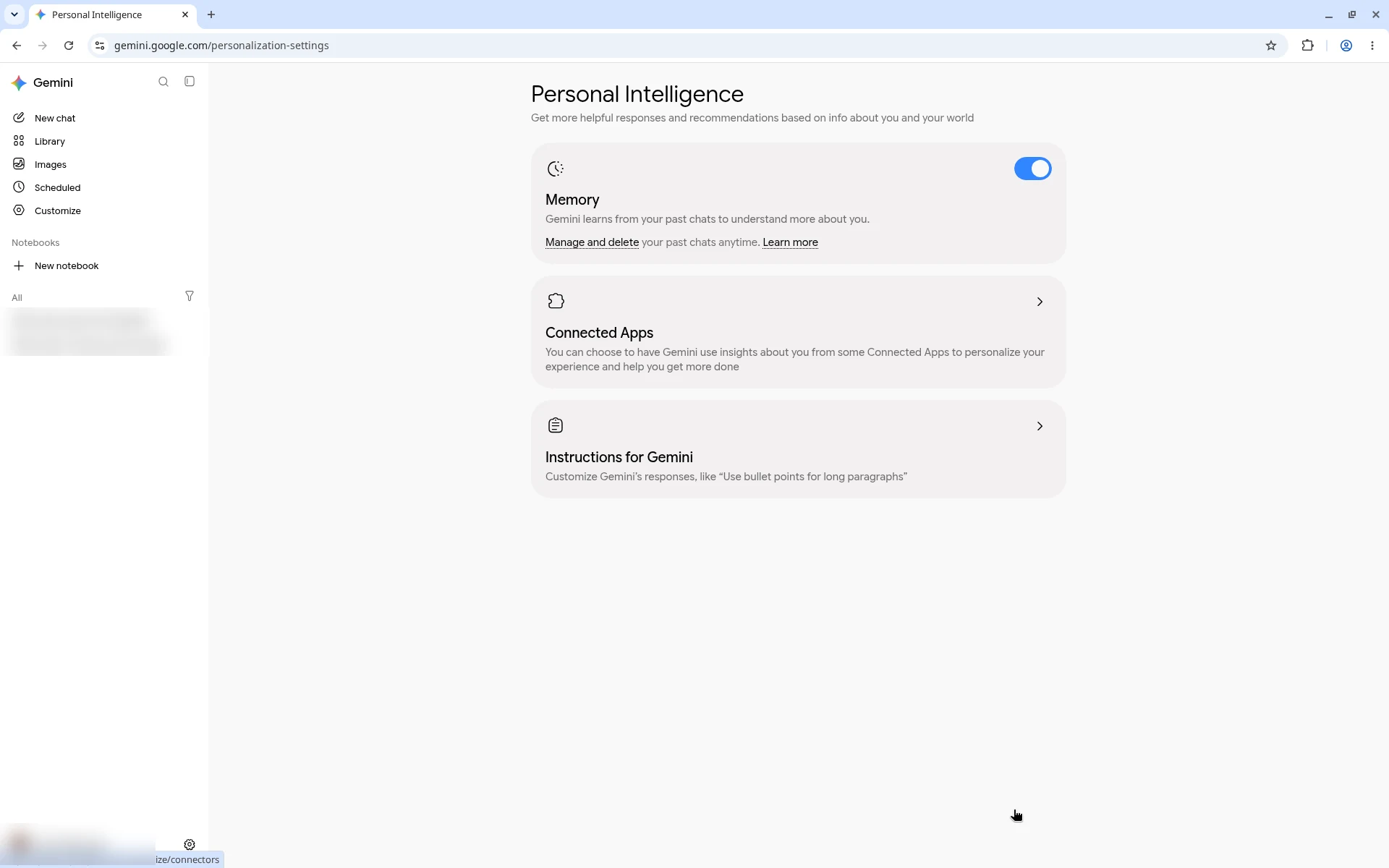
Click Connected Apps.
3. Connected Apps
You land on Customize, Connectors tab. Active is what’s already connected; ours had Gemini Notebook and Verify AI. All lists the rest: Google Workspace, Search services, Google Photos, YouTube, then other companies’ apps like Adobe, Canva and Dropbox.
Click Google Workspace.
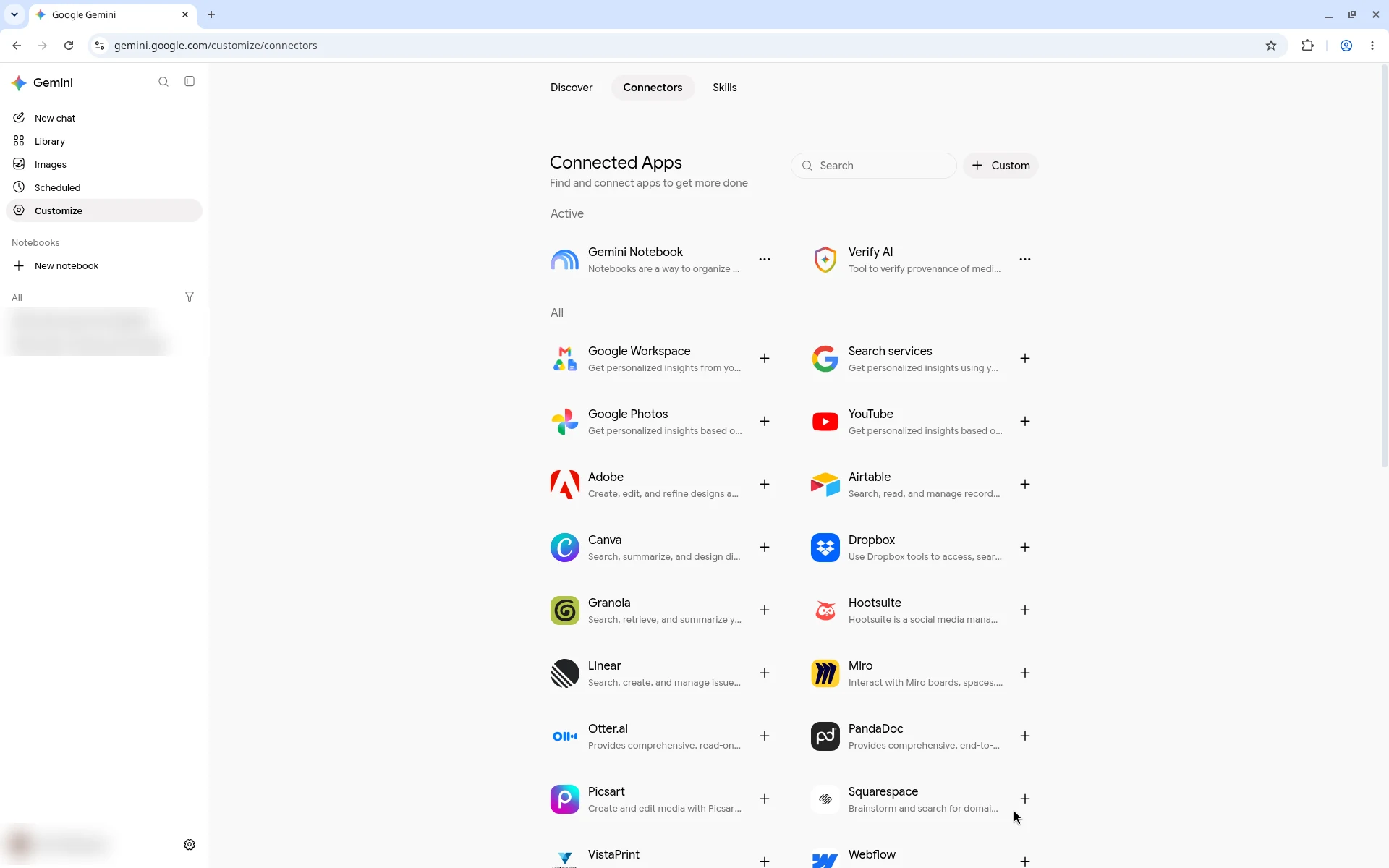
A lot of apps. You want Google Workspace.
4. Google Workspace
One page, one Connect button, six apps: Gmail, Google Calendar, Google Docs, Google Drive, Google Keep and Google Tasks. There’s no way on this page to connect only Gmail. It’s the set.
Click Connect.
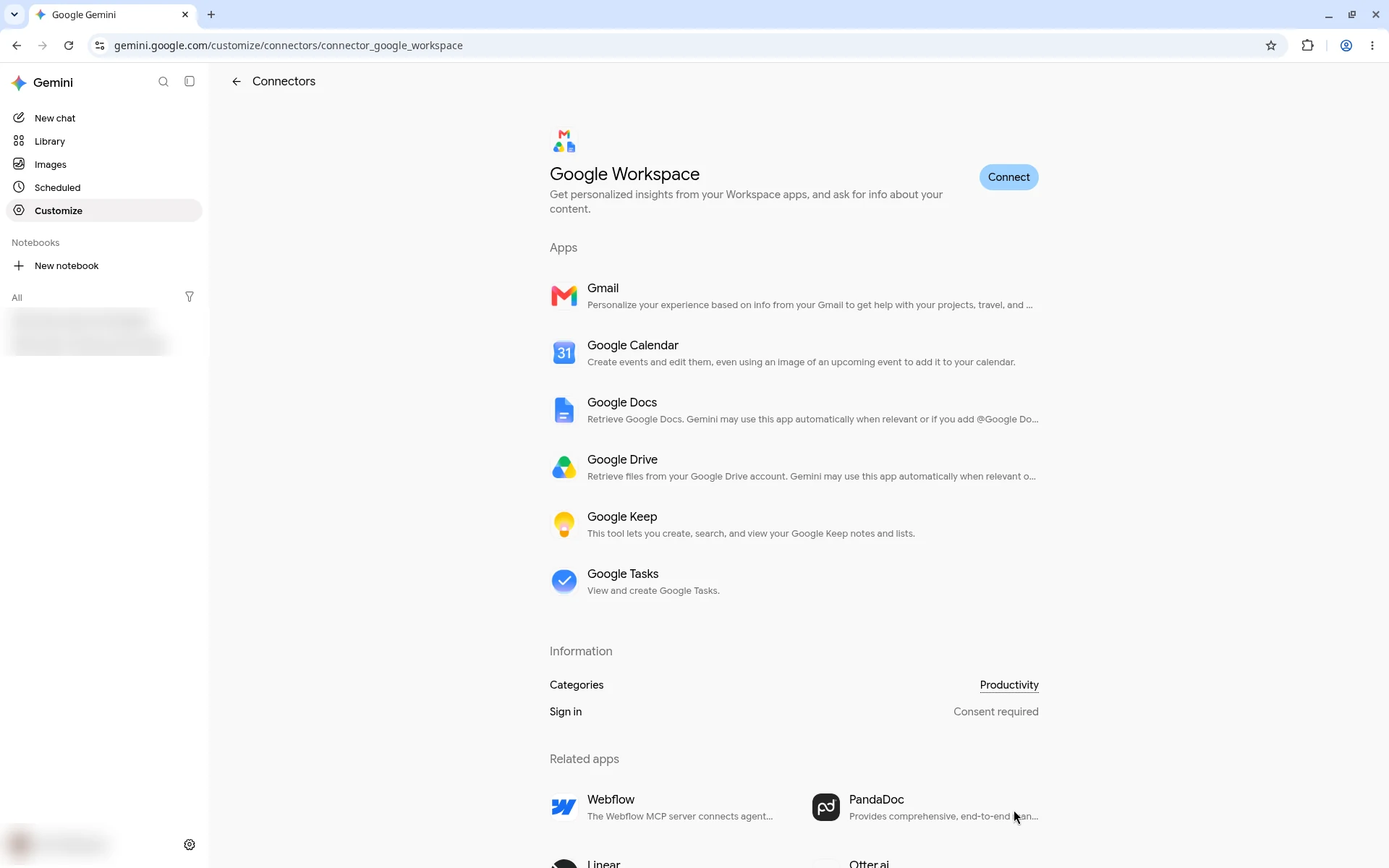
One button, six apps.
5. Read the consent screen
Connect Google Workspace to Gemini? pops up with your email address under the title (blurred here). Read it. It’s the part of this lesson with consequences.
It says your Google Workspace and Google Account data is used to:
- personalize Gemini with insights about you, your relationships and the people in your world
- do things for you, like recommendations based on past purchases
- “improve Google services, including training generative AI models, for everyone”
Under Things to know: what gets shared includes emails, files, events, info about your device, Gemini chats and location info. And: “Data from Google Workspace is used and human reviewed per the Gemini Apps Privacy Notice.”
In plain words: on a personal account, connecting means Google can use what Gemini sees in your mail to train its AI, and people at Google may read some of it. That’s the deal. Fine with it? Click Connect. Not fine? Cancel, and nothing changes.
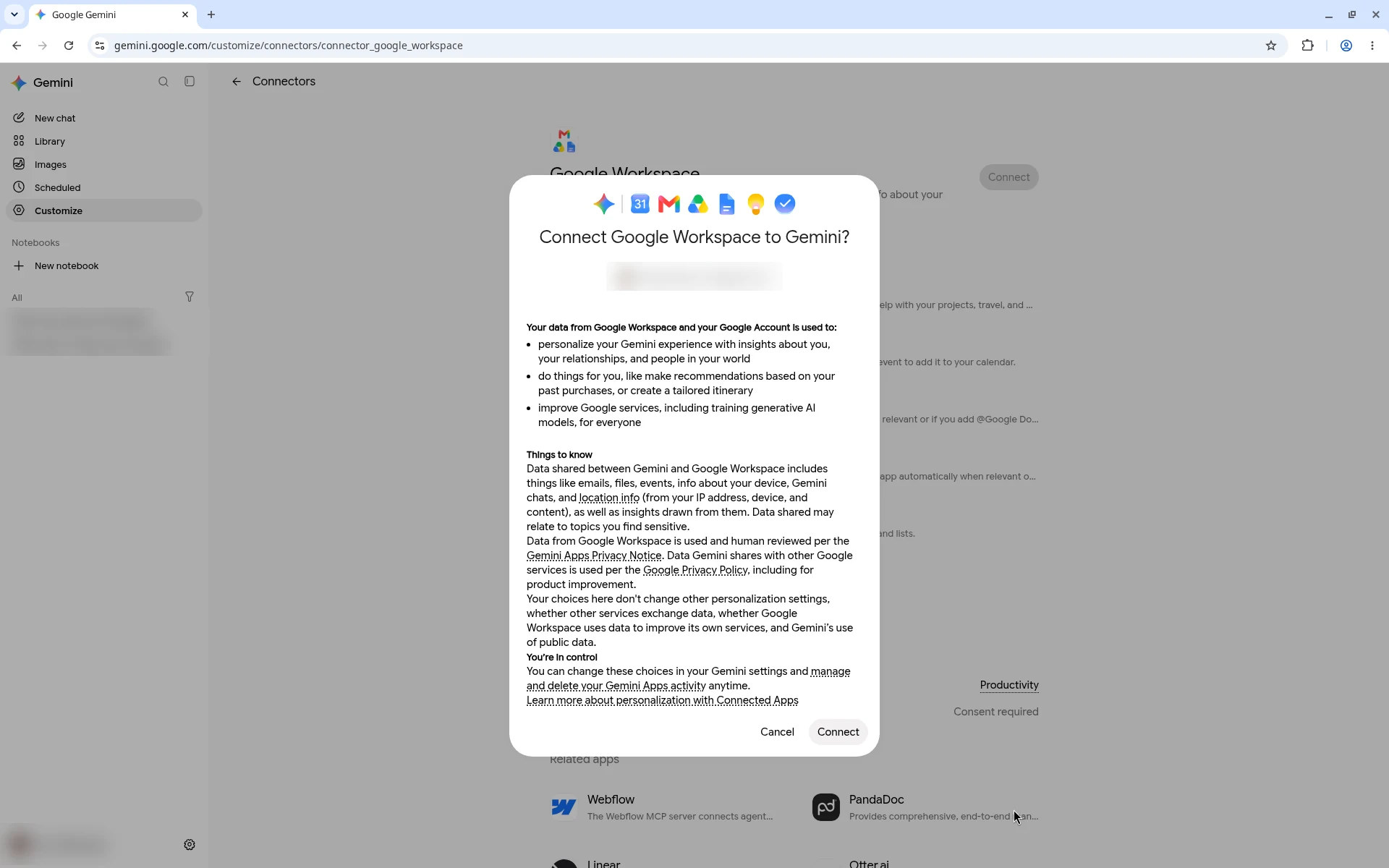
Read this one.
At work: that wording is for personal accounts. With a work Google account on most company plans, Google says your chats and uploaded files aren’t reviewed by people or used to train its AI models. We haven’t seen what the work version of this screen looks like, or whether there is one.
6. Connected
The button now says Disconnect. That’s it, you’re connected. Remember where this button is; step 10 comes back here.
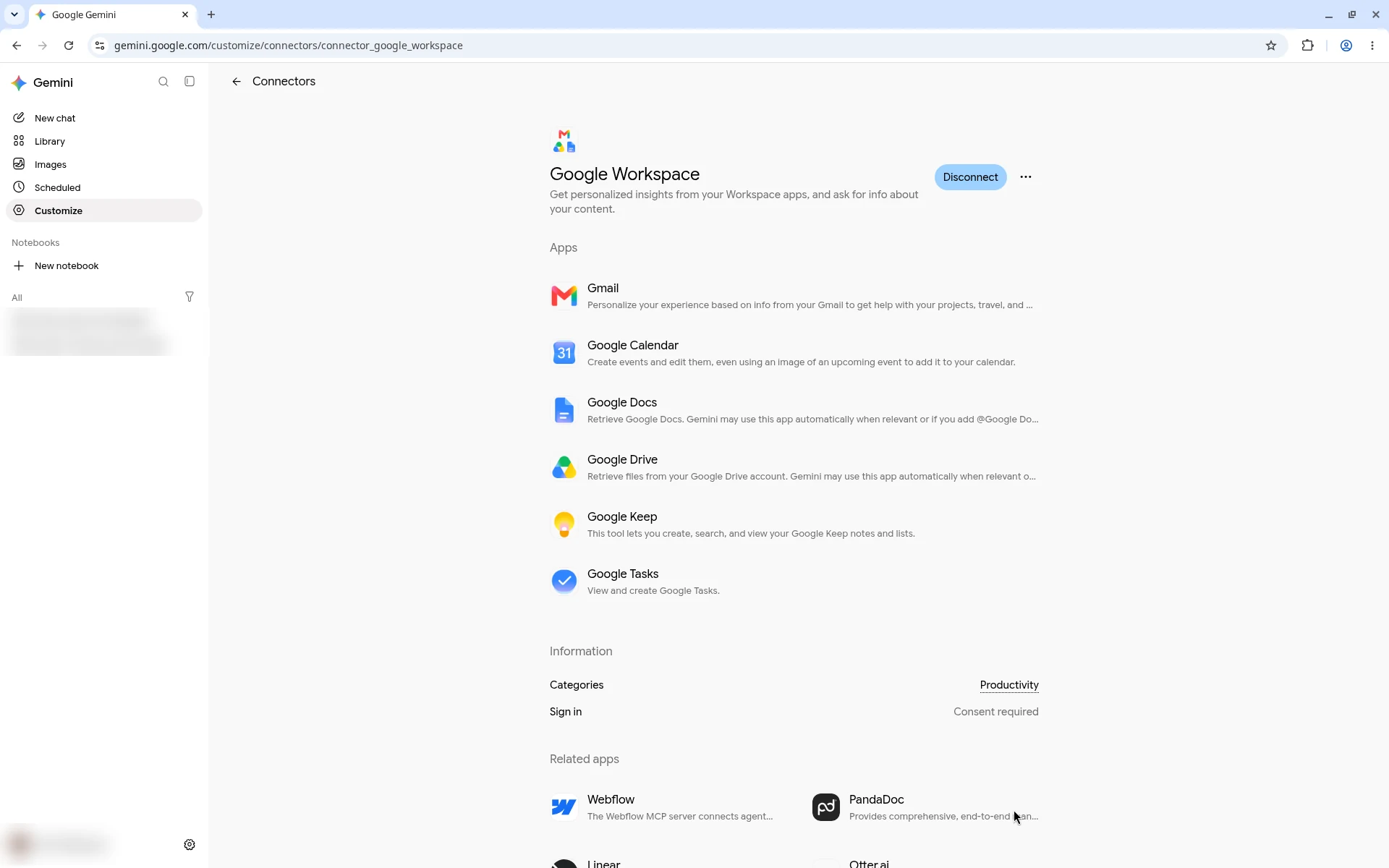
Connect became Disconnect.
Part 2: Use it
7. Ask about your email
Start a new chat and say Gmail in your request. Google’s help says to name the app in each new chat (or type @ and pick it), so Gemini knows where to look. Type:
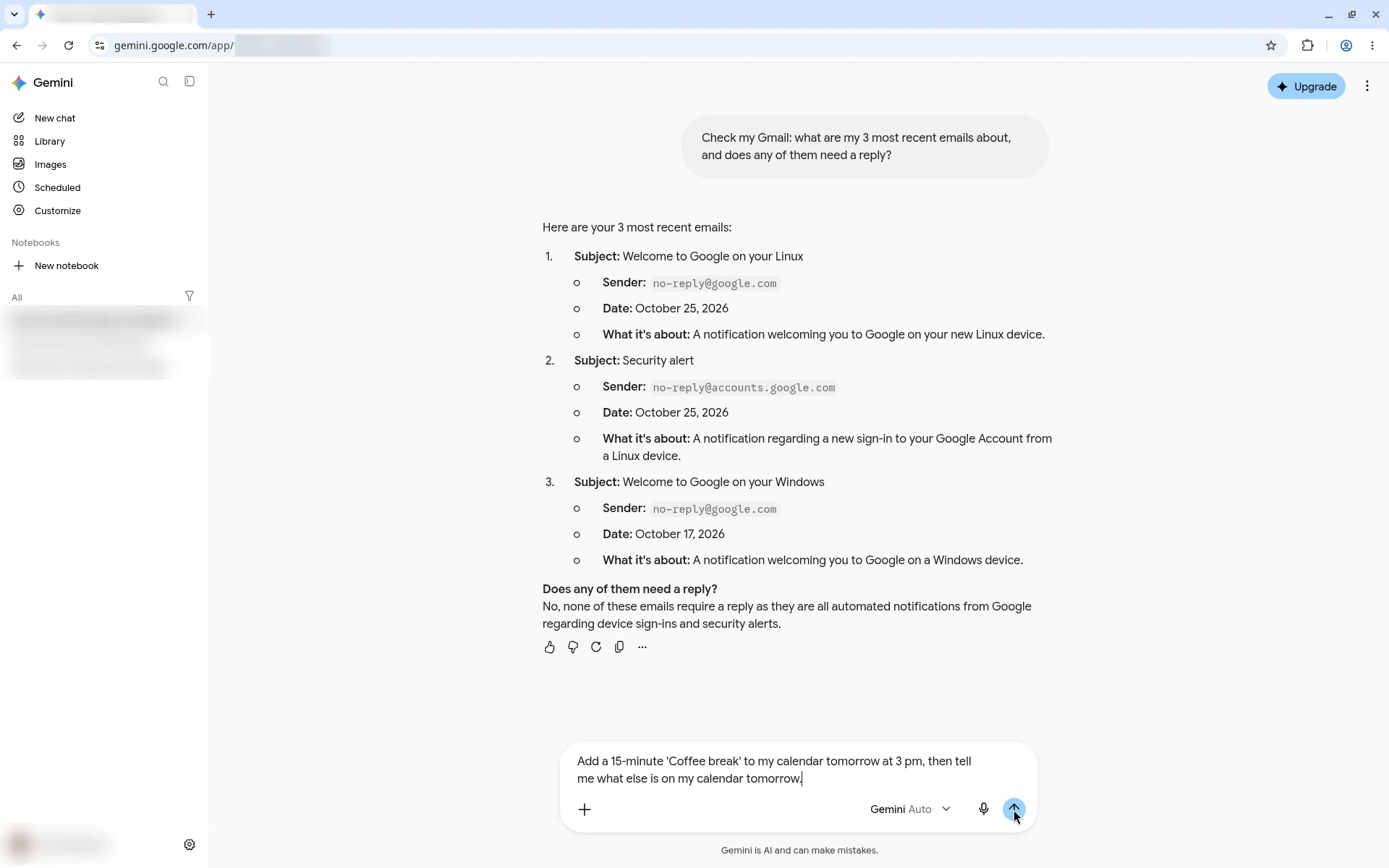
Check my Gmail: what are my 3 most recent emails about, and does any of them need a reply?
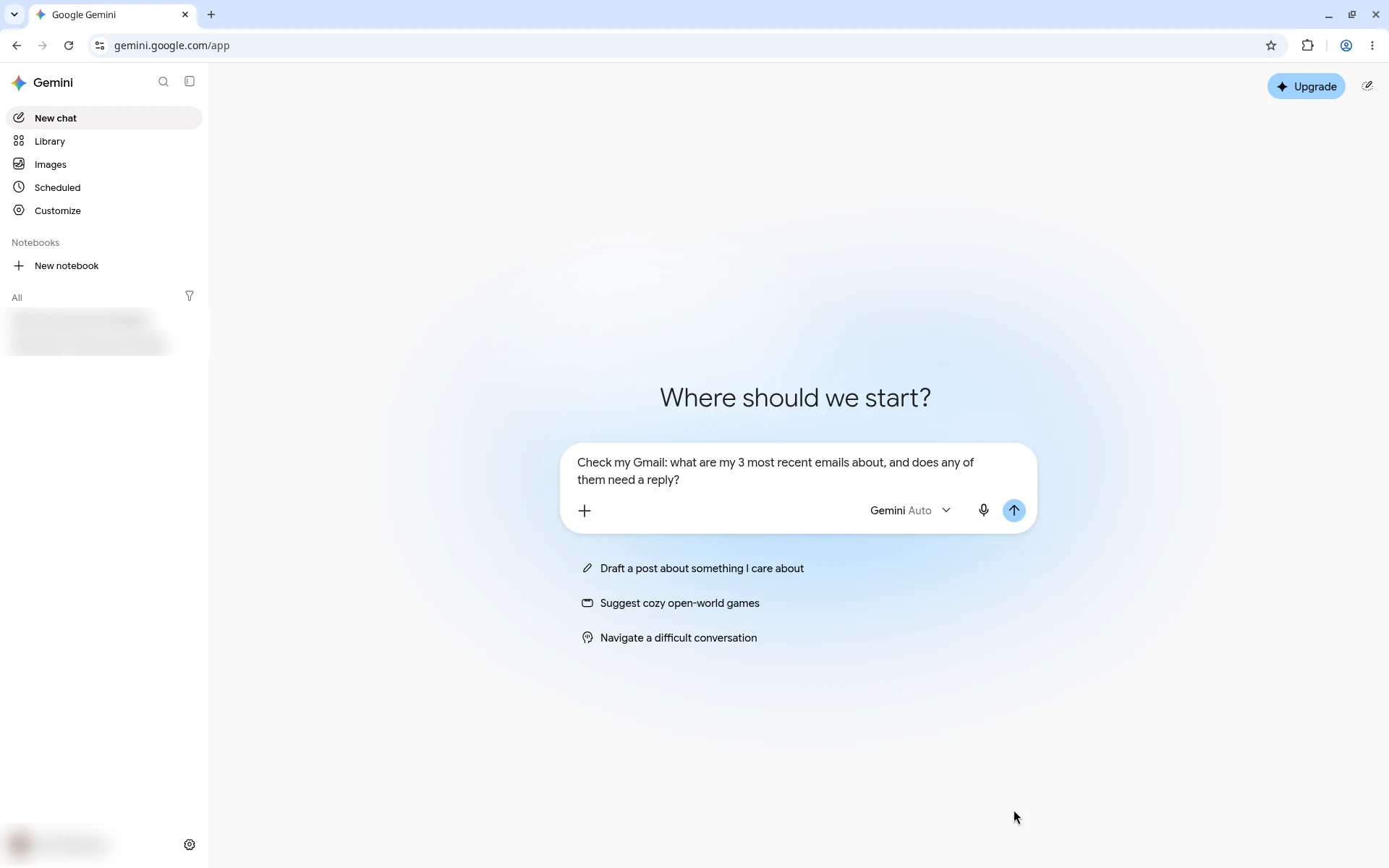
Say “Gmail” so it knows where to look.
While it worked, it said Connecting to Workspace. Then it listed three emails, each with subject, sender, date and what it’s about: a welcome for a new Linux computer, a security alert about a new sign-in, and a welcome for a Windows one. Its verdict: none need a reply, they’re all automated Google notices. Correct. Our inbox is boring. Yours probably isn’t.
Google says Gemini can get this wrong, for example quoting an older email when there’s a newer one. Before you act on anything, open Gmail and look.
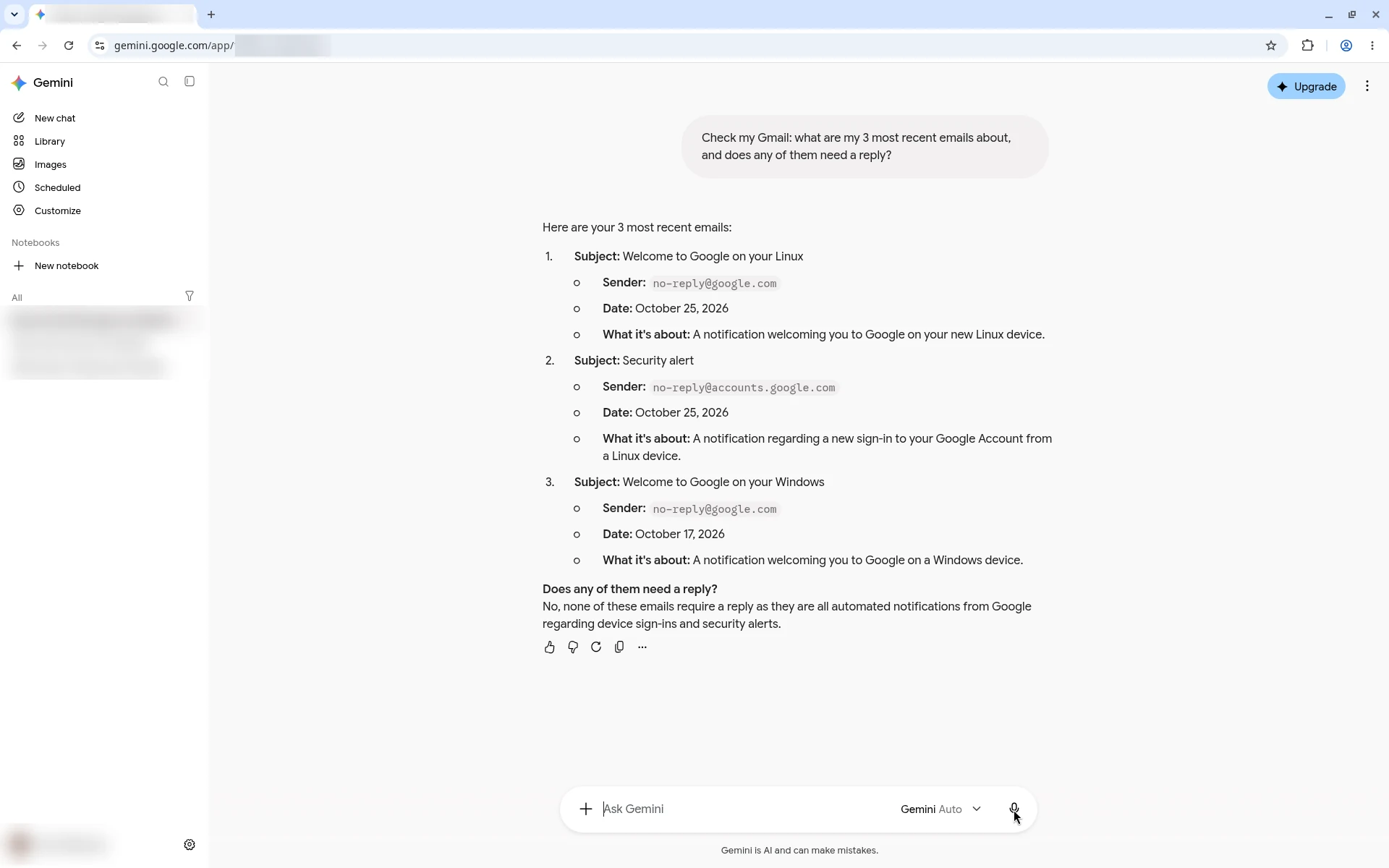
Three emails, zero replies needed.
8. Add something to your calendar (one thing at a time)
We tried two things in one message:
Add a 15-minute 'Coffee break' to my calendar tomorrow at 3 pm, then tell me what else is on my calendar tomorrow.
Two requests in one message.
Gemini replied: “I seem to be encountering an error. Can I try something else for you?” It didn’t add anything.
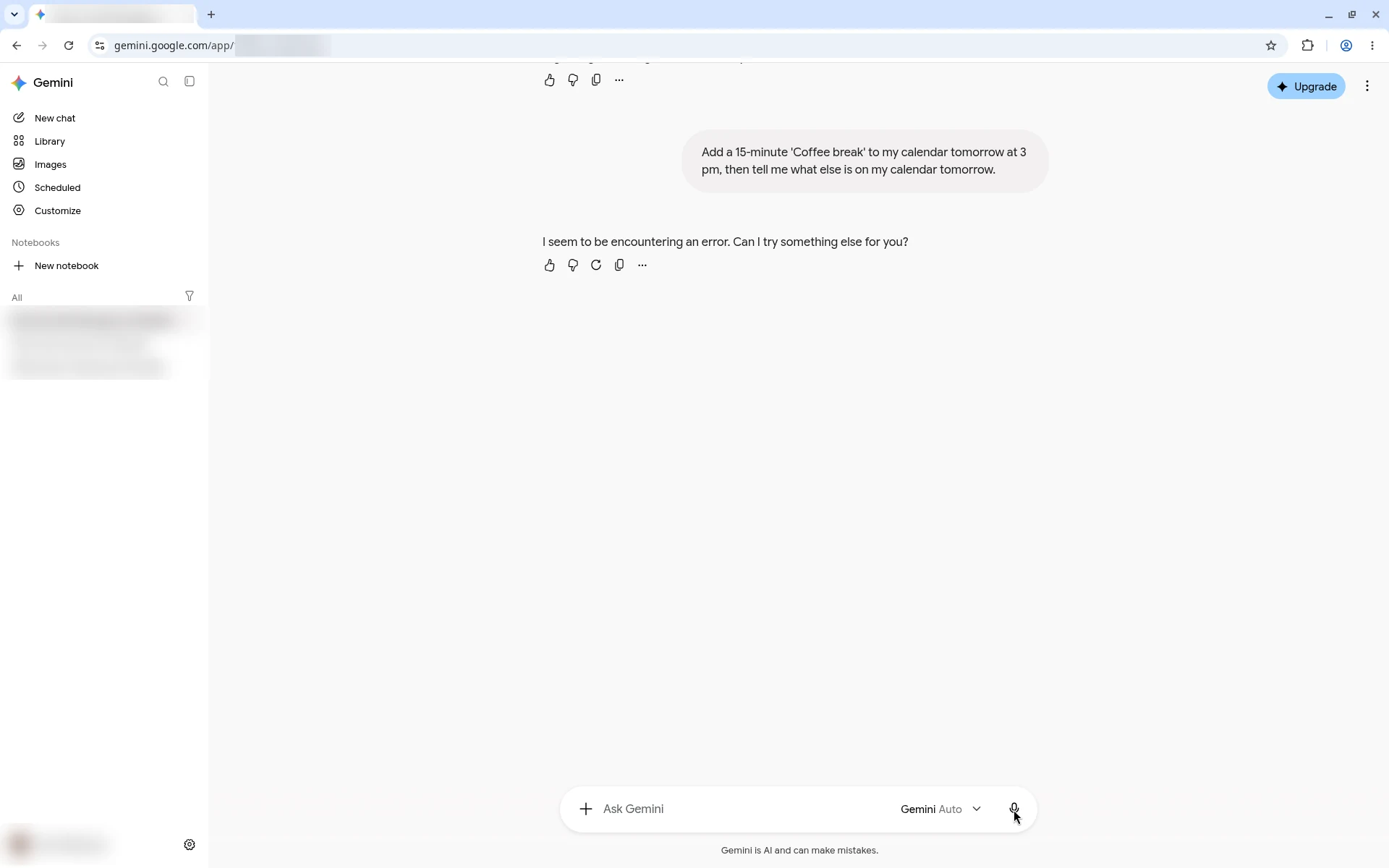
That’s a no.
So, one thing at a time:
Add a 15-minute event called Coffee break to my Google Calendar tomorrow at 3 pm.
“I’ve added the Coffee break to your calendar,” with a Google Calendar card: Coffee break, Mon, Oct 26, 2026, 3:00 PM – 3:15 PM.
Notice it didn’t ask first. Sent, done. So say exactly what you want: name, day, time, how long. Google says it uses your main calendar unless you name another one.
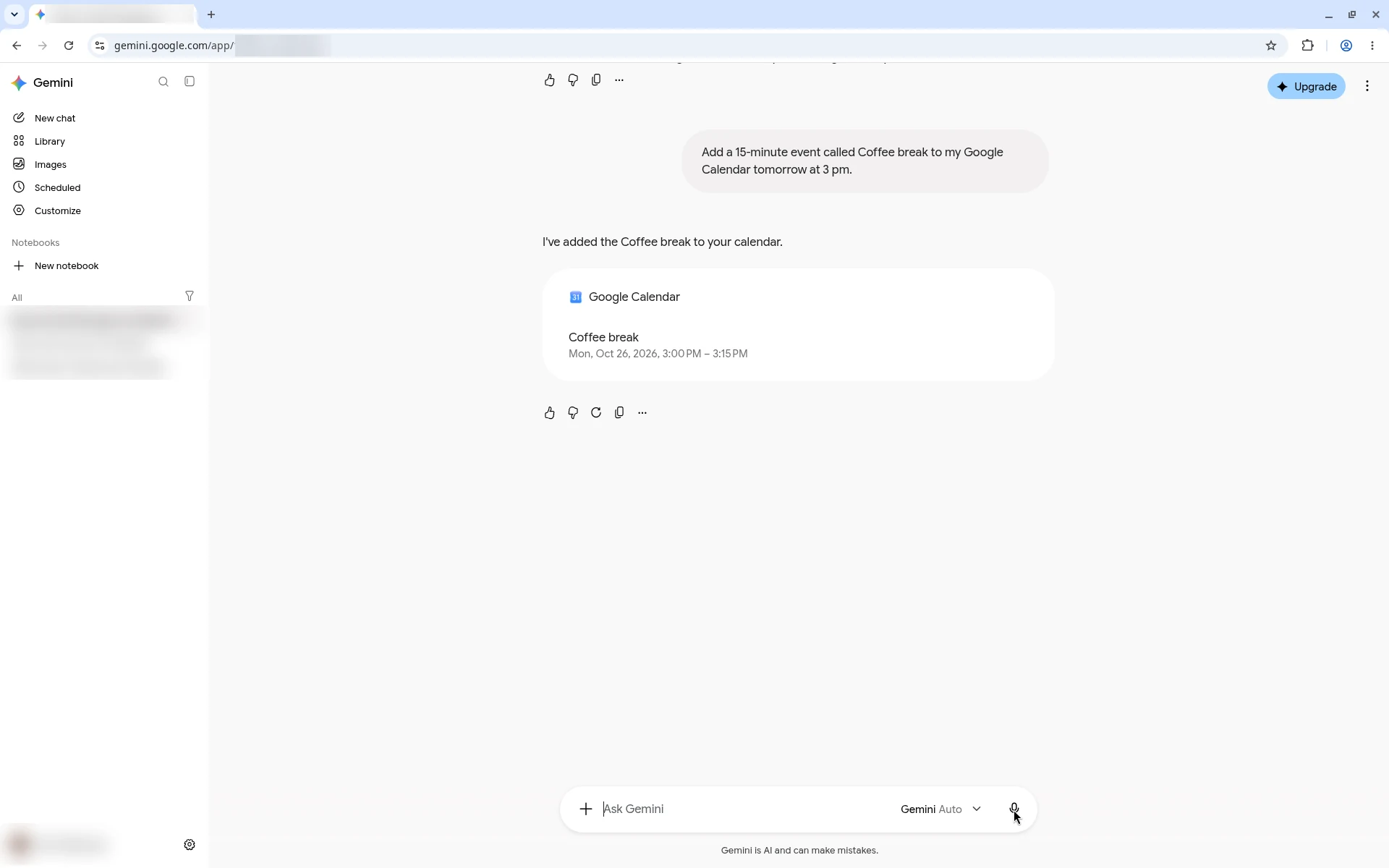
One request, one event.
At work: if your IT team has switched off one of the apps a request needs, Google says none of the request happens. Another reason to ask for one thing at a time.
9. Check what it did
Ask:
What’s on my calendar tomorrow?
One card: Coffee break, Mon, Oct 26, 3:00 – 3:15pm. Only one, so the failed attempt didn’t sneak in a second.
Better still, open Google Calendar and look for yourself. Gemini saying it did something and the thing being done are two separate facts. If it’s wrong, fix or delete the event in Calendar.
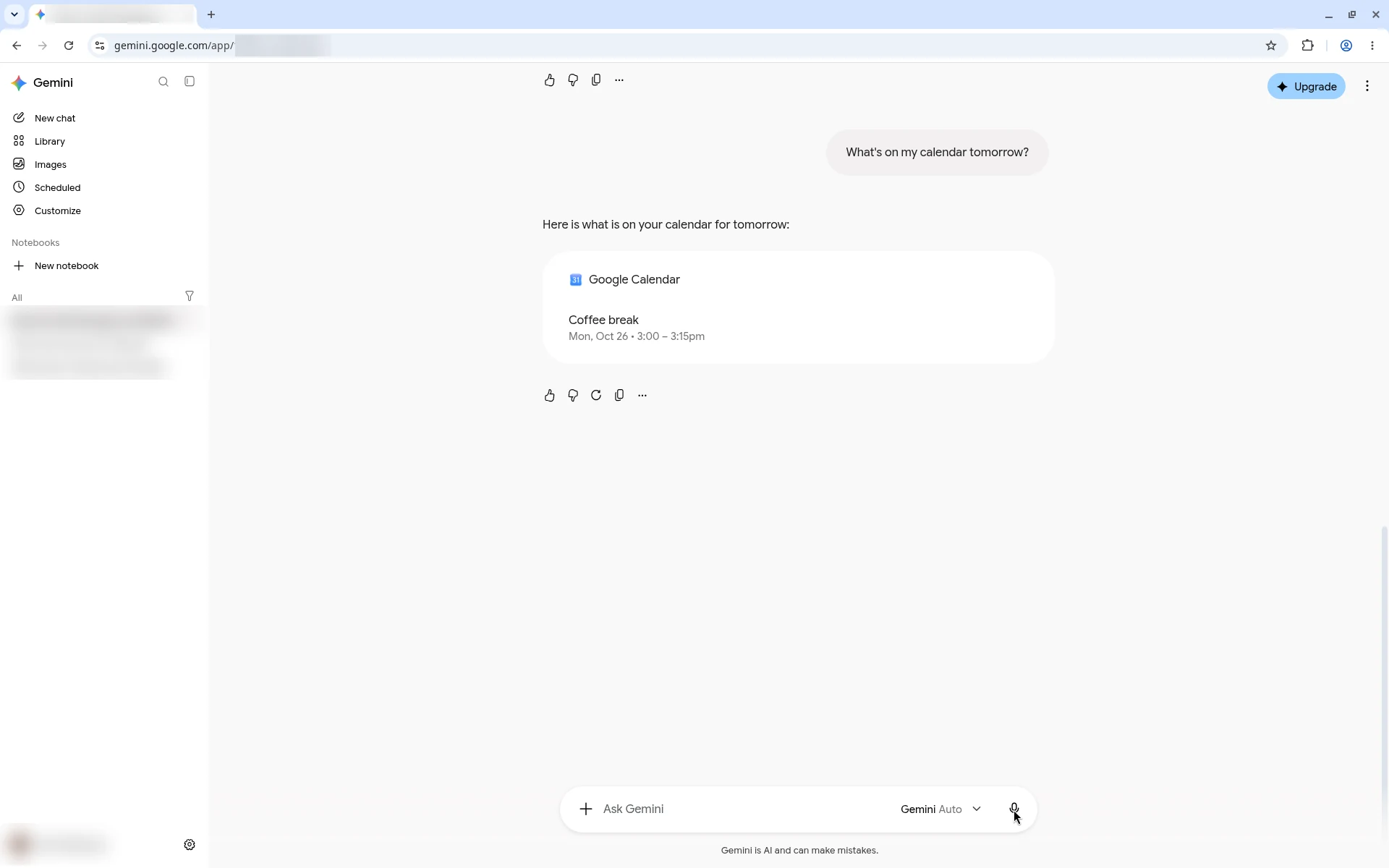
One coffee break. As requested.
10. Turn it off
Go back to the Google Workspace page: Customize, Connectors, Google Workspace (or the gear, Personal Intelligence, Connected Apps). Click Disconnect. We didn’t click it, so we can’t show what happens next, but Google’s help says this is where you disconnect.
Your old chats are a separate thing. The consent screen points to the gear menu’s Activity for managing and deleting those.
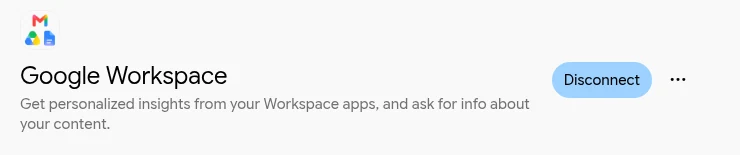
The off switch.
At work: Google says only your IT team can turn connected apps on or off for a work account, so you may not have this button.
Part 3: The Outlook catch
11. The Outlook catch
No screenshot here. There’s nothing to click.
The Gemini in this lesson connects to Google’s apps and a list of other companies’ apps. Outlook isn’t one of them. Google’s own list of Connected Apps (October 2026) has no Outlook, Exchange or SharePoint. So if your work email is in Outlook, this Gemini can’t read it, and it can’t see your Outlook calendar either.
What can:
- Copilot, if your company runs on Microsoft. It’s the Microsoft side of this lesson. Open Outlook with your work account and click the Copilot button near the top. Microsoft says you can ask about your inbox and calendar there even without the paid Copilot add-on. With the add-on, Work IQ (Lesson 8) lets Copilot use your email, meetings and files anywhere.
- Gemini with a work Google account, if your company uses Google Workspace. Your work Gmail and Calendar, same steps as this lesson, with your IT team deciding what’s switched on.
- Gemini Enterprise, if your company bought it. It’s a separate Google product, and it does connect to Outlook (email, calendar and contacts), SharePoint, OneDrive and Teams. In the setup Google describes, IT registers it with Microsoft and approves the access. It’s not a switch you flip yourself. In the Business edition, Outlook also needs a Microsoft 365 license. And Google says mailboxes still on a company’s own Exchange servers (a “hybrid” setup) can’t be reached.
What not to do: connect your work mailbox to your personal Gemini, or forward work email to your personal Gmail so Gemini can read it. That’s the step 5 deal, training and human review included, applied to your company’s email. Don’t.
Check that it worked
- The Google Workspace page shows Disconnect. You’re connected.
- Ask about your Gmail and you get emails you recognize. Check them in Gmail anyway.
- The calendar event is in Google Calendar, on the right day, at the right time.
- Got “I seem to be encountering an error”? Ask for one thing per message, and name the app (Gmail, Calendar).
- Can’t connect? Check Keep Activity and Gmail’s smart features. At work, ask your IT team.
- Work email in Outlook? Use Copilot in Outlook, or whatever your company approved. Not personal Gemini.
Let’s learn together.
Comments are reviewed by Ana before they appear. Please use fictional examples and leave workplace details out.
Loading approved comments…