Let AI read the 49-page PDF, then check its homework with Ctrl+F
Upload a long PDF to Copilot or Gemini, get the summary, ask which page says it, then check that page yourself with Ctrl+F before you act on it.
Step 6 of 8 in One tool, one small job at a time (Path 02)
These screenshots use a personal Microsoft account (Copilot on the web) and a personal Google account (Gemini) in Chrome on a computer. No subscription. Use any PDF you already have.
HR sends the new employee handbook, all 49 pages of it, and you have a question about one sentence. AI can read the whole thing in about ten seconds, but it can also be confidently wrong, so we’ll make it tell us which page and then go and look.
We’ll hand a PDF to Copilot, ask for a summary and an answer with a page number, check it with Ctrl+F, then do the same in Gemini and see what changes at work.
Before you start
Heads up: these screenshots use a personal Copilot account and a personal Gemini account in Chrome on a computer. No subscription. Use any PDF you already have, like an appliance manual or that policy you never finished. At work, follow your company’s rules about what you can upload to AI. For the same answers as my screenshots, borrow the sample handbook (PDF, 49 pages). Brightline Supply Co. is made up, and so are its policies.
One rule first: don’t upload work files to a personal AI account, not even “just this once”. At work, use the Copilot or Gemini your company gave you (see Part 4). Even our fake handbook says so, on page 39.
At work notes come from Microsoft’s and Google’s help pages, not screenshots. Screenshots are from 2026-10-26 with chat titles blurred, so yours may not match.
Part 1: Hand it to Copilot
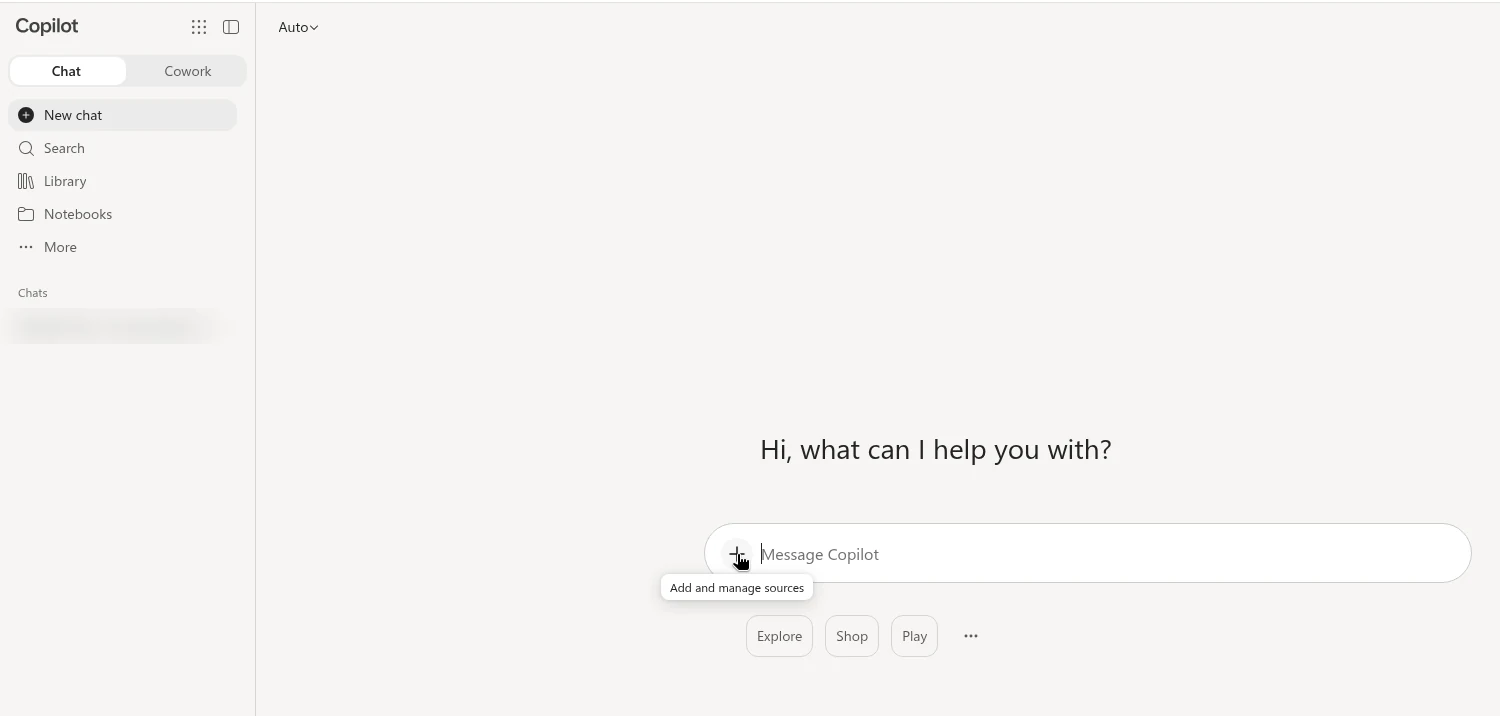
1. Click the +
Open Copilot, start a New chat, and click the + on the left of the message box. Its tooltip says Add and manage sources.
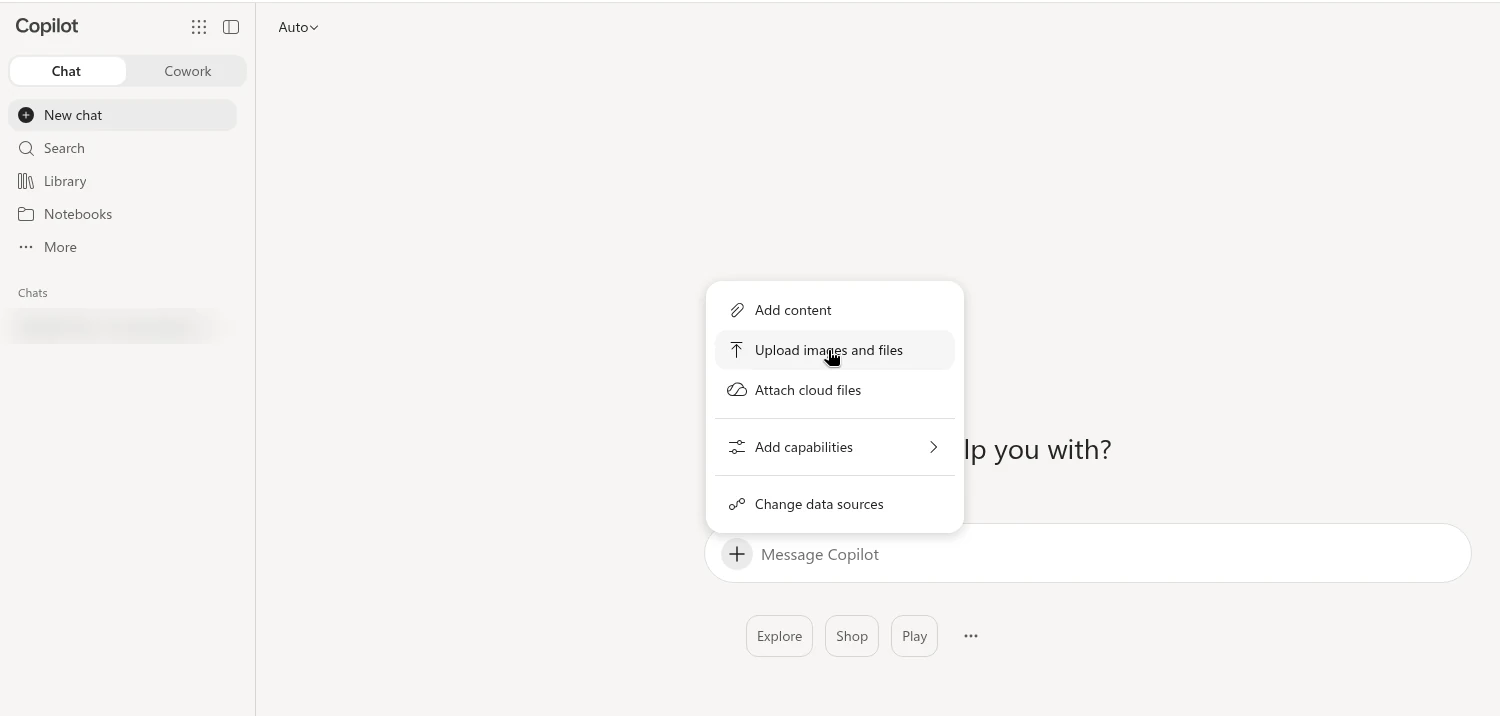
2. Choose Upload images and files
Click Upload images and files. (Attach cloud files is for files already in OneDrive, but we’re using one from the computer.)
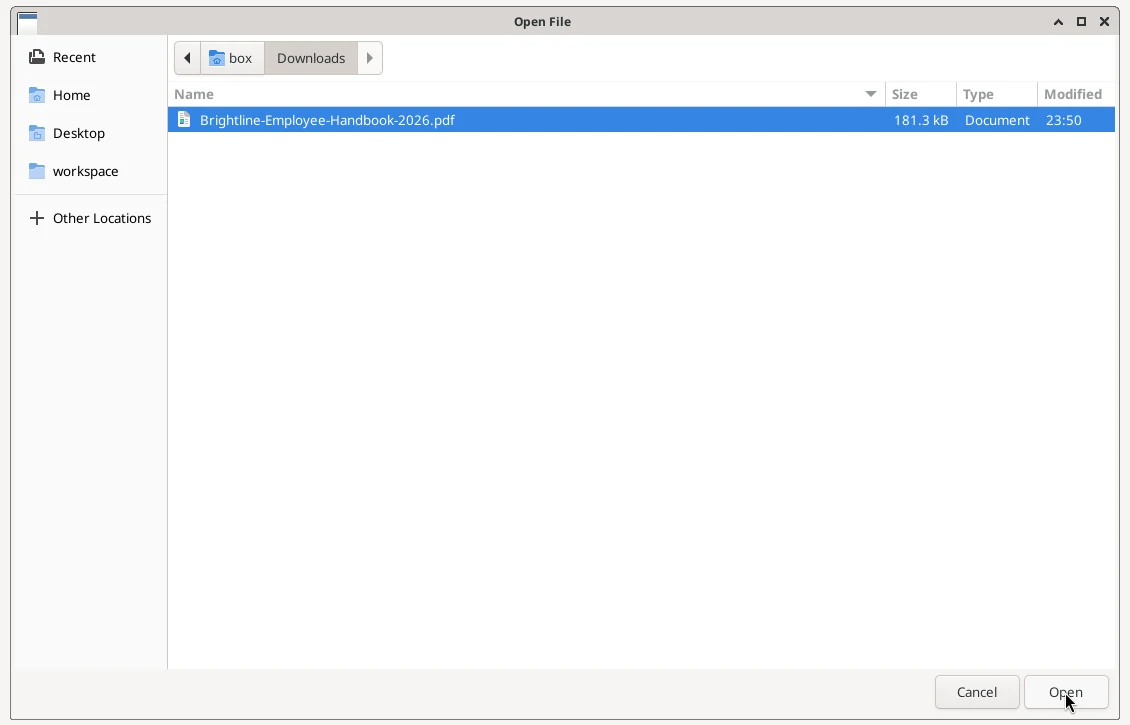
3. Pick the PDF
In the usual Open window, find your PDF (mine was in Downloads), click it once, then click Open. It looks different on Windows or a Mac but works the same.
4. Ask for a summary
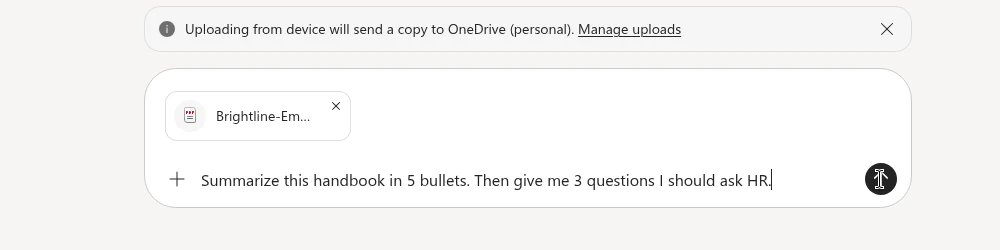
The file shows up as a card above the message box. Type what you want and press Enter:
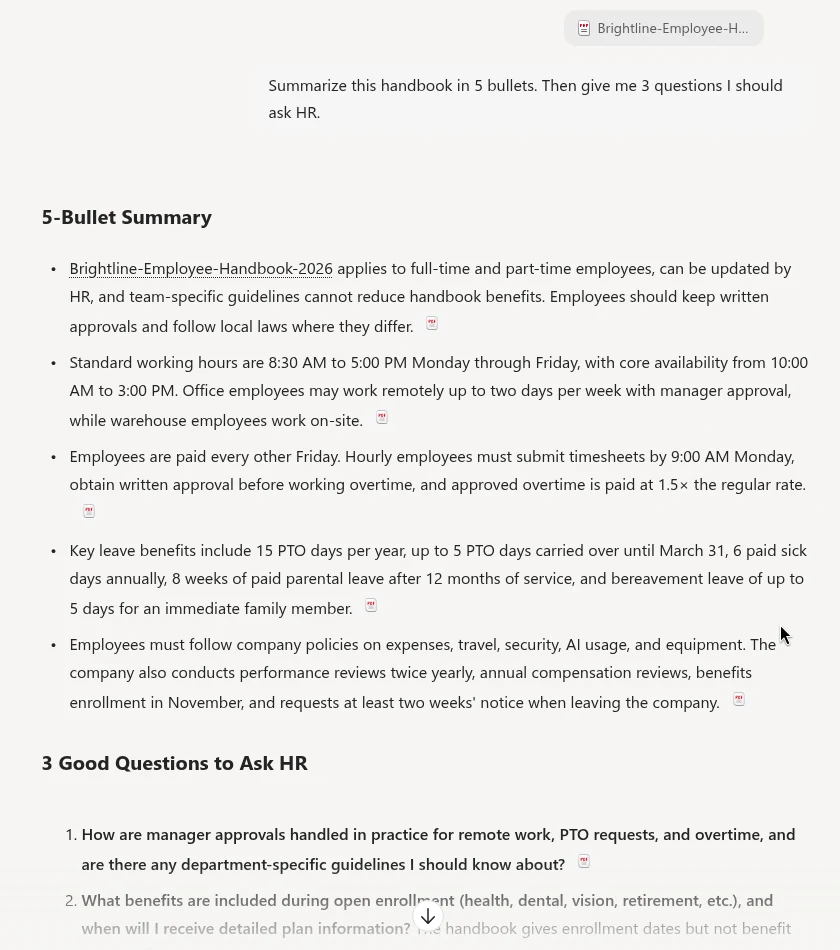
Summarize this handbook in 5 bullets. Then give me 3 questions I should ask HR.
Read the grey line above it too: Uploading from device will send a copy to OneDrive (personal). So the handbook now also lives in my OneDrive. Manage uploads shows what’s there.
5. Read the summary
A few seconds later I had five bullets, and the fourth has the part I care about: “up to 5 PTO days carried over until March 31”.
The little PDF icons point back to the file. At the bottom of the window Copilot says “AI-generated content may be incorrect”, and for once I agree with Microsoft.
6. Read the questions for HR
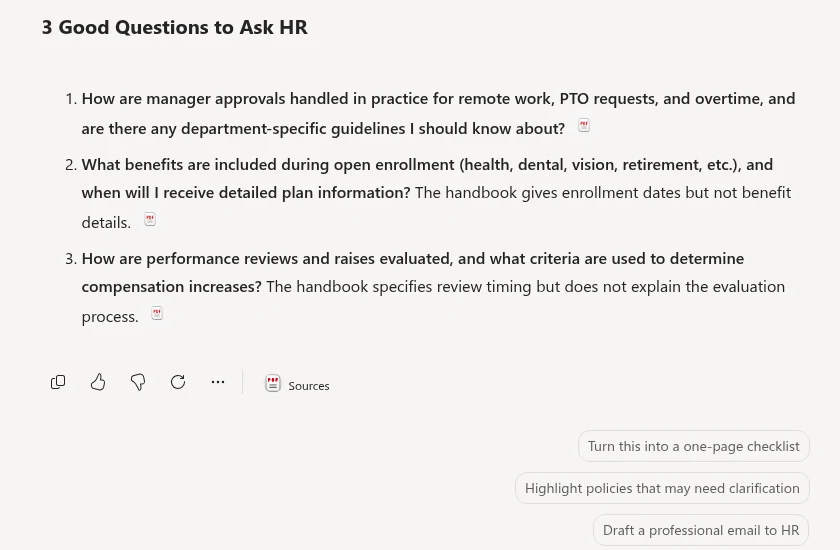
Scroll down for 3 Good Questions to Ask HR. Copilot even says what the handbook leaves out: “The handbook gives enrollment dates but not benefit details.”
Underneath are suggested follow-ups like Draft a professional email to HR. We’re not emailing HR yet.
7. Ask “which page?”
Now ask the real question and make it show its work:
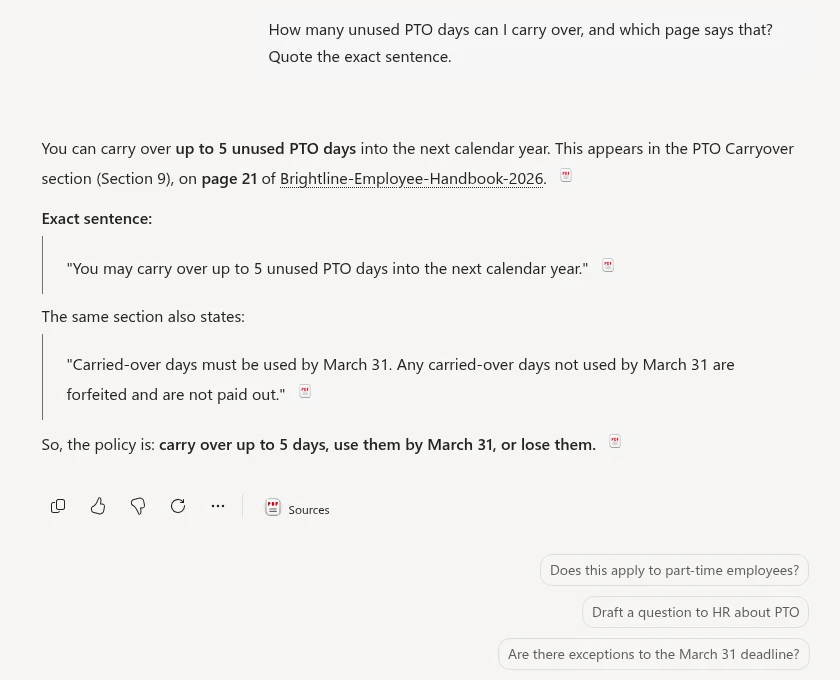
How many unused PTO days can I carry over, and which page says that? Quote the exact sentence.
Copilot said up to 5 days, “in the PTO Carryover section (Section 9), on page 21”, and quoted the sentence. Without being asked, it added the catch: “So, the policy is: carry over up to 5 days, use them by March 31, or lose them.”
That sounds right, but it would sound exactly the same if it were wrong, which is why we check.
Part 2: Check its homework
8. Open the PDF and press Ctrl+F
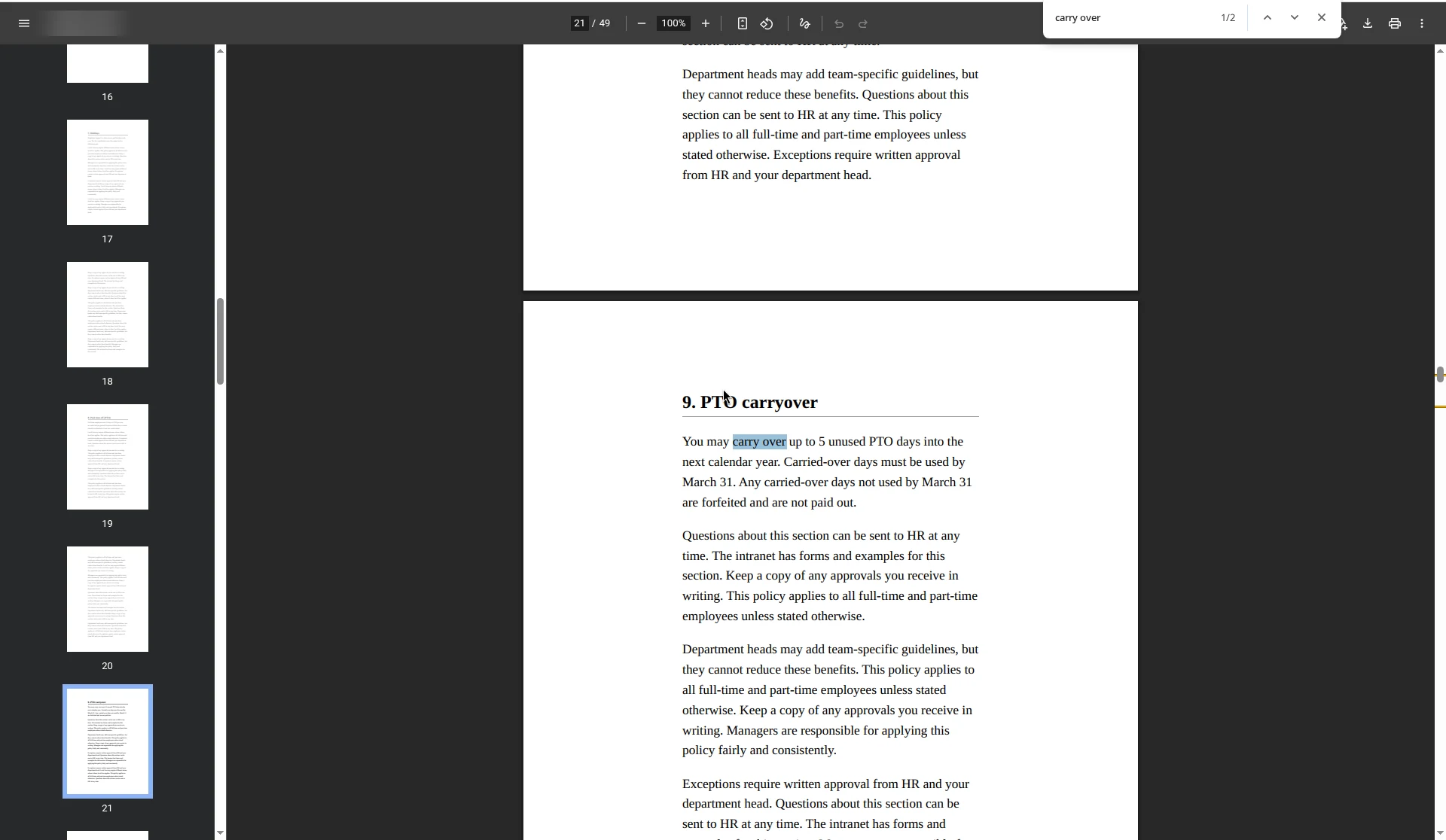
Open the PDF itself (double-click it, or drag it into a browser tab). Press Ctrl+F (on a Mac, Command+F) and type a few words from the answer. I typed carry over.
The box showed 1/2 (two matches), and the page counter jumped to 21 / 49, the page Copilot named.

9. Read the page yourself
The first match is highlighted on page 21, under 9. PTO carryover: “You may carry over up to 5 unused PTO days into the next calendar year. Carried-over days must be used by March 31.”
Copilot got it right, but read the sentences around the highlight anyway, because that's usually where the catch is. Press Enter for the next match. In the practice file it’s on page 23, about sick days: “Sick days do not carry over.” It uses the same words for a different rule.
What if Ctrl+F finds nothing? Some PDFs are scans, basically a photo of paper, so go to the page the AI named and read it there. A real handbook may also have a cover and a contents page, so the number printed at the bottom of a page may not match the PDF’s page counter. Look a page or two either side.
Part 3: Same thing in Gemini
10. Click the + and choose Upload files
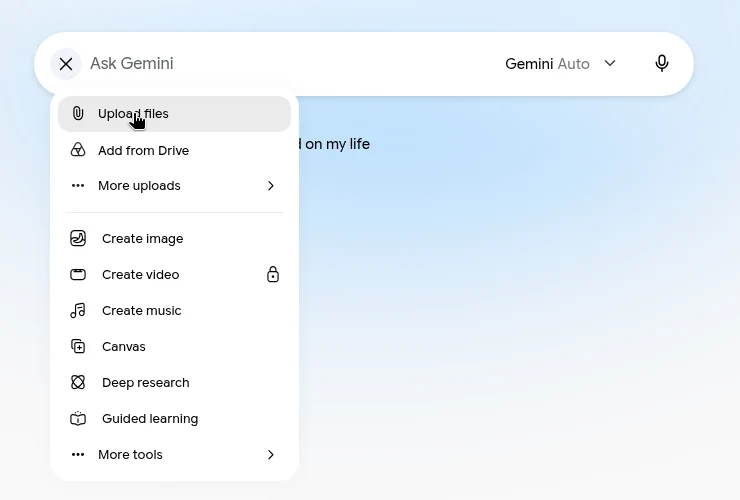
In Gemini, start a new chat, click the + in the Ask Gemini box and choose Upload files. (Add from Drive is for files in Google Drive.) Then pick the PDF the same way as step 3.
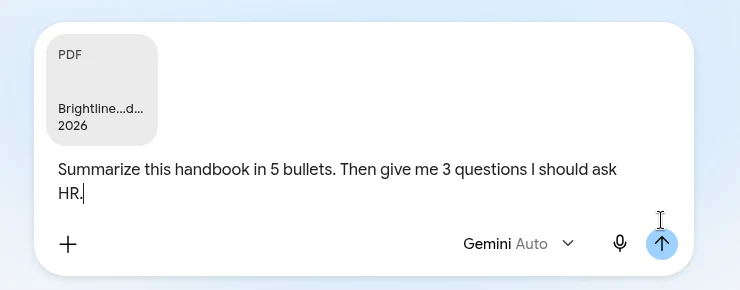
11. Ask the same question
The file appears as a PDF card. I typed the same prompt as in step 4 and clicked the arrow.
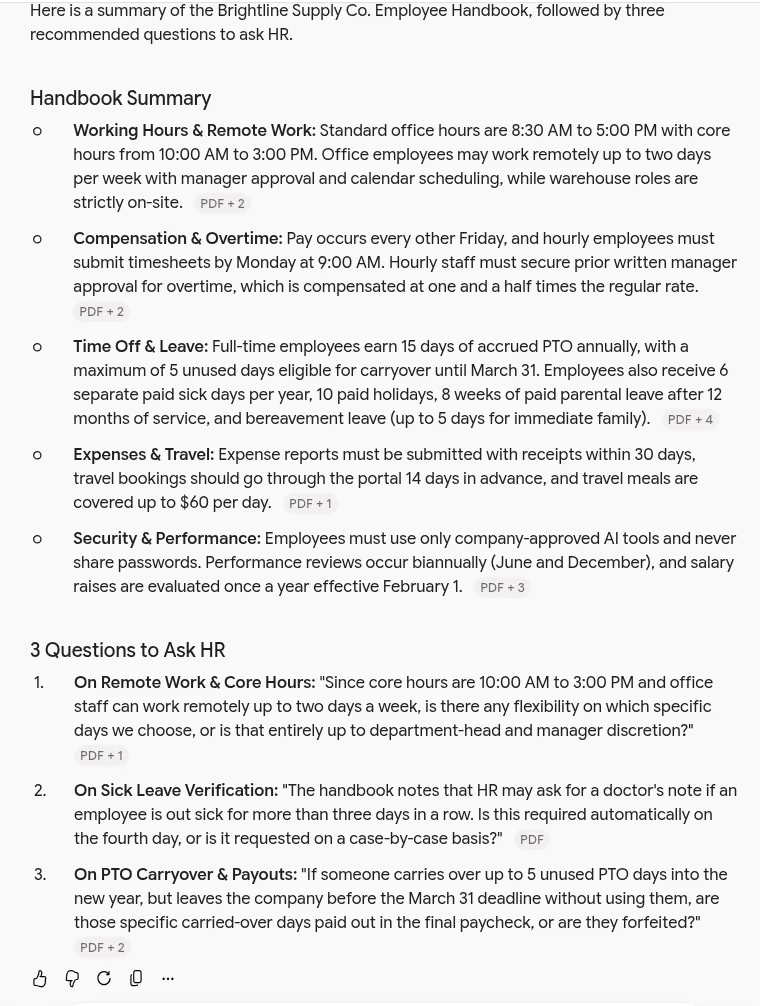
12. Read Gemini’s summary
Gemini’s five bullets come with headings, and the PTO rule is there too: “a maximum of 5 unused days eligible for carryover until March 31.” At the bottom it says “Gemini is AI and can make mistakes.”
Its third question for HR shows why you check. It asks whether carried-over days are paid out if you leave before March 31, but the handbook already answers that: page 21 says carried-over days “are not paid out”, and page 48 says the same about leaving. A quick Ctrl+F for paid out saves you writing an email, and I'll always take that.
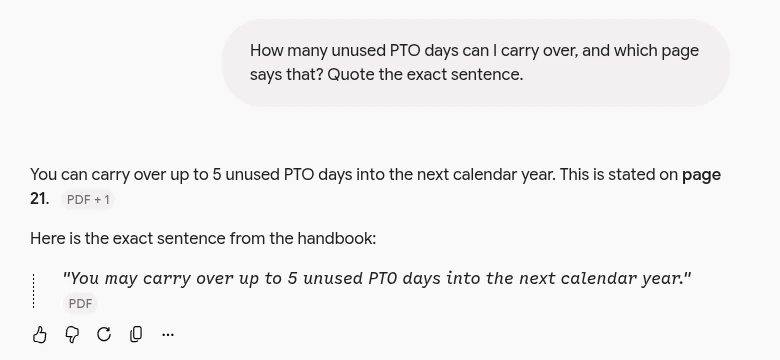
13. Ask “which page?” again
With the same follow-up as step 7, Gemini said up to 5 days, “stated on page 21”, and quoted the same sentence, which is correct.
But it left out March 31, even though its own summary had it. Read only this and you’d think you have all year. Nothing in it is wrong, it just isn't the whole rule, and reading the page is how you catch that.
Part 4: At work
Copilot with a work account
At work: Microsoft calls it Microsoft Copilot Chat (it used to be Microsoft 365 Copilot Chat). Sign in with your work or school account, not a personal one. Microsoft says you can tell you’re in the work version by a Work label under your name and a green shield for enterprise data protection. If there's no shield, you might be in your personal account, so check with IT.
You upload the same way, with the + or by dragging the file in. What changes is where the copy goes: Microsoft says uploaded files are stored in your work OneDrive (OneDrive for Business), not your personal one, and aren’t used to train its models. Your company’s retention rules apply to the chat and the file, and IT can block personal accounts in Copilot altogether.
Gemini with a work account
At work: for most Google Workspace work accounts, Google lists the Gemini app as a core service with enterprise-grade protections: your chats and uploaded files aren’t reviewed by people or used to improve Google’s AI models. Upload files works the same; Google says up to 10 files per prompt, most up to 100 MB. Adding from Drive needs your admin to allow it, and your admin can turn the Gemini app off entirely. If it’s missing, check with IT.
The company rules still apply
Even with the green shield, your company decides what can go into AI, and confidential, customer or HR files may be off limits. If in doubt, ask IT before you upload. Before you act on any answer about pay, leave or policy, find the page and read it, and if it really matters, ask HR in writing.
Check that it worked
- The PDF showed up as a card in the message box before you sent the prompt.
- You got a summary, and you asked a follow-up that named a page.
- Ctrl+F in the PDF took you to that page, and you read the whole paragraph.
- You noticed anything the AI left out, like a deadline.
- No real work file went into a personal account.
Let’s learn together.
Comments are reviewed by Ana before they appear. Please use fictional examples and leave workplace details out.
Loading approved comments…