Join a Teams meeting in your browser (no app, no panic)
Join a Teams meeting from your browser with just a name, chat and raise your hand, fix it when Teams can't hear you, then make your own link and let people in.
Step 11 of 11 in Get your computer ready first (Path 01)
Heads up: these screenshots use the free version of Microsoft Teams in Chrome on a computer.
Someone sends you a Teams link, you don't have Teams, and you'd like to keep it that way. Good news: Teams runs in a browser tab, with no install and no account. (Half these meetings could have been an email, but here we are.)
We'll join as a guest, chat, raise a hand and leave, then fix things when Teams can't hear you (our test computer had no microphone, and Teams had opinions). After that you'll make your own meeting link and let people in, and the end covers work accounts.
Before you start
Heads up: these screenshots use the free version of Microsoft Teams in Chrome on a computer. The host is a free personal Microsoft account at teams.live.com. The guest is a second browser window with nobody signed in, which is what you are when someone outside sends you a link. Screenshots are from 2026-10-27.
Use Edge, Chrome, Firefox or Safari on a computer. Microsoft says meetings don’t work in a phone’s browser, so use the Teams app there.
Got a meeting ID and passcode instead of a link? Go to teams.live.com, choose Join with a meeting ID and type both exactly.
At work notes come from Microsoft’s help pages, not screenshots.
Part 1: Join as a guest
1. Open the link
Click the link, or paste it into the address bar like we did. Ours was teams.live.com/meet/ followed by a long number and a passcode. Anyone with the link can try to join, so don't post it anywhere public.

You may be asked to choose between the Teams app and Continue on this browser. Pick the browser. Ours skipped that question.
2. Allow the mic and camera (or don’t)
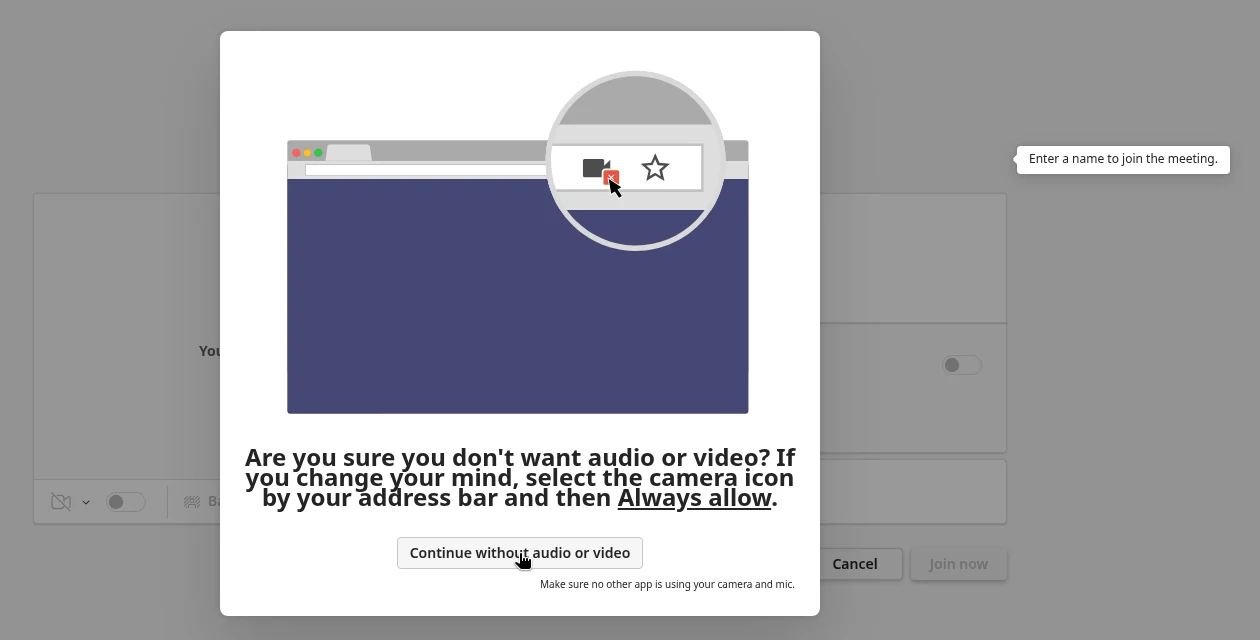
Teams now asks the browser for your microphone and camera. Usually a small box pops up under the address bar; click Allow.
Our computer had neither, so Teams asked, “Are you sure you don’t want audio or video?” If that’s what you want, click Continue without audio or video. You can still hear, read and type, and the drawing shows where to click if you change your mind (more in Part 2).
3. Type your name, then Join now
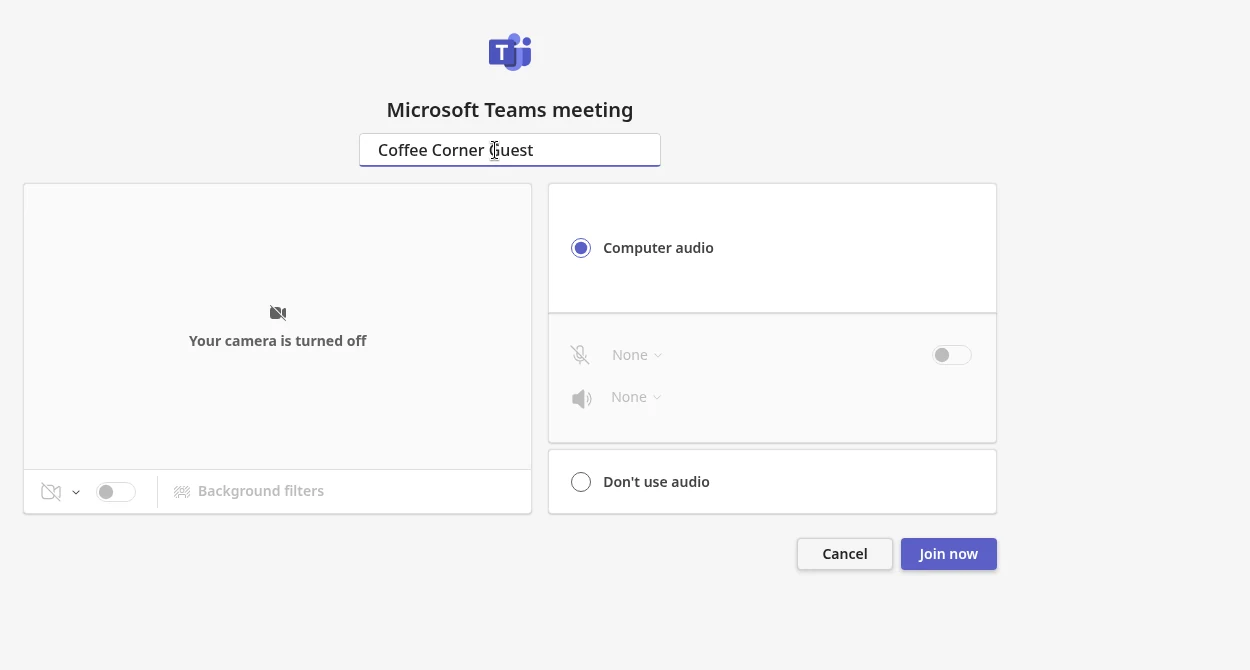
Type the name you want people to see. Use your real one, since the host has to recognise you to let you in. Then click Join now, which stays greyed out until there's a name in the box.
Your camera starts off, and Background filters is there if your kitchen needs hiding.
4. Wait in the lobby
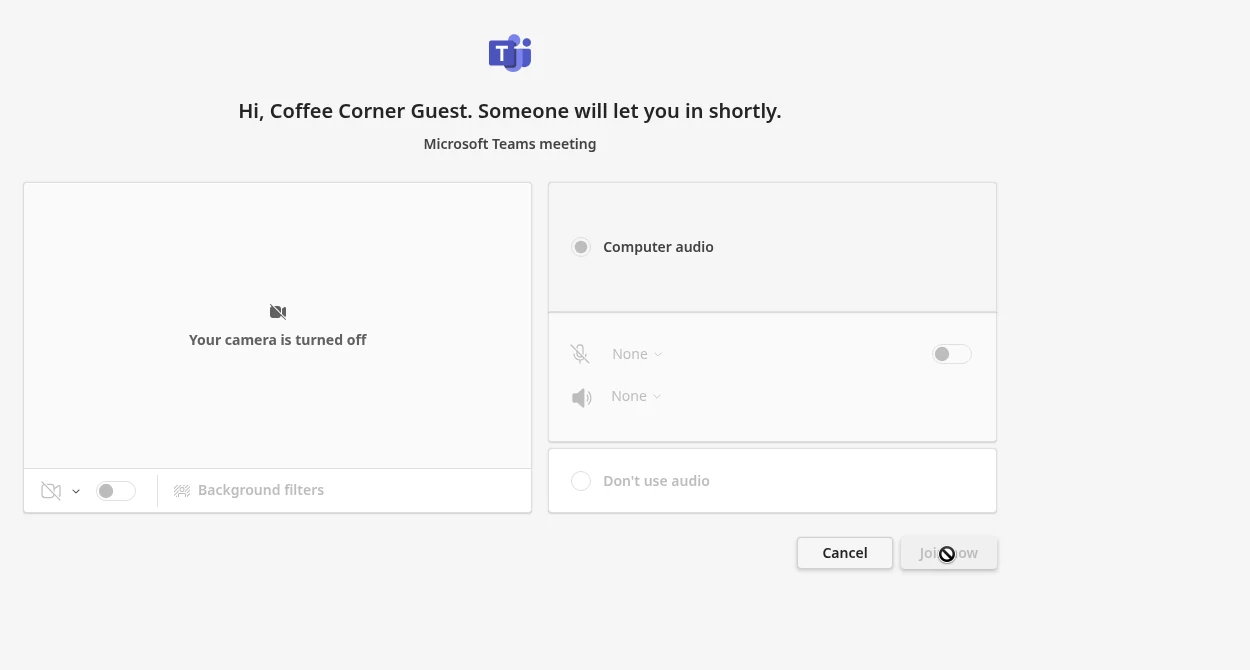
You’ll probably land in the lobby first: “Someone will let you in shortly.” Nobody can see you yet, and the host gets a note that you're waiting. Keep the tab open.
5. You’re in
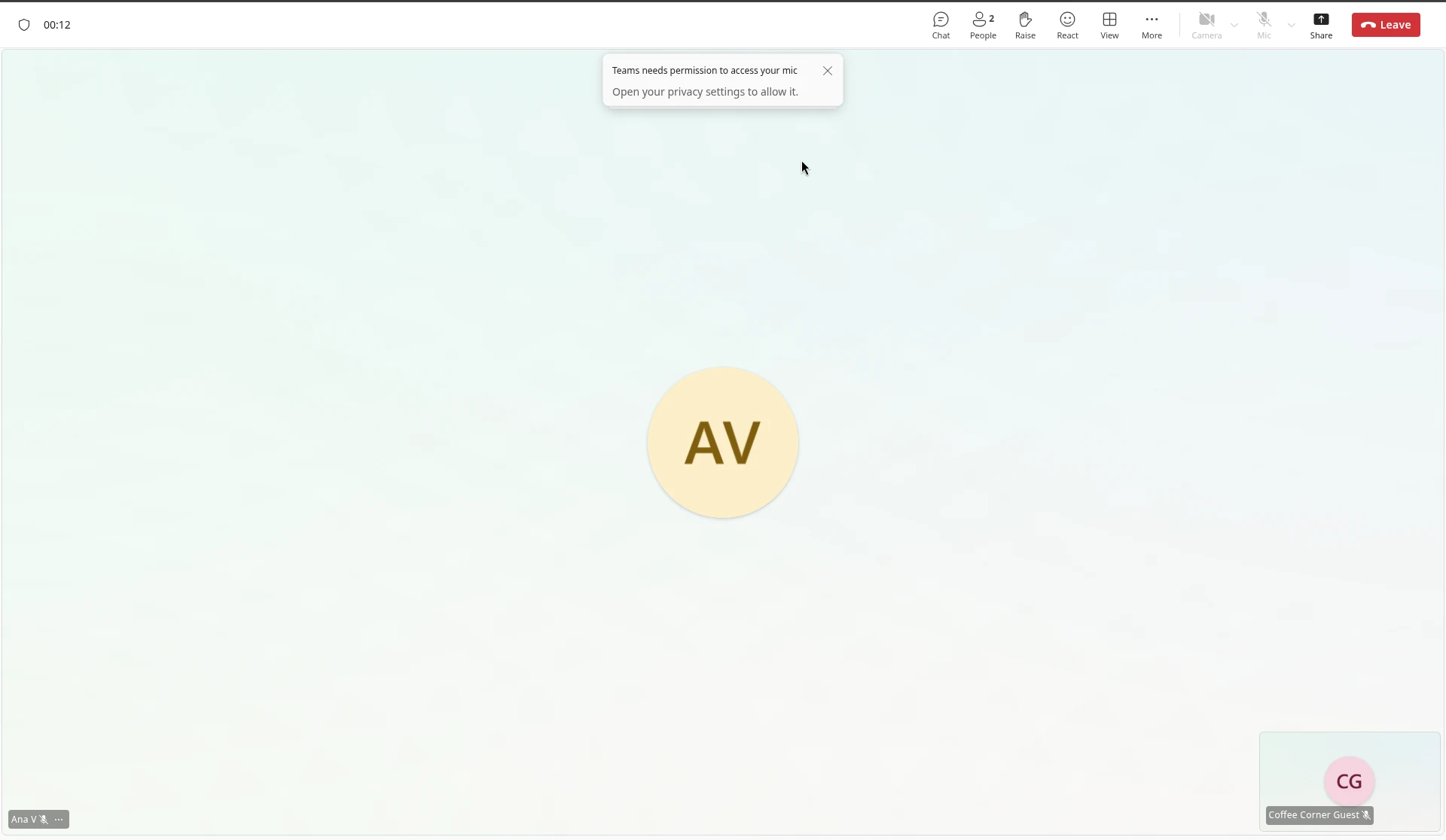
With cameras off, everyone's a circle with initials. Along the top are Chat, People, Raise, React, View, More, Camera, Mic, Share and the red Leave. The timer at the top left shows how long you've been in.
Our guest also got a note, “Teams needs permission to access your mic”, which is Part 2.
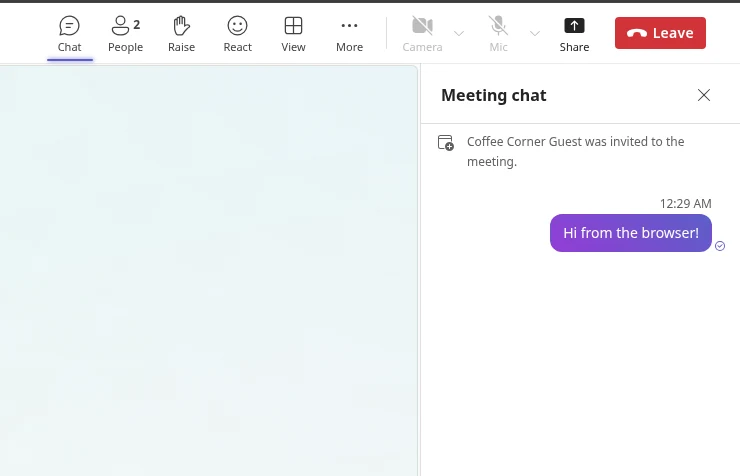
6. Say hello in the chat
Click Chat, type at the bottom and press Enter. It's handy when your mic isn’t working or you want to post a link without interrupting.
7. Raise your hand
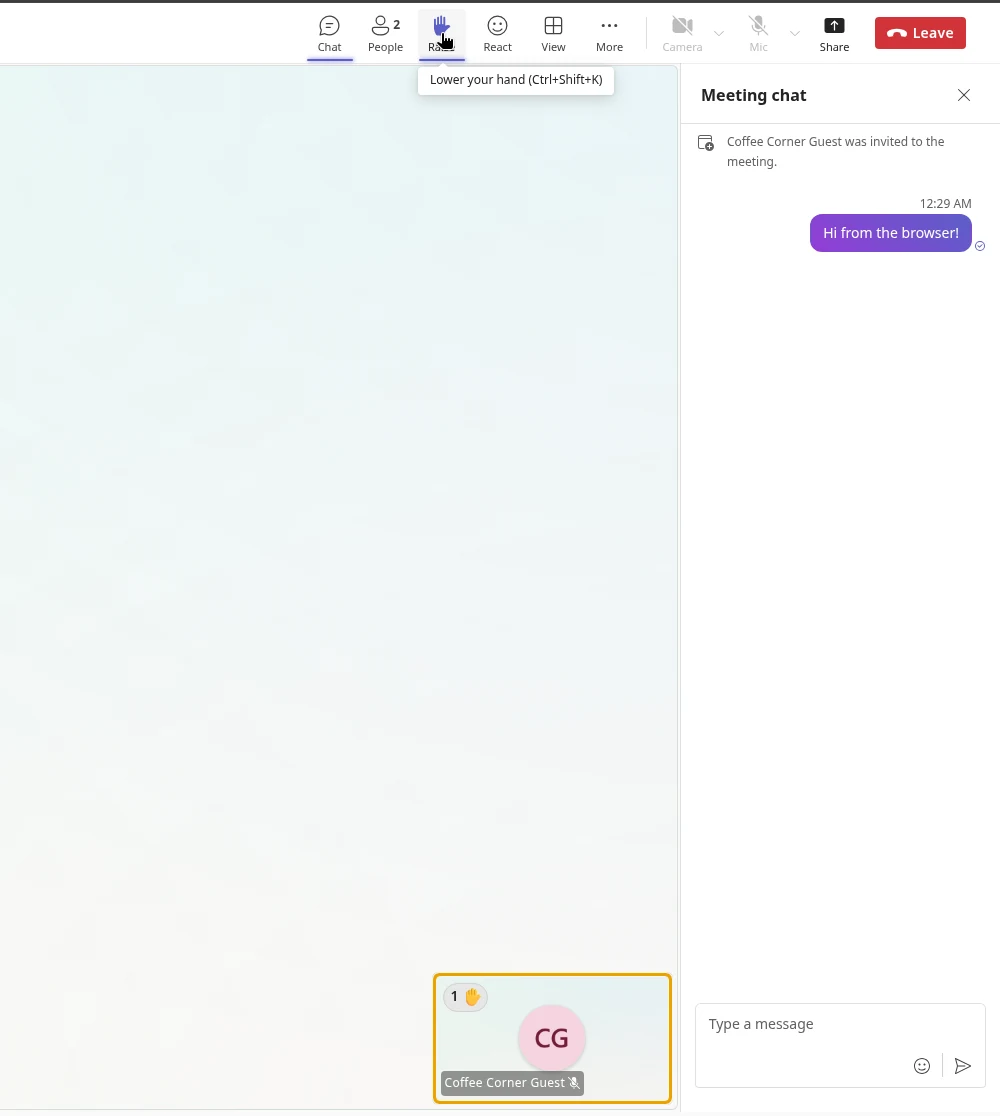
To speak without talking over anyone, click Raise. A hand appears on your tile, and clicking again lowers it. The shortcut is Ctrl+Shift+K (on a Mac, Command+Shift+K).
8. Leave
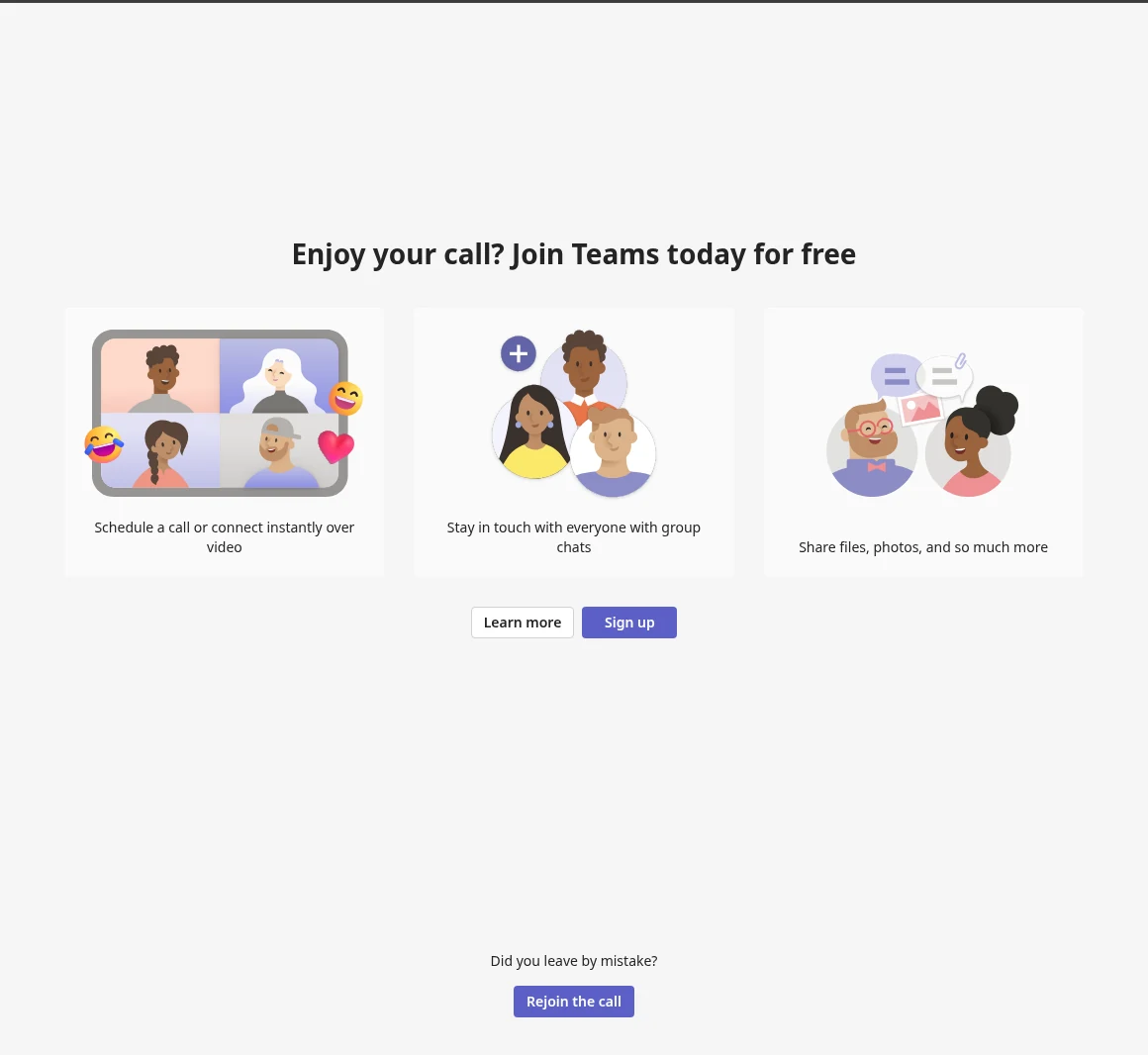
Click Leave and the meeting carries on without you. Teams shows a sign-up page (you don’t have to) and a Rejoin the call button in case your mouse slipped. You can also just close the tab.
Part 2: If Teams can’t hear you
9. Give the browser permission
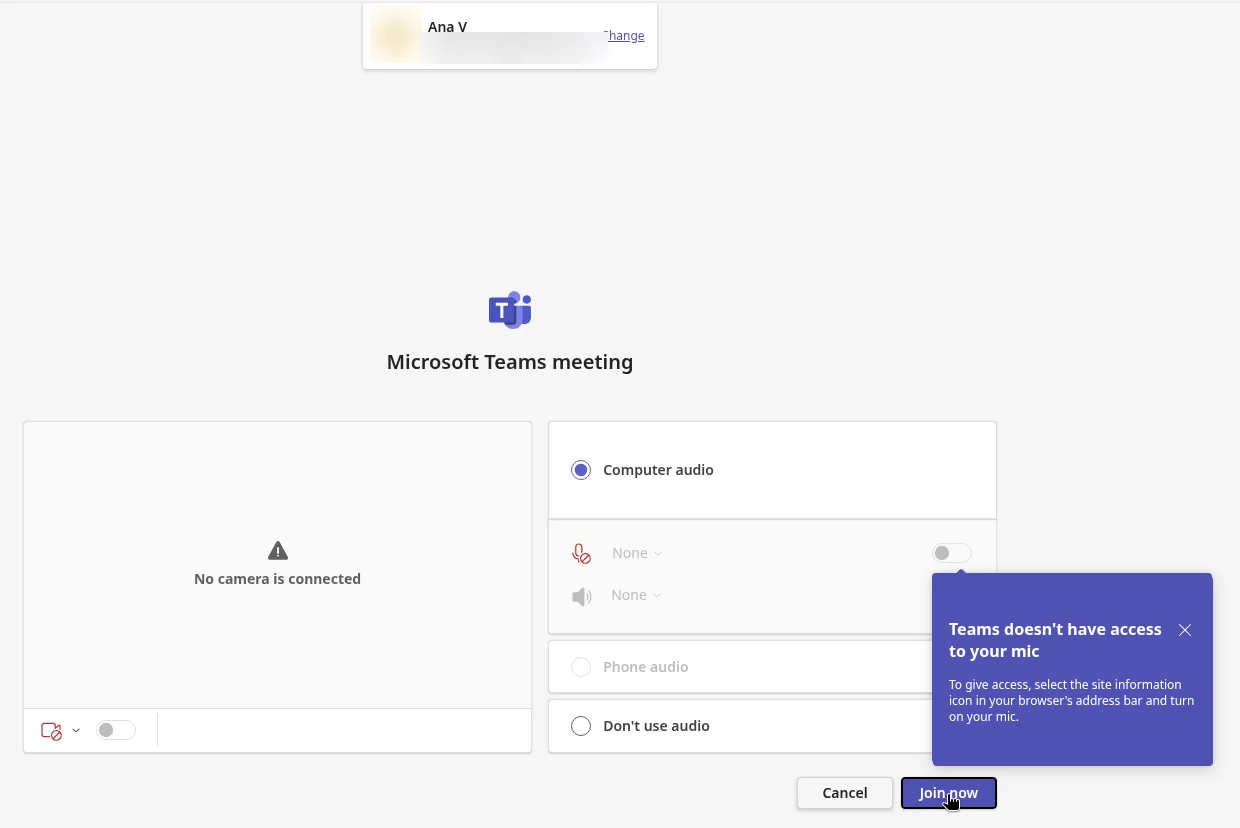
Usually Teams can’t hear you because the browser hasn’t been allowed to use the mic, and Teams says so on the join screen. (This screenshot is from the host’s side; the message is the same.) The fix is in the browser, not Teams.
Click the small icon at the left end of the address bar, right before teams.live.com. Find Microphone (and Camera), switch them to Allow, then refresh the page and join again.
Still nothing? Your computer's privacy settings have to let the browser use the mic too. Microsoft’s help mentions Windows privacy settings, which IT may lock on a work laptop. Also close other apps that might be using the mic, like Zoom.
10. Check which mic Teams is using
On the join screen, the box under Computer audio shows which microphone and speaker Teams will use. Ours said None, because there wasn’t one. Pick your headset there if it's plugged in. Once you're in, Microsoft says the small arrow next to Mic has the audio settings.
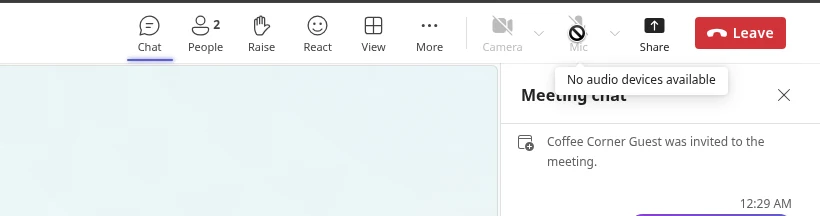
When there’s no mic at all, the Mic button is greyed out and says “No audio devices available”. That means Teams can't find a mic, not that the host muted you.
Two more things:
- Don’t use audio on the join screen joins you muted, and Microsoft says Unmute switches you back to computer audio later. If you only want to listen, Computer audio with your mic off is safer.
- To mute and unmute quickly, press Ctrl+Shift+M (on a Mac, Command+Shift+M).
Part 3: Host your own
11. Go to Meet
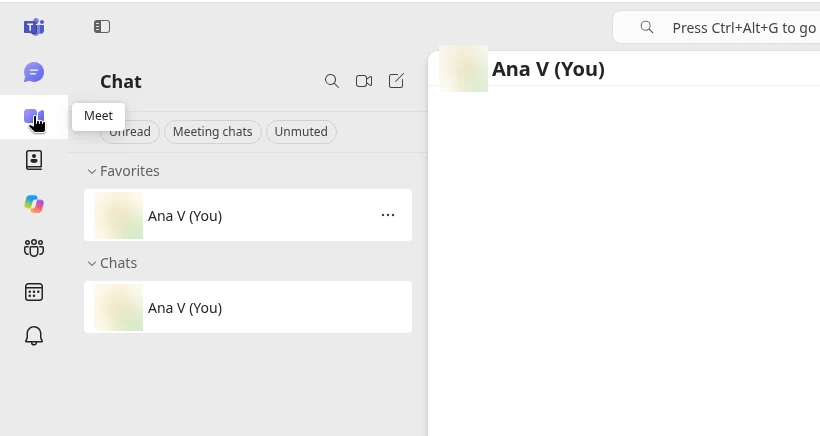
Sign in at teams.live.com with a personal Microsoft account and click Meet on the left. It's the camera icon, not the calendar, and pointing at an icon shows its name. Free Teams has no Meet now button, so you make a link instead.
12. Create a meeting link
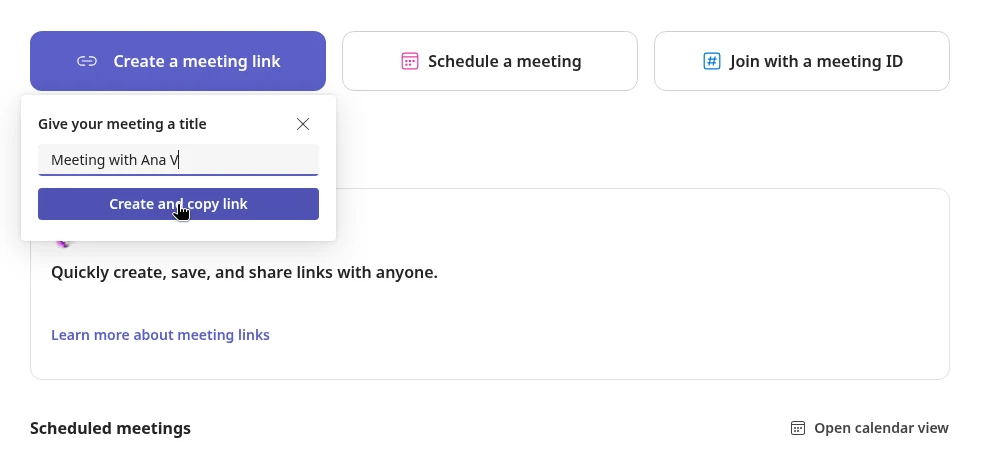
Click Create a meeting link, give it a title your guests will recognise, then click Create and copy link.
13. Send the link
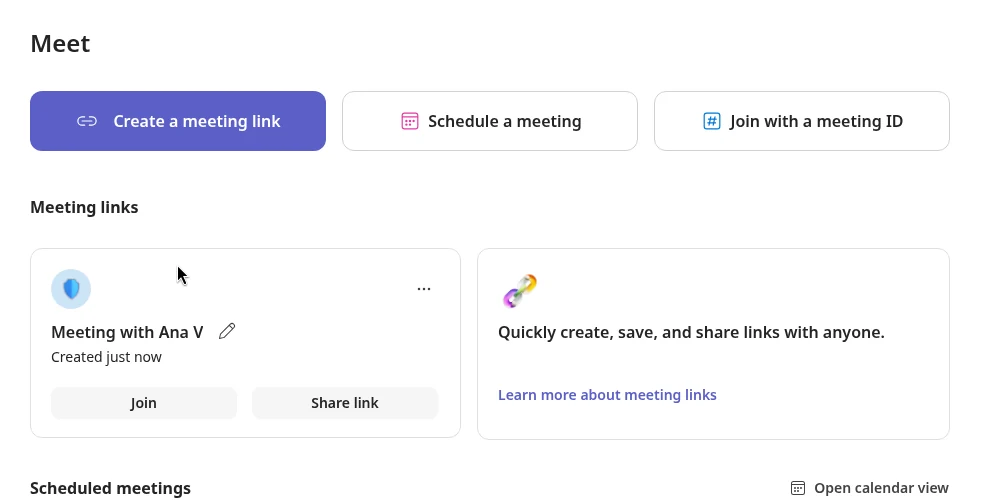
Teams copies the link right away (“Link copied to clipboard” flashes at the bottom left), so paste it into an email or message. The meeting also shows up under Meeting links, with Share link to copy it again and Join to go in.
14. Join your own meeting
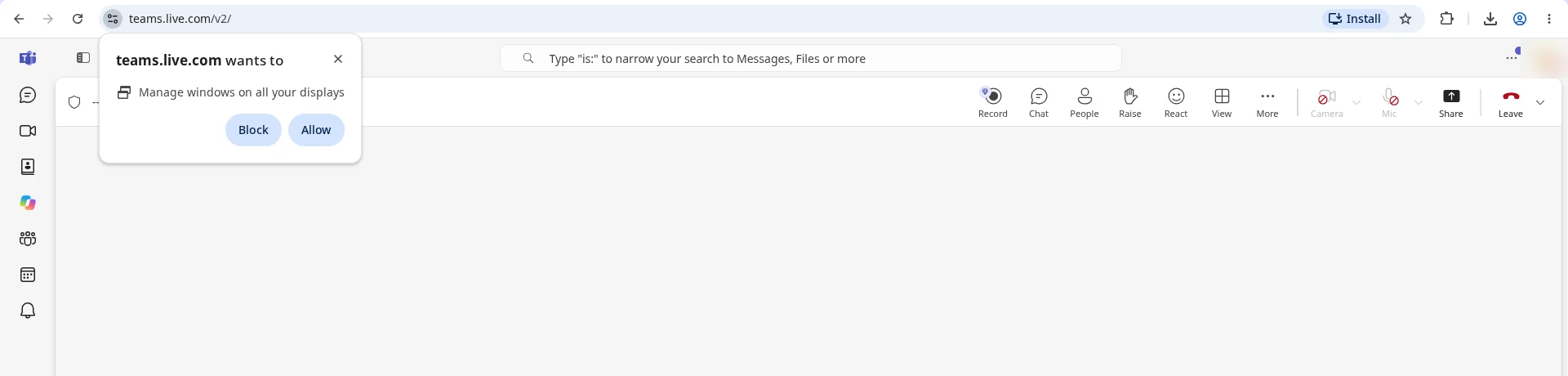
Click Join, then Join now on the next screen. Chrome may ask whether teams.live.com can “Manage windows on all your displays”. Block is fine.
Your toolbar has one button guests don’t get: Record. Microsoft says everyone is told when a recording starts.
15. Let people in from the lobby
When a guest arrives, a box pops up saying “Waiting in the lobby” with their name. Click Admit for people you were expecting, or Deny if you don’t know them. Ours said (Guest) because they weren't signed in. The red number on People shows how many are waiting.
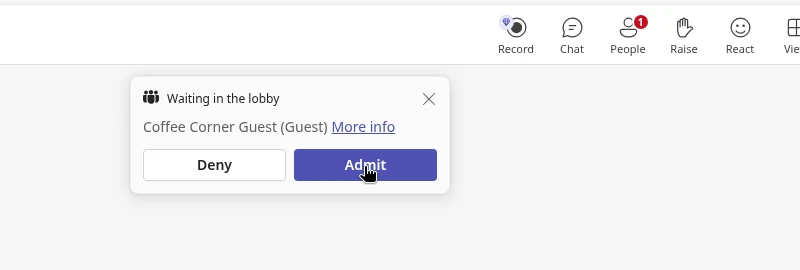
If you missed the box, click People and look under Waiting in the lobby.
16. Leave, or end it for everyone
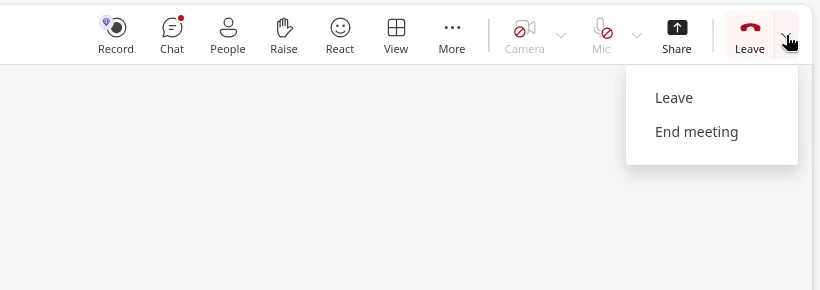
The little arrow next to Leave has two choices. Leave walks you out and leaves the meeting running, and End meeting closes it for everyone.
17. Confirm
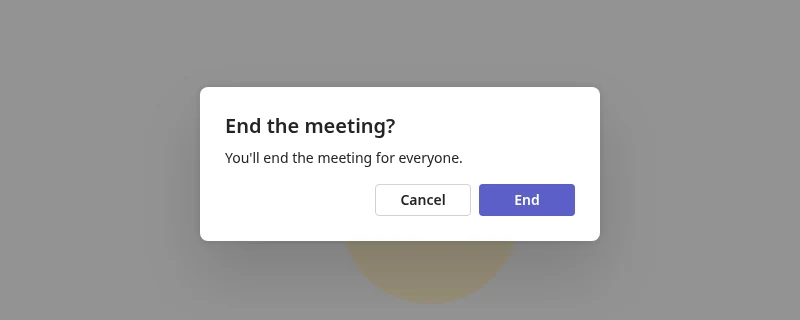
Teams double-checks: “End the meeting? You’ll end the meeting for everyone.” Click End, which is my favourite button in all of Teams.
What surprised us
The guest never saw an install prompt or a sign-in page, just a box for a name. The guest also had no Record button, and Microsoft’s help says guests can’t record.
Part 4: At work
Joining a work meeting from outside
At work: work meetings live at teams.microsoft.com, and the organiser’s IT department decides whether you can join without signing in. Microsoft says some meetings ask for your email and a one-time code first, and some don’t allow unverified people at all. If you see “Sign in to join this meeting”, the organisation requires a work account, so ask the organiser or check with IT.
You’ll be labelled something like Unverified or External. Microsoft says if nobody lets you in within 30 minutes, you’re removed from the lobby, so try again or message the organiser.
Hosting at work
At work: IT sets who skips the lobby by default, and the organiser can change it in the meeting options. Microsoft says people without a Teams account still wait in the lobby. Organisers, co-organisers and presenters can let people in, and People has an Admit all option.
To join by meeting ID with a work account, Microsoft puts it in Calendar, in the menu next to Meet now, under Join with an ID.
Teams on the web does almost everything the app does. Microsoft lists a few gaps, like creating breakout rooms, so ask IT about the app if you need those.
Check that it worked
- You joined from a browser tab without installing anything.
- Your name showed up in the meeting, and you saw the host’s tile.
- Your chat message appeared in Meeting chat.
- Your raised hand showed on your tile, and you put it down again.
- If you had a mic, the browser’s site settings say Allow, and the box under Computer audio shows your mic, not None.
- As host, your link appears under Meeting links, you admitted someone from the lobby, and you ended the meeting with End meeting.
Let’s learn together.
Comments are reviewed by Ana before they appear. Please use fictional examples and leave workplace details out.
Loading approved comments…