Tame your Outlook inbox: Sweep, rules, and Focused Inbox
Clean newsletters out of your Outlook inbox with Sweep, then a rule by subject, learn what Focused Inbox does, and undo a rule when you are done.
Step 10 of 11 in Get your computer ready first (Path 01)
Heads up: these screenshots use Outlook on the web with a personal Outlook.com account, in Chrome on a computer.
You signed up for one newsletter in 2019 to get 10% off a lamp, and now four of them arrive every week, right on top of the email from your manager. Unsubscribing is the real fix, but for the ones you keep, Outlook can move them out of the way. It's one of the few things I'll happily give Outlook credit for.
There are three tools and they're easy to mix up: Sweep cleans up by sender, rules sort by almost anything on their own, and Focused Inbox is Outlook's guess at what matters. We'll try each on three made-up newsletters, and one does a bit more than we asked.
Before you start
Heads up: these screenshots use Outlook on the web with a personal Outlook.com account, in Chrome on a computer. No subscription. At work, the new Outlook for Windows and Outlook on the web have the same tools, and classic Outlook is different. The work notes come from Microsoft’s help pages, not screenshots.
The practice mail is three made-up newsletters called Coffee Corner Weekly: …, sent from our Coffee Corner Gmail. The same address also sent one real email about a Friday potluck, which matters later. Screenshots are from October 27, 2026, with email addresses, avatars and the subjects of real emails blurred.
Part 1: Sweep (clean up by sender)
1. Find Focused and Other
Open your inbox at outlook.com. Above the list are two tabs, Focused (what Outlook thinks you'll want to read) and Other (everything else). All three newsletters landed in Focused, which was generous of it.
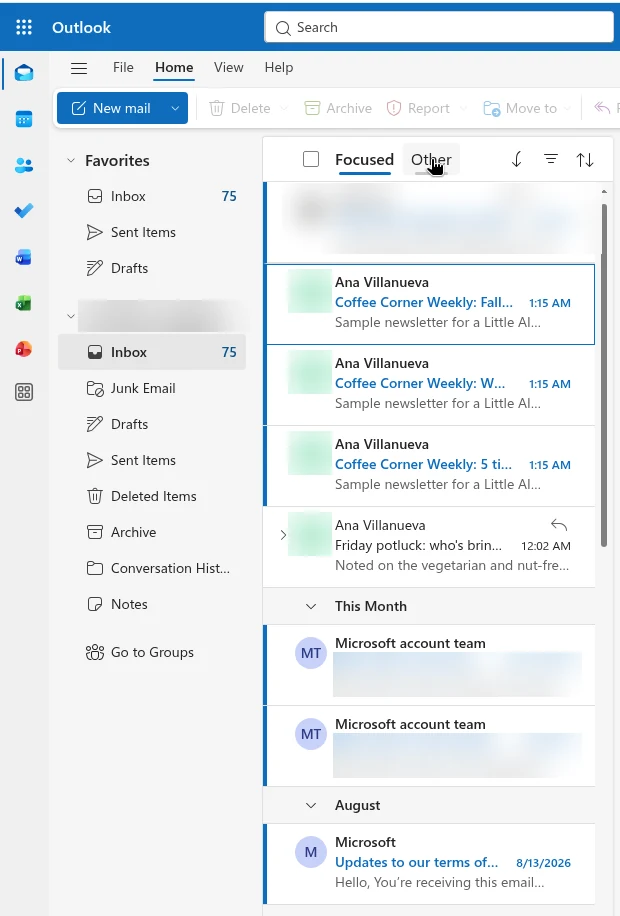
If you don’t see the tabs, Focused Inbox is off. Step 11 shows the switch.
2. Select a newsletter, then More actions, Sweep
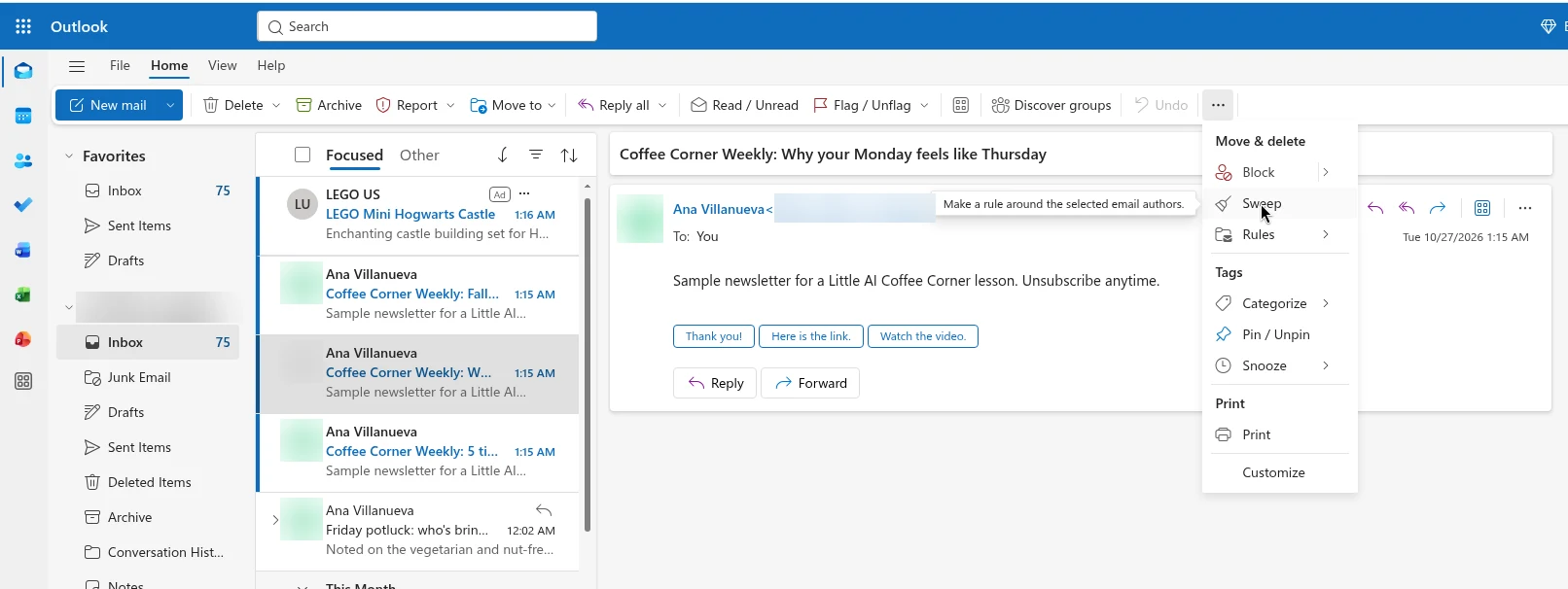
Click one of the newsletters. On the Home ribbon, click … (More actions) at the end. Under Move & delete you'll see Block, Sweep and Rules. Hover over Sweep and the tooltip says “Make a rule around the selected email authors.” Remember that it says authors, not subjects. Click Sweep.
3. Read the Sweep box, especially Move to
The Sweep messages box shows the sender under For messages from: and gives four choices:
- Move all messages from the Inbox folder (once, now)
- Move all messages from the Inbox folder and any future messages
- Always keep the latest message and move the rest from the Inbox folder
- Always move messages older than 10 days from the Inbox folder
Now look at Move to. It defaults to Deleted Items. Click it and you get Inbox, Deleted Items, Archive, Select a different folder and Create a new folder.
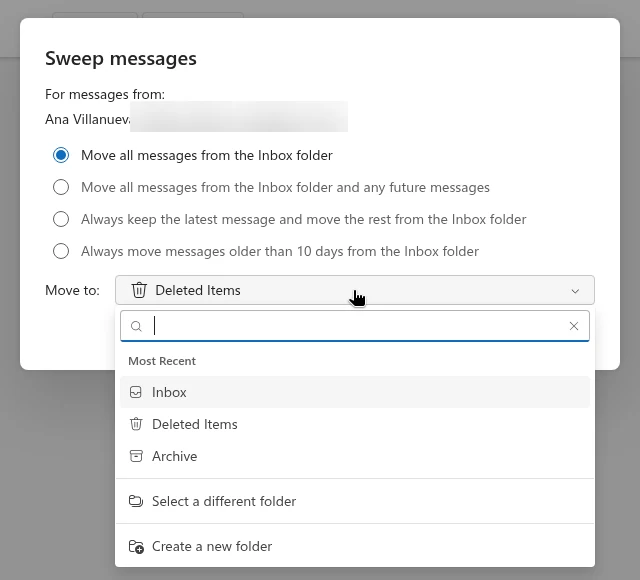
Microsoft says Deleted Items empties itself after 30 days in Outlook.com and Outlook on the web, so if a sweep catches something you need, you have a month to notice.
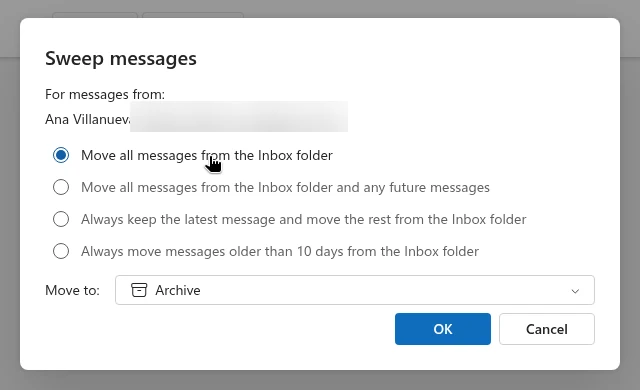
4. Choose Archive, then OK
Pick Archive. We kept the first option, a one-time sweep. Click OK.
5. Check Archive (what surprised us)
Click Archive in the folder list. The three newsletters are there, and so is the Friday potluck email. Sweep did what the tooltip said: it works by sender, and the potluck email came from the same person, so it went too. Four messages moved, not three.
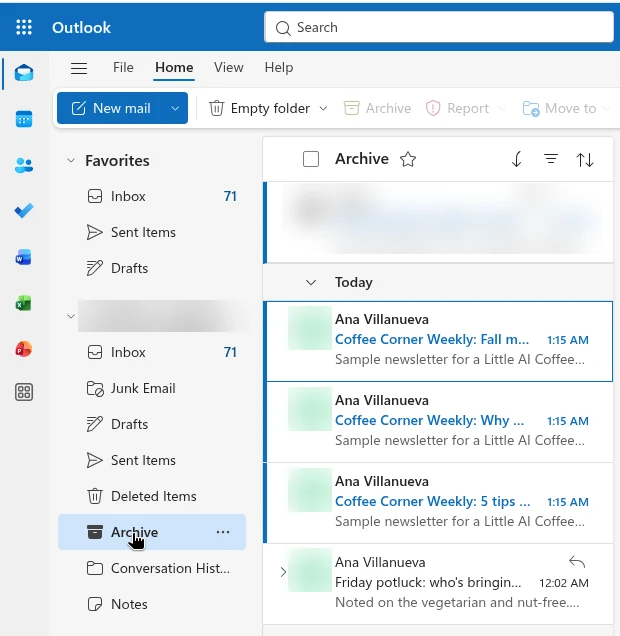
That's why you pick Archive over Deleted Items, and why you shouldn't Sweep a sender who also sends you real mail, like a coworker, your company or your bank. For those, use a rule by subject (Part 2).
6. Move the real email back
Right-click the email you want back, choose Move, then Inbox. Microsoft’s own tip for restoring an archived message is the same.
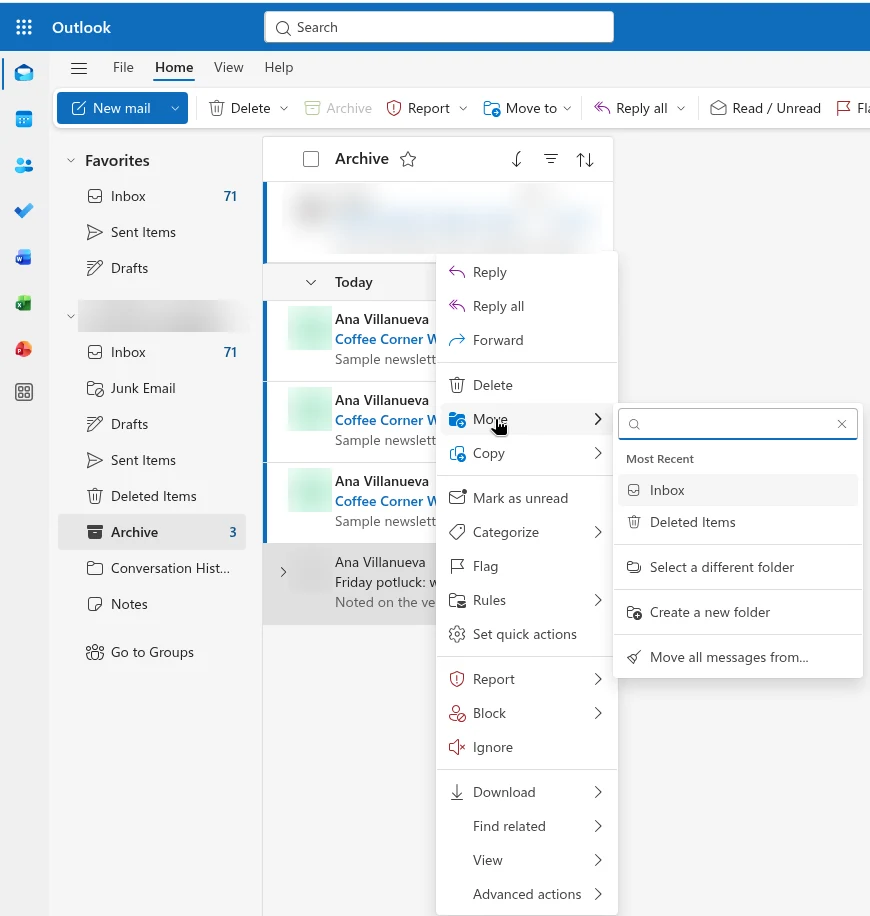
The last item, Move all messages from…, is the same by-sender move, so the same caution applies.
Part 2: A rule by subject (the careful way)
7. Settings, Mail, Rules
Click Settings (the gear at the top right), then Mail, then Rules. Ours said “You haven’t created any rules yet.” Click Add rule (some versions say Add new rule).
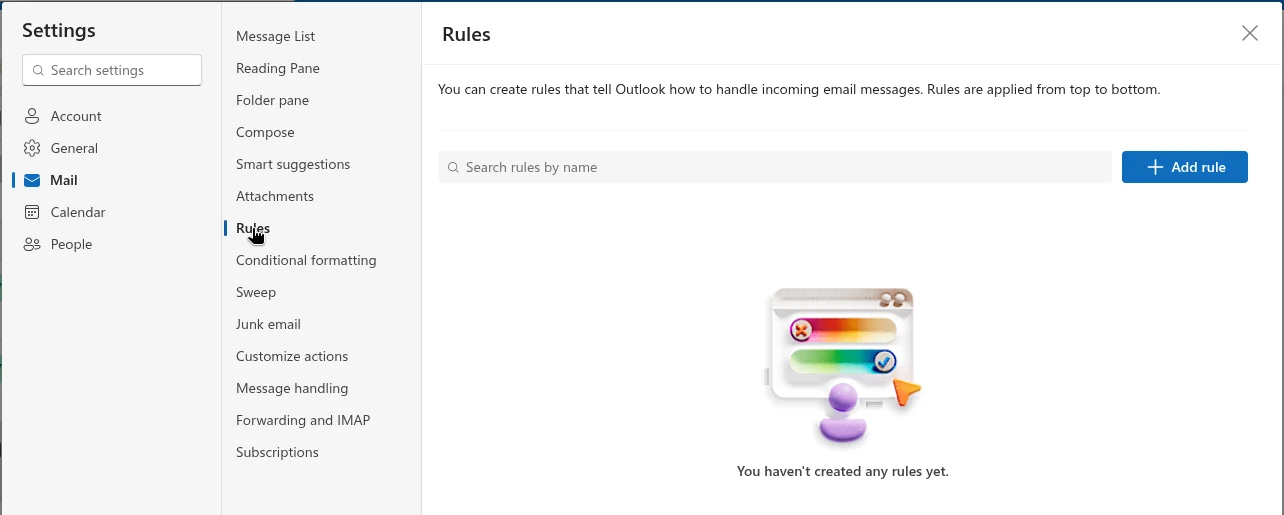
Sweep has its own page in the same list (we didn’t open it). Microsoft says Sweep rules run once a day and inbox rules run as soon as mail arrives.
8. Name it, add a condition, add an action
To give the rule something to do, we first moved the three newsletters back to the Inbox (as in step 6). Then fill in three things:
- Name: Coffee Corner Weekly.
- Add a condition: Subject includes, type Coffee Corner Weekly and press Enter.
- Add an action: Move to, Archive.
Leave Stop processing more rules ticked (it was already on), so once this rule fires Outlook won’t check other rules for that email. Then tick Run rule now, which starts unticked. That sorts the mail already in your inbox too, not just new mail, and we tested it. Click Save.
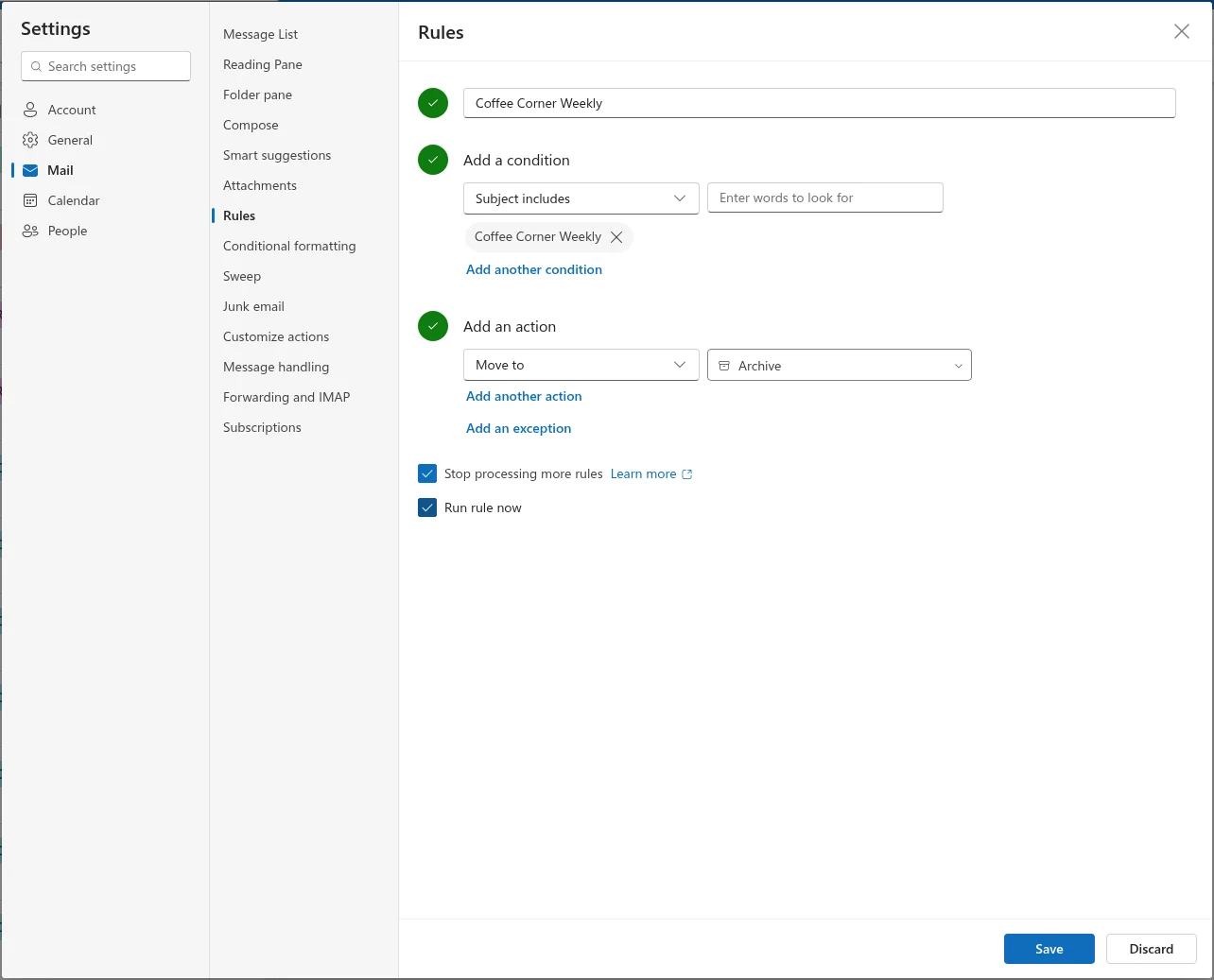
Use words only the newsletter puts in its subject. “Weekly” alone would also catch your manager's weekly report.
9. Watch it run
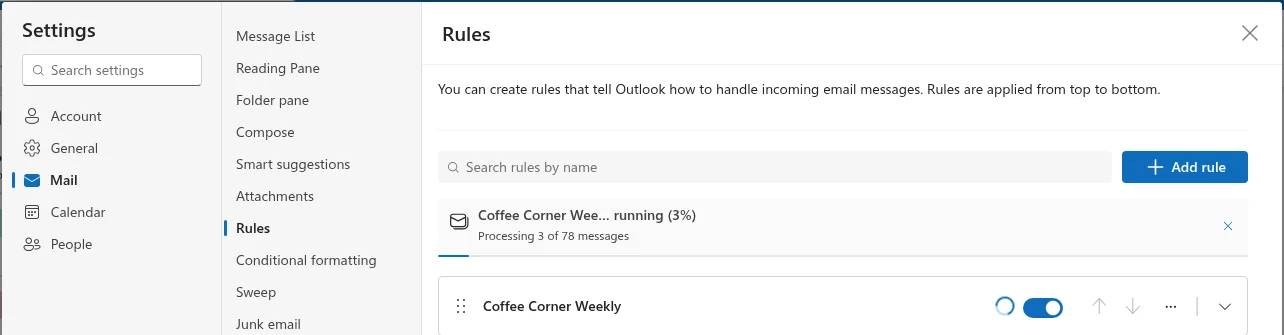
Back in Rules, a bar at the top said Coffee Corner Wee… running (3%) and Processing 3 of 78 messages, with a little spinner next to the rule. It was gone in about five seconds. The rule's switch is on, and you can use it to turn the rule off without deleting it.
10. Check Archive
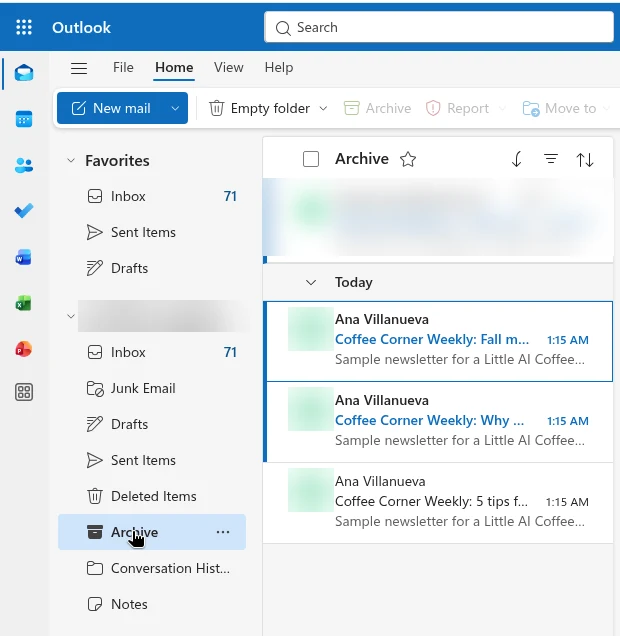
Open Archive in the folder pane. Within about a minute, all three newsletters had moved there from the Inbox. The potluck email stayed put, since its subject doesn’t say Coffee Corner Weekly. Microsoft’s Outlook.com help page still says rules can’t run on mail you already have; it just hasn't caught up.
Part 3: Focused Inbox
11. Find the Focused Inbox switch
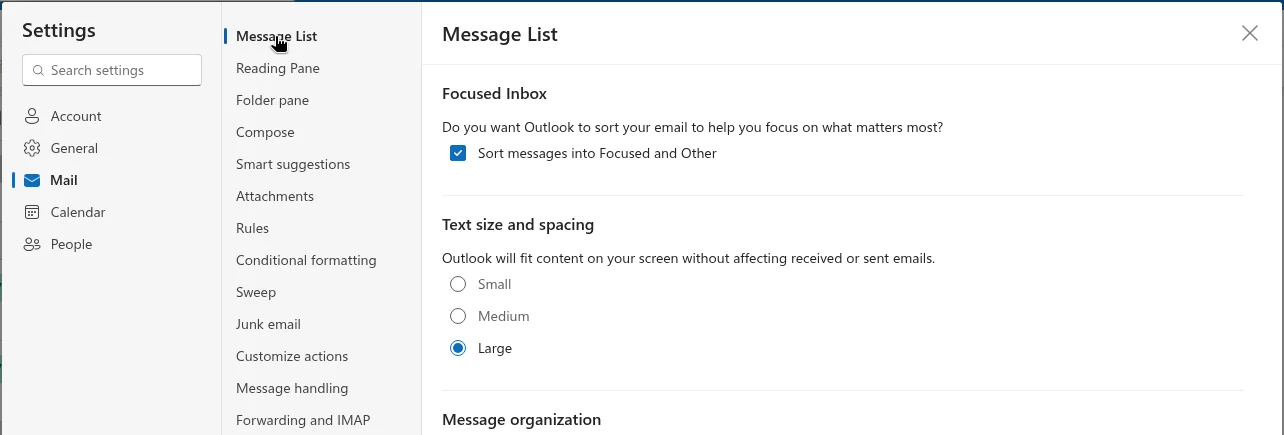
In Settings, Mail, Message List, the top section is Focused Inbox, with Sort messages into Focused and Other. Ours was ticked and we left it. Untick it and you get one inbox with no tabs.
12. Teach it: Move to Other inbox
Focused Inbox learns from you. Right-click a message in Focused, choose Move, and you get Move to Other inbox (just this email) and Always move to Other inbox (this sender, from now on).
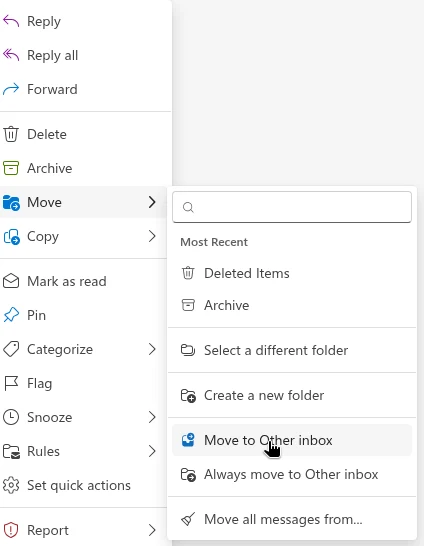
We didn’t click either one. Always works by sender again, so the same caution applies.
Part 4: Undo a rule
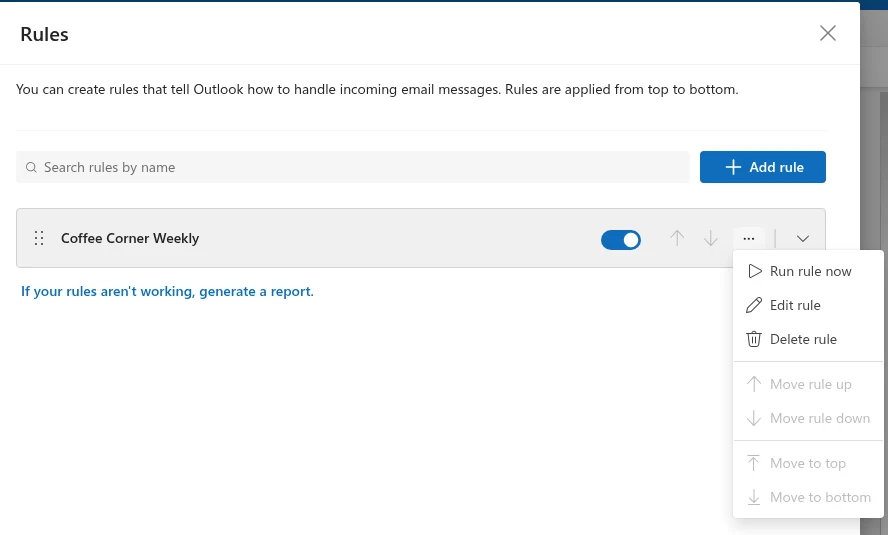
13. More actions, Delete rule
Rules keep working long after you've forgotten them, which is how “I never got that email” starts, usually followed by a meeting about it. To remove one, go to Settings, Mail, Rules, click … next to the rule, then Delete rule. The same menu has Run rule now, if you want to tidy again later, and Edit rule.
14. Confirm
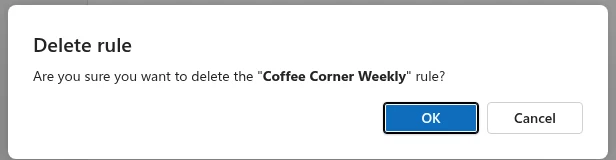
Outlook asks, “Are you sure you want to delete the “Coffee Corner Weekly” rule?” Click OK, and the list goes back to “You haven’t created any rules yet.” Deleting a rule doesn’t move any mail back, so anything it moved stays in Archive.
At work
Same tools in new Outlook. Microsoft’s rules steps for the new Outlook for Windows and Outlook on the web match ours: Settings, Mail, Rules, with … for Edit rule and Delete rule, a switch to turn a rule off, and a way to run a rule on mail you already have. Sweep is there too. Focused Inbox is under View, View Settings, Mail.
Classic Outlook is different. In the older Windows app, rules live under File, Manage Rules & Alerts (or right-click a message, Rules, Create Rule, where Subject contains is the condition you want). To sort mail you already have, tick Run this new rule now on messages already in the current folder when you create it, or later use File, Manage Rules & Alerts, Run Rules Now. Microsoft warns that some rules only run while Outlook is open. Its Sweep steps don't cover classic Outlook, so use a rule there. Focused Inbox is View, Show Focused Inbox.
IT may have rules too. Companies can set mail flow rules that act on email before it reaches your inbox and your own rules, and Exchange mailboxes have a size limit for rules. If a rule won’t save, check with IT.
Focused Inbox may be off, or overruled. Admins can turn it off for everyone or for specific people (you can usually turn it back on). They can also make mail from, say, Payroll always land in Focused, and then Always move to Other is greyed out in Outlook on the web.
Archive isn’t Online Archive. The Archive folder is in your mailbox and still counts toward its size. Many companies also have a separate In-Place Archive (called Online Archive in classic Outlook) that IT turns on. Microsoft says the Archive button sends mail to the Archive folder, not the Online Archive.
Retention policies. Your company may move or delete old mail automatically, including in Archive, and decides how long deleted mail can be recovered. If something you archived disappears, ask IT before you go looking.
Check that it worked
- The newsletters are in Archive, and anything real you swept is back in your Inbox.
- Your rule appears under Settings, Mail, Rules, switched on. If you ticked Run rule now, the newsletters you already had are in Archive too.
- You know where Sort messages into Focused and Other is, and what Always move to Other inbox does.
- Any rule you no longer want is deleted or switched off.
Let’s learn together.
Comments are reviewed by Ana before they appear. Please use fictional examples and leave workplace details out.
Loading approved comments…