Seven keyboard shortcuts that save your day (and your eyes)
Find a word on any page, zoom in and back, close and reopen a tab, paste without the mess, find your downloads, jump to the address bar and snip part of the screen, with the Mac keys and what changes at work.
Step 9 of 11 in Get your computer ready first (Path 01)
Heads up: these screenshots use Chrome on a computer, with a personal Google account for the Google Docs part.
Every office has someone who never seems to touch the mouse. They aren't a wizard, they just know about seven shortcuts, and by the end of this you will too.
Each one is two or three keys: hold the first key (or two), tap the last, and let go. Nothing breaks if you get it wrong, and we'll show you how to undo the scary ones. The Mac versions and work notes are at the end.
Before you start
Heads up: these screenshots use Chrome on a computer, with a personal Google account for the Google Docs part. The shortcuts are the same in Microsoft Edge. On a Mac, press Command (⌘) wherever we say Ctrl.
Ctrl is the key in the bottom-left corner of the keyboard, and Shift is the one with the up arrow just above it. On Windows, the Windows key has the four-squares logo, between Ctrl and Alt.
At work notes come from Microsoft’s and Google’s help pages, not screenshots.
Part 1: Find a word on the page (Ctrl+F)
1. Press Ctrl+F and type
To find one word on a long page, press Ctrl+F and type it in the box at the top right. Chrome highlights every match in yellow, colours the current one orange, and counts them, so 1/9 means you’re on the first of nine.
Ctrl+G (or the down arrow) jumps to the next one and Ctrl+Shift+G (or the up arrow) goes back. Click the X when you’re done.
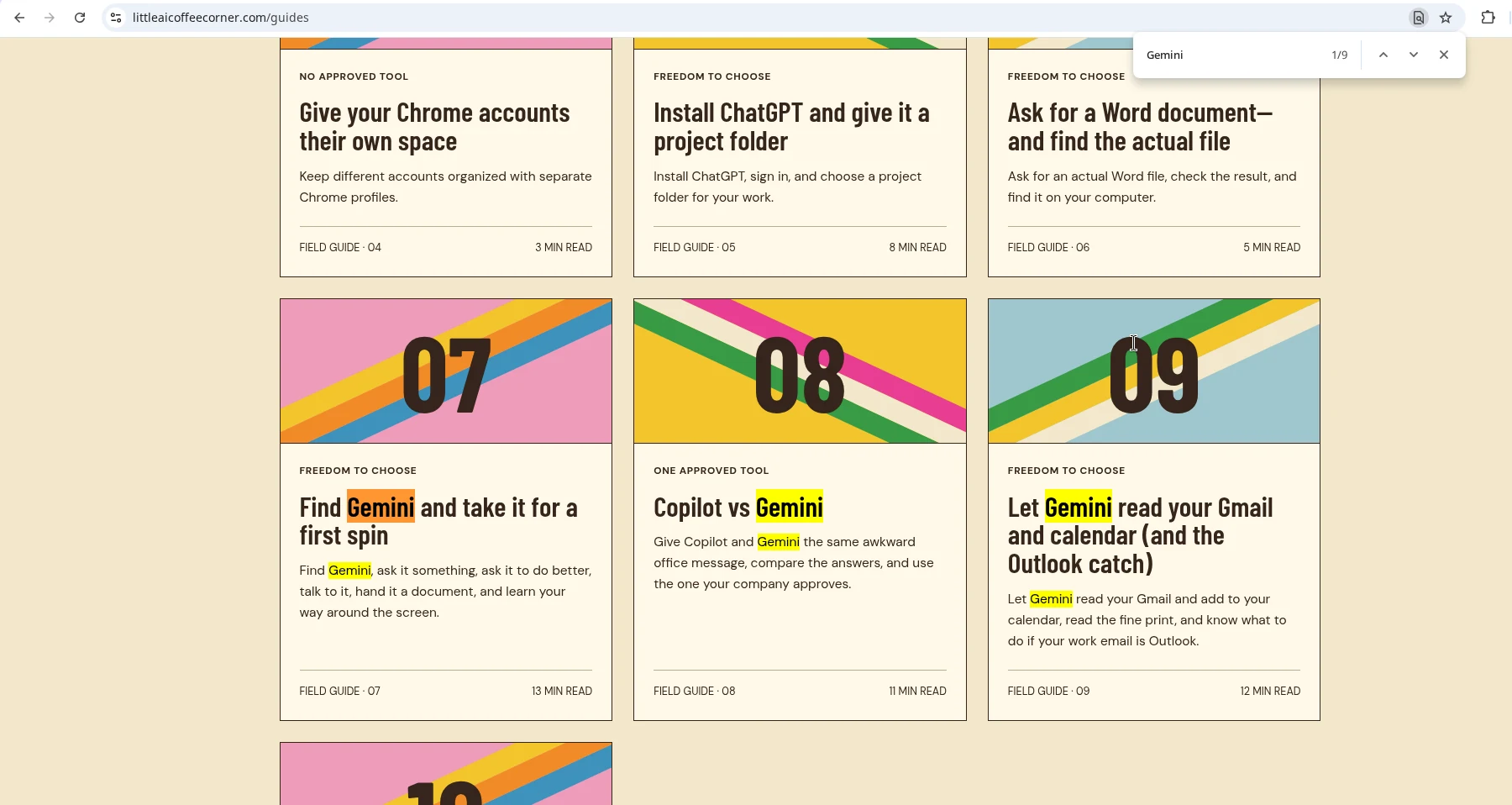
It only searches the page you’re on, not your other tabs or your computer. In Google Docs, Ctrl+F opens the document’s own find box, which works the same way.
Part 2: Make it bigger (Ctrl and plus, Ctrl+0)
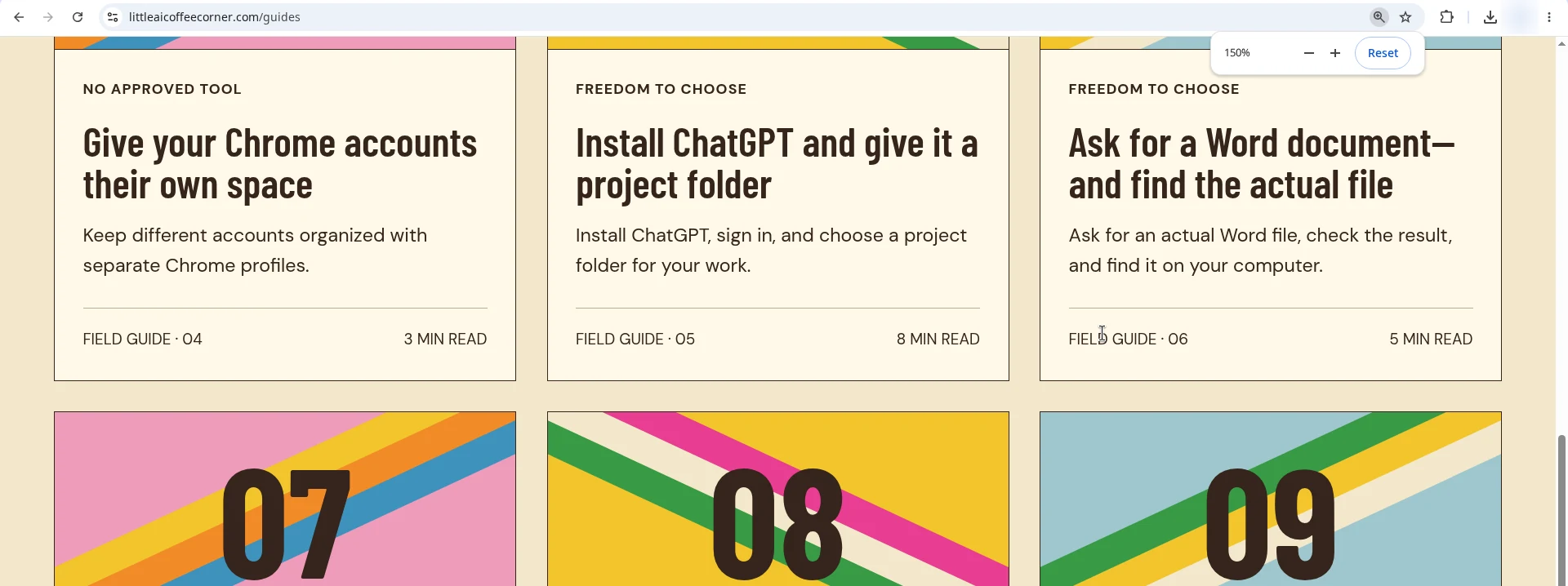
2. Zoom in with Ctrl and plus
If the text is too small, hold Ctrl and press + (next to the minus key). Each press makes the whole page a bit bigger, pictures included. A small box shows the size, with −, + and Reset buttons, and a magnifying glass sits in the address bar while you’re zoomed in.
Ctrl and − goes the other way. We overshot and hit 90% for a moment on the way back.
3. Back to normal with Ctrl+0
Press Ctrl+0 (zero, not the letter O) to go back to 100%. The box says 100% and Reset goes grey, since there’s nothing left to reset.
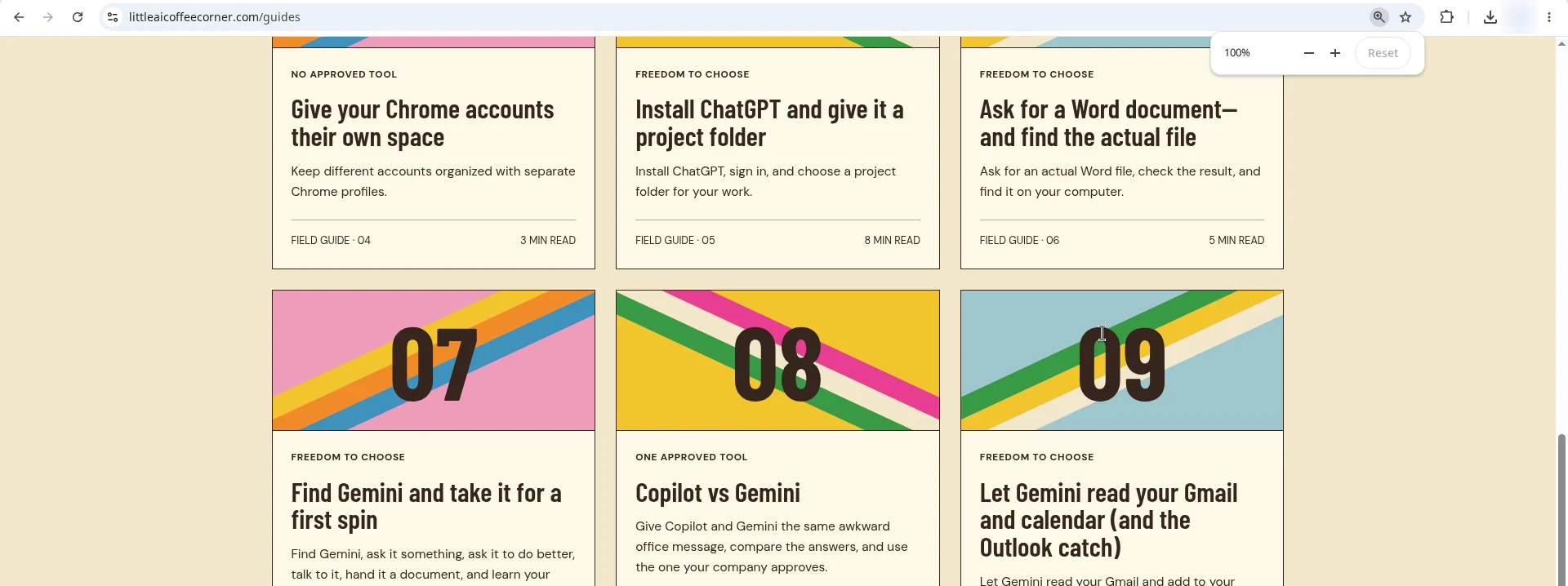
What surprised us is that Chrome remembers the zoom for each website and keeps a list. If one site always looks huge, that’s probably why, and Ctrl+0 on that site fixes it. Chrome’s help says the list is in Settings › Privacy and security › Site settings › Additional content settings › Zoom levels, with an X to clear each one.
Part 3: Close a tab, and get it back (Ctrl+W, Ctrl+Shift+T)
4. Close the tab you’re on with Ctrl+W
We opened a tab on the Little AI Coffee Corner home page. In the row of tabs at the top, ours is the last one on the right. Press Ctrl+W and the tab you’re looking at closes.
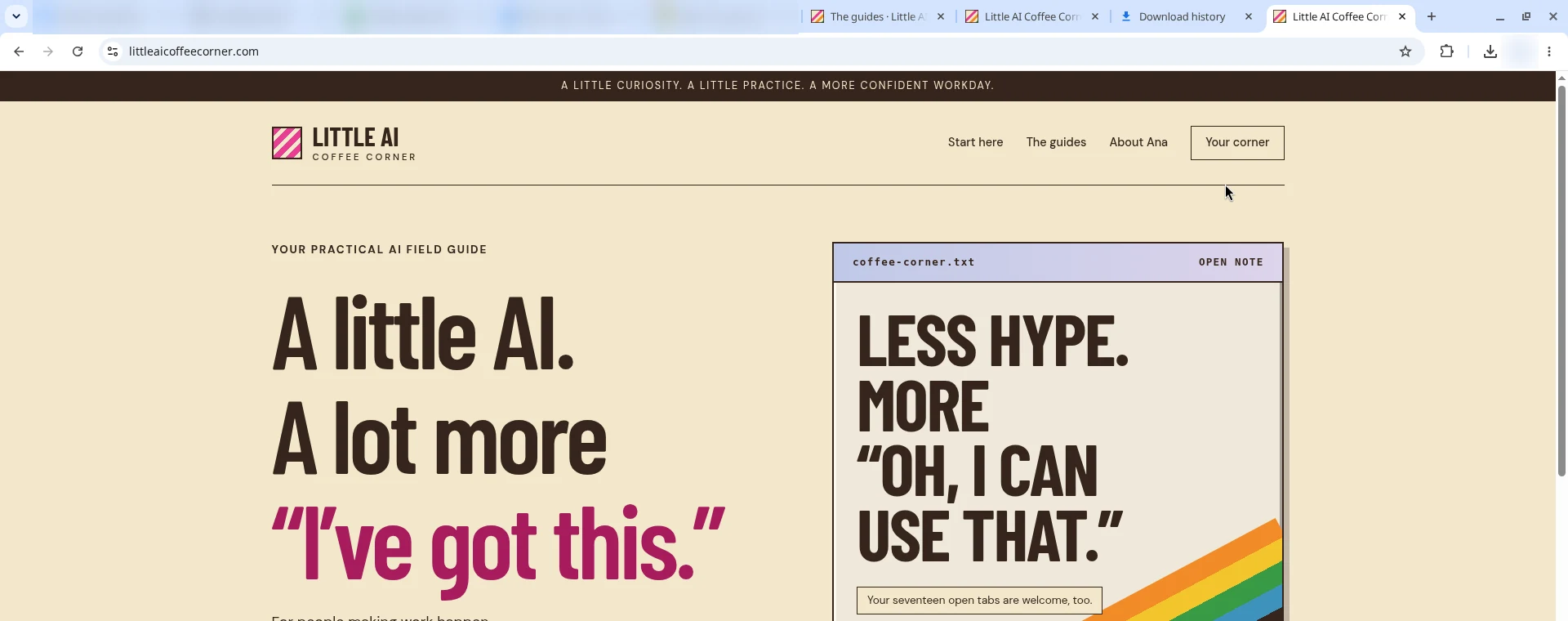
5. It’s gone
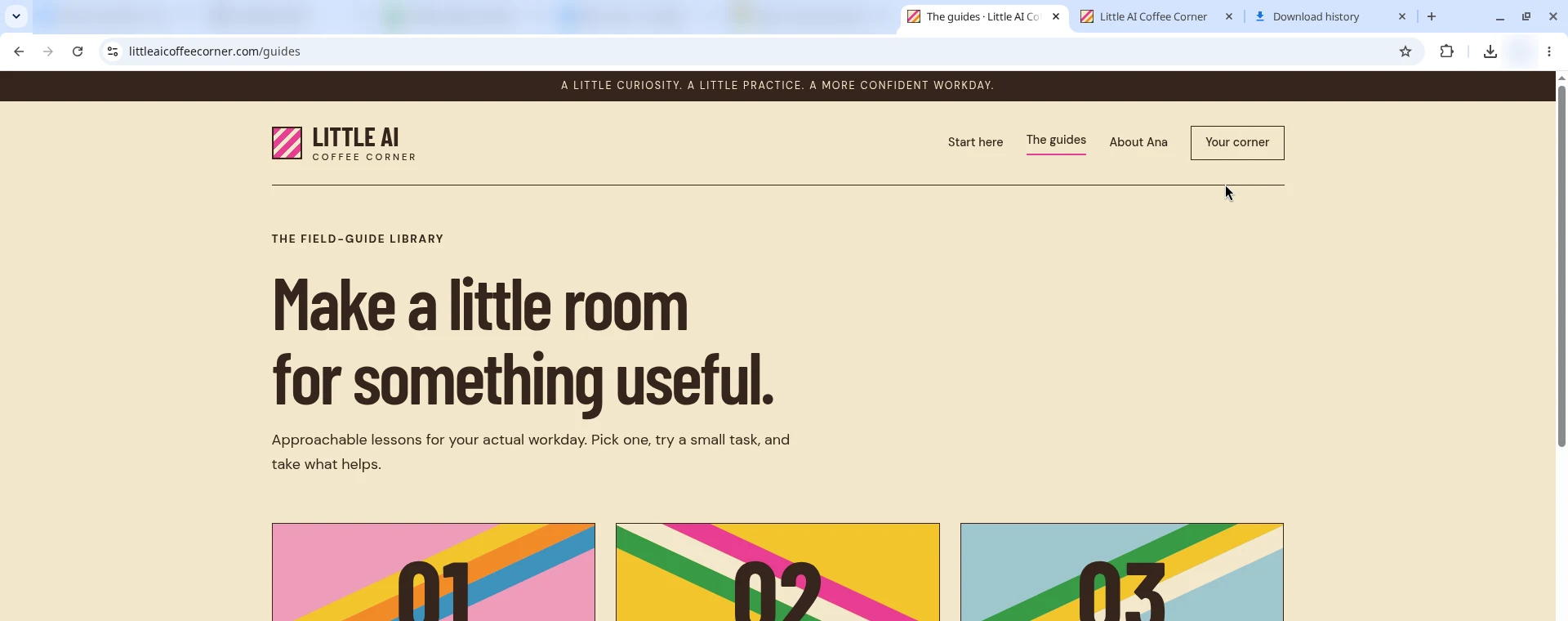
The last tab is gone from the row of tabs, and Chrome shows another one (the guides page, for us). Be careful with Ctrl+Shift+W, which closes the whole window and every tab in it.
6. Bring it back with Ctrl+Shift+T
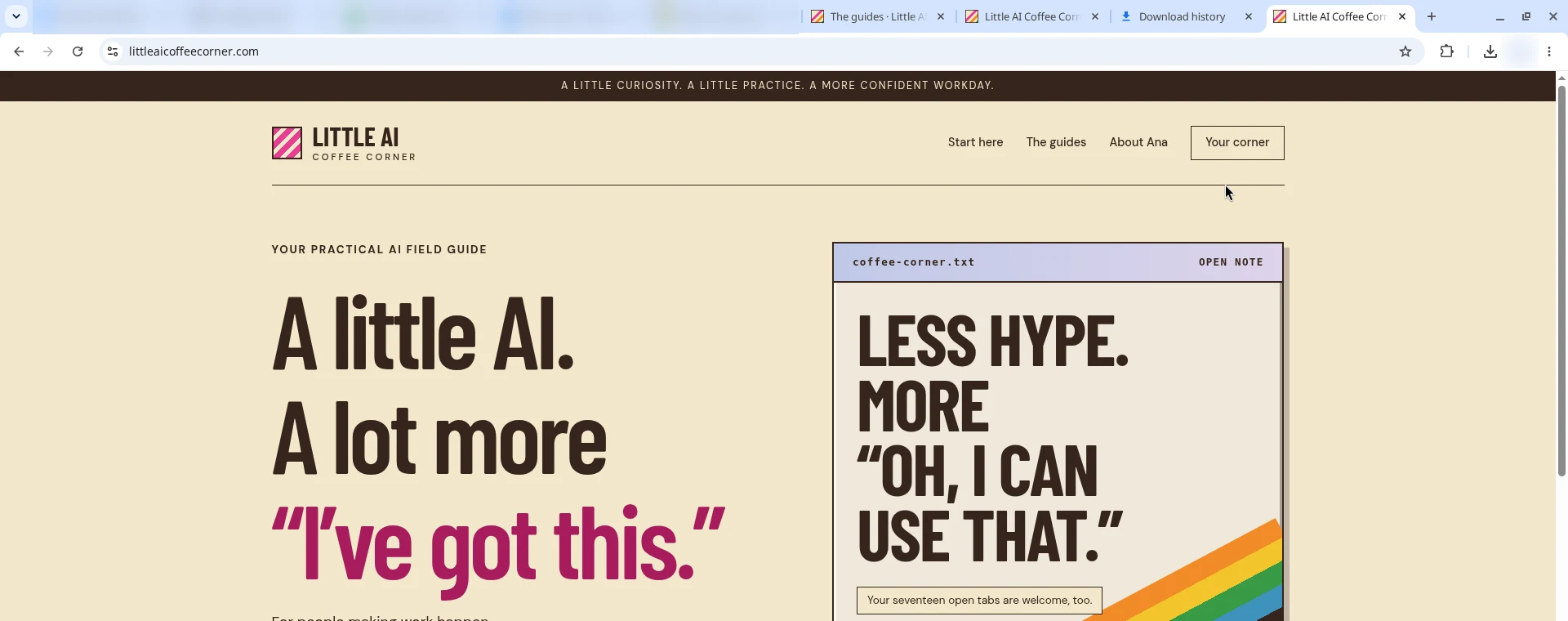
If you closed the wrong one, press Ctrl+Shift+T. The tab comes back at the end of the row of tabs, right where it was. Press it again and the one you closed before that comes back too, in the order you closed them.
Part 4: Copy and paste without the mess (Ctrl+C, Ctrl+V, Ctrl+Z, Ctrl+Shift+V)
7. Select it all, copy it
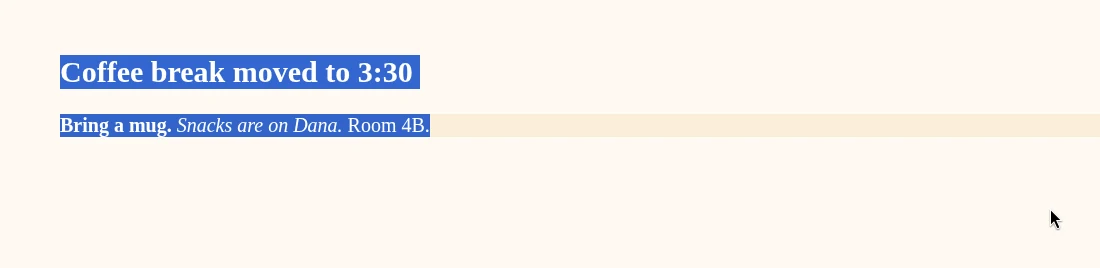
On any web page, Ctrl+A selects everything, or drag over just the part you want. Then Ctrl+C copies it. Nothing seems to happen, which is normal.
8. Paste with Ctrl+V (and see what comes along)
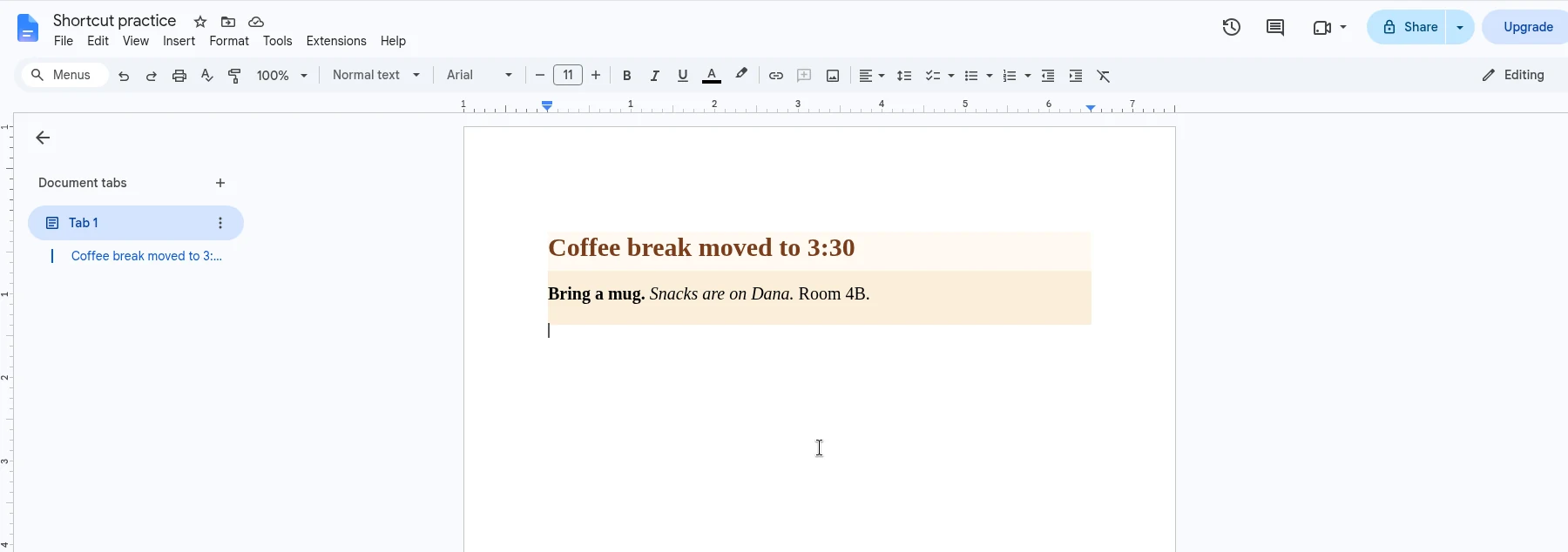
Click where you want it (here, a new Google Doc) and press Ctrl+V. The words arrive along with the web page’s styling: a brown heading in a different font and a coloured background behind the paragraph. Now your document looks like a ransom note.
9. Undo it with Ctrl+Z
Press Ctrl+Z. One press took the whole paste back out. Ctrl+Z undoes your last change in nearly every program, so try it first after any “what did I just do”.
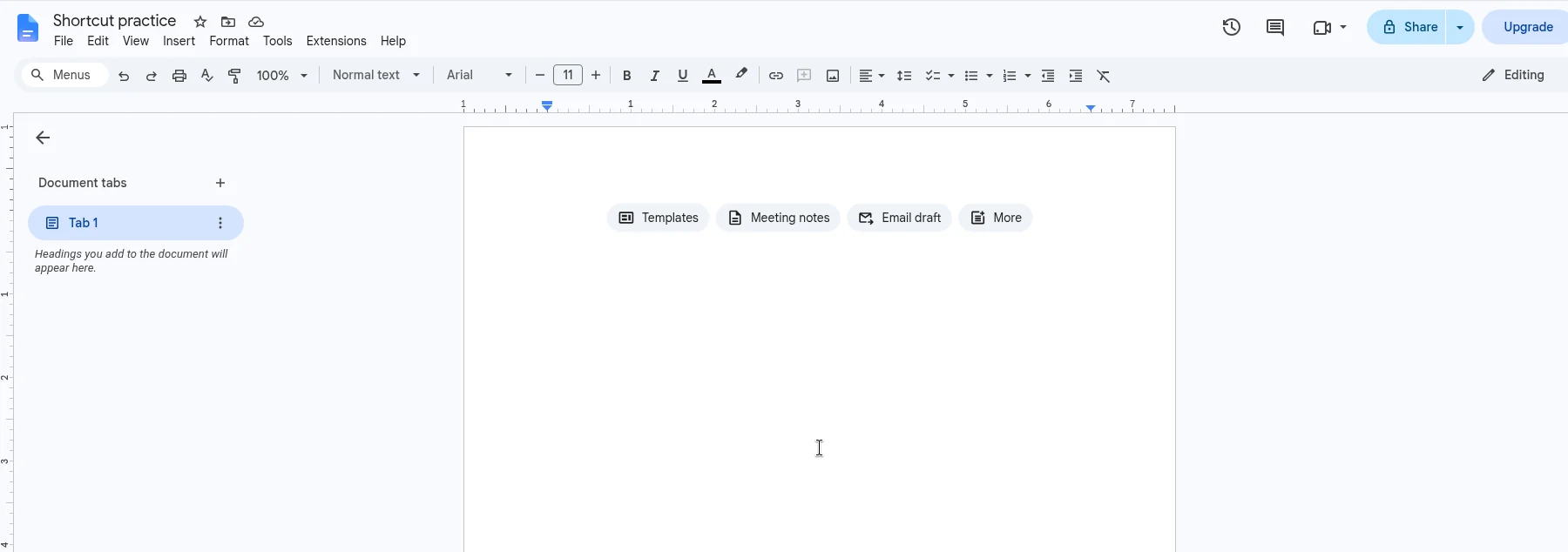
10. Paste plain with Ctrl+Shift+V
Now press Ctrl+Shift+V, which Google calls “Paste without formatting”. The same words arrive in the document’s own plain text, Arial 11 here, with no brown and no shading.
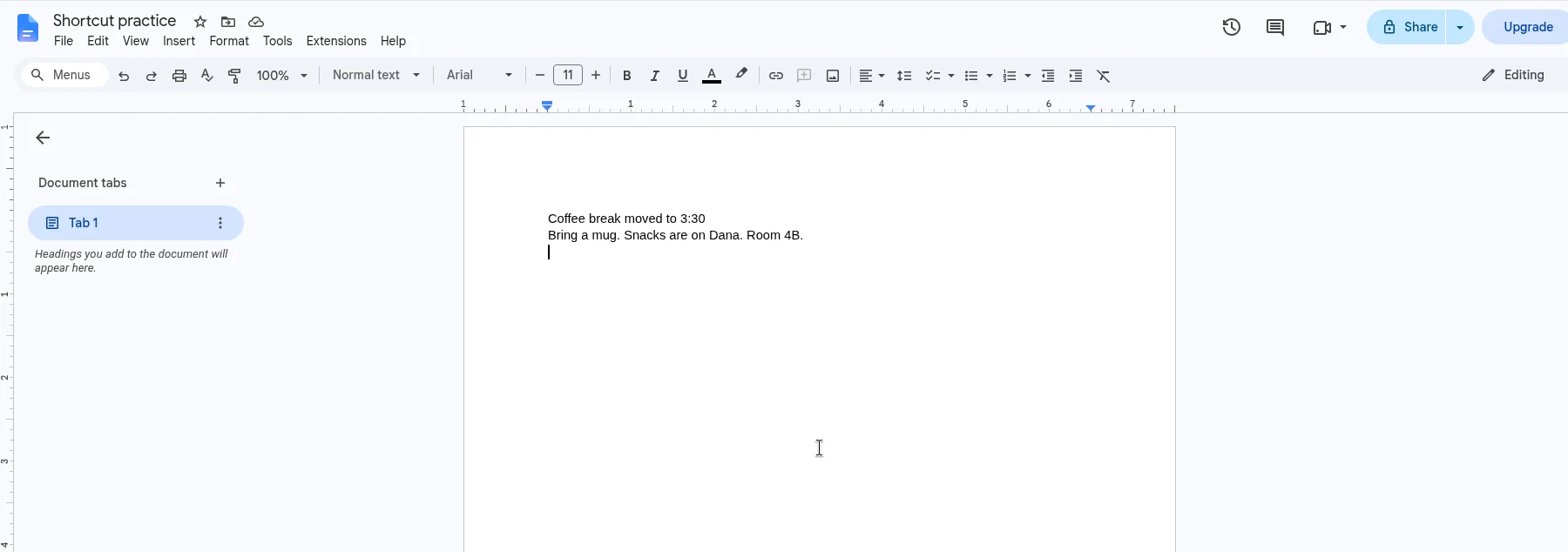
Plain really means plain, though. The bold on “Bring a mug.” and the italics on “Snacks are on Dana.” went too. If you need those, add them back, or use Ctrl+V and fix the rest.
Part 5: Where did my download go? (Ctrl+J)
11. Open Download history with Ctrl+J
Press Ctrl+J and Chrome opens Download history in a new tab, newest first. Click a file name to open it, or the folder icon to see where it’s saved. Ours still had the PDFs from Lesson 15, “(1)” and all.
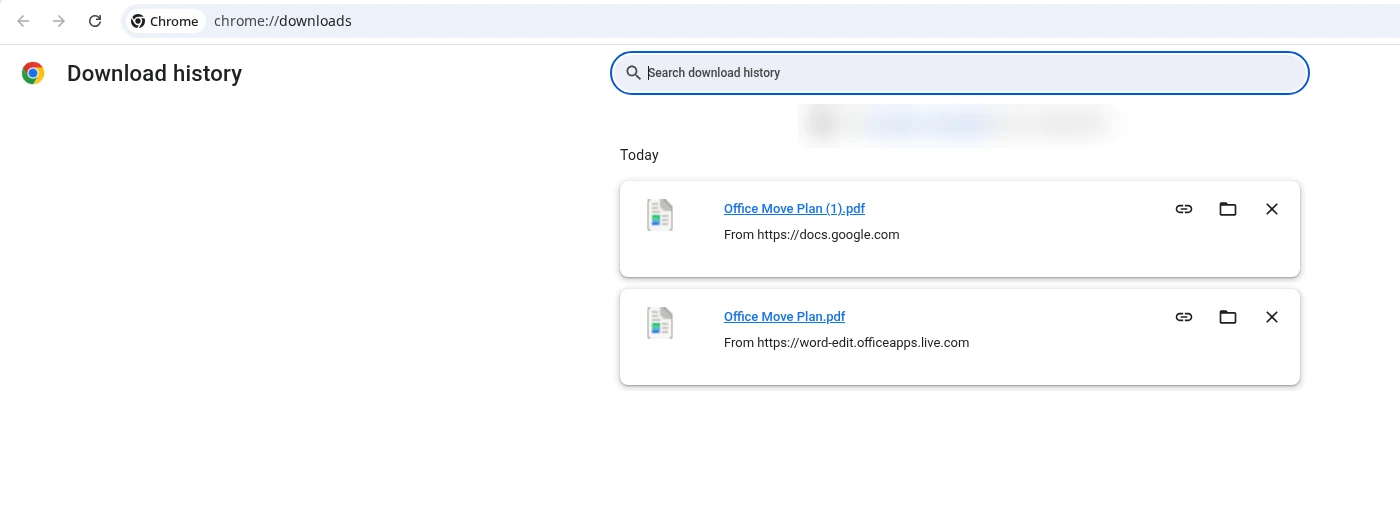
The X removes a file from Chrome’s list. We didn’t test whether it touches the file itself, so don’t use it as a delete button.
Part 6: Type a new address (Ctrl+L)
12. Jump to the address bar with Ctrl+L
Press Ctrl+L and the whole web address at the top is selected in blue. Type a new address or a search and press Enter, without deleting the old one letter by letter.

It's also handy for sharing: press Ctrl+L, then Ctrl+C, and you’ve copied the page’s link to send to someone.
Part 7: Snip part of the screen (Windows key+Shift+S)
13. Grab just the bit you need
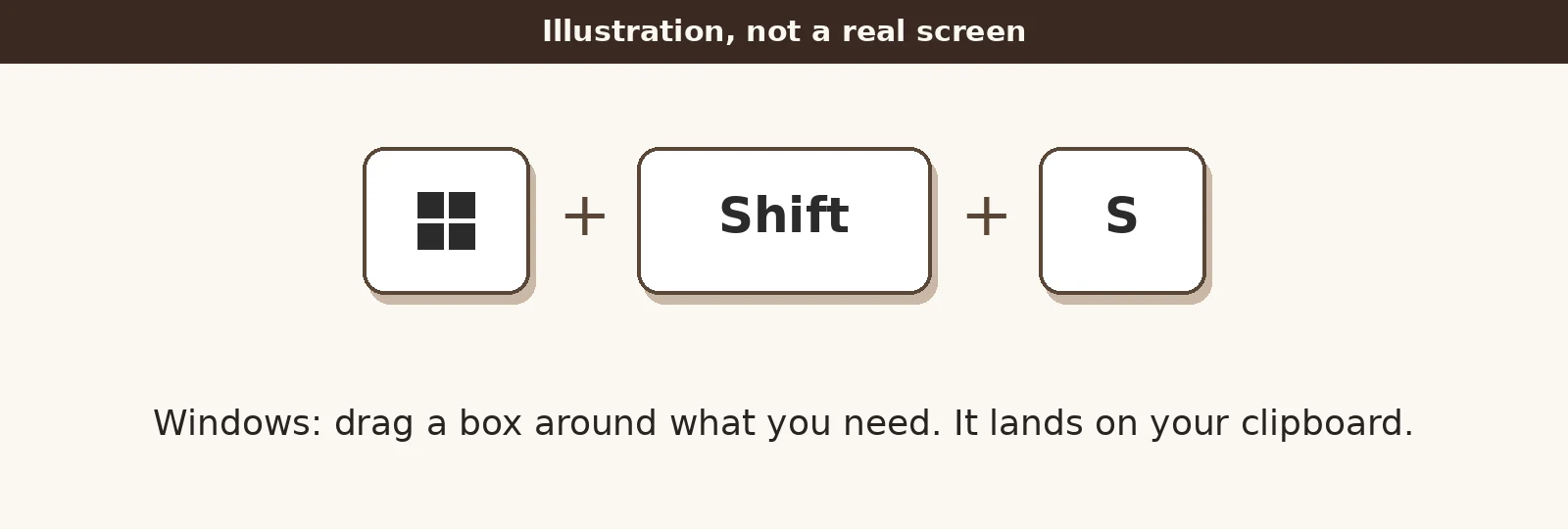
On Windows, press Windows key+Shift+S. Microsoft says the screen darkens and you drag a box over what you want. The picture goes to your clipboard, so you can Ctrl+V it straight into an email or a Teams chat. Click the notification that pops up to open the picture in Snipping Tool , where you can scribble on it and save it. That's one less “can you send me a screenshot?” email to write.
We made these screenshots on a Linux computer, which has no Windows key, so this one is a drawing, not a screenshot.
On a Mac, press Shift+Command+4, then drag. Apple says the picture is saved to your desktop. Add Control (Control+Shift+Command+4) to copy it to the clipboard instead.
On a Mac
Swap Ctrl for Command (⌘). The two exceptions are in bold.
- Find: ⌘F
- Zoom in, out, reset: ⌘ and +, ⌘ and −, ⌘0
- Close tab, bring it back: ⌘W, ⌘+Shift+T
- Select all, copy, paste, undo: ⌘A, ⌘C, ⌘V, ⌘Z
- Paste without formatting (Google Docs): ⌘+Shift+V
- Downloads in Chrome: ⌘+Shift+J (not ⌘J)
- Address bar: ⌘L
- Snip part of the screen: Shift+⌘+4
At work
Edge. If your company uses Microsoft Edge, these all work the same: Ctrl+F, Ctrl and plus or minus, Ctrl+0, Ctrl+W, Ctrl+Shift+T, Ctrl+J and Ctrl+L. Edge also lists Ctrl+Shift+V as “Paste without formatting” on web pages. To make every site bigger in Edge, Microsoft says to go to Settings and more (…) › Settings › Accessibility › Page zoom, where Zoom levels lists the sites you’ve zoomed one by one.
Word and Outlook on your work computer. In current Microsoft 365 Word, Ctrl+Shift+V is “Paste text only”, the same idea as in Google Docs. Older versions may not have it, so paste with Ctrl+V, click the small Paste Options button that appears (or press Ctrl), and pick Keep Text Only. Do the same in classic Outlook. Microsoft’s Outlook shortcut lists don’t give Ctrl+Shift+V for plain pasting, and in the message list it moves an email to a folder, which is very Outlook of it.
Eyes tired everywhere, not just in the browser? Windows has Magnifier. Windows key + plus turns it on and zooms in, Windows key + minus zooms out, and Windows key+Esc turns it off. It enlarges the whole screen, Outlook and Teams included.
Company-managed browsers. Our test browser said “Your browser is managed by your organization” (we blurred it). Google says that means an administrator can set up or restrict features. If a shortcut or Snipping Tool does nothing on your work computer, it may be switched off on purpose, so check with IT before looking for a way around it.
Check that it worked
- Ctrl+F found your word and showed a count like 1/9.
- Ctrl and plus made the page bigger, and Ctrl+0 put it back to 100%.
- Ctrl+W closed a tab and Ctrl+Shift+T brought it back.
- Ctrl+Shift+V pasted words that look like the rest of your document.
- Ctrl+J showed your recent downloads.
- Ctrl+L selected the address so you could type over it.
- Windows key+Shift+S (or Shift+⌘+4) let you drag a box and paste the picture somewhere.
Let’s learn together.
Comments are reviewed by Ana before they appear. Please use fictional examples and leave workplace details out.
Loading approved comments…