Turn anything into a PDF (and find where it went)
Save a web page, a Word document or a Google Doc as a PDF, read where it's going before you click Save, and find it again with Ctrl+J.
Step 8 of 11 in Get your computer ready first (Path 01)
Heads up: these screenshots use Chrome on a computer, with a personal Microsoft account (Word for the web) and a personal Google account (Google Docs).
Someone asks for “a PDF of that”, and what you have is a web page, a Word document or a Google Doc. Your browser, Word and Google Docs can all make one without extra software. We’ll do all three and then find the files, since making the PDF is the easy half.
Before you start
Heads up: these screenshots use Chrome on a computer, with a personal Microsoft account (Word for the web) and a personal Google account (Google Docs). No subscription. At work, downloads may be limited; those steps have At work notes from Microsoft’s and Google’s help pages, not screenshots.
Shortcuts are Windows first, Mac in brackets. Screenshots are from October 26–27, 2026, with addresses, account pictures and test-computer folder names blurred.
Part 1: Any web page, from Chrome
1. Open the page and press Ctrl + P
Open the page you want to keep (I used our guides page) and press Ctrl + P (⌘ + P on a Mac). Yes, it's the print shortcut. The Print box opens with a preview, and mine said 3 pages.
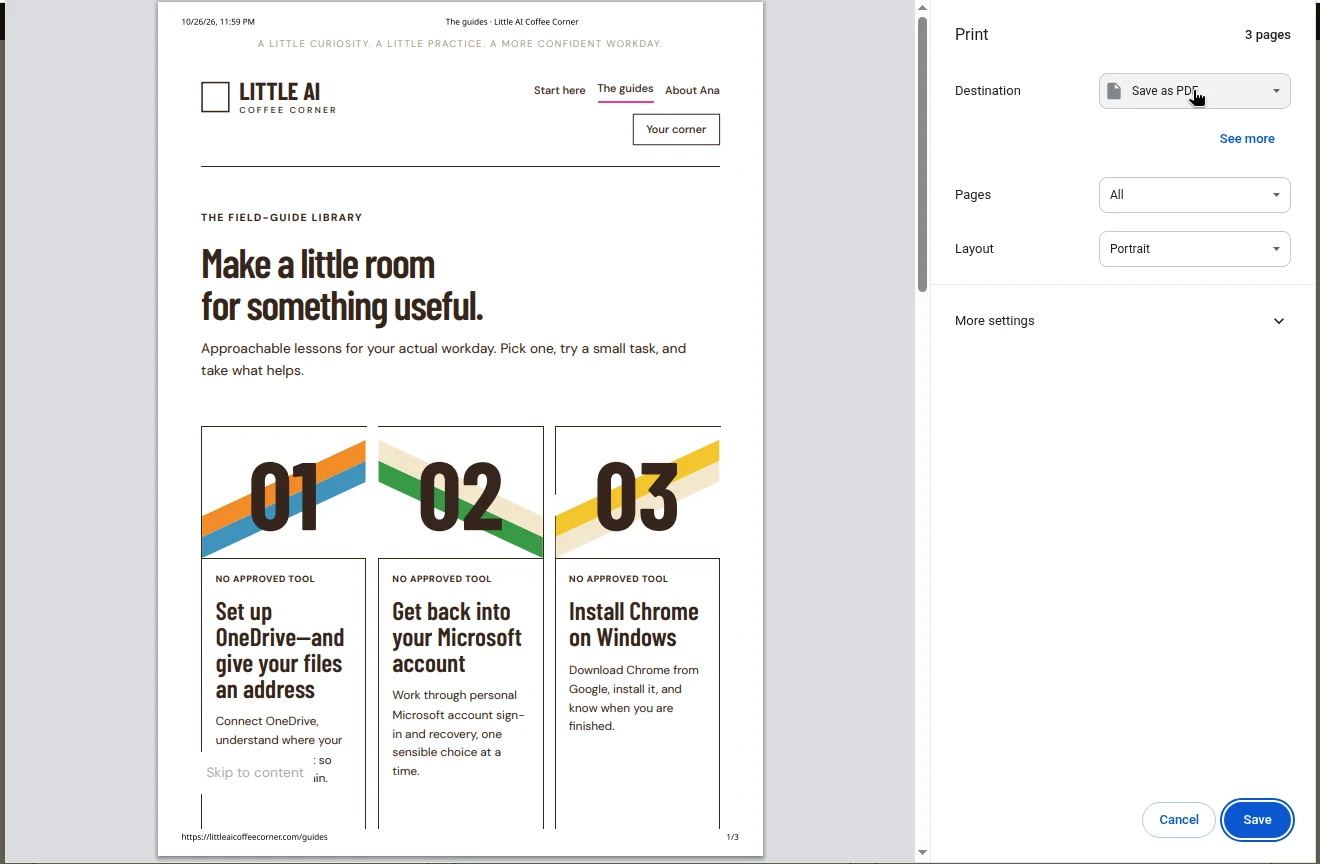
2. Set Destination to Save as PDF
Next to Destination, pick Save as PDF. That list usually has your real printers too, so check twice. The blue button now says Save; click it.
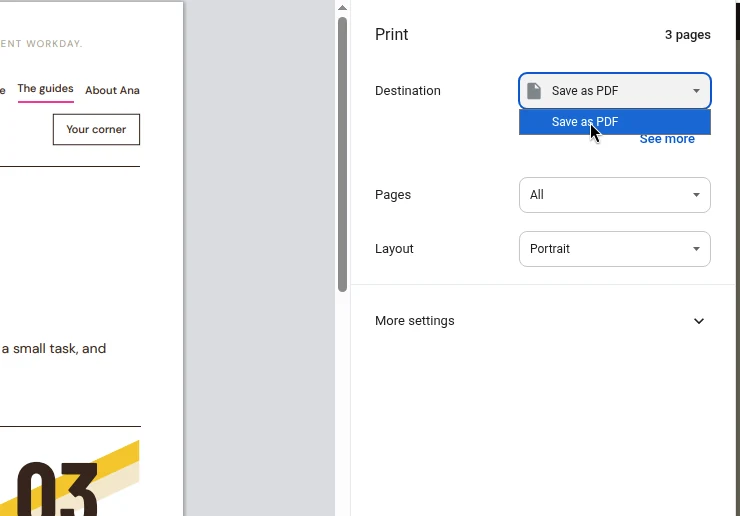
The date and web address at the top and bottom of the preview end up in the PDF too.
At work: in Microsoft Edge it’s the same idea: Ctrl + P, then pick Save as PDF in the Printer list. You may also see Microsoft Print to PDF, Windows’ own PDF printer. Either works; when one Edge version had trouble with Microsoft Print to PDF, Microsoft’s advice was to pick Save As PDF instead, so even Microsoft finds its own PDF printers confusing.
3. Read the folder name, then Save
A Save File box opens. It’s the most important screen here and the easiest to skip, so read two things:
- Name: Chrome uses the page’s title (mine was “The guides · Little AI Coffee Corner.pdf”). Rename it to something you’ll recognize next week.
- The folder: mine says Downloads, which is where the file is going.
Then click Save.
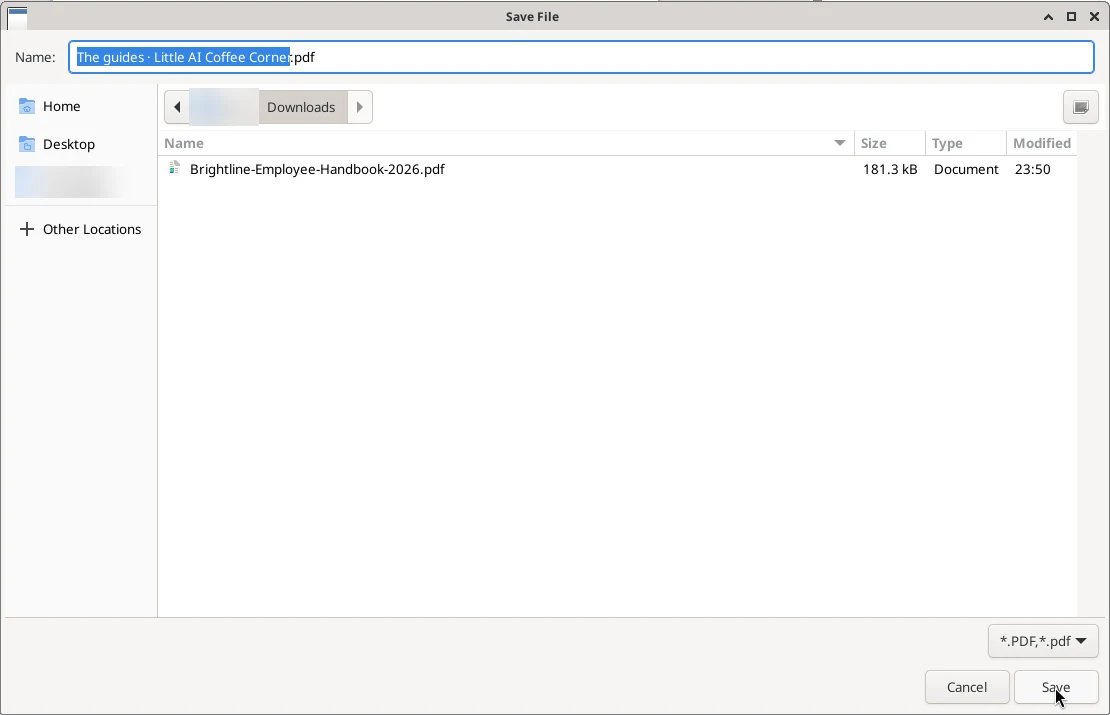
On Windows or a Mac the box looks different, but it always shows a folder, usually Downloads. If you remember one thing from this lesson, make it that.
Part 2: Word for the web
4. File, Export, Download as PDF
Here’s a three-line Word document in OneDrive, Office Move Plan. Click File, Export, Download as PDF. Download as PDF with comments includes reviewers’ comments, and Download as ODT isn’t a PDF at all.
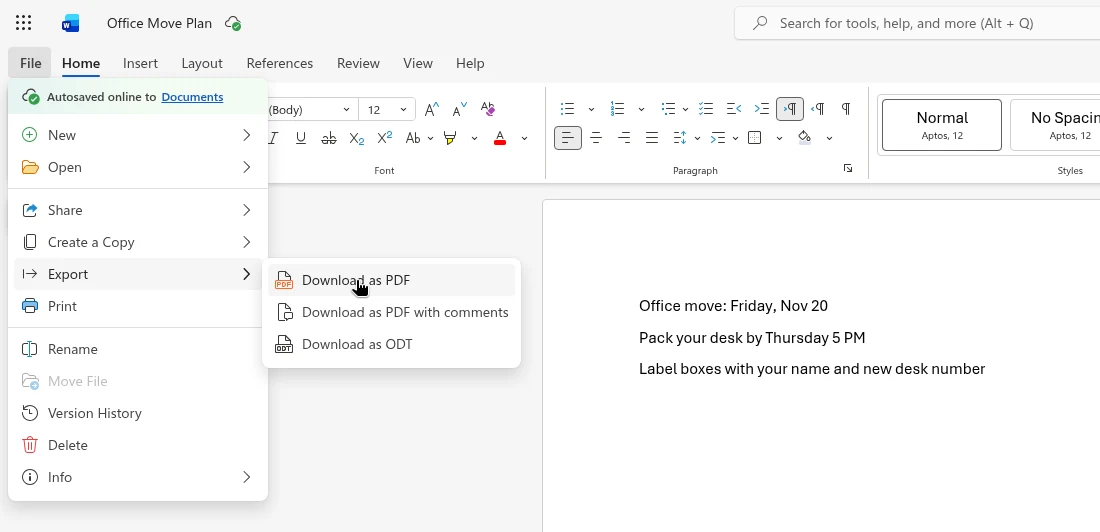
At work: Microsoft lists the same path, File, Export, Download as PDF, for Word for the web. Older guides say Save As, so look for either. In the Word desktop app, Microsoft says: File, Save a Copy (or Save As if it’s never been saved), Browse, choose PDF in the type list, Save.
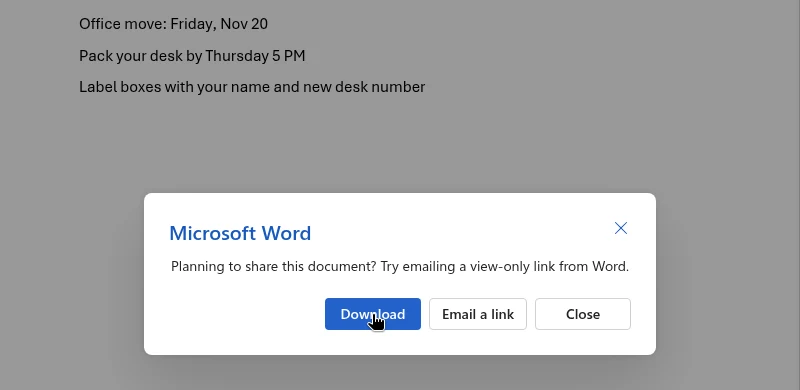
5. Click Download (not Email a link)
Word asks: “Planning to share this document? Try emailing a view-only link from Word.” Lesson 13 covers that, but today we want the file, so click Download.
6. Look at the top right
There's no Save box this time. A bubble appears under the download arrow at the top right: Office Move Plan.pdf, 17.0 KB, Done. It's already saved; click the name if you want to open it.
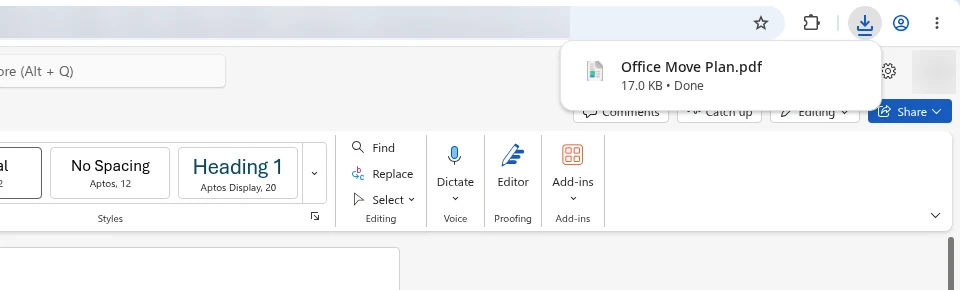
That's usually Downloads, and Part 4 shows how to check.
Part 3: Google Docs
7. File, Download, PDF Document (.pdf)
With the same plan as a Google Doc, click File, Download, PDF Document (.pdf), not Microsoft Word (.docx) right above it.
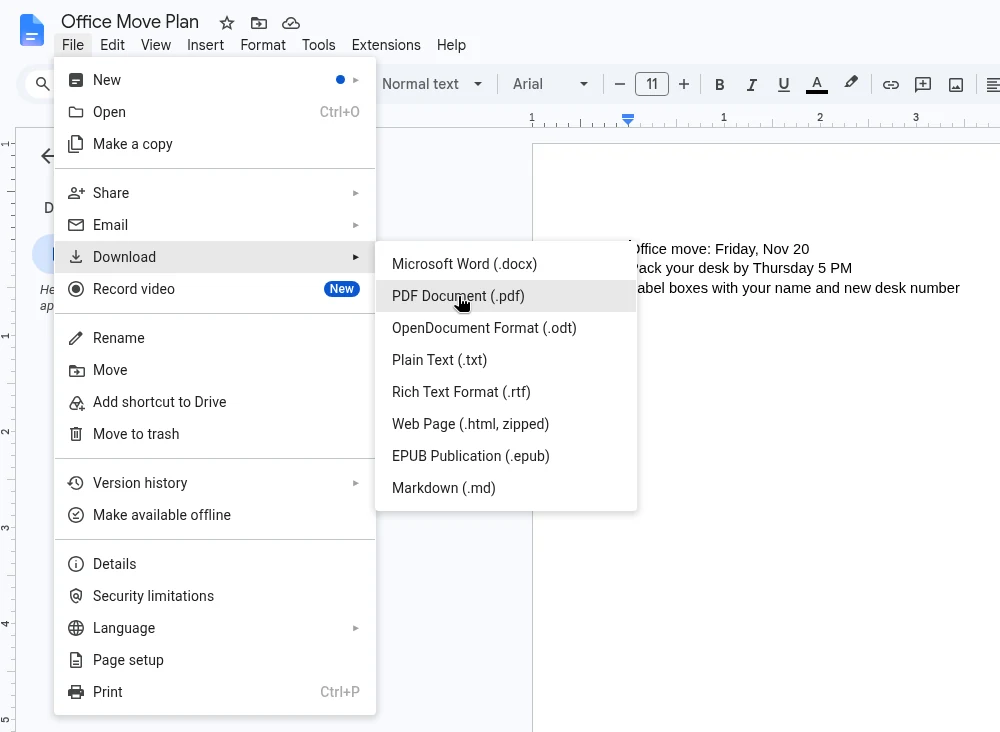
For a very large document, Google suggests File, Print, Save as PDF instead, like Part 1.
At work: Google Workspace accounts use the same File, Download menu. If Download is greyed out or missing, the file’s owner or your admin has turned it off (see At work below).
8. Meet “(1)”
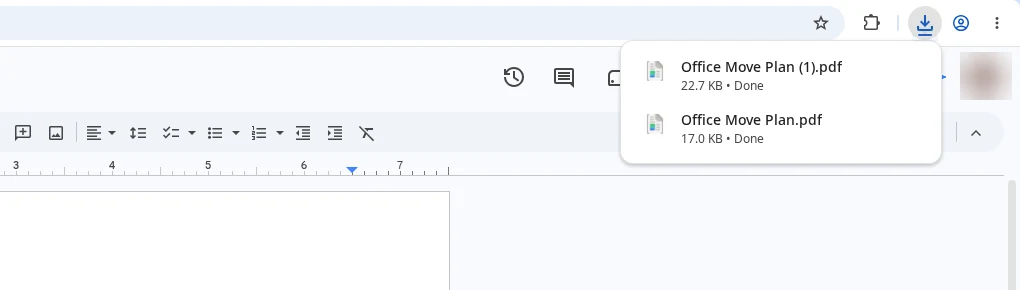
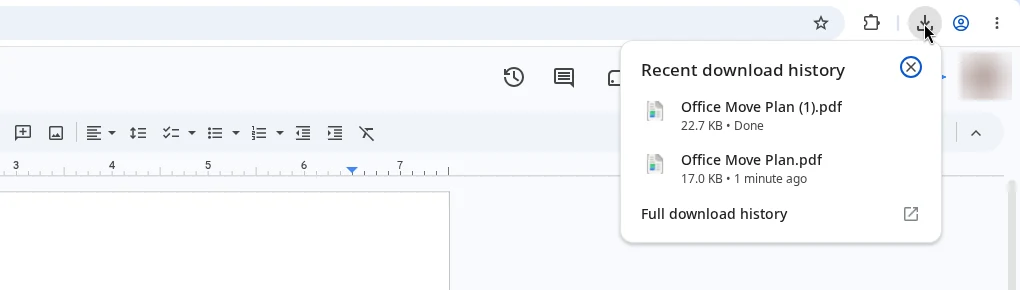
The bubble now shows two files: Office Move Plan (1).pdf (from Google Docs) and Office Move Plan.pdf (from Word).
Both PDFs wanted the same name, so Chrome added (1) to the new one instead of replacing the one already in Downloads. Nothing is wrong, and it's how every “FINAL (2)” in your office was born. Rename the one you keep and delete the extras.
9. Missed the bubble? Click the download arrow
The bubble disappears after a few seconds. Click the download arrow to bring back Recent download history; Full download history opens the full list.
Part 4: Find where it went
10. Press Ctrl + J for the full list
Press Ctrl + J (⌘ + Shift + J on a Mac), or choose Downloads in Chrome’s ⋮ menu. Download history lists each download and where it came from.
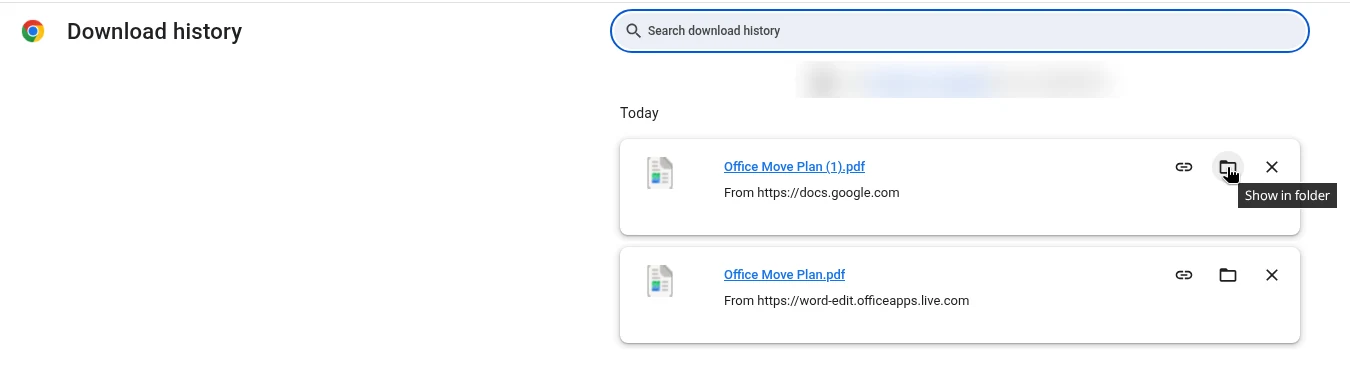
The web page PDF from Part 1 isn't on this list, even though it's in Downloads, because Chrome doesn’t count a PDF saved from the Print box as a download. For those, the folder name in step 3 is your only clue.
The folder icon is Show in folder. It opens the folder in File Explorer on Windows or Finder on a Mac, where you can drag the file into an email. On my test computer it did nothing, since it has no file window to open, but yours will.
You can also skip Chrome: its help says downloads go to the Downloads folder in your user folder unless you changed it. On Windows, open File Explorer and click Downloads.
11. Open it and check it
Click the file name. Mine opened in Chrome’s PDF viewer, 1 / 1, with the three lines, and the address bar even says Downloads.
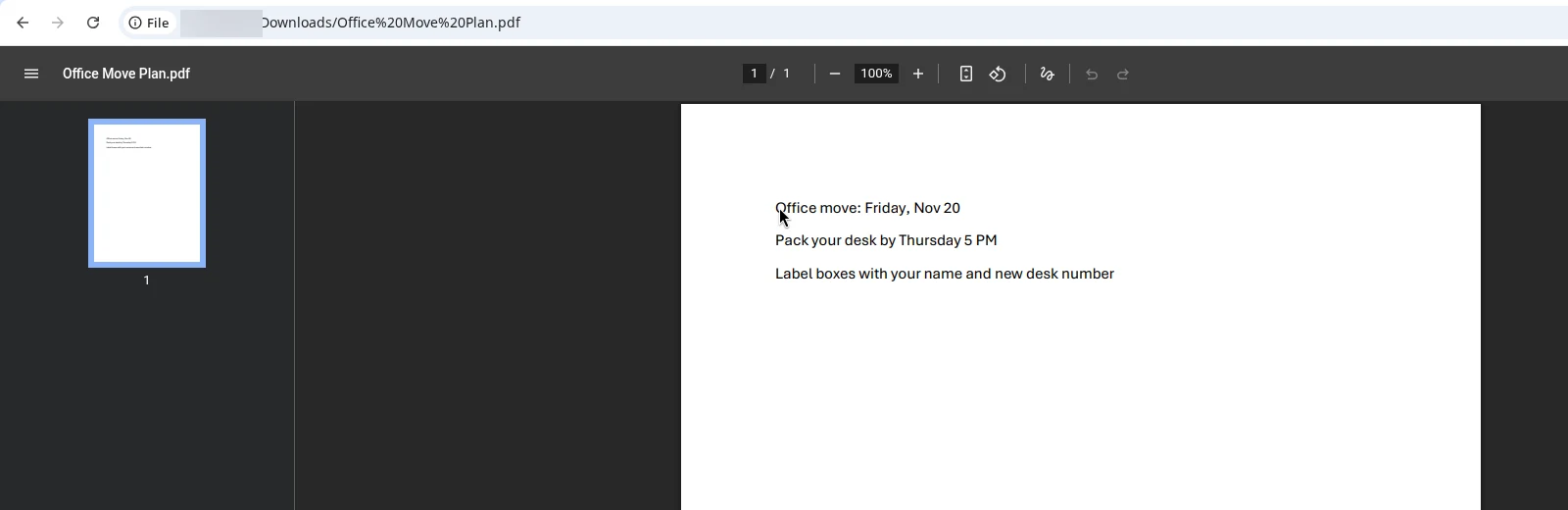
Yours might open in Edge, Acrobat or Preview instead. Before you send it, check the pages are right, nothing is cut off and there are no stray comments.
One more thing from Microsoft: “Simply sharing something as a PDF is not sufficient to guarantee the recipient can’t edit the file.” A PDF isn't a lock.
At work
Downloads can be switched off. On some company SharePoint sites and OneDrive folders, admins block downloading and printing. Microsoft says you’ll then see: “Your organization doesn’t allow you to download, print, or sync from this site. For help, contact your IT department.” In Google Workspace, admins can turn off download, print and copy, and a file’s owner can untick “Viewers and commenters can see the option to download, print, and copy” for one file.
Confidential files may refuse. If a sensitivity label encrypts a document, Microsoft says printing, downloading and exporting aren’t supported in Word for the web.
Teams files. Microsoft says you can download them with More actions, Download, depending on the owner’s permissions. The Teams desktop app has its own download folder, under Settings, Files and links.
Your download folder may differ. It can be changed in browser settings, and Ctrl + J and Show in folder will still find it.
If the option is missing or greyed out, it’s probably on purpose, so check with IT rather than working around it.
Check that it worked
- You know which folder each PDF went to (it’s usually Downloads).
- The web page PDF is where the Save box said, even though it’s not in Chrome’s download list.
- Any extra “(1)” copies are renamed or deleted.
- The PDF opens and looks right.
Let’s learn together.
Comments are reviewed by Ana before they appear. Please use fictional examples and leave workplace details out.
Loading approved comments…