Send the link, not the attachment (and stop getting "Request access" emails)
Share a file as a link from OneDrive or Google Docs: choose who it works for, make it view-only, test it in a private window, and turn it off when you're done.
Step 7 of 11 in Get your computer ready first (Path 01)
Heads up: these screenshots use a personal Microsoft account (OneDrive on the web) and a personal Google account (Google Docs), in Chrome on a computer. No subscription.
You attach the office move plan to an email, someone fixes a typo and sends it back, and someone else replies to the old one. By Thursday there are four versions, one called “FINAL (2)”, and nobody knows which day the movers come. With a link, everyone opens the same file and sees the latest version.
The catch is choosing who the link works for and what they can do. Get it wrong and you'll either get “Request access” emails all morning or let the whole internet edit your plan. We’ll share one document from OneDrive and Google Docs, make it view-only, test it and turn it off, then cover what changes at work.
Before you start
Heads up: these screenshots use a personal Microsoft account (OneDrive on the web) and a personal Google account (Google Docs), in Chrome on a computer. No subscription. At work your company decides which options you get; those steps have an At work note, from Microsoft’s and Google’s help pages, not screenshots.
Use a private window for testing. In Chrome it’s Incognito: the ⋮ menu, New Incognito window, or Ctrl + Shift + N (⌘ + Shift + N on a Mac). In Edge it’s InPrivate: Settings and more (…), New InPrivate window. It isn’t signed in, so it sees your file the way a stranger would.
Screenshots are from 2026-10-26, with links, document IDs, my email address and account pictures blurred. Yours may not match.
Part 1: OneDrive
1. Start with the file
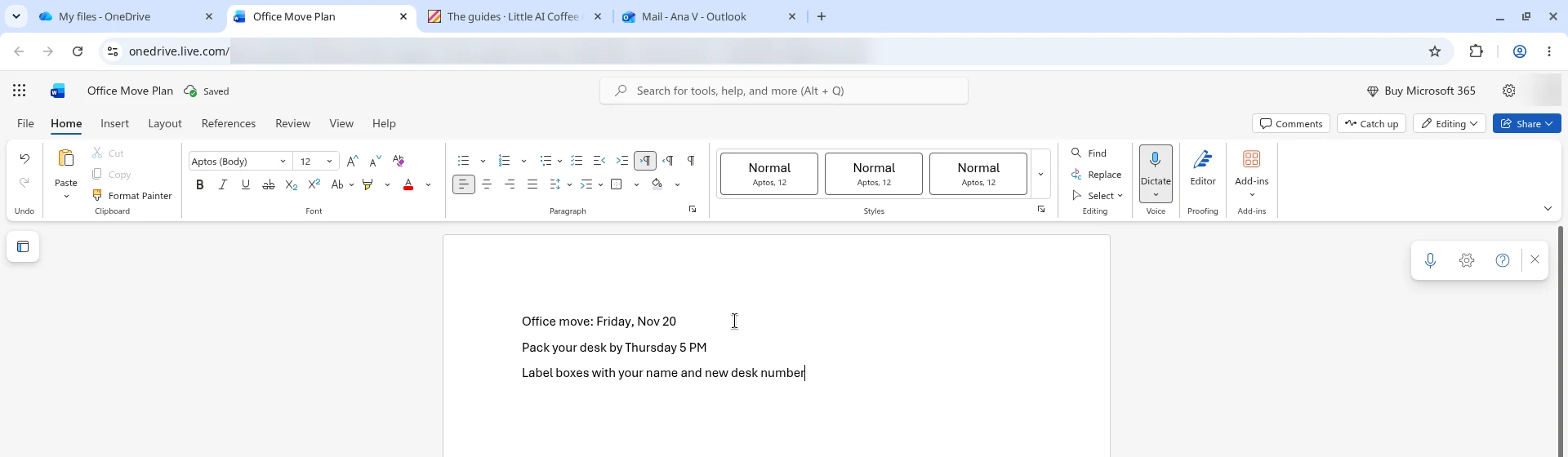
Mine is a three-line Word document in OneDrive called Office Move Plan (Create or upload, Word document, type, rename). “Saved” next to the name means Word for the web has saved it.
2. Select it and click Share
In My files, tick the circle next to the file, then click Share in the top bar. Note that the Sharing column says Private.
3. Read the small line before you click anything
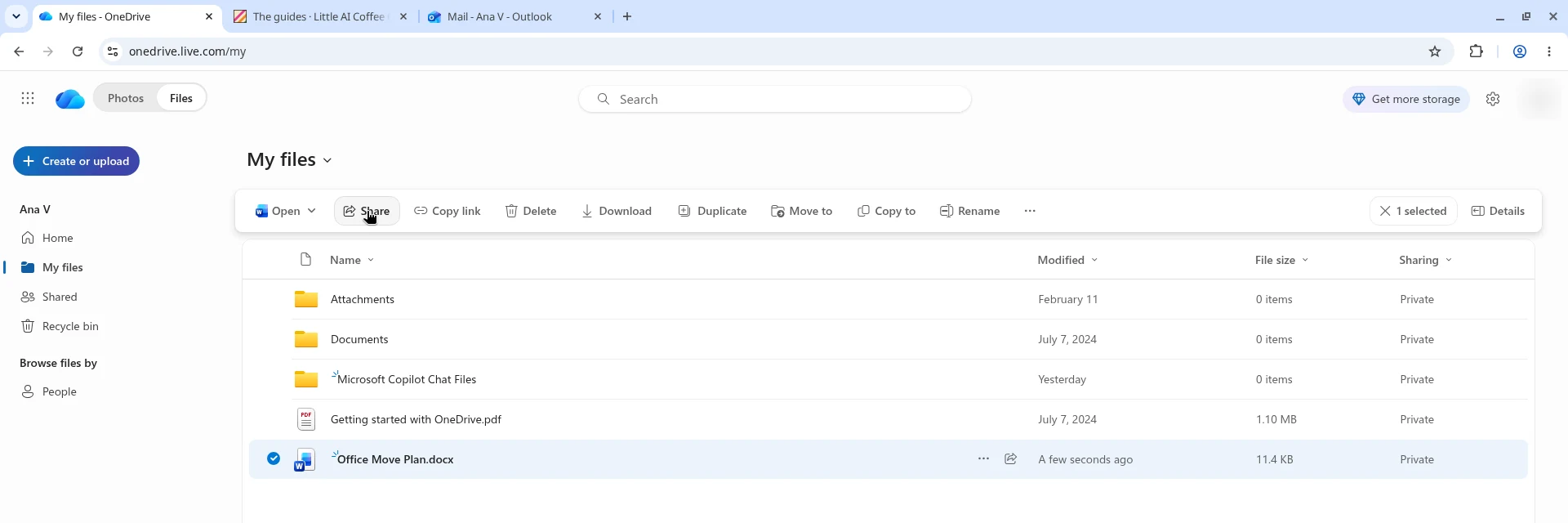
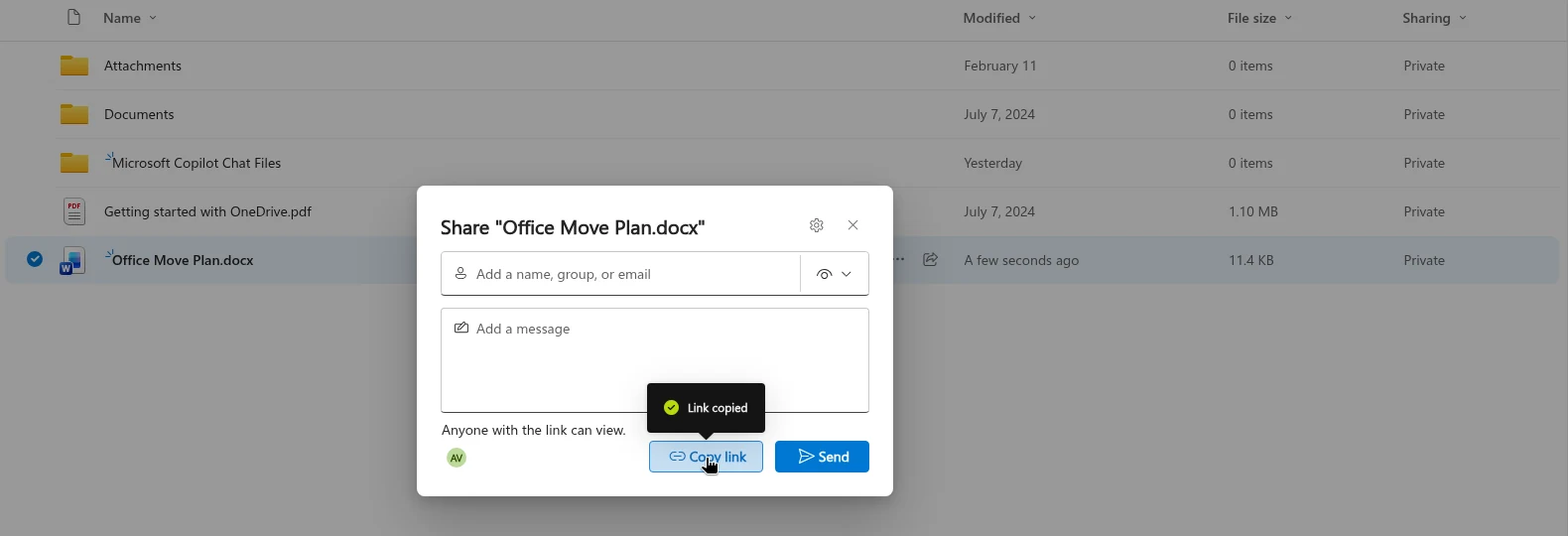
In the Share box, read the small line above Copy link first. On my brand-new file it said Anyone with the link can edit. Microsoft says editing is on by default, which is a very Microsoft choice. Copy that link now and anyone who gets it, including whoever it’s forwarded to, can change your plan.
4. Change it to view-only
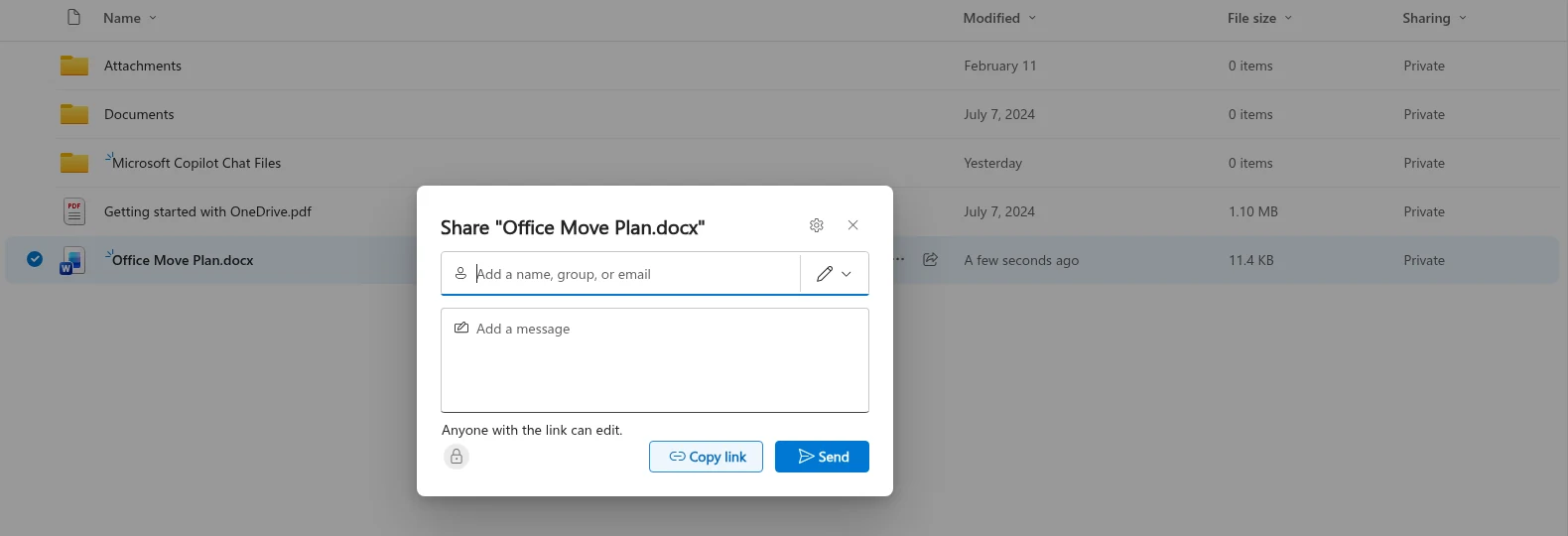
Click the gear to open Link settings. Under The link works for:
- Anyone: no sign-in needed, easiest, and it can be forwarded.
- Only people with existing access: people who can already open it.
- People you choose: only the people you name.
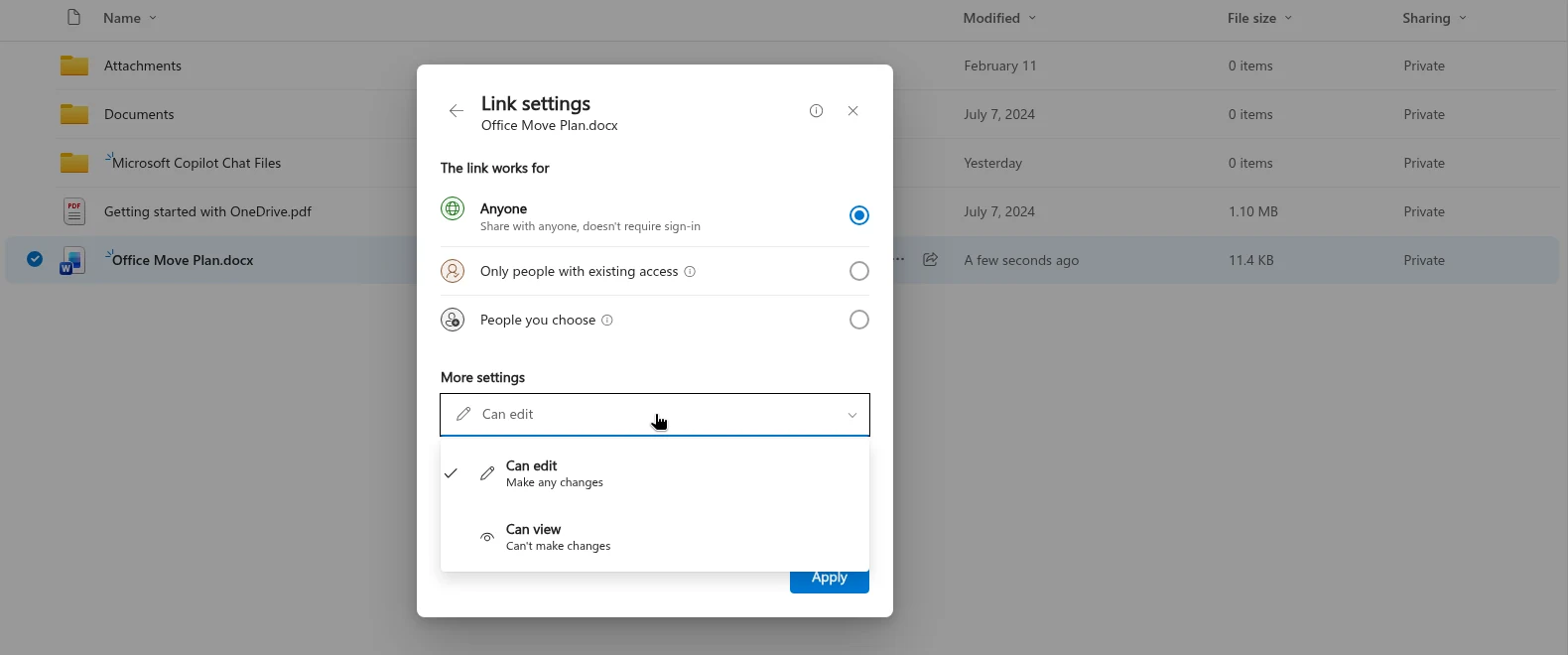
I kept Anyone, changed Can edit under More settings to Can view (“Can’t make changes”), and clicked Apply. Expiry dates and passwords need a paid Microsoft 365 plan.
At work: Microsoft lists a fourth choice, People in your company, and depending on your admin it may be the default. If Anyone is greyed out, your admins restricted it on purpose, so pick People in your company or People you choose.
5. Copy the link
The line now says Anyone with the link can view. Click Copy link and wait for Link copied.
6. Test it like a stranger
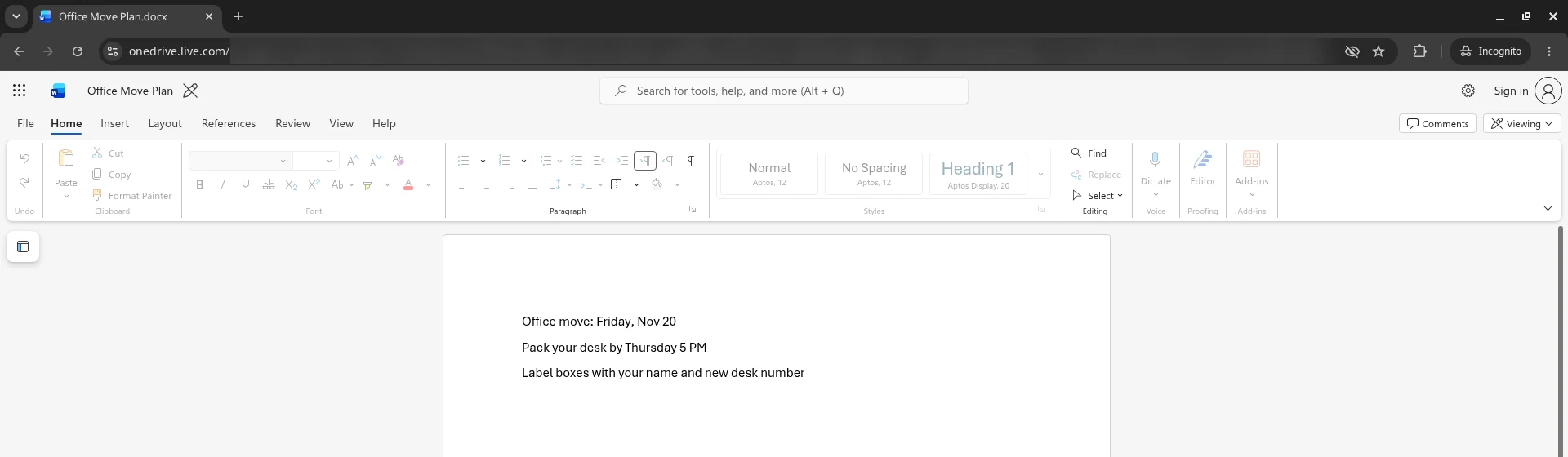
Paste the link into a private window and press Enter. Mine opened with Viewing at the top right, a Sign in button and a greyed-out toolbar. A note said “You are seeing real-time changes in view mode”, so when you fix the plan, they see the fix. If it opens and you can’t type, it worked. Close the window.
7. When you’re done, find Manage access
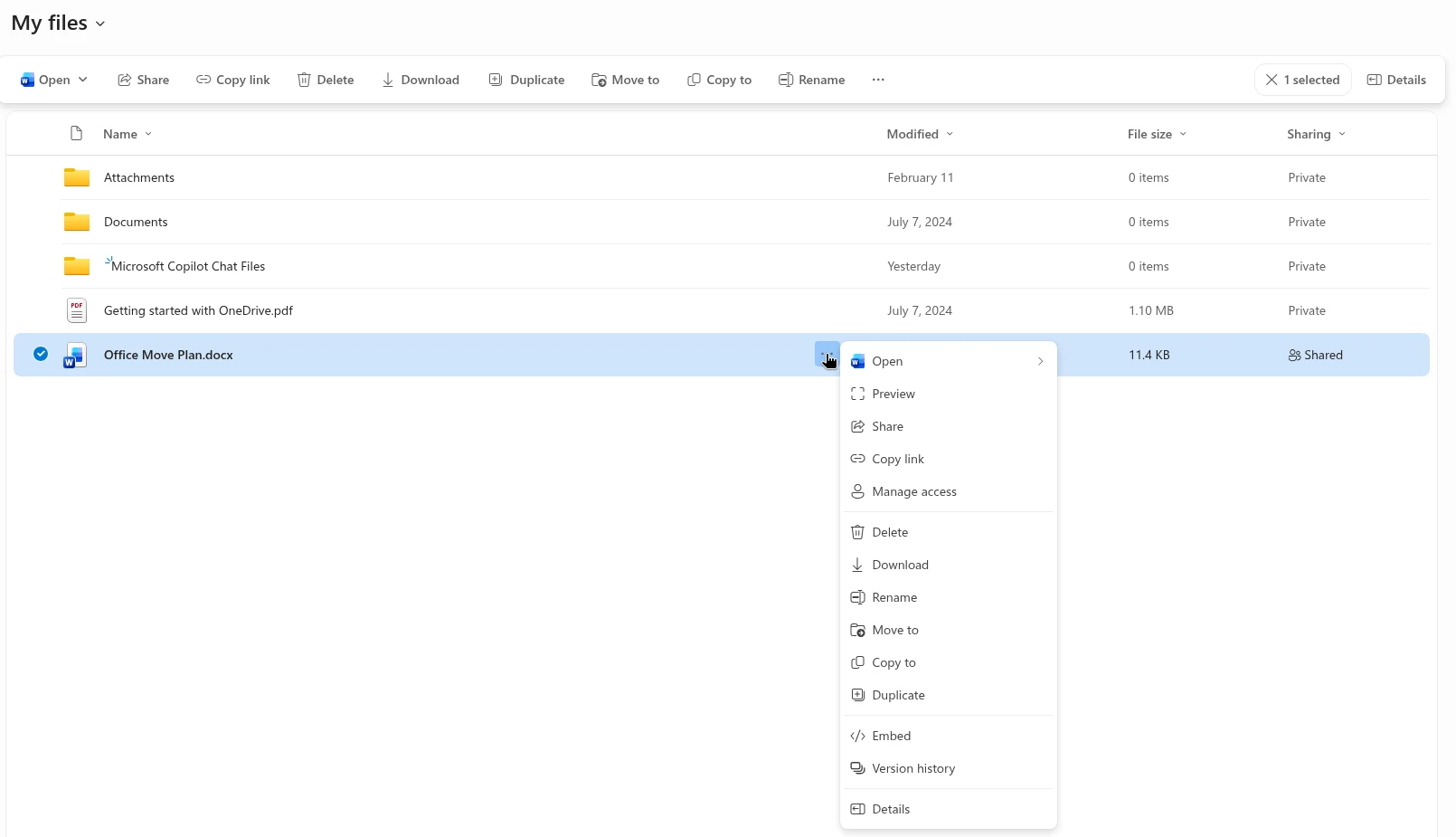
The Sharing column now says Shared. After the move, click the … next to the file name, then Manage access.
8. Delete the link
The People tab says “This file has not been shared with anyone yet”, because nobody was added by name, but the link still exists. Click the Links tab, then the bin next to “Anyone with the link can view”. A Delete link? box says “The link will not work for anyone anymore.” Click Remove.
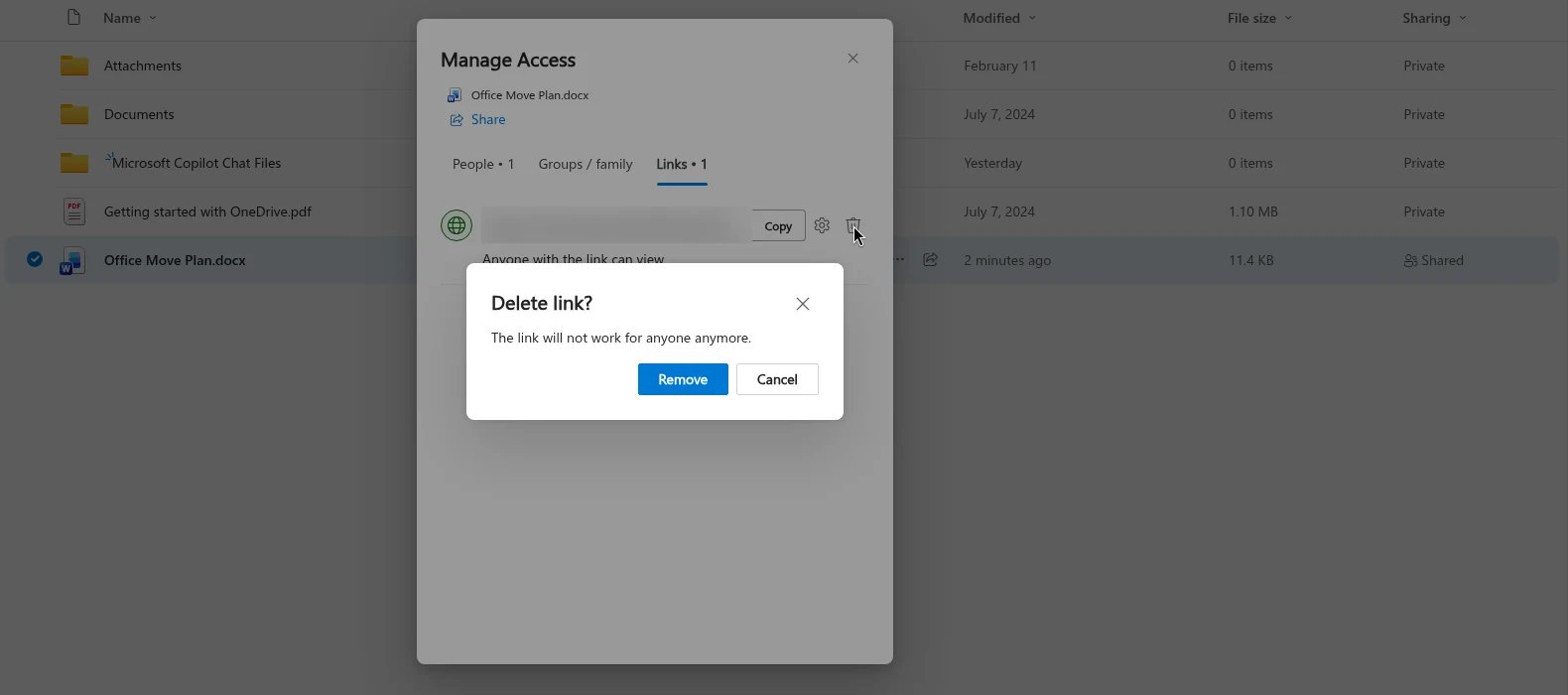
Oddly, the Sharing column still said Shared afterwards while Links said no link had been created, so trust the Links tab. Microsoft also says you can’t switch an existing link between edit and view, so delete it and make a new one.
Part 2: Google Docs
9. Click Share
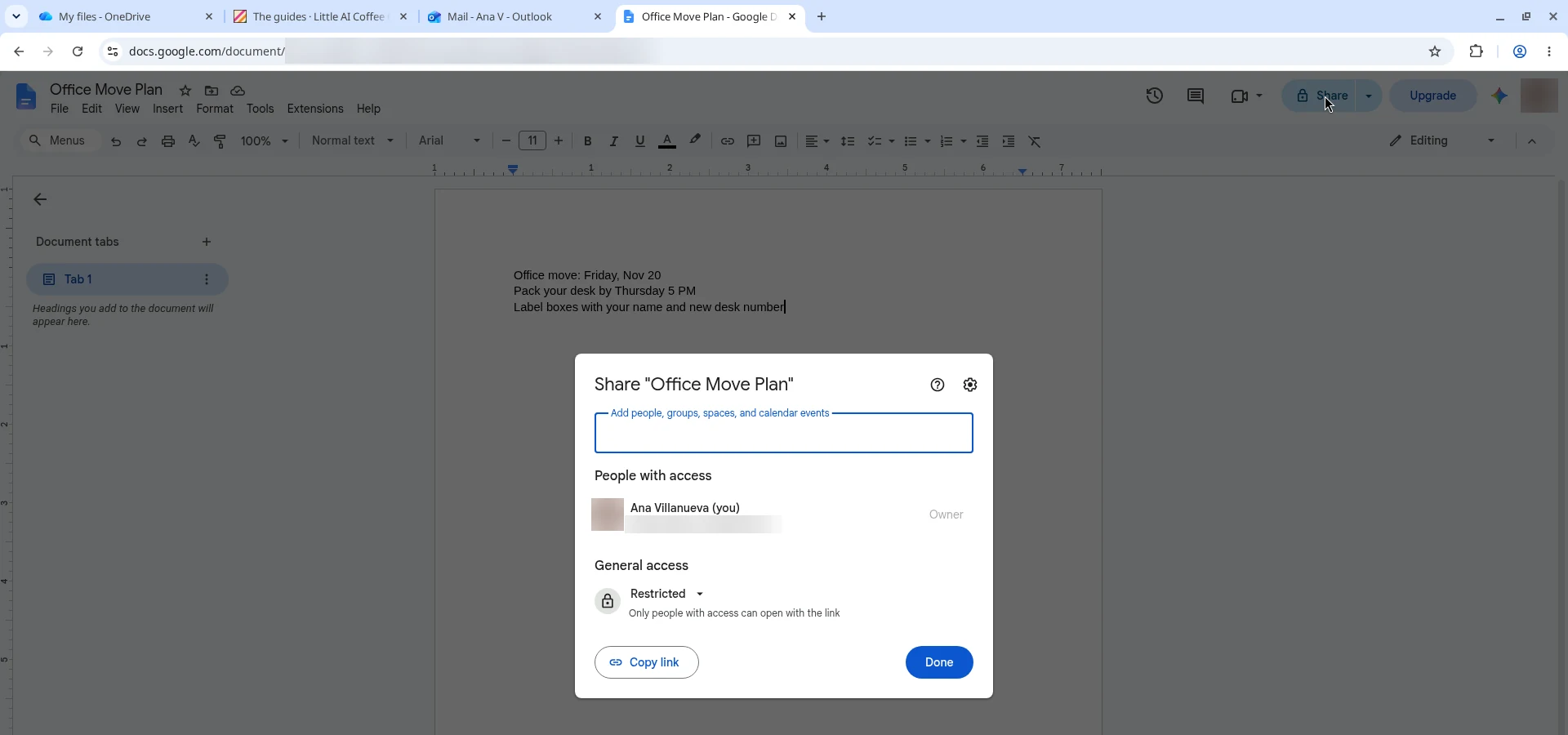
With the same three lines in a Google Doc, click Share at the top right. Google starts the other way round: People with access is just me, and General access is Restricted, “Only people with access can open with the link.”
10. See what Restricted does to everyone else
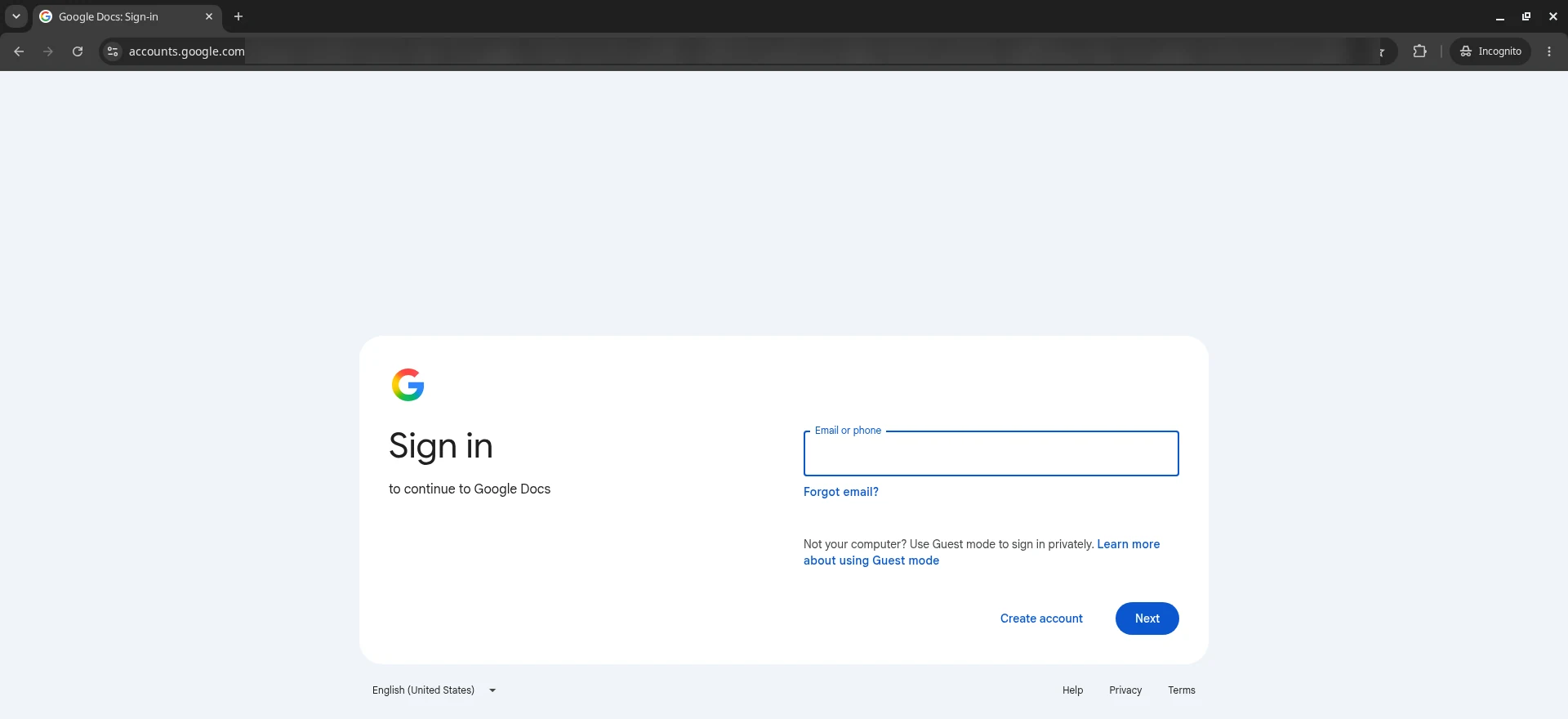
This is where the “Request access” emails come from. I opened the link in a private window while it was still Restricted and got Google’s Sign in page instead of the document.
Google says anyone signed in with an account you didn’t add sees You need access and a Request access button. You get the email and they wait, as if any of us needed more email.
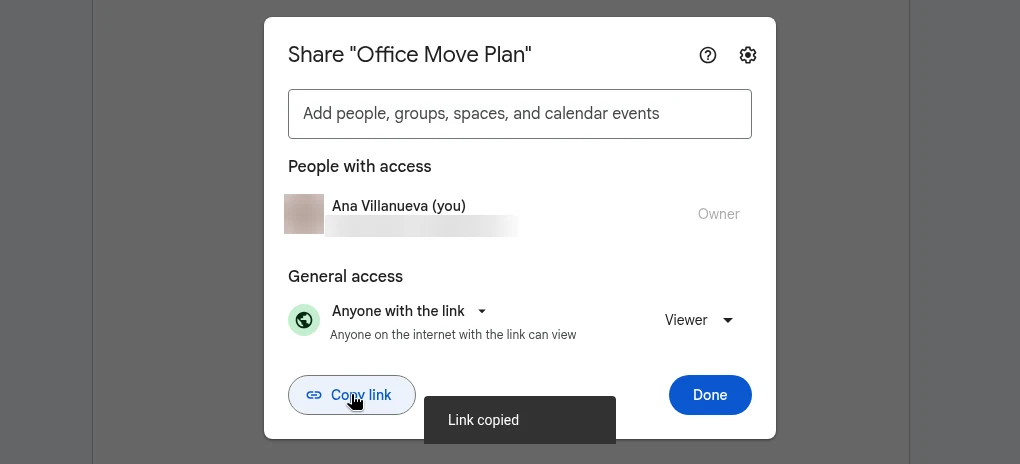
11. Choose Anyone with the link
Click the arrow next to Restricted and pick Anyone with the link, which reads “Anyone on the internet with the link can view.”
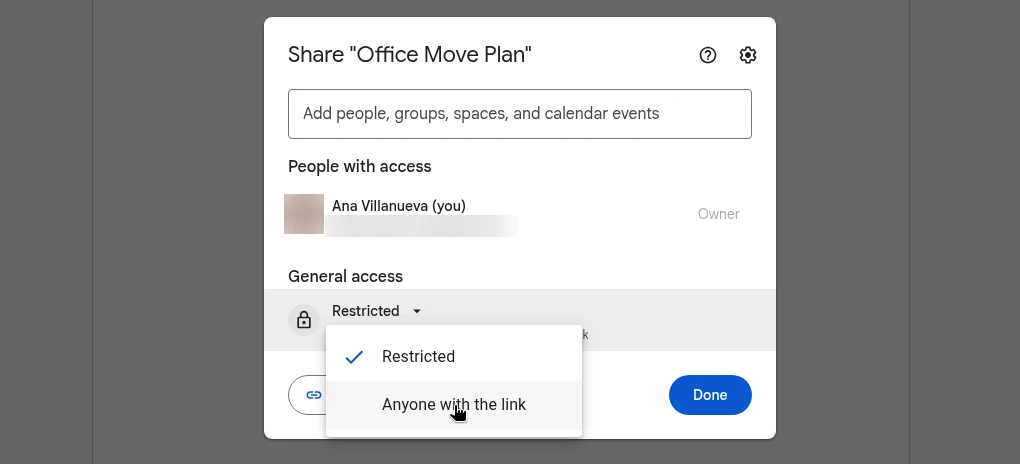
At work: Google lists a third choice with your organization’s name, for signed-in colleagues only. Your admin may also block sharing outside the company, so if an option is missing, that’s why.
12. Check the role
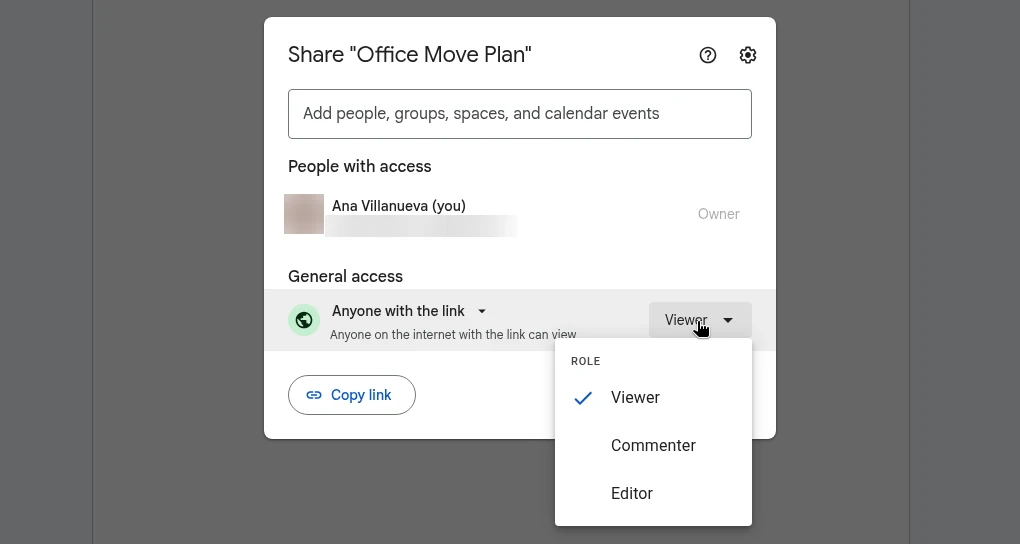
On the right is the role: Viewer, Commenter or Editor. Mine was already Viewer, which is right for a plan. Use Commenter for suggestions, and Editor only if you really want them changing it.
13. Copy link
Click Copy link, wait for Link copied, then click Done.
14. Test it again
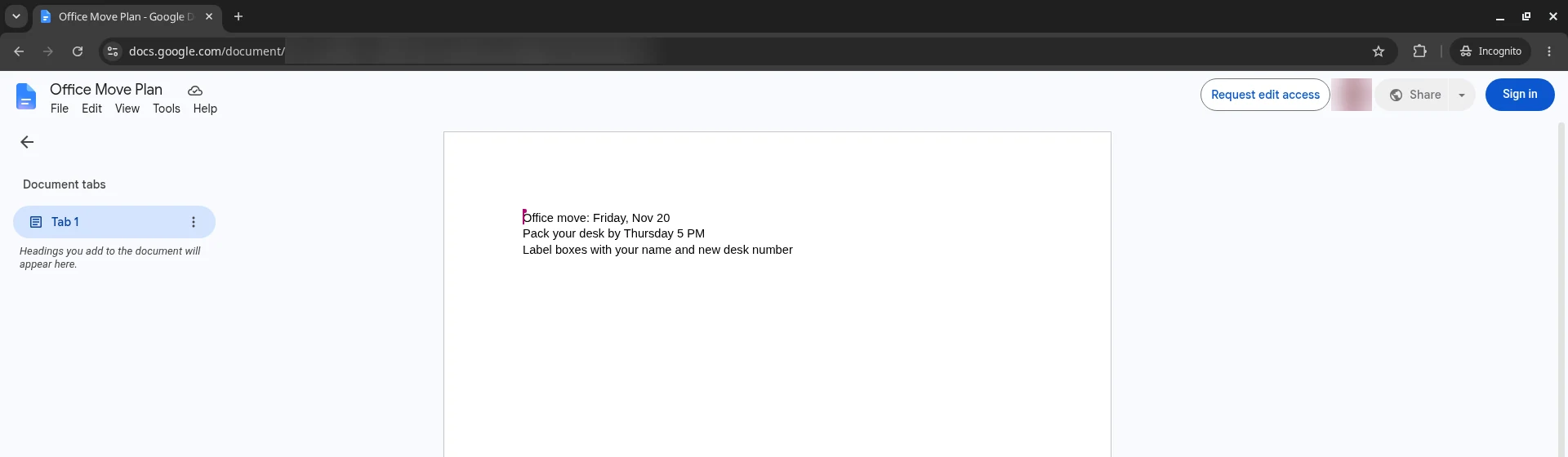
Open the link in a new private window. This time the document opens with Request edit access at the top, Share greyed out and no editing, so view-only is working.
15. Set it back to Restricted when you’re done
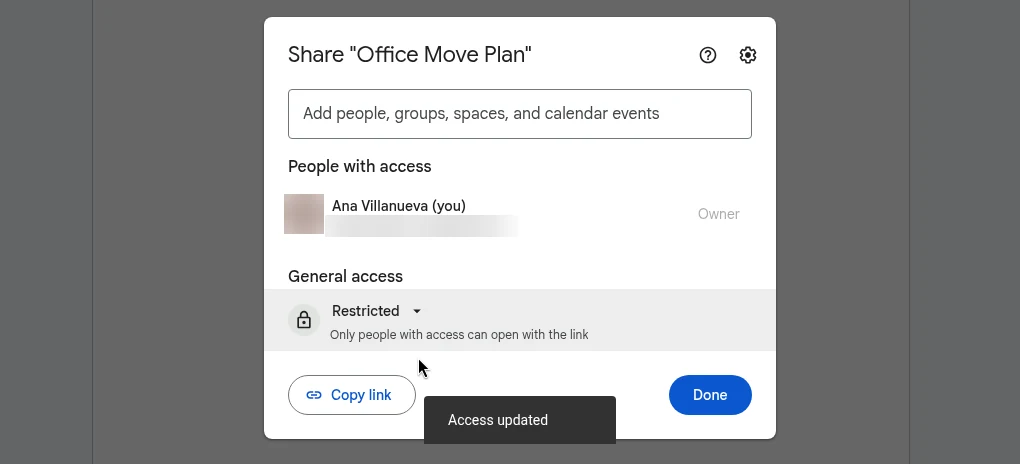
Open Share, click the arrow next to Anyone with the link and pick Restricted. When Access updated appears, the link only works for people under People with access.
Part 3: Send it
Put the link in the email
Paste the link where the attachment would have gone, with something like “Here’s the move plan (view only). If anything changes, it changes here.” You fix it once and everyone sees it, which beats another meeting about the move.
Microsoft says changes to an attached copy aren’t synced with the original. When you insert a Drive link, Gmail checks whether recipients can open it and offers to change the sharing.
At work
OneDrive for work and SharePoint: admins set the default link type and can remove Anyone. Teams channel files live in the team’s SharePoint site; files shared in a Teams chat live in your work OneDrive. When Outlook attaches a OneDrive or SharePoint file as a link, Microsoft says that in a business environment everyone in your organization can edit it by default, so check the permission before you send. Where access requests go depends on how the site is set up; for Teams sites, Microsoft says the group’s owners get them.
Google Workspace: admins can turn off sharing outside the company or allow only certain domains, and Google shows an External label on outside people. Request access emails the owner the requester’s name, address and message.
If you need to share outside and the button won’t let you, check with IT rather than working around it.
Check that it worked
- The line in the Share box says who it’s for and view, not edit.
- The link opened in a private window, and you couldn’t change anything.
- Your email has a link, not a copy.
- When you’re done, OneDrive’s Links tab is empty, and Google says Restricted.
Let’s learn together.
Comments are reviewed by Ana before they appear. Please use fictional examples and leave workplace details out.
Loading approved comments…