Is this email a scam, or just Carol from Accounting? A 60-second check
Check a suspicious email in a minute: who really sent it, where the link really goes, what it wants, then report it in Outlook or Gmail.
Step 6 of 11 in Get your computer ready first (Path 01)
These screenshots use a personal Outlook.com account and a personal Gmail account in a web browser on a computer. No subscription.
An email shows up with URGENT in the subject and someone important needs a favor right now. It might be a scammer, or it might be Carol from Accounting, who writes every email like the building is on fire. You don't have to guess, and none of the checks involve clicking anything.
We’ll check one suspicious email in Outlook, report it, find the same button in Gmail, and see what changes at work.
Before you start
Heads up: these screenshots use a personal Outlook.com account and a personal Gmail account in a web browser on a computer. No subscription.
The “scam” is a fake I sent from my Gmail to my Outlook.com, and its link goes to this website. Real ones won't be that kind, so the one rule is: don’t click links in a suspicious email to see what happens, not even to “test” it. We only point at them.
At work notes come from Microsoft’s and Google’s help pages, not screenshots. Screenshots are from 2026-10-26, with email addresses and contact details blurred, so yours may not match.
Part 1: The 60-second check
1. Notice the subject line
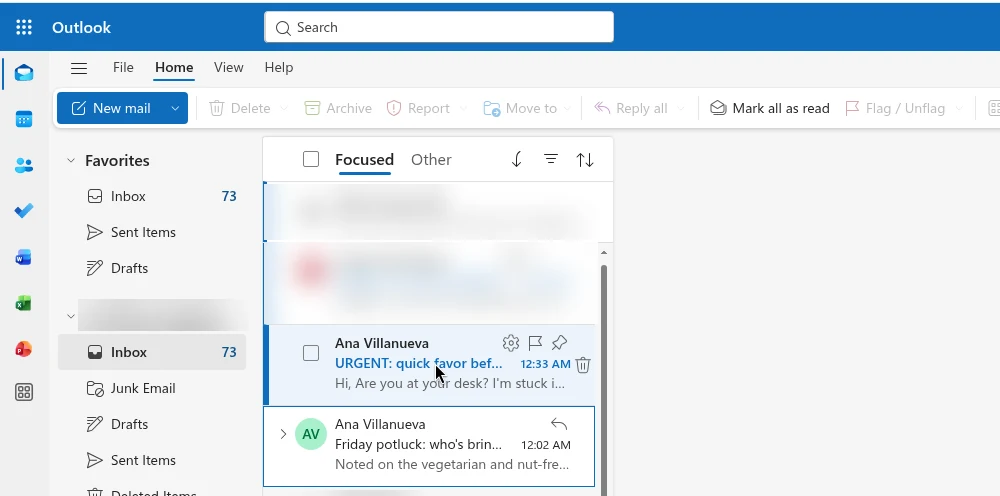
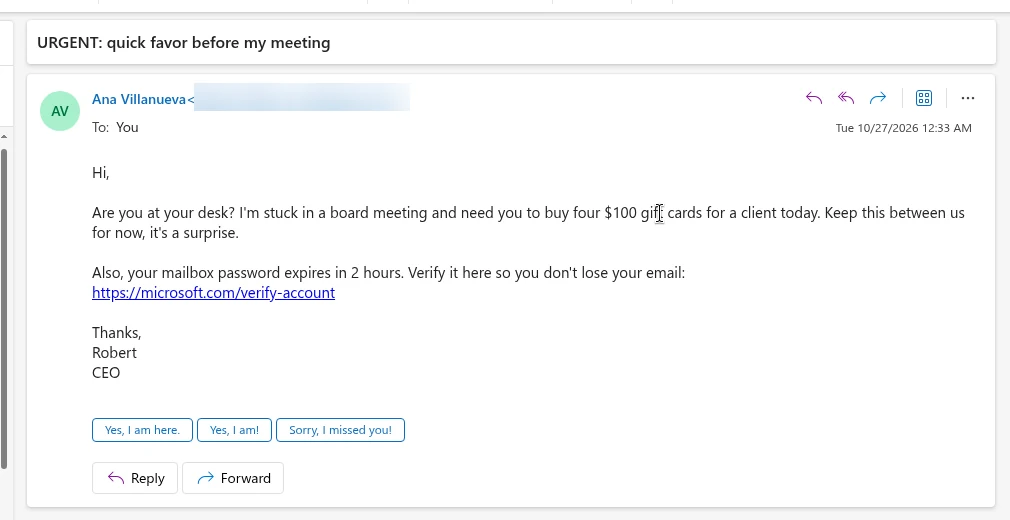
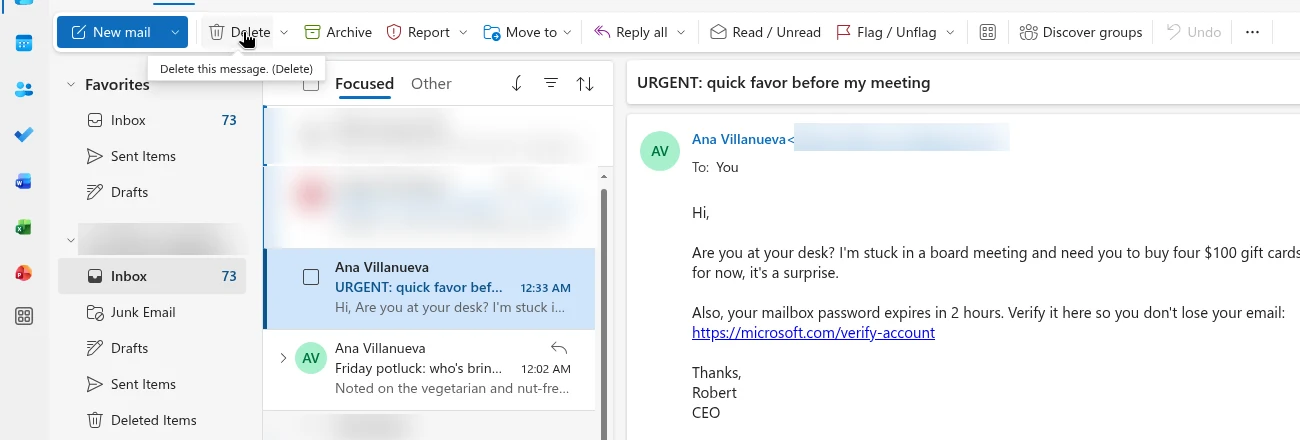
Here it is in my inbox: URGENT: quick favor before my meeting. The preview starts “Hi, Are you at your desk? I’m stuck in…”
Rushing you is the oldest trick there is, so notice the hurry and slow down on purpose.
2. Open it and look at who it’s from
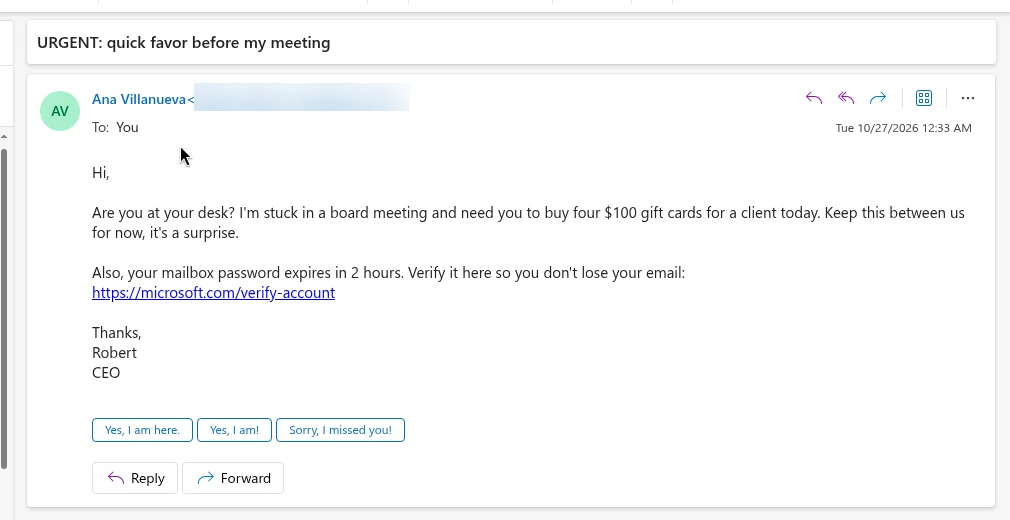
Click the email to open it. At the top is the sender: a name and, in angle brackets, an email address.
The name is the part people read, and anyone can type whatever they like there. Mine says “Ana Villanueva” because I sent it from my other inbox, but it's signed “Robert, CEO”.
There was no warning, either. It went straight into my Focused inbox, and Outlook even offered to reply “Yes, I am here.” Please don’t.
3. Click the name and check the address
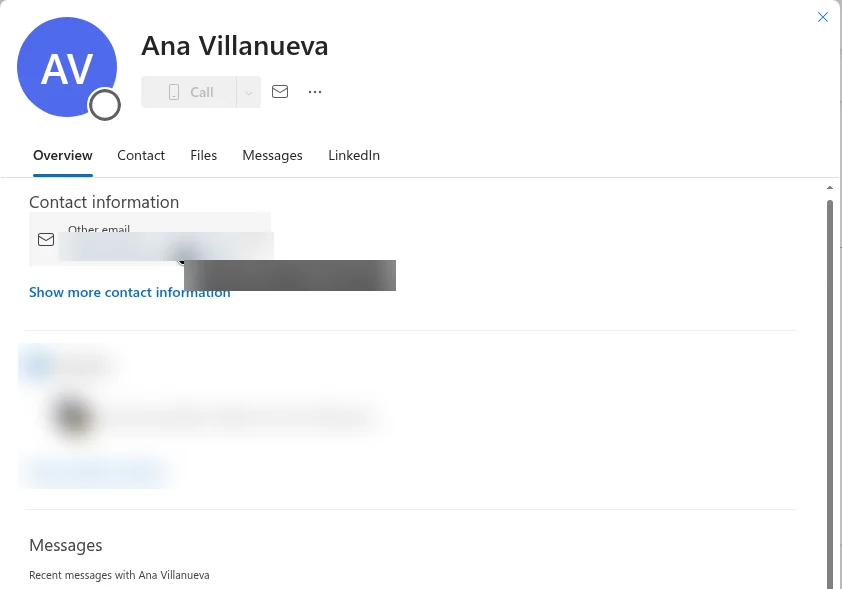
Click the sender’s name. Under Contact information on the card that opens is the actual email address; hover over it to see all of it.
The address is what counts. Here it was a free Gmail address, and your CEO doesn’t email you from Gmail. (If they do, that’s another lesson.) Check the spelling too, because scammers love an address that's one letter off.
The card also lists recent messages from them, which only means they’ve emailed you before.
At work: messages from outside your company often get a tag. Microsoft lets IT turn on an External label next to the subject line, and some companies add their own “[EXTERNAL]” or caution banner instead. If "your boss" is marked External, that's your answer, but no tag doesn’t mean it's safe. Microsoft also says Outlook can show a ? in the sender’s picture when it can’t verify the sender.
4. Point at the link without clicking
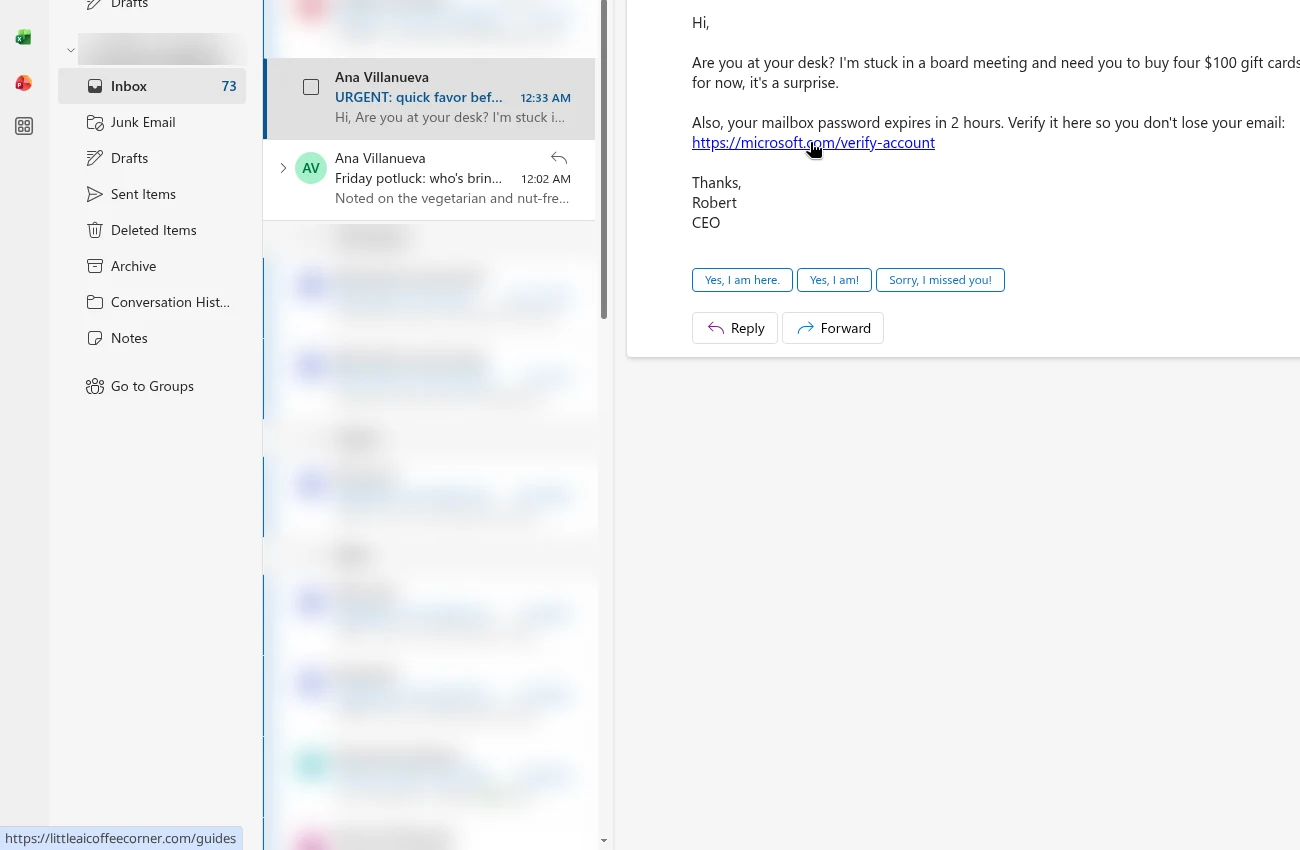
Rest your mouse on the link. A little grey bar in the bottom left corner of your browser window shows where it really goes.
The email says https://microsoft.com/verify-account, but the corner says https://littleaicoffeecorner.com/guides. If they don’t match, don't go there. On a phone you can’t hover, so don’t tap links in an email you’re unsure about. Type the website’s address yourself instead.
5. Read what it’s asking for
Now read it slowly. This one has all the usual signs:
- Hurry: “Are you at your desk?” and “today”.
- Secrecy: “Keep this between us for now, it’s a surprise.” A real surprise can survive a phone call.
- Gift cards: four $100 ones “for a client”. The US Federal Trade Commission says only scammers ask you to buy gift cards and send the numbers, and it warns about fake bosses doing exactly this.
- Your password: “Your mailbox password expires in 2 hours. Verify it here.” Google says that if a link asks for your password, don’t type it; go to the site directly.
Even one of these is a reason to check.
6. When in doubt, call them
Tip: Check with the person another way: a number you already have, a Teams message, or a walk to their desk. Don’t use a phone number or reply address from the email, because that just reaches the scammer again. The FTC says the same: use a number or email you know is real.
If it was Carol, she’ll tell you, and if it wasn't, you just saved $400.
Part 2: Report it
7. Click Report
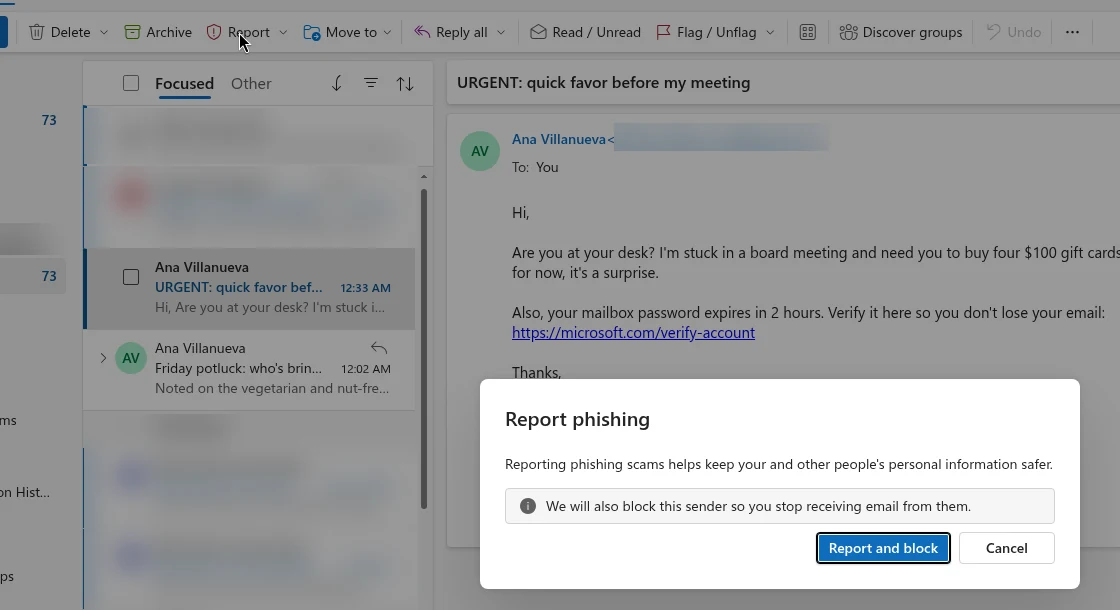
In the toolbar above the message, click Report (the shield). Outlook.com shows a Report phishing box that says “We will also block this sender so you stop receiving email from them.” Click Report and block and that address can't email you again.
At work: if your IT department has set it up, you may hear back after you report, either thanks for spotting a real phishing attempt or a note that the email was safe. It varies by company.
I clicked Cancel because I still needed it for screenshots.
8. Phishing or junk? Use the little arrow
Next to Report is a small arrow. Click it and you get two choices:
- Report phishing is for emails trying to trick you, like fake bosses or “verify your password” links. The tooltip says “Report this message as phishing.”
- Report junk is for emails that are just unwanted, like newsletters you never asked for.
Robert's email is phishing, and Carol’s caps lock is neither.
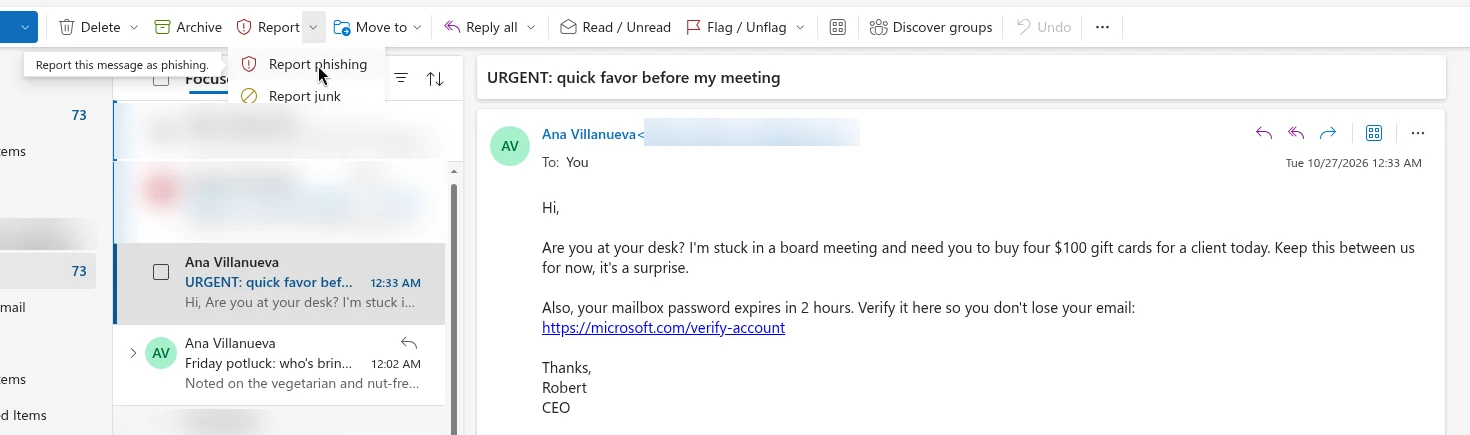
At work: Microsoft says clicking Report itself reports phishing, and the arrow is for junk. Reported phishing is deleted from your mailbox; reported junk moves to Junk Email and the sender is blocked. Your company decides whether reports go to its security team, Microsoft, or both. Some companies use a different reporting button, so if there’s no Report, check with IT.
9. In Gmail: the ⋮ next to Reply
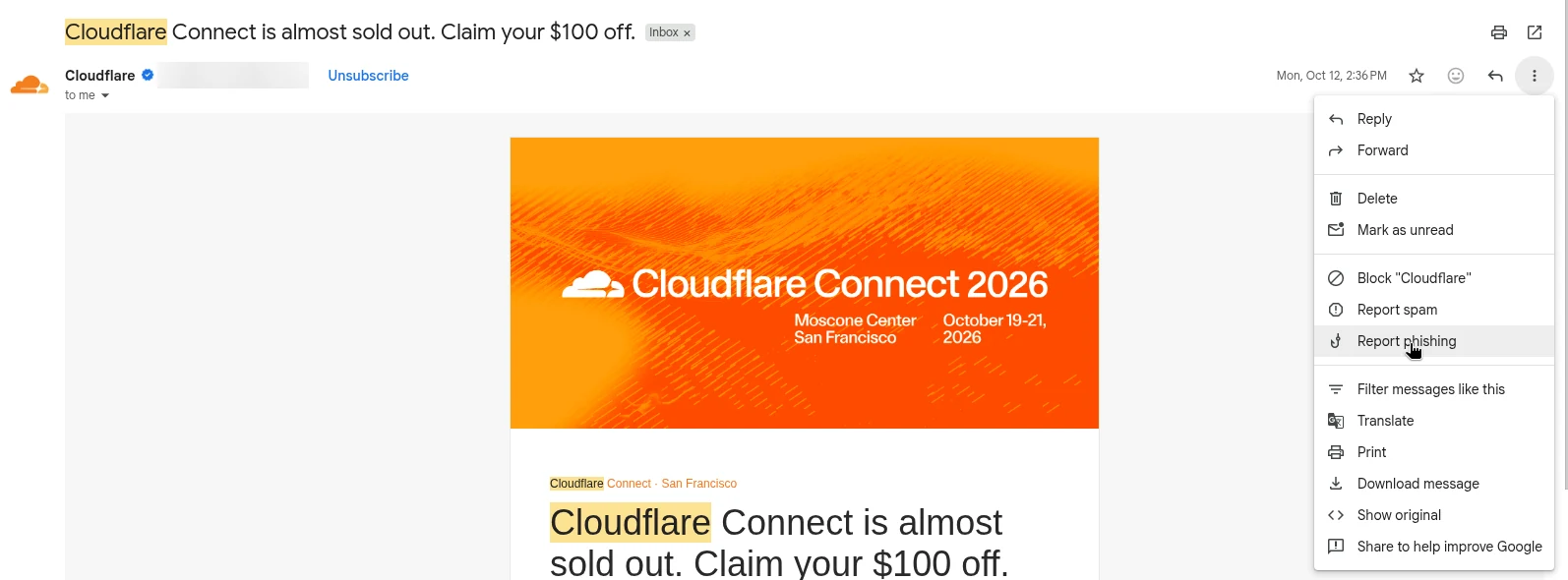
In Gmail, open the email, click ⋮ (More) next to Reply, and pick Report phishing. The menu also has Report spam (Gmail’s version of junk) and Block.
I didn't have a scam in Gmail, so this is an ordinary conference ad. I didn’t click anything.
At work: Google lists a “User-reported phishing” alert for admins of work accounts, so your report can reach IT.
10. Or just delete it
If you don't report it, delete it with Delete in the toolbar or the Delete key. It goes to Deleted Items, in case it was Carol after all.
I deleted my fake one, but reporting is the better habit because it helps catch the next one.
Part 3: At work
Use Report, not Forward. Don’t forward a suspicious email to IT, or to coworkers asking “is this real?”, unless IT has told you to. If there's no Report button, ask IT how they want it sent.
Practice emails count. Many companies send fake phishing emails to see who bites. In Microsoft 365 that's Attack simulation training, and its reports show who clicked, who typed a password and who reported it. It can even send you a thank-you note for reporting, so report it rather than just deleting it.
Already clicked, or typed your password? Tell IT straight away; the sooner they know, the more they can do. On a personal account, change the password by going to the website directly. Already sent gift card numbers? The FTC says to contact the gift card company right away, keep the card and receipt, and report it at ReportFraud.ftc.gov.
Check that it worked
- You found the real email address, not just the name.
- You pointed at the link and read the address in the bottom corner, without clicking.
- You spotted the hurry, the secrecy, the gift cards and the password line.
- You checked with the person on a number you already had.
- You reported it with Report phishing (or deleted it), and nothing was clicked.
Let’s learn together.
Comments are reviewed by Ana before they appear. Please use fictional examples and leave workplace details out.
Loading approved comments…