Passwords: check yours, and turn on 2-step sign-in
Check your saved passwords with Password Checkup, learn what makes a good one, and turn on 2-step sign-in for your Google and Microsoft accounts, plus what IT handles at work.
Step 5 of 11 in Get your computer ready first (Path 01)
Heads up: these screenshots use a personal Google account and a personal Microsoft account, in Chrome on a computer.
If your password is your dog’s name plus the year you started this job, and you also use it for the bank and the pizza place, you're not alone. It works fine until one of those sites gets hacked.
We’ll check the passwords you have, then add a second lock to a Google account and a Microsoft account so a stolen password alone doesn’t get anyone in. The end covers work accounts.
Before you start
Heads up: these screenshots use a personal Google account and a personal Microsoft account, in Chrome on a computer. No subscription. Keep your phone nearby, because turning on 2-step sign-in sends something to it. Nothing here deletes anything; the worst that happens is being asked to sign in again, which is normal.
At work notes come from Microsoft’s and Google’s help pages, not screenshots. Screenshots are from 2026-10-27.
Part 1: What a good password looks like
- Long beats clever. Four or five unrelated words, like teapot staple Tuesday orbit, are easier to remember and harder to guess than P@ssw0rd!. Google suggests at least 12 characters and nothing people could find out about you, like pets, kids, birthdays or your street.
- One password, one account. If you reuse a password and one site leaks it, someone will try it on your email next, and your email is how they'd reset everything else.
- Let the browser remember them. Chrome (Google Password Manager) and Edge (Microsoft Password Manager) offer to save a password when you sign in, and Chrome can suggest a strong one for a new account. Say yes, and the only one you need to remember is your Google or Microsoft password.
1. Open your password manager
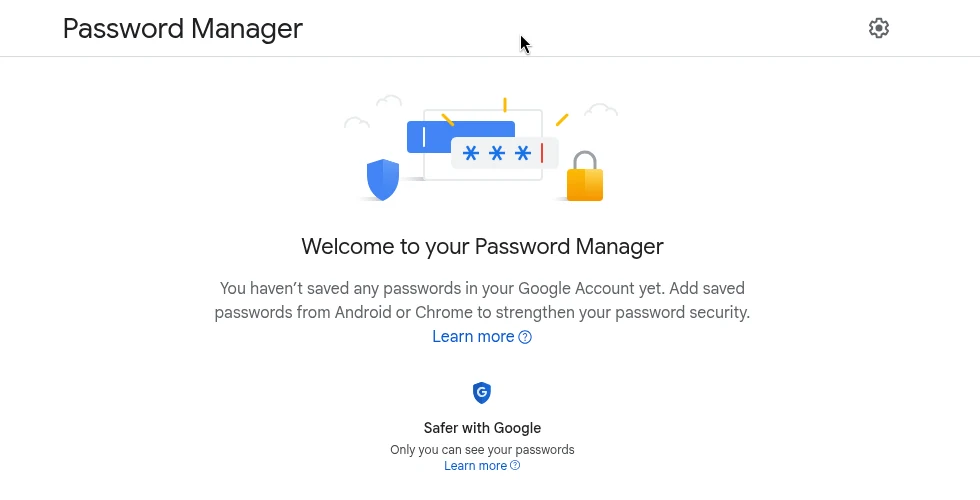
In Chrome, go to passwords.google.com (or the ⋮ menu, Passwords and autofill, Google Password Manager) to see everything Chrome has saved to your Google account. Our demo account is new, so it says You haven’t saved any passwords in your Google Account yet. Yours will probably be a long list, including sites you forgot you ever signed up for.
2. Run Password Checkup
In Google Password Manager, click Checkup on the left (or type chrome://password-manager/checkup in the address bar). With nothing saved, ours says No passwords and Google Password Manager can check your passwords when you save them.
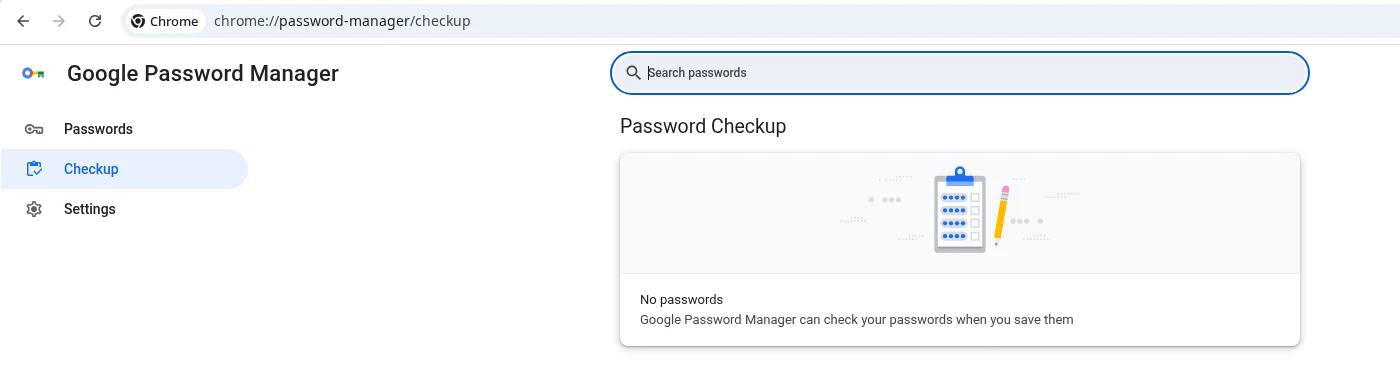
Once you have saved passwords, Google says Checkup flags them as:
- Compromised: the username and password were published online after a data breach. Change these today.
- Reused: the same password on more than one account. Give each one its own.
- Weak: easy to guess, like single or obvious words or qwerty.
Start with your email and your bank. The pizza place can wait until after lunch. If an email says a password is unsafe, open Checkup yourself instead of clicking its link.
Part 2: Turn on 2-step sign-in for Google
2-step sign-in (Google calls it 2-Step Verification) means signing in takes your password plus something you have, usually your phone, so a stolen password isn't enough.
3. Open Security & sign-in
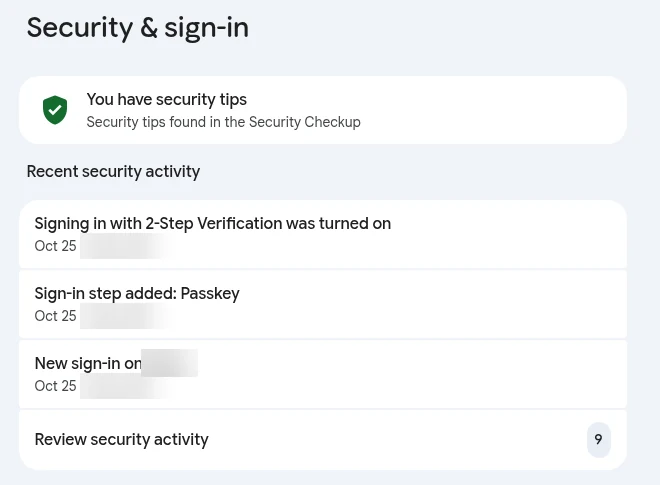
Go to myaccount.google.com/security (or click your picture, Manage your Google Account, Security & sign-in). Look at Recent security activity first (ours lists 2-Step Verification turned on, a passkey added and a new sign-in, all on Oct 25). If you see something you didn’t do, click Review security activity.
4. Find How you sign in to Google
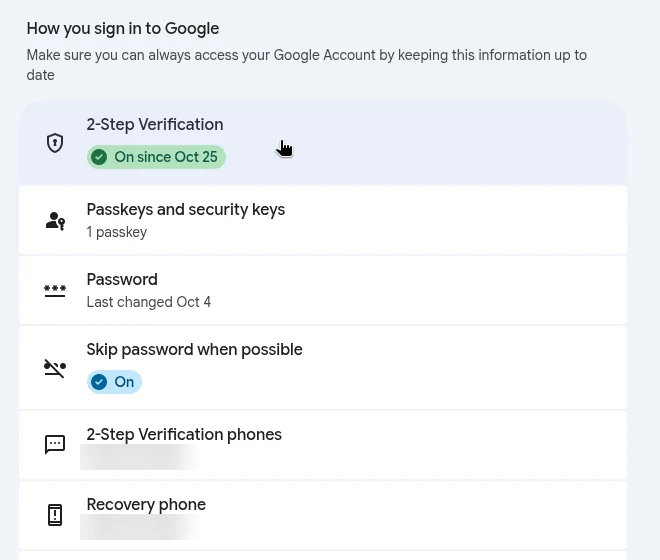
Scroll down to How you sign in to Google:
- 2-Step Verification: ours says On since Oct 25. If yours is off, it says so here.
- Passkeys and security keys: ours has 1 passkey.
- Password: Last changed Oct 4.
- Skip password when possible: On (see passkeys, below).
- 2-Step Verification phones and Recovery phone, and below them Recovery email.
5. Click 2-Step Verification (and sign in again)
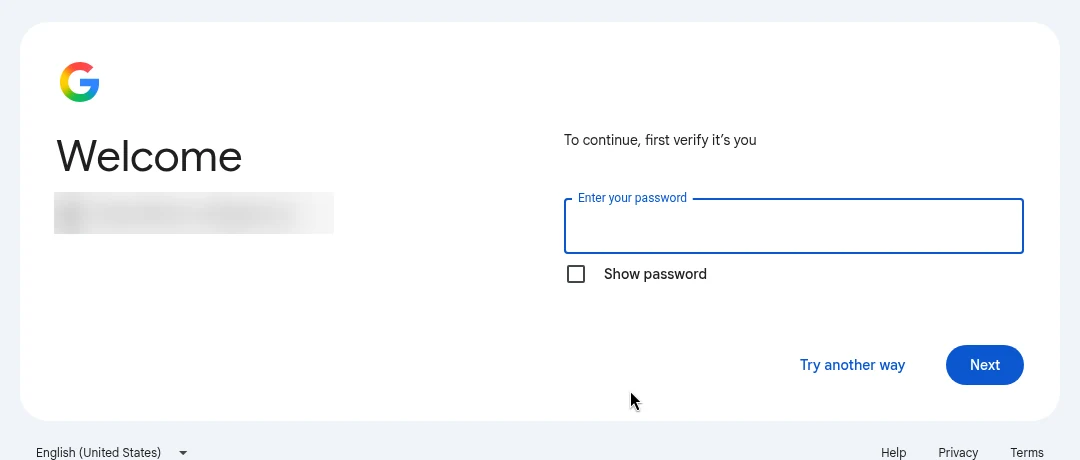
Click 2-Step Verification. Google says To continue, first verify it’s you and asks for your password again, in case someone else is at your unlocked computer. Type your password (or click Try another way) and click Next.
6. Turn it on
If it's off, click Turn on 2-Step Verification and follow the steps. Ours was already on, so this part comes from Google’s help:
- Google recommends Google prompts as the second step, a tap on your phone (Android, or an iPhone with the Gmail or Google app signed in). Tap Yes if it was you and No if it wasn’t.
- A code by text message works too, but Google says texts are easier to hijack than prompts.
- An authenticator app (Google Authenticator or similar) gives you codes even with no signal.
- Backup codes: print or download them and keep them safe in case you lose your phone.
Never give a verification code to anyone, even someone who says they’re from Google. Google says it won’t call you to check a code.
7. Passkeys, in one paragraph
A passkey lets you sign in with your fingerprint, face or the PIN that unlocks your phone or computer, instead of typing a password. It lives on your device, so there’s nothing to write down and nothing for a fake website to steal. Google says a passkey skips the second step, because having your device already counts; that’s what Skip password when possible means. You keep your password and just type it less.
8. Check your recovery info
Your recovery phone and email get you back in if you forget your password or lose your phone, so make sure you still have both. Don't use your work email for a personal account, since you might change jobs.
Part 3: The Microsoft version
9. Go to account.microsoft.com/security (and sign in again)
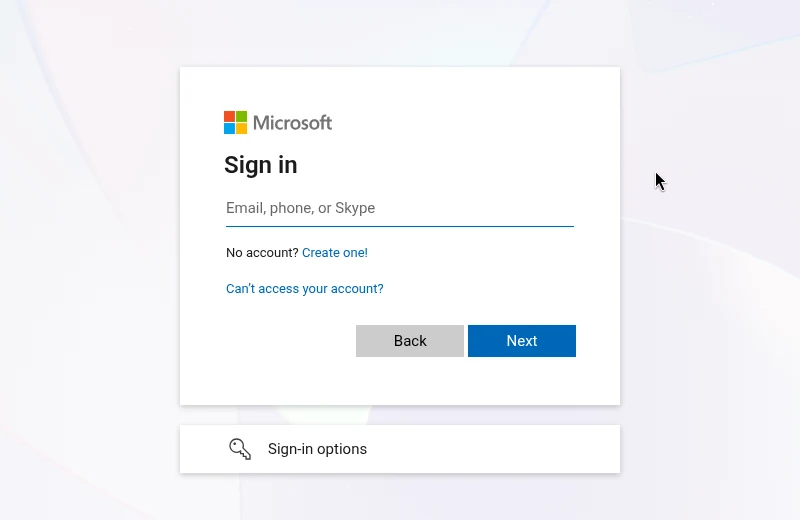
Go to https://account.microsoft.com/security. Like Google, Microsoft asked us to sign in again, even with Outlook open in another tab. Type your email and follow the prompts.
10. Click Manage how I sign in
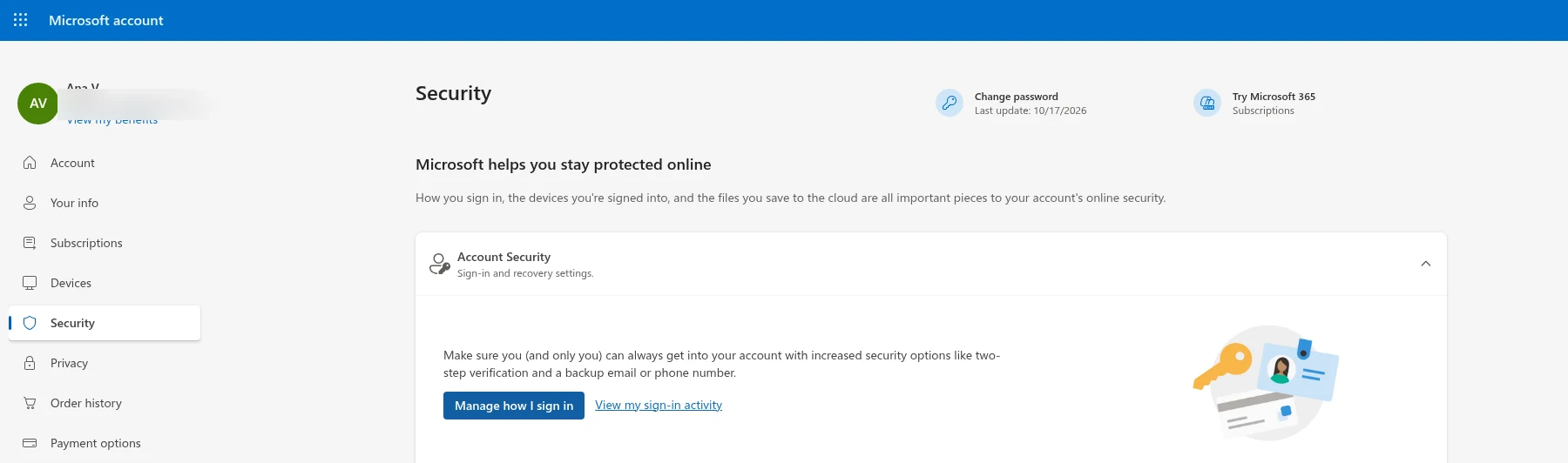
You land on Security. At the top is Change password with the date you last changed it (ours says Last update: 10/17/2026). Below that, the Account Security card has two buttons. Click Manage how I sign in. The other one, View my sign-in activity, lists recent sign-ins so you can spot one that wasn’t you.
11. Find Two-step verification and click Turn on
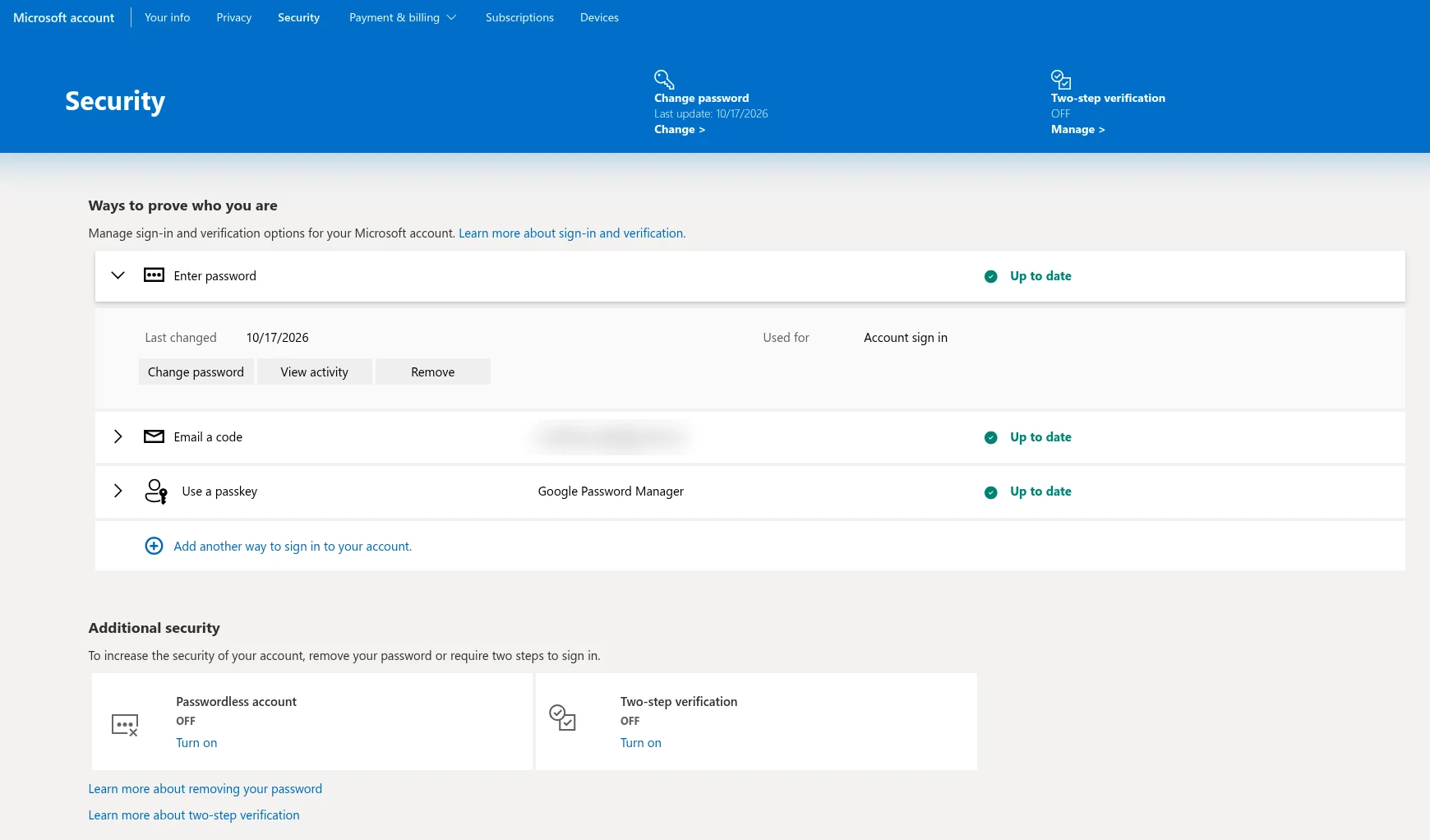
You’re now on Additional security options, and the blue banner at the top already says Two-step verification OFF. Ours too, which is a little embarrassing for a lesson about turning it on.
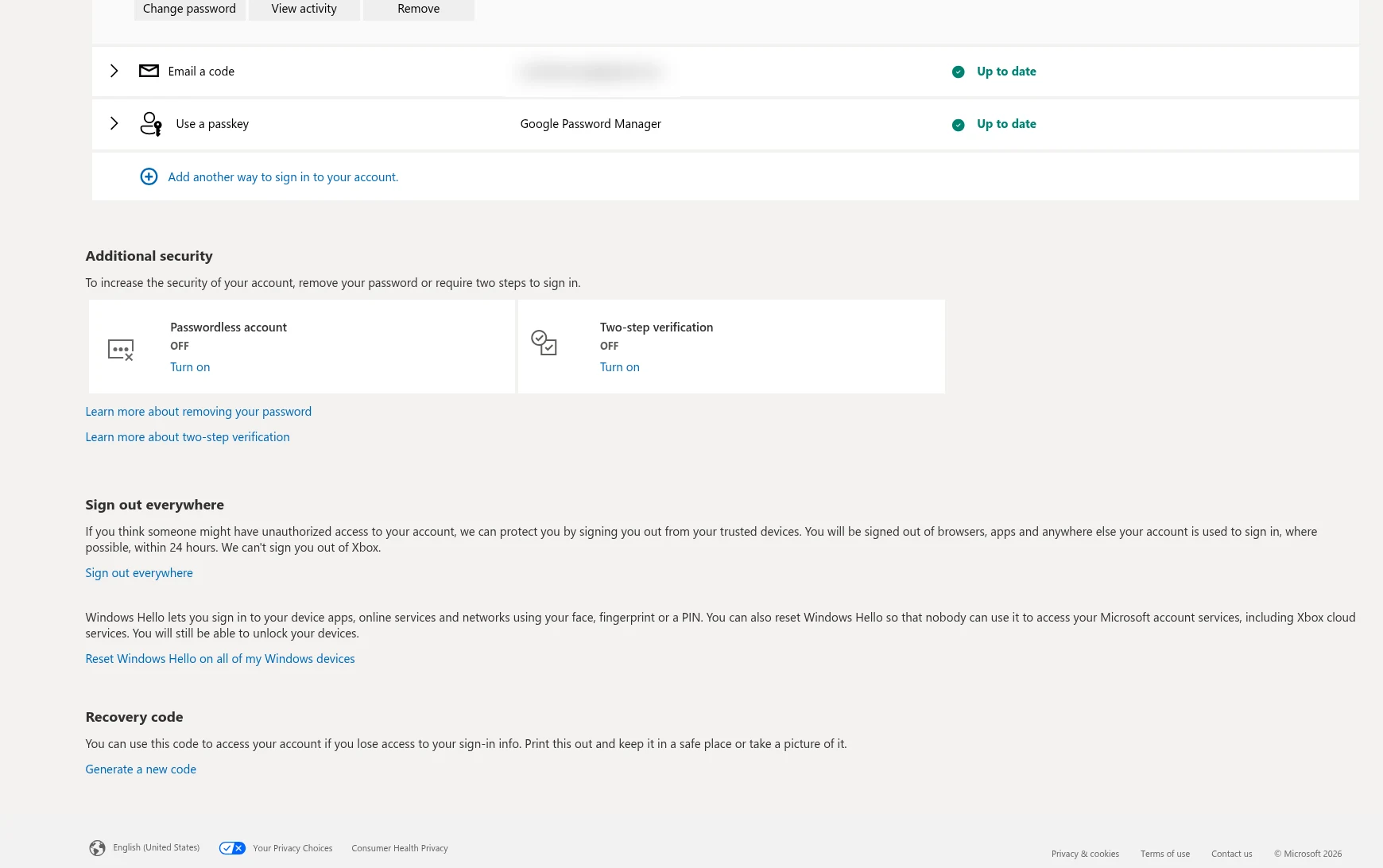
Ways to prove who you are lists Enter password, Email a code (to another email address), Use a passkey, and Add another way to sign in to your account. Make sure there’s at least one way besides your password before you go on.
Scroll to Additional security. Under Two-step verification, click Turn on and follow the prompts. Microsoft asks for a code (sent to your email, phone or authenticator app), and may show a QR code to scan if you add Microsoft Authenticator. We stopped here, so the screens after Turn on aren’t shown.
Before you do it, Microsoft suggests having three pieces of security info (for example an authenticator app, a phone and a second email). With two-step on, a password alone won’t get you back in if you lose your phone, and recovery can take 30 days.
12. Passwordless, and the rest of the page
Passwordless account removes your password entirely, and you sign in with Microsoft Authenticator (approving a notification on your phone), Windows Hello or a security key. You can add a password back later, but some older apps and devices still need one, so read Microsoft’s list first. Microsoft also says it’s phasing out text-message codes for personal accounts, so the app is a good bet either way.
Further down:
- Sign out everywhere: if you think someone else got in, this signs you out of all your devices (within 24 hours, says Microsoft).
- Windows Hello: reset it on all your Windows devices if one goes missing.
- Recovery code: click Generate a new code, then print it or take a picture and keep it safe. It gets you back in if you lose everything else.
At work: a work or school account doesn’t use this page. See Part 5.
Part 4: Nobody needs your password
Your IT team should never ask for your password or your six-digit codes, and neither will Google or Microsoft, by email, by phone, or "just to check something quickly". If someone asks, it's a scam, however friendly they sound. Hang up and call IT on the number you already have. (Lesson 12 covers checking a suspicious email.)
Part 5: At work
At work: your work Microsoft account (the one for Outlook and Teams at your company) isn't managed at account.microsoft.com. It uses Microsoft Entra multifactor authentication, and your company sets the rules:
- One day after you sign in, you may get a box asking for more information (often titled More information required), then a Keep your account secure wizard. That's real and comes from your company, which picks the methods and may require Microsoft Authenticator. Some let you skip it a few times, then make it mandatory.
- Your sign-in methods are managed at https://mysignins.microsoft.com/security-info (Security info, then Add sign-in method), not on the Security page above. IT may block some methods or only let you change them from the office network, so if something won't let you add it, check with IT.
- Forgot your work password? If your company has turned on self-service password reset, click Can’t access your account? on the sign-in screen and use the methods you set up. If not, you’ll see a link to contact your administrator.
At work: with Google Workspace (a work Gmail), your administrator may have turned on 2-Step Verification for everyone, with a deadline to set it up, and may limit the methods, for example no text-message codes. Google says the steps above might not work for a work account, so if you can’t set it up, ask your administrator.
At work: don’t save work passwords in your personal browser profile or personal password manager unless your company says you can. Some companies provide a company password manager or switch off password saving in the work browser. Use what they give you, and check with IT if you're not sure.
Check that it worked
- Password Checkup shows no compromised passwords, or you’ve changed them.
- At myaccount.google.com/security, 2-Step Verification says On.
- Your recovery phone and email are current.
- In your Microsoft account, Two-step verification is on, and Authenticator approves your sign-in.
- When you sign in from a private window, you're asked for a second step (or your passkey). It's a little annoying, and that's the point.
Let’s learn together.
Comments are reviewed by Ana before they appear. Please use fictional examples and leave workplace details out.
Loading approved comments…