Make flashcards and a quiz from your own handout with NotebookLM
Upload your handout to NotebookLM, ask it questions, check where the answers came from, then make flashcards and a quiz and read every one before you share.
Step 7 of 11 in Choose for the task: lessons, quizzes and slides (Path 03)
Heads up: these screenshots use a personal Google account in NotebookLM (notebooklm.google.com) in a web browser on a computer. No subscription.
Making flashcards by hand is the kind of job that somehow takes a whole Sunday. If you're not sure about letting AI help, that's okay, and a little caution is a good thing. It's a tool like Word or Excel, and here it works from your own handout. You still write and check the cards, so they sound like you.
This lesson uses NotebookLM, which answers from the files you give it. We'll upload a handout, ask it a couple of questions, and then turn the handout into flashcards and a quiz. Same ground rule as Lesson 21: nothing private goes in.
Before you start
Heads up: these screenshots use a personal Google account in NotebookLM (notebooklm.google.com) in a web browser on a computer. No subscription.
NotebookLM may show up under the name Gemini Notebook. It's the same thing, so don't worry if the name on your screen doesn't match the address you typed.
Practice with a handout of your own, like lesson notes or a one-page guide you wrote. If you'd like to follow along exactly, you can download the same made-up paycheck handout I used in Lesson 23 (PDF).
Screenshots are from October 28, 2026, with an older chat title in the tab row and the notebook ID in the address bar blurred. Google moves things around, so yours may not match.
1. Open a new notebook
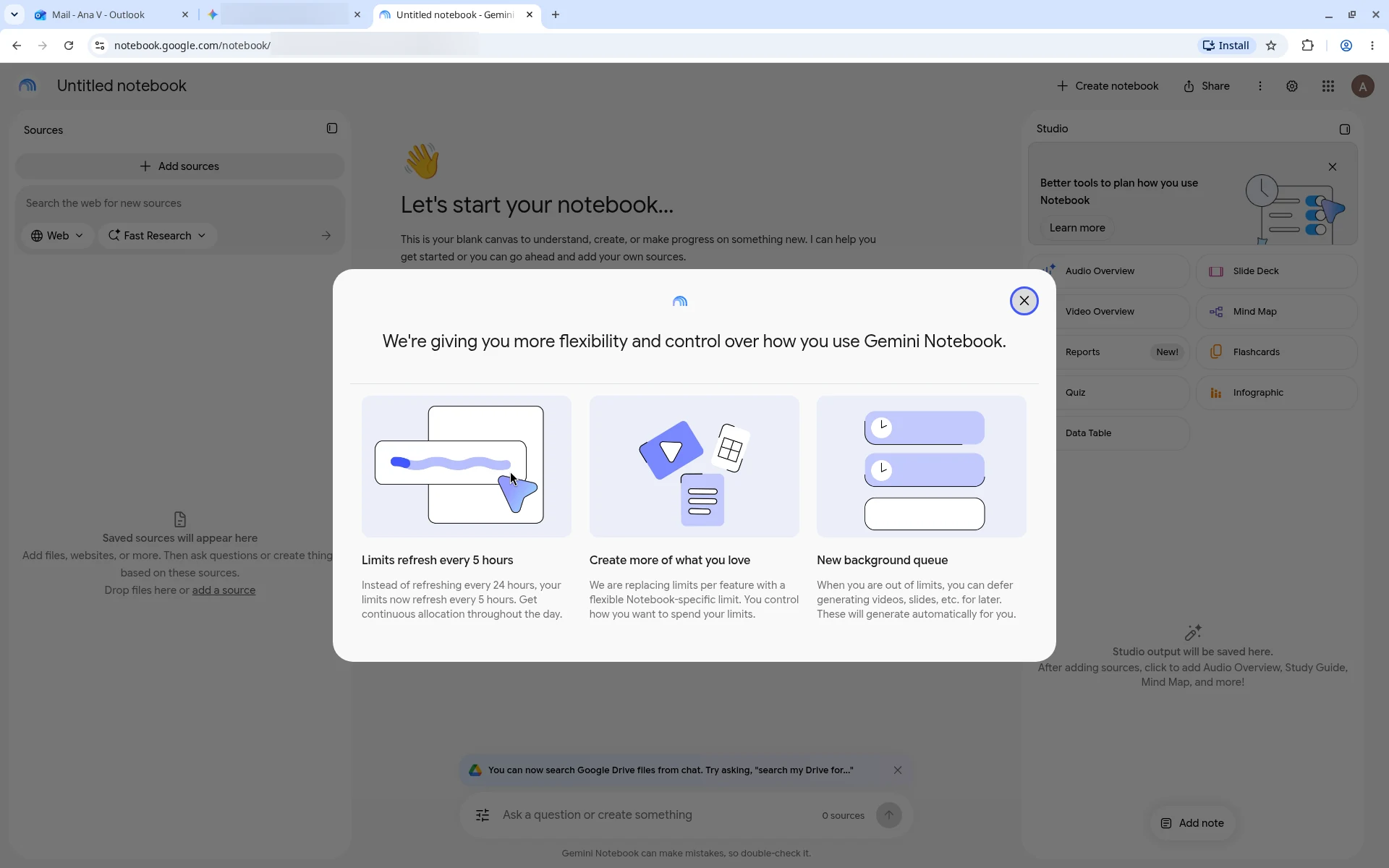
Go to notebooklm.google.com. It took me straight to a new, empty notebook. The first time, a welcome window pops up, and you can close it with the X in the top right corner.
2. Add your handout
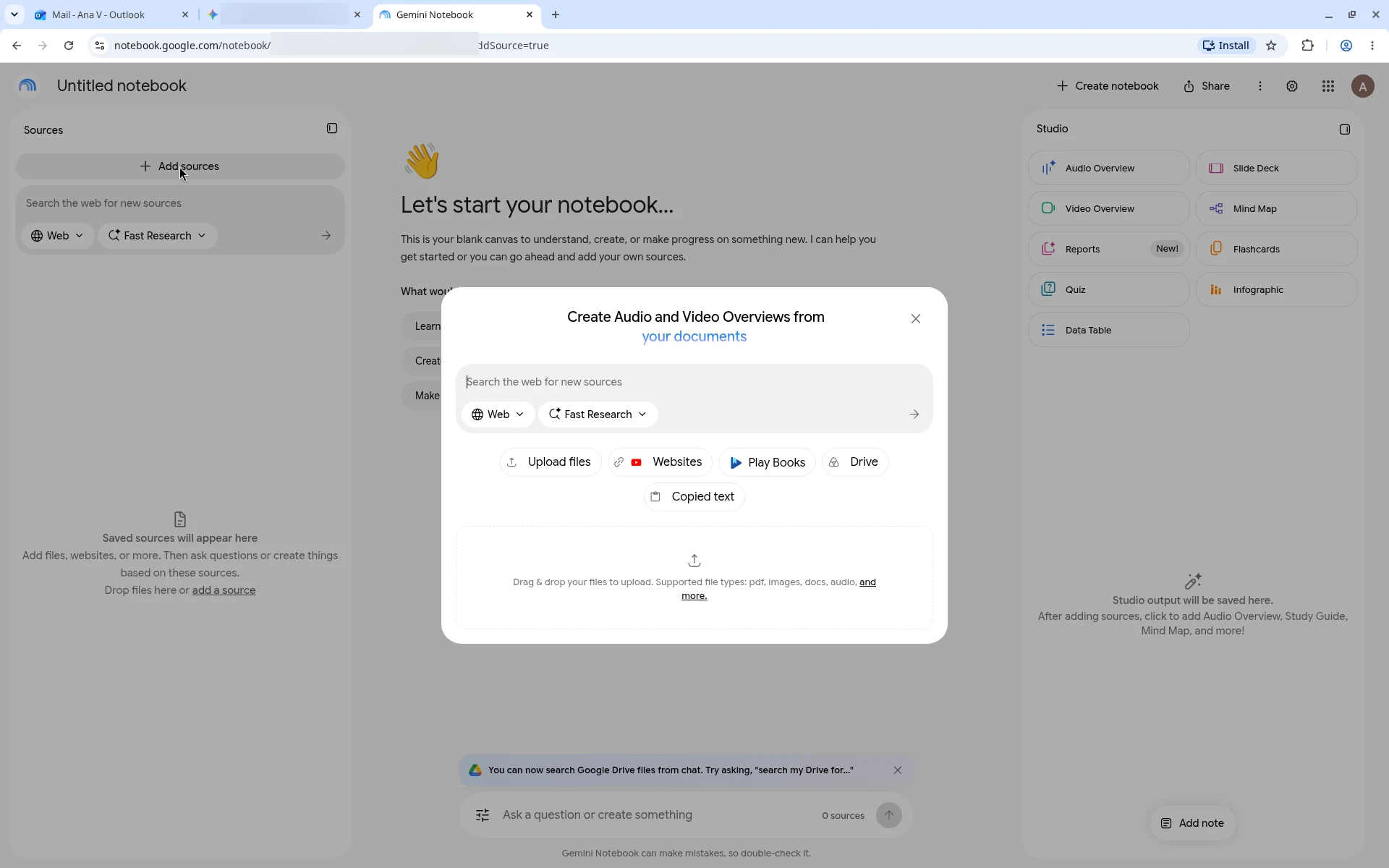
Click Add sources at the top left, then click Upload files and pick your handout.
3. Look around the notebook
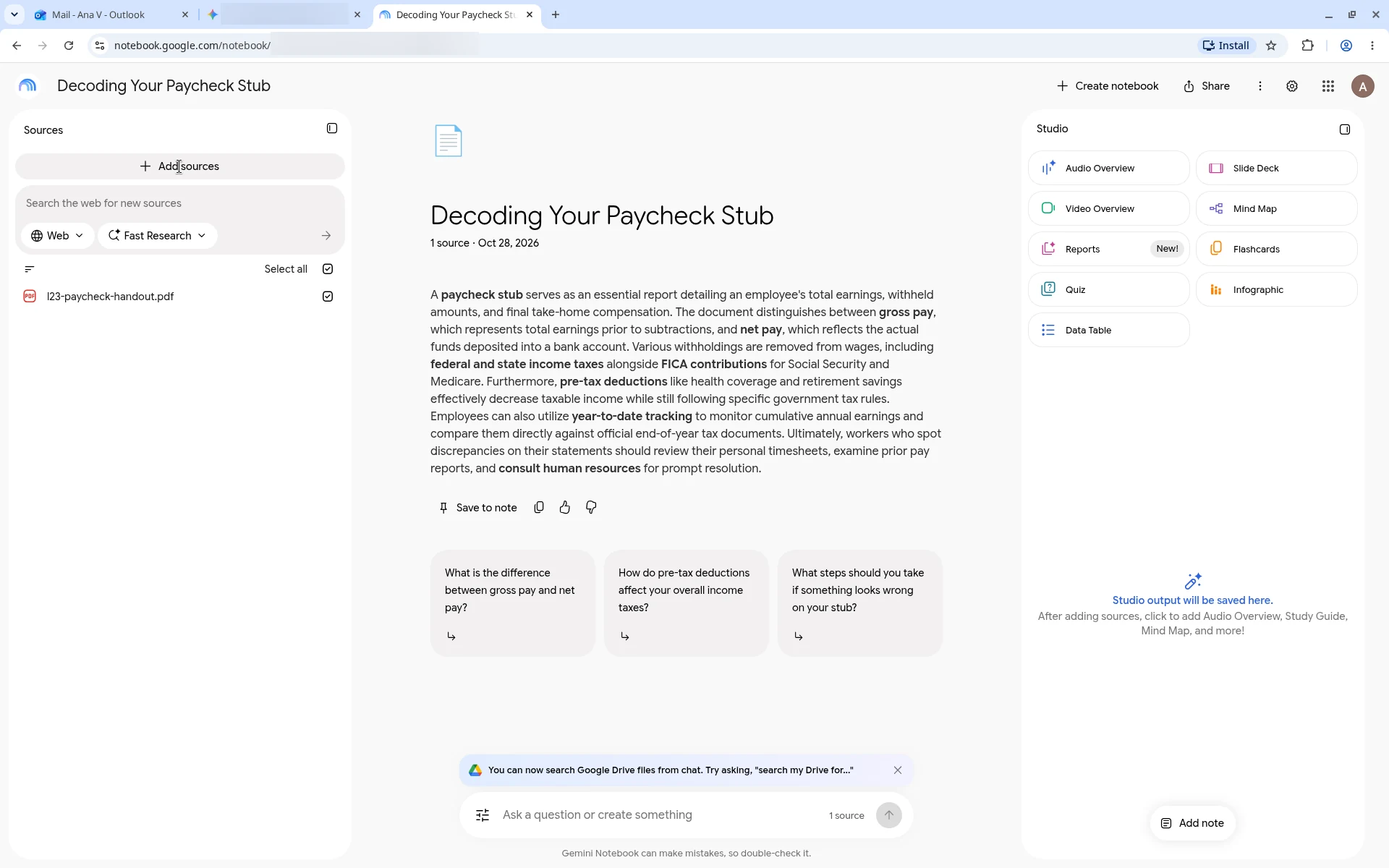
After a few seconds the notebook gave itself a name, "Decoding Your Paycheck Stub," and wrote a short summary of the handout. The screen has three parts. Sources on the left lists your files, the chat is in the middle, and Studio on the right is where you make things like flashcards and quizzes.
4. Ask a question about your handout
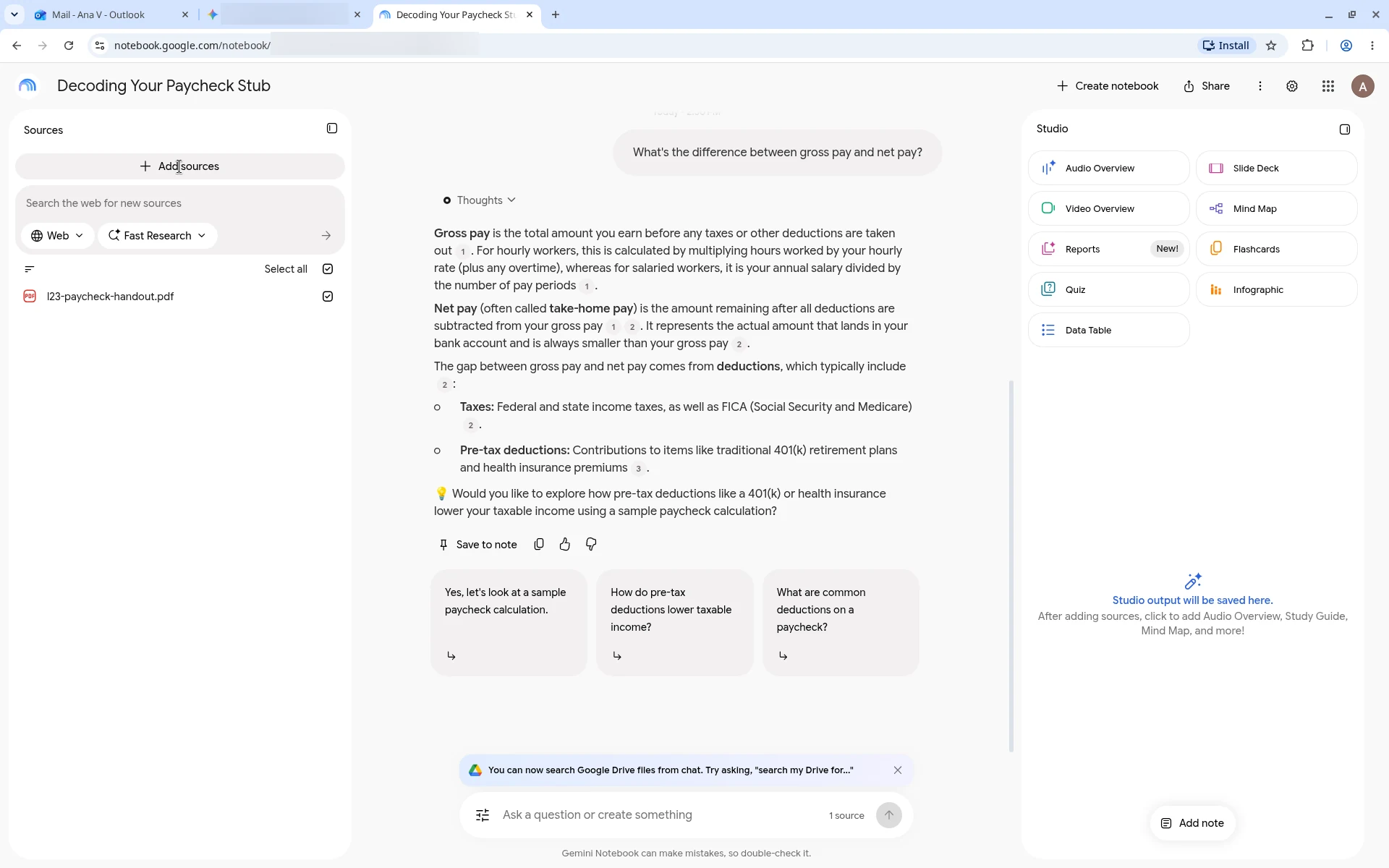
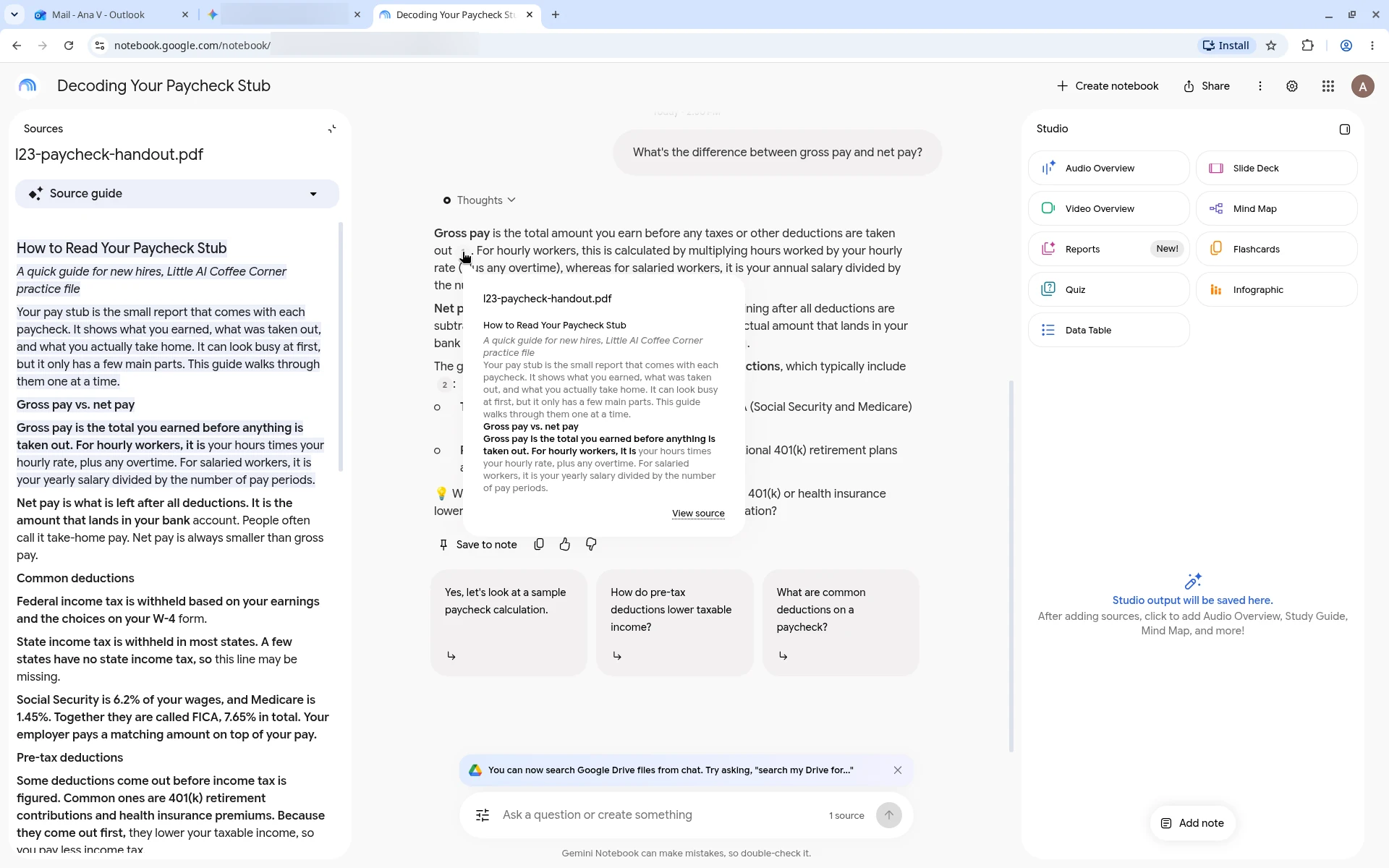
Type a question in the box at the bottom, the way you'd ask a colleague. I asked, "What's the difference between gross pay and net pay?"
The answer has small numbers after the sentences. Those are citations, and they point back to the exact part of your handout the answer came from.
5. Check where the answer came from
Click one of the numbers. I clicked 1, and a small window showed the passage from my handout, with View source at the bottom. The handout also opened on the left with the same part highlighted.
This is the part I like most. You can check every answer against your own words in a few seconds.
6. Ask something your handout doesn't cover
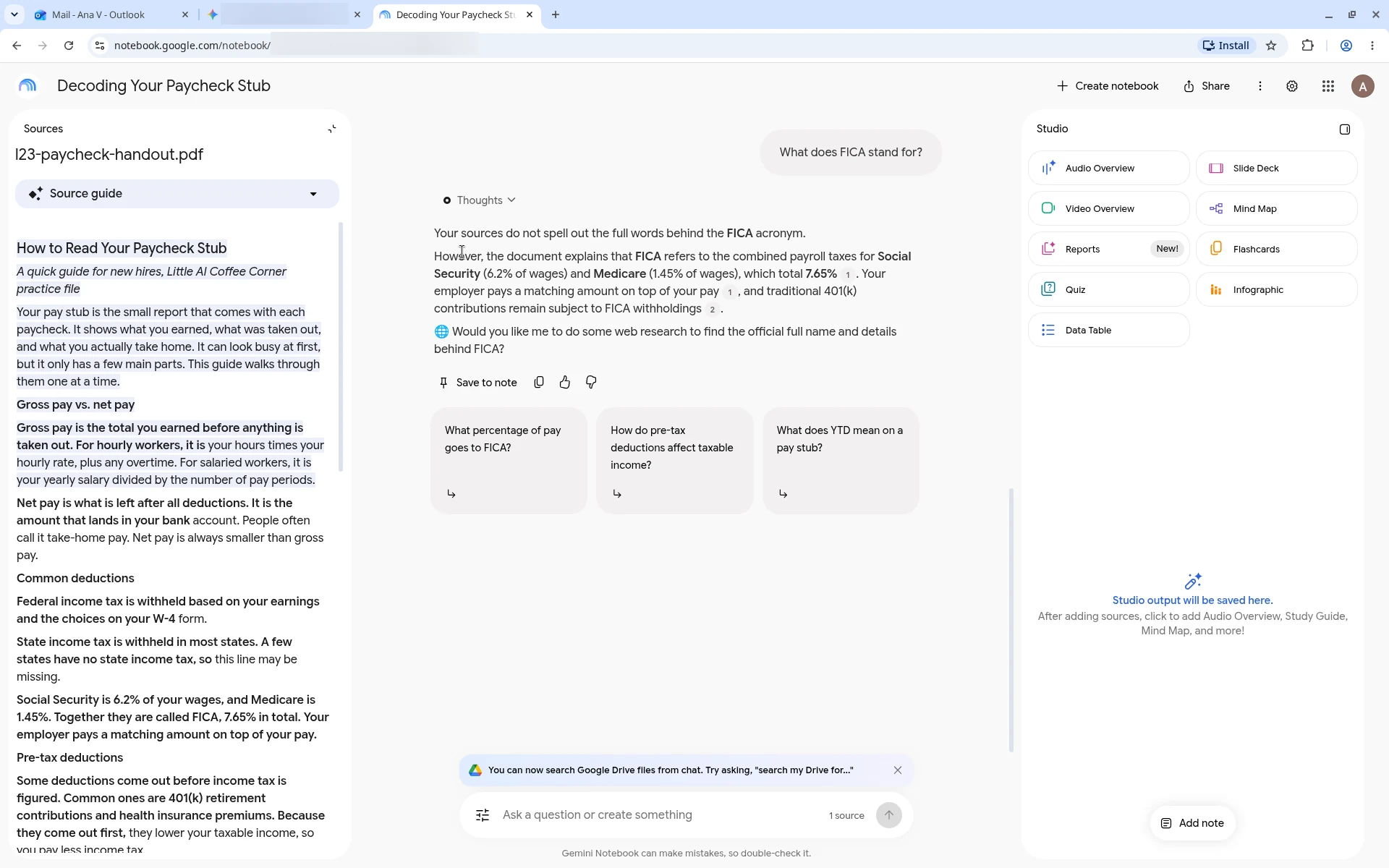
Next I asked, "What does FICA stand for?" My handout mentions FICA but never spells it out. NotebookLM said, "Your sources do not spell out the full words behind the FICA acronym," and then told me what the handout does say about it.
That's the big difference from Lesson 23. When I asked the regular Gemini chat about FICA there, it made up a wrong name, "Federal Income Contributions Act." NotebookLM sticks to your sources and tells you when they don't cover something. If you want the answer, add it to your handout yourself.
7. Make flashcards
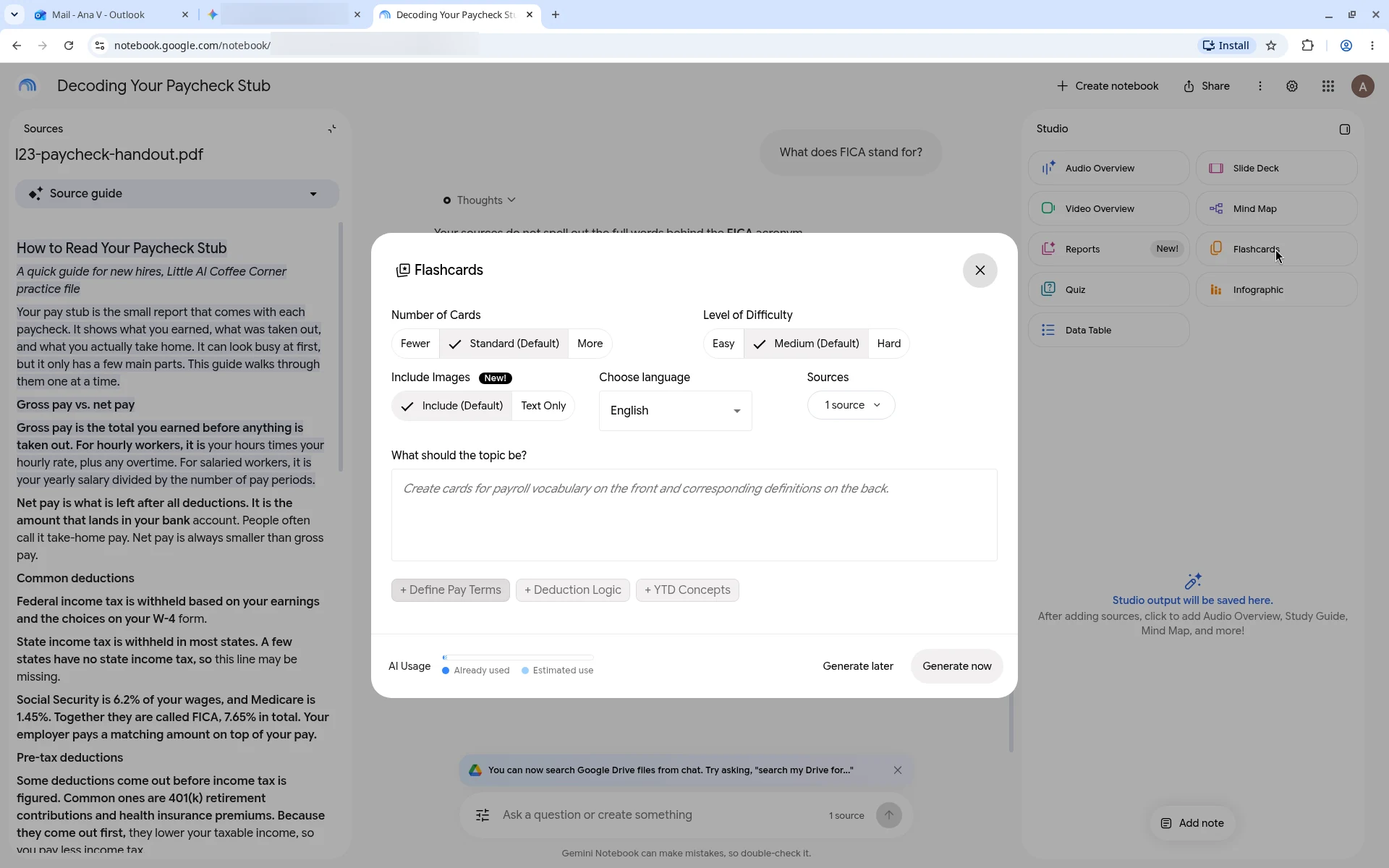
In Studio you'll see tiles for Audio Overview, Slide Deck, Video Overview, Mind Map, Reports, Flashcards, Quiz, Infographic and Data Table. Click Flashcards.
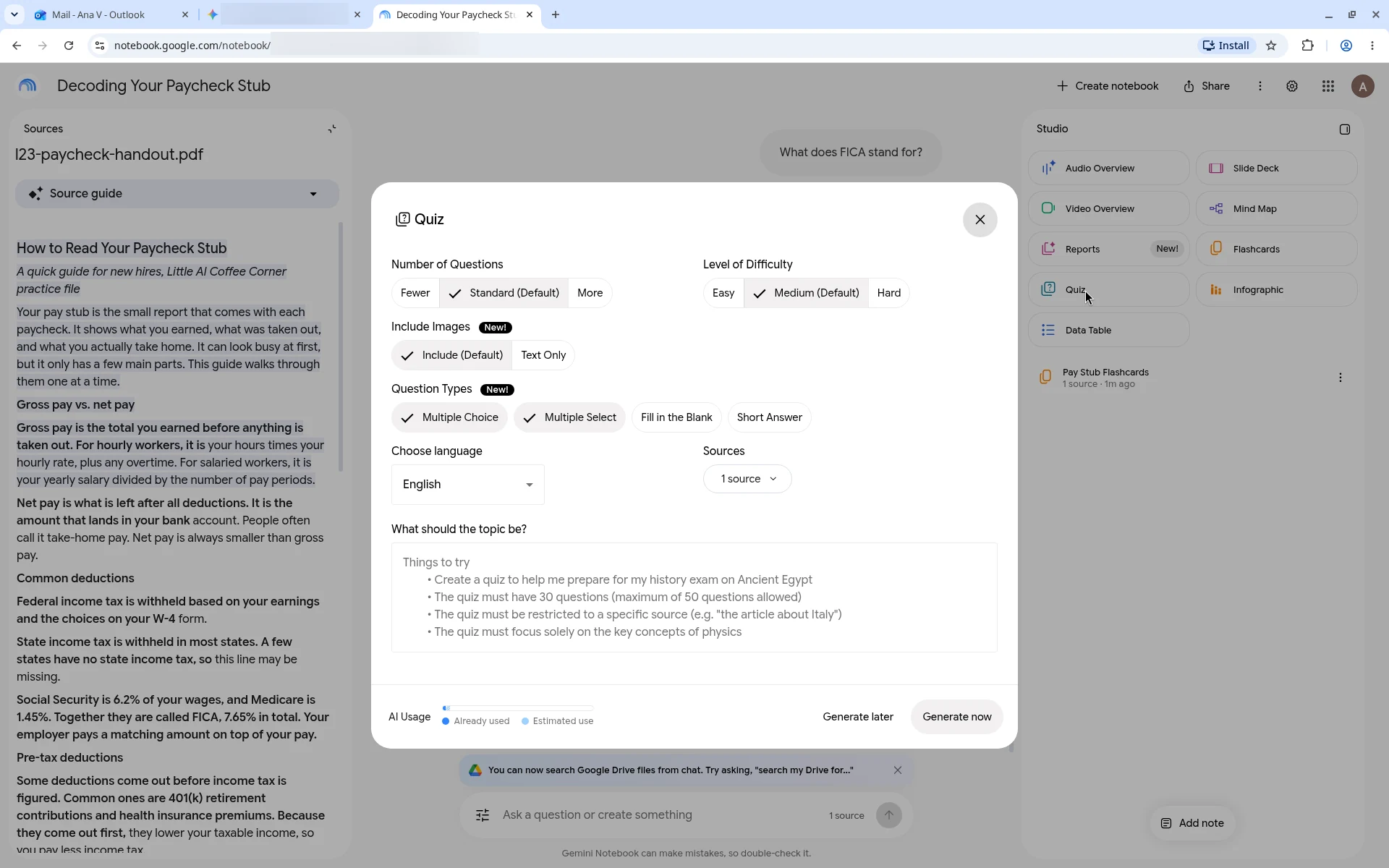
A window lets you pick how many cards, how hard, and what they should focus on. I kept the defaults and clicked Generate now.
8. Wait for them to finish
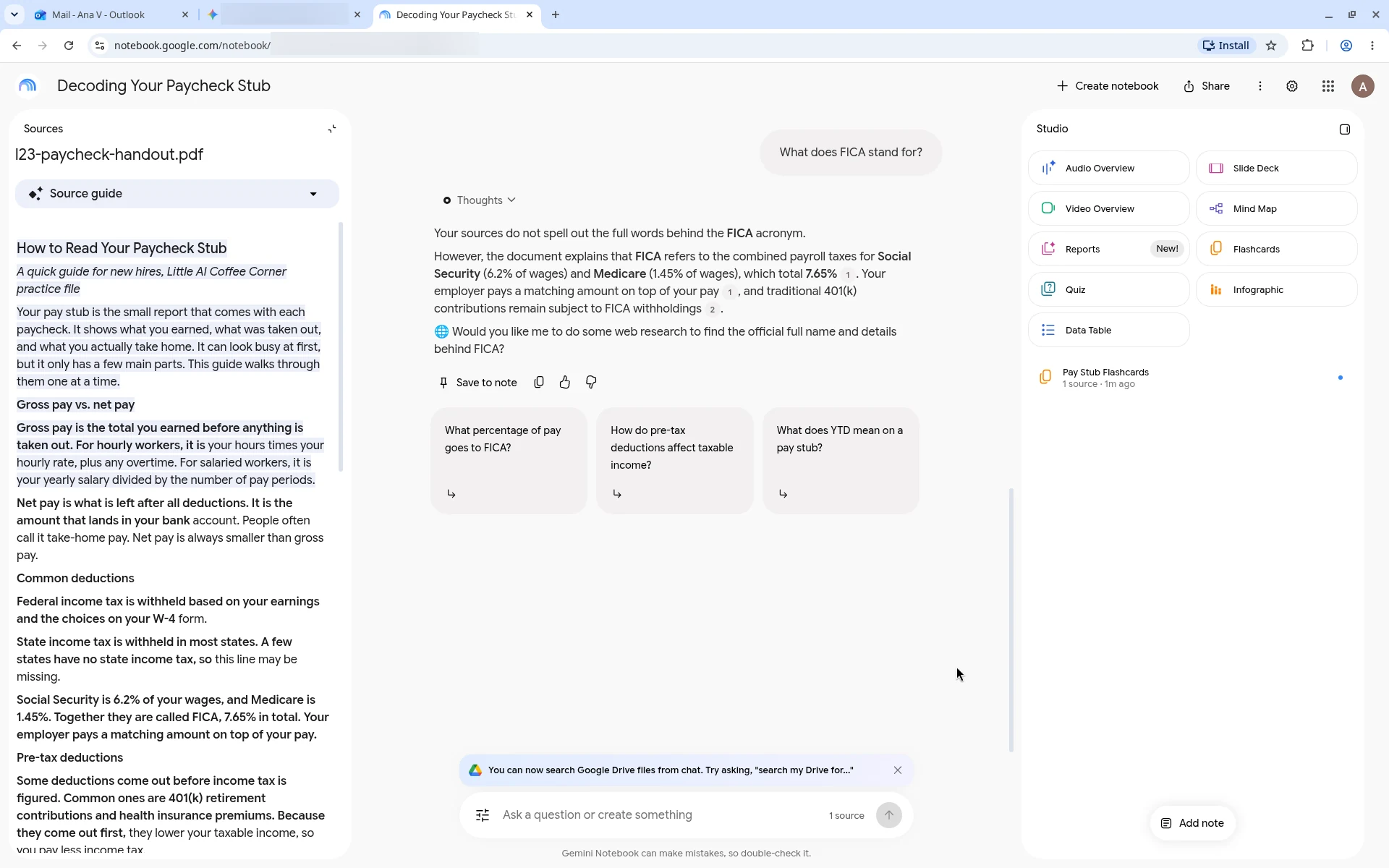
It takes a minute or so. When it's done, Pay Stub Flashcards shows up in the Studio list. Click it to open the cards.
9. Go through the cards
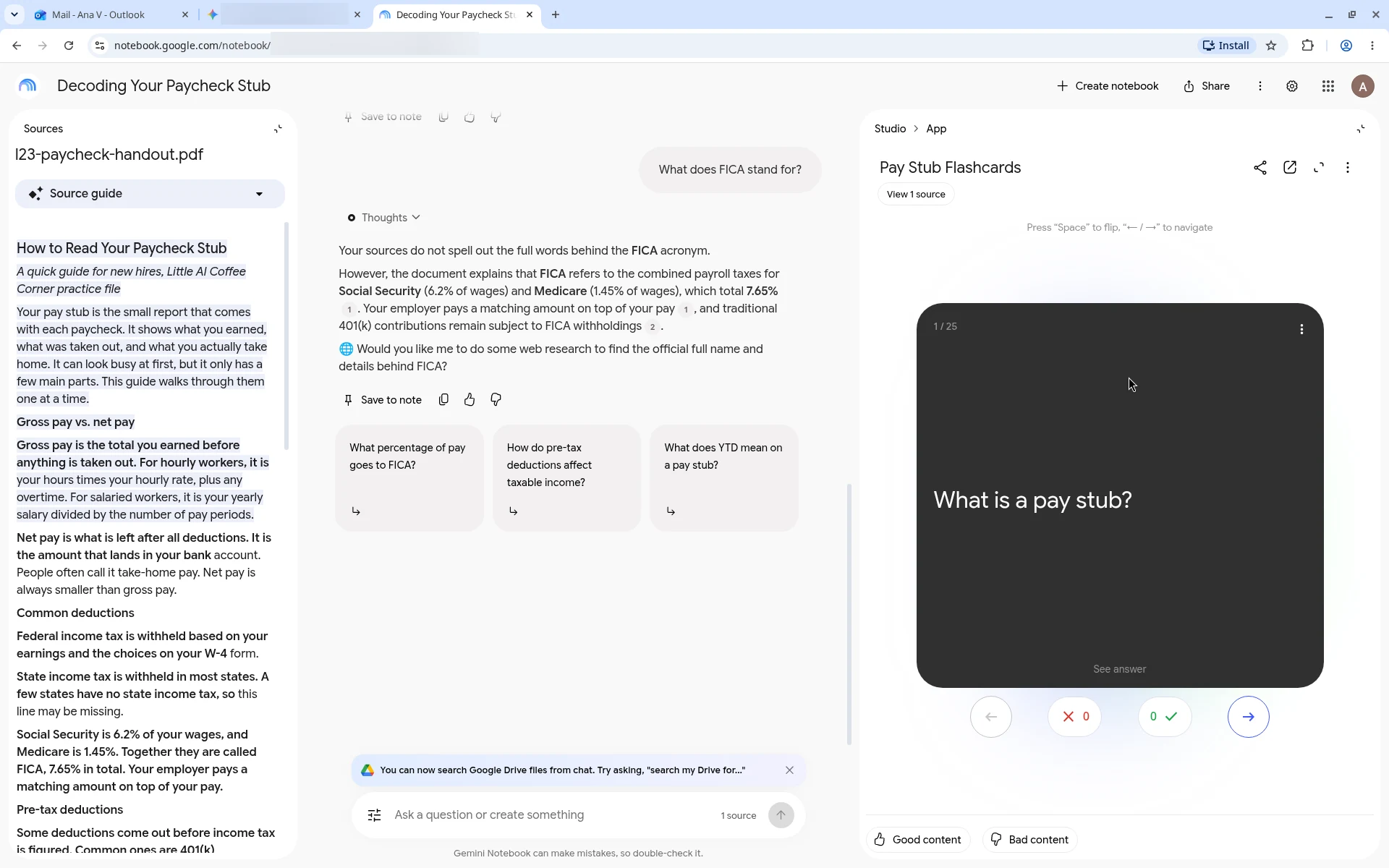
I got 25 cards, and the corner of the card says 1 / 25. The first one asks, "What is a pay stub?" Press the space bar or click See answer to flip it, and use the arrows to move to the next one.
10. Read the answers before you share them
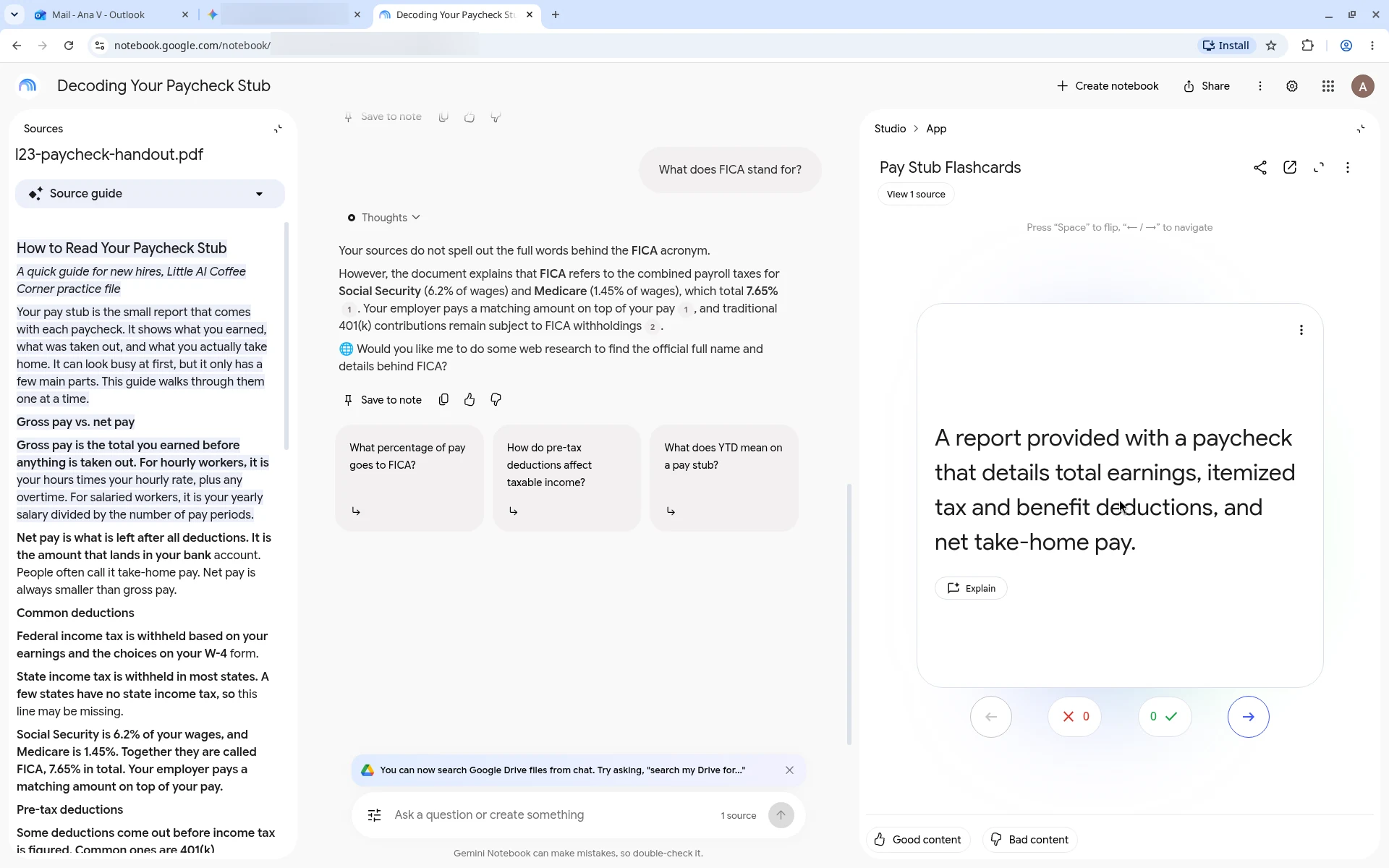
The back of the first card says, "A report provided with a paycheck that details total earnings, itemized tax and benefit deductions, and net take-home pay." I flipped the first three cards and they all matched my handout.
Still, read every card before your class does. If a card is worded in a way you wouldn't say it, rewrite it, or make your own cards using these as a starting list.
11. Make a quiz
Go back to Studio and click Quiz. This window has the same kind of options, plus the type of questions. I kept the defaults again and clicked Generate now.
There isn't a study guide tile. Reports opens a "Create report" window, but I closed it because a quiz was what I wanted.
12. Take the quiz yourself
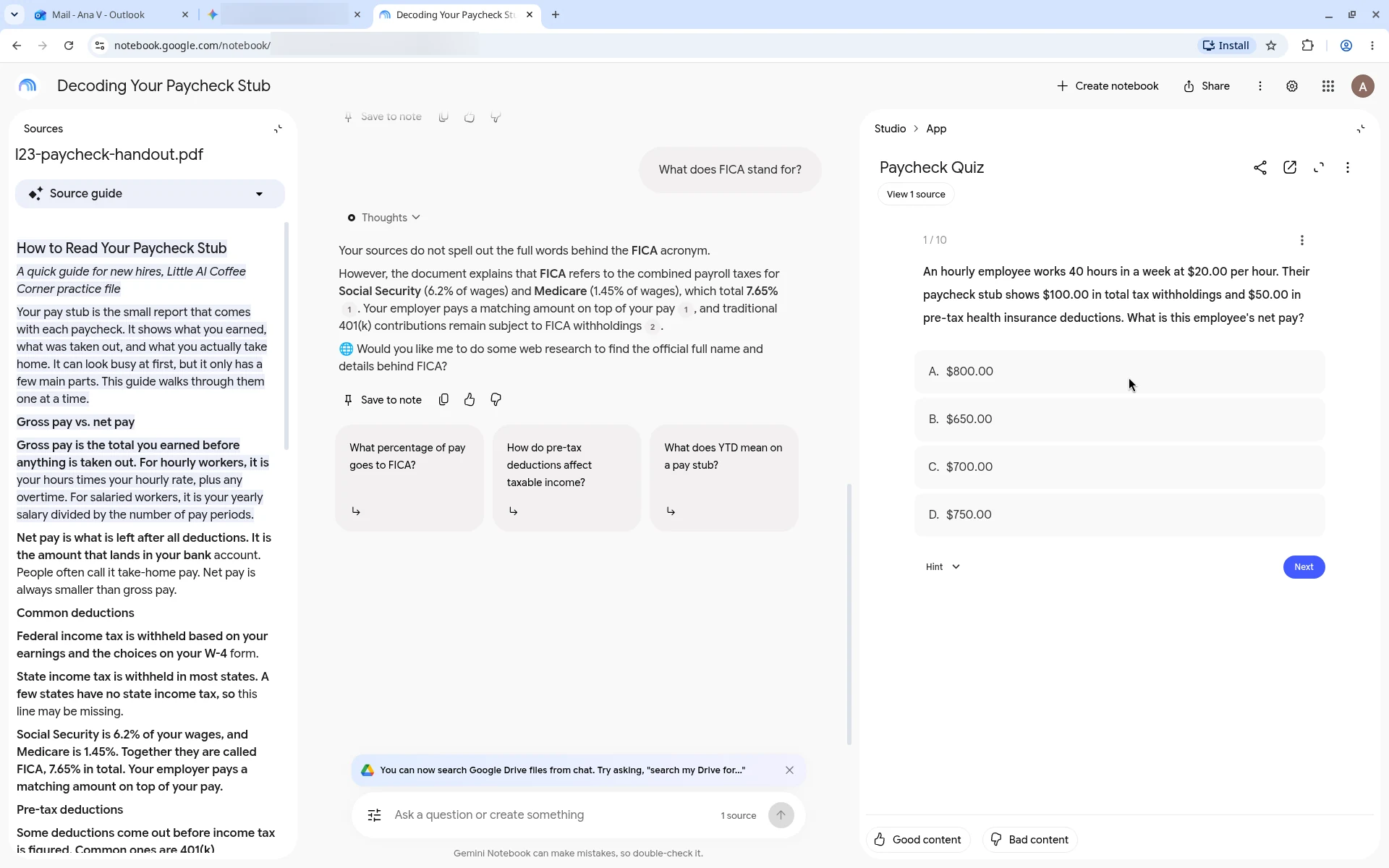
I got Paycheck Quiz with 10 questions. The first one is a small math problem: someone works 40 hours at $20.00 an hour, with $100.00 in tax and $50.00 for health insurance taken out. What's their net pay?
The right answer is B. $650.00, because $800 minus $100 minus $50 is $650. This one was correct, but check every answer yourself before you hand the quiz to anyone. It takes less time than the meeting someone would schedule to talk about a wrong answer.
Fine and not fine
These are fine:
- Uploading a handout you wrote, or something that's already public.
- Using the flashcards and quiz as a first draft that you check and fix.
These are not fine:
- Uploading student records, names, grades or anything private (see Lesson 21).
- Handing out cards or a quiz you haven't read yourself.
At school or work
At school or work: whether your students or staff can use NotebookLM depends on your organization's Google Workspace settings. Check with your IT team before you plan a lesson around it.
Check that you've got it
- You uploaded your own handout, with nothing private in it.
- You clicked a citation and saw where an answer came from.
- You noticed when NotebookLM said your sources didn't cover something.
- You read every flashcard and checked every quiz answer.
- Anything you changed is in your own words.
Let’s learn together.
Comments are reviewed by Ana before they appear. Please use fictional examples and leave workplace details out.
Loading approved comments…