Make a 10-question quiz with Gemini, then check every answer before anyone sees it
Upload a handout, get a quiz from Gemini, take it yourself, catch the wrong answers against your handout, then build the good questions into a Google Forms quiz.
Step 6 of 11 in Choose for the task: lessons, quizzes and slides (Path 03)
Heads up: these screenshots use a personal Google account in Gemini (gemini.google.com) in a web browser on a computer. No subscription.
A quiz is one of the most useful things you can make with Gemini, and one of the easiest to get wrong. If you read Lesson 21, you know the deal: Gemini can do the first draft, and you're still the one who checks the work.
We'll upload a handout, ask for a 10-question quiz, take it ourselves, and then catch two real mistakes Gemini made while I was recording. After that, we'll put the good questions into Google Forms so your class can take it.
Before you start
Heads up: these screenshots use a personal Google account in Gemini (gemini.google.com) in a web browser on a computer. No subscription.
Practice with a handout or lesson notes of your own. To follow along exactly, use my sample handout (PDF). It's a made-up two-page handout called "How to Read Your Paycheck Stub." Keep anything about real students out of it (see Lesson 21).
One note on age: on a personal Google account, Gemini's quiz tool is for people 18 and older. That limit is about you, the person using Gemini to make the quiz. Your students take the finished quiz in Google Forms, and they can be any age. If your school uses Gemini for Education, your IT team sets that up for you.
Screenshots are from October 28, 2026, with the chat and form IDs in the address bar blurred. Google moves things around, so yours may not match.
Part 1: Make the quiz
1. Upload your handout
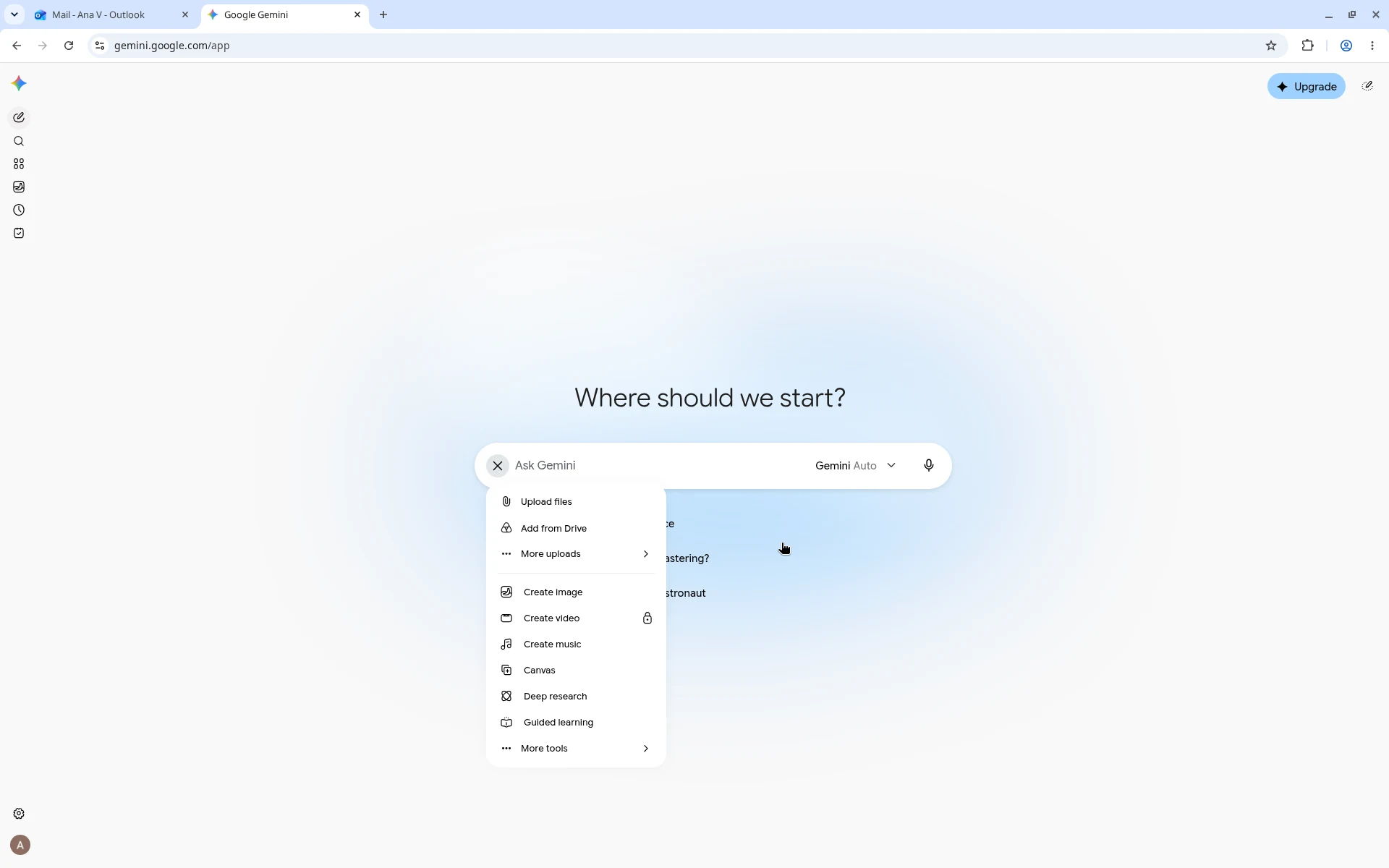
Go to gemini.google.com and click the + on the left of the message box (it's labelled Upload & tools). Click Upload files and pick your handout.
2. Ask for the quiz
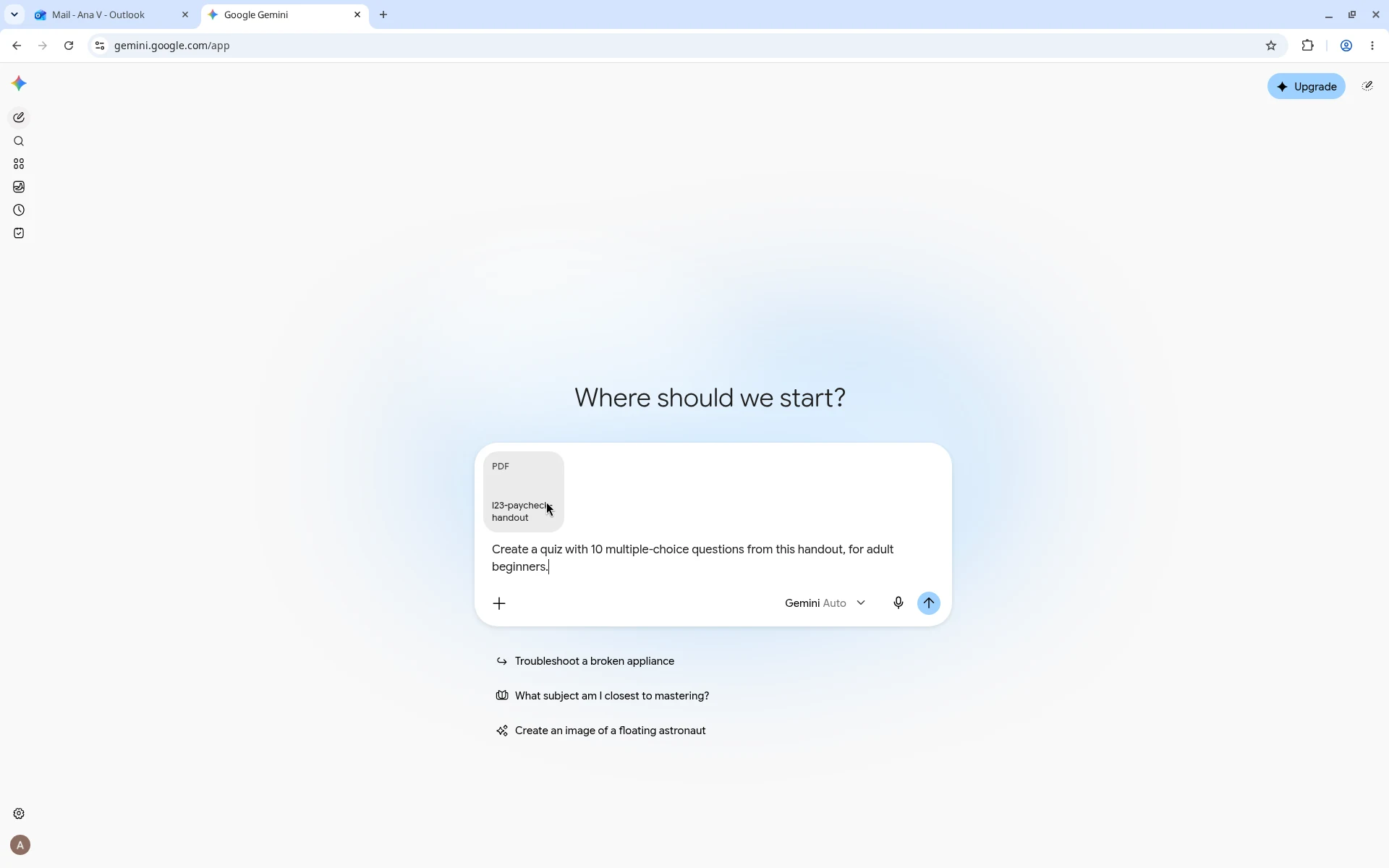
The file shows up as a small box that says PDF with the file name. Under it, type what you want. Mine was "Create a quiz with 10 multiple-choice questions from this handout, for adult beginners." Then click the arrow to send.
3. Count the questions
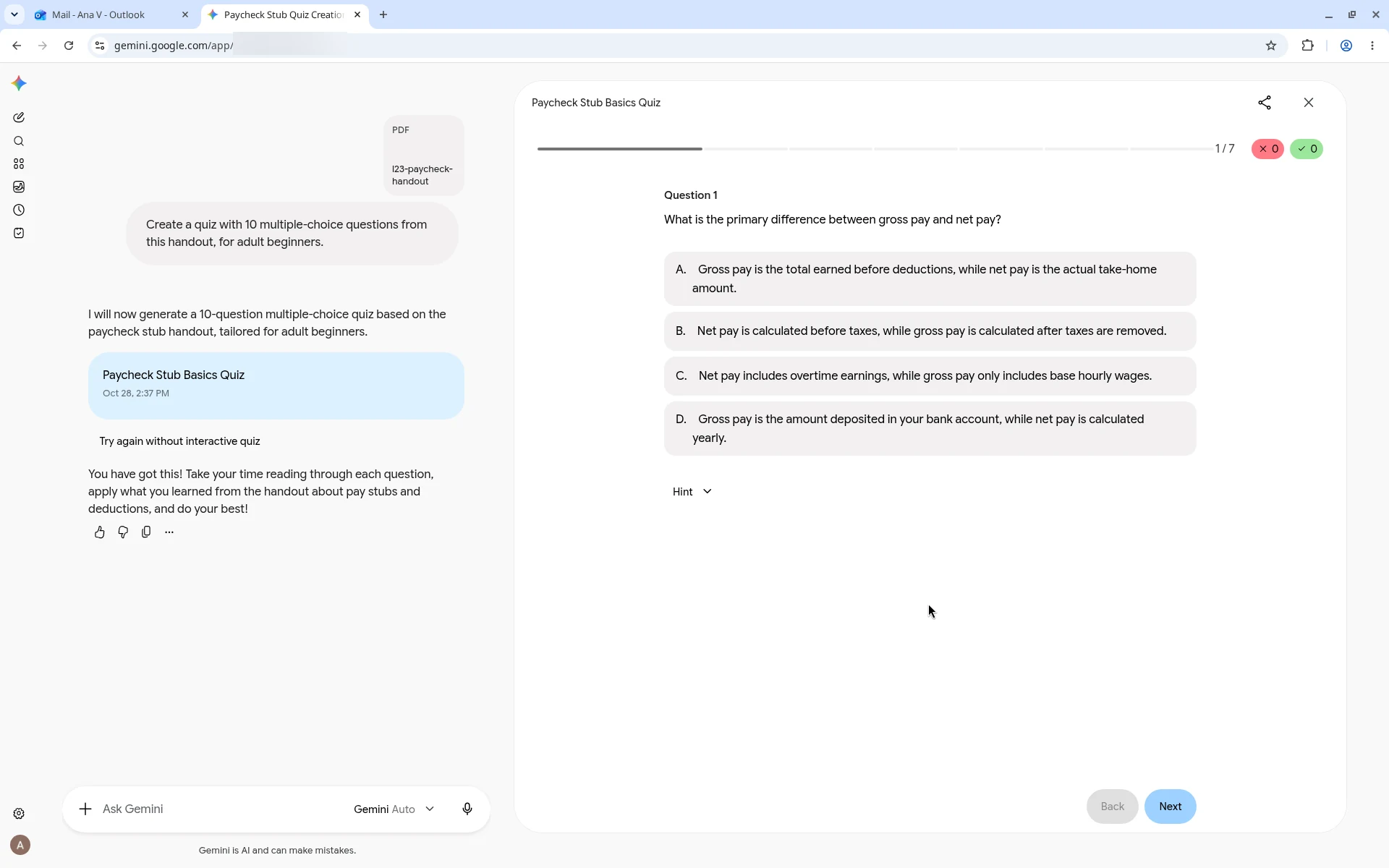
Gemini said "I will now generate a 10-question multiple-choice quiz," and a card called Paycheck Stub Basics Quiz appeared, with the quiz itself in a panel on the right. Look at the top right of the panel, though. It says 1 / 7.
I asked for 10 and got 7, and Gemini didn't mention it. That's the first mistake, and it's an easy one to miss if you don't look.
If you'd rather have plain text you can copy, click Try again without interactive quiz under the card.
4. Take the quiz yourself
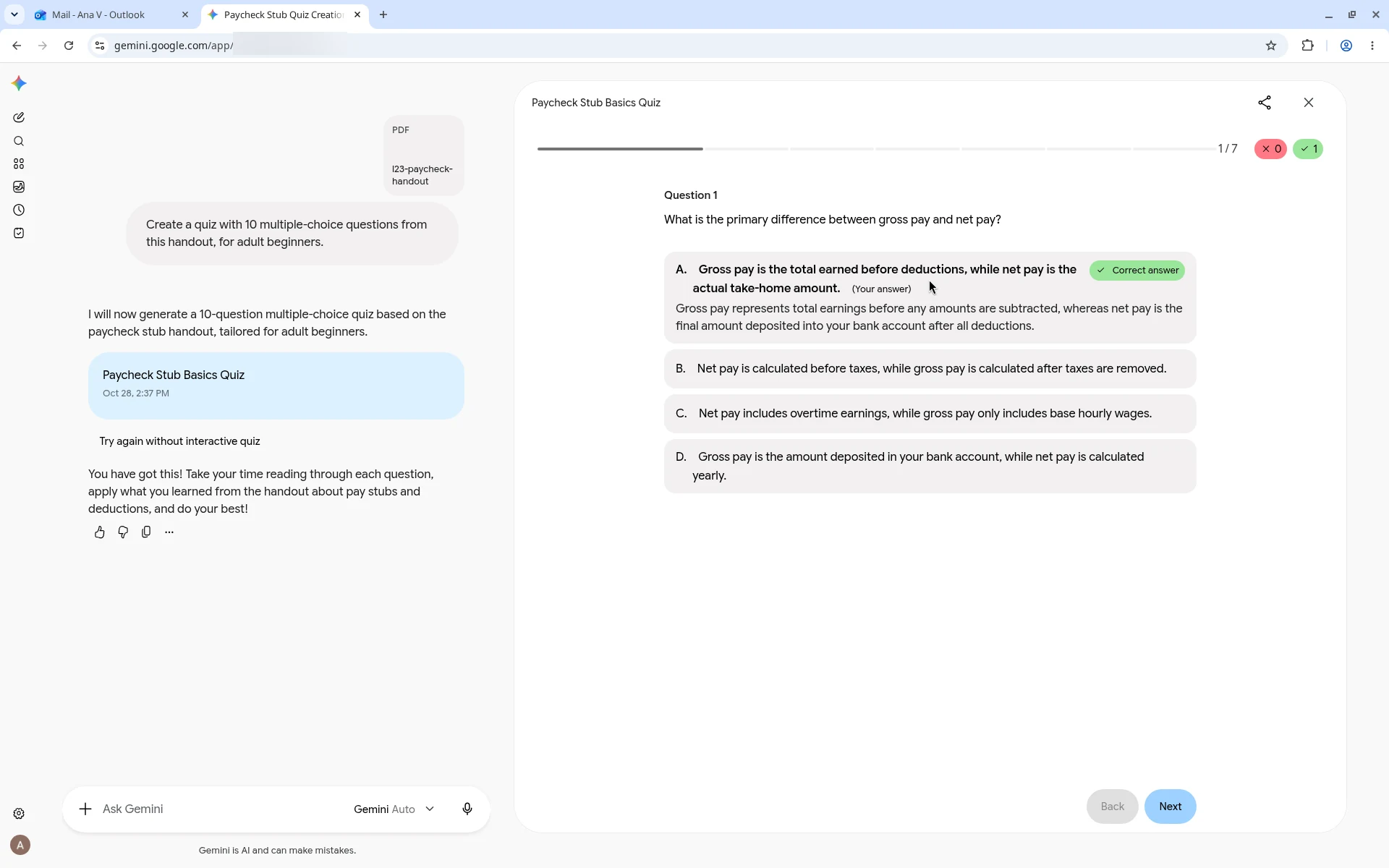
Click an answer, and the quiz tells you right away whether you got it. A right answer gets a green Correct answer tag with a short explanation. The counters at the top keep score, and Hint gives a nudge if you're stuck.
5. Get one wrong on purpose
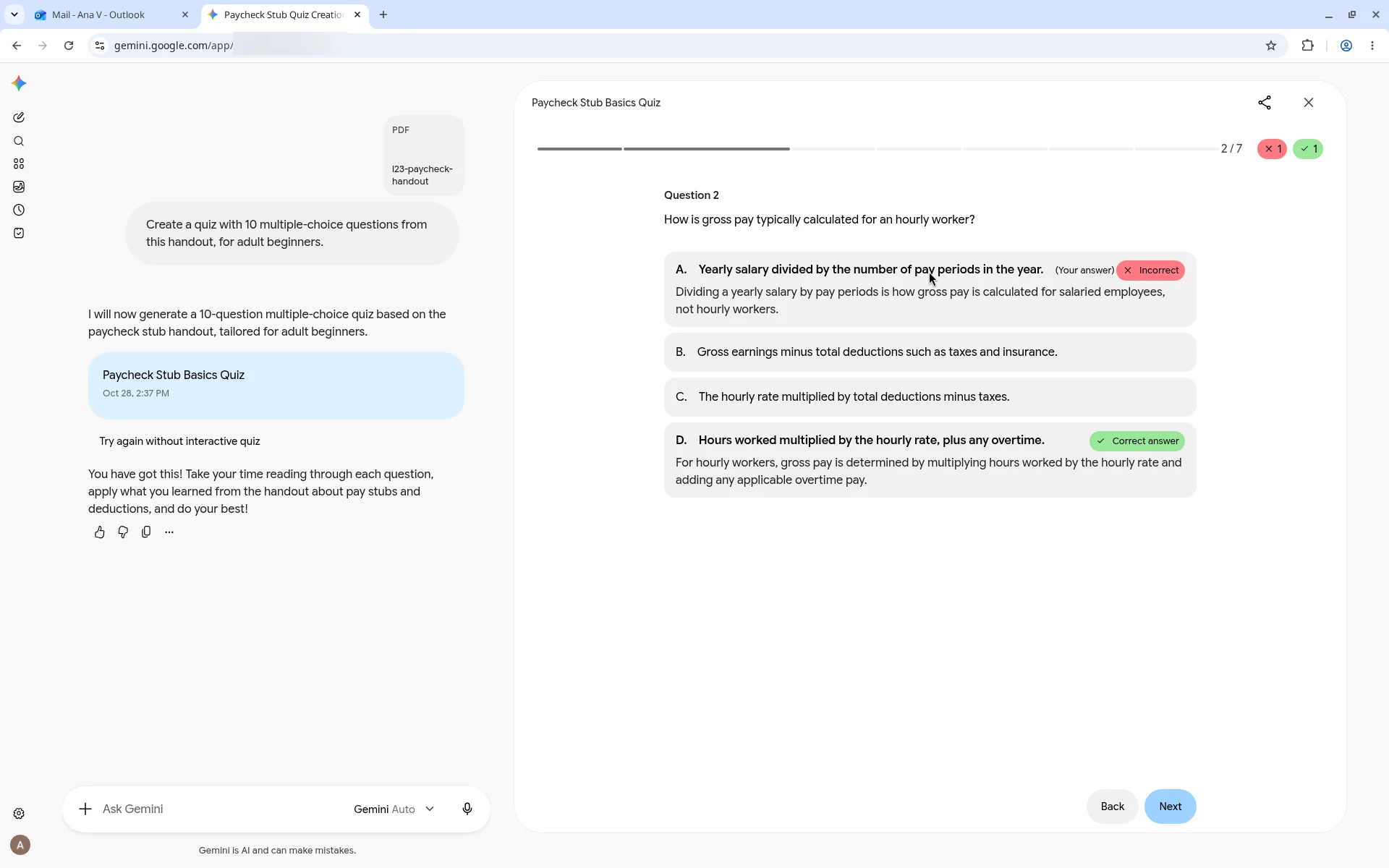
I picked a wrong answer on Question 2 to see what students would see. It shows Incorrect next to your answer, explains why, and marks the right one, which here is "Hours worked multiplied by the hourly rate, plus any overtime."
6. Notice the numbers
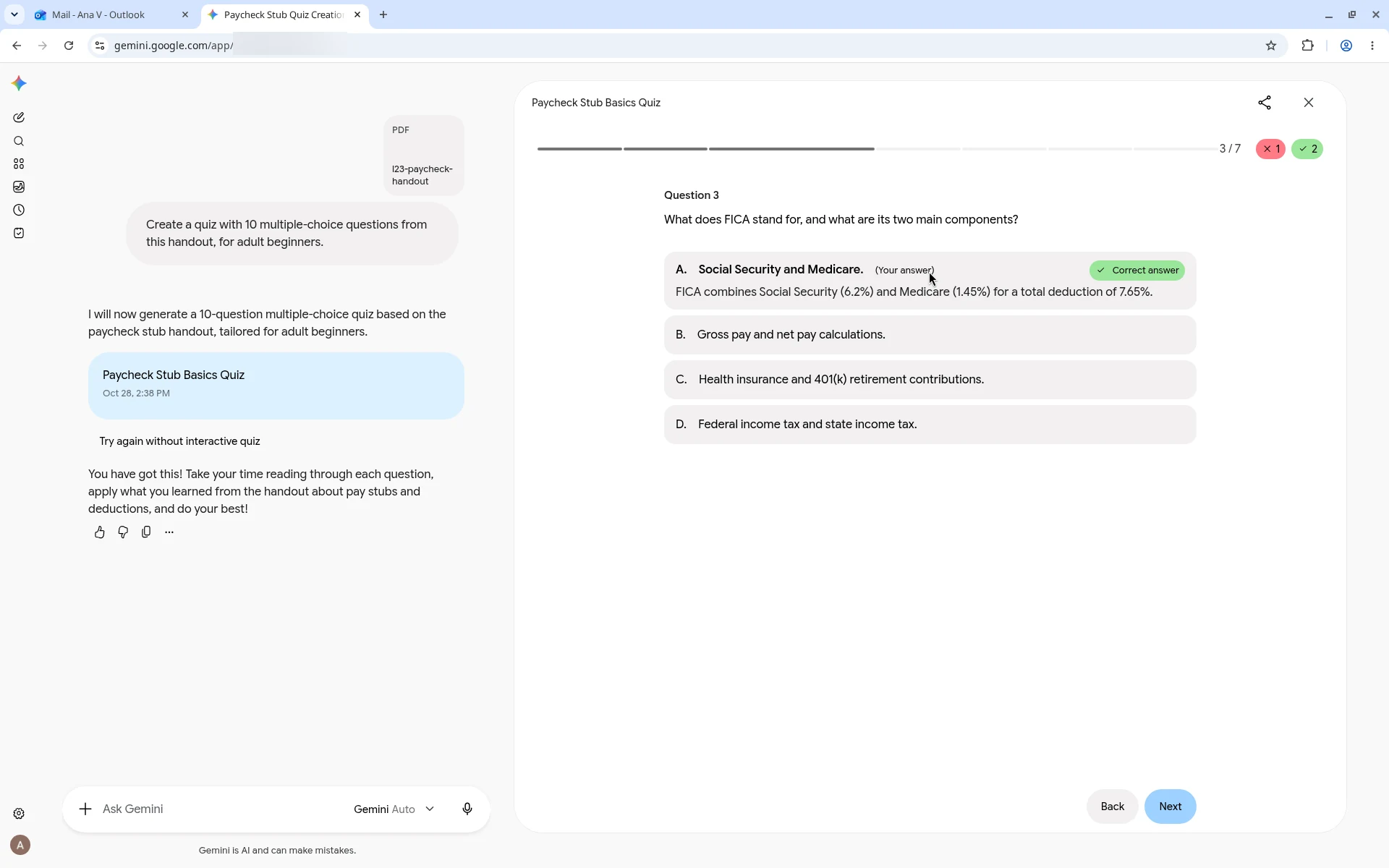
Question 3 asks what FICA stands for and what its two parts are. The explanation says Social Security is 6.2% and Medicare is 1.45%, for a total of 7.65%. Any time a quiz gives you a number, that's something to check.
7. Check it against your handout
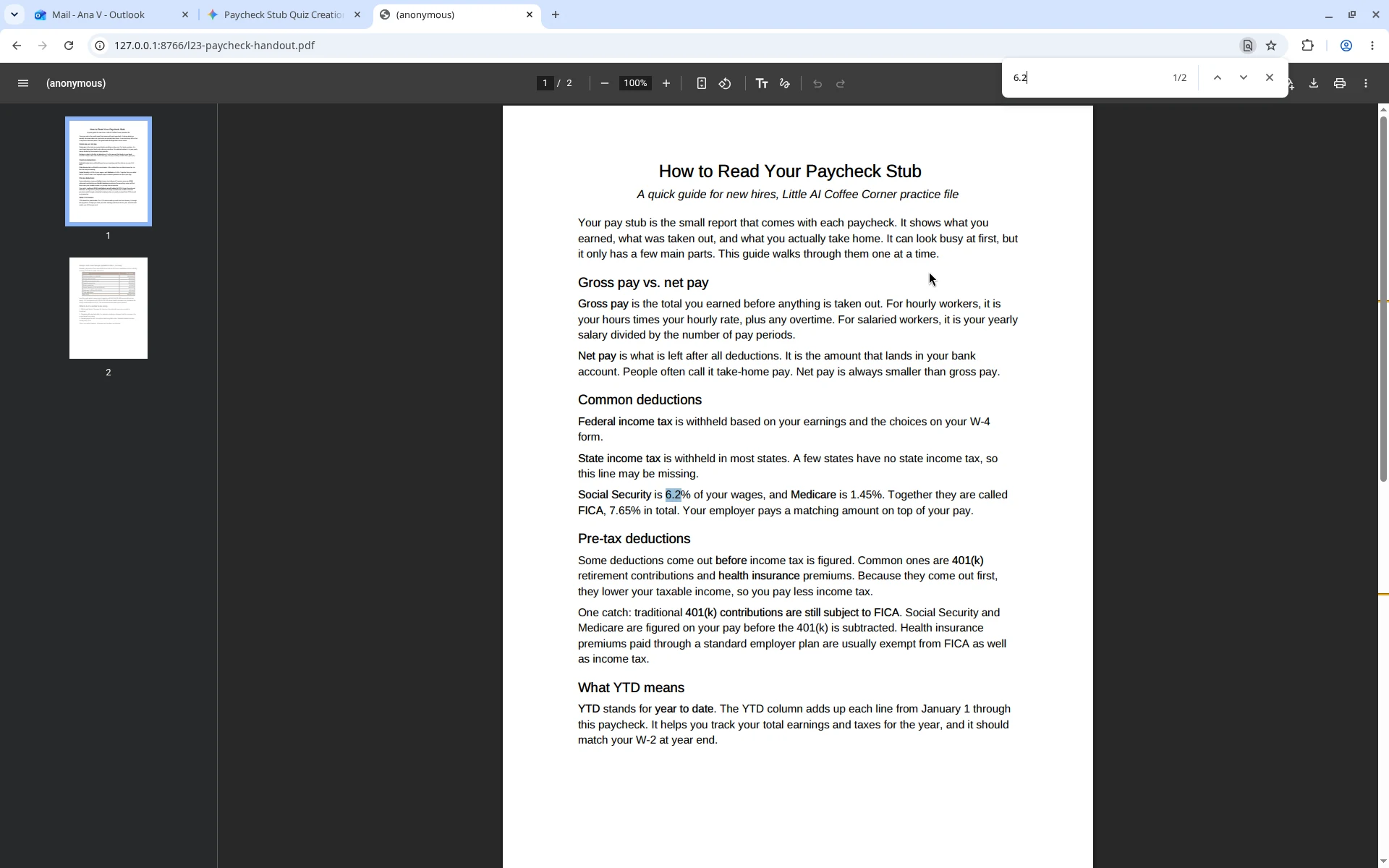
Open your handout in another tab and press Ctrl + F (or Cmd + F on a Mac) to search for the number. Mine says "Social Security is 6.2% of your wages, and Medicare is 1.45%. Together they are called FICA, 7.65% in total." So this one matches.
Notice what the handout doesn't say, though. It never spells out what FICA stands for. Keep that in mind for step 9.
Part 2: Catch the mistakes
8. Ask for what you actually wanted
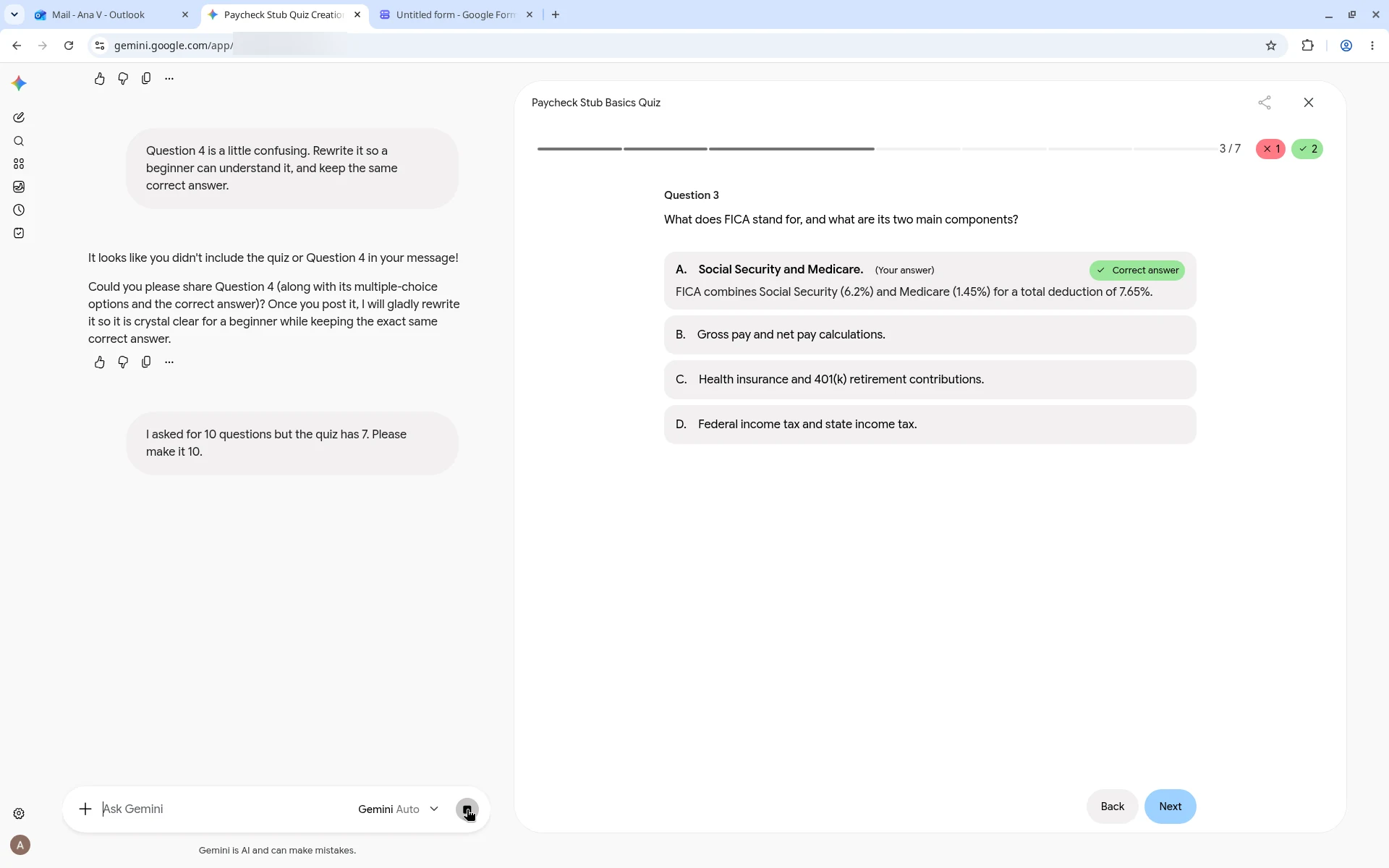
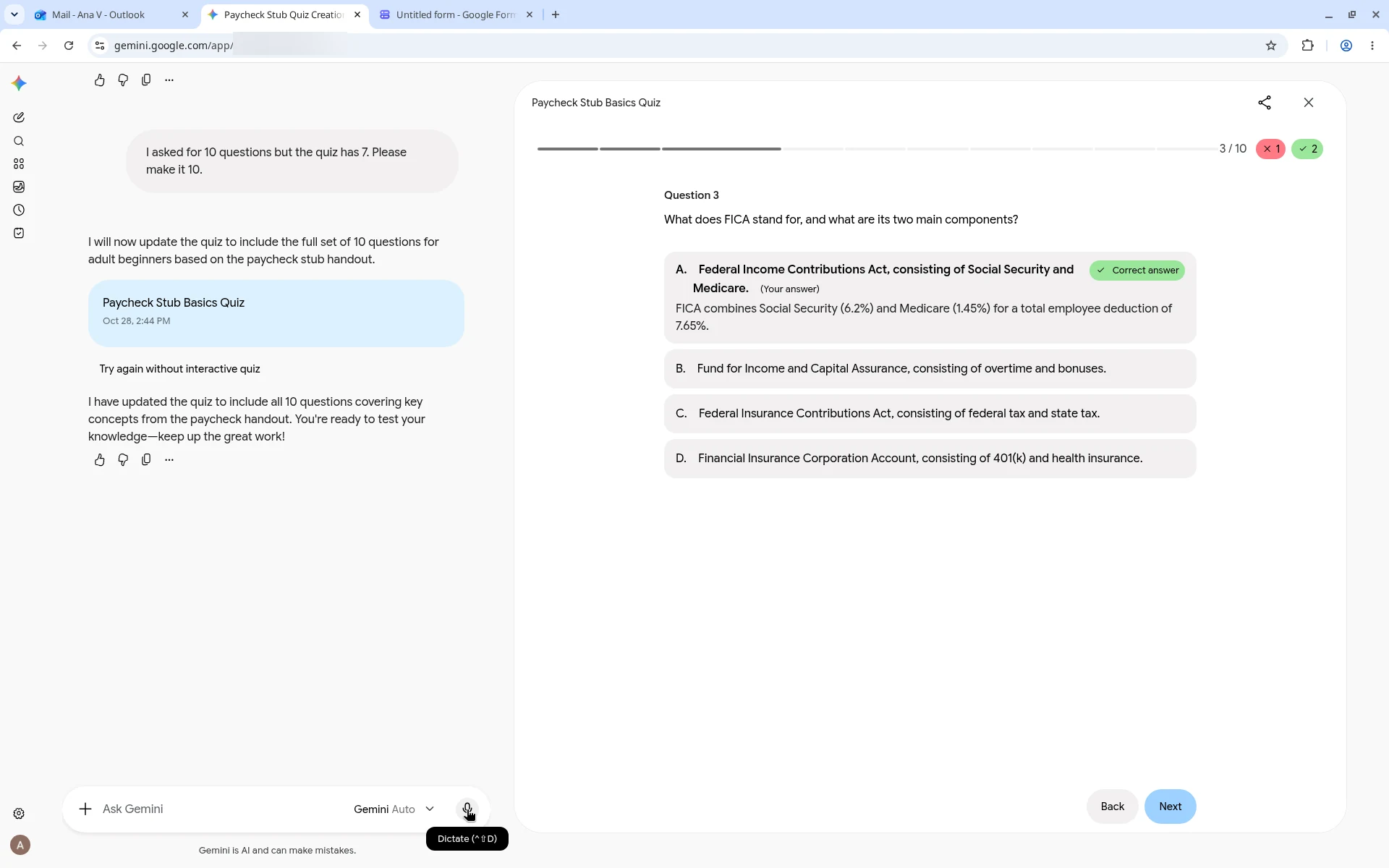
I told it plainly: "I asked for 10 questions but the quiz has 7. Please make it 10."
You can also ask it to reword a question. My first try was "Question 4 is a little confusing," and Gemini said it couldn't see the quiz. It works much better if you paste the question text in, which we'll do in step 10.
9. Find the answer that's wrong
Gemini rebuilt the quiz, and now the panel says 3 / 10. Here's the FICA question again, and look at what it marked as the Correct answer: "Federal Income Contributions Act, consisting of Social Security and Medicare."
That's wrong. FICA stands for the Federal Insurance Contributions Act, not "Income." You can check that on the IRS page about Social Security and Medicare withholding. Option C even uses the right name, but with the wrong parts, so a student who knows the real answer has nowhere to go.
My handout never spelled out FICA, so Gemini filled in the gap itself and got it wrong. This is exactly why you check every answer, especially anything the quiz says that isn't in your handout. I'd either fix this question or drop it.
10. Paste a question in to reword it
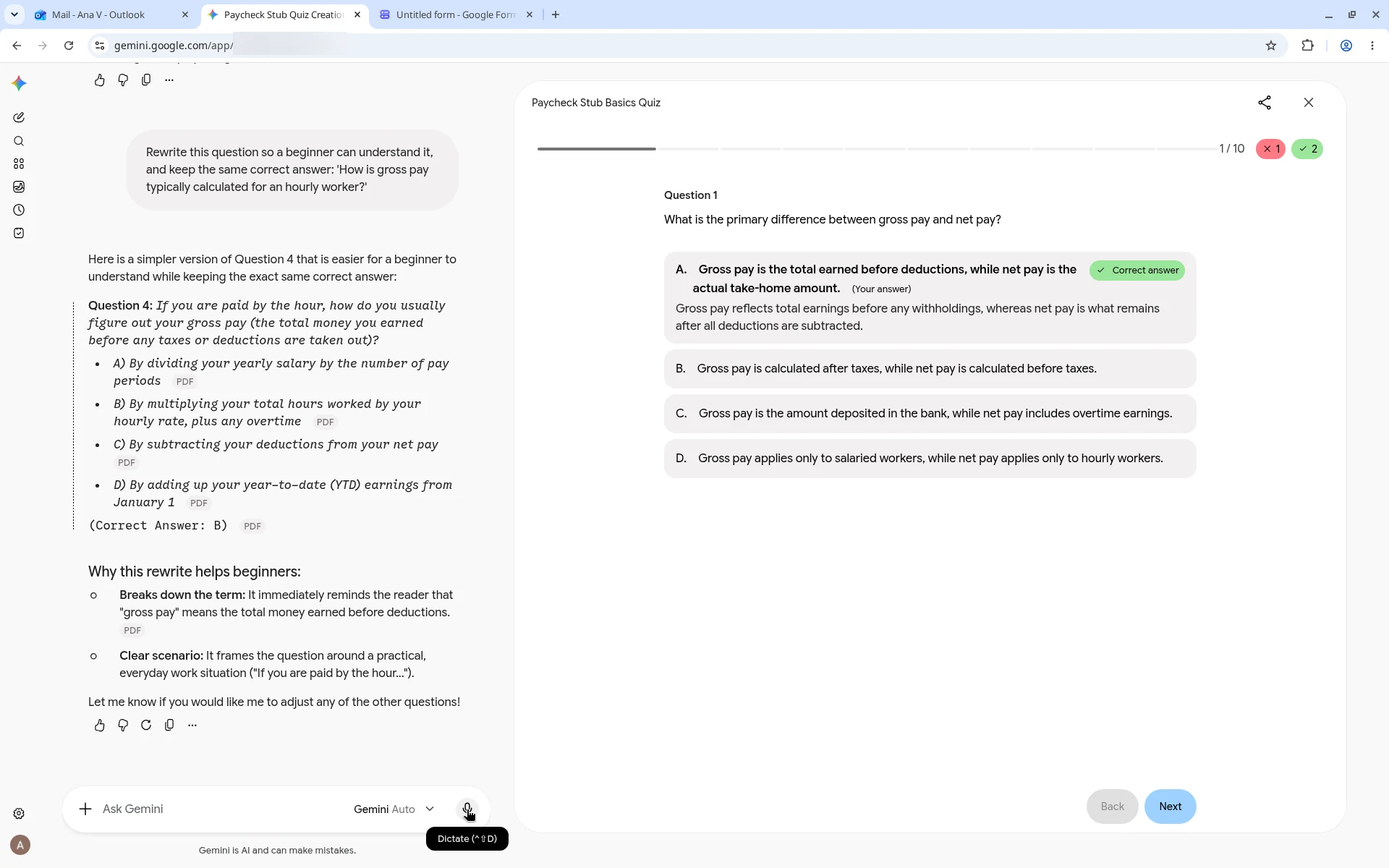
To make a question easier, copy its text into your message. I asked: "Rewrite this question so a beginner can understand it, and keep the same correct answer," and pasted in the hourly gross pay question.
Gemini wrote a simpler version with options A to D, said the answer is B, and added small PDF tags showing which parts came from the handout. Those tags are handy for checking, but you still read it. Gemini labeled its rewrite "Question 4," but the question I pasted was Question 2 in my quiz, so watch the numbers when you copy things back.
Part 3: Put it in Google Forms
You type the questions into Forms yourself. On a personal account, having Gemini write questions inside Forms is a paid feature, so we copy the ones we've checked instead. That's also a nice last chance to read each one.
11. Make a new form a quiz
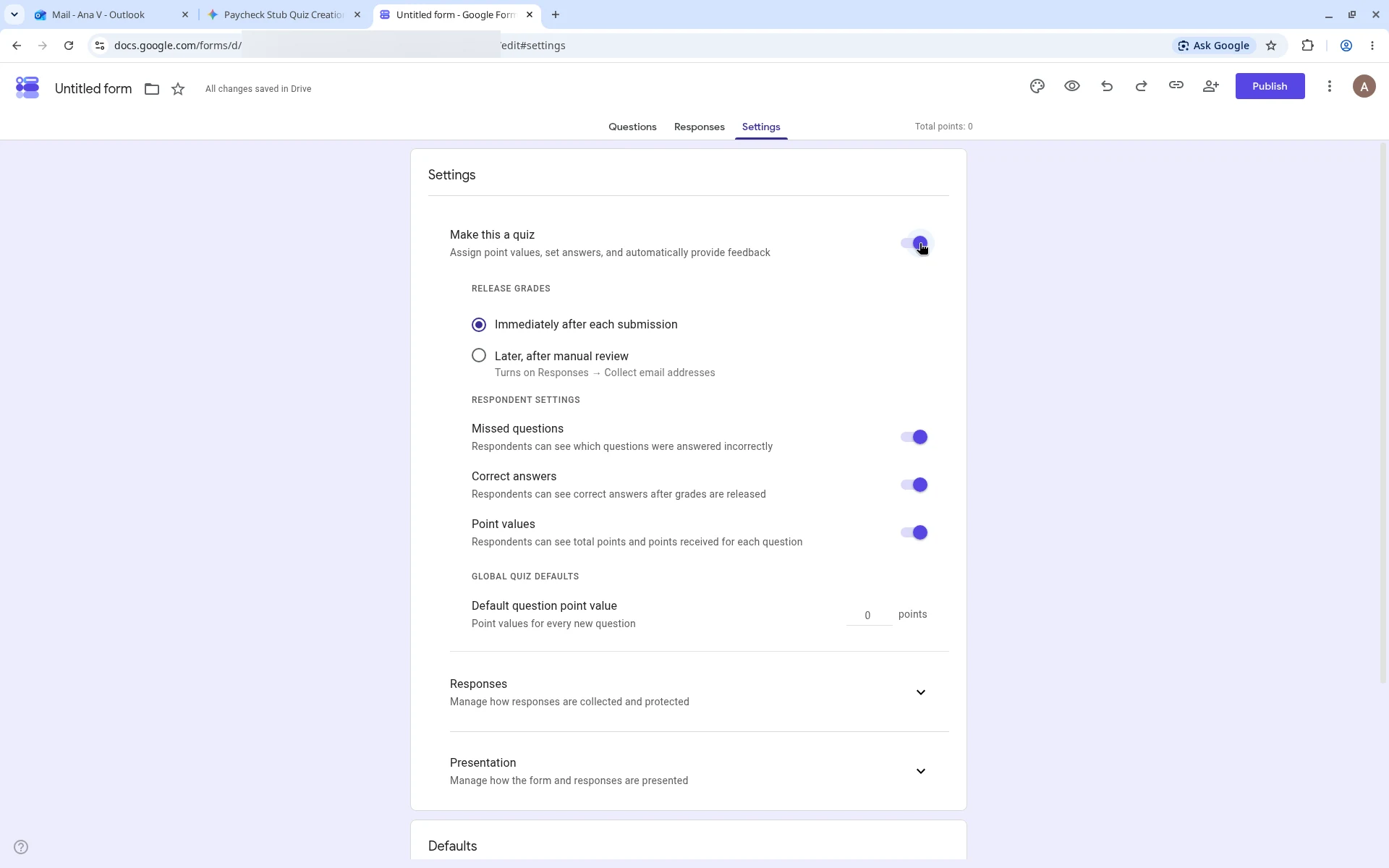
Go to forms.google.com, start a blank form, and give it a title. Mine is "Paycheck Stub Quiz." Click Settings at the top and turn on Make this a quiz, which lets you "Assign point values, set answers, and automatically provide feedback."
12. Add a question and set the answer key
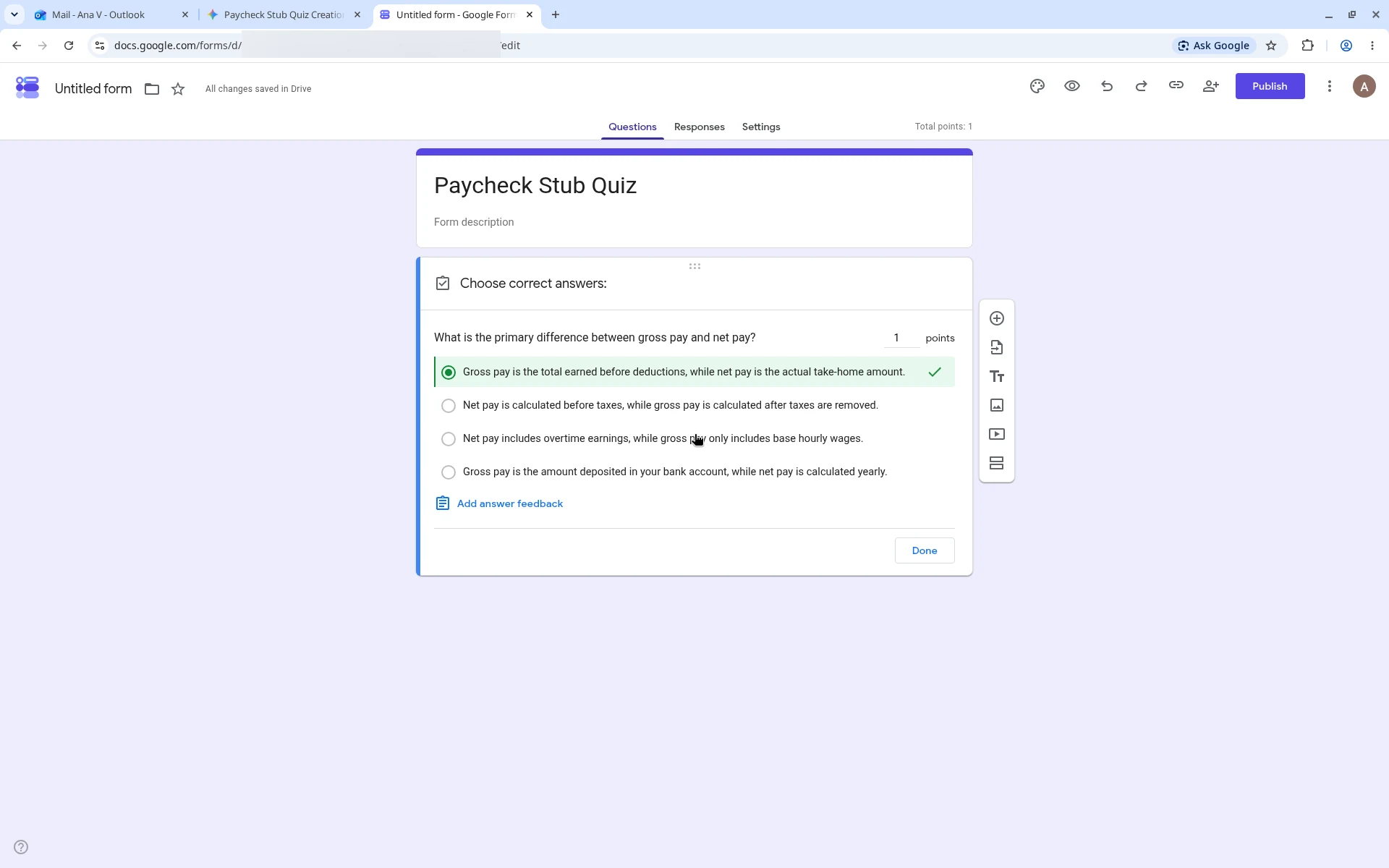
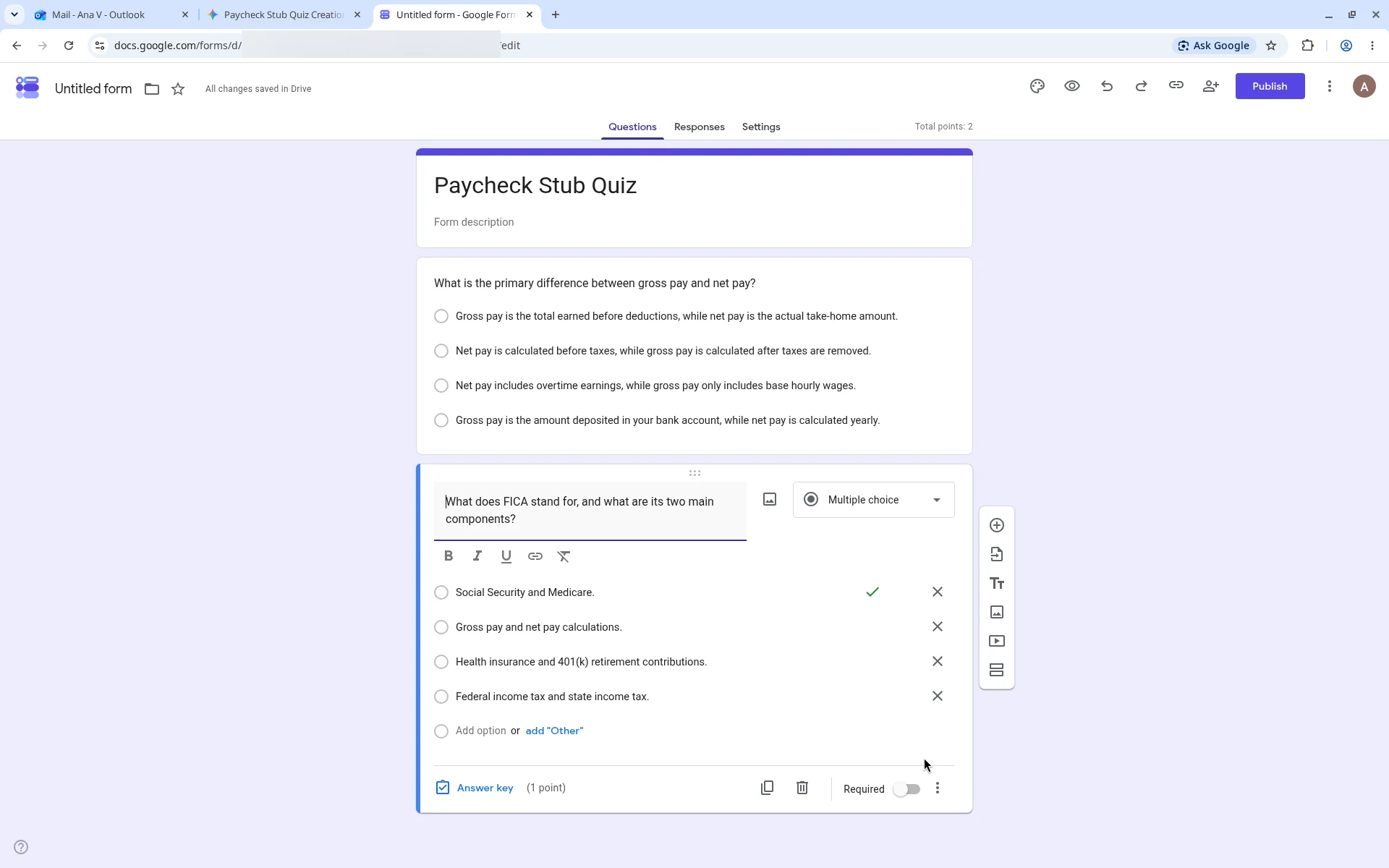
Go back to Questions, type your question and the four options, then click Answer key at the bottom of the question. Under Choose correct answers:, click the right one, set the points, and click Done.
13. Keep going
I only added two questions here, just to show how it works. You'd add the rest of your checked questions the same way. The top right keeps a running count, and mine says Total points: 2.
My second question is the FICA one from the first quiz. Its answer only names the two parts and never says what FICA stands for, so I'd fix the wording before using it with a class.
14. Preview it before you share it
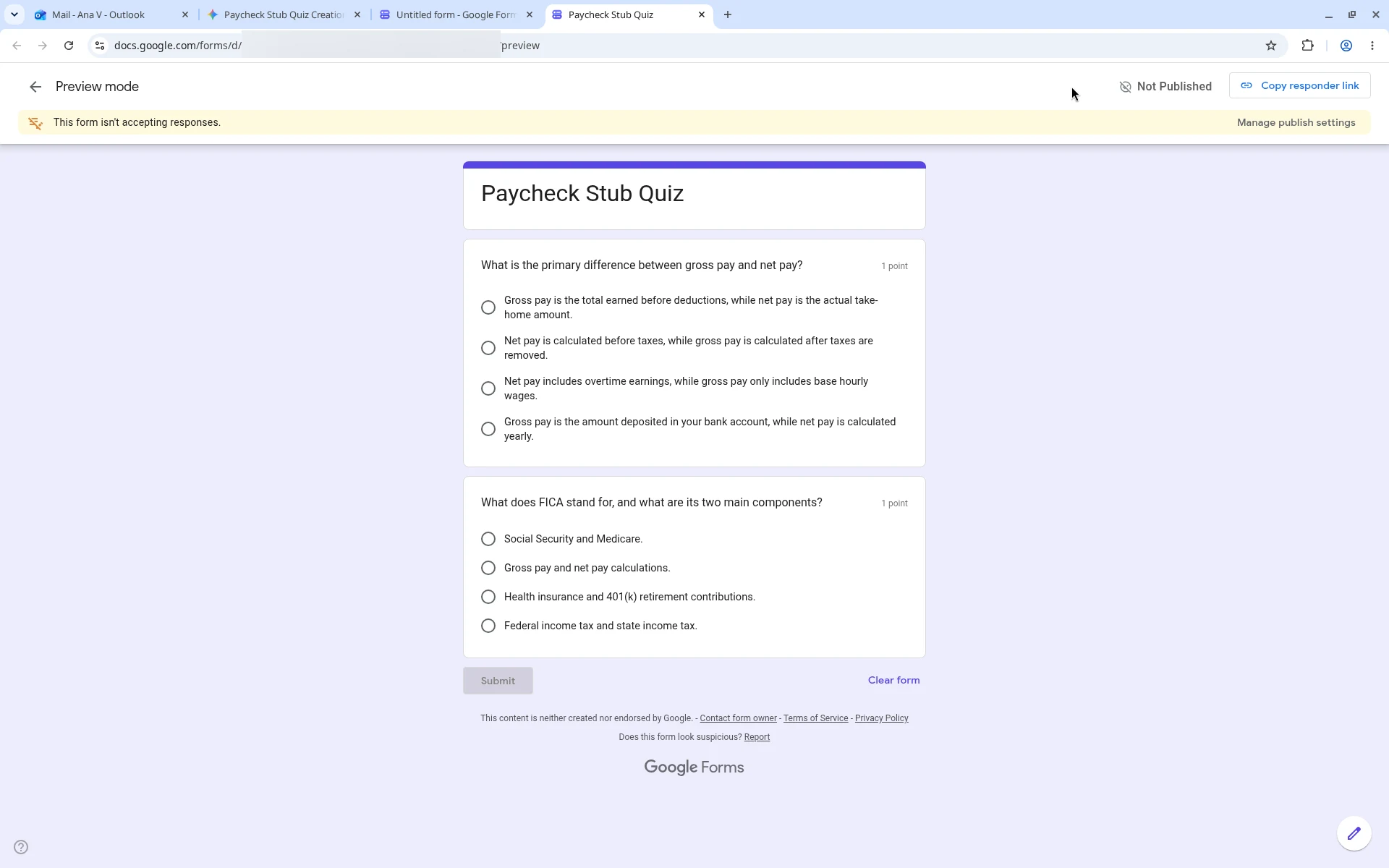
Click the eye icon (Preview) at the top to see what your students will see. It says "This form isn't accepting responses" and Not Published until you click Publish and share the link. Take it once yourself, the same way you did in Gemini.
At work
At work: with a school Google account, Gemini for Education works the same way, but your IT team has to turn it on.
At work: having Gemini write questions right inside Google Forms needs Google AI Pro for Education. Typing them in, like we did here, works on any account.
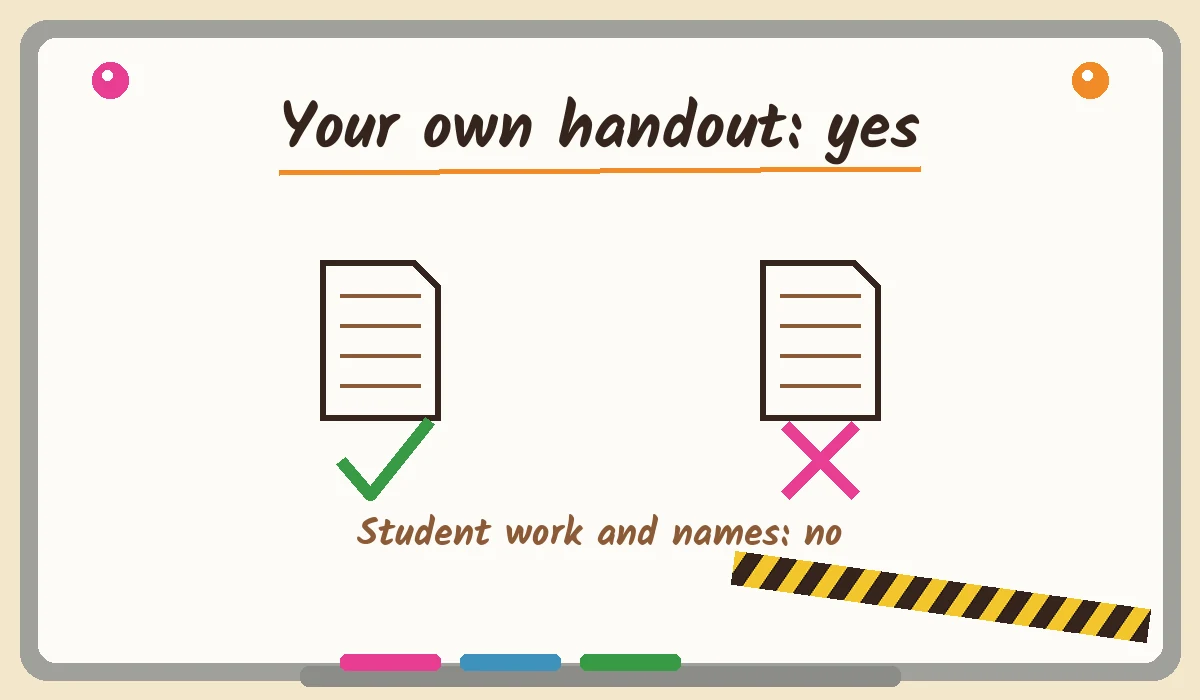
At work: don't upload student work or anything with student names to make a quiz (see Lesson 21). A handout you wrote is fine.
Check that it worked
- You counted the questions and got the number you asked for.
- You checked every answer against your handout, and looked twice at anything the handout doesn't say.
- You fixed or dropped any question that was wrong.
- Your Google Form is set as a quiz, every question has an answer key, and you took it in Preview.
Let’s learn together.
Comments are reviewed by Ana before they appear. Please use fictional examples and leave workplace details out.
Loading approved comments…