Turn your messy notes into a lesson plan you'd actually teach
Turn rough class notes into a 45-minute lesson plan with Gemini Canvas, rewrite the opener in your own words, check it, and send it to Google Docs.
Step 5 of 11 in Choose for the task: lessons, quizzes and slides (Path 03)
Heads up: these screenshots use a personal Google account in Gemini (gemini.google.com) in a web browser on a computer. No subscription.
If you read Lesson 21, you already know the ground rules. This time we'll actually use Gemini for something you do every week.
You probably have notes for a class sitting somewhere, half sentences with question marks and arrows. Gemini can turn them into a proper lesson plan in about a minute. It gives you the skeleton, and then you put yourself in it, so the plan still sounds like you when you teach it.
We'll open Canvas, paste in some notes, change the opener to our own words, check the content, and send it to Google Docs.
Before you start
Heads up: these screenshots use a personal Google account in Gemini (gemini.google.com) in a web browser on a computer. No subscription.
Practice with notes of your own for a class you teach. To follow along exactly, use my sample notes (text file). They're made-up notes for a lesson on reading a paycheck stub, for adult ed or new hires. Just keep student names and anything private out of them (see Lesson 21).
Screenshots are from October 28, 2026, with chat titles in the sidebar and the chat and document IDs in the address bar blurred. Google moves things around, so yours may not match.
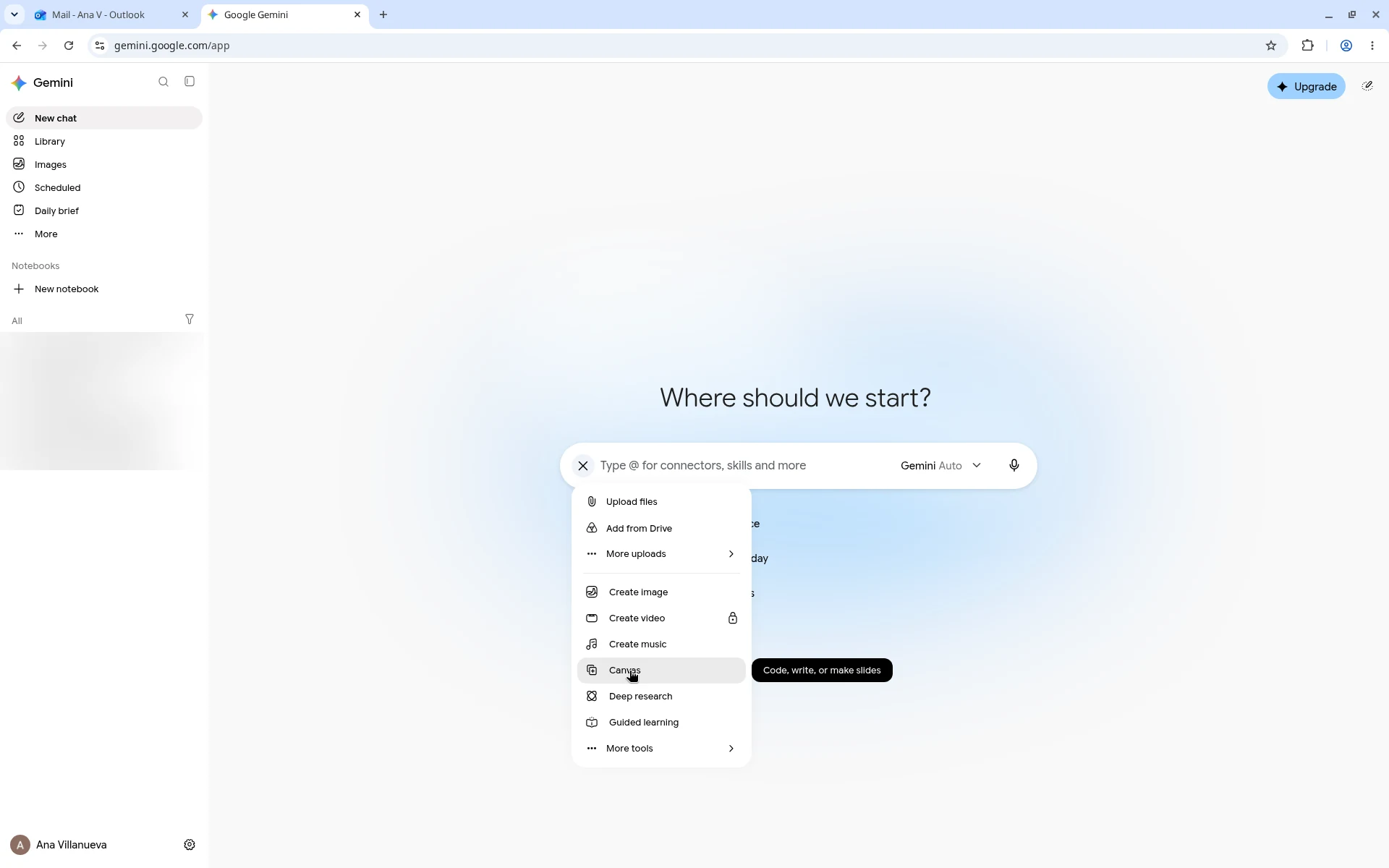
1. Open the + menu and pick Canvas
Go to gemini.google.com. In the message box, click the + on the left. You'll see a list that starts with Upload files and Add from Drive. Click Canvas, which the tooltip describes as "Code, write, or make slides."
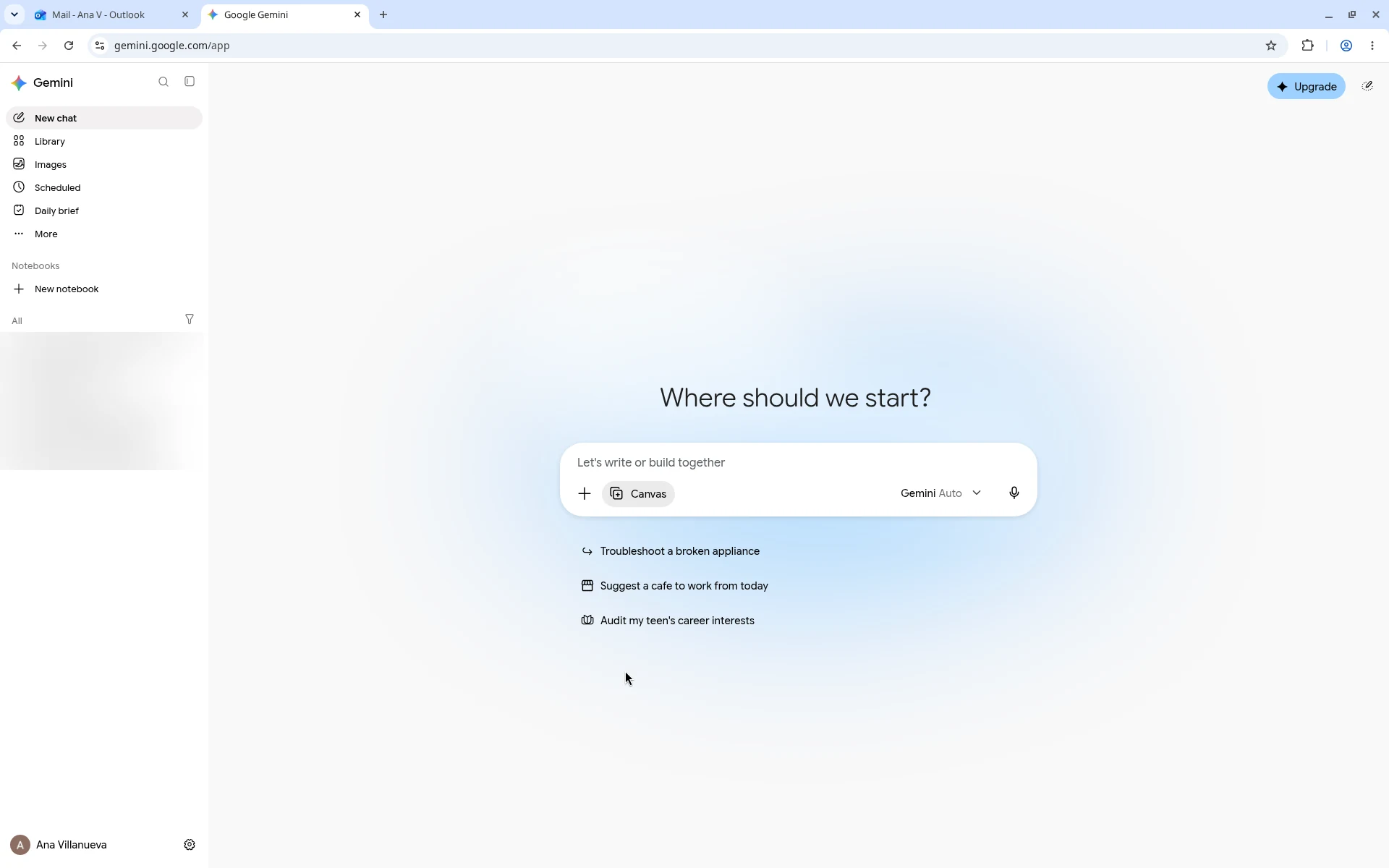
2. Check that Canvas is on
A Canvas chip now sits in the message box, and the gray text in the box changes to "Let's write or build together." That's how you know your plan will open in its own editable page instead of a normal chat reply.
3. Say what you want
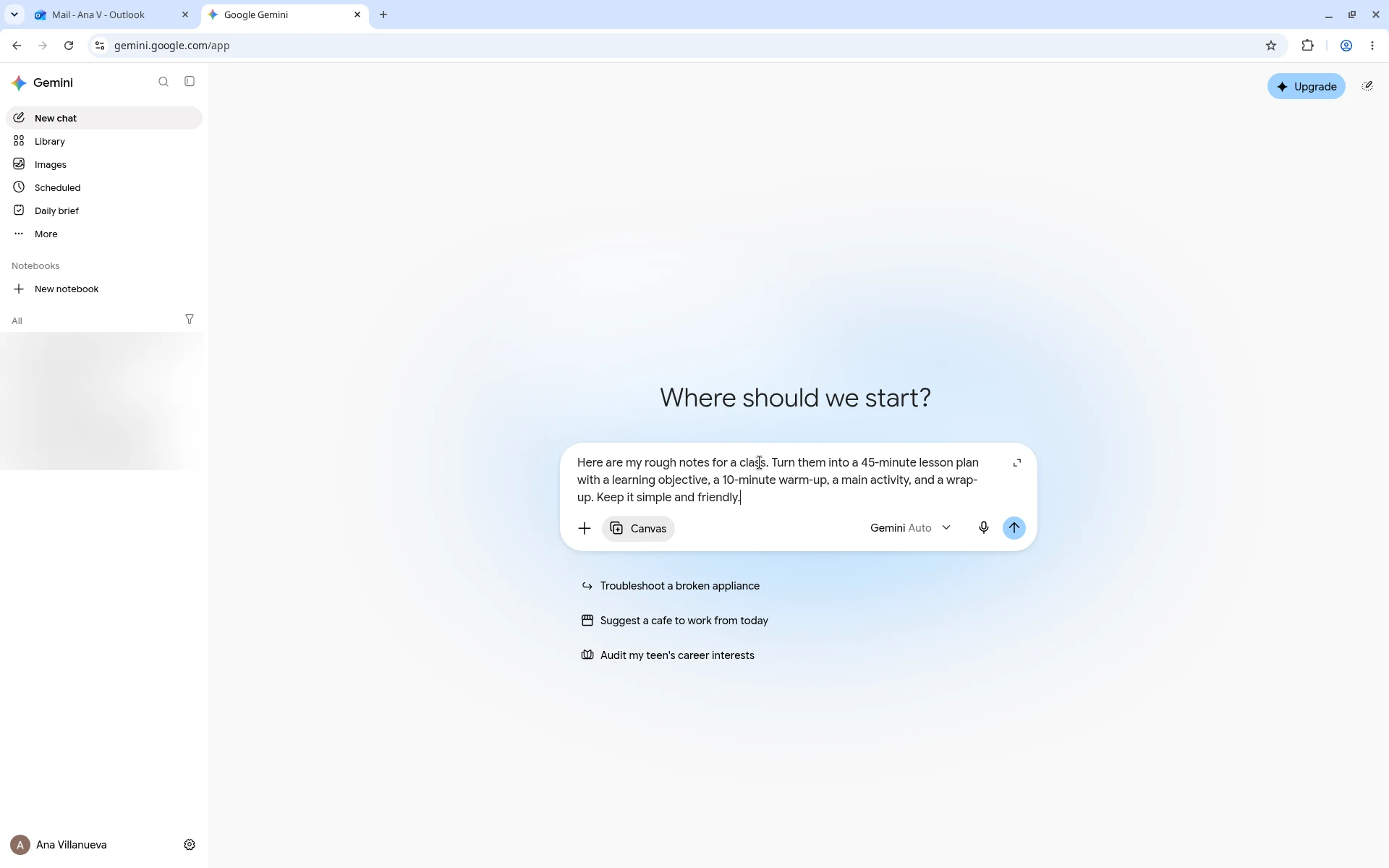
Type what kind of plan you want before you paste the notes. Mine was:
"Here are my rough notes for a class. Turn them into a 45-minute lesson plan with a learning objective, a 10-minute warm-up, a main activity, and a wrap-up. Keep it simple and friendly."
Being specific about the time and the parts saves you a lot of fixing later.
4. Paste your notes and send
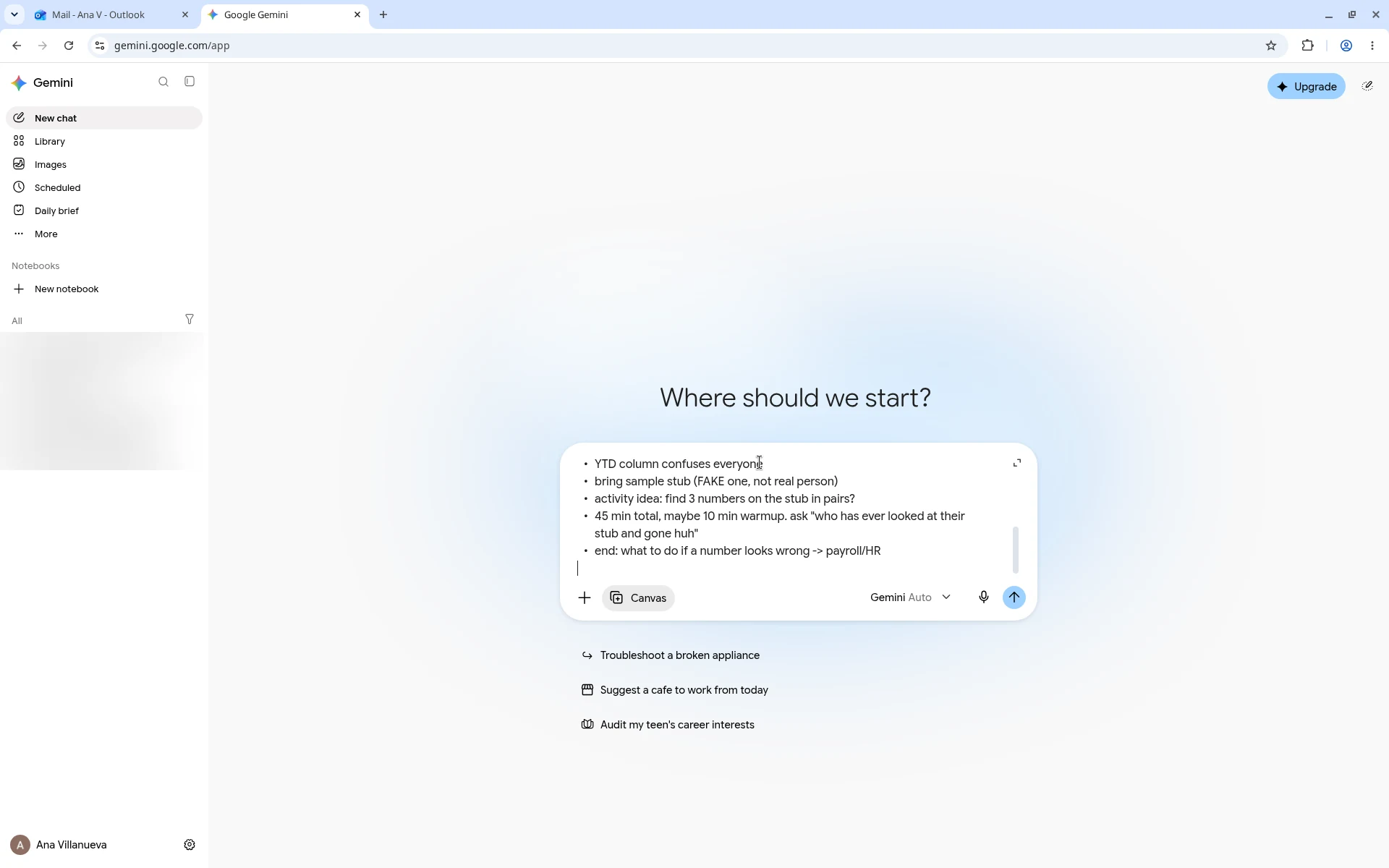
Press Shift + Enter for a new line, paste your notes under the prompt, then click the arrow to send. Mine are messy on purpose, with lines like "YTD column confuses everyone" and "bring sample stub (FAKE one, not real person)."
5. Read the plan Gemini made
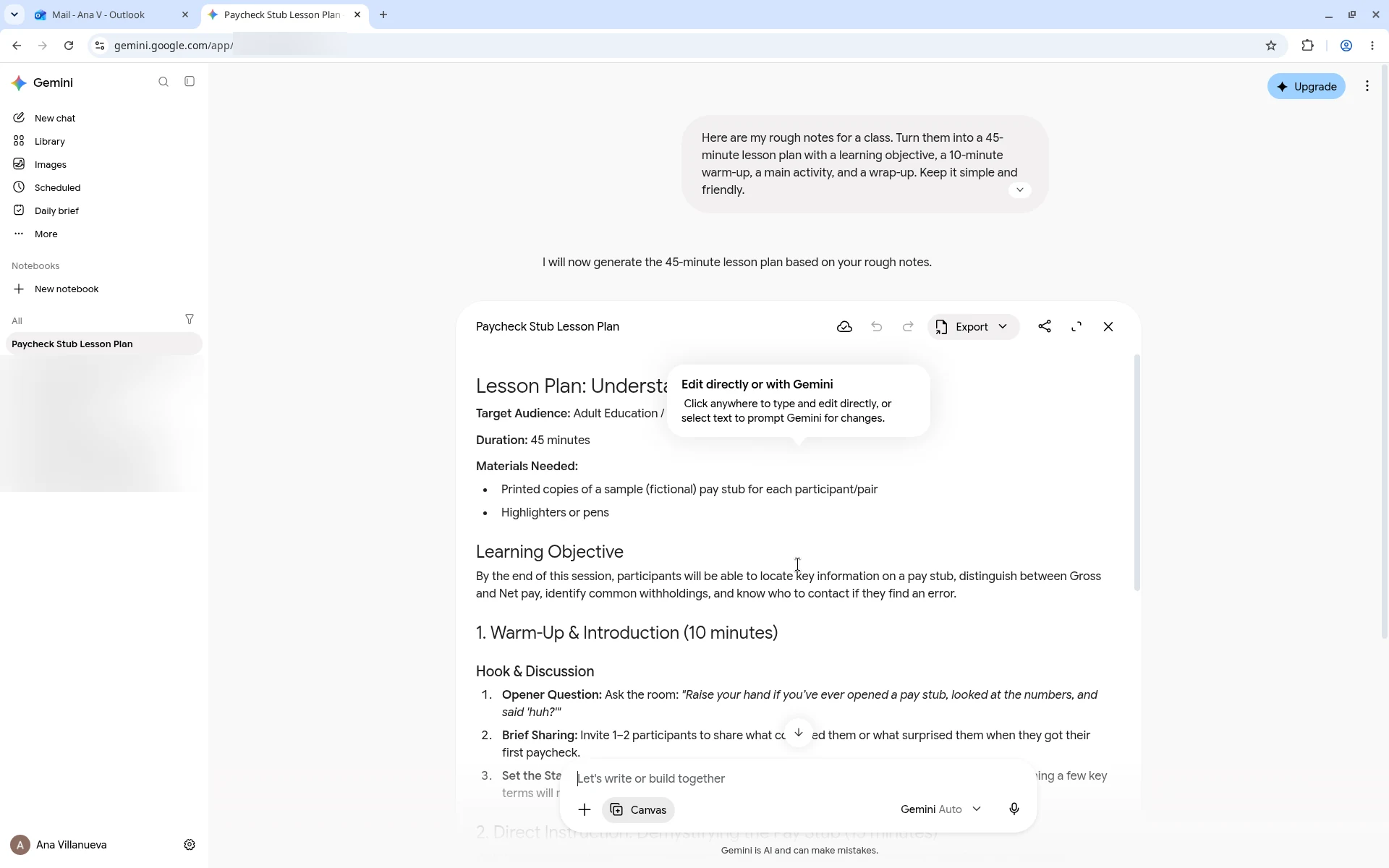
The canvas opens next to the chat with a title, "Paycheck Stub Lesson Plan." Mine had a learning objective, a 10-minute warm-up, 15 minutes of direct instruction, a 12-minute "Paycheck Treasure Hunt" in pairs, and an 8-minute wrap-up. That adds up to 45, which I checked, because it doesn't always.
A tooltip pops up at first that says "Click anywhere to type and edit directly, or select text to prompt Gemini for changes." It covers part of the title until you click somewhere.
6. Select the part you want to change
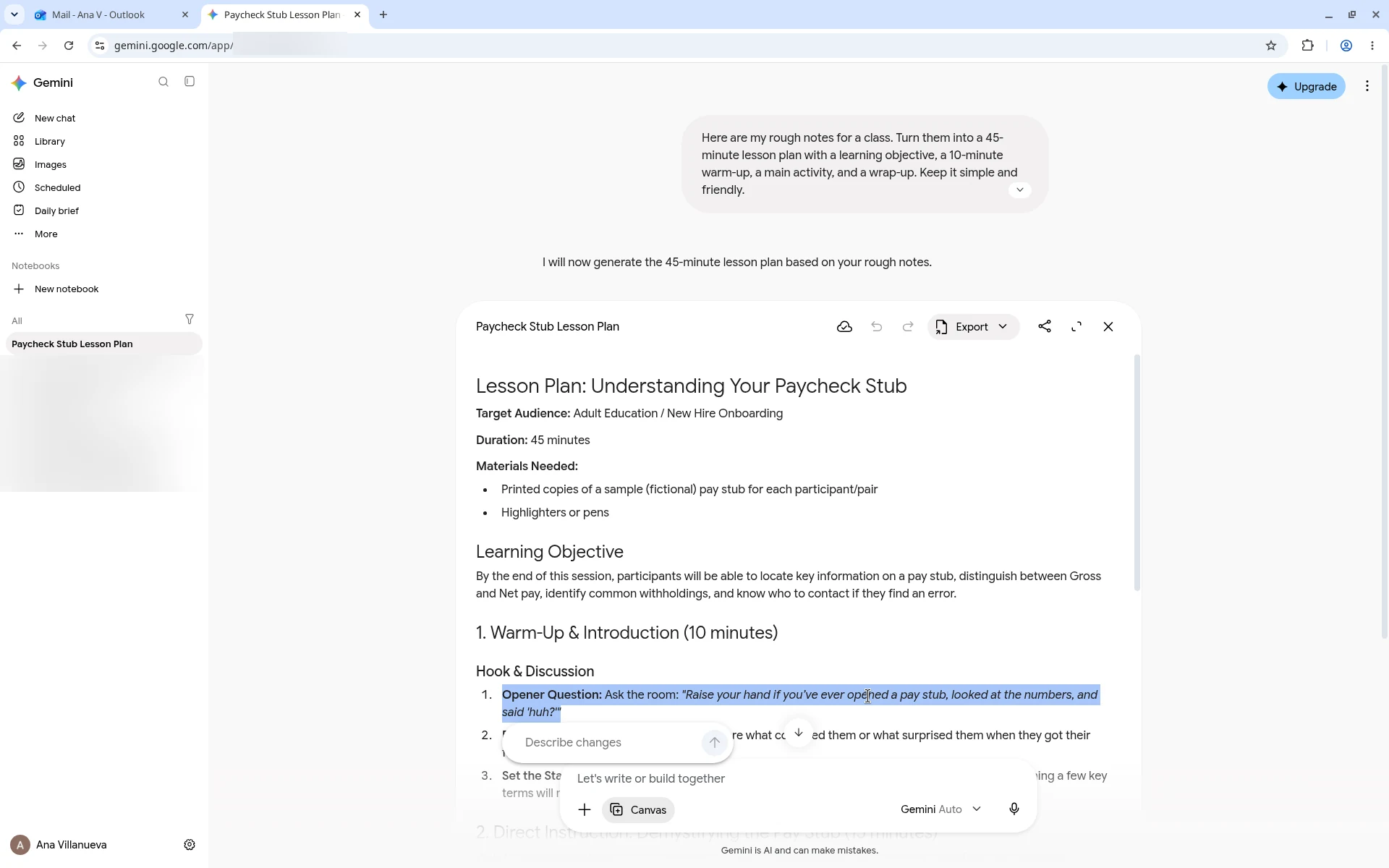
This is the part I care about most. Gemini's opener was "Raise your hand if you've ever opened a pay stub, looked at the numbers, and said 'huh?'" It's fine, but it isn't how I talk.
Select the text, and a small Describe changes box shows up. You could ask Gemini to rewrite it there, but for something this short, I'd rather just write it myself.
7. Write it in your own words
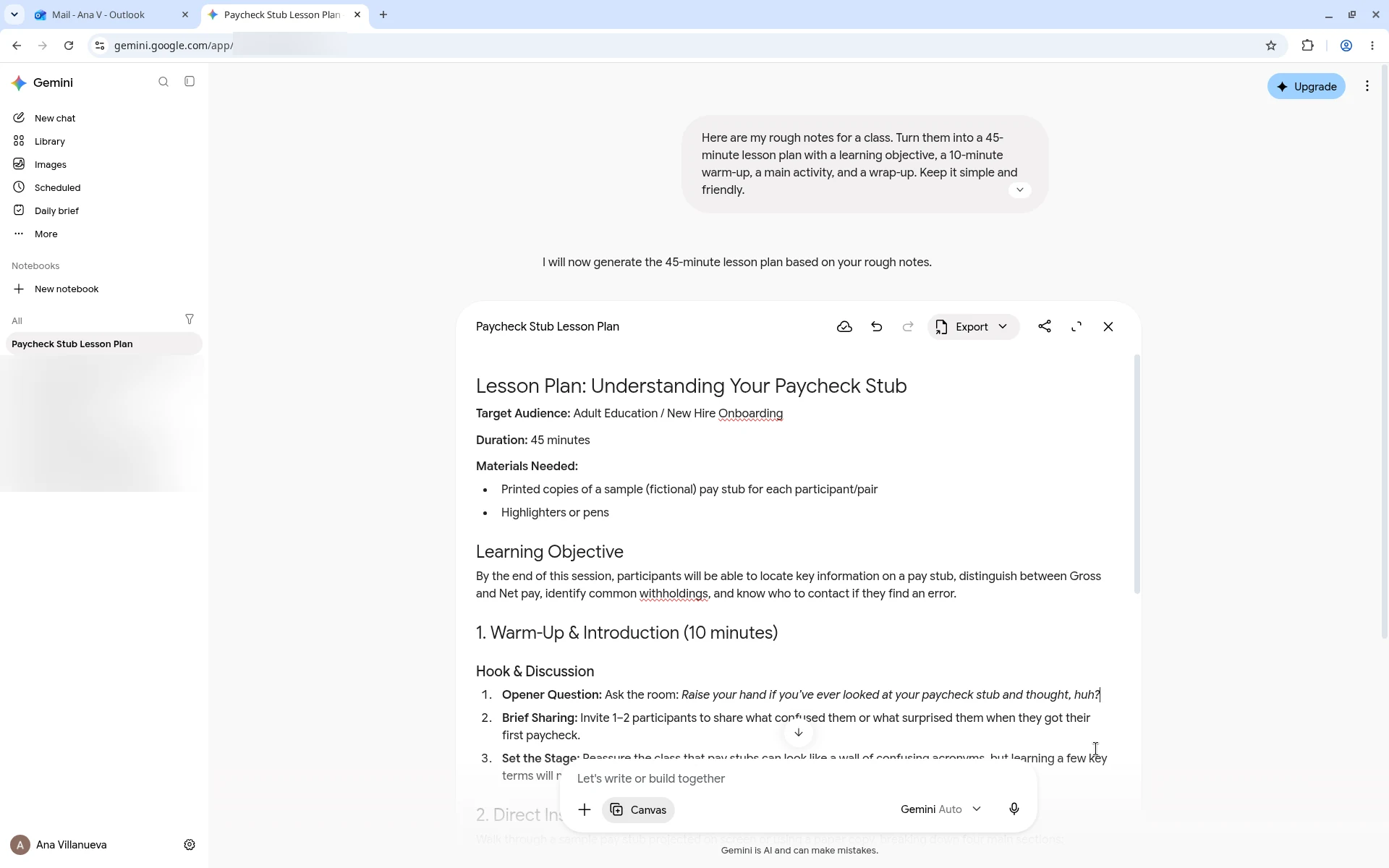
Click into the text and type over it, like you would in any document. Mine now says "Raise your hand if you've ever looked at your paycheck stub and thought, huh?" It's a small change, but it's my line now, and that's the whole idea. Gemini did the structure, and the parts you say out loud should come from you.
8. Open it full screen and check the content
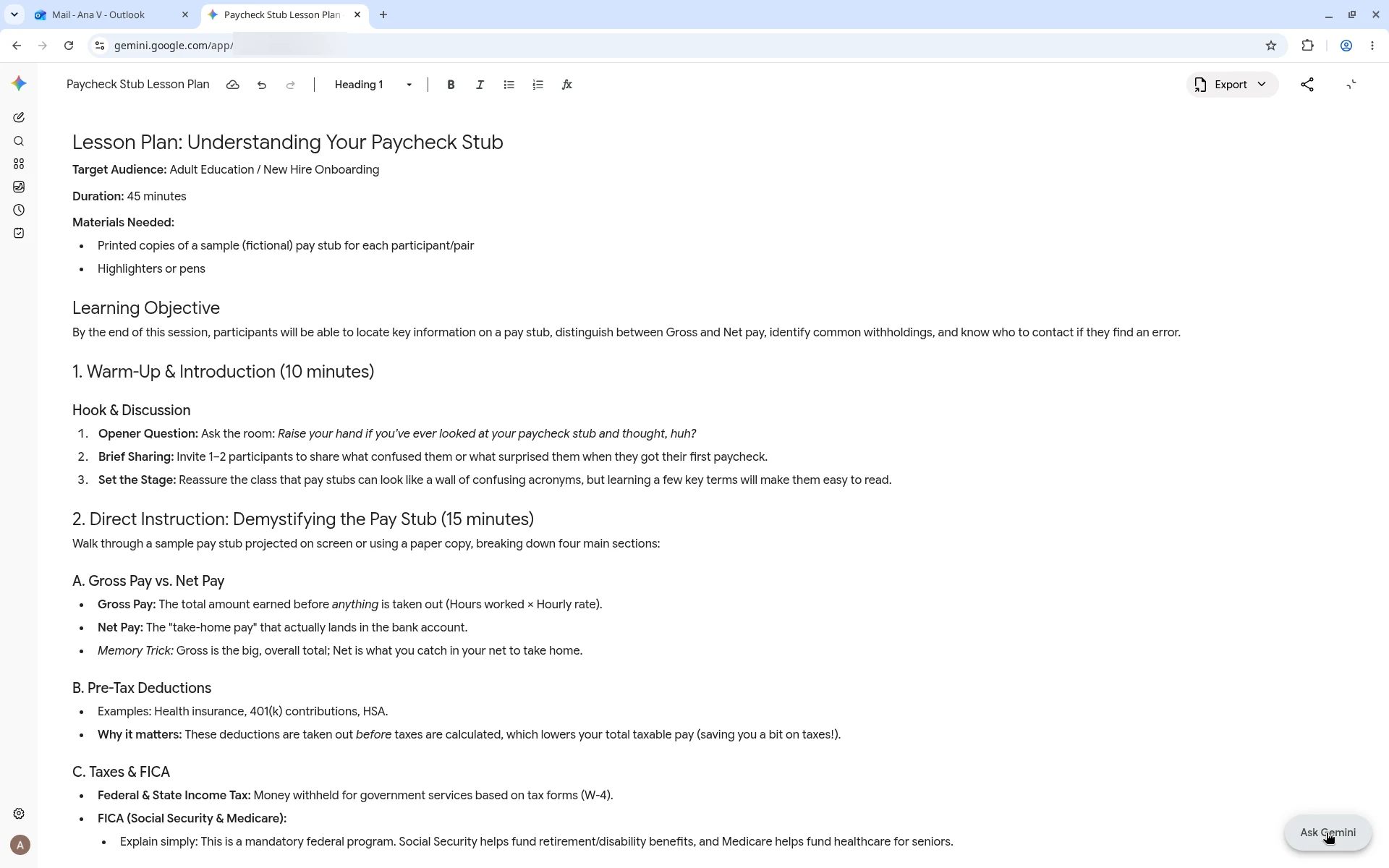
Click the expand icon at the top right of the canvas to make it full screen. You get a toolbar with headings, bold, italics and lists, and an Ask Gemini button at the bottom right if you want to ask for changes.
Read the whole thing like you're the one teaching it, because you are. Check the facts, especially anything about taxes or rules, and cut anything you wouldn't actually do in class.
9. Export it to Drive
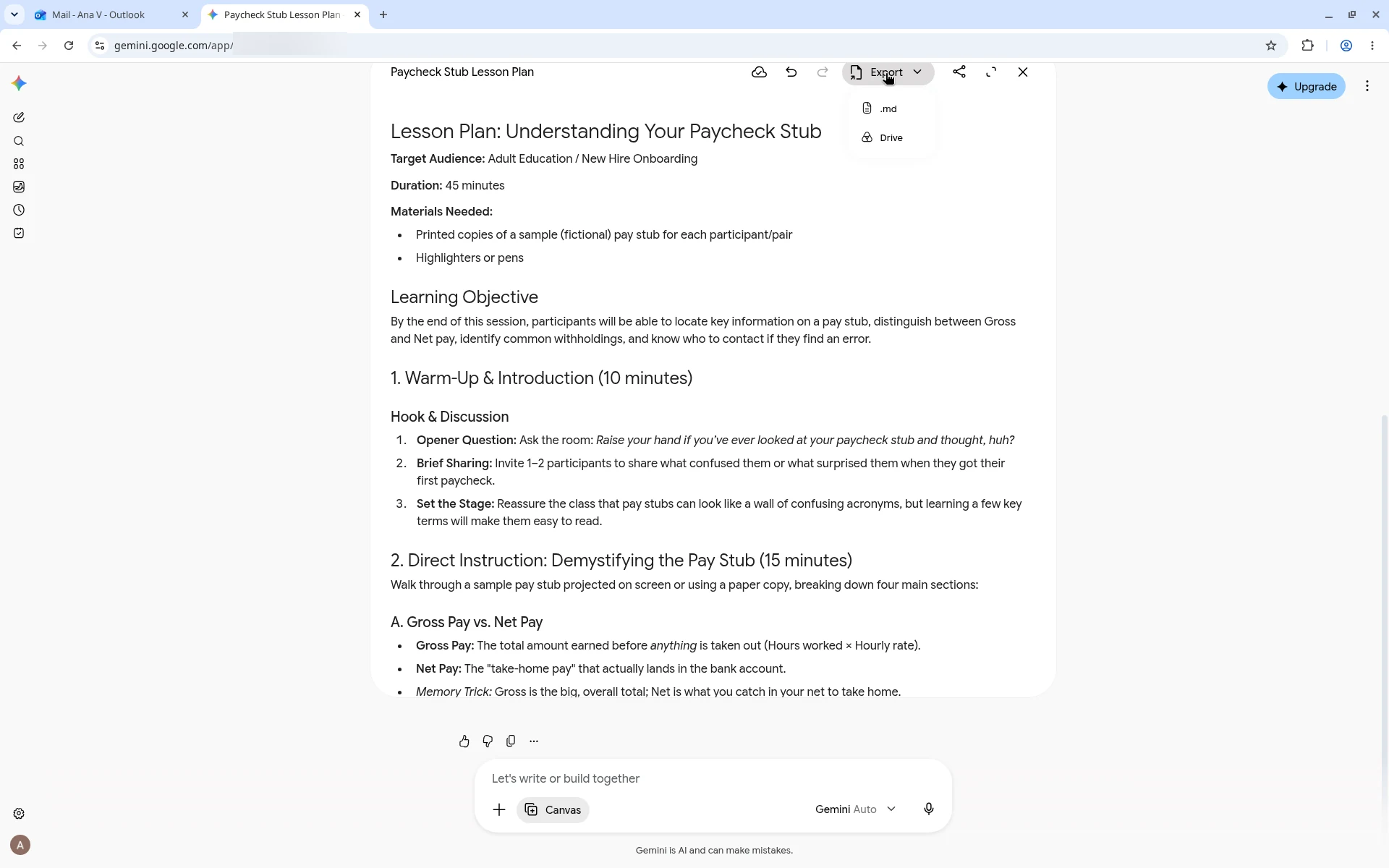
Click Export at the top of the canvas. You'll see two choices, .md and Drive. Pick Drive.
10. Open it in Drive
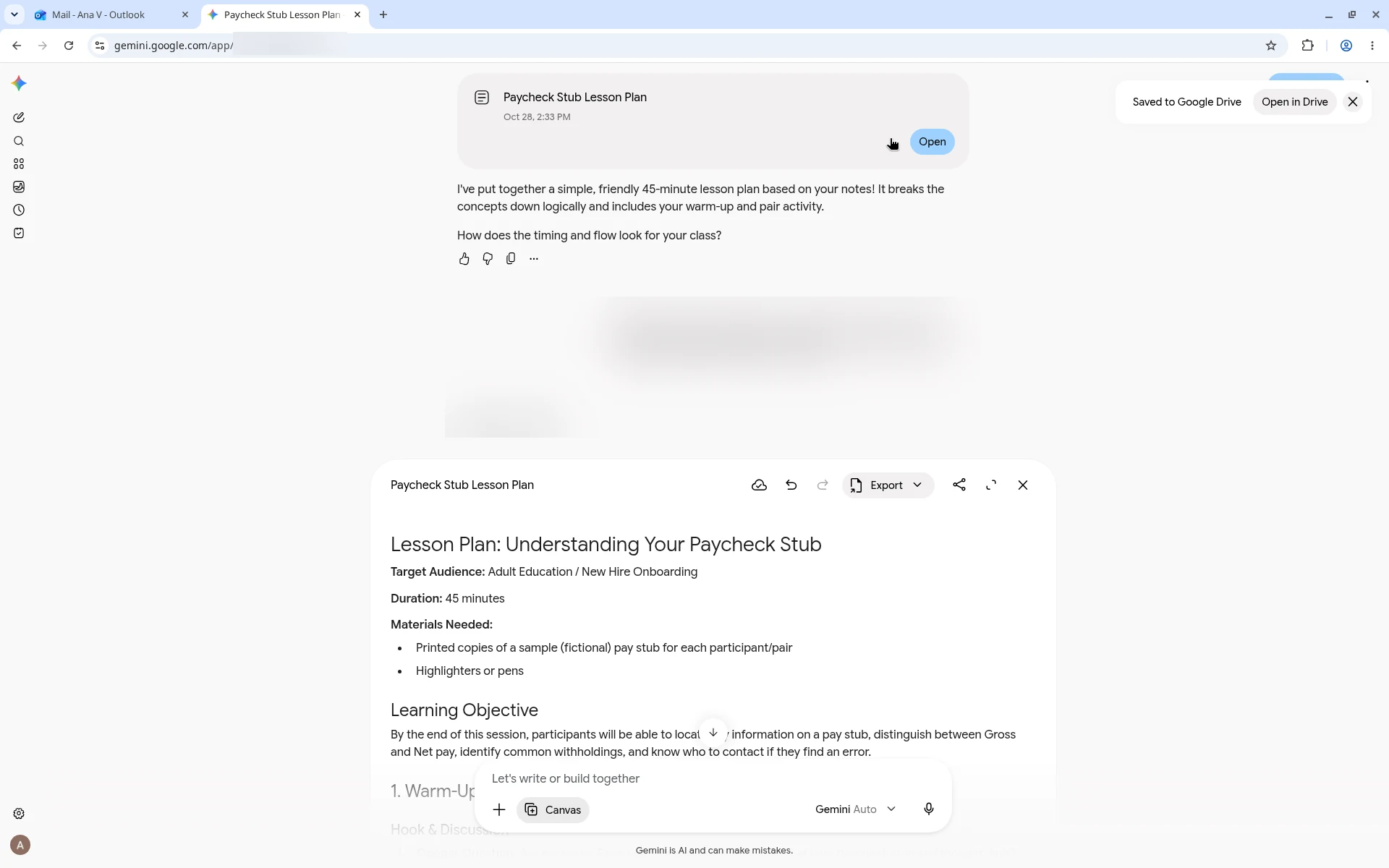
A message at the top right says "Saved to Google Drive." Click Open in Drive.
11. Keep working in Google Docs
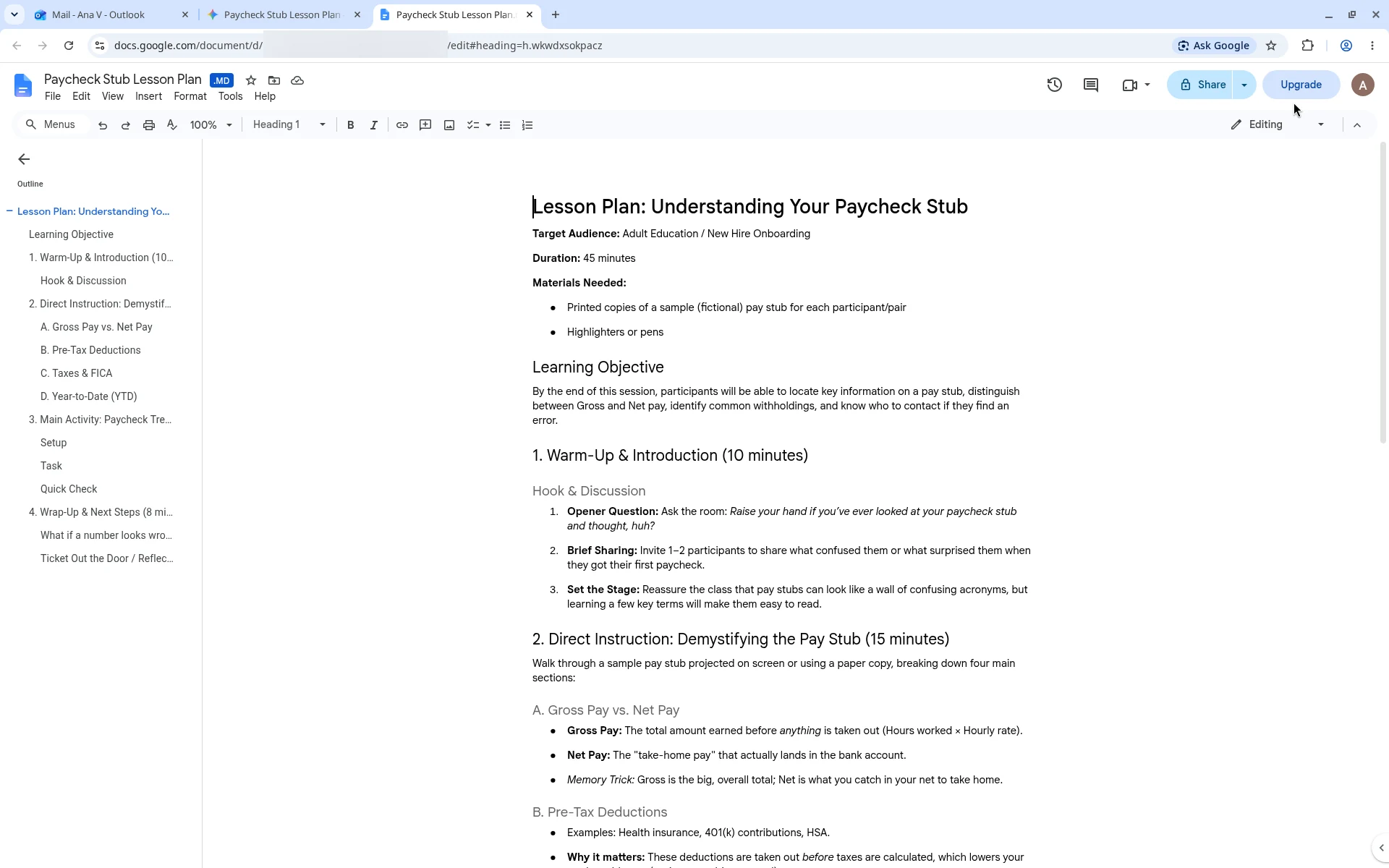
It opens as a Google Doc called "Paycheck Stub Lesson Plan," with an outline of the headings on the left. There's a small .MD badge next to the title, which just tells you it started out as a simple text file. You can edit it like any other doc.
12. Finish it like it's yours
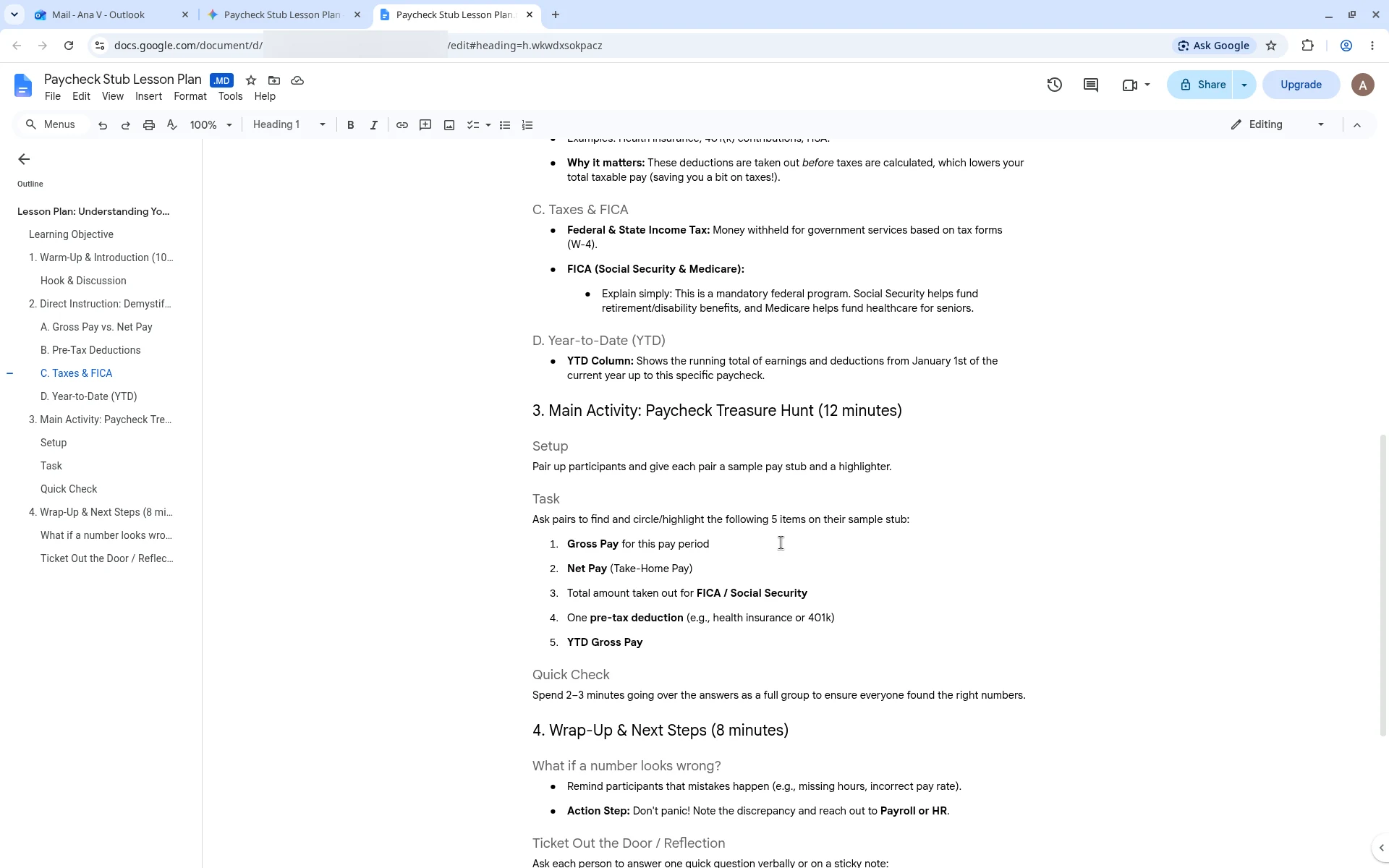
Scroll through and keep going. The main activity, the "Paycheck Treasure Hunt," has pairs find five numbers on a sample stub, and the wrap-up covers what to do if a number looks wrong. Add your own examples, your timing notes and whatever you know works with your group. Honestly, this is the part that makes it a good lesson.
At work
At work: with a school Google account, Gemini for Education works the same way, including Canvas, but your IT team has to turn it on first. If you can't open Gemini with your school account, that's probably why.
At work: Gemini inside Google Docs itself, the Help me write button, needs a paid add-on. Canvas and exporting to Docs, like we did here, don't.
At work: the Lesson 21 rules still apply. Don't paste in student names, grades or anything from a student's file, even into a school account, unless your district says it's okay.
Check that it worked
- Your plan opened in a canvas, not a normal chat reply.
- You rewrote at least one part in your own words.
- You checked the timing and the facts.
- The plan is in Google Drive as a doc you can keep editing.
Let’s learn together.
Comments are reviewed by Ana before they appear. Please use fictional examples and leave workplace details out.
Loading approved comments…