Make a "Draft checker" Gem that reviews your handouts
Make a Gem called Draft checker that reviews your how-to handouts for missing or unclear steps, try it on a draft, and find it again later.
Step 11 of 11 in Choose for the task: lessons, quizzes and slides (Path 03)
Heads up: these screenshots use a personal Google account in Gemini (gemini.google.com) in a web browser on a computer. No subscription.
By now I've typed "list any steps that are missing or unclear" into Gemini so many times that my keyboard could probably say it for me. If you still have mixed feelings about AI, that's okay, and you don't have to settle them today. It's a tool like Word or Excel. In this lesson it reads your how-to handouts and points out what's missing, and you still do all the writing yourself.
A Gem is a saved helper. You write your instructions once, Gemini keeps them, and every time you open the Gem it already knows what you want, so you don't have to retype the same long prompt. We'll make one called "Draft checker" that reviews how-to handouts for new office workers.
Same ground rule as Lesson 21: nothing private goes in. That includes a Gem's instructions, which get reused in every chat with it.
Before you start
Heads up: these screenshots use a personal Google account in Gemini (gemini.google.com) in a web browser on a computer. No subscription.
Practice with a how-to draft of your own. To follow along exactly, use my sample draft (text file). It's a made-up handout called "How to submit your timesheet."
Screenshots are from October 28, 2026, with other tab titles, old chat titles in the sidebar, and the Gem and chat IDs in the address bar blurred. Google moves things around, so yours may not match.
1. Open Gems from the sidebar
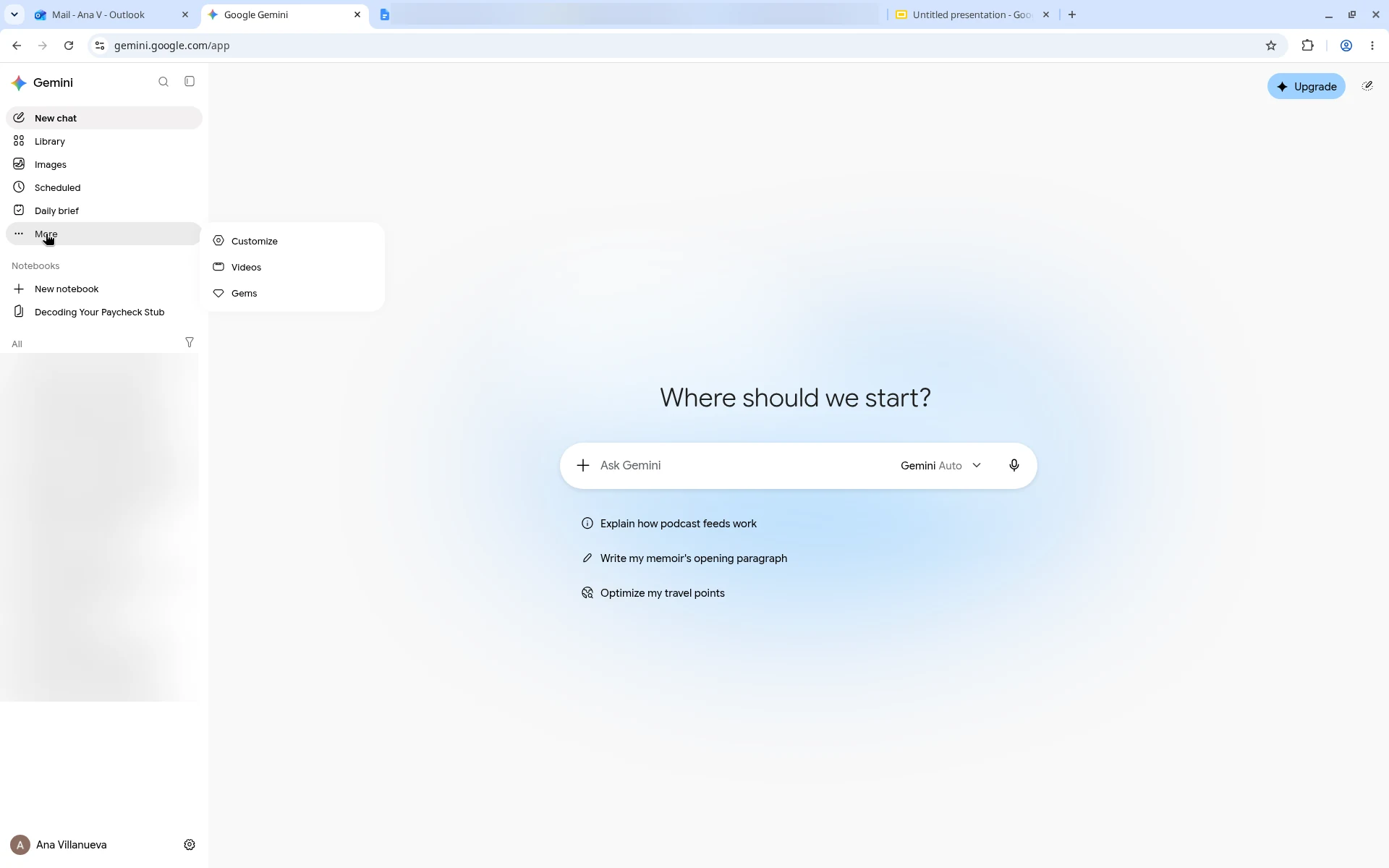
Go to gemini.google.com. If the left sidebar is closed, click the Gemini logo at the top left to open it. Click More, just below Daily brief. A small menu opens with Customize, Videos and Gems. Click Gems. Google moves this menu around, so if you don't see Gems under More, check the Settings & help gear at the bottom left.
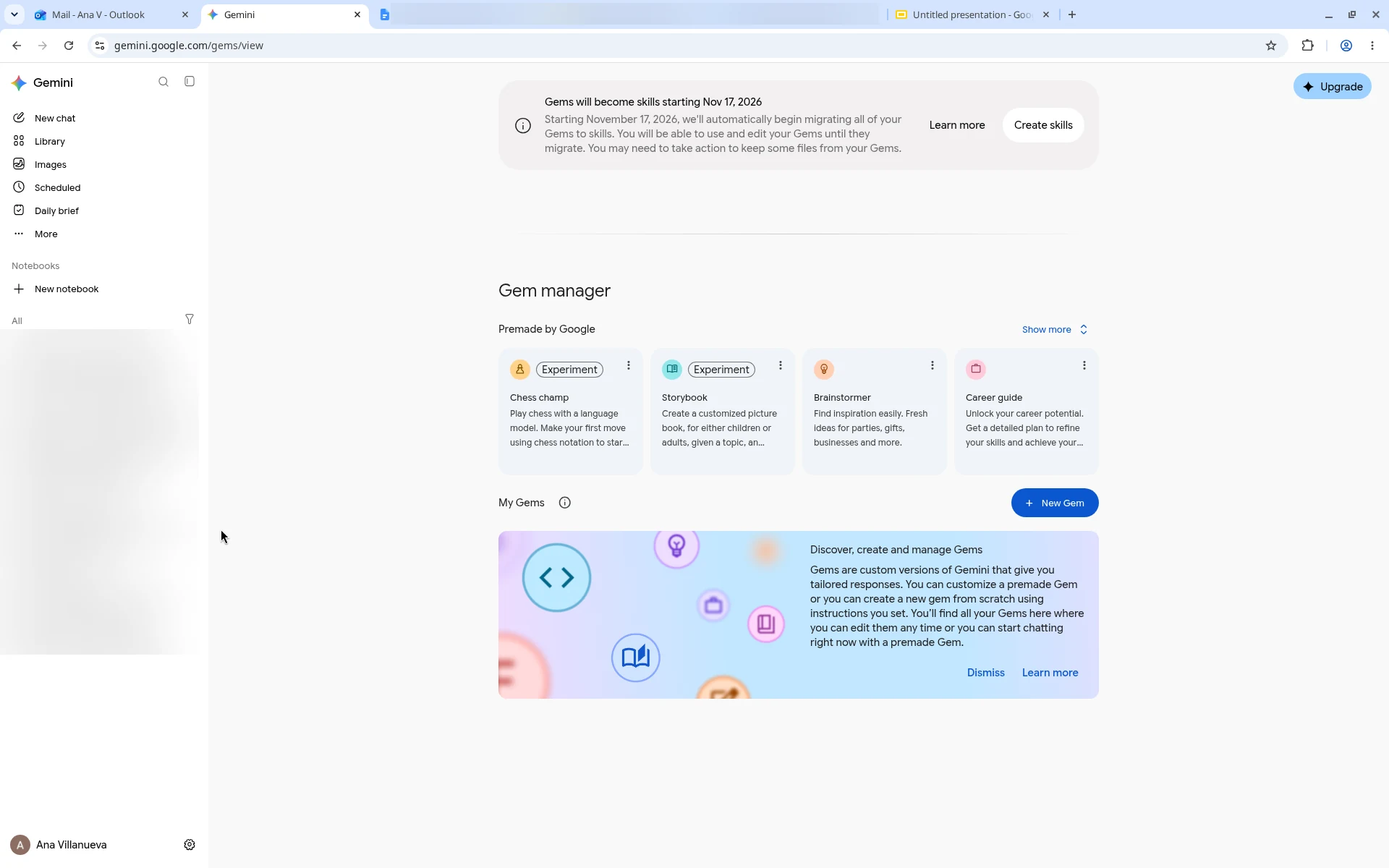
The Gems page has a Gem manager section and a My Gems list with a + New Gem button. At the top is this notice: "Gems will become skills starting Nov 17, 2026. Starting November 17, 2026, we'll automatically begin migrating all of your Gems to skills. You will be able to use and edit your Gems until they migrate. You may need to take action to keep some files from your Gems."
So the name and the look may change to "skills" soon, but the idea is the same: a saved helper with your instructions in it. Click + New Gem.
2. Fill in the Gem editor
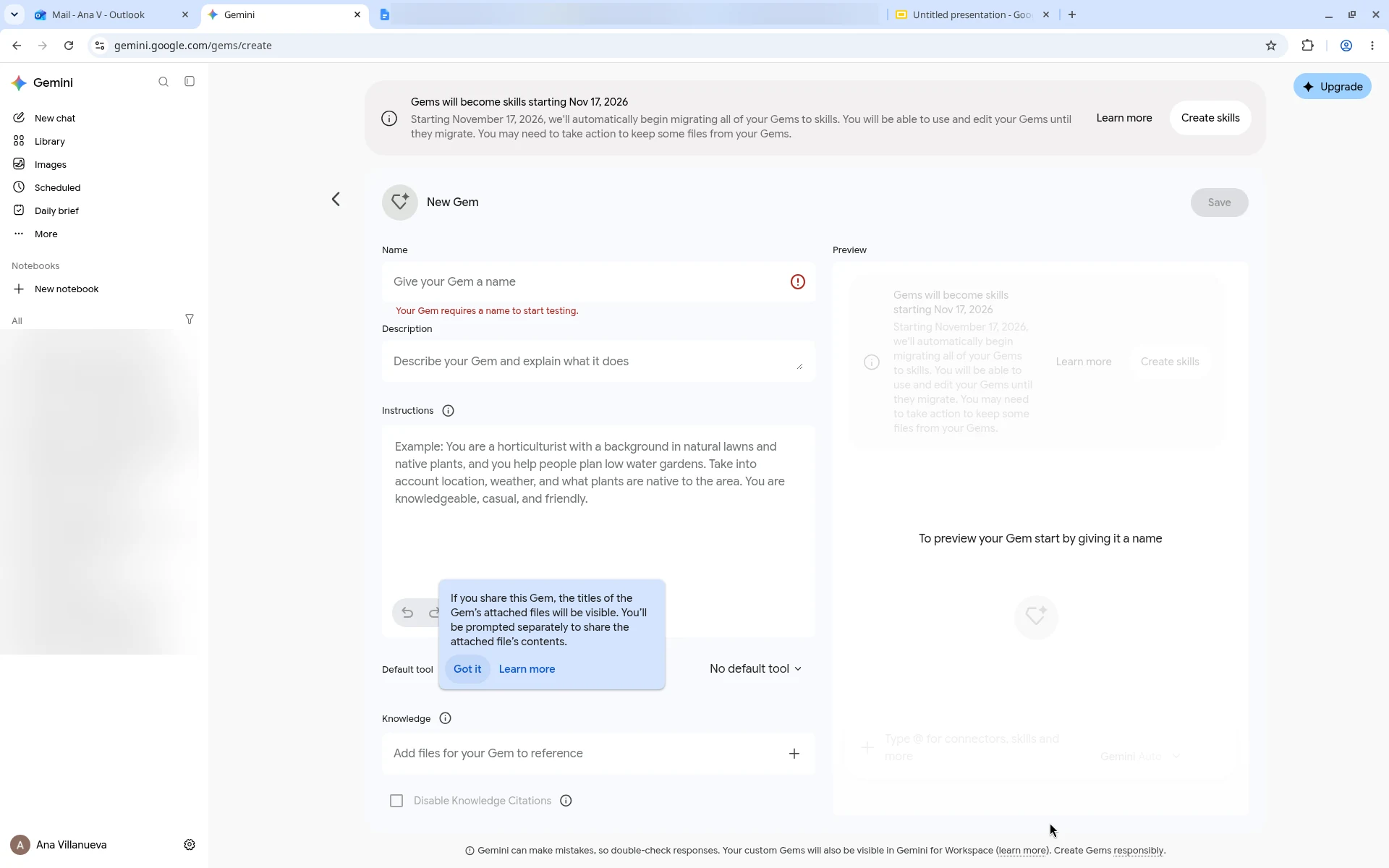
It has boxes for Name, Description and Instructions, then Default tool, Knowledge, and a Disable Knowledge Citations checkbox. On the right is a Preview pane where you can try the Gem before you save it. I left the rest as it was.
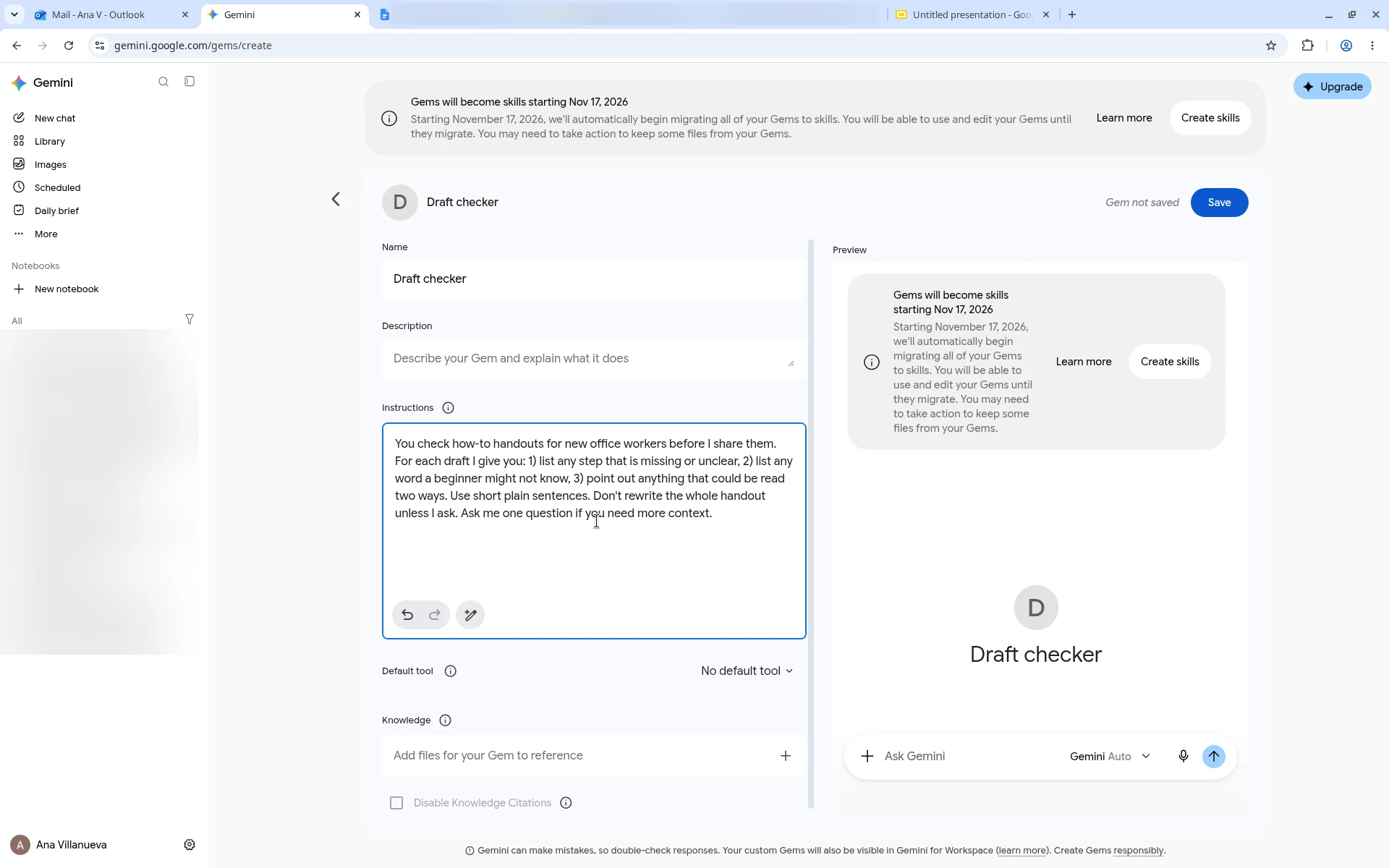
I named mine Draft checker. Here's exactly what I typed in Instructions:
"You check how-to handouts for new office workers before I share them. For each draft I give you: 1) list any step that is missing or unclear, 2) list any word a beginner might not know, 3) point out anything that could be read two ways. Use short plain sentences. Don't rewrite the whole handout unless I ask. Ask me one question if you need more context."
Change it to fit your own handouts and readers.
3. Save it
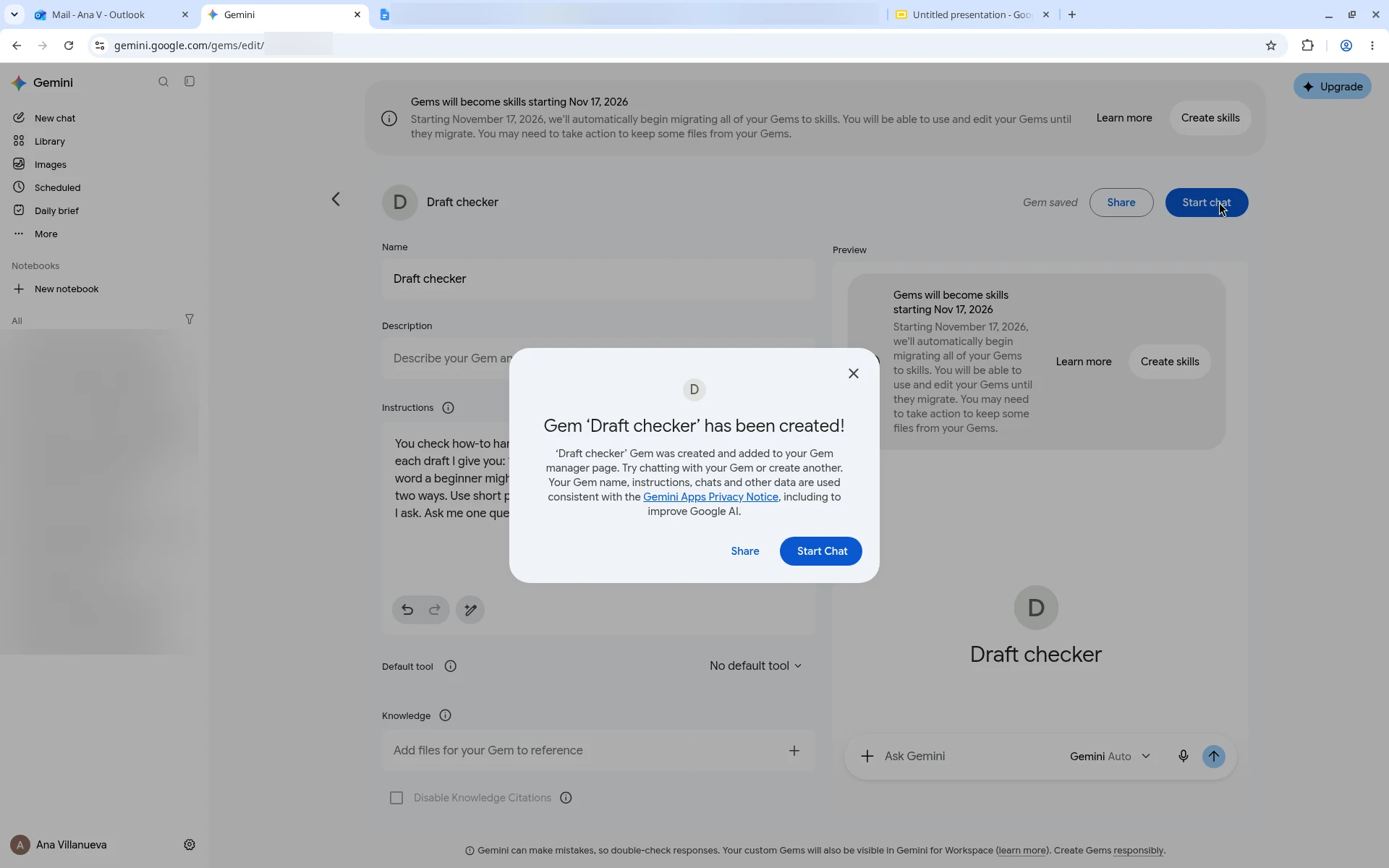
Click Save at the top right. A message says "Gem 'Draft checker' has been created!" with two buttons, Share and Start Chat. Don't click Share unless you mean to give the Gem to someone. Click Start Chat.
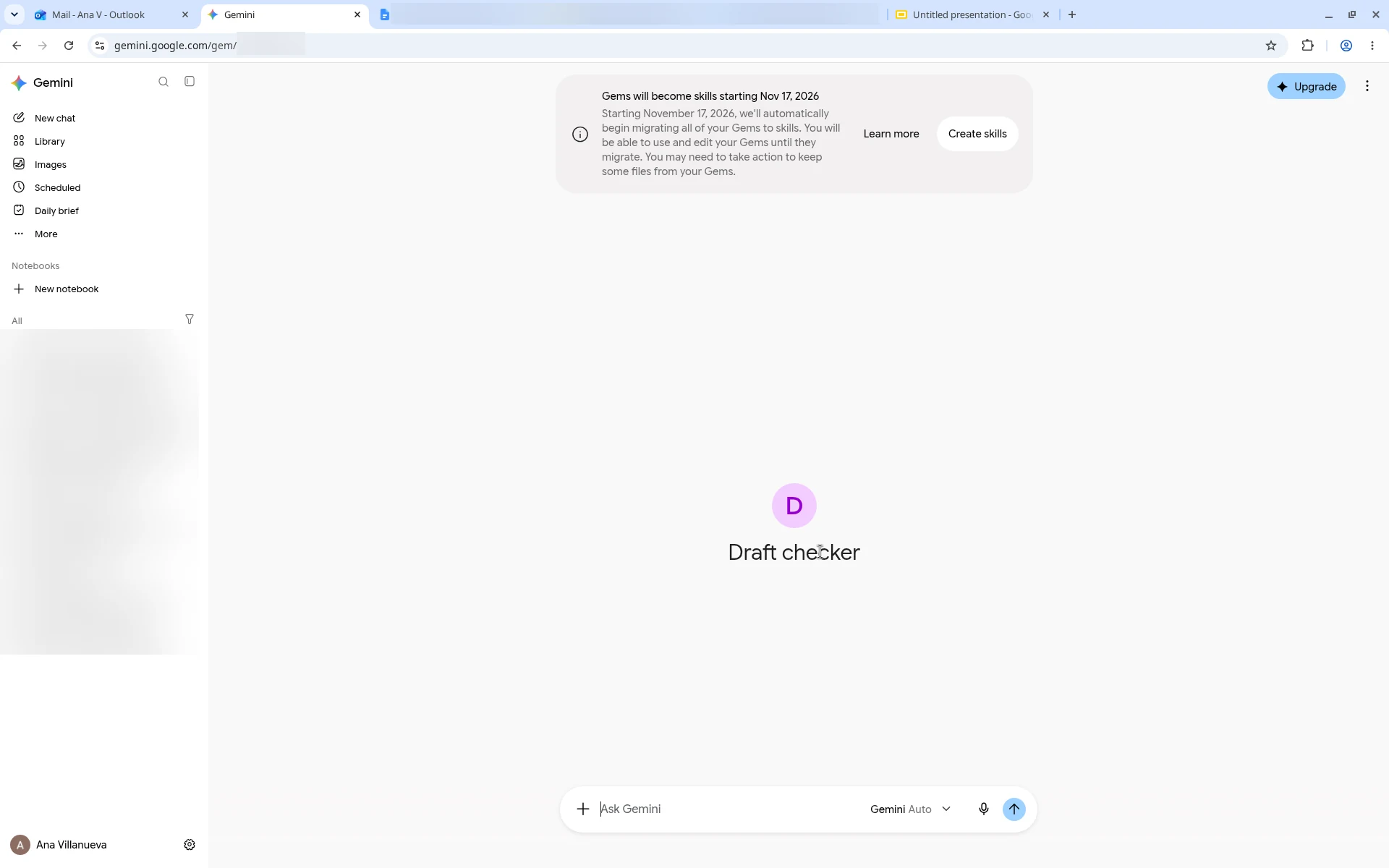
The chat opens with "Draft checker" in the middle, so you know it's your Gem and not plain Gemini.
4. Give it a draft
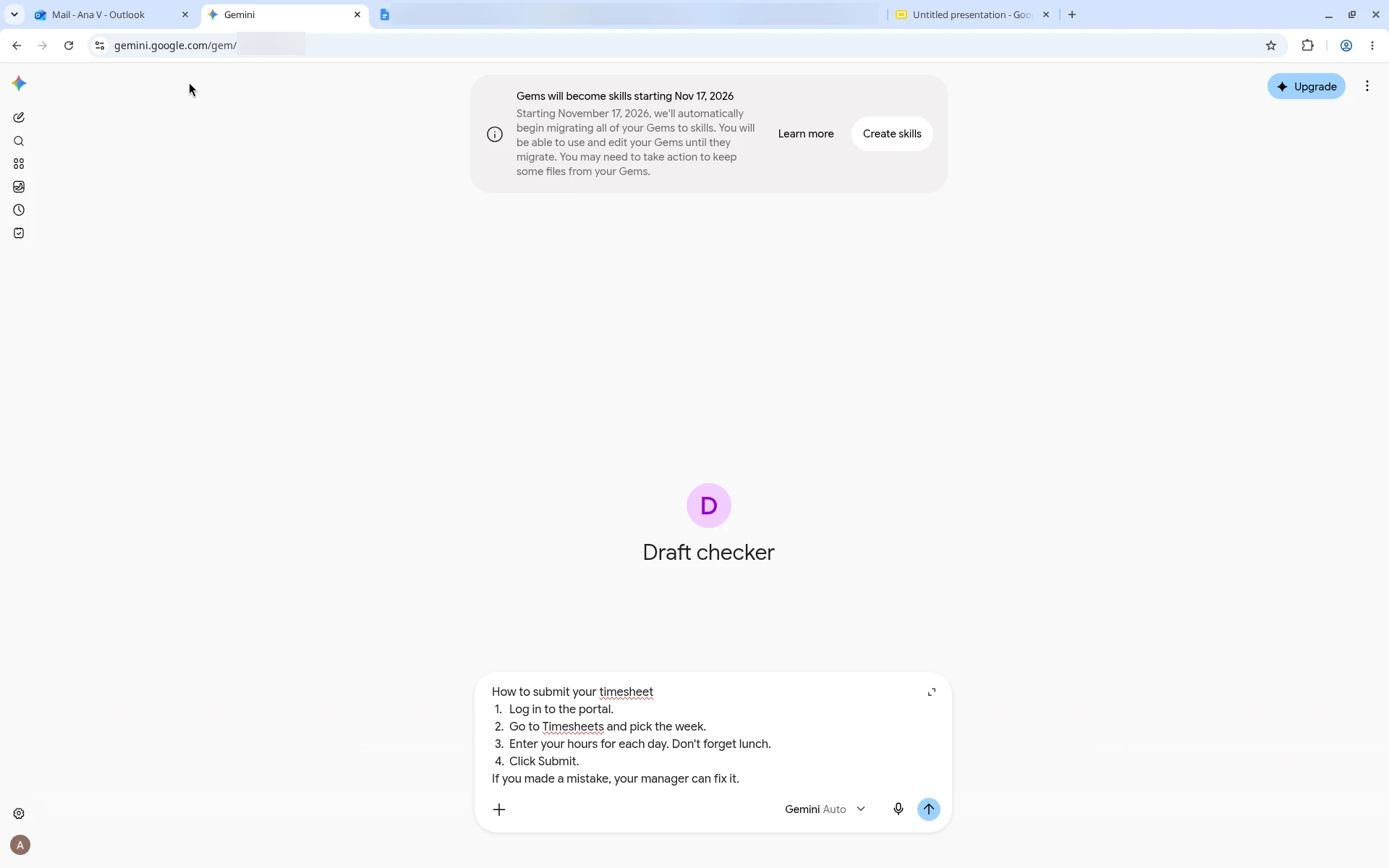
Paste your how-to draft in and send it. The instructions already tell it what to do.
5. Read the feedback
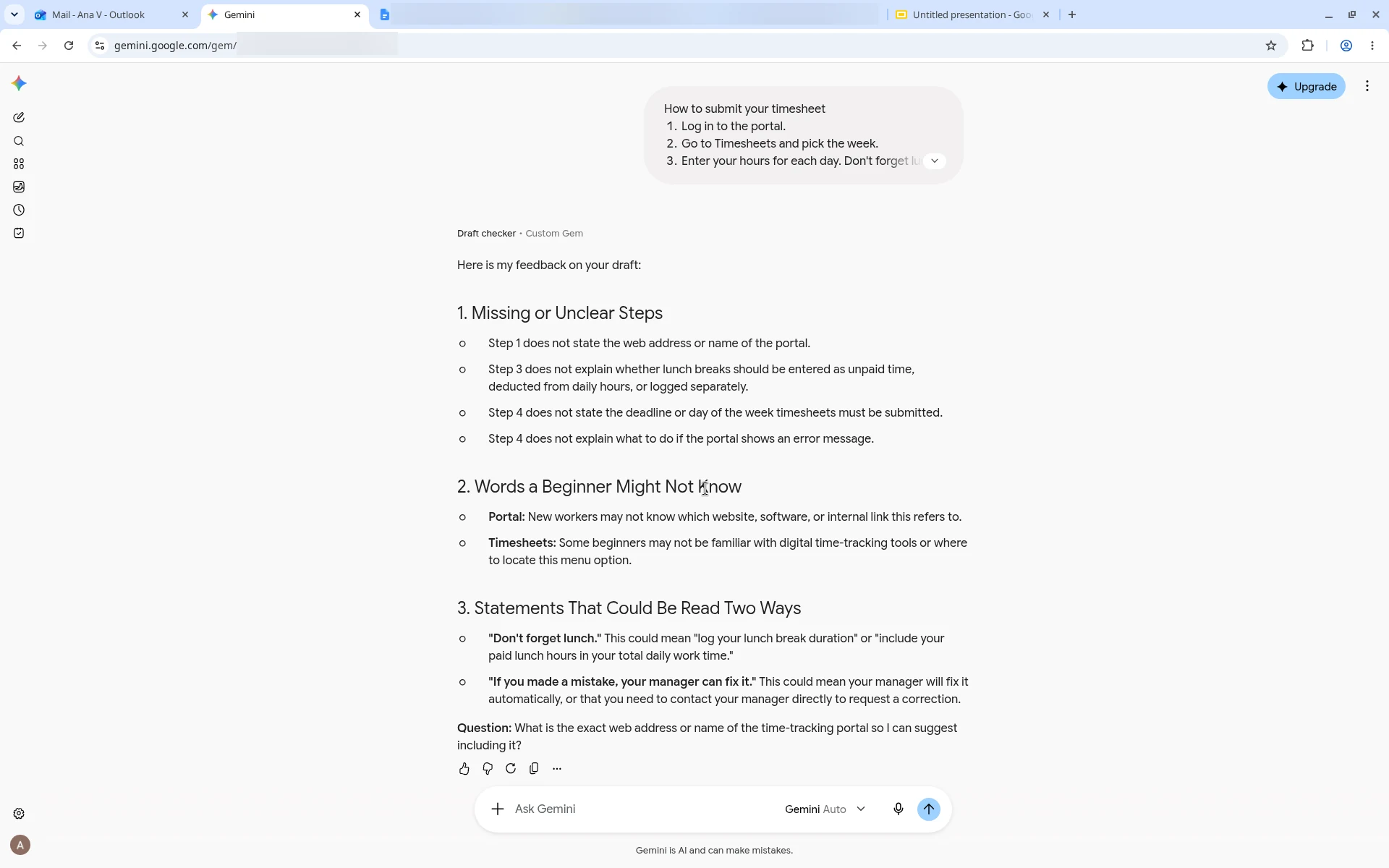
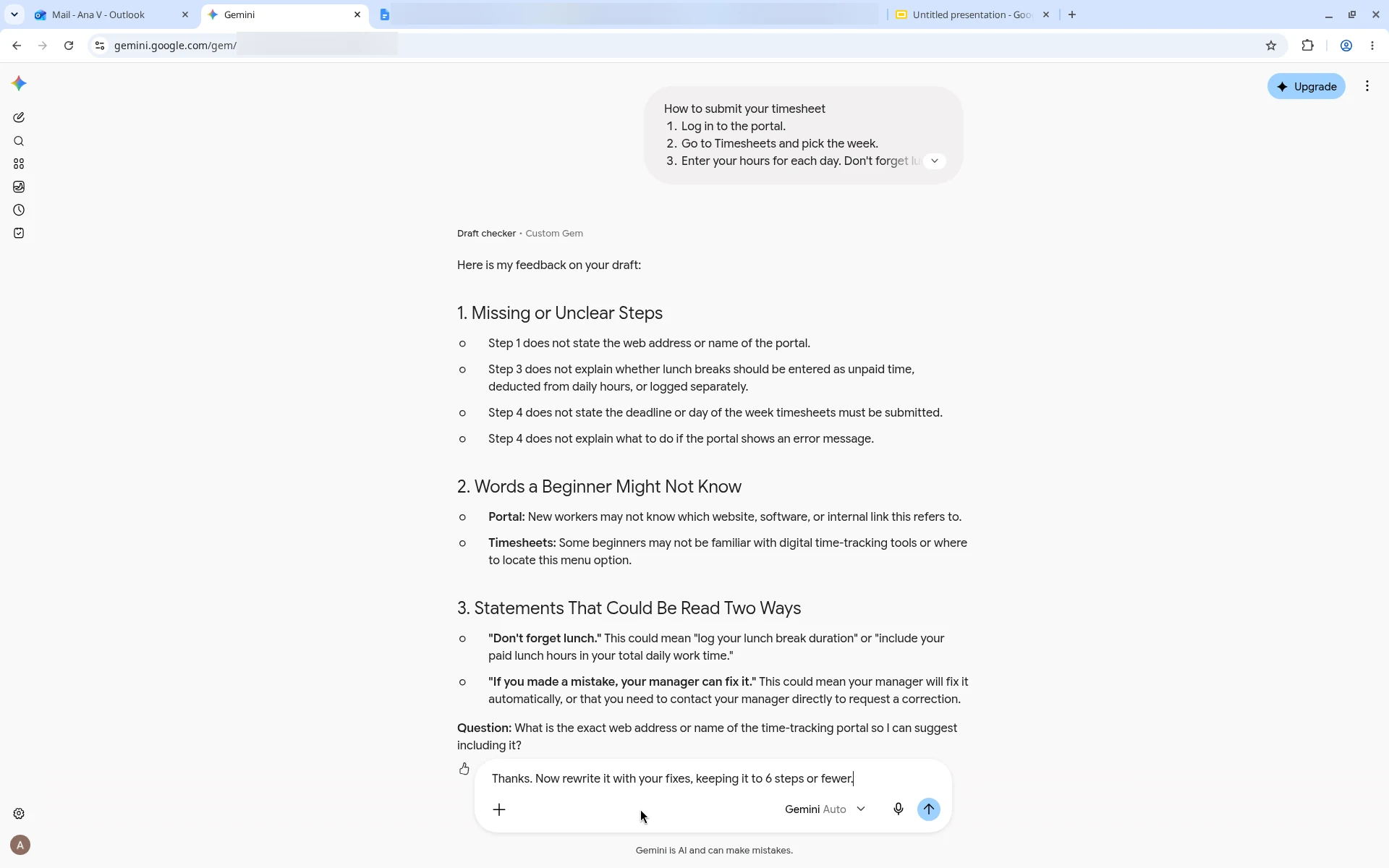
The answer is labeled "Draft checker · Custom Gem" and follows my three parts.
- Missing or unclear steps: it doesn't name the portal or give its address, the lunch rule is unclear, there's no deadline, and it doesn't say what to do if the portal shows an error message.
- Words a beginner might not know: "Portal" and "Timesheets."
- Statements that could be read two ways: "Don't forget lunch." and "If you made a mistake, your manager can fix it."
It ends with a question asking for the portal's web address. This was correct and useful, and it didn't rewrite my handout. Its questions are about things only you know, like the real address and the real deadline, so you fill those in yourself.
6. Ask for a rewrite, then check it
Next I typed, "Thanks. Now rewrite it with your fixes, keeping it to 6 steps or fewer."
This answer went wrong. I asked for 6 steps or fewer and got 12 numbered items. Two drafts ran together, and step 6 starts with a stray "IfHere is a revised version." The first draft also says "Click Submit before 5:00 PM every Friday." I never gave it a deadline, so it made one up. The second half uses blanks like [Insert Portal Web Address] instead, which is the honest way to do it.
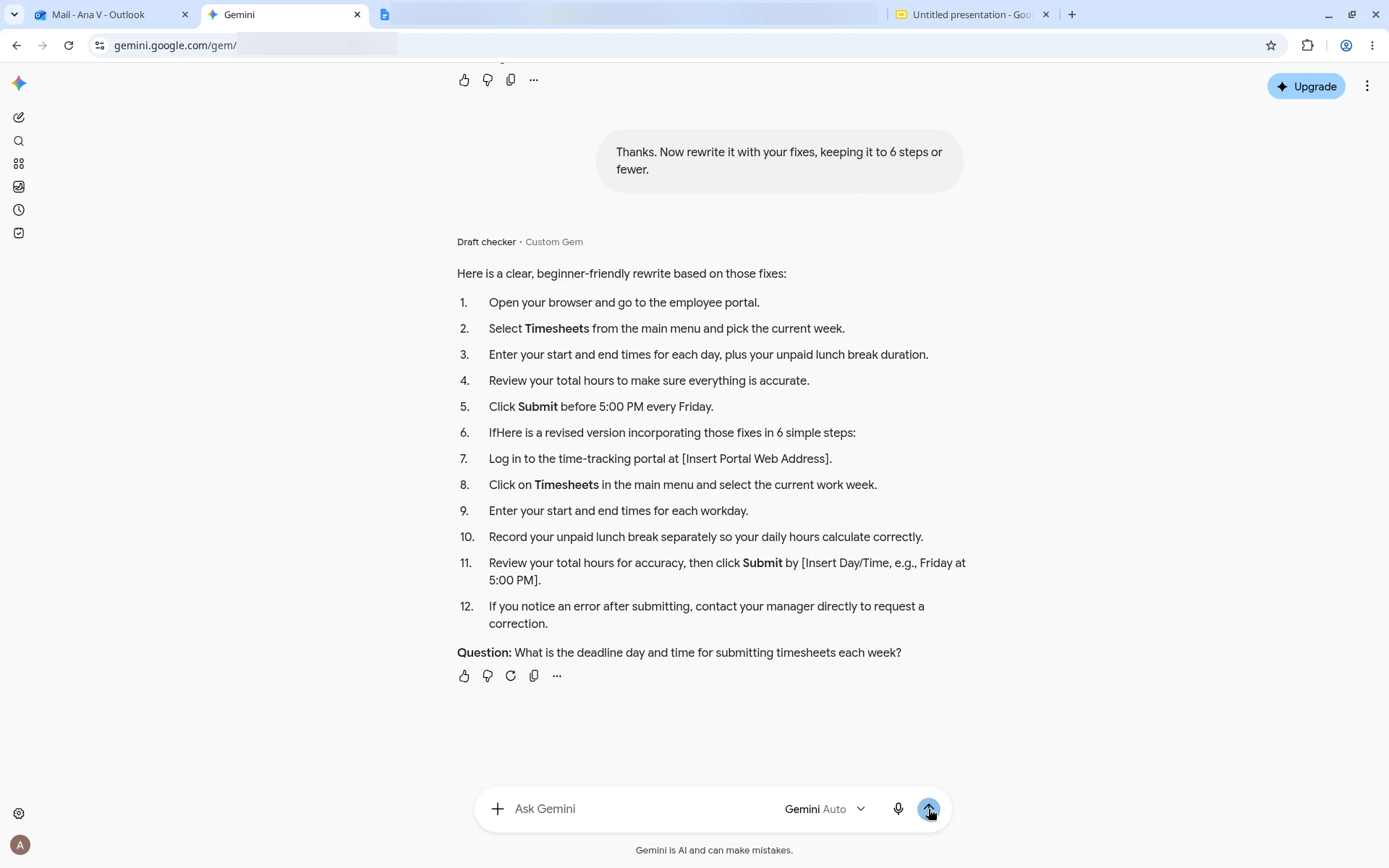
Count the steps, and look for any detail you didn't give it, like a deadline. Then you can click Redo (the circular arrow under the answer), ask again, or keep the good half with the blanks and fill in the real details yourself. Never let a made-up deadline into a handout, because someone will believe it.
7. Find your Gem again later
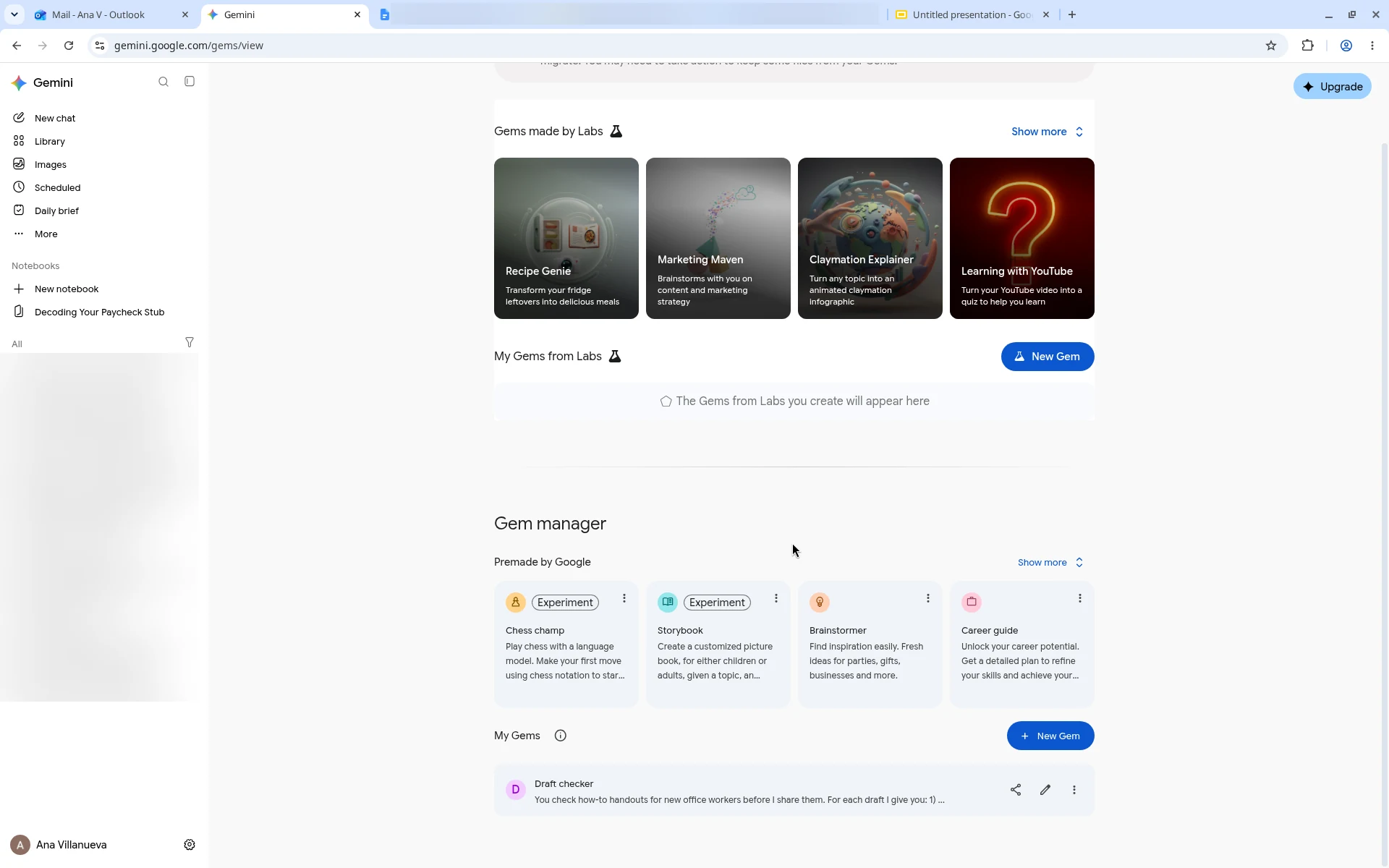
To get back to it, open the sidebar, click More, and then click Gems. Scroll down, and Draft checker is listed under My Gems, with icons to Share, Edit and more. Open it from here any time you have a new draft. If it keeps missing things, click Edit and add a line to the instructions.
At school or work
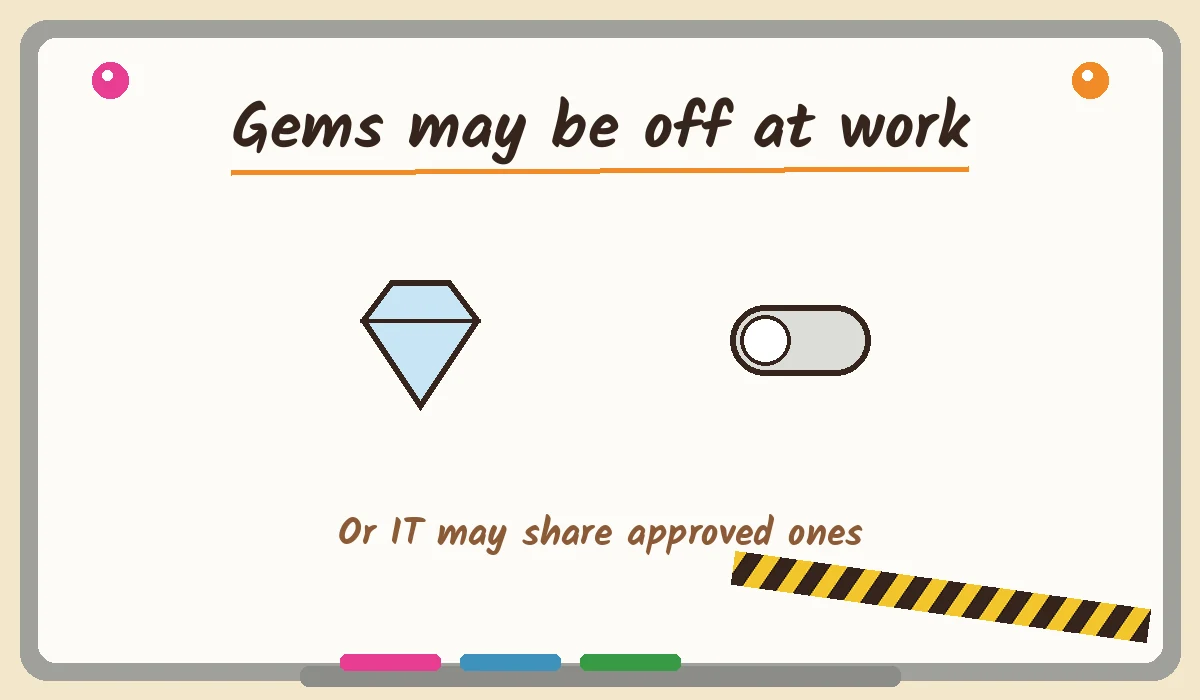
At school or work: your school or company's Gemini may have Gems turned off or set up differently, and your IT team may share approved Gems with you. Check what you see.
Check that you've got it
- You made a Gem with clear instructions and nothing private in them.
- You sent it a how-to draft and read all three parts of the feedback.
- You counted the steps in any rewrite and removed anything it made up.
- You know where to find your Gem and how to edit it.
That's the end of the teacher series. Thanks for sticking with me through ten lessons. I hope Gemini saves you a few evenings, and that everything you make still sounds like you.
Let’s learn together.
Comments are reviewed by Ana before they appear. Please use fictional examples and leave workplace details out.
Loading approved comments…