Write alt text and check for jargon with Gemini
Get alt text for a chart from Gemini, check it, ask it to spot jargon a new person won't know, then add your alt text to the image in Google Slides.
Step 10 of 11 in Choose for the task: lessons, quizzes and slides (Path 03)
Heads up: these screenshots use a personal Google account in Gemini (gemini.google.com) and Google Slides in a web browser on a computer. No subscription.
My handouts used to be written for exactly one reader, which was me on a good day. If you're still making up your mind about AI, that's fine. It's a tool like Word or Excel, and today it's going to help you notice what other people need from your materials. You still do the writing, and you get the final say.
This lesson covers two quick checks. First we'll get alt text for a chart. Alt text is the short description a screen reader reads aloud for someone who can't see the image. A screen reader is a program that reads the screen out loud, and many people who are blind or have low vision use one. Alt text also shows up when an image doesn't load, and writing it makes you say plainly what your chart is for, which helps everyone. Then we'll ask Gemini to spot words a new person might not know.
Same ground rule as Lesson 21: nothing private goes in, and that includes images. No student or coworker faces or names, and nothing private in your charts.
Before you start
Heads up: these screenshots use a personal Google account in Gemini (gemini.google.com) and Google Slides in a web browser on a computer. No subscription.
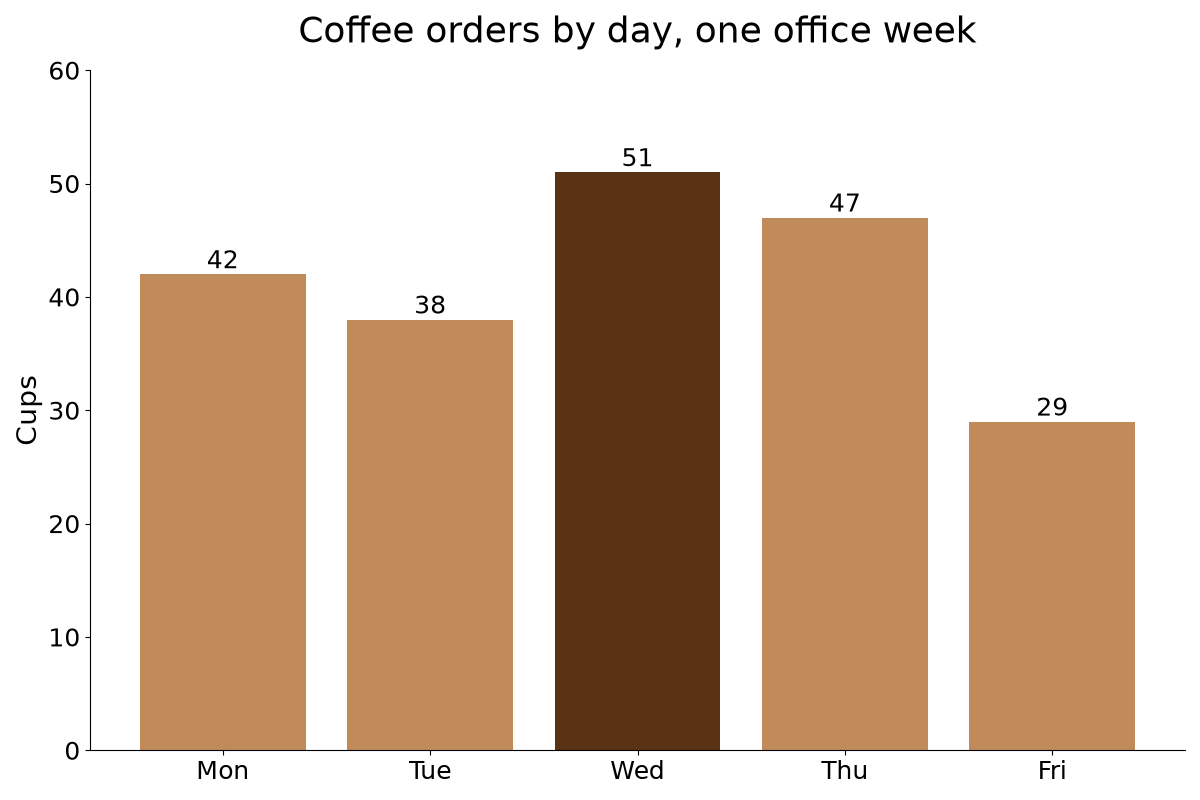
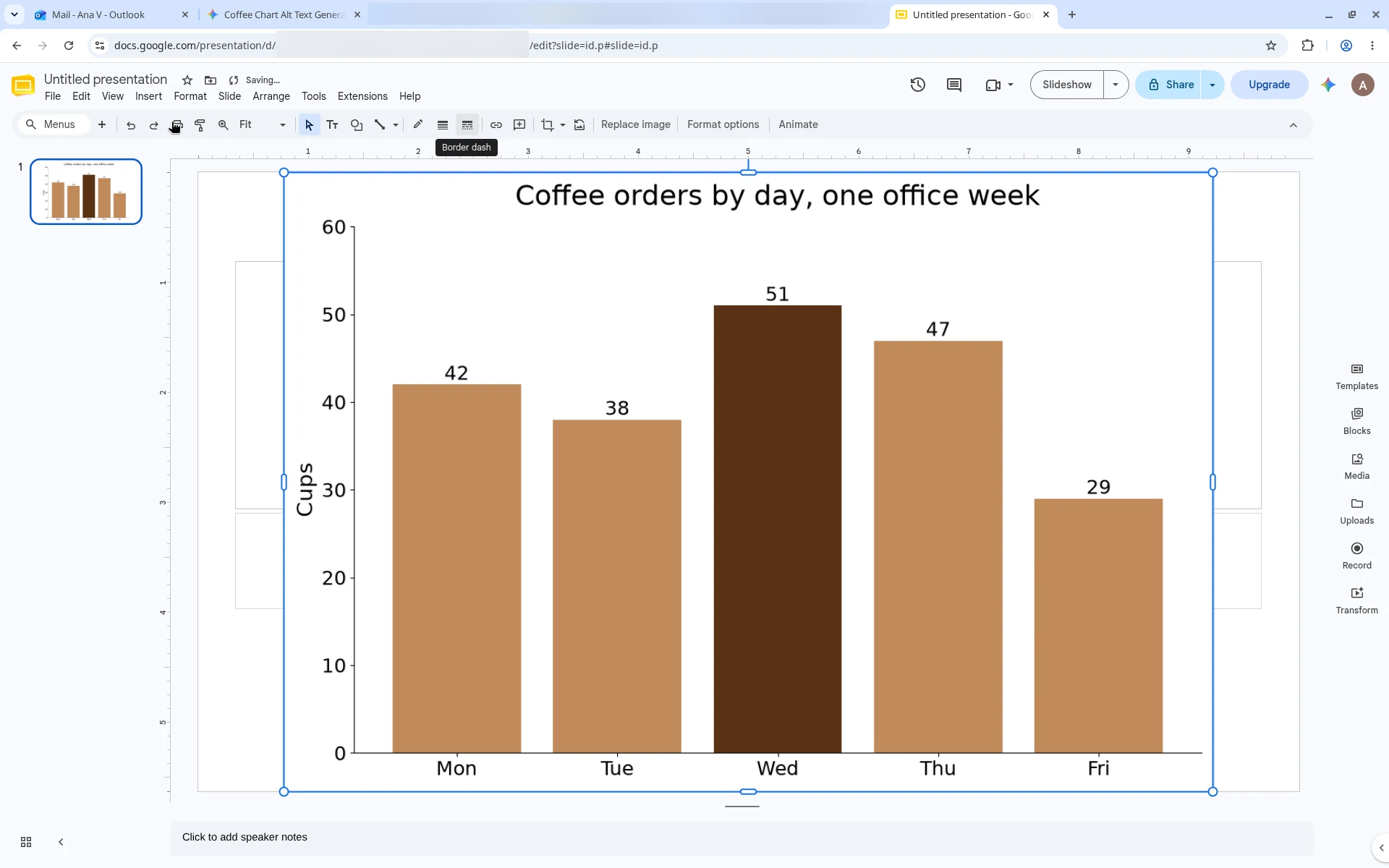
Practice with an image or chart of your own. To follow along exactly, use my sample chart (PNG image). It shows coffee orders for one made-up office week.
Screenshots are from October 28, 2026, with other document, deck and notebook titles in the tab row and the chat and file IDs in the address bar blurred. Google moves things around, so yours may not match.
1. Upload your image to Gemini
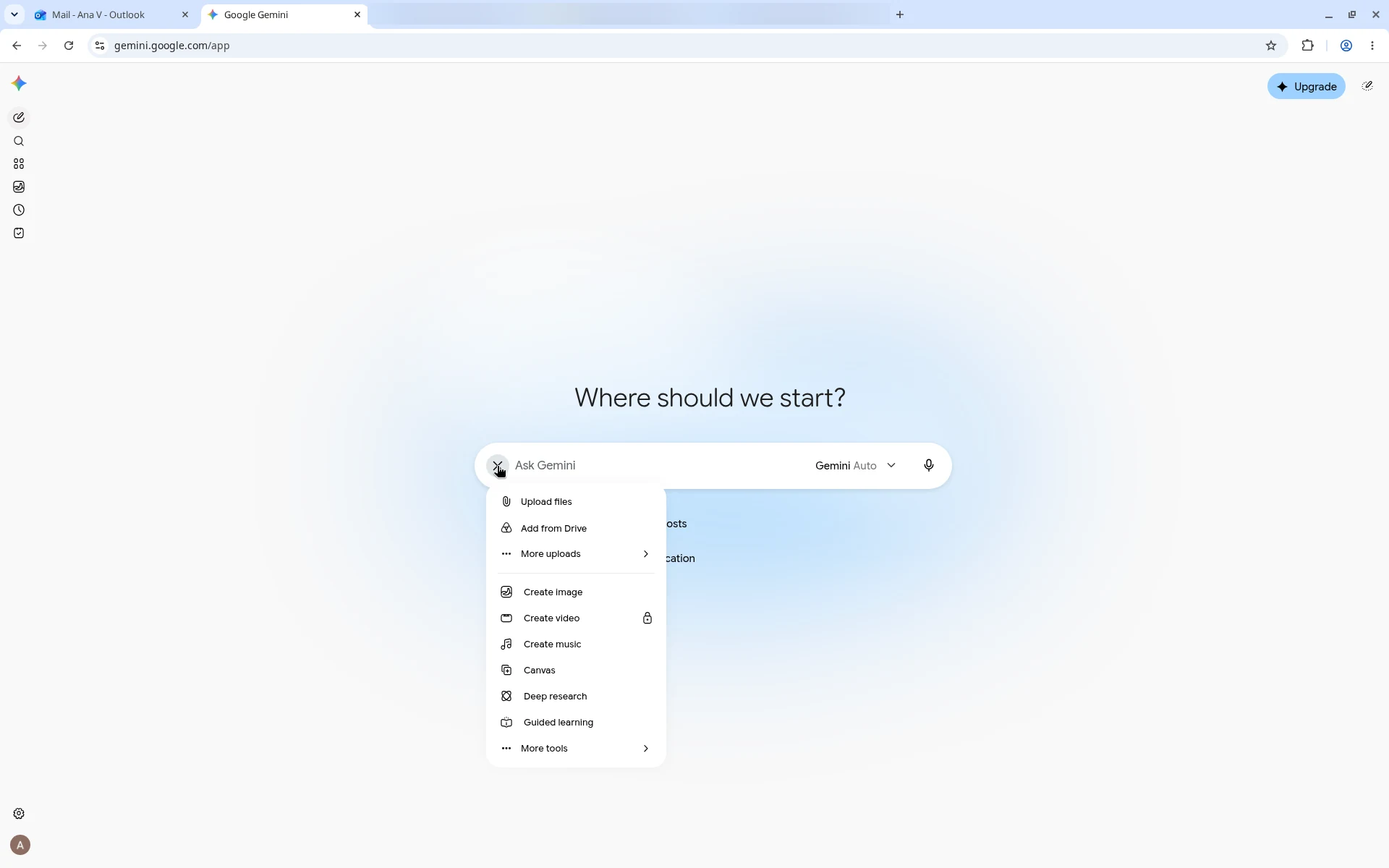
Go to gemini.google.com and click the pencil icon to start a new chat. Then click the + next to the box where you type and choose Upload files. Pick your image.
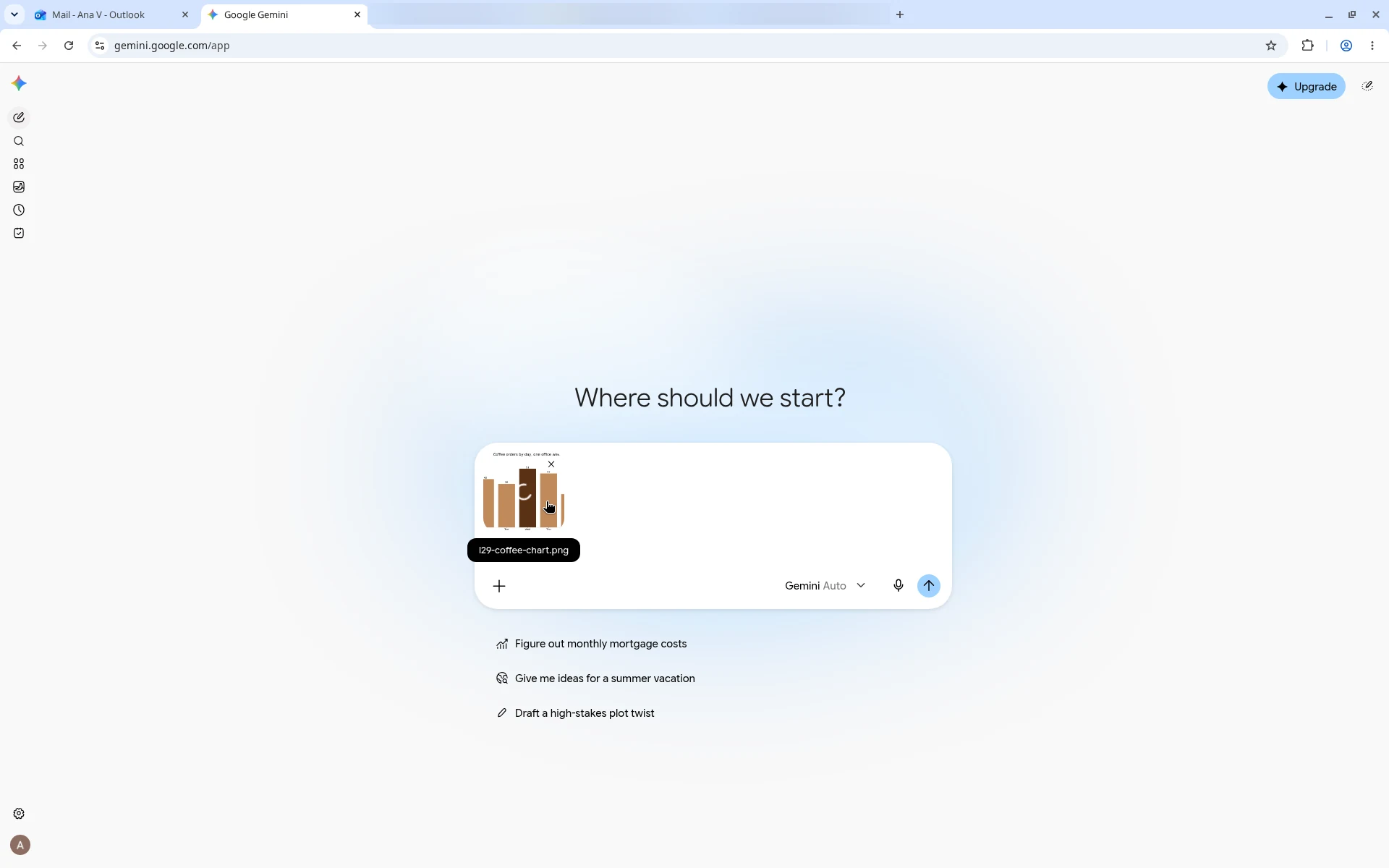
A small picture of your image shows up in the box, so you know it's attached.
2. Ask for alt text and a longer description
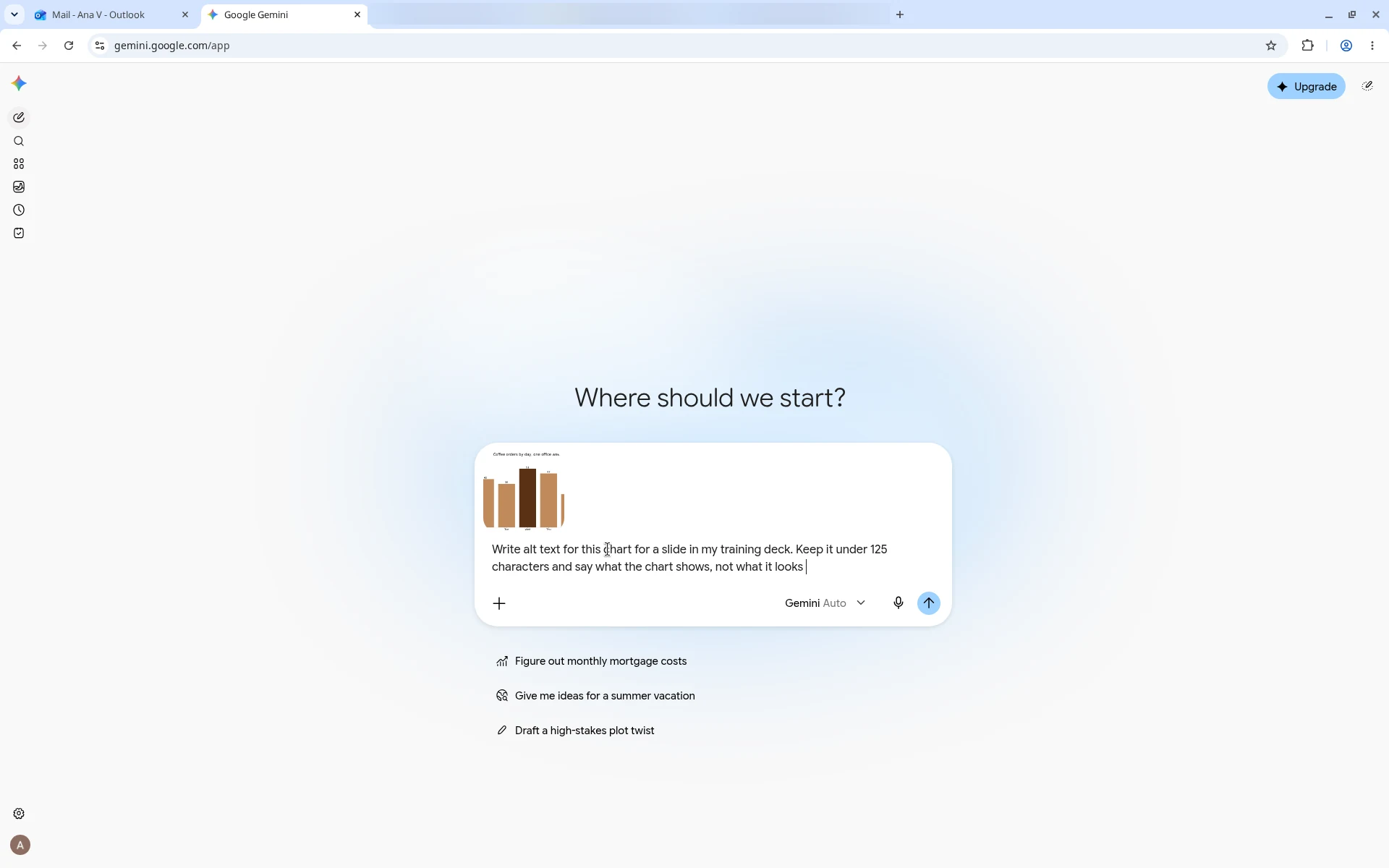
Tell Gemini where the image is going and how long the alt text can be. Here's what I typed:
"Write alt text for this chart for a slide in my training deck. Keep it under 125 characters and say what the chart shows, not what it looks like. Then give me a longer description I could put in the speaker notes."
3. Check the answer, including the math
Gemini gave me two parts. The short one, labeled "Concise Alt Text (106 characters)," was: "Bar chart of daily coffee orders over one office week, peaking on Wednesday at 51 cups and lowest on Friday at 29."
Then came "Detailed Description (for Speaker Notes)," with the title, an overview, all five days and a key takeaway. I checked the numbers against my chart and they were all right.
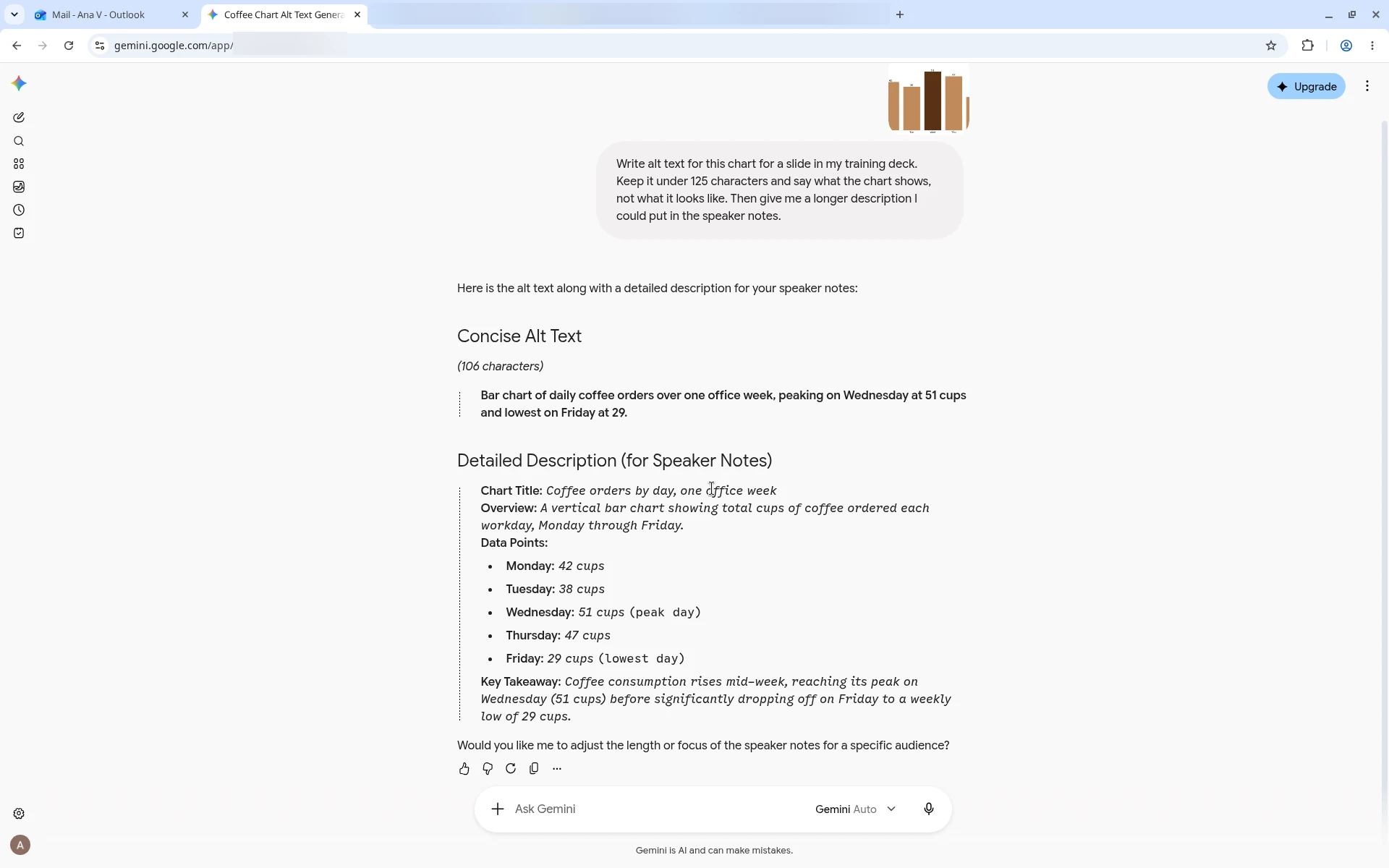
Here's the small catch. I counted the short version myself, and it's actually 114 characters, not 106. It's still under 125, but Gemini got its own length wrong, so if a limit matters, count it yourself.
Good alt text says what the image shows and why it's there. Skip "image of" or "picture of," because the screen reader already tells people it's an image. Keep it short, and put the longer version in the speaker notes or the text around it.
4. Ask Gemini to find the jargon
In the same chat, I pasted a paragraph from a handout:
"Here's a paragraph from my handout. List any words a brand-new employee might not know, with a plain-English meaning for each. Don't rewrite the paragraph. Paragraph: Pre-tax 401(k) and health contributions are deducted from gross wages before federal and state income tax withholding, reducing taxable wages; 401(k) contributions remain subject to FICA."
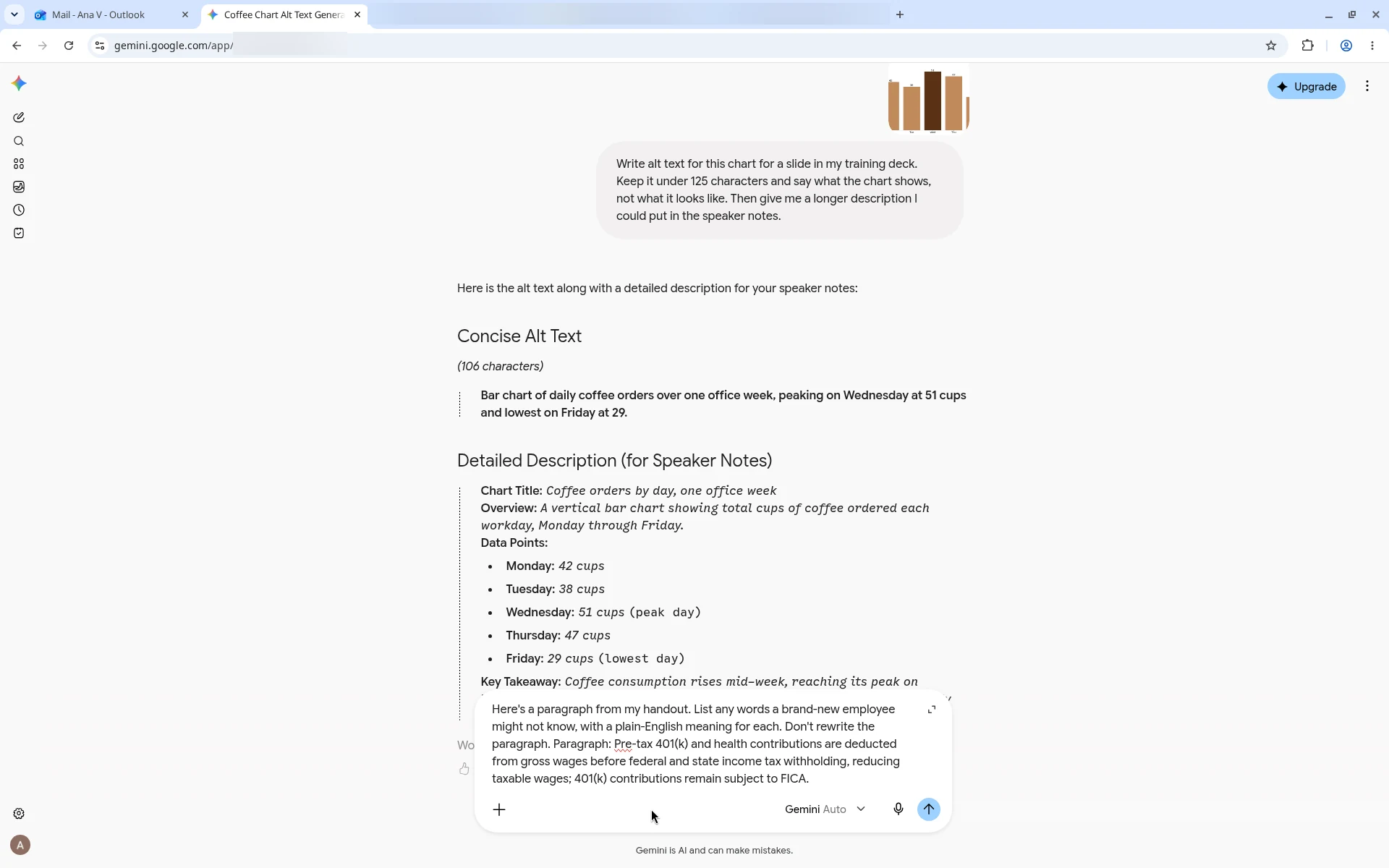
Gemini listed Pre-tax, 401(k), Gross wages, Withholding, Taxable wages and FICA, each with a short meaning. This time it got FICA right, "Federal Insurance Contributions Act." Back in Lesson 23 it made up a wrong name for the same thing, so it's still worth a quick check.
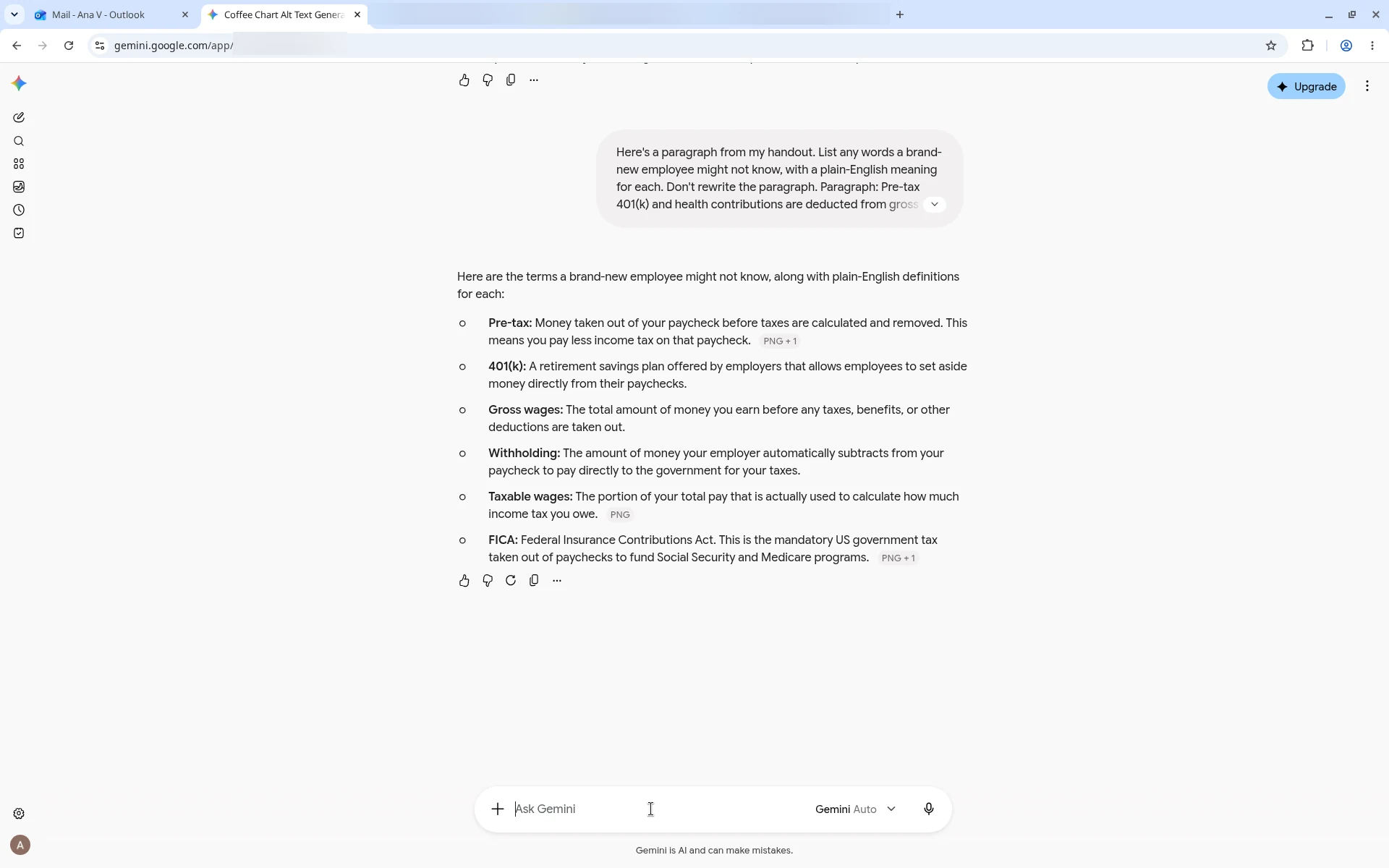
You might notice little "PNG" labels next to some items. Those are left over from the image we uploaded earlier. Starting a new chat for the jargon check avoids them.
You decide what to do with the list. Some words are worth explaining in your handout, some you can swap for simpler ones, and some you might cut.
5. Put the chart in Google Slides
Type slides.new in your browser's address bar to open a blank deck. The first time, I got a tip called "Use Meet and Docs together" and a Templates panel on the right. Close both with their X.
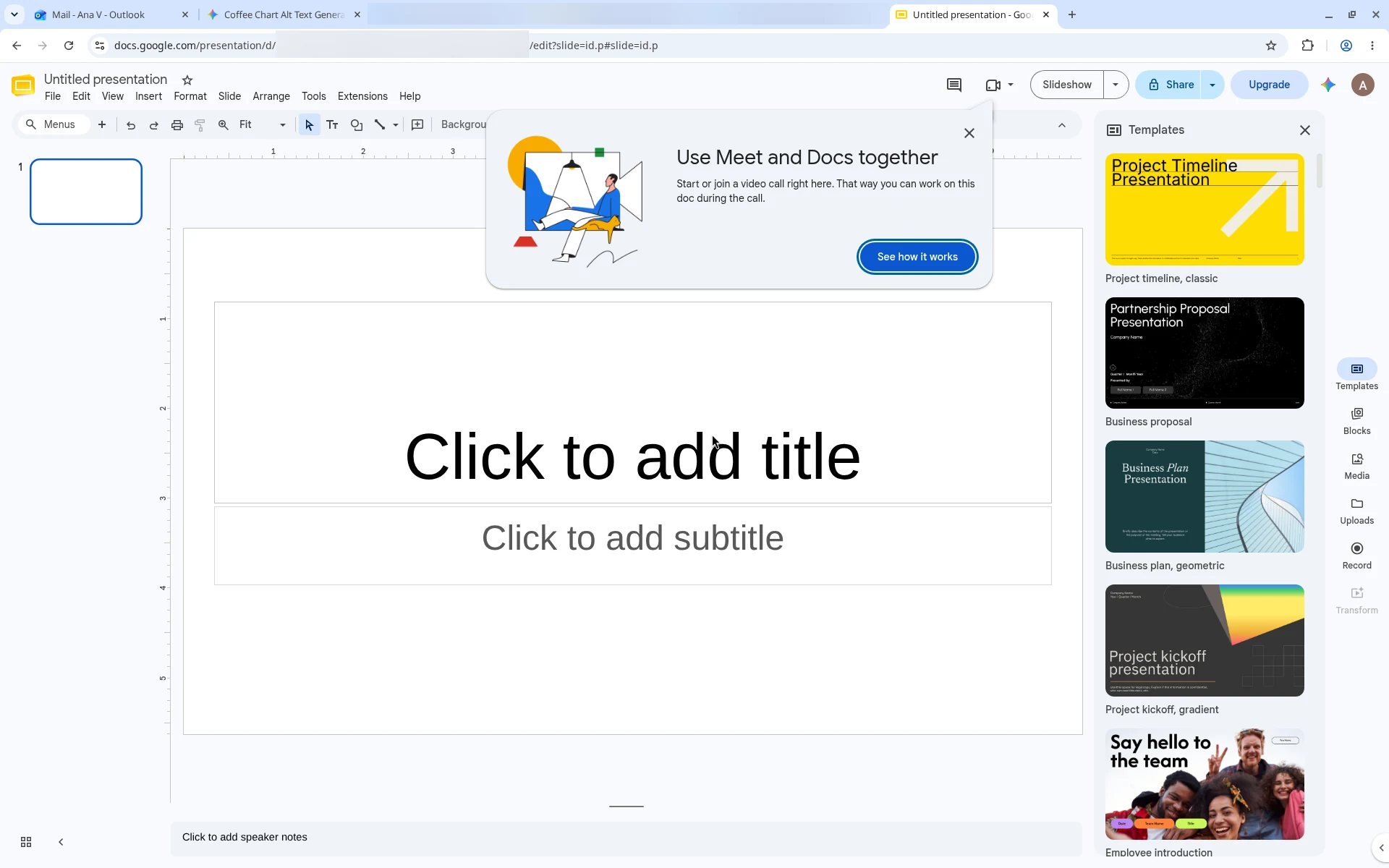
Click Insert, then Image, then Upload from computer, and pick your chart.
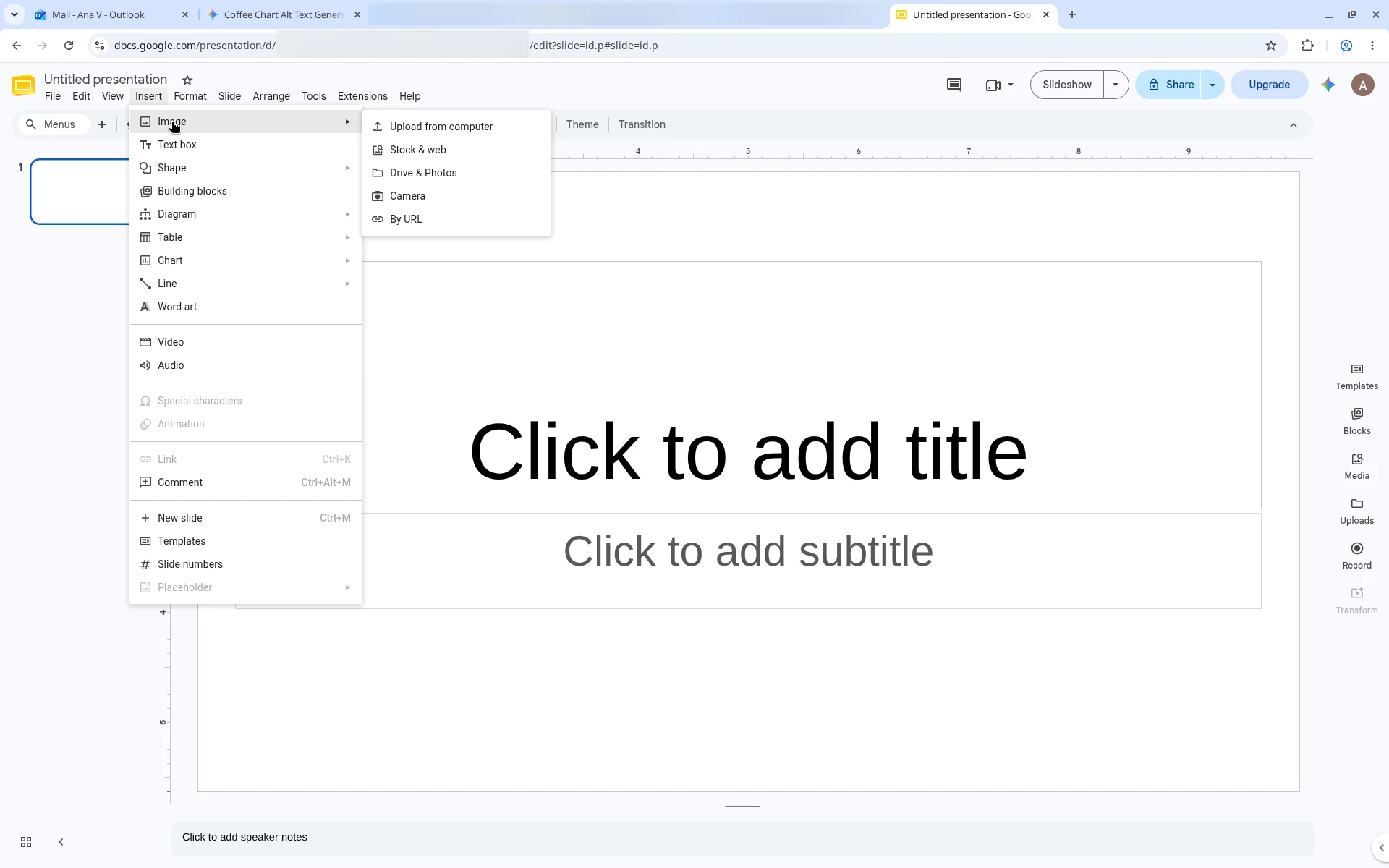
The chart lands on your slide.
6. Add your alt text in Slides
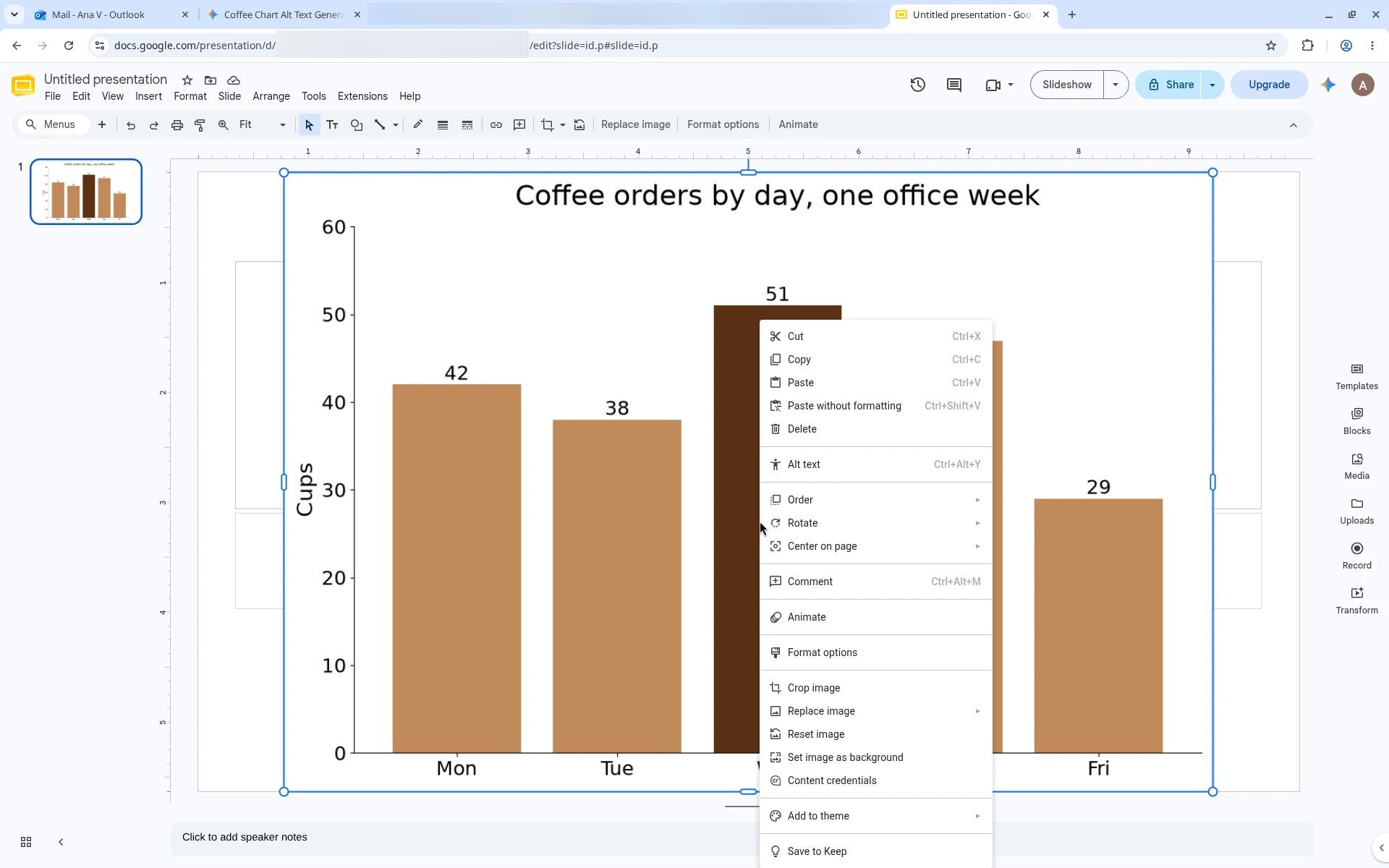
Right-click the chart and choose Alt text. You can also press Ctrl+Alt+Y.
A Format options panel opens on the right with an Alt Text section. It says the text is "Accessed by screen readers for people who might have trouble seeing your content." Type yours in the Description box.
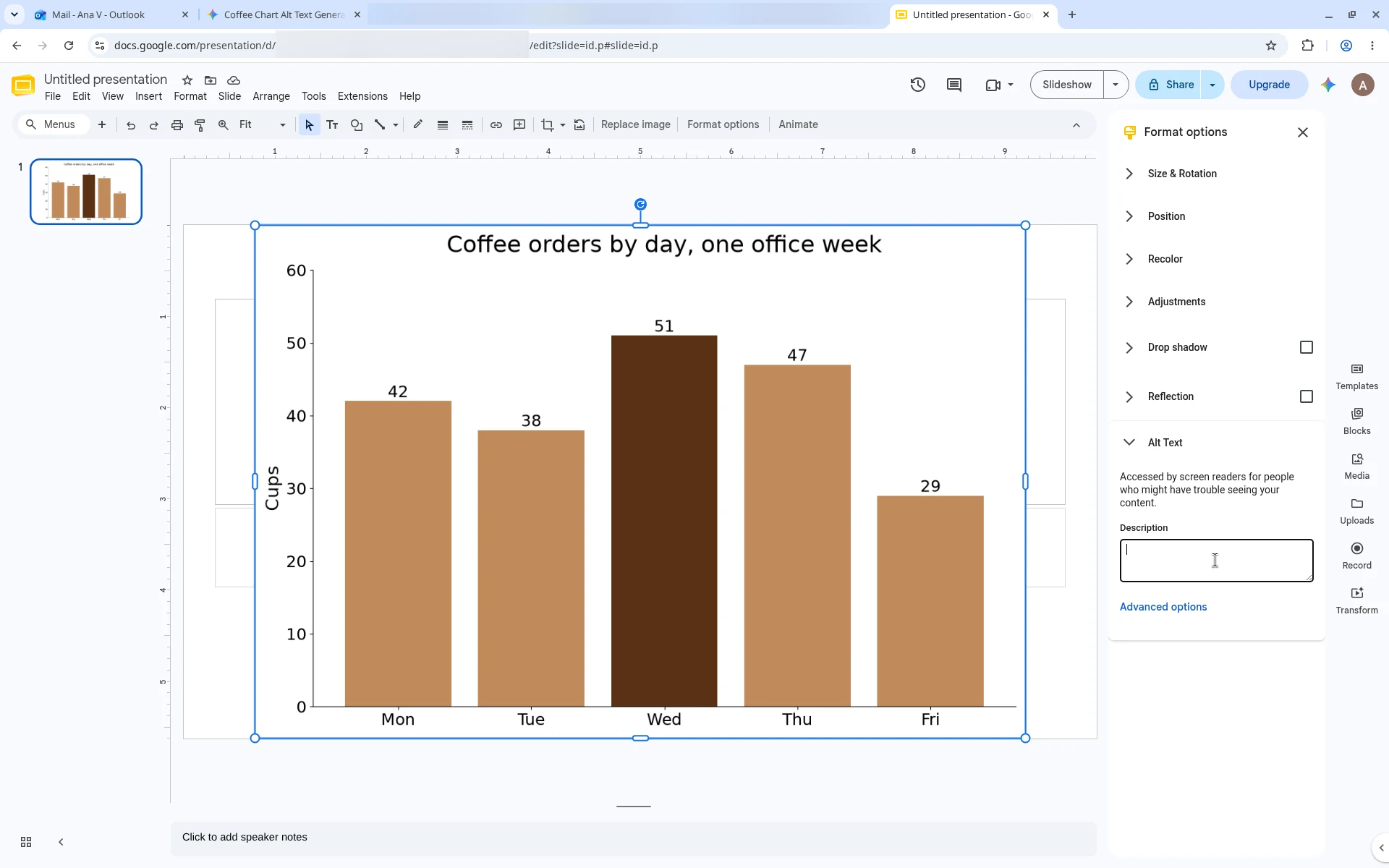
I didn't paste Gemini's version as is. You know your audience, so make it sound like you. I typed:
"Bar chart of coffees sold Monday to Friday. Wednesday is highest at 51; Friday is lowest at 29."
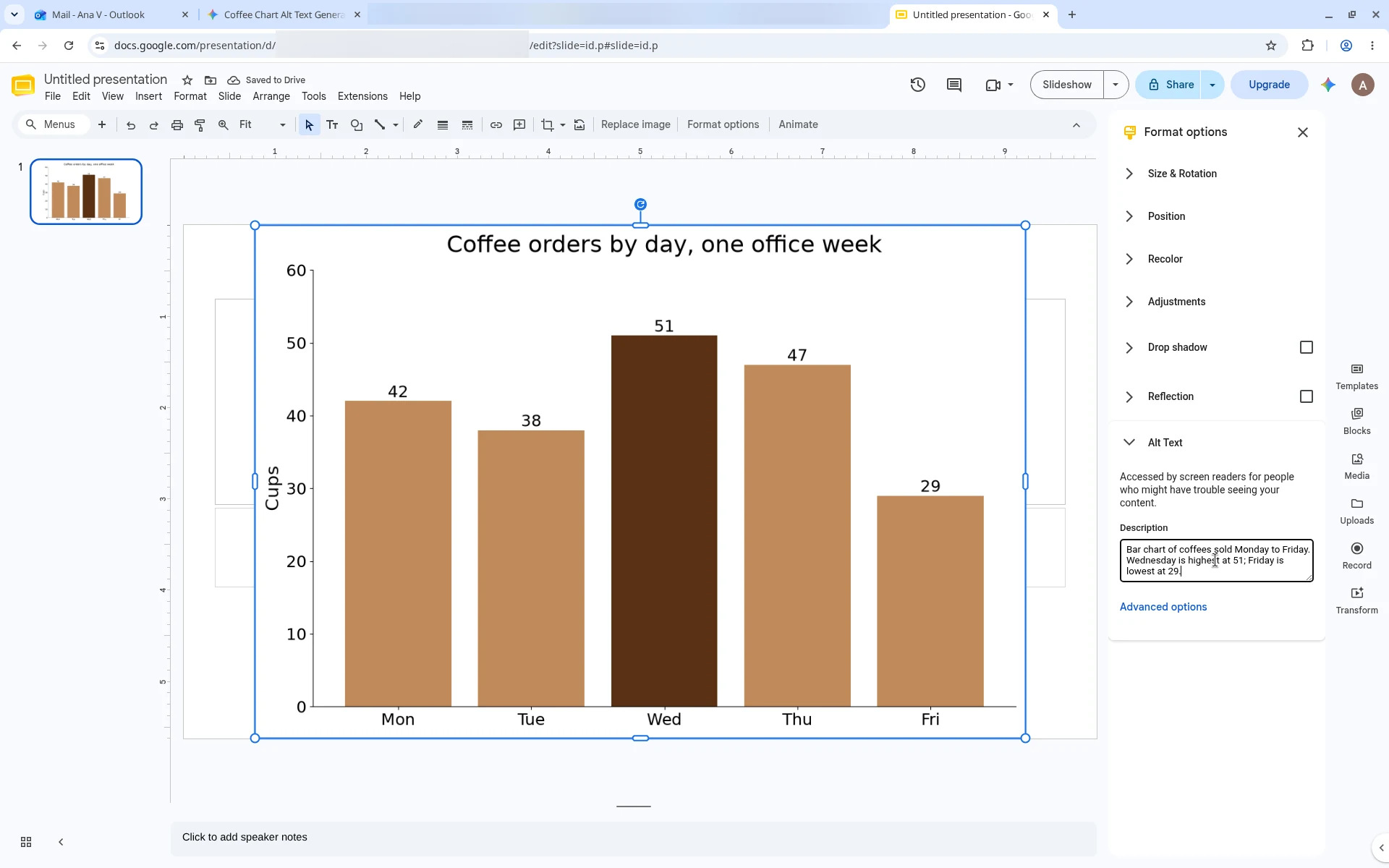
There's no OK or Apply button. Close the panel with the X and Slides saves it on its own.
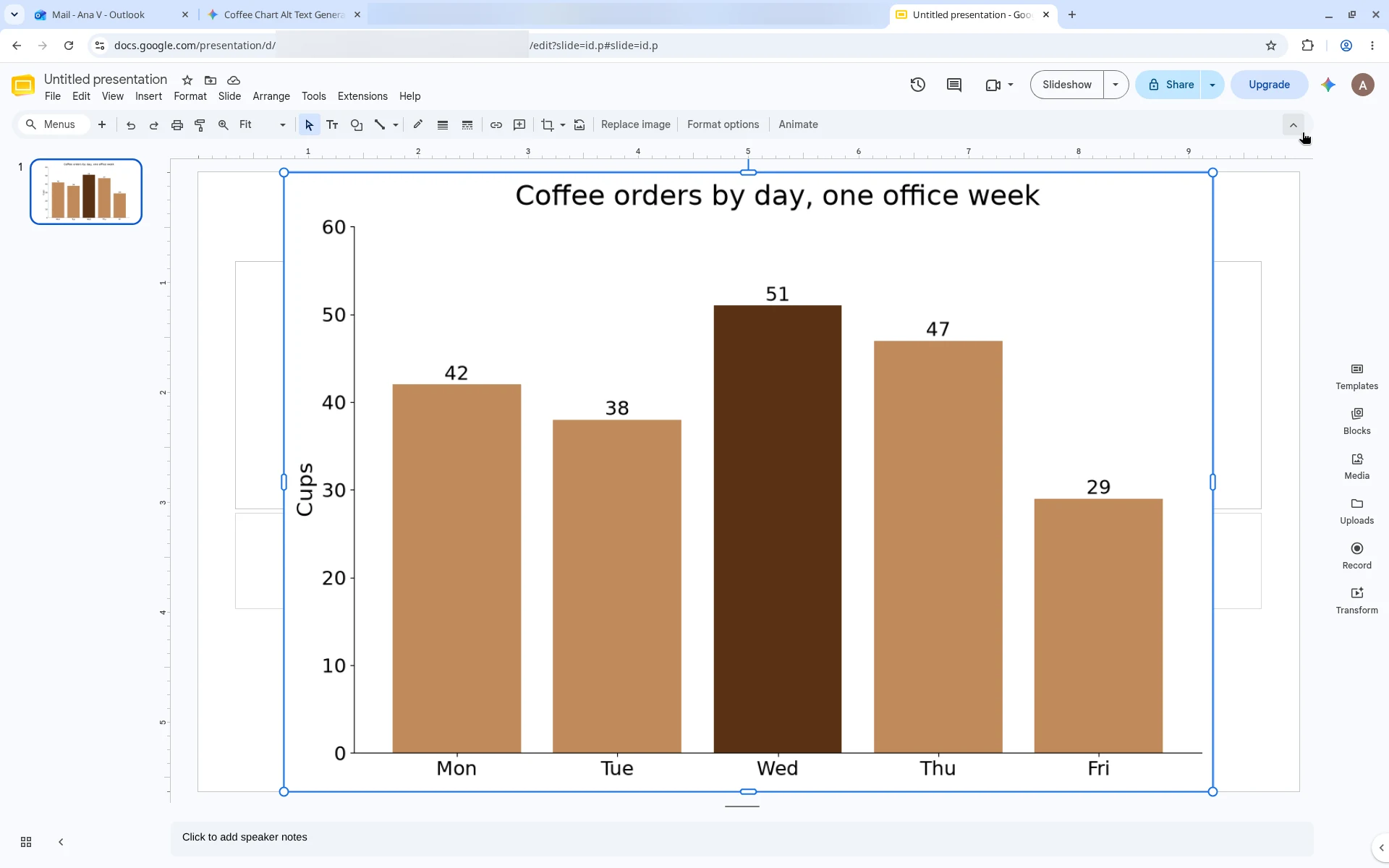
Paste your edited long description into the speaker notes under the slide.
Fine and not fine
These are fine:
- Uploading a chart or image you made, or a sample like mine.
- Using Gemini's wording as a starting point and changing it to sound like you.
These are not fine:
- Uploading photos with student or coworker faces or names, or charts with private numbers in them (see Lesson 21).
- Trusting a character count or a definition without checking it.
At school or work
At school or work: whether you can use Gemini depends on your organization's Google Workspace settings. Check with your IT team first. Alt text works the same way in Slides either way.
Check that you've got it
- You uploaded an image or chart with nothing private in it.
- Your alt text says what the image shows, without "image of," and you checked its length.
- You decided which jargon words to explain, swap or cut.
- You added your own alt text to the image in Slides and closed the panel.
Let’s learn together.
Comments are reviewed by Ana before they appear. Please use fictional examples and leave workplace details out.
Loading approved comments…